














How to Build an Effective Roadmap in Excel: A Complete Guide

Cecilia Lane
Go-to-Market Associate
Sep 18, 2026
Cecilia Lane
Sep 18, 2026

11 min read


If you need to visualize a project strategy right now, chances are you will open Microsoft Excel. It is the default language of business. You already have it installed, you know the basic shortcuts, and you don't need to request budget approval from IT to use it.
However, trying to force a grid-based spreadsheet to act as a dynamic, visual timeline can feel like trying to fit a square peg into a round hole. While Excel is a powerhouse for crunching numbers, it was not natively designed to map out product strategies or track shifting project dependencies.
In this guide, I will walk you through exactly how to build a roadmap in Excel from scratch, share the strategic steps you need to take before formatting your first cell, and discuss when it might be time to graduate to a more collaborative workspace.
What is a roadmap?
At its core, a roadmap is a high-level visual summary that maps out the strategic vision and direction of a business initiative over time. Think of it as the bridge between your company's big-picture goals and the day-to-day execution required to achieve them. Rather than serving as a granular to-do list, it functions primarily as a communication tool designed to align cross-functional teams, secure stakeholder buy-in, and provide a clear timeline for key deliverables.
Before you begin drafting, it helps to understand that not all roadmaps serve the same purpose. According to project management standards, the two most common variations are product roadmaps and project roadmaps. Mixing them up is a frequent planning mistake that can confuse your audience.
- Product roadmaps: These focus on the "what" and the "why." They outline the strategic direction of a software or physical product, highlighting new features, market expansions, or specific customer problems being solved. The audience here is usually executives, sales teams, and marketing departments who need to understand the overarching business value and release schedule, rather than the technical minutiae.
- Project roadmaps: These focus on the "how" and the "when." A project roadmap breaks down the specific deliverables, phases, dependencies, and resource allocations needed to execute a strategy. The audience typically consists of internal team members and department heads who need clear milestones to keep the actual work on track.

Pre-planning: What to do before opening your spreadsheet
The biggest mistake you can make is opening a blank spreadsheet and immediately merging cells. A roadmap is only as good as the strategy behind it. Before you figure out how to make a roadmap in Excel, you need to gather your inputs.
- Define your business strategy: What is the overarching goal of this roadmap? Are you trying to enter a new market, reduce technical debt, or launch a specific feature set? Every item on your timeline should tie back to this core objective.
- Identify your audience: A roadmap presented to the engineering team will look vastly different from one presented to the board of directors. Engineers need to see specific sprints and technical milestones. Executives usually just want to see major themes, budget impacts, and quarter-by-quarter progress.
- Gather requirements and estimate timelines: Consult with your department heads to get realistic time estimates for each phase.
How to create a roadmap in Excel
Once you have your strategy locked in, it is time to translate those ideas into a visual format. If you are wondering how to build a roadmap in Excel without relying on paid add-ins, the most reliable method is to use a combination of cell formatting and shapes. Here is my approach to creating a product roadmap in Excel from a completely blank workbook.
Step 1: Set up your timeline framework
The very first thing you need is a horizontal time axis. Open a new spreadsheet and leave Column A blank for now. Starting in Column B, Row 1, begin entering your time increments. Depending on the scope of your project, this could be weeks, months, or quarters (e.g., Q1, Q2, Q3, Q4). To make it visually distinct, highlight this top row, apply a bold font, and add a bottom border. This anchors the top of your document and immediately tells the viewer that they are looking at a chronological plan.
Step 2: Establish horizontal swimlanes
A roadmap that just lists fifty tasks in a single column is impossible to read. You need to categorize the work. In Column A, starting from Row 2 downwards, list your major categories. These are your "swimlanes." If you are learning how to make a product roadmap in Excel, your swimlanes might be labeled Frontend Development, Backend Architecture, Marketing, and Customer Support. Give each swimlane enough vertical space—usually merging four or five rows per category works well—so you have plenty of room to map out concurrent tasks.
Step 3: Insert and position your task shapes
This is where the actual "mapping" happens. Avoid typing task names directly into the grid cells, as a single task often spans multiple weeks or months. Instead, go to Insert > Shapes and select the rounded rectangle. Draw this shape directly onto your grid, starting at the planned start date and stretching it across to the estimated end date. Type the name of the initiative directly into the shape. Repeat this process for every major deliverable in your plan.
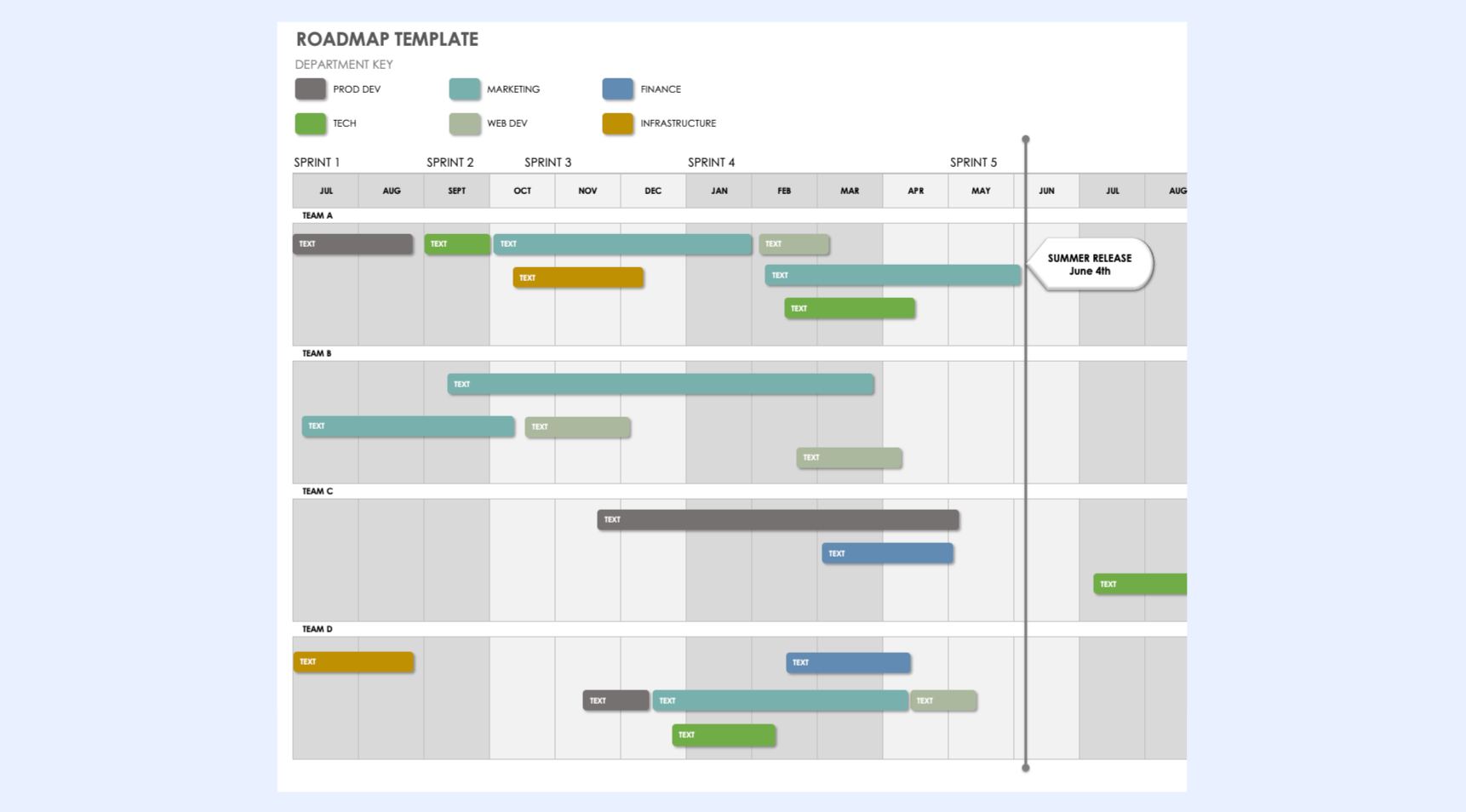
Image source: smartsheet.com
Step 4: Apply color-coding and formatting
A visual tool needs a visual language. Decide on a color-coding system and stick to it. You might color your shapes based on status (e.g., green for on track, yellow for at risk, gray for planning phase) or by priority level. Create a small legend in the corner of your spreadsheet so anyone opening the file immediately understands what the colors represent.
Step 5: Mark your critical milestones
Not everything on your timeline is a long-term task. You will also have specific launch dates, board meetings, or deadline reviews. To represent these, go back to the Shapes menu and select the diamond icon. Place these diamonds on the exact dates where these events occur, and draw a vertical line dropping down from the timeline axis to show how it impacts the tasks below.
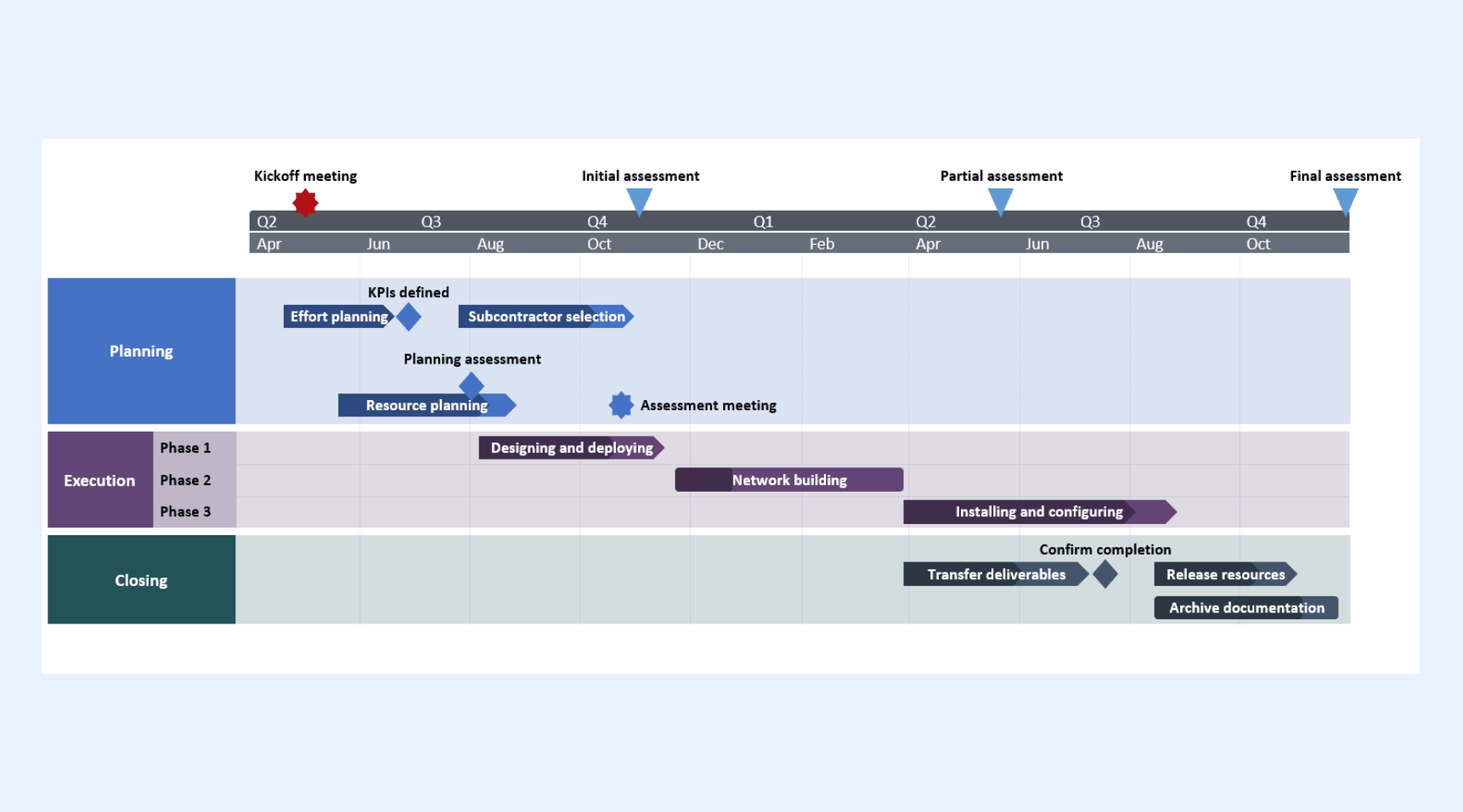
Image source: officetimeline.com
Common roadmap templates in Excel
If you want to skip the manual formatting process, starting with a pre-built template can save you hours of drawing and aligning shapes. Because roadmaps serve different audiences, you will want to choose a layout that matches your specific goal. Here are the most common variations you can build or download for Excel:
Product roadmap template
This layout focuses on your product's strategic vision, upcoming features, and release schedules. It is highly visual and designed to help product managers align internal teams—like engineering, marketing, and sales—on what is being built and why it matters to the customer.
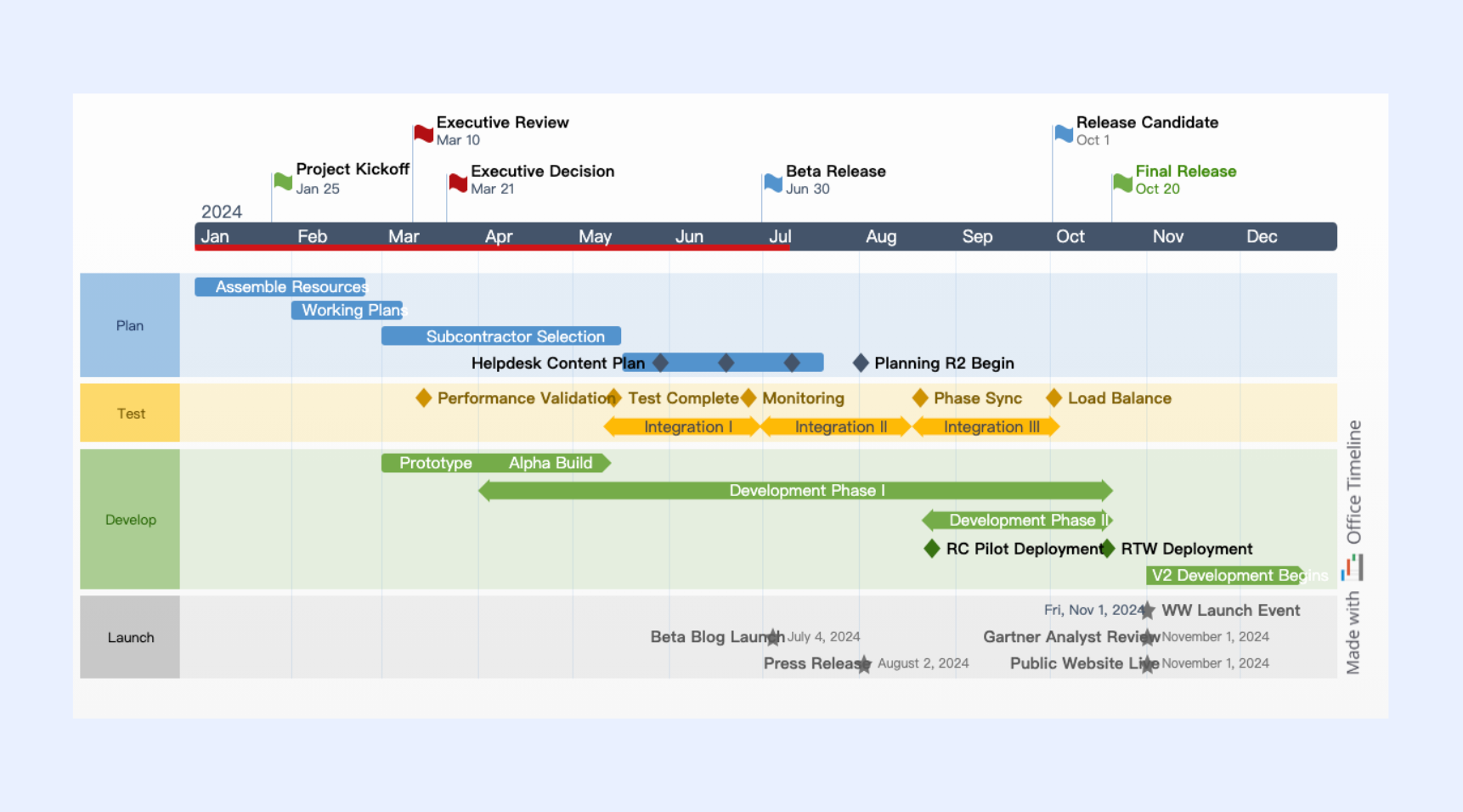
Image source: officetimeline.com
Project roadmap template
While a granular project plan details every single daily task, a project roadmap template provides a high-level summary of major deliverables and milestones. It is the perfect format for showing executives or clients the overall health and timeline of an initiative without overwhelming them with operational details.
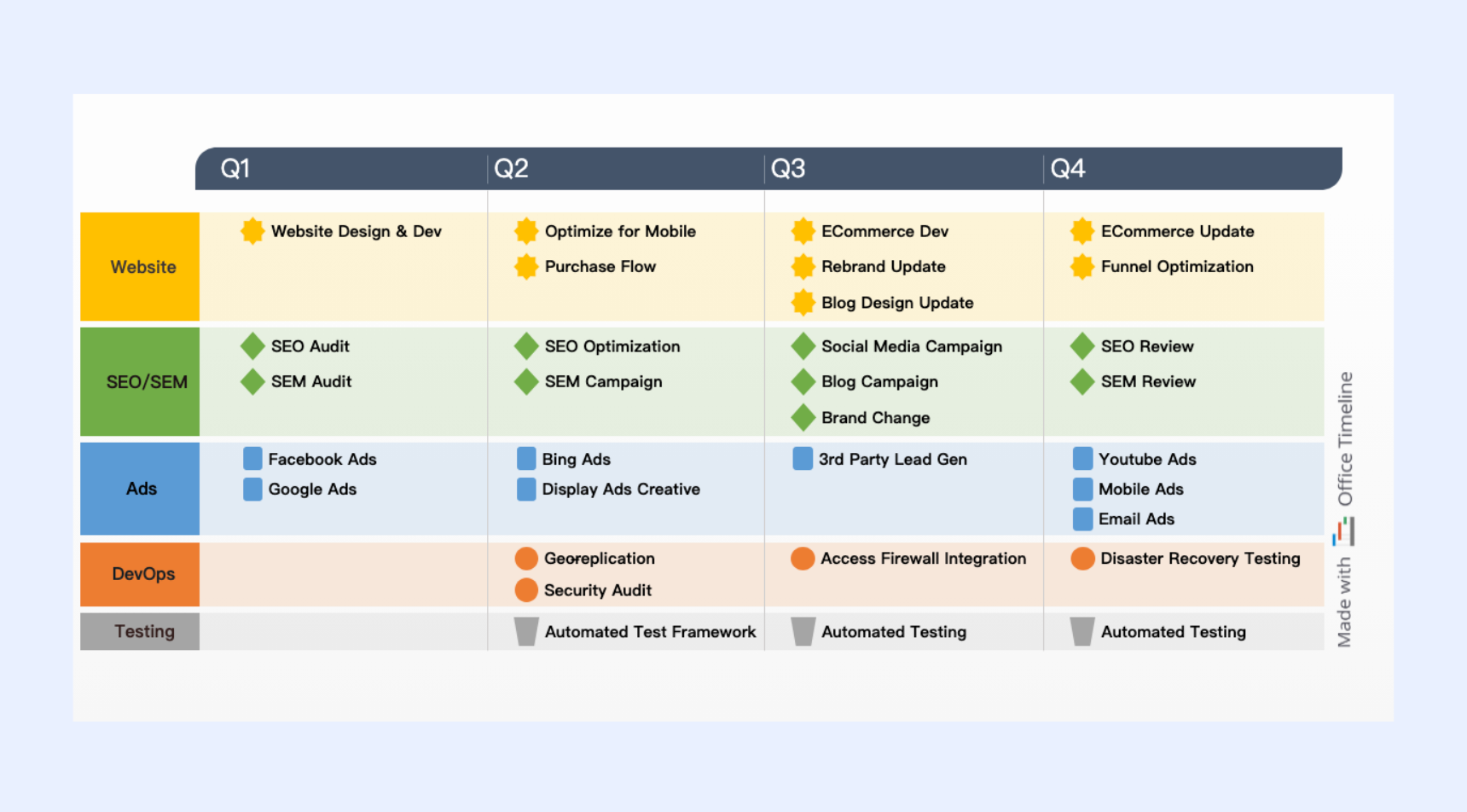
Image source: officetimeline.com
Technology roadmap template
This template visualizes a company's long-term technical strategy. It helps leadership and engineering teams map out how adopting new technologies, developing internal frameworks, or sunsetting legacy systems will support broader business objectives over the next few years.
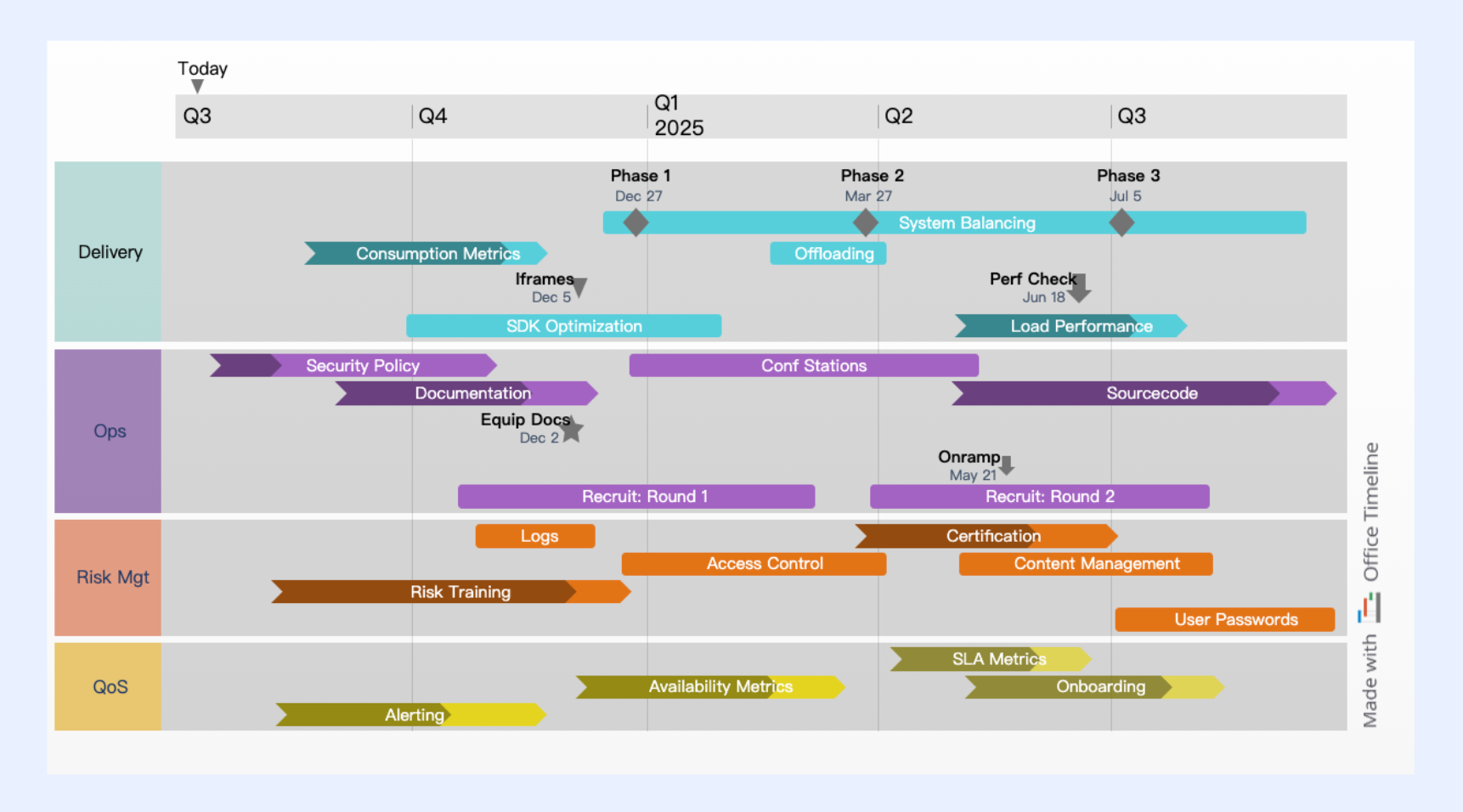
Image source: officetimeline.com
IT roadmap template
Similar to a technology roadmap, an IT roadmap focuses heavily on internal infrastructure. IT departments use this specific template to schedule system upgrades, security rollouts, hardware refreshes, and enterprise software migrations, ensuring these massive operational changes do not disrupt daily business activities.
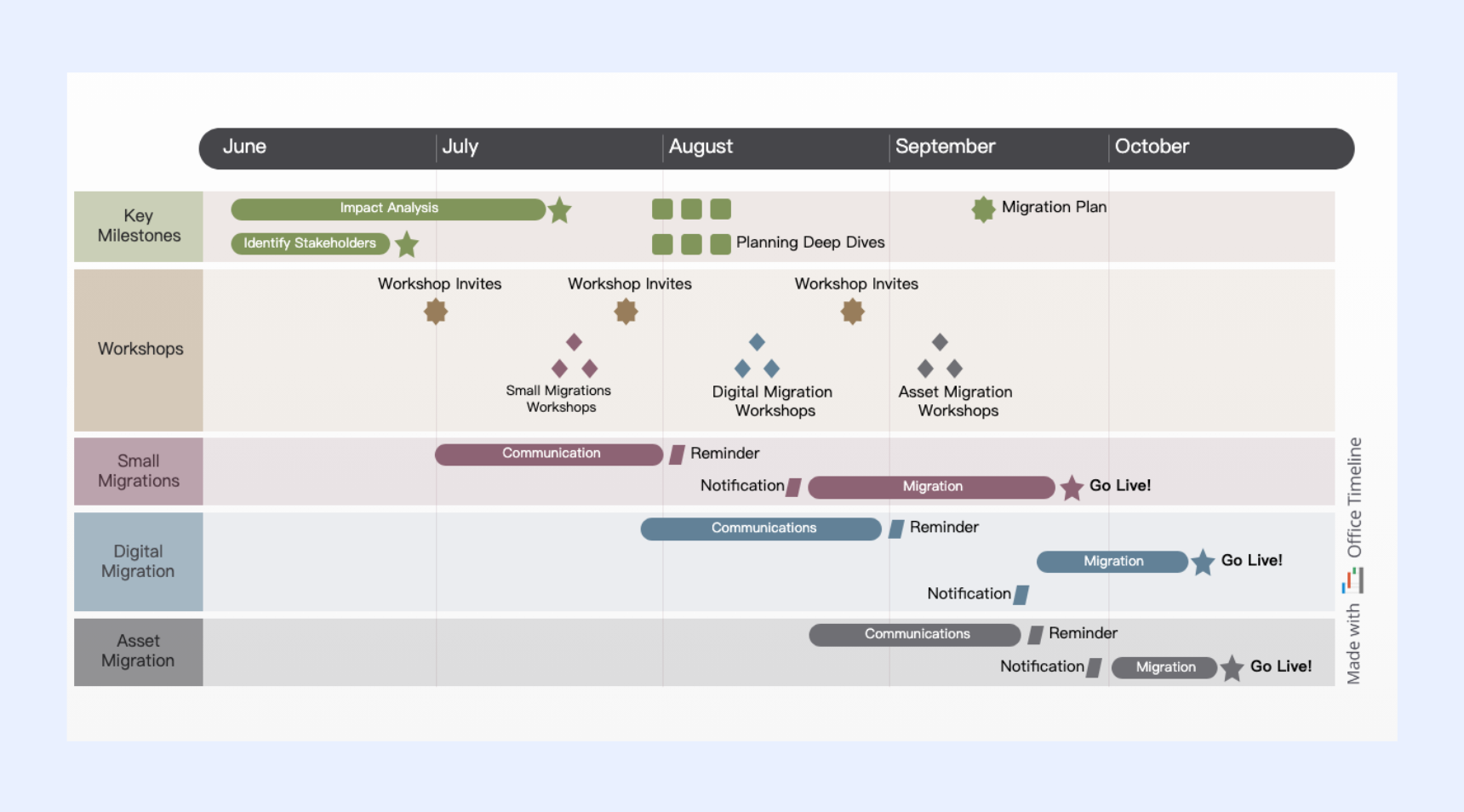
Image source: officetimeline.com
Why Excel is not your best choice to make roadmaps
While downloading a free template and filling in a grid feels like a quick win, using a standard spreadsheet for ongoing strategic planning usually creates more problems than it solves. Excel is a brilliant mathematical tool, but it was fundamentally not built to handle the dynamic, collaborative nature of modern project management. If you decide to manage your product or project lifecycle entirely in a spreadsheet, you will likely run into three major roadblocks:
- Stakeholder disengagement during presentations: A roadmap is a communication tool designed to inspire confidence and secure buy-in. However, projecting a dense, text-heavy grid of rows and columns often has the opposite effect. Staring at an endless spreadsheet is visually exhausting. One industry blog even jokingly suggested bringing an air horn or serving sugar-rich snacks to your roadmap meetings if you insist on using Excel, just to keep the audience awake. You simply cannot tell a compelling story about your product vision using a rigid grid.
- The manual "domino effect" of updates: Project timelines are rarely set in stone. In a dedicated tool, pushing a launch date back by two weeks automatically shifts all dependent tasks forward. Because Excel lacks native timeline dependency linking, a single delay forces you to manually click, drag, and realign dozens of colored shapes across your screen. What should be a ten-second update turns into a tedious data entry chore.
- Version control chaos: Because Excel roadmaps are typically static files, they are outdated the moment you attach them to an email or drop them into a chat channel. When team members download the file locally, you lose a single source of truth. Marketing might be planning campaigns based on "Roadmap_v3," while the engineering team is executing against "Roadmap_v5_Final."
To eliminate these bottlenecks, your roadmap cannot be an isolated, static picture. It needs to be a living document connected directly to where your team actually works. When you outgrow the manual formatting of spreadsheets, migrating to a unified workspace like Lark allows you to link your strategic timelines directly to your team's daily chats, documents, and approval workflows.
Lark: A modern alternative to Excel for roadmap planning
Excel has long been the go-to tool for building roadmaps. It's flexible, familiar, and gets the job done. But as teams grow and plans become more dynamic, Excel's limitations start to show—version confusion, manual updates, and disconnected conversations. Lark offers a different approach. It keeps the flexibility you love about spreadsheets while adding real-time collaboration, automated updates, and seamless connections to the rest of your team's work.
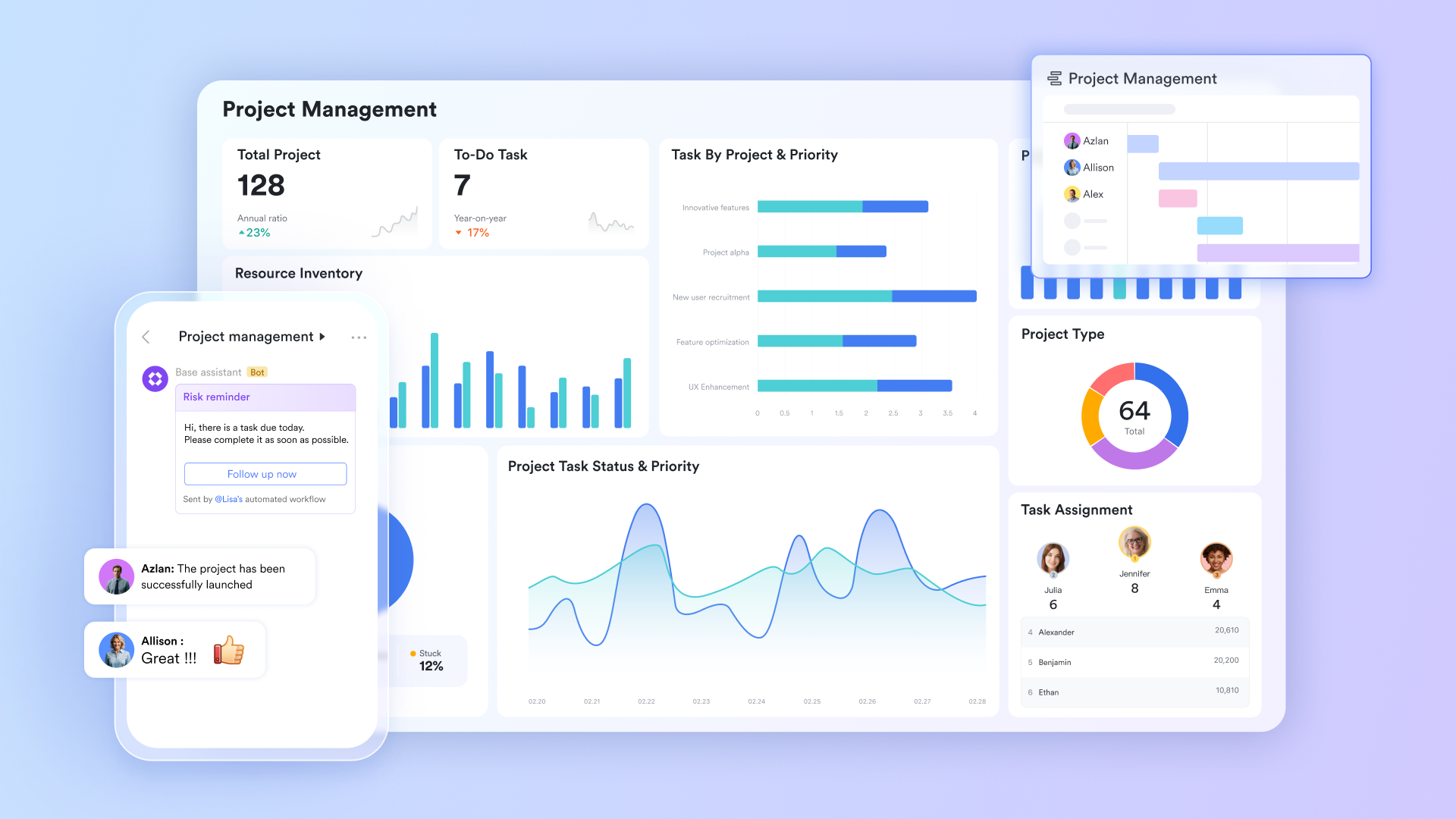
From static files to dynamic collaboration spaces
An Excel roadmap is often a one-person show. You create the file, save it to a shared folder, then send the link via email or chat. Colleagues download it, add comments, and send it back. After a few rounds, your desktop fills with files named "roadmap_v2_final_v3_reallyfinal.xlsx." This approach is slow and often leaves people working from outdated versions.
In Lark, a roadmap becomes a living collaboration space. You can build it in Lark Base as a multi-dimensional table where all team members can view and edit simultaneously. When a product manager adjusts a feature release date, engineers and marketers see the change in real time—no waiting for email notifications or downloading new files. Everyone always sees the latest version, and discussions and decisions all revolve around the same source of truth. This saves time and, more importantly, keeps the whole team moving in the same direction.
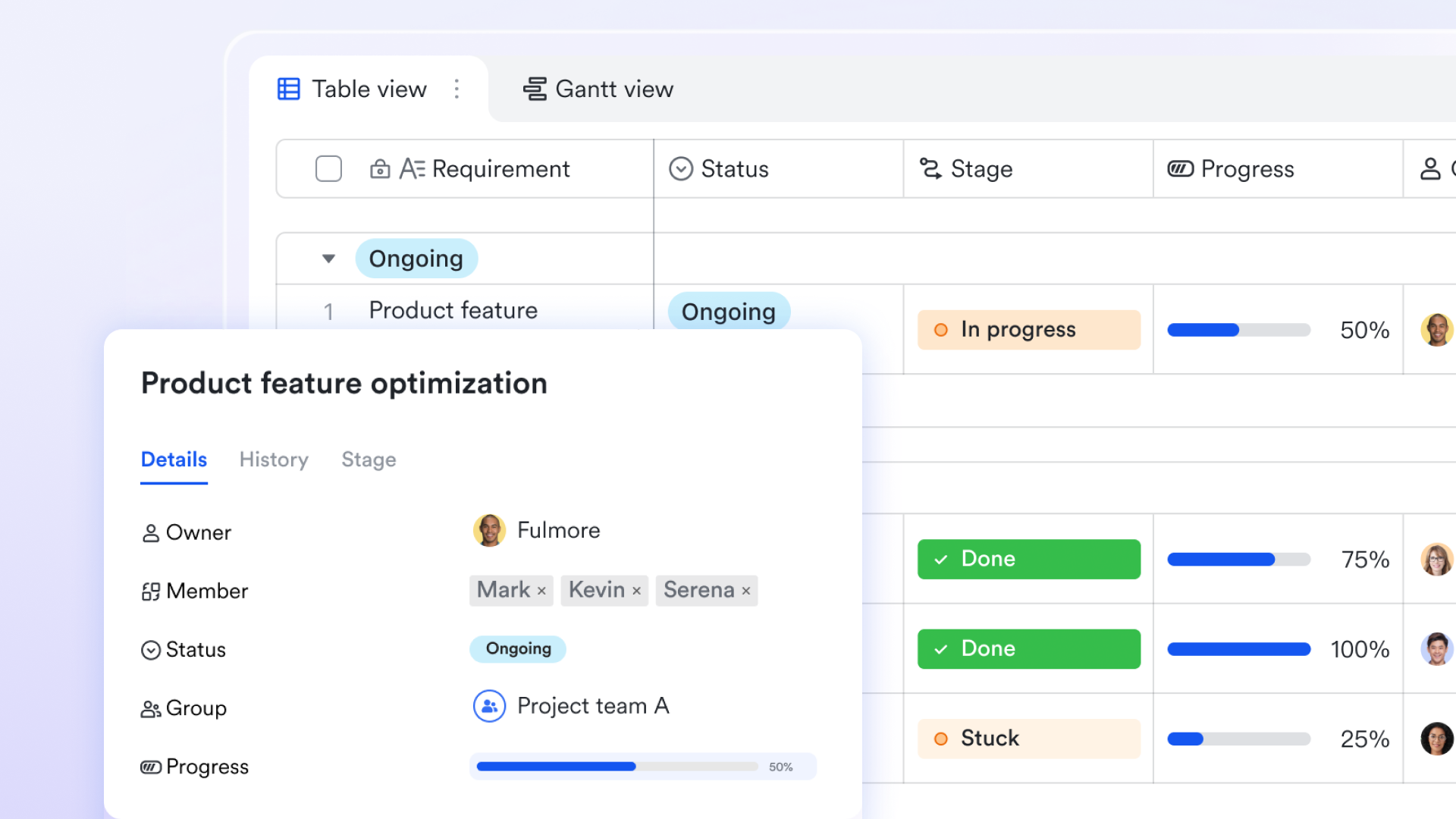
From manual updates to smart automation
Excel roadmaps require manual maintenance. When a task gets delayed, you need to find the right row, change the date manually, and then remind everyone involved. This work is tedious and easy to miss, which means the roadmap quickly falls out of sync with reality.
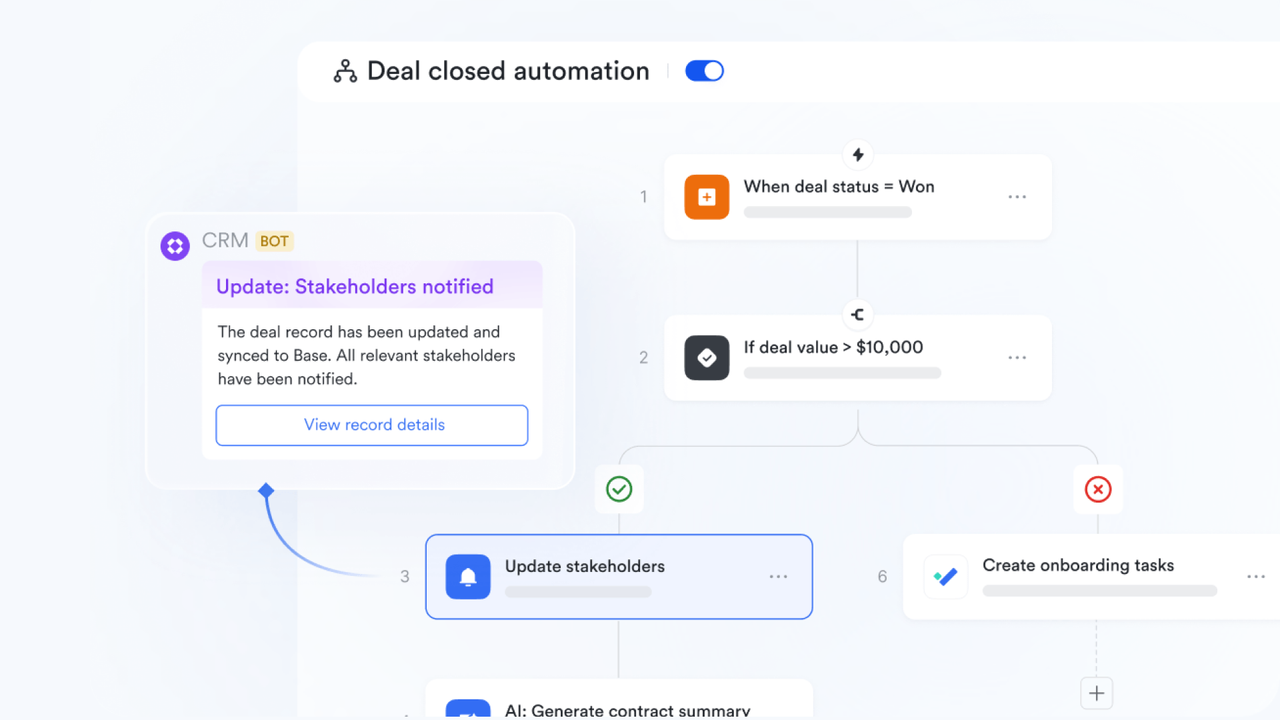
With Lark Base, you can automate your roadmap. Set up rules: when a key task status changes to "Complete," a Lark bot automatically sends a notification to the team chat. These automations keep your roadmap reflecting what's actually happening, without someone spending time manually syncing data.
From single views to multiple perspectives
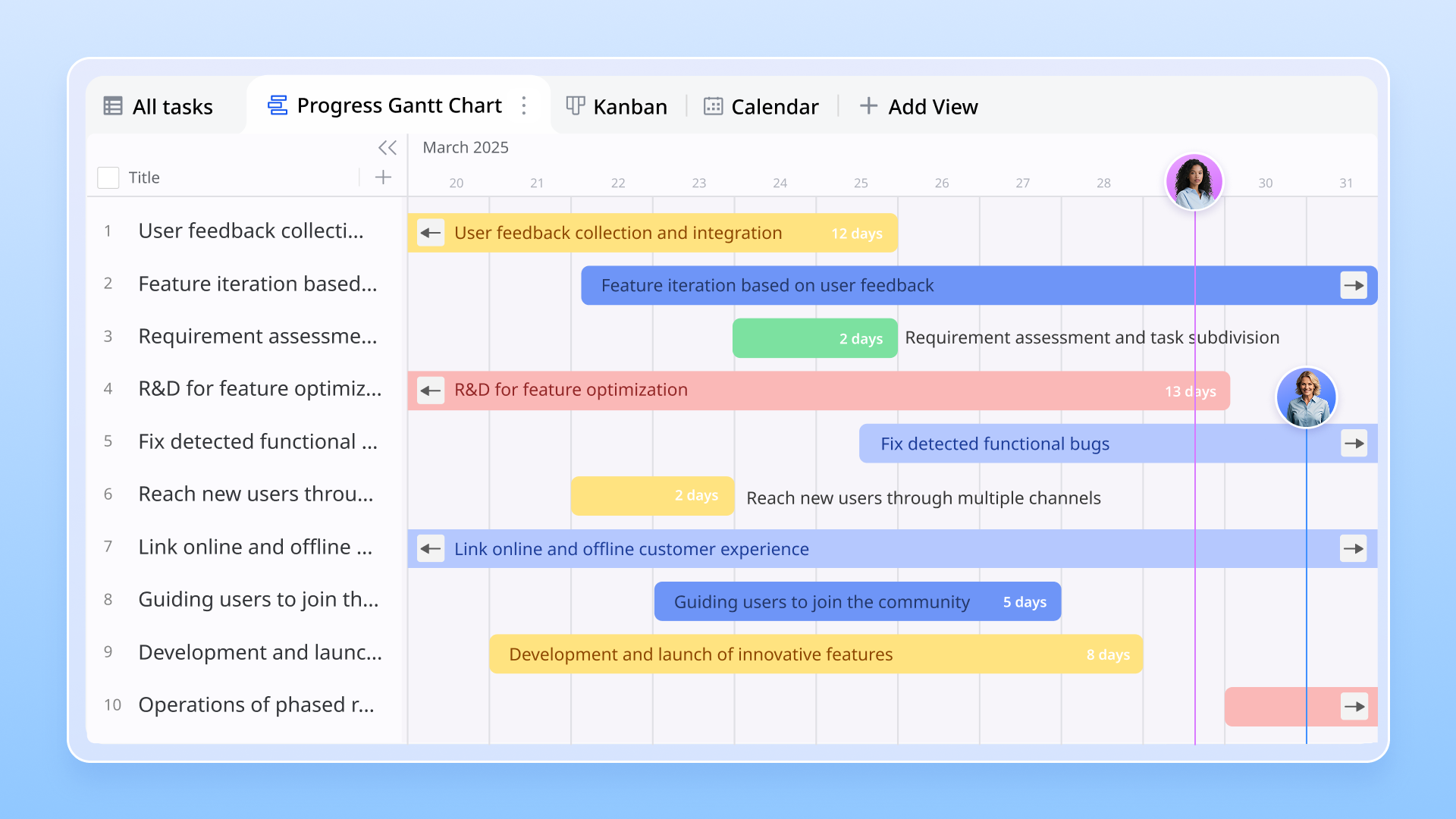
Excel's grid format limits how you can present a roadmap. You can make a Gantt chart, but it takes manual work to adjust cell widths and colors. You can make a calendar view, but each update means dragging things around again. Different audiences need different views—executives need a high-level timeline, while your team needs detailed milestone breakdowns.
Lark Base lets you switch views with one click, without maintaining multiple files. The same roadmap data can be shown as a Gantt chart for timelines, a Kanban board grouped by stage, a calendar view for monthly priorities, or a table view for bulk edits. All views draw from the same data—update once, and everything syncs. When it's time to share with different audiences, just switch views instead of copying, pasting, or rebuilding from scratch.
From scattered documents to a knowledge space
An Excel roadmap usually lives as a separate file. The related requirement documents, meeting notes, and technical plans are scattered across different folders. When you want to understand the full story behind a feature, you have to jump between multiple files and piece information together.
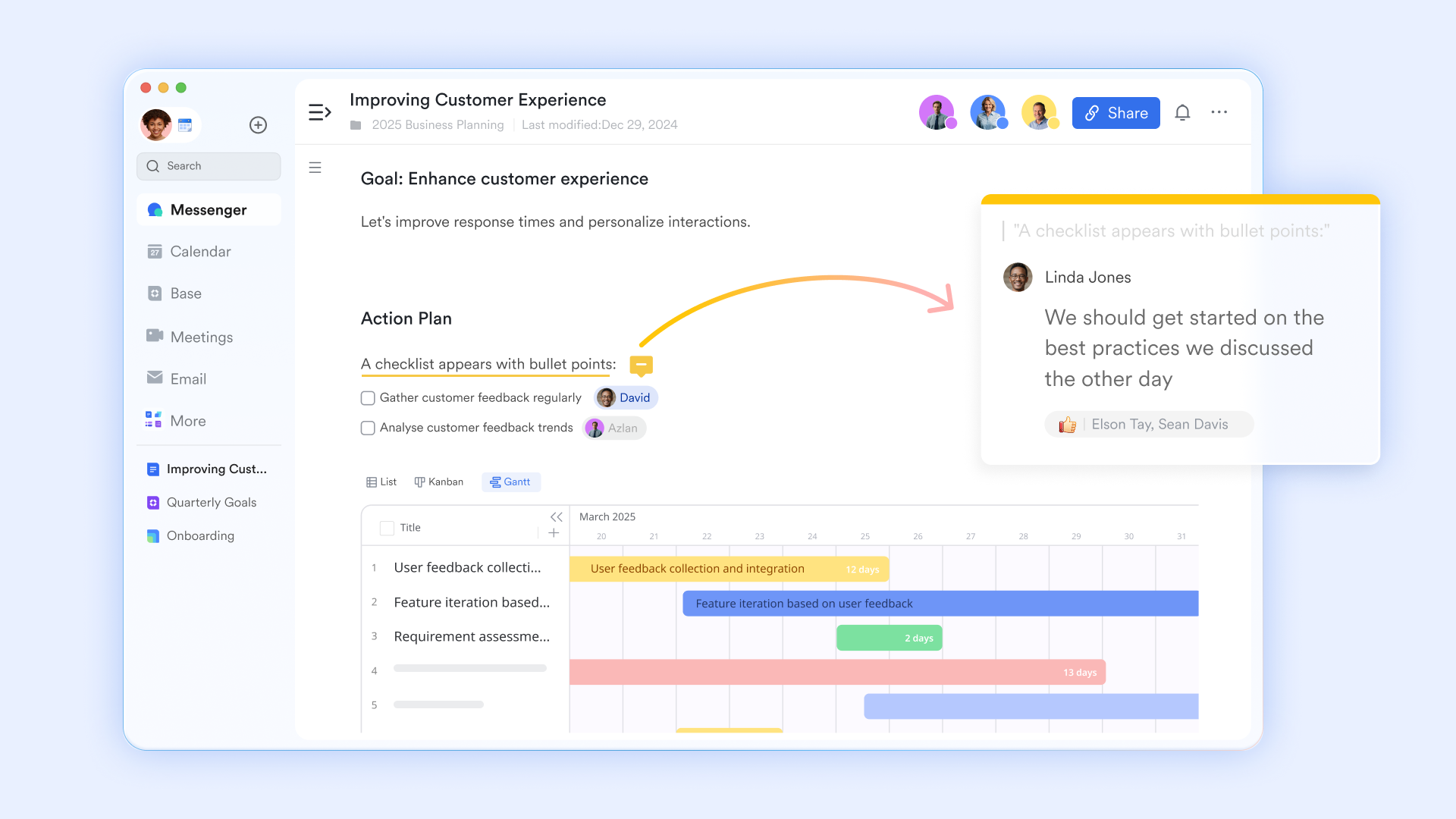
In Lark, you can embed your roadmap directly into Lark Docs, keeping it connected with all related content. Readers can see the timeline while they review the requirements. In a project retrospective doc, you can embed a snapshot of the historical roadmap to compare what was planned against what actually happened. Comments and discussions in the doc stay linked to the roadmap data, forming a complete knowledge network. This integration turns the roadmap from an isolated planning table into a natural part of how your team collaborates every day.
Bonus: Lark's effective roadmap templates for you
Instead of wrestling with formatting and static shapes in a spreadsheet, starting with a purpose-built template in a dynamic workspace saves immediate time and prevents future maintenance headaches. Lark offers several ready-to-use templates that instantly generate visual timelines and connect directly to your team's communication channels. Here are a few standout options to get your planning started:
Project roadmap template
A high-level visual guide designed to track major project milestones and deliverables. It is perfect for keeping stakeholders informed on overall progress without getting bogged down in daily task details.
Product roadmap template
Built specifically for product teams, this layout helps you map out your product vision, prioritize upcoming feature releases, and align marketing and engineering efforts on a unified timeline.
Project management Gantt roadmap template
If you are managing multiple cross-functional initiatives, this template provides a macro-level timeline view. It allows project leads to monitor overlapping dependencies and resource allocation across different campaigns simultaneously.
Task roadmap chart template
When you need to move from high-level strategy to daily execution, this framework helps organize individual assignments, set clear due dates, and track completion statuses to ensure nothing falls through the cracks.
Project management roadmap template
A comprehensive, end-to-end framework for managing any type of project. It allows you to log all task data once and easily toggle between grid lists, Kanban boards, and timeline views depending on your audience.
Feature roadmap and timeline template for product strategy
A specialized layout tailored for product leaders. It focuses strictly on mapping out the strategic prioritization of new features, ensuring the development cycle aligns with business goals and market demands.
Project roadmap Gantt chart temaplate
A classic, detailed timeline tool ideal for granular planning. It excels at visualizing strict task dependencies and ensuring that schedule adjustments are clearly communicated across the team.
Technology implementation roadmap template for project managers
Designed specifically for IT and operations teams. This template helps map out complex system upgrades, enterprise software migrations, or new infrastructure rollouts in clear phases to minimize disruption to the business.
Conclusion
Knowing how to construct a visual timeline in Microsoft Office is a valuable temporary fix. When you just need to sketch out a quick quarterly plan for your own reference, the familiar grid is more than capable. However, as soon as that plan needs to be shared, updated, and executed by a broader team, the limitations of static files become impossible to ignore.
The goal of any strategic document is to create clarity and drive action. If you spend more hours formatting shapes and fixing broken version histories than actually managing the project, it is time to upgrade your methodology. Moving your workflows into a unified, dynamic workspace like Lark ensures your team stays aligned, engaged, and focused on delivering results.
FAQs
Can you build a roadmap in Excel?
Yes, you can absolutely build a roadmap in Excel by adjusting column widths to create a timeline and drawing shapes to represent your key initiatives. It is a highly accessible method since most teams already have the software installed. However, because the shapes are not dynamically linked to cell data, you will need to update everything manually whenever project dates shift.
Does Microsoft have a roadmap tool?
Microsoft offers a specific Roadmap feature within Microsoft Project for the web, which connects directly to your other Microsoft 365 projects. If you are looking for alternatives within their standard office suite, you can search the integrated Microsoft template library for "Agile" or "Gantt chart" to find pre-formatted spreadsheet layouts for quick visualization.
How to learn Excel roadmap?
Mastering an Excel roadmap mostly comes down to understanding how to manipulate standard spreadsheet functions for visual design. You can learn the basics quickly by practicing how to freeze timeline panes, apply conditional formatting for status updates, and group inserted shapes. Downloading a free template is often the fastest way to reverse-engineer these formatting tricks.
How to create a simple roadmap?
Start by identifying your overarching strategy and breaking it down into major phases or deliverables, then assign rough timelines to each phase. For the easiest setup, skip manual drawing tools entirely and use a unified workspace like Lark. With Lark Base, you can log your tasks into a simple table and instantly toggle to a dynamic Gantt view that keeps everyone aligned.
Related reading
Table of contents
Start using Lark today

Manage all your work in one place
Boost team efficiency by 10x
Save up to 70% on software costs
Table of contents
Start using Lark today
Manage all your work in one place
Boost team efficiency by 10x
Save up to 70% on software costs
Keep reading








2026 Lark Technologies Pte. Ltd.
Headquartered in Singapore with offices worldwide.






Explore: