I've spent a lot of time comparing the best Microsoft 365 alternatives, and the good news is that you don't need an expensive subscription to get real work done. Plenty of free and affordable options now cover documents, chat, meetings, and workflows just as well. And with Microsoft's 2026 price increase, making the switch makes even more sense.
In this guide, I compare each alternative on the factors that matter most to teams: pricing, collaboration and communication features, security and admin controls, ease of use, and how well they support modern, distributed work.
Key takeaways: Best Microsoft 365 alternatives
1. Lark: Best unified office workspace for teams
2. Google Workspace: Best for document editing on the cloud
3. OnlyOffice: Best self-hosted Office alternative
Why you can trust our reviews
Our recommendations come from hands-on testing by real people who understand the daily demands of team communication and collaboration. We also recheck and update pricing and feature details on a regular basis to keep them accurate. Our goal is simple. We share authentic, practical insights so you can pick the platform that genuinely improves how your team works together. Read our for a deeper look at our process.
Top Microsoft 365 alternatives at a glance
There are 10 top Microsoft 365 alternatives on the market, but to keep things focused, we're highlighting the top 5 options that offer the strongest balance of collaboration, productivity, and team communication:
Information source: Official vendor sites
Update time: July 8, 2026
Note: Pricing and plan details reflect publicly available data as of the update date and may vary based on region, billing cycle, and number of agents.
What is Microsoft 365?
Image source: microsoft.com
The suite first launched in 2011 as Office 365 and was renamed Microsoft 365 in April 2020, a change that reflected its shift from standalone Office apps toward an all-in-one cloud platform. Today it serves hundreds of millions of users worldwide and remains one of the most widely adopted productivity suites for both individuals and enterprises. The latest version leans further into cloud storage and built-in AI across every app.
Microsoft 365 is a subscription-based productivity suite that bundles familiar desktop apps with cloud services and collaboration tools. It includes the following core apps:
- Word: Word processor for writing and editing.
- Excel: The spreadsheet application for data analysis and charts.
- PowerPoint: The presentation program for slide decks.
- Outlook: Email and calendar management.
- Teams: Chat, video meetings, and team collaboration.
- OneDrive: Cloud storage and file sharing.
- OneNote: Note-taking and organization.
- Copilot: Microsoft's AI assistant, now built into Word, Excel, PowerPoint, Outlook, and Teams to draft content, summarize, and analyze data.
- SharePoint: Team sites, intranet, and document management.
- Exchange: Business-grade email hosting and mailbox management.
- Loop: Collaborative workspaces with shared, live components across apps.
- Forms and Bookings: Surveys, quizzes, and appointment scheduling.
Like most competitors, Microsoft has leaned heavily into artificial intelligence (AI) in recent years. Copilot now reaches across nearly every app in the suite, and Microsoft continues to add AI features such as automated writing, data analysis, and meeting summaries at a rapid pace. This mirrors moves by Google Workspace, Zoho, and other rivals that have folded generative AI into their own tools, so AI capability has become a key point of comparison when teams evaluate alternatives.
Why teams seek Microsoft 365 alternatives
Many teams begin exploring Microsoft 365 alternatives not because Office tools fail at basic document creation, but because demands go far beyond files and email. As workflows become more cross-functional and distributed, several limitations start to surface:
- Fragmented workflows: Communication, tasks, documents, and approvals exist across isolated apps, creating constant context switching and lost execution continuity.
- Manual process dependency: Core workflows such as approvals, data collection, scheduling, and reporting rely heavily on email chains, spreadsheets, and manual follow-ups rather than built-in automation.
- Limited workflow visibility: Teams struggle to connect work progress across chats, docs, tasks, and calendars into real-time operational views.
- Complex setup and licensing: Advanced collaboration or automation features often require layered add-ons and complicated licensing structures.
- Slow cross-team coordination: Handoffs between departments rely on email and meetings instead of structured workflows that reflect real ownership and accountability.
These challenges drive teams to look for more unified platforms where data, communication, , and reporting can operate in one connected environment rather than across loosely connected tools.
Review of the 10 best Microsoft 365 alternatives in 2026
1. Lark: Best unified office workspace for teams
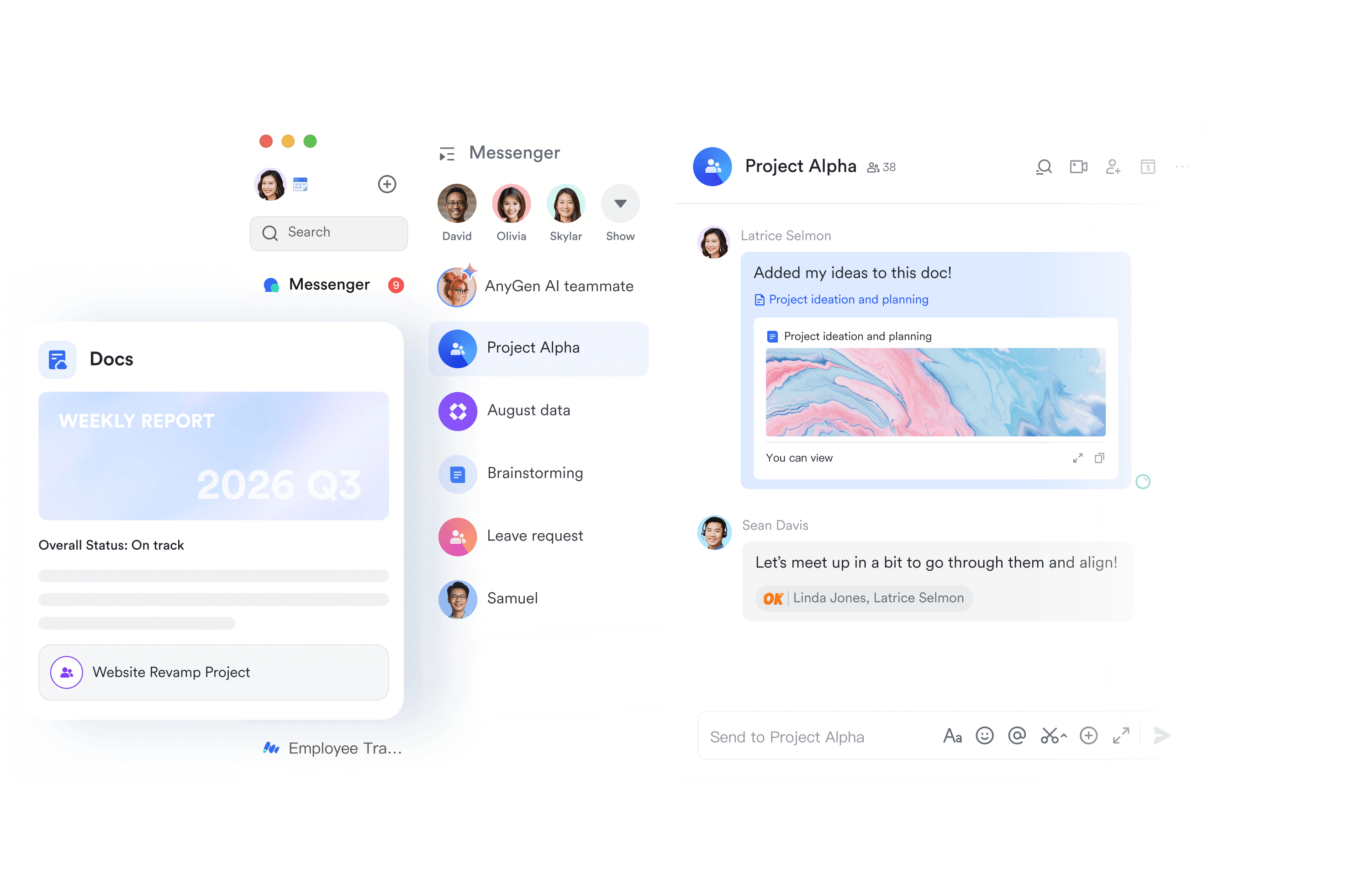
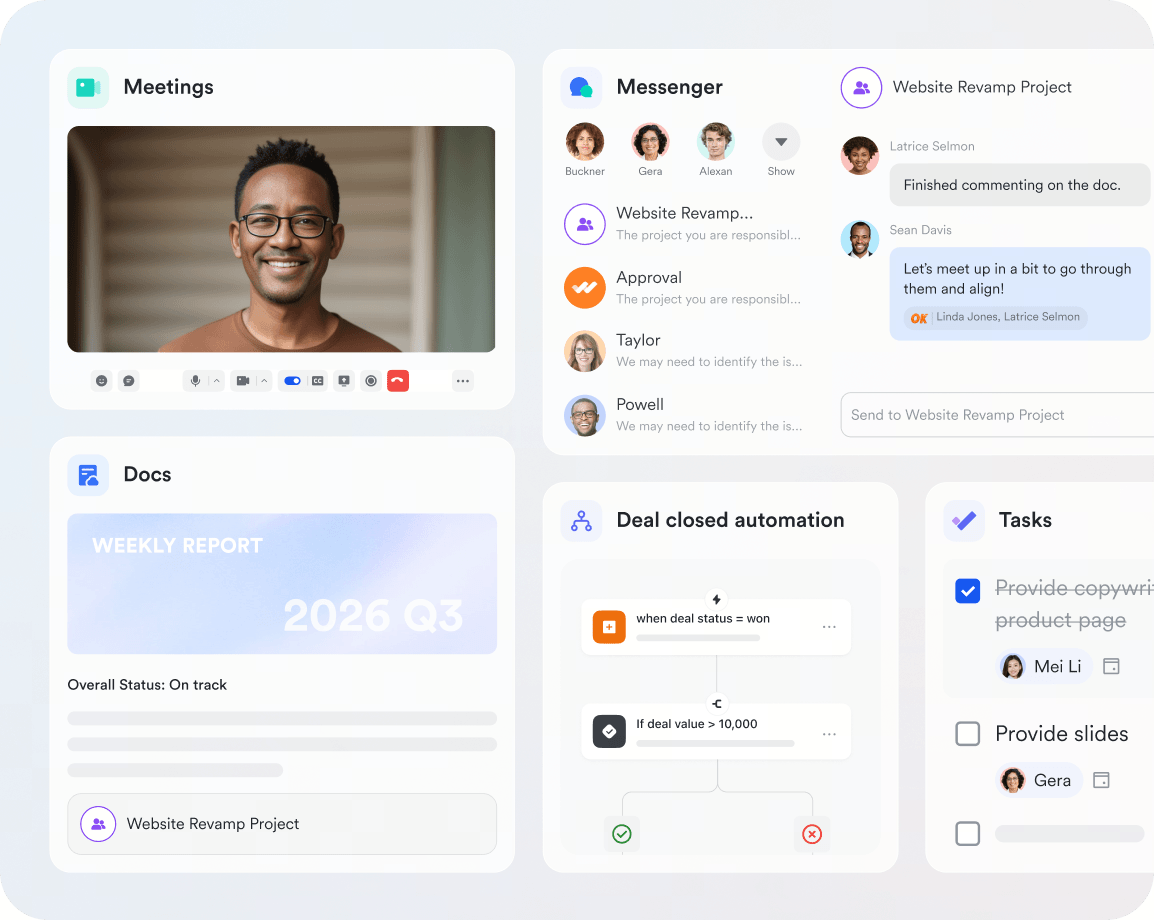
offers an all-in-one workspace that replaces multiple Microsoft 365 apps with a single connected environment. Teams use it to , manage spreadsheets, chat, , organize workflows, and automate daily operations without switching tools. Because everything is built natively into one system, collaboration becomes faster, cleaner, and more contextual for modern teams.
Built-in AI across the workspace
AI comes native to Lark, so every member gets intelligent help the moment they open the app. The AI draws on full context from chats, meetings, documents, and workspace data, so answers, summaries, and drafts arrive already grounded in what the team is working on. You can also generate a slide deck, conduct research, or analyze data in one click. Approvals or workflows can be easily automated with AI model of your choice. For more complex tasks, AI agents can be deployed in a minute to assist you at any time.
Unified document creation & collaboration
and Lark Sheets allow teams to create, edit, and co-author documents and spreadsheets in real time, removing the need to manage separate Word or Excel files. Multiple collaborators can comment, suggest edits, tag teammates, and see version changes instantly. Docs support rich media, tables, task checklists, mentions, and embedded files, making them suitable for SOPs, meeting notes, specifications, proposals, and reports. Lark Sheets handles data analysis, calculations, summaries, and sharing while maintaining real-time synchronization across teams, eliminating version conflicts typical in email-based file exchanges.
Knowledge management and internal wikis
replaces complex SharePoint site setups with a simple, structured internal knowledge hub. Teams can organize Docs into topic-based folders for onboarding resources, process guides, technical documentation, and training libraries. Granular permissions control who can view, edit, or manage pages. Searchable content helps staff find information instantly without navigating deep folder trees. Wiki supports linking within Docs and embedding files or trackers, so company knowledge remains clean, accessible, and easy to maintain.
Team chat and contextual communication
centralizes real-time communication directly inside the workspace. Team members can send messages, voice notes, and start video calls without switching apps. Messenger supports message threads, letting discussions stay tied to specific topics, tasks, or documents instead of being scattered across chat channels. Important instructions can be pinned for visibility or flagged for personal follow-up. Docs, tasks, database records, and calendar events can be linked directly into chat messages, so conversations always stay anchored to the actual work being discussed.
Meetings and video collaboration
supports HD video conferencing, meeting scheduling, screen sharing, recording, participant management, chat, and live document collaboration. Calendar scheduling tools let teams create meetings directly from events, automatically invite participants, and attach agendas or Docs to each session for smoother coordination. During calls, teams can collaboratively edit documents or capture action items. Recordings and meeting notes stay attached to the session so follow-ups remain organized and searchable across the workspace.
Task ownership and project execution
Lark Tasks supports individual task assignments, priority categorization, due dates, subtasks, progress tracking, reminders, and team workload views. Tasks can be linked and displayed directly to docs, and the task list can also be synced into Lark Base, so execution always stays connected to planning or reporting data. Team leaders can monitor progress across members and departments without chasing updates across multiple boards or apps. Tasks also feed into notifications inside Messenger, keeping accountability front-and-center during daily operations.
Calendar and scheduling management
supports scheduling meetings, deadlines, sprint milestones, and employee shifts in one shared, collaborative calendar system. Tasks automatically sync with deadline dates on the calendar, while meetings connect directly to video calls and agendas. Availability visibility prevents scheduling overlaps, and calendar overlays help project managers visualize cross-team timelines. Calendar data also aligns with attendance timestamps, making workforce scheduling and capacity planning significantly easier than managing standalone calendars.
Low-code workflow and data management
replaces complex Power Apps deployments with an intuitive database system for business teams. Organizations use Base to create custom management systems for CRM pipelines, project trackers, bug databases, time sheets, inventory tables, support tickets, and more without technical setup. Each base record includes owners, priorities, due dates, stages, attachments, and relationships. Groups and Filters create personalized views for managers, QA teams, or department leads. One-way and two-way links connect datasets across business workflows, providing traceability between tasks, leads, bugs, and billing records.
Visual dashboards & reporting
Lark Base dashboards convert operational data into visual reports without exporting spreadsheets into external BI platforms. Managers can monitor project completion rates, workload distribution, sales pipeline health, bug resolution cycles, time-utilization metrics, and attendance trends from live dashboards. Filters and grouping options allow drill-down reporting by role, department, sprint, or region giving instant visibility that supports faster decision-making without external analytics tools.
Secure workforce attendance & timekeeping
Lark Attendance logs clock-ins and clock-outs from mobile or desktop, with optional GPS or Wi-Fi verification for remote or on-site compliance. Shift schedules, overtime rules, break periods, holidays, and leave categories are centrally configured by admins. Attendance data generates ready-to-use timesheets that flow into payroll processing and workforce planning reports. Missing punches can be corrected via Approval requests, maintaining clean, verifiable attendance records without spreadsheets or manual reconciliation.
Central operational templates
for CRM trackers, bug tracking systems, project planning boards, onboarding dashboards, attendance sheets, sprint planners, and approval workflows. These templates eliminate complex setup and allow teams to launch functional work systems instantly. Fields, automation rules, dashboards, task structures, and reports come preconfigured and can be adjusted as workflows evolve, making rapid deployment accessible to non-technical operations teams.
:
- Starter plan: Free forever plan that includes 11 powerful tools for up to 20 users. It also comes with 100GB of storage, 1000 automation runs, AI translations, and more.
- Basic plan: $6/user/month (billed annually) for up to 500 users. It includes everything in Starter and unlimited message history, 5TB of storage, 1000 automation runs, and more. For more details, please .
- Pro plan: $12/user/month (billed annually) for up to 500 users. It includes everything in Basic plus group calling for up to 500 attendees, 15TB of storage, 50,000 automation runs, and more.
- Enterprise plan: for custom pricing. Supports unlimited users and includes even more automation runs and advanced security, compliance, and management features.
For small teams with simple communication needs

18 months message history

1000 Base automation runs/month

2000 rows per table in Base
Most POPULAR
For companies with comprehensive collaboration and management needs

Unlimited message history

500-participant video meetings

50k Base automation runs/month

20k rows per table in Base
For large companies with advanced security and organizational management needs
Get a personalized demo and pricing

Unlimited message history

500-participant video meetings

15 TB storage + 30 GB storage/user

500k Base automation runs/month

50k Base automation runs/month
Most POPULAR
For companies with comprehensive collaboration and management needs

Unlimited message history

500-participant video meetings

50k Base automation runs/month

20k rows per table in Base
2. Google Workspace: Best for document editing on the cloud
Google Workspace is a cloud-native productivity suite built for teams that prioritize real-time collaboration and easy sharing. With Google Docs, Sheets and Slides stored entirely online, teams can work together simultaneously from any device. Its integration with Gmail and Google Meet makes communication seamless across projects and departments. Workspace is widely adopted by distributed teams who need fast, browser-based editing without traditional file versions.
Image source: workspace.google.com
Key features:
- Real-time co-editing in Docs, Sheets and Slides.
- Gmail, Drive and Calendar are built into one shared environment.
- Google Meet for video calls, recordings and screen sharing.
- Shared Drives that support team-level ownership and permissions.
Pros:
- Best-in-class real-time editing for multi-user collaboration.
- Easy setup across devices with minimal onboarding.
- Strong integration between email, storage and meetings.
Cons:
- Limited offline capabilities for large files.
- Many advanced tools require higher-tier plans.
Pricing:
- Business starter: $7/user/month.
- Business standard: $14/user/month.
- Business plus: $22/user/month.
- Enterprise: Contact sales for pricing.
3. OnlyOffice: Best self-hosted Office alternative
OnlyOffice is designed for organizations that want full control over their document environment through on-premise or private cloud hosting. It stays fully compatible with Microsoft Office formats and includes collaborative editing features that work well for technical or security-focused teams. The suite also builds project management tools directly into its apps, so teams can plan tasks and track timelines without a separate tool. Companies often choose OnlyOffice when they need both collaboration and strict data governance. Unlike many other office suites, it also integrates with popular platforms, so deployment stays flexible for IT-managed environments.
Image source: onlyoffice.com
Key features:
- Web-based editors closely match Microsoft Office formatting.
- Self-hosted or cloud deployment options.
- Real-time co-editing with granular access permissions.
- Integrations with Nextcloud, ownCloud and SharePoint.
Pros:
- Strong choice for organizations prioritizing data residency.
- High document fidelity with MS Office file types.
- Lightweight, modern editing interface.
Cons:
- Requires server expertise for self-hosted setups.
- Collaboration performance depends on hosting quality.
Pricing:
- Enterprise server licenses: Custom pricing
4. LibreOffice: Best offline open-source Office replacement
LibreOffice is a free productivity suite for users who prefer offline editing and full control over their documents, maintained by The Document Foundation. It includes powerful desktop tools for writing, spreadsheets and presentations, so it suits organizations that work in secure or low-connectivity environments. As open source software, it runs natively on Windows, macOS, and Linux, which gives teams broad flexibility for customization.
Image source: libreoffice.org
Key features:
- Provides Writer, Calc, Impress, Draw and Base for offline document creation.
- Opens and saves Microsoft Office formats with stable compatibility.
- Supports extensions and advanced customization for niche workflows.
- Fully open-source with continuous community updates.
Pros:
- Free forever with no subscription requirements.
- Works completely offline for secure or remote environments.
- Stable performance for large or complex documents.
Cons:
- No real-time collaboration capabilities.
- Interface feels older compared to modern cloud suites.
Pricing:
- 100% free and open source.
5. WPS Office: Best lightweight mobile suite
WPS Office is a compact productivity suite known for its fast performance on desktop and mobile devices. Its familiar interface makes document editing easy, especially for users switching from Microsoft Office. The free tier bundles the Writer, Presentation, and Spreadsheets apps together with 1GB of cloud storage, so basic office work costs nothing. Built-in PDF tools and cloud storage let people save files across devices without extra effort, so WPS stays popular among mobile-first teams and freelancers. It is a practical choice for users who want a simple, affordable editing experience across multiple devices.
Image source: wps.com
Key features:
- Unified app for Documents, Spreadsheets, Presentations and PDF tools.
- Strong mobile editing capabilities on Android and iOS.
- Cloud syncing across devices for quick access.
- Built-in PDF editing, signing and conversion.
Pros:
- Lightweight and fast even on older devices.
- Excellent mobile experience compared to most Office alternatives.
- Supports a wide range of file formats.
Cons:
- Limited team collaboration tools.
Pricing:
- WPS pro + AI (combined offer): $10.83/month
6. Zoho Workplace: Best SMB business productivity suite
Zoho Workplace includes email, documents, chat, storage, and collaboration tools in one ecosystem built for small and mid-size teams. It offers a lighter and more affordable alternative to Microsoft 365 while still supporting multi-team communication and content creation. Zoho Workplace also supports unlimited organizations and private chat channels, so larger teams get room to scale their communication. The suite integrates well with Zoho CRM, Projects, and other business apps, so it fits any small business running multiple functions under one platform. Many SMBs choose Workplace for its simplicity and predictable pricing.
Image source: zoho.com
Key features:
- Zoho Mail with business rules, filters and admin controls.
- Writer, Sheet and Show for cloud-based document editing.
- Zoho Cliq and Zoho Meeting for communication.
- Integrates smoothly with Zoho CRM, Projects and Books.
Pros:
- Very affordable and suitable for SMB budgets.
- Unified ecosystem for communication, docs and workflows.
- Strong security and admin management.
Cons:
- Collaboration feels less fluid than Google Workspace.
- UI varies across different Zoho apps.
Pricing:
- Free plan: Forever free for up to 5 users
- Professional: $6/user/month
7. Apple iWork: Best for Apple ecosystem users
Apple iWork provides a clean, modern document experience for teams fully invested in macOS, iOS and iCloud. Pages, Numbers and Keynote offer intuitive design capabilities with strong visual output, making them ideal for creative and presentation-heavy tasks. With real-time collaboration through iCloud, teams can work together across Apple devices effortlessly, though people who also rely on other platforms such as Windows may find sharing harder. Overall, iWork is a seamless choice for users who want an elegant, integrated experience without subscription fees.
Image source: apple.com
Key features:
- Pages, Numbers and Keynote for premium-quality document creation.
- Seamless real-time collaboration via iCloud.
- Rich design templates for reports, brochures and slides.
- Tight integration with FaceTime, Messages and Apple hardware.
Pros:
- Free for all Apple device users.
- Beautiful, polished templates and design tools.
- Syncs effortlessly across iPhone, iPad and Mac.
Cons:
- Limited compatibility for Windows and Android users.
- Not ideal for heavy spreadsheet analysis.
Pricing:
- Free for macOS and iOS users
8. Polaris Office: Best cross-device document editing
First launched in March 2014, Polaris Office is still free for everyday use. It is built for users who need to access and edit documents across desktops, tablets and smartphones, supporting a wide range of file formats. This means it's easy to open Microsoft Office, PDF and cloud-stored documents without compatibility worry. The platform's cloud syncing helps teams stay aligned across multiple devices. It is especially useful for mobile professionals who need to switch between devices throughout the day.
Image source: polarisoffice.com
Key features:
- Supports MS Office files, PDFs and common text formats.
- Cloud syncing across Google Drive, Dropbox and Polaris Cloud.
- Mobile-first editing tools optimized for touch.
- Cross-platform support across Windows, iOS and Android.
Pros:
- Ideal for teams that work mostly on mobile phones.
- Clean and easy-to-use interface.
- Strong compatibility with major file formats.
Cons:
- Ads in the free version.
- Limited collaboration features.
Pricing:
- Business plan: $7.99/user/month when billed monthly and $6.99/user/month when billed annually.
9. Apache OpenOffice: Best classic desktop Office substitute
Apache OpenOffice is one of the original open-source office suites, offering a straightforward experience for word processing, spreadsheets, and presentations. It suits users who want a stable, long-term offline solution without subscription requirements. The interface remains familiar and simple, so traditional desktop users adapt quickly. Its extensions and templates also give teams the ability to tailor the suite to different workflows.
Image source: openoffice.org
Key features:
- Writer, Calc, Impress and Draw for all core office needs.
- Fully offline operation with no cloud dependency.
- Good compatibility with older Microsoft file types.
- Open-source development model.
Pros:
- Reliable for basic business documentation.
- Works well on older hardware.
Cons:
- No real-time collaboration.
- Updates and new features roll out slowly.
Pricing:
10. FreeOffice: Best simple personal desktop office suite
FreeOffice provides a lightweight, user friendly set of tools for basic document creation and editing. It suits individuals and small teams who want simple functionality without the complexity of full office suites. FreeOffice stays fully compatible with Microsoft Word, Excel, and PowerPoint formats, so shared files open cleanly on either side. You can download it free for Windows, macOS, and Linux. It appeals to users who prefer clean, fast desktop tools that work without cloud dependencies.
Image source: freeoffice.com
Key features:
- Includes TextMaker, PlanMaker and Presentations.
- Smooth compatibility with DOCX, XLSX and PPTX formats.
- Runs efficiently even on low-spec computers.
- Optional upgrade to SoftMaker Office for advanced tools.
Pros:
- Very lightweight and beginner-friendly.
- Free for both personal and business use.
- Familiar interface resembling classic MS Office.
Cons:
- Basic feature sets compared to modern cloud suites.
- Minimal collaboration and no real-time co-editing.
Pricing:
- SoftMaker Office upgrade: from $39.95 (one-time)
How we select and test software
Our editorial team follows a transparent, repeatable methodology. Every review is based on our hands-on testing in practical work scenarios, and we always stick to a set of consistent scoring criteria.
- Features and functionality
- Security, privacy, and compliance
- Integrations and compatibility
Our team reviews and assesses tools using consistent datasets and real-world scenarios, focusing on the things users care about most—such as sales pipelines, marketing automation, collaboration, and knowledge management. We confirm the official pricing and release notes of each product we review, and gather user feedback from across different channels. We do not accept paid placements and ensure our reviews are unbiased and fair. Additionally, as software and digital work environments constantly evolve, we review our content at least quarterly and update articles whenever products undergo significant changes. For more information about our review methodology, read the full rundown of.
How to choose a Microsoft 365 alternative for your team?
Choosing the right Microsoft 365 alternative depends on how your team works, which tools you already rely on, and the budget you can commit each month. A suite that fits a small startup may fall short for an enterprise with strict compliance needs, so the decision should begin with a clear view of your priorities rather than a feature checklist alone. The steps below give teams a practical way to compare options and settle on a platform that supports daily work without adding cost or complexity.
- Map your core needs first: List the tasks your team performs every day, such as document editing, meetings, chat, and approvals, then rank which ones matter most so you can focus on suites that cover your essentials.
- Check collaboration and communication depth: Confirm whether the platform offers real-time co-editing, unified chat, and built-in video calls, because teams that keep this work in one place avoid the friction of switching between separate apps.
- Confirm platform and offline support: Verify that the suite runs well on the devices your team uses, including Android, iOS, and desktop, and check whether offline editing is available for members who work in low-connectivity locations.
- Review security and admin controls: Examine permissions, SSO support, data policies, and compliance certifications, since these controls protect organizational data and simplify management as the team grows.
- Weigh total cost against actual usage: Compare pricing tiers against the features your team will genuinely use, so you avoid paying for tools that add little value to everyday work.
- Test with a small group before rolling out: Run a short trial with a few members, gather their feedback, and confirm that the platform fits your workflows before you commit the whole organization.
What makes a strong Microsoft 365 alternative
A strong Microsoft 365 alternative should balance document editing, collaboration depth and ease of use without forcing teams into unnecessary complexity. Many users searching for alternatives to Microsoft 365, especially across Microsoft 365 alternatives Reddit threads, want a suite that feels lighter, faster and easier to manage. Cost is another major factor, and it's common for teams to ask "Is there a cheaper alternative to Microsoft 365?" when comparing tools for everyday work. The best replacements offer real-time co-editing, smooth communication, built-in meetings, mobile apps and simple administration, so teams can stay productive even without a full Microsoft 365 subscription. The points below highlight the main factors teams consider when choosing a replacement.
- Document editing and collaboration depth: Teams need to check if real-time co-editing or basic offline editing is required.
- AI capabilities: Built-in AI can speed up everyday work, so teams should check whether the suite writes, summarizes, and automates tasks natively rather than through a separate tool.
- Meetings and calendars: Some platforms include built-in video calls, while others rely on external tools.
- Communication options: Unified chat or email can help keep work centralized instead of spread across apps.
- Workflow management: Tools may offer tasks, approvals, or databases that support broader operations.
- Mobile experience: Android and iOS app quality determines how well teams work on the go.
- Security and admin controls: Permissions, policies, , and compliance certifications help protect organizational data.
- Cost efficiency: Many teams prefer not to pay for features they rarely use or cannot manage easily.
Conclusion
Choosing the right Microsoft 365 alternative depends on whether your team needs simple document editing or a fully connected workspace. Traditional suites like LibreOffice, OnlyOffice, and OpenOffice are ideal for offline users, while Google Workspace, Zoho Workplace, and WPS Office offer strong . However, many modern teams need more than documents; they need messaging, meetings, scheduling, task management, approvals, and workflow automation.
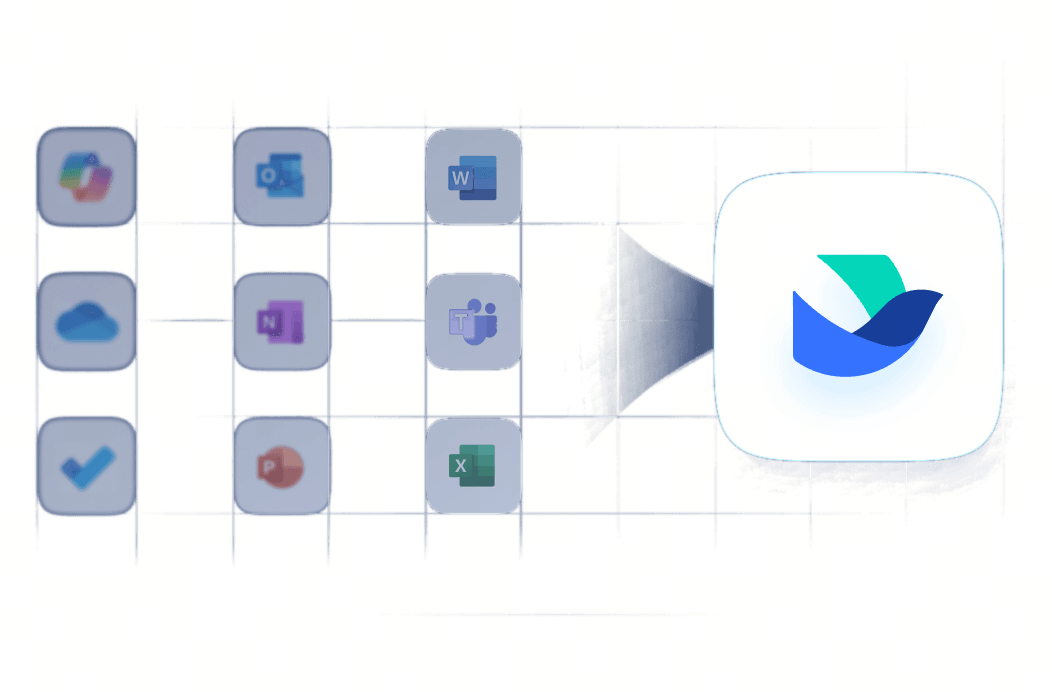
This is where stands out as a unified solution. Instead of switching between multiple Microsoft apps, Lark brings chat, docs, sheets, meetings, calendars, tasks, approvals, and databases into one workspace. This helps teams reduce complexity, streamline communication, and maintain consistent workflows across all departments. For teams seeking Microsoft 365 alternatives, Reddit discussions also often highlight the need for simpler tools that remove setup friction, something unified workspaces solve effectively.
Whether your organization is remote, hybrid, or fully office-based, the goal is to pick a tool that matches how your team works, collaborates, and grows. A connected workspace ensures you spend less time managing tools and more time moving work forward.
Try Lark for free, no credit card needed
FAQs
Is Microsoft 365 worth it?
Microsoft 365 is still a strong choice for teams that rely heavily on Outlook, SharePoint or Excel-based workflows. However, many organizations now look for simpler, more unified systems that reduce the need to switch between multiple apps. That's why some teams compare Microsoft 365 with platforms like Lark, which centralize chat, docs, meetings and workflows in one place. The value really depends on whether you need multiple standalone tools or prefer a connected workspace.
Do Microsoft Office alternatives support offline editing for remote locations?
Yes, the best Microsoft Office alternatives include offline capabilities. Even free alternatives like LibreOffice or FreeOffice work fully offline for writing or spreadsheets, while cloud platforms offer partial offline modes for essential tasks. Some unified workspaces, including Lark, allow teams to continue drafting documents or preparing notes even with unstable internet, syncing everything once the connection returns.
Can alternatives replace SharePoint and Power Apps workflows?
Replacing SharePoint or Power Apps depends on the level of automation your team needs. Some tools offer simple versions of databases, task routing and approval flows. Platforms like Lark provide low-code databases, approvals and workflow automation in one environment, making it easier for non-technical teams to build processes without designing full SharePoint sites or Power Apps.
Which Microsoft 365 alternatives work best for Android teams?
For Android-heavy teams, cloud suites like Google Workspace or WPS Office offer strong mobile performance with smooth syncing across devices. Unified platforms such as Lark also provide a consistent mobile-first experience by combining messaging, meetings, documents and scheduling in one app, helpful for teams that rely on phones for fieldwork or remote collaboration.
Are free Office alternatives secure enough for business use?
Free office tools generally include basic security features like file encryption and offline storage. For teams needing stronger compliance controls, cloud platforms often offer more robust protections. For example, Lark provides enterprise-grade security with permissions, audit trails and centralized admin policies, giving organizations a more controlled environment than standalone free software.
Related reading