














How to Streamline Project Management with Microsoft Teams

Nidhi
Freelance Content Writer
Nov 3, 2026
Nidhi
Nov 3, 2026

14 min read
Add to preferred sources


Project management with Microsoft Teams has become a practical solution for organizations navigating hybrid work, multiple stakeholders, and fast-moving projects. Teams centralizes communication, organizes tasks, and provides collaborative tools to track progress and meet deadlines efficiently. With features like task boards, file storage, meeting scheduling, and workflow automation, Teams helps teams stay aligned and maintain visibility across projects. In this guide, we'll explore project management with Microsoft Teams, including key features, setup tips, templates, and alternatives such as Lark, Asana, Trello, and Monday.com, helping you choose the tools that best fit your team's workflow.

What is project management with Microsoft Teams?
Project management with Microsoft Teams is the process of organizing, tracking, and collaborating on projects within Microsoft's centralized collaboration platform. Teams combine chat, video meetings, file storage, and task management to help teams work efficiently across locations and departments. Using Microsoft Teams project management templates or integrating project management tools like Planner, To Do, and Project, teams can create structured workflows, assign tasks, set deadlines, and monitor progress in real time.
Teams also support file versioning, notifications, and workflow automation through Power Automate, ensuring accountability and transparency throughout the project lifecycle. For teams seeking project management with Microsoft Teams for free, the platform offers essential features like task boards, document sharing, and channel-based communication without additional cost. By centralizing communication and project tracking, Microsoft Teams reduces bottlenecks, improves collaboration, and enables teams to meet deadlines more effectively, making it a versatile tool for both simple and complex projects.
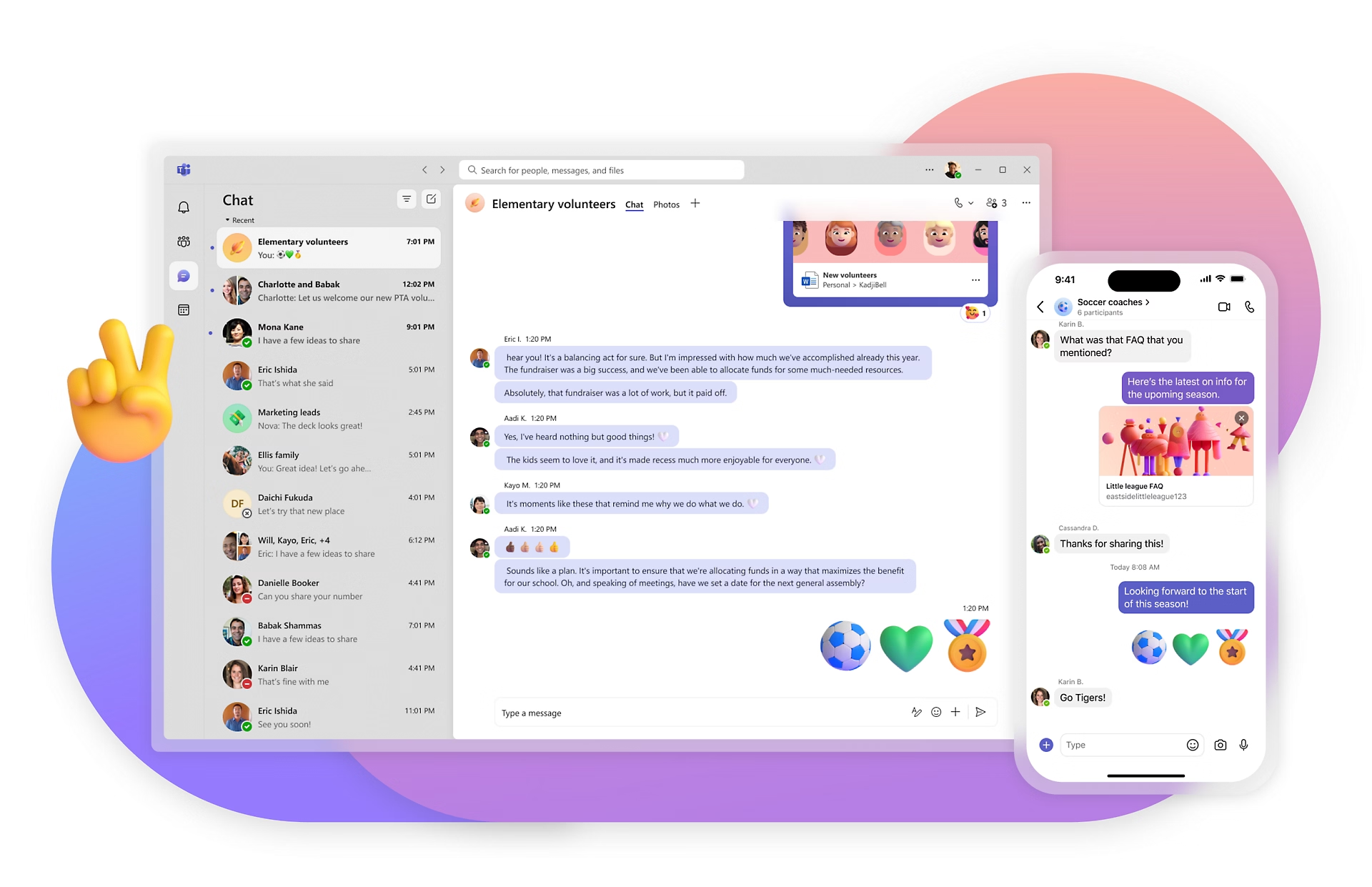
Image source: microsoft.com
Key features for project management inside Teams
Effective project management with Microsoft Teams relies on its diverse features that streamline collaboration, task tracking, and reporting. Teams centralizes communication, documents, and workflows, helping teams stay organized and efficient throughout every project phase.
- Channels and threaded communication: Channels organize discussions by project, department, or topic, keeping conversations relevant and easy to follow. Threaded communication ensures that comments and replies remain contextually linked. This structure reduces confusion and helps teams stay aligned on project goals.
- Task management with Planner: Microsoft Planner integrates with Teams to create Kanban-style task boards. Teams can assign tasks, set due dates, attach files, and monitor progress visually. This makes task delegation and tracking transparent and straightforward.
- File storage and version control: Teams stores all project documents in SharePoint, ensuring centralized access. Version control allows team members to view changes and restore previous versions. This minimizes errors and ensures everyone works with the latest files.
- Meeting scheduling and recordings: Teams lets project managers schedule meetings, send invites, and record sessions. Recordings serve as a reference for absent team members or for future review. Integrated meeting notes keep discussions organized and actionable.
- Notifications and activity tracking: Activity feeds and notifications keep team members updated on task progress, comments, and document changes. Alerts can be customized to avoid overload. This ensures accountability and timely responses across the project. For teams that need to reach people away from their desks (customers, contractors, or on-site staff), business texting for Microsoft Teams adds a fast SMS layer for urgent updates and reminders—without breaking the existing notification flow.
- Power BI dashboards: Embedded dashboards in Teams provide real-time project metrics and KPIs. Visual reports help managers analyze performance and identify bottlenecks. Teams can make data-driven decisions without leaving the platform.
- Workflow automation: Power Automate allows repetitive project tasks, such as approvals and reminders, to be automated. Automation reduces manual effort and ensures consistency across workflows. Teams can maintain efficiency and reduce errors in complex projects.
How to set up Microsoft Teams for project management
Project management with Microsoft Teams becomes more effective when the platform is structured correctly from the start. Setting up teams, channels, files, and tabs strategically helps streamline workflows and improve collaboration across the project lifecycle.
Step 1: Creating a dedicated team for each project
Start by creating a separate team for every project to centralize communication, files, and tasks. This ensures that project-specific discussions don't get mixed with other work. A dedicated workspace makes tracking progress and responsibilities simpler.
Step 2: Organizing channels by topic, sprint, or department
Within each team, create channels to organize conversations by topic, sprint, or department. This keeps discussions focused and relevant, making it easier for team members to find information. Channels also help structure meetings, updates, and task tracking.
Step 3: Setting up file structures
Establish clear file folders in the Files tab for documents, presentations, and reports. Consistent naming conventions help teams locate materials quickly. Integrating SharePoint ensures centralized access and version control.
Step 4: Using Tabs for tasks, documents, dashboards, and reports
Use tabs to pin essential tools like Planner for tasks, OneNote for notes, and Power BI for dashboards. Tabs provide quick access to project resources without leaving Teams. This boosts productivity and keeps all key information at hand.
Microsoft Teams project management templates examples
Microsoft Teams offers a variety of project management templates to help teams stay organized, streamline workflows, and track progress efficiently. These templates reduce setup time and provide ready-made structures for common project scenarios. Whether you're managing general tasks, team meetings, business cases, or planning initiatives, Teams templates can help ensure consistency and visibility across your projects. Using these templates makes project management with Microsoft Teams more intuitive and collaborative for all team members.
General project management template
This template is ideal for tracking project tasks, deadlines, and milestones in one centralized space. Teams can assign responsibilities, monitor progress, and update statuses in real time. It helps maintain clarity on priorities and ensures everyone is aligned with deliverables. Perfect for teams managing multiple projects simultaneously.
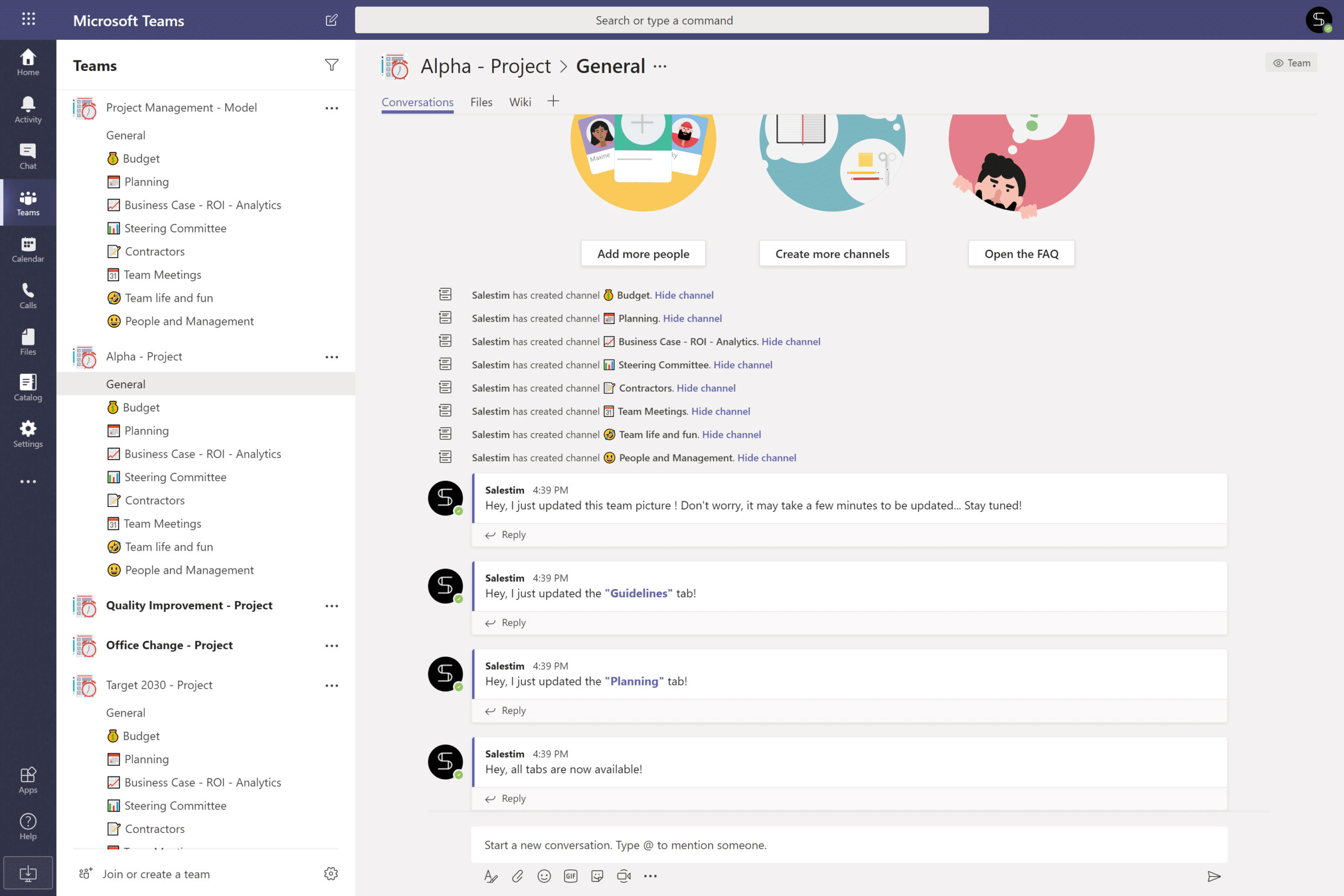
Image source: microsoft.com
Project management template for team meetings
Designed to organize agendas, meeting notes, and action items, this template ensures productive and structured team discussions. Members can track decisions, assign follow-up tasks, and review past meetings all within Teams. It reduces the risk of missing key updates or tasks, making it an excellent tool for recurring team meetings.
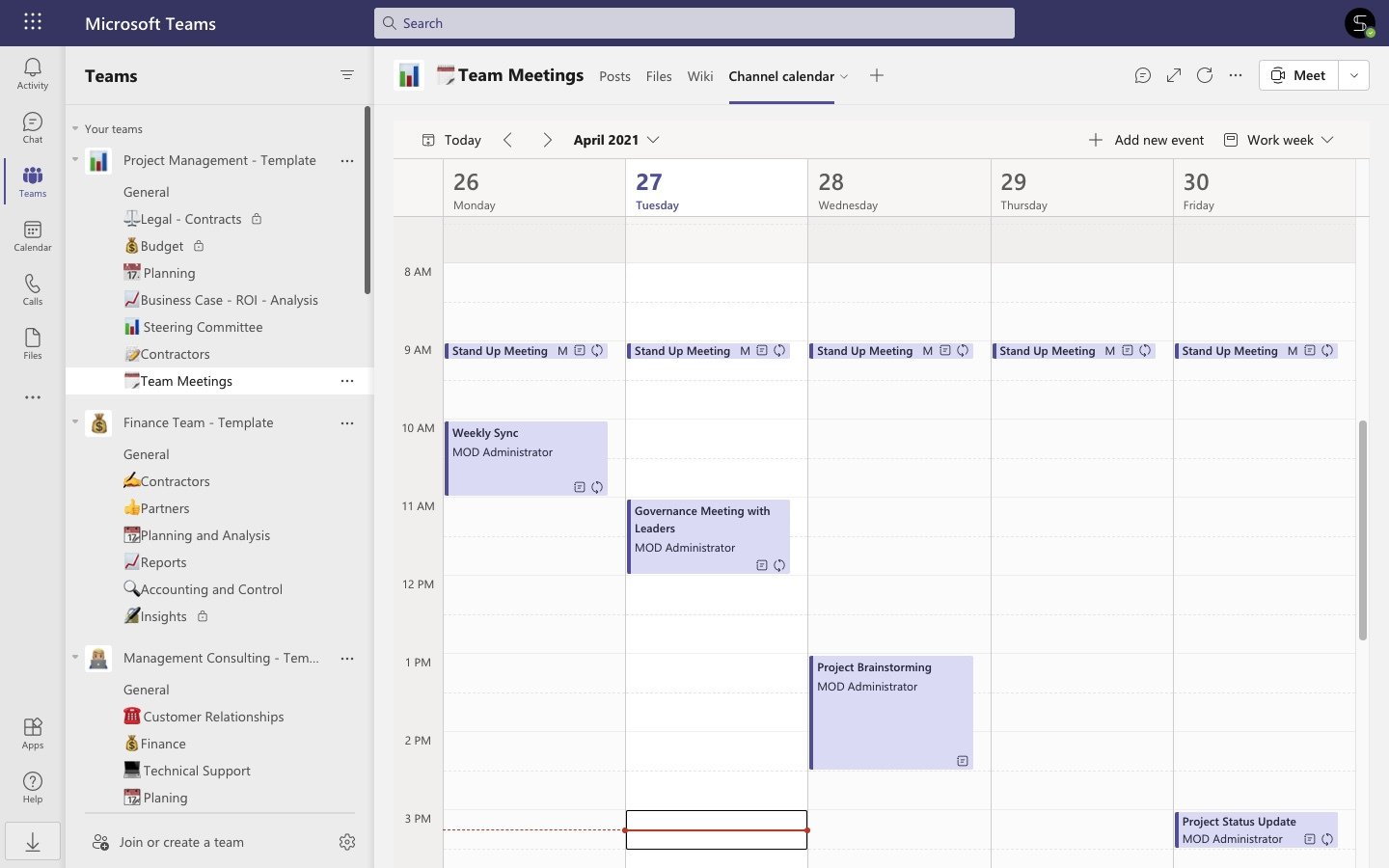
Image source: microsoft.com
Project management template for business case
This template helps teams document objectives, requirements, and deliverables for business initiatives. It provides a clear structure for analyzing feasibility, benefits, and risks. Teams can collaborate on business case development without relying on separate documents. It ensures transparency and accountability for decision-making.
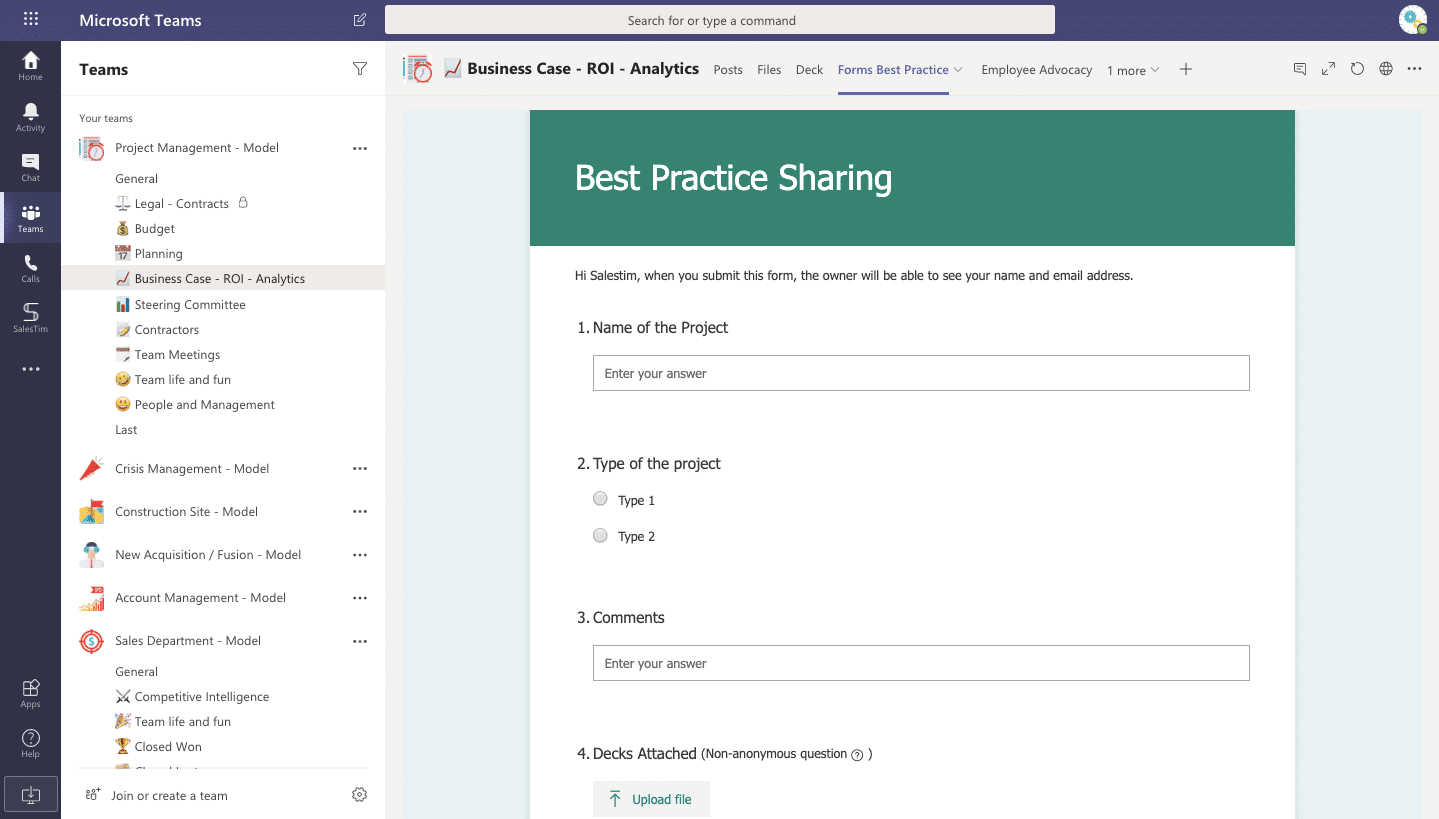
Image source: microsoft.com
Project management template for planning
Focused on project planning and timeline management, this template allows teams to visualize tasks, dependencies, and deadlines. It helps track project phases and resource allocation efficiently. Teams can use it to align on priorities and anticipate potential bottlenecks. Ideal for both short-term sprints and long-term projects.
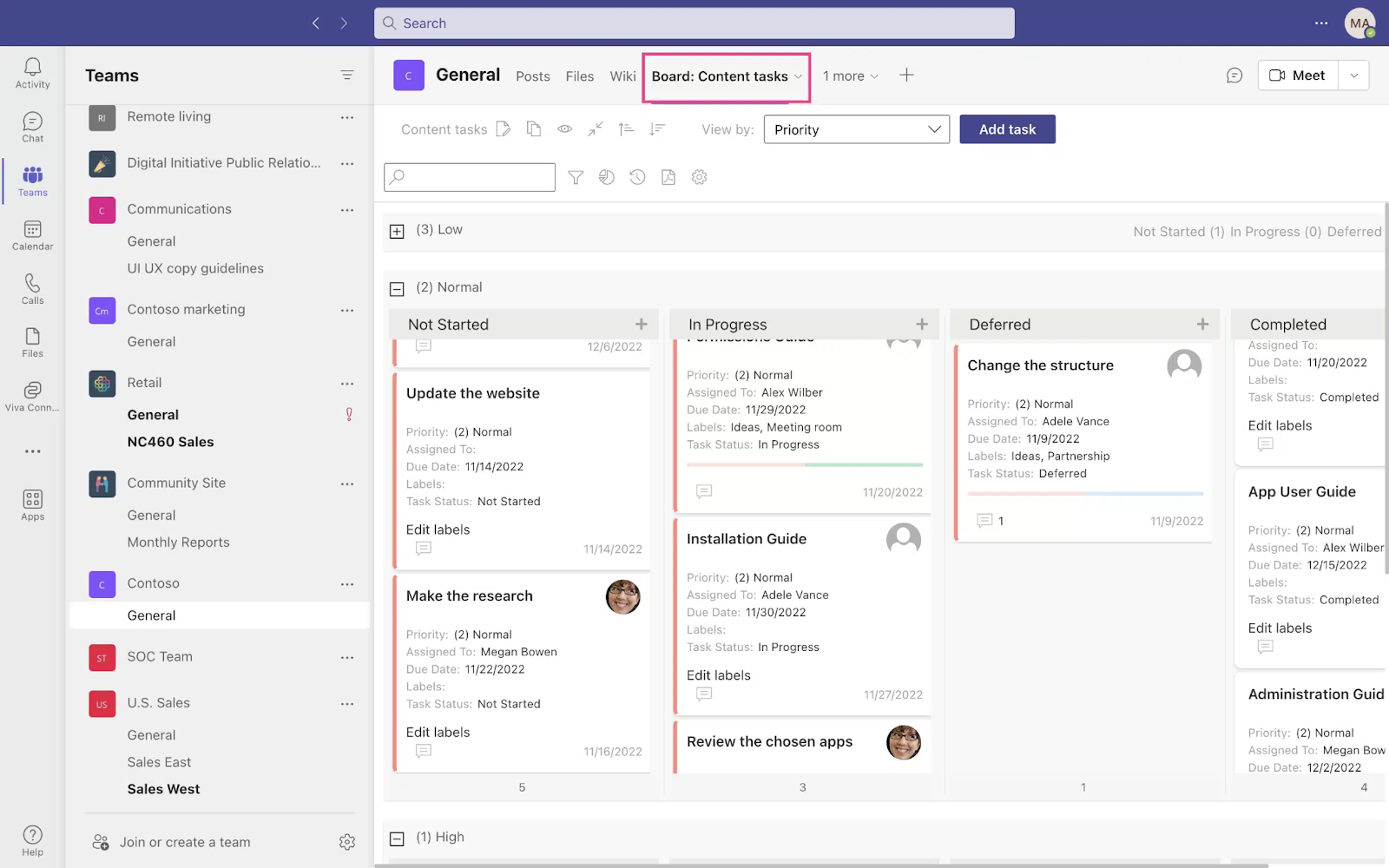
Image source: microsoft.com
Microsoft Teams project management apps
Project management with Microsoft Teams is enhanced by integrating its built-in apps and tools. These apps help teams organize tasks, track progress, document work, and automate workflows to deliver projects more efficiently.
- Planner for task boards: Planner provides Kanban-style task boards to organize and track team tasks. Tasks can be assigned, labeled, and prioritized with due dates. This visual approach helps teams see progress and manage workloads effectively.
- Microsoft To Do for personal task syncing: Microsoft To Do syncs individual tasks across devices and integrates with Teams. Team members can manage personal assignments while staying aligned with overall project goals. This ensures accountability and clarity for each contributor.
- Microsoft Project for Gantt charts and advanced planning: Microsoft Project offers advanced project planning features, including Gantt charts and timeline management. Teams can use it to schedule tasks, allocate resources, and track dependencies. It's ideal for complex projects requiring detailed planning.
- OneNote for documentation: OneNote allows teams to take notes, capture meeting minutes, and organize project documentation in a shared workspace. Pages and sections can be structured by topic or phase. This centralizes knowledge for easy reference.
- Power Automate for workflow automation: Automates repetitive project tasks such as approvals, reminders, and notifications. Workflows can be customized to match project needs. Automation reduces manual effort and increases consistency across processes.
Challenges of using Microsoft Teams for project management
While project management with Microsoft Teams offers many benefits, there are some limitations teams should be aware of. Understanding these challenges can help organizations plan proper setups, integrations, and training to maximize effectiveness.
- Can feel restrictive without integrations: Teams' built-in features are strong for communication and basic task tracking, but for complex project requirements, they may feel limited. Integrating with third-party apps is often necessary for advanced functionality. Without these integrations, workflows can become constrained.
- Requires training for structured use: Proper use of Teams requires training on channels, tabs, Planner, and file management. Without guidance, teams may struggle to adopt consistent workflows. Structured onboarding ensures everyone follows best practices and reduces confusion.
- Notification overload without proper setup: Teams can generate frequent notifications from chats, tasks, and document updates. Without customizing alerts, team members may feel overwhelmed. Setting up notification preferences helps maintain focus and prevents distraction.
- Limited advanced PM features compared to dedicated tools: While Teams supports task tracking and basic planning, it lacks advanced project management capabilities, including detailed resource management and sophisticated reporting. For large or complex projects, integrating with tools like Microsoft Project or Asana may be necessary.
New option: Try Lark to unify collaboration, workflow, & projects easily
Lark is a modern cloud platform that brings together tasks, documents, calendar, chat, and workflow automation in a single workspace. As a standout choice among modern Google Workspace alternatives, Lark helps teams streamline projects, track tasks, and maintain real-time visibility across departments. With mobile and desktop access, Lark ensures teams stay organized, collaborate effectively, and deliver projects on time. By combining Lark Base, Tasks, Docs, Messenger, and Calendar, teams can centralize project management and boost overall productivity.
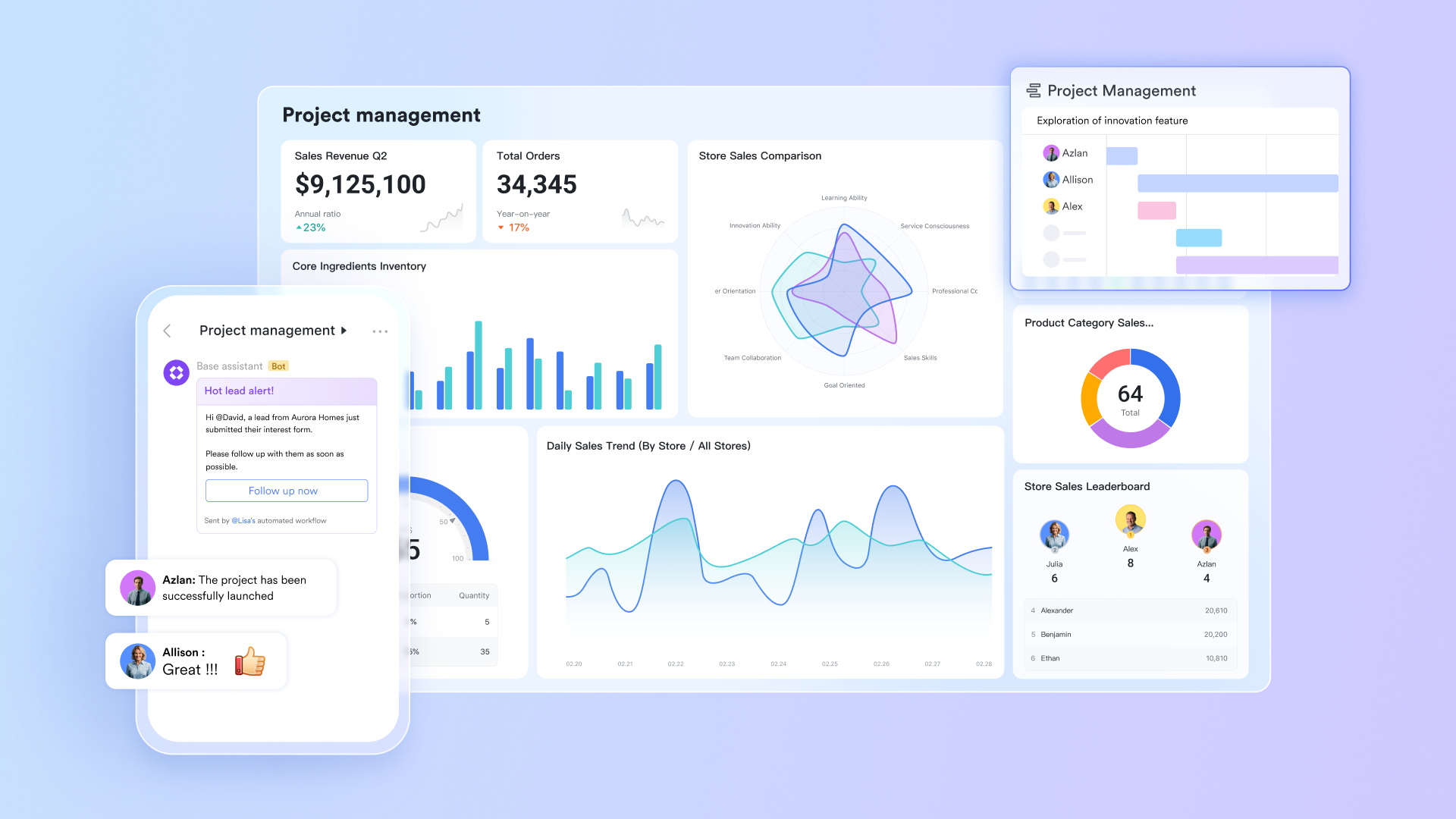
Lark Base: Centralized project and workflow management
Lark Base acts as the central hub for all project data and workflows. It allows you to break down complex projects into granular components using customizable tables that capture all essential details, including task name, priority, status, owner, and objectives. This data can be visualized instantly through multiple views—including Kanban, Grid, and Gantt, to track tasks by stage, status, and timeline. With built-in automations, you can handle repetitive tasks like sending scheduled progress update notifications, creating tasks and events based on table data, or automatically grouping participants or assigning functions with ease.
Compared with Teams: Microsoft Teams primarily functions as a collaboration wrapper that consolidates project management features via integration with external Microsoft 365 apps (like Planner or Project), requiring users to rely on the separate Power Automate tool for creating complex workflows, making it a hub for communication and integrated tools rather than a unified data management layer.
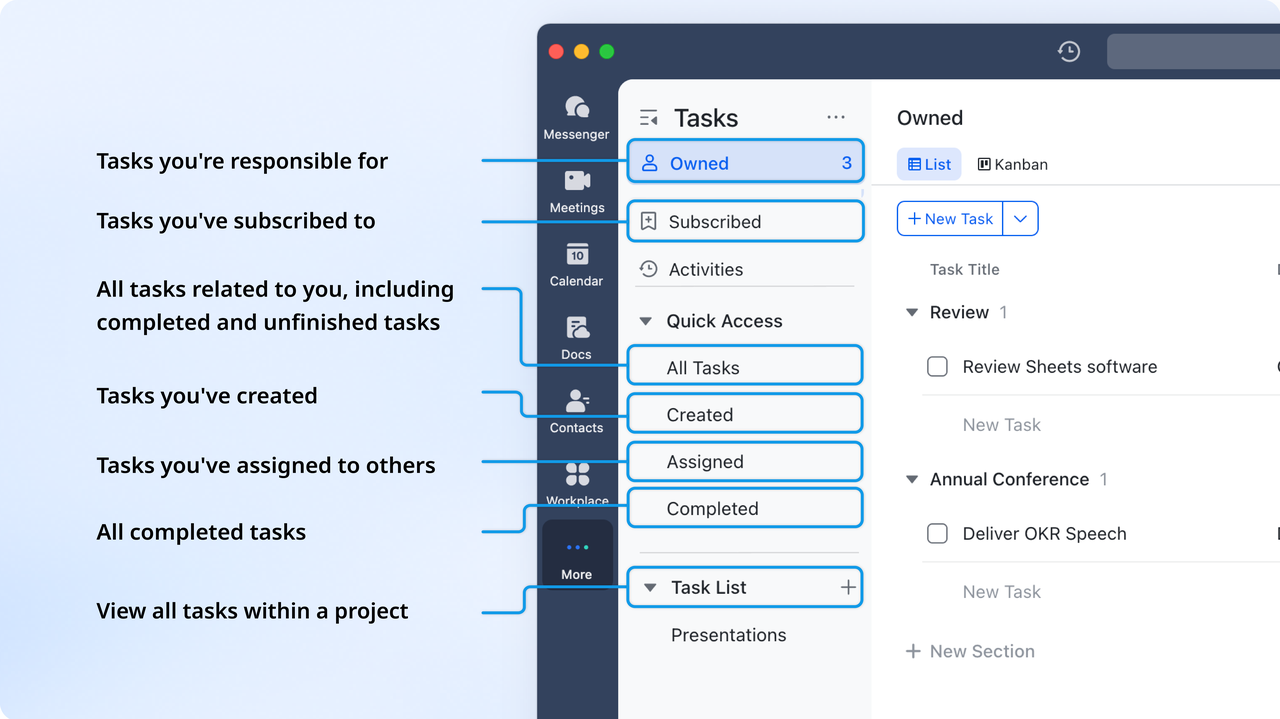
Lark Tasks: Task coordination across teams
Lark Tasks enables managers to assign and track tasks across team members and projects. You can easily break down projects into individual steps, assigning tasks and sub-tasks to team members while setting clear deadlines, completion criteria, and review times. For streamlined communication, task lists can be shared and pinned in group chats for easy tracking by the entire team. Managers can maintain complete visibility by viewing tasks organized by their role, such as "owned," "assigned," or "subscribed," ensuring they remain fully updated on all progress.
Compared with Teams: In contrast, Microsoft Teams handles task management by integrating external M365 tools like Planner and To Do, which are effective for simple assignments; however, when managing actual dependencies and detailed project workflows, users must often integrate the more advanced, separate Microsoft Project.
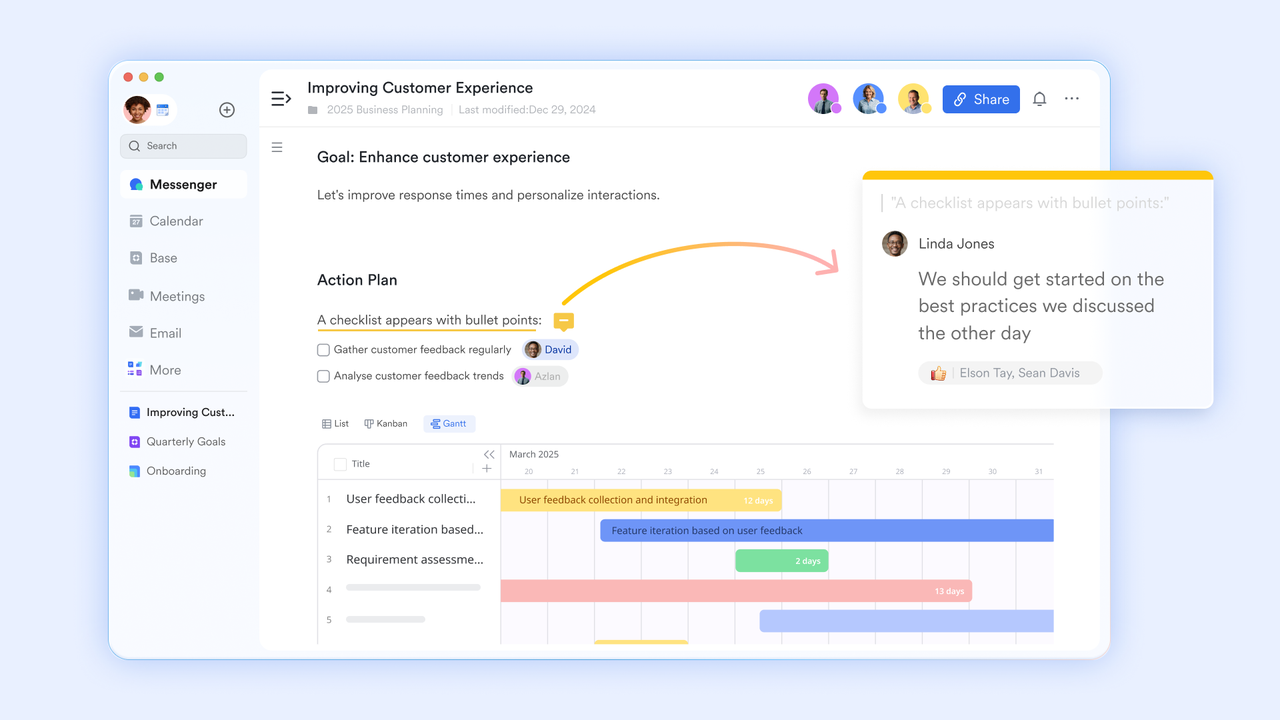
Lark Docs: Centralized documentation and knowledge sharing
Lark Docs stores all project-related documents, including reports, meeting notes, SOPs, and collaborative drafts. It supports real-time editing, allowing multiple users to work together simultaneously. Version control features let you review changes and restore previous versions, ensuring everyone references the latest information. You can also insert tasks, comments, and various content types to facilitate project management and communication.
Compared with Teams: Microsoft Teams achieves similar real-time co-authoring and version history by integrating its core document tools (SharePoint and Microsoft 365 apps); however, while it supports embedded comments and links to tasks, the seamless, native integration of functions and functional content types directly within the document file itself often relies more heavily on the surrounding Teams chat or separate Planner tabs.
Lark Messenger: Seamless team communication
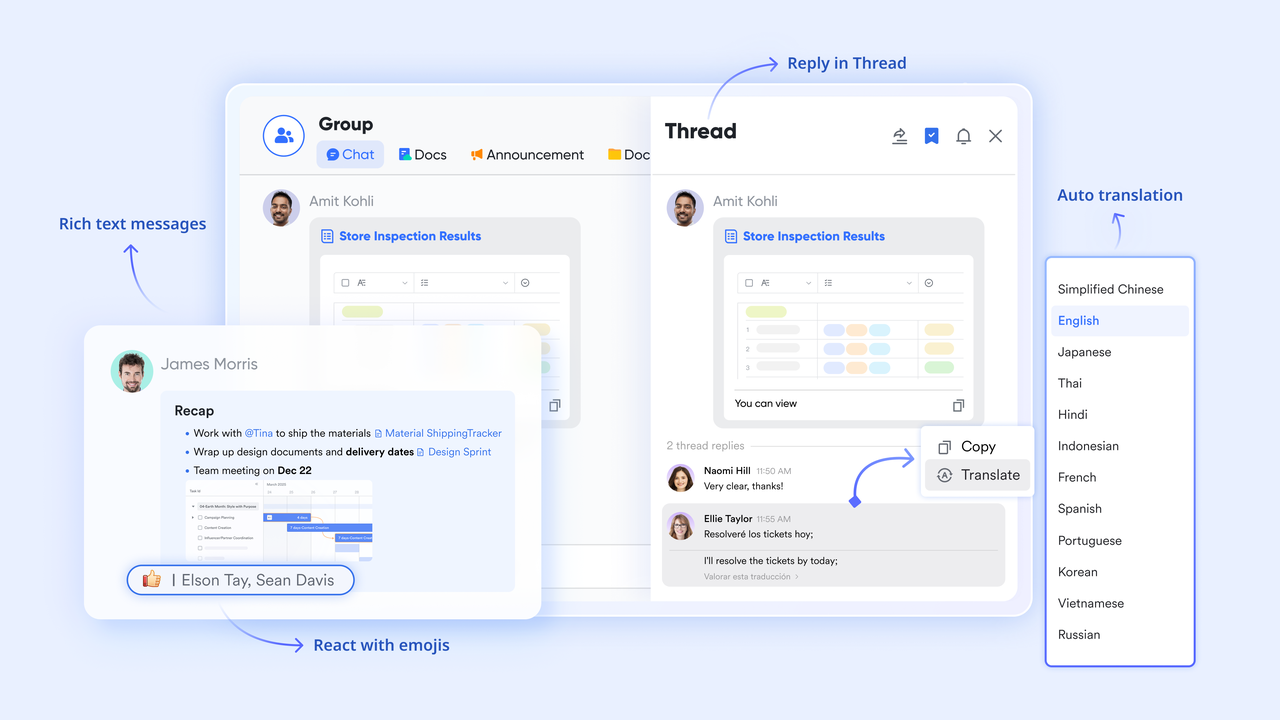
Lark Messenger connects team members instantly through chat and channels organized by project or department. Messages can be converted to tasks or exported as a doc, making communication actionable and reliable. This ensures updates, questions, and decisions happen in real time without scattered emails.
Microsoft Teams provides comparable real-time channel communication but relies on separate user actions, such as the "Create task" feature or Power Automate, to integrate chat discussions with external task management tools like Planner, resulting in a more layered action path compared to Lark's unified, native system.
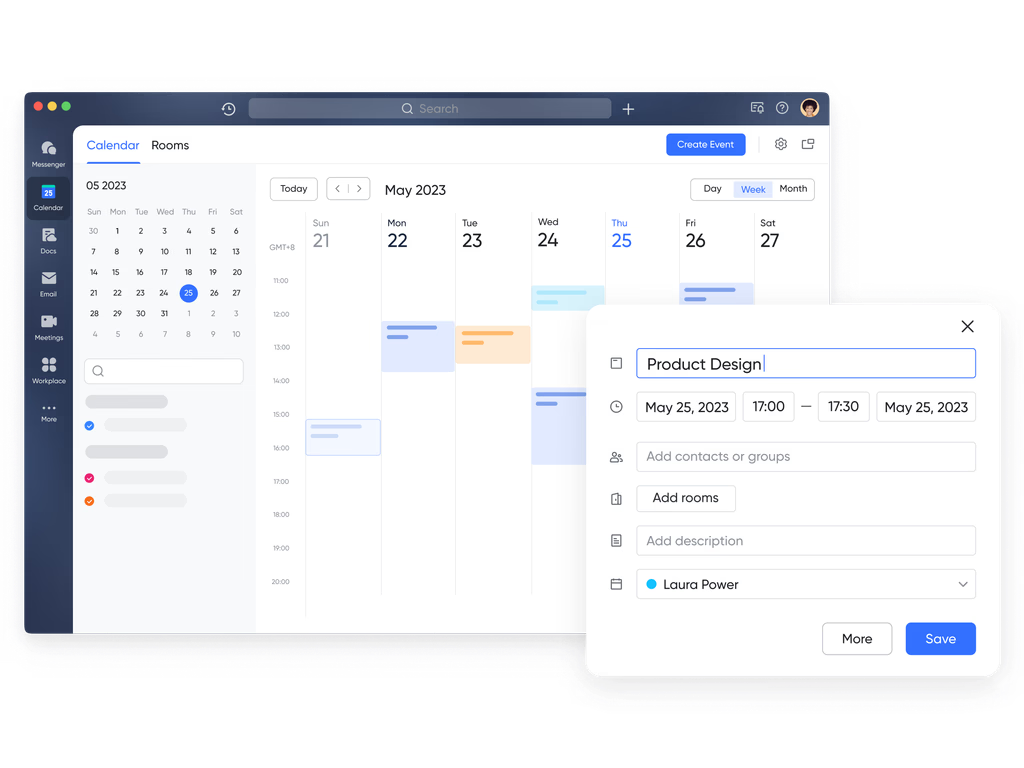
Lark Calendar: Project Scheduling and Planning
Lark Calendar streamlines team coordination by helping you avoid scheduling conflicts through clear visibility of everyone's availability in shared calendar views. It allows teams to effectively track key milestones by creating public project calendars that clearly mark important dates and ensure alignment across all members. To guarantee deadlines are met, you can easily time-block tasks and set automated reminders for each segment, ensuring no vital event or commitment is missed.
Compared with Teams: Microsoft Teams achieves comparable coordination and visibility through its seamless integration with the robust Outlook/Exchange Calendar, effectively handling availability and shared project milestones. However, the direct functionality for time-blocking tasks and setting segmented reminders often relies on integrating task items from To Do or Planner onto the Outlook calendar, making the process of linking granular task management to calendar time less native.
- Starter plan: Free forever plan that includes 11 powerful tools for up to 20 users. It also comes with 100GB of storage, 1000 automation runs, AI translations, and more.
- Basic plan: $6/user/month (billed annually) for up to 500 users. It includes everything in Starter plus group calling for up to 500 attendees, 5TB of storage, 1000 automation runs, and more. For more details, please contact sales.
- Pro plan: $12/user/month (billed annually) for up to 500 users. It includes everything in Basic plus group calling for up to 500 attendees, 15TB of storage, 50,000 automation runs, and more. A closer look at Google Workspace pricing and ClickUp pricing can help businesses determine whether the platform fits their budget.
- Enterprise plan: Contact sales for custom pricing. Supports unlimited users and includes even more automation runs and advanced security, compliance, and management features.

Starter
Pro
Enterprise
Starter
For small teams with simple communication needs
$0
/ user / month
20 users max
18 months message history
1-on-1 video meetings
100 GB storage
Lark Docs & Mail
1000 Base automation runs/month
2000 rows per table in Base
Pro
For companies with comprehensive collaboration and management needs
$12
/ user / month
500 users max
Unlimited message history
500-participant video meetings
15 TB storage
Lark Docs & Mail
50k Base automation runs/month
20k rows per table in Base
Enterprise
For large companies with advanced security and organizational management needs
Get a personalized demo and pricing
Unlimited users
Unlimited message history
500-participant video meetings
15 TB storage + 30 GB storage/user
Lark Docs & Mail
500k Base automation runs/month
50k Base automation runs/month
Single sign-on (SSO)
Pro
For companies with comprehensive collaboration and management needs
$12
/ user / month
500 users max
Unlimited message history
500-participant video meetings
15 TB storage
Lark Docs & Mail
50k Base automation runs/month
20k rows per table in Base
Microsoft Teams vs Lark: Pricing comparison
Before deciding on a project management platform, it’s important to compare not just features but also the total cost of ownership. Microsoft Teams is included within Microsoft 365 plans, but true project management functionality (Planner, Project, automation, reporting) often requires layering multiple licenses and add-ons. Lark, by contrast, delivers collaboration, tasks, documents, automation, dashboards, and scheduling within a single subscription, making costs more predictable and easier to manage.
Pricing takeaway
- Microsoft Teams becomes progressively more expensive as organizations add Microsoft Project for timelines, Power BI for dashboards, Power Automate for approvals, and extra storage or compliance modules.
- Lark provides all major project collaboration features under one subscription, removing hidden expansion costs and reducing software sprawl.
- For teams that need full project workflows with predictable budgets, Lark offers significantly stronger price-to-capability value compared to stacking Microsoft 365 licenses.
This makes Lark especially attractive for growing teams seeking advanced project management without complex pricing escalation.
Conclusion
Project management with Microsoft Teams provides a centralized platform for communication, task tracking, file sharing, and workflow automation. Its features, including Planner, To Do, OneNote, and Power Automate, help teams stay organized and aligned while managing projects of varying complexity. Teams excels at real-time collaboration, but for advanced planning, reporting, or highly customized workflows, integrating with dedicated PM tools or third-party apps may be necessary. By understanding setup best practices, leveraging templates, and integrating Teams with other solutions, organizations can streamline project delivery. For a unified workspace that balances collaboration and project management, Lark is a strong alternative.
FAQs
Can Microsoft Teams replace dedicated project management software?
While project management with Microsoft Teams for free is suitable for small to medium projects, it may not fully replace advanced PM software. Teams handles communication, task tracking, and file management effectively, but for detailed reporting or complex project workflows, combining Teams with dedicated tools from the top 10 project management tools list is often the best solution.
What is the easiest way to create project dashboards in Teams?
The easiest way is to use Power BI or built-in reporting features in a Microsoft Teams project management app. You can embed dashboards directly into channels for real-time visibility. Using a Microsoft Teams project management template helps structure data and tasks efficiently, enabling teams to monitor progress and performance without leaving the Teams workspace.
Do I need Microsoft Project to manage projects inside Teams?
No, you don't need Microsoft Project for all projects. Teams' native tools, like Planner and To Do, provide sufficient task management and collaboration. For more advanced scheduling or Gantt charts, Microsoft Project can be integrated. Teams also supports several top 10 project management tools, offering flexibility without requiring a full dedicated PM suite.
How can I manage multiple projects in Teams efficiently?
Create separate teams or channels for each project and use Microsoft Teams project management templates for a consistent structure. Integrate a Microsoft Teams project management app, such as Planner, to track tasks and deadlines. For free solutions, you can leverage project management with Microsoft Teams for free, ensuring visibility and organization across multiple projects simultaneously.
Which third-party tools integrate best with Microsoft Teams?
Teams integrates well with popular top 10 project management tools like Asana, ClickUp, Trello, and Monday.com. These integrations expand Teams' capabilities beyond basic task tracking. Using a Microsoft Teams project management app alongside these tools or applying a Microsoft Teams project management template can streamline workflows, automate processes, and improve collaboration across projects.
Related reading
Table of contents
Start using Lark today

Manage all your work in one place
Boost team efficiency by 10x
Save up to 70% on software costs
Table of contents
Start using Lark today
Manage all your work in one place
Boost team efficiency by 10x
Save up to 70% on software costs
Keep reading








2026 Lark Technologies Pte. Ltd.
Headquartered in Singapore with offices worldwide.






Explore: