Project management tracking Excel remains one of the most practical ways for teams to plan, monitor, and report on work. Whether you are managing a software rollout in Q3 or coordinating a marketing campaign from January through March with tight deadlines, spreadsheets offer the flexibility and familiarity that many project managers rely on daily. This guide is designed for project managers, team leads, and operations managers who already use spreadsheets but want to extract more value from them. You will learn about core concepts, how to build an excel project tracking spreadsheet from scratch, best practices, ready-to-use templates, and when it makes sense to move from Excel to a more collaborative platform.
Why teams still use project management tracking spreadsheets
Despite the rise of dedicated project management software, Excel spreadsheets continue to play a central role in how organizations track work. For many teams, the combination of accessibility, flexibility, and integration with existing systems makes a project management tracking spreadsheet the default choice for everything from simple task lists to multi-project portfolios.
The reality is that most professionals already know how to use Microsoft Excel or Google Sheets. When a team needs to launch a project, they can start tracking tasks in minutes without waiting for software procurement, onboarding, or training. This low barrier to entry explains why spreadsheets remain popular even as newer tools enter the market.
Here are the main reasons teams continue to rely on spreadsheets for project tracking:
- Familiarity and adoption: Excel is standard in most organizations worldwide, making it easy to roll out a tracker without additional training or change management.
- Low barrier to entry: Pre-installed or easily available, spreadsheets let teams begin tracking immediately rather than waiting for tool approvals.
- Flexibility and customization: Formulas, conditional formatting, and filters allow you to tailor sheets for different industries like IT, construction, or marketing and for projects of varying sizes.
- Offline and controlled environments: In regulated industries or on-premise environments where cloud tools are restricted, Excel remains the approved option.
- Integration with existing workflows: Project managers often export data from ERP systems or CRMs into Excel to create quick reports or a multiple project tracking Excel summary.
- Limitations to keep in mind: Version control issues, manual updating, and limited real-time collaboration become increasingly problematic as projects grow larger or involve more cross-functional teams.
Drive project success with streamlined workflows with Lark
Core elements of a high-performing project management tracking Excel file
A well-designed excel project tracking spreadsheet does more than list tasks. It provides clear visibility into progress, ownership, timelines, and risks. The structure you create at the start determines how useful your tracker will be throughout the project lifecycle.
Think of your spreadsheet as the single source of truth for the team. Every column should serve a purpose, and every row should represent a discrete piece of work that someone owns. When building a tracker for a sprint or a product launch, consider which fields will help you answer the questions stakeholders ask most often: What is the status? Who is responsible? When is it due? Are we on track?
Here are the mandatory components for any high-performing project management tracking Excel file:
- Task structure: Include columns such as Task ID, Task name, Owner, Start date, Due date, Status, Priority, and Percent complete to track work clearly.
- : Add start and finish dates, predecessors, and lead or lag notes for accurate project management time tracking Excel setups.
- Status and health indicators: Use status columns with values like Not started, In progress, Blocked, and Complete alongside RAG color formatting for rapid visual scanning.
- Resource and workload fields: Include columns for Assignee, Role, Estimated hours, Logged hours, and Department to avoid overloading specific team members during busy periods.
- : Add basic budget columns such as Planned cost, Actual cost, Variance, and Cost category to monitor financial health alongside task progress.
- Risk and issue context: Include simple columns for Risk flag, Issue description, Impact, and Owner to connect progress tracking with risk management.
- Filtering and sorting: Use consistent data types, dropdown lists, and structured data so that you can filter by owner, due date, or status without breaking formulas.
How to build an Excel project tracking spreadsheet from scratch
Building your own tracker gives you full control over the structure and logic. The following steps walk through creating a practical project management tracking Excel file using a website redesign project running from April through June as an example.
Step 1 – Define scope and views
Before creating any worksheets, decide which views you need. For a website redesign, you might want a task list sheet for daily work, a schedule sheet for timeline visualization, and a budget sheet for cost tracking. Starting with a clear plan prevents rework later.
Step 2 – Set up the task list
Create a table with the following columns: Task ID, Phase, Task name, Owner, Priority, Start date, Due date, Status, Percent complete, and Comments. Populate it with sample tasks like Collect requirements, Design homepage mockups, Implement CMS templates, and Conduct user testing. Use real dates from your project timeline, or adapt a similar structure in one of the .
Step 3 – Add time tracking
To support project management time tracking Excel needs, add columns for Planned hours, Actual hours, and Variance. A simple formula like Actual minus Planned gives you a quick view of where effort is exceeding estimates.
Step 4 – Add status and ownership
Use data validation to create dropdown lists for Status values such as Not started, In progress, Blocked, and Complete. Assign owners by name or role, for example Frontend dev or Content strategist, to clarify accountability.
Step 5 – Apply conditional formatting
Set up rules to turn overdue tasks red when the current date is after the due date and the status is not Complete. Use amber for tasks due within the next three days. This creates a lightweight visual management system without requiring a full dashboard.
Step 6 – Create summary metrics
Build simple formulas to count tasks by status, calculate average completion percent, and sum total hours spent. These metrics can power a summary section or feed into a dashboard later.
Step 7 – Protect and share the file
Lock formula cells to prevent accidental edits. Save versioned copies using clear naming conventions like Website-redesign-tracker-May-v2.xlsx. Set edit permissions before sharing with the broader team.
Project management tracking Excel for multiple projects
As organizations grow, project managers often need to track more than one initiative at a time. A single spreadsheet can quickly become unwieldy when you are juggling a product launch, an office move, and a compliance audit all in the same quarter, prompting some teams to look at . This is where a multiple-project tracking Excel approach becomes essential.
The challenge is maintaining visibility across initiatives without losing the detail needed to manage each one effectively. A well-structured workbook can serve as both a portfolio dashboard and a detailed tracker, but it requires intentional design.
- Centralized project list: Create a Portfolio sheet listing each project with fields like Project name, Sponsor, Start date, Target launch date, Budget, and Overall status.
- Linked individual trackers: Each project can have its own worksheet or file, linked back to the central sheet with summary formulas or cell references.
- Using a project management multiple project tracking template Excel: A good template includes consistent column structures, unified status labels, and shared RAG logic across all projects.
- Rollup metrics: Use summary formulas that calculate total active projects, projects at risk, on-hold items, and total budget versus actual across the portfolio.
- Reporting cadence: The portfolio sheet is ideal for monthly steering committee meetings or quarterly business reviews, filtered for major initiatives.
- Scaling concerns: As the number of projects exceeds a manageable threshold, manual consolidation in Excel becomes error-prone and time-consuming.
Essential project management tracking templates
Templates save time and enforce consistency. Rather than building every tracker from scratch, teams can start with proven structures and adapt them to specific project needs. The following templates cover the most common project management scenarios and can form the foundation of your project management tracking templates toolkit.
Many people build templates themselves, but teams can also download or adapt internal company versions. The key is to choose templates that support planning, tracking, and reporting across the project lifecycle.
Project tracker template
This template is best for day-to-day task tracking across a single project, such as managing a product launch running from March to May with dozens of tasks and contributors, and pairs well with a for monitoring workload and priorities.
The typical structure includes columns for Task ID, Phase, Task name, Owner, Priority, Start date, Due date, Status, Percent complete, and Comments for blockers or context. Side-by-side Planned duration and Actual duration columns allow managers to quickly see slippage and identify tasks that threaten milestones.
Users can filter by owner to see each person’s workload or by status to isolate Blocked tasks for escalation during weekly standups. Conditional formatting helps by shading overdue tasks red and upcoming deadlines in amber, creating a simple visual management system without full dashboards.
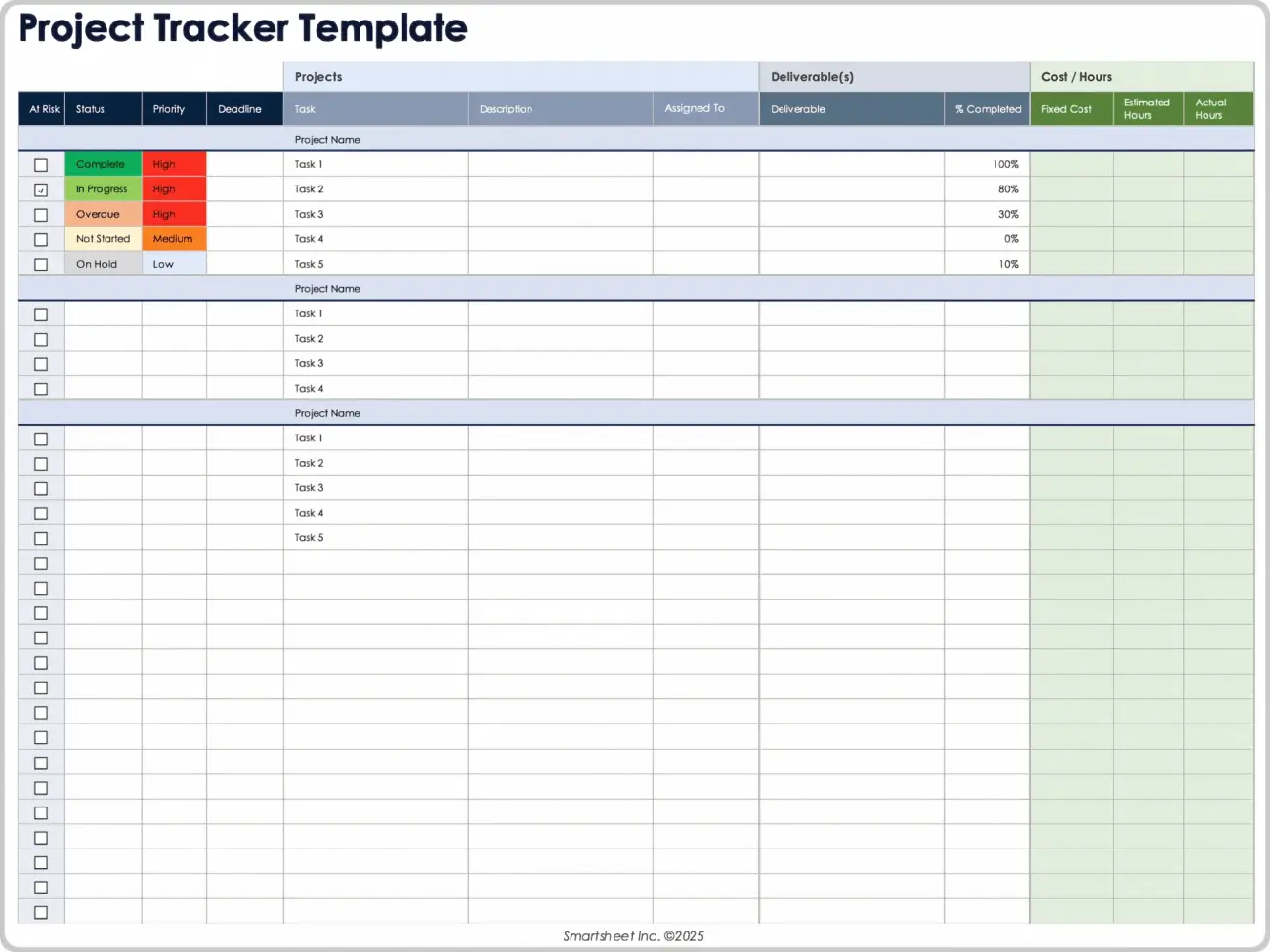
Image source: microsoft.com
Project plan template
Project Plan Template is a comprehensive, centralized tool designed to streamline project execution from start to finish. It acts as a single source of truth, organizing all project-related information in one place to minimize miscommunication and improve accessibility.
Key features include robust task management for assigning duties, setting deadlines, and monitoring progress to keep projects on budget. It enhances team collaboration by providing a unified platform for communication and centralized document storage, ensuring everyone has the latest file versions.
Additionally, the template offers high visibility through built-in Gantt charts, allowing managers to easily visualize timelines, track milestones, and quickly identify potential bottlenecks. Highly adaptable, this versatile template can be fully customized to fit the specific workflows and requirements of various projects and industries, making it an ideal solution for teams seeking better organization and execution.
Gantt chart project template
The Gantt Chart Template is a powerful visual tool designed to simplify complex project management by transforming raw data into clear, actionable timelines.
By mapping out task sequences and dependencies, it brings immediate clarity to your project roadmap. It excels in cross-functional coordination, ensuring all team members are aligned and working on the same page. With intuitive , project managers can easily monitor execution status and proactively identify potential delays before they become major issues.
Use the gantt chart template in stakeholder presentations for quarterly planning or mid-project status reviews, and consider evaluating when you need more automation and scalability.
Project management dashboard template
This dashboard template summarizes project health using charts and key performance indicators, suitable for leadership reports or PMO reviews.
A typical layout includes small sections for Total tasks, Completed tasks, Tasks at risk, Budget versus actual costs, and burn-down or completion charts. The dashboard pulls from underlying task and budget sheets via formulas, so keeping raw data clean is critical for accurate visuals.
Project managers use this dashboard to run monthly governance meetings, quickly identifying which project milestones or workstreams need attention. Dashboards can be adapted for single projects or combined into a portfolio-level view for tracking multiple projects.
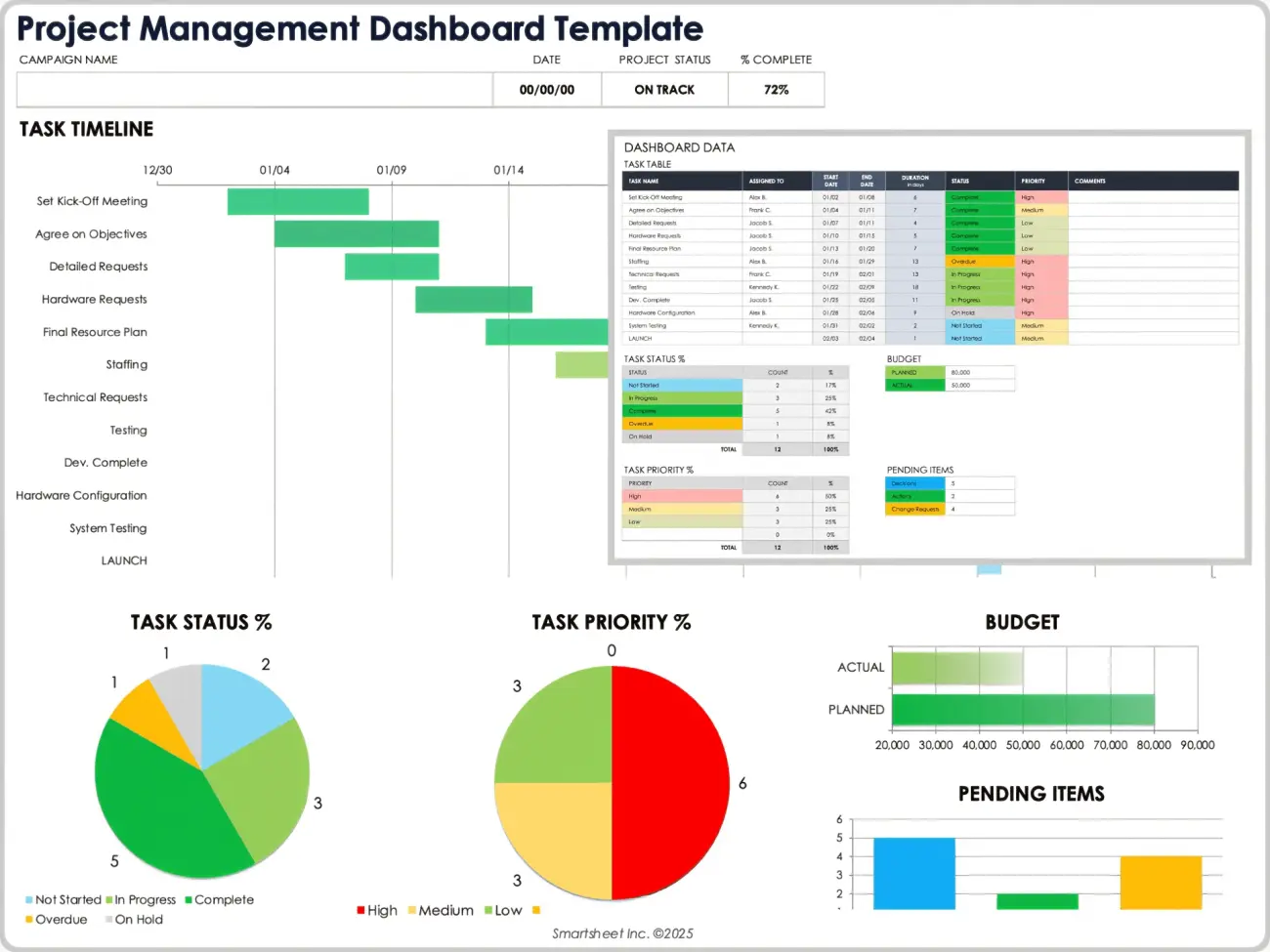
Image source: microsoft.com
Work breakdown structure (WBS) template
This template helps break large initiatives, such as a company-wide ERP implementation, into hierarchical components and deliverables.
A typical work breakdown structure layout includes Level, Code such as 1.1.2, Deliverable, Task, and Owner columns, allowing teams to see how project tasks roll up to major outcomes. Teams use the WBS to estimate effort, identify missing tasks, and clarify who is responsible for each part of the project.
Once defined, WBS elements are copied into a Gantt chart or project management tracking spreadsheet for time-based planning. This template reduces ambiguity when cross-functional teams in IT, Finance, and Operations all contribute to the same project.
Project risk assessment template
This template logs potential threats to schedule, project budget, quality, or scope, often used from early planning through project closure.
Common columns include Risk ID, Description, Category, Likelihood, Impact, Overall score, Mitigation action, Owner, and Status. Project managers sort by Overall score to focus attention on high-risk items during weekly risk review meetings.
Consider linking key project risks to tasks in the main project management tracking spreadsheet so that blockers are managed proactively. Lessons learned from this sheet can be archived and reused to improve risk planning in future projects.
Agile project plan template
This template supports teams working in sprints, tracking user stories, backlog items, and sprint commitments over time.
Separate sections or sheets cover Product backlog, Sprint backlog, and Sprint review, with columns like Story ID, Description, Story points, Priority, and Status. Model sprints of two weeks with fields for Sprint start, Sprint end, and team capacity, suitable for Agile teams working through roadmaps, or use a that already includes these structures.
Capturing completed story points per sprint helps forecast how many sprints are needed to complete an epic or release. While useful for small Agile teams, spreadsheets can become cumbersome for multi-squad programs.
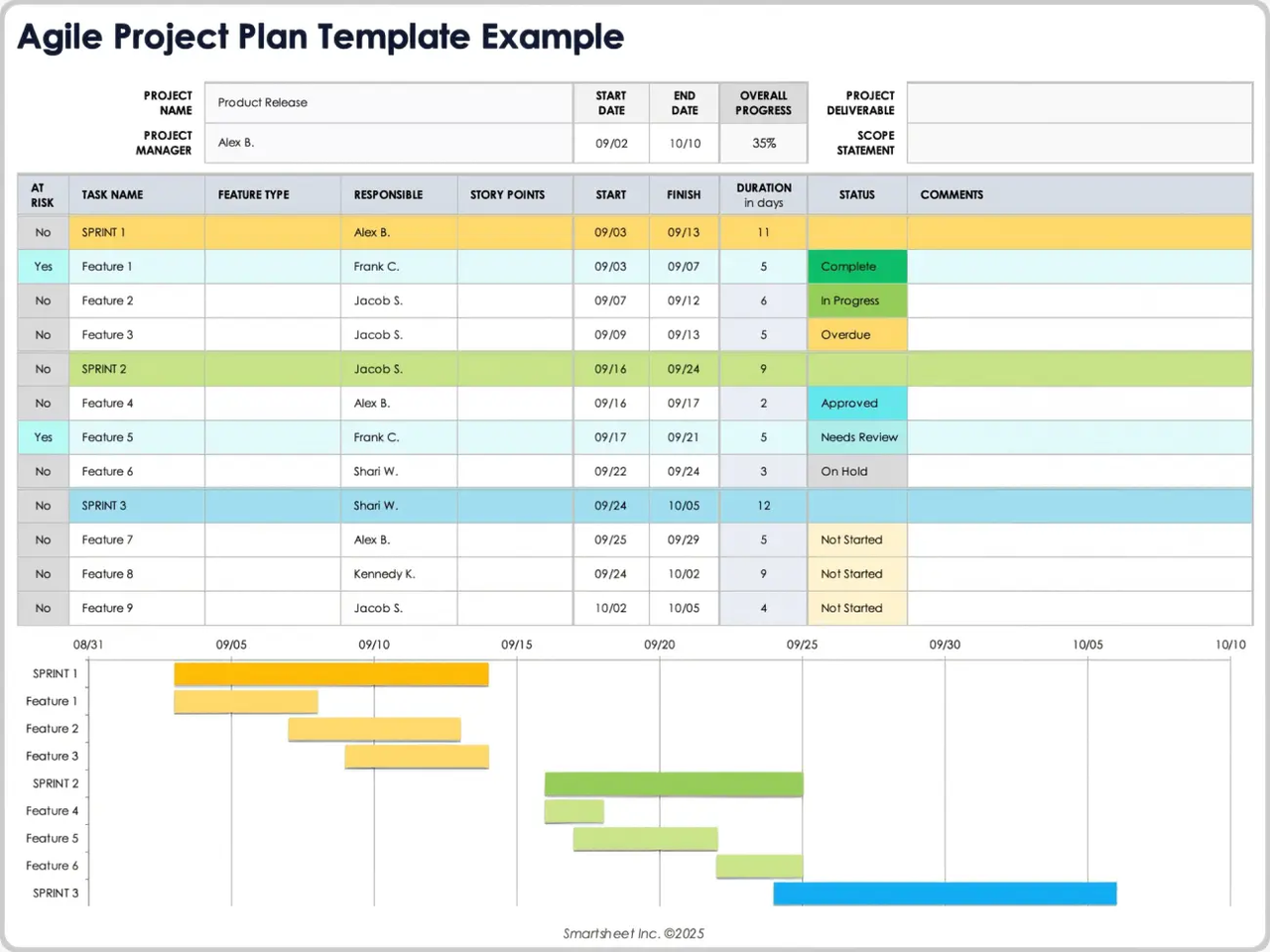
Image source: microsoft.com
Best practices for using Excel project tracking spreadsheets effectively
Having the right template is only part of the equation. Process and discipline determine whether your project management tracking Excel file becomes a trusted source of truth or a neglected artifact that no one updates.
Consistency matters more than complexity. A simple tracker that everyone uses correctly will outperform a sophisticated one that sits untouched in a shared drive. Establishing clear expectations about who updates what and when transforms spreadsheets from static documents into dynamic management tools.
Here are best practices that apply to any excel project tracking spreadsheet:
- Standardize templates: Use a small set of agreed templates across the organization so that every project follows the same basic structure and status definitions.
- Control data quality: Use data validation, dropdown lists, and consistent date formats to prevent broken formulas and reporting errors.
- Version management: Apply clear naming conventions like Project-name-tracker-Apr-15-v1.xlsx and control edit access to avoid conflicting copies.
- Update cadence: Schedule regular updates, daily for fast paced projects or weekly for slower ones, so that dashboards and summaries reflect current reality.
- Documentation and notes: Include a Read me or Instructions tab to explain which sheets to edit, which cells are locked, and how to read summary metrics.
- Security considerations: Protect sensitive budget or HR data with password-protected sheets or separate restricted workbooks.
- Backup and archiving: Archive final versions at project closure to support audits and lessons learned exercises.
When Excel starts to break: Limits of project management tracking Excel
Excel works well for many scenarios, but there are clear signs when spreadsheets start to hold teams back rather than help them. Recognizing these failure points early can prevent frustration and project delays.
The most common pain point is collaboration. When multiple people edit the same tracker during a busy release week, email-based file sharing causes conflicts and lost updates. One person saves over another’s changes, and suddenly the project schedule no longer reflects reality.
Real-time visibility is another challenge. Getting an up-to-date view of overall progress across multiple projects becomes difficult when each team maintains its own separate spreadsheet. By the time you consolidate data for a steering committee meeting, some of it is already outdated.
Here are the common issues that trigger the need for more advanced tools or even :
- Collaboration pain: Email-based file sharing causes version conflicts and lost updates when teams work simultaneously.
- Real-time visibility: Separate spreadsheets make it hard to get current views of project progress across initiatives.
- Automation gaps: Manual work required to consolidate data, send reminders, and update task statuses becomes unrealistic as portfolios grow.
- Audit trails and accountability: Excel does not natively track who changed what and when, complicating audits or root-cause analysis.
- Multi-project complexity: Maintaining an accurate project management multiple project tracking template Excel workbook across dozens of active initiatives strains even disciplined teams.
- Data integrity risks: Accidental formula edits or row deletions can silently skew metrics, leading to incorrect decisions about resource allocation and workload management.
Using Lark to go beyond Excel project management tracking templates
For teams that have outgrown standalone spreadsheets but still value the flexibility of a template in Excel, offers a practical path forward. Rather than abandoning familiar workflows, you can bring your existing trackers into a unified workspace that adds the collaboration and automation features Excel lacks.
Lark combines chat, video meetings, calendar, cloud documents, and project tracking in a single platform, putting it in the same category as leading . This eliminates the tool-switching that slows teams down during critical project phases. When you need to discuss a blocked task, you can start a conversation directly from the sheet rather than copying data into an email or messaging app.
Real-time collaboration is where Lark Sheets truly shines compared to traditional excel spreadsheets. Multiple team members can edit the same tracker simultaneously, leave in-document comments, and use mentions to notify colleagues about updates, similar to leading . There is no need to email updated files or wonder which version is current.
Here is what makes Lark a natural upgrade from project management tracking Excel:
Multidimensional project tracking and automated dashboards
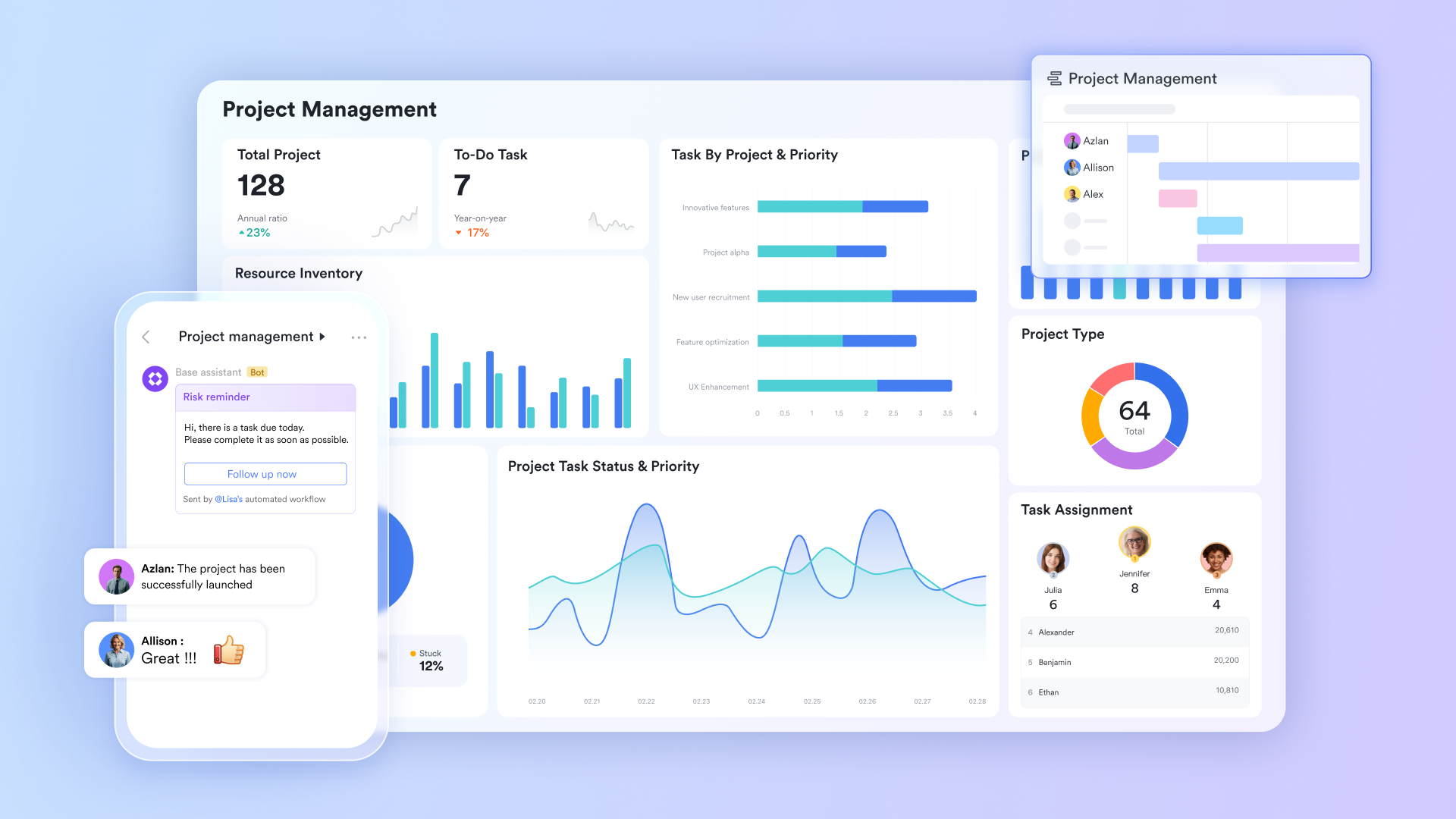
serves as the structural heart of your project tracking. Instead of manually updating a project management tracking Excel file, you can use this flexible database to monitor milestones, assign owners, and track dependencies. It allows planners to switch instantly between a grid view for data entry, a Kanban board for agile progress tracking, and a Gantt view for timeline management. Because it supports rich customization, you can easily set up automated alerts for status changes, ensuring nothing slips through the cracks.
Real-time execution and accountability tracking
Lark Tasks helps you monitor granular progress by breaking high-level deliverables into actionable items. You can assign owners, set strict deadlines, and track the real-time status of every sub-task. A major advantage over static spreadsheets is its seamless collaboration with chat: a quick update mentioned in a message can be instantly converted into a tracked task, keeping your project tracker perfectly aligned with actual daily work. 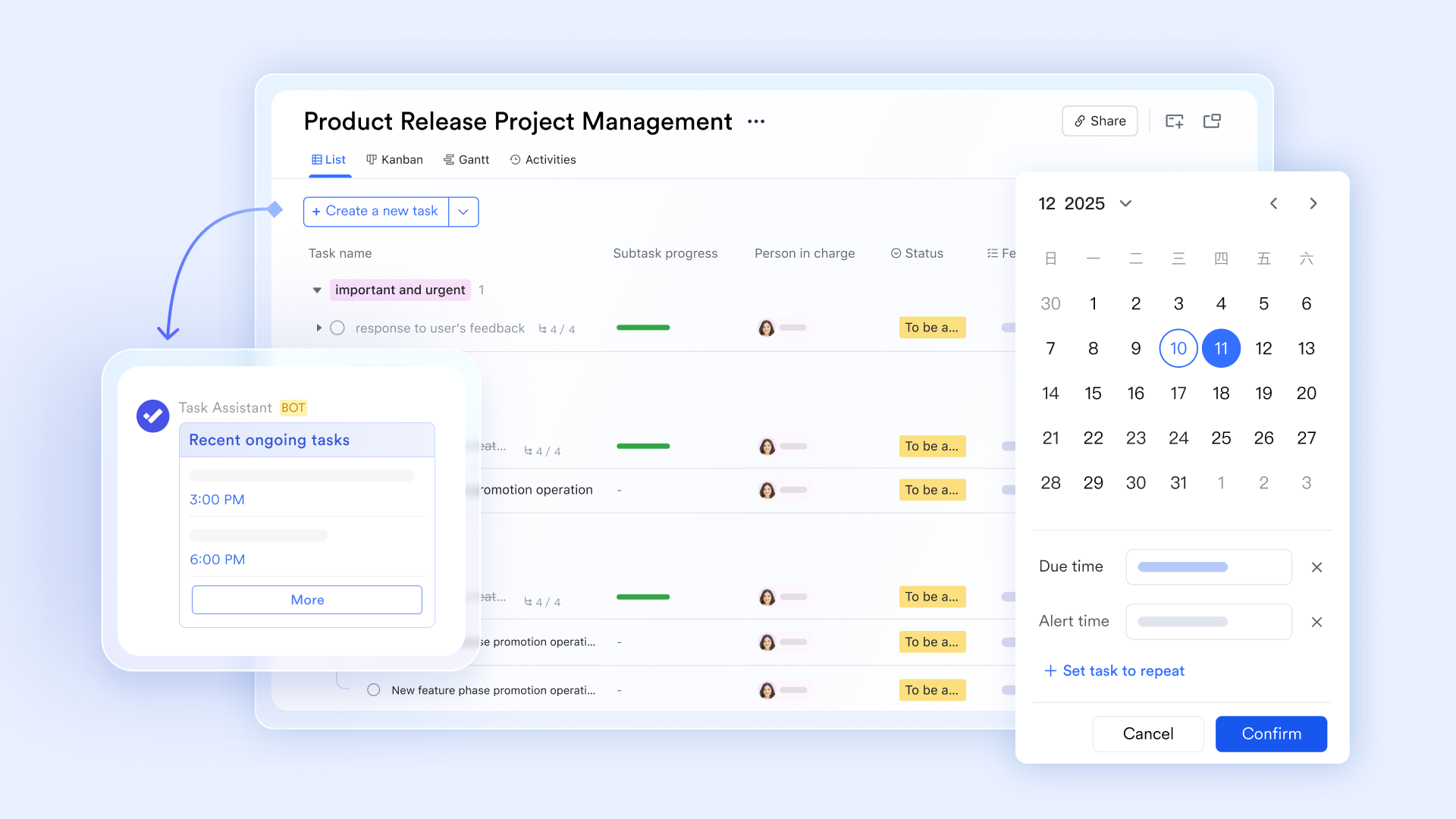
Centralized communication and status updates
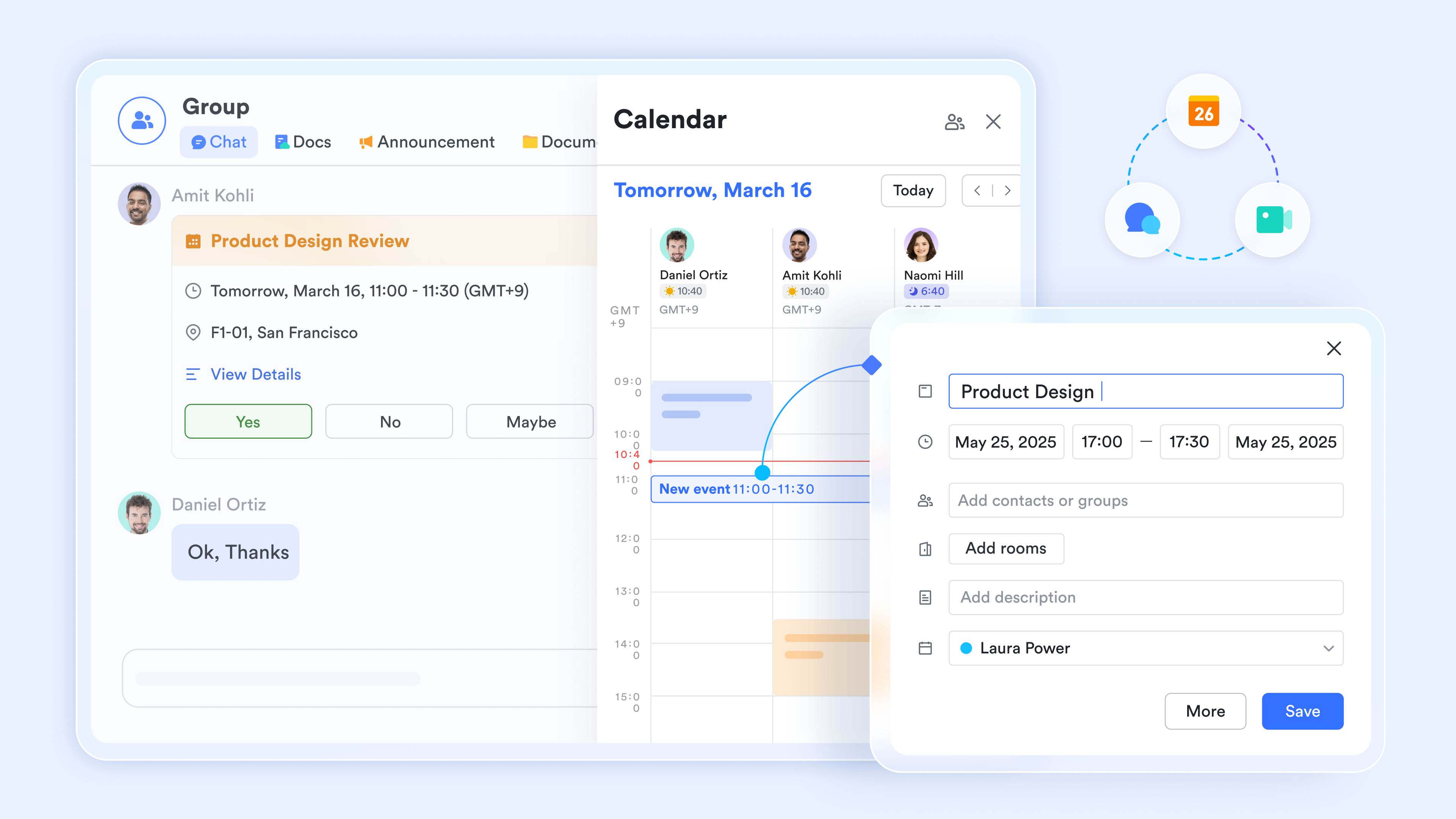
allows you to create dedicated project groups that serve as the command center for all tracking updates. These groups sync automatically with your tasks and calendar, pushing any changes in the project timeline directly into the chat feed. By pinning your tracking dashboard to the top of the group, every stakeholder gets immediate visibility into the latest project health without needing to hunt down the right spreadsheet version.
Dynamic project hubs and live reporting
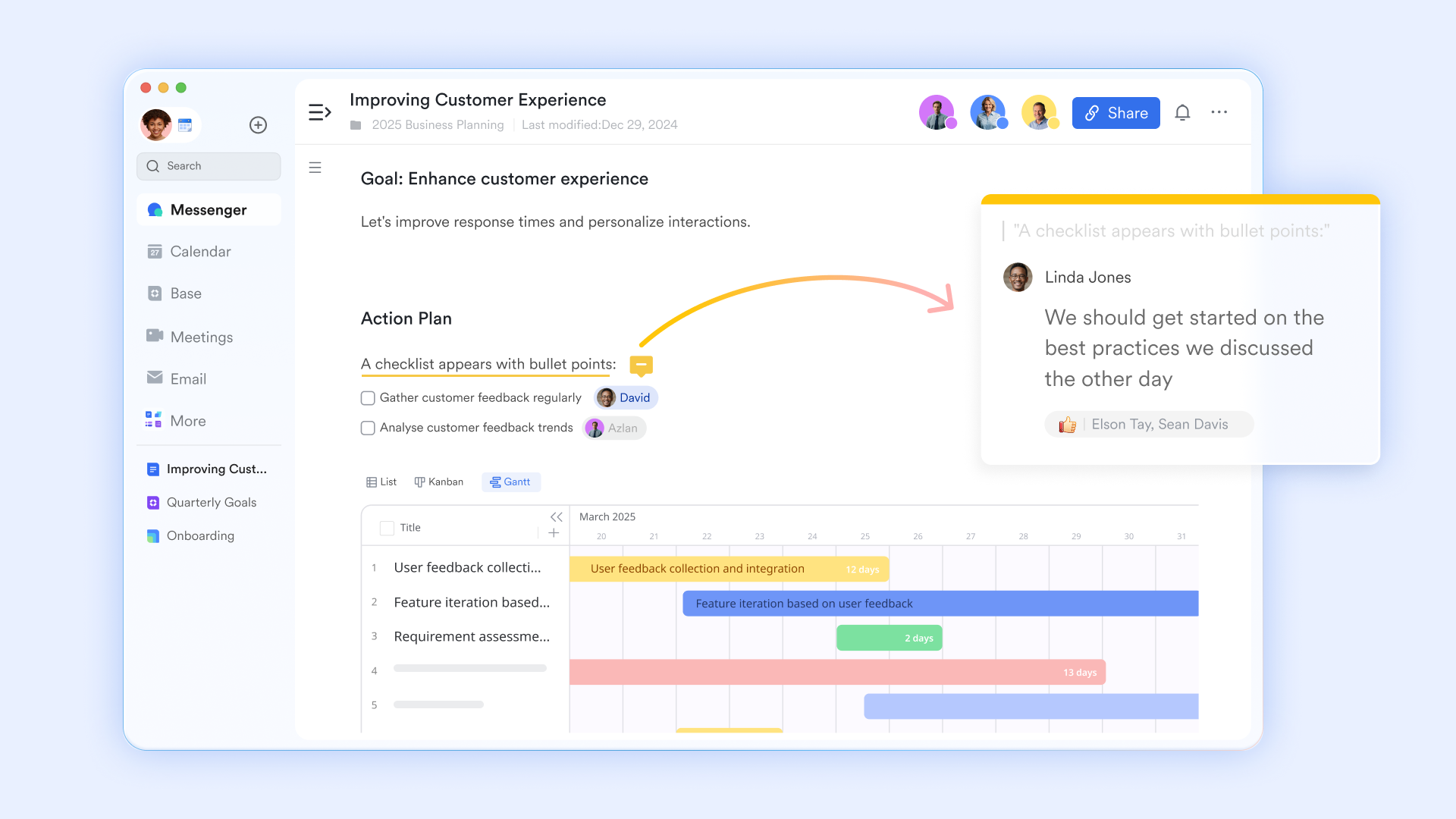
replaces static files with living project hubs where teams can collaborate seamlessly. Instead of copying and pasting charts into an email, your team can embed live Lark Base views, tracking dashboards, and interactive elements directly into a collaborative document. This ensures that stakeholders can view real-time project status and metrics right within the page, keeping the entire team aligned on a single, up-to-date source of truth.
:
- Starter plan: Free forever plan that includes 11 powerful tools for up to 20 users. It also comes with 100GB of storage, 1000 automation runs, AI translations, and more.
- Pro plan: $12/user/month (billed annually) for up to 500 users. It includes everything in Starter plus group calling for up to 500 attendees, 15TB of storage, 50,000 automation runs, and more.
- Enterprise plan: for custom pricing. Supports unlimited users and includes even more automation runs and advanced security, compliance, and management features.
For small teams with simple communication needs

18 months message history
1000 Base automation runs/month
2000 rows per table in Base
Most POPULAR
For companies with comprehensive collaboration and management needs
Unlimited message history
500-participant video meetings
50k Base automation runs/month
20k rows per table in Base
For large companies with advanced security and organizational management needs
Get a personalized demo and pricing
Unlimited message history
500-participant video meetings
15 TB storage + 30 GB storage/user
500k Base automation runs/month
50k Base automation runs/month
Most POPULAR
For companies with comprehensive collaboration and management needs
Unlimited message history
500-participant video meetings
50k Base automation runs/month
20k rows per table in Base
Things to consider about project management tracking Excel
Whether you are building your first tracker or refining a process you have used for years, these common questions address practical concerns about Excel project management tracking templates.
- What is the difference between a basic tracker and a dashboard: A tracker holds raw data such as project tasks, end dates, and completion status, while a dashboard summarizes key metrics and charts for quick review by stakeholders.
- When should I use multiple project tracking Excel instead of single-project files: Use a consolidated workbook when a PMO or portfolio manager needs a clear overview across initiatives, such as during quarterly business reviews or resource allocation planning.
- Are free excel project management tracking templates enough for large teams: They can work for smaller teams or temporary project needs but tend to strain under heavy collaboration, frequent changes, and the need for real-time visibility.
- How do I adapt templates to my industry: Add or rename columns based on your project needs, such as including Regulatory check or Client sign-off fields for healthcare or finance projects.
- Can Excel handle project management time tracking Excel for distributed teams: It can handle timesheets and track timelines, but it requires discipline and may benefit from a more integrated time-tracking system as headcount grows.
- How often should I refresh my templates: Review project templates annually or at the start of each fiscal year to align with new processes, reporting requirements, and lessons learned from completed projects.
Conclusion
Project management tracking in Excel remains powerful for planning, monitoring task progress, and reporting when combined with well-designed templates and clear processes. Using the right mix of project tracker, Gantt chart template, budget, risk, and stakeholder templates can significantly improve project success and keep even complex projects on track. However, as teams scale and collaboration demands increase, standalone spreadsheets show their limits. Consider keeping your familiar Excel templates while experimenting with bringing them into Lark’s all-in-one collaboration platform to gain real-time visibility, seamless communication, and workflow automation. Set up your next project inside to experience how much easier it is to manage projects compared with standalone Excel files.
Start managing project tracking today
FAQs
What is the difference between a basic tracker and a dashboard?
A basic project tracker holds raw data, such as individual tasks, start and end dates, task owners, and completion statuses. It is used for day-to-day project execution. In contrast, a dashboard summarizes this raw data into key metrics and visual charts (like budget vs. actual costs). Dashboards are designed for quick, high-level reviews by stakeholders and leadership, helping them easily identify overall project health without getting bogged down in daily task details.
When should I use multiple project tracking Excel instead of single-project files?
You should use a multiple project tracking Excel workbook when you need a clear, high-level overview across several concurrent initiatives. This is highly useful for PMOs or portfolio managers during quarterly business reviews or resource allocation planning. A consolidated tracker centralizes key data—like overall statuses, budgets, and target launch dates—allowing managers to monitor total active projects, identify at-risk items, and balance workloads across the entire portfolio efficiently.
Are free Excel project management tracking templates enough for large teams?
Free Excel templates are excellent for smaller teams, straightforward initiatives, or temporary project needs. However, they often strain under the demands of large teams. As team size and project complexity grow, standalone spreadsheets struggle with heavy collaboration, version control conflicts, and frequent simultaneous updates. They lack the real-time visibility, automated workflows, and audit trails that modern collaboration tools offer, making them less effective for complex programs.
How do I adapt project tracking templates to my specific industry?
Adapting an Excel template to your industry is as simple as customizing the columns and terminology to fit your specific workflow. For example, if you are in healthcare or finance, you can add mandatory columns for "Regulatory Check" or "Client Sign-off." For IT, you might include "Environment" or "Sprint ID." By renaming headers, adding specific data validation dropdowns, and tailoring status labels, you can easily transform a generic template into a specialized tracking tool.
Related reading