Managing documents across distributed teams can quickly become chaotic without the right structure. A shared OneDrive folder helps teams collaborate on files, control access permissions, and maintain a single source of truth. Whether you're onboarding employees, working with external partners, or coordinating cross-functional projects, knowing how to properly set up and manage shared folders in OneDrive is essential for smooth workflows.
In this guide, you'll learn how to create a shared folder in OneDrive step by step, assign permissions accurately, add shared folders to File Explorer, and troubleshoot common sync issues. We'll also briefly explore how collaboration platforms like Lark can support more integrated file sharing across teams.
What is a shared OneDrive folder, and why use it?
A shared OneDrive folder is a stored in Microsoft OneDrive that multiple users can access simultaneously, depending on the permissions granted. Instead of sending files back and forth via email, teams collaborate in a single centralized location, with documents updated in real time. This ensures everyone works on the latest version, reducing duplication and version conflicts.
Organizations use shared folders to streamline teamwork, especially in . Permissions can be customized so users can view, edit, or download files based on their roles. Shared folders also support secure external collaboration with clients or vendors while maintaining administrative control.
Key benefits include improved transparency, easier document tracking, simplified onboarding, and stronger data governance. By centralizing files and enabling controlled access, a shared OneDrive folder helps teams stay organized, aligned, and productive across projects.
How to create a shared folder in OneDrive
Creating a shared folder in OneDrive is straightforward and enables . By setting up the folder correctly, you ensure files are centralized and accessible to the right people. Clear naming and proper permission settings are essential to avoid confusion later. Follow the steps below to create and share a folder efficiently.
Step 1. Access your OneDrive space on the web
Sign in to your Microsoft account and open OneDrive through your browser. Ensure you are using the correct work, school, or personal account. Once logged in, you'll land on your main file dashboard, where all folders are visible.
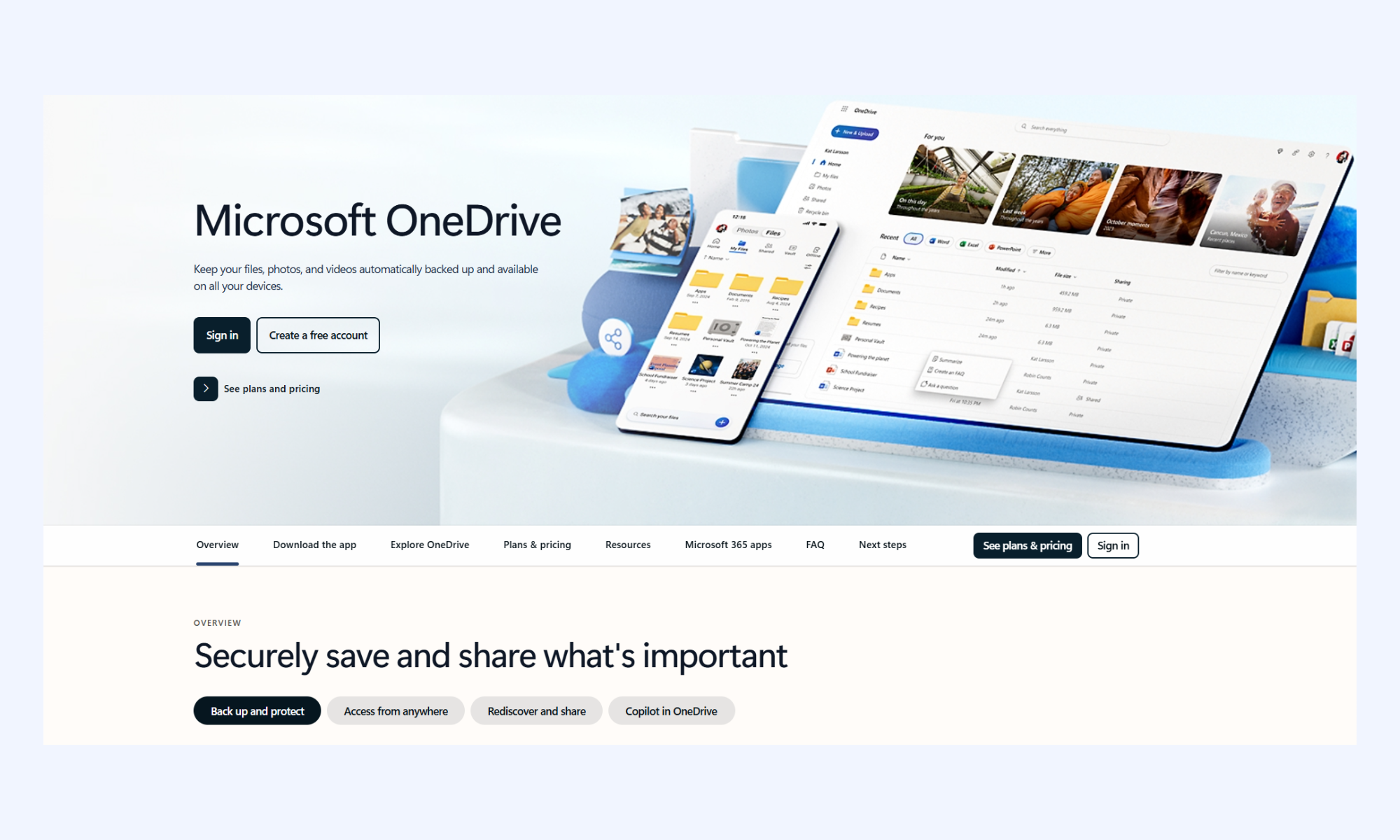
Image source: microsoft.com
Step 2. Navigate to where the folder should live
Choose the appropriate location for the new folder: either the root directory or an existing folder. Structuring folders logically from the start prevents confusion later. Click into the desired location before proceeding.
Step 3. Name the folder clearly
Click "New" and select "Folder" to create one. Enter a clear, descriptive name that reflects the project, department, or purpose. Consistent naming conventions make files easier to find and manage.
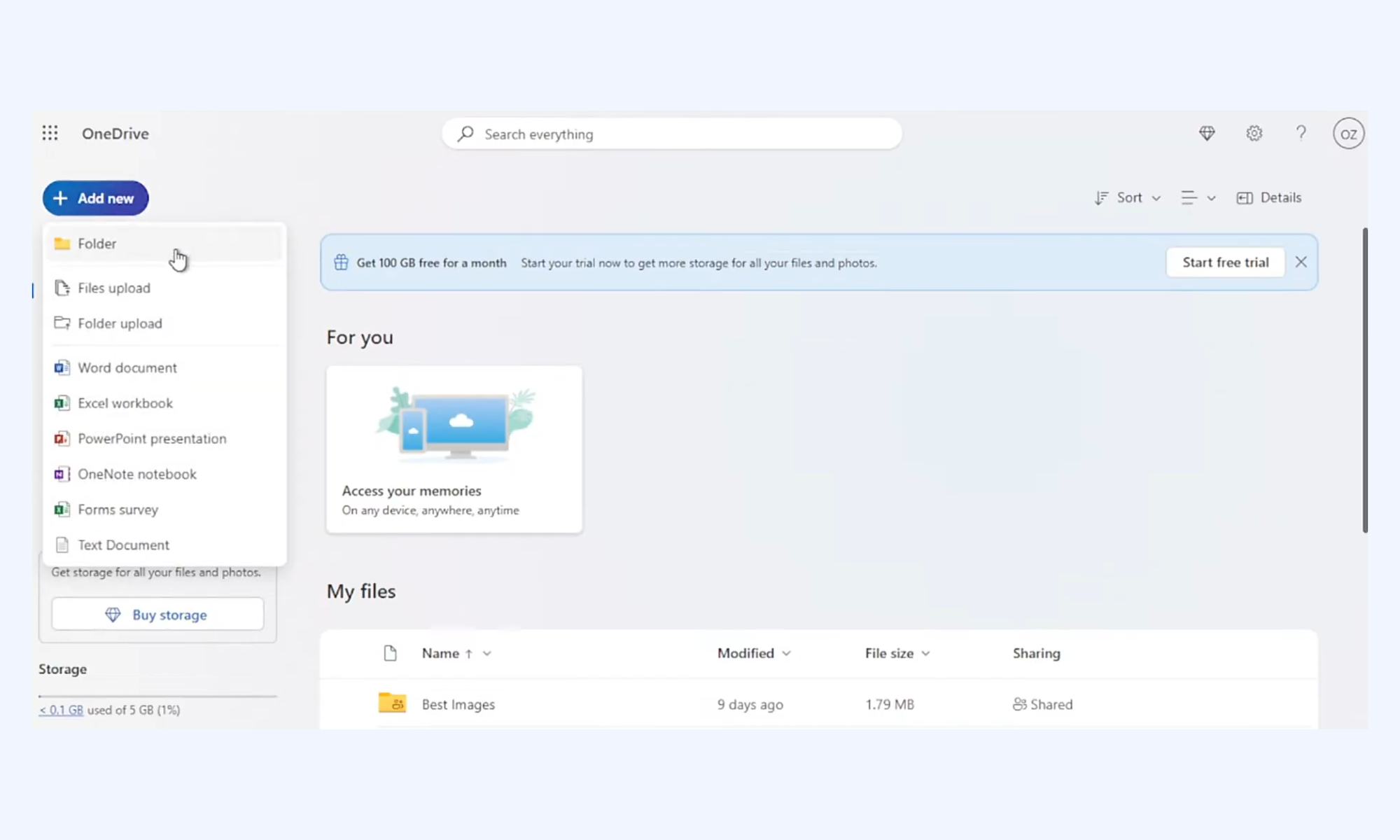
Image source: microsoft.com
Step 4. Open the share menu
Select the newly created folder and click the "Share" option. This opens the sharing settings window, where you can manage access. Review the default settings before inviting others.
Step 5. Choose how you want to share the folder
Decide whether to share via email invitation or by generating a link. allows you to specify recipients directly. Link sharing provides flexibility, but should be configured carefully.
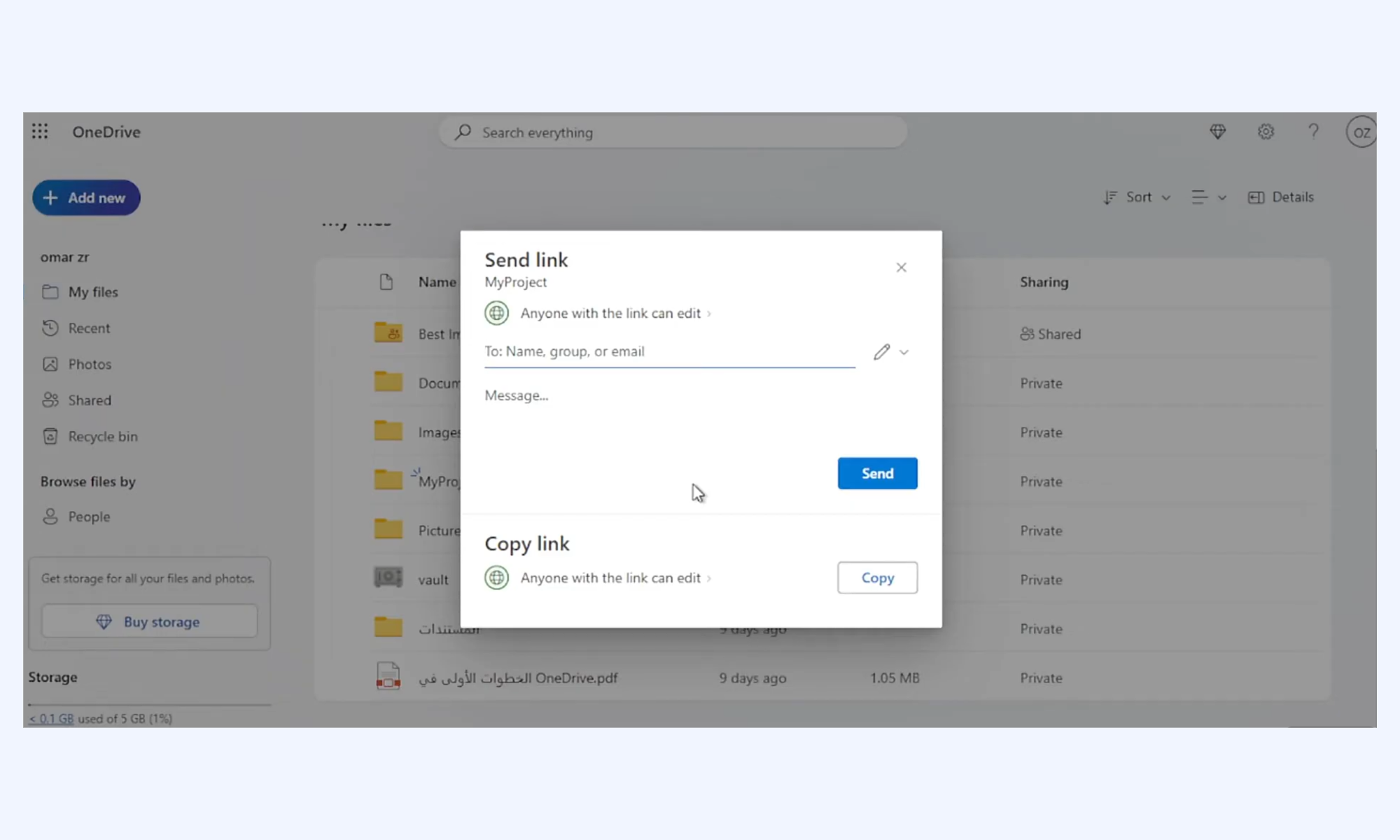
Image source: microsoft.com
Step 6. Decide if users can edit
Choose whether recipients can view only or edit files within the folder. Editing rights allow users to upload, modify, and delete files. Assign permissions based on roles and responsibilities.
Step 7. Apply settings and send an invitation
Review all permission settings before confirming. Add a short message explaining the folder's purpose if needed. Click "Send" or "Apply" to finalize the sharing process.
Understanding permissions in OneDrive shared folders
Managing permissions in a OneDrive shared folder is essential for maintaining security and accountability. Assigning the right access level ensures that without compromising sensitive data. Understanding each permission type helps administrators balance flexibility with control.
- View-only access: View-only access allows users to open and read files without making changes. This is ideal for stakeholders who need visibility but do not need to edit content. It reduces the risk of accidental modifications or deletions.
- Editing rights: Editing rights enable users to create, modify, upload, and delete files within the folder. This permission is best suited for active project contributors. It supports and shared ownership of documents.
- Download permissions: Download permissions determine whether users can save copies of files to their local devices. Restricting downloads helps protect confidential information. Allowing downloads offers flexibility when offline access is necessary.
- External sharing control: Administrators can decide whether folders can be shared outside the organization. This prevents unauthorized distribution of sensitive files. Proper configuration is critical when collaborating with clients or vendors.
- Expiration settings: Automatically revoke access after a specified date. This is useful for temporary projects or short-term partnerships. It strengthens security by ensuring outdated permissions do not remain active indefinitely.
Bring efficiency to document sharing with Lark
Team use: How to add a shared OneDrive folder to File Explorer
Adding a shared OneDrive folder to File Explorer allows you to access team files directly from your desktop. This makes by integrating shared content into your regular file system. Once synced properly, the folder behaves like any other local directory.
Step 1. Open OneDrive on the web
Sign in to your OneDrive account using a web browser. Navigate to the "Shared" section to locate folders shared with you. Confirm you have the correct permissions before proceeding.
Step 2. Select the shared folder
Find the folder you want to add, then click it to open it. Ensure it is the exact folder, not just an individual file. Review its contents to confirm it's the correct directory.
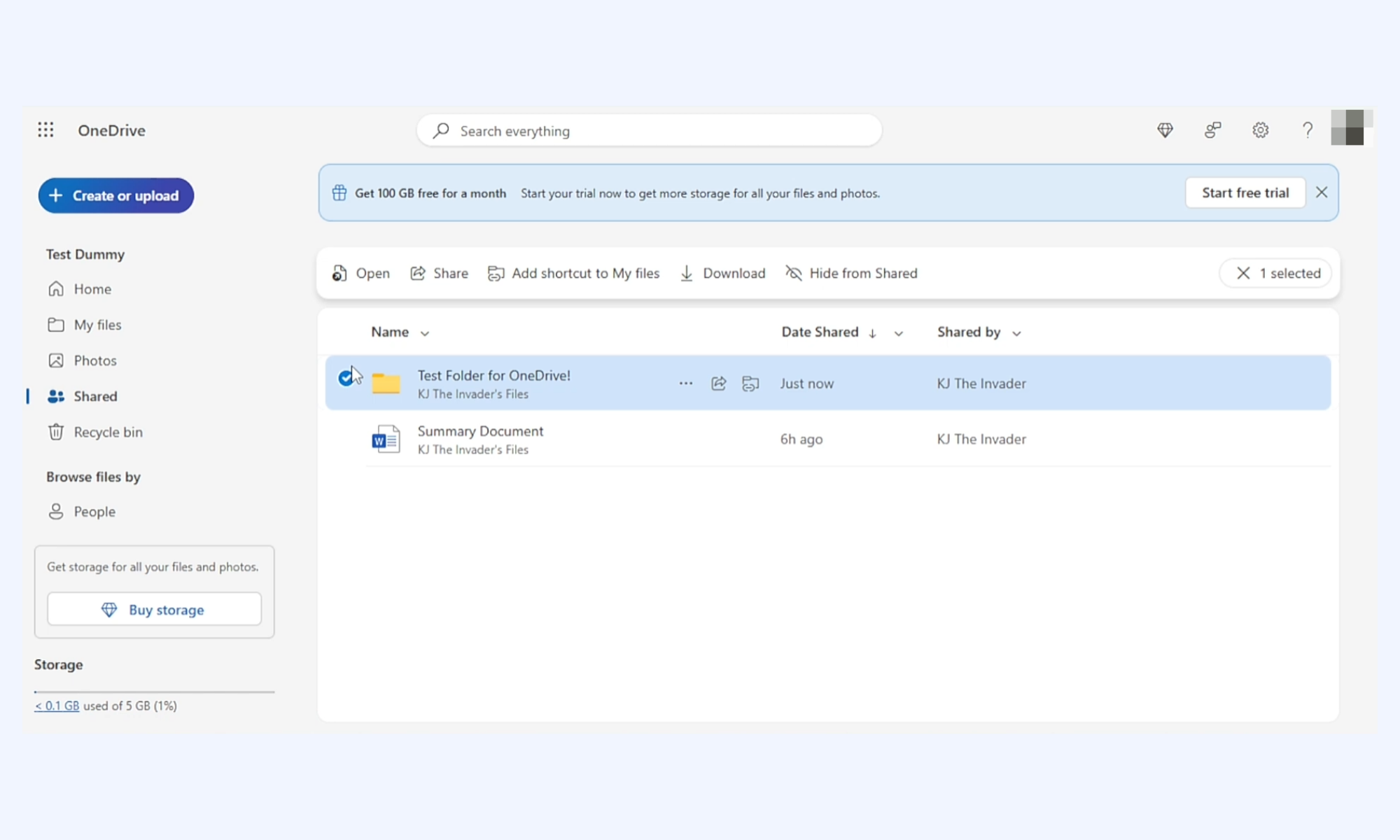
Image source: microsoft.com
Step 3. Click "Add shortcut to My files"
At the top of the folder view, select the option to add a shortcut to "My files." This action links the shared folder to your primary OneDrive directory. It prepares the folder for desktop syncing.
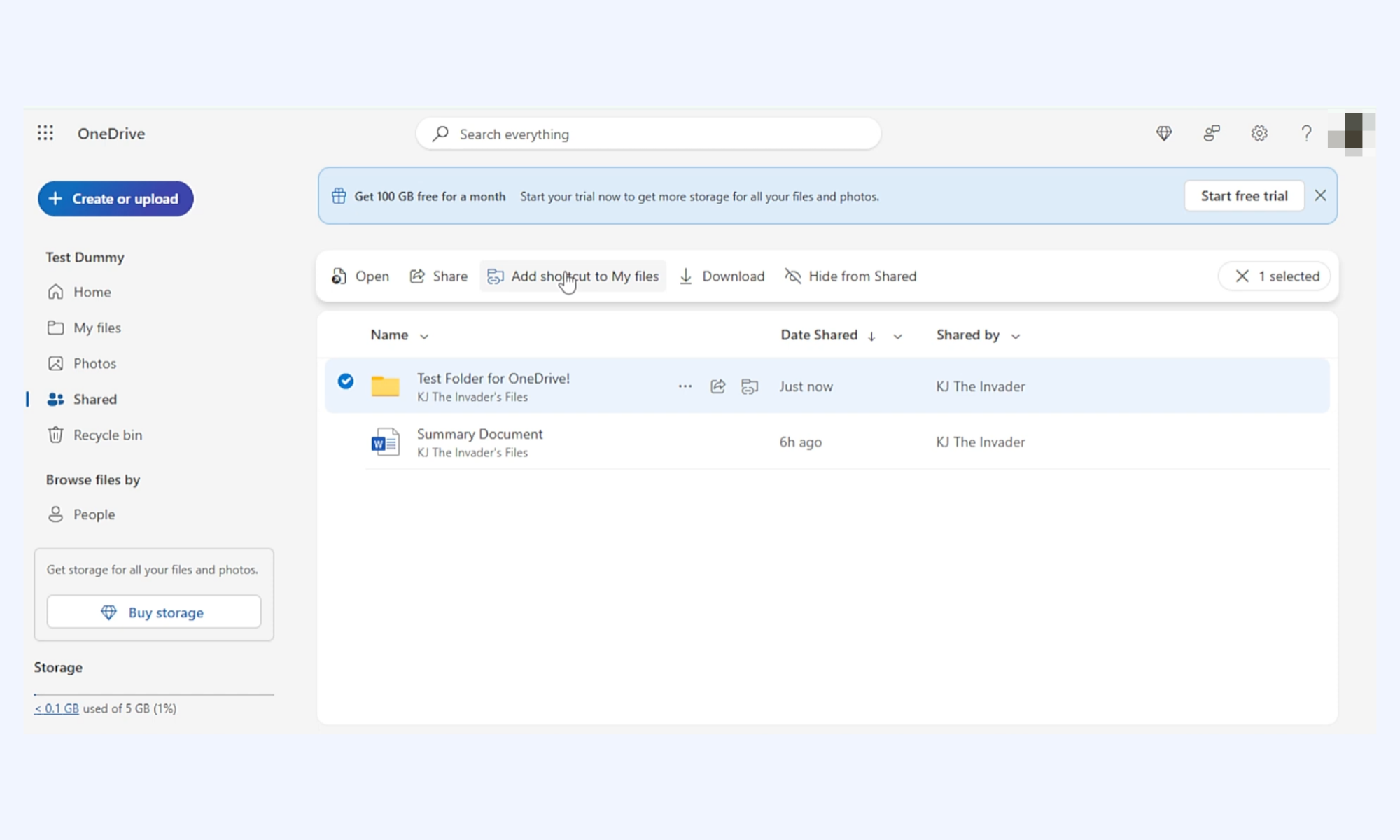
Image source: microsoft.com
Step 4. Open the OneDrive desktop app
Ensure the OneDrive desktop application is installed and running on your computer. Sign in with the same account used in the browser. The app automatically syncs updates from your OneDrive .
Step 5. Check File Explorer
Open File Explorer and select your OneDrive folder from the sidebar. The shared folder should now appear alongside your personal folders. If it doesn't show immediately, allow a few moments for syncing to complete.
Sync delays: OneDrive shared folder not showing
Sync delays can sometimes prevent a OneDrive shared folder from appearing in File Explorer. These issues are usually related to permissions, , or synchronization errors. Identifying the root cause helps restore access quickly and avoid workflow disruptions.
- Permission mismatch: If you don't have the correct access level, the folder may not sync properly. Confirm that the folder owner has granted the appropriate permissions. Re-accepting the shared invitation can sometimes resolve visibility issues.
- Offline sync problems: The OneDrive desktop app must be running and connected to the internet. If your device is offline or syncing is paused, the folder will not appear. Restarting the app or checking network connectivity often fixes the problem.
- Account configuration errors: Using multiple Microsoft accounts can cause confusion in syncing. Make sure the OneDrive desktop app is signed in with the same account that received the shared folder. Signing out and back in can refresh the connection.
- Version conflicts: Outdated OneDrive applications may fail to sync newer shared folders. Updating the desktop app ensures compatibility with . Clearing cached sync data can also help resolve persistent conflicts.
While a shared OneDrive folder supports structured file access, growing teams often need deeper collaboration features. As projects expand, communication, approvals, and document tracking become equally important as storage. This is where work platforms offer added efficiency beyond basic file sharing. Lark provides a unified environment that connects documents, messaging, and workflows in one place.
Take document collaboration to the next level
Meet Lark: A collaborative platform with secure and swift file sharing
Lark is a collaborative file-sharing platform that brings communication and into a single unified workspace. Instead of separating chat, storage, approvals, and editing tools, it connects them within a single ecosystem. Teams can create, share, and manage files while discussing them in real time, reducing context switching. With structured permission controls and role-based access, Lark supports secure collaboration across departments and external partners. Its integrated workflows and automation features help organizations manage file access more systematically while maintaining transparency and accountability.
Instant creation and granular control of sharing
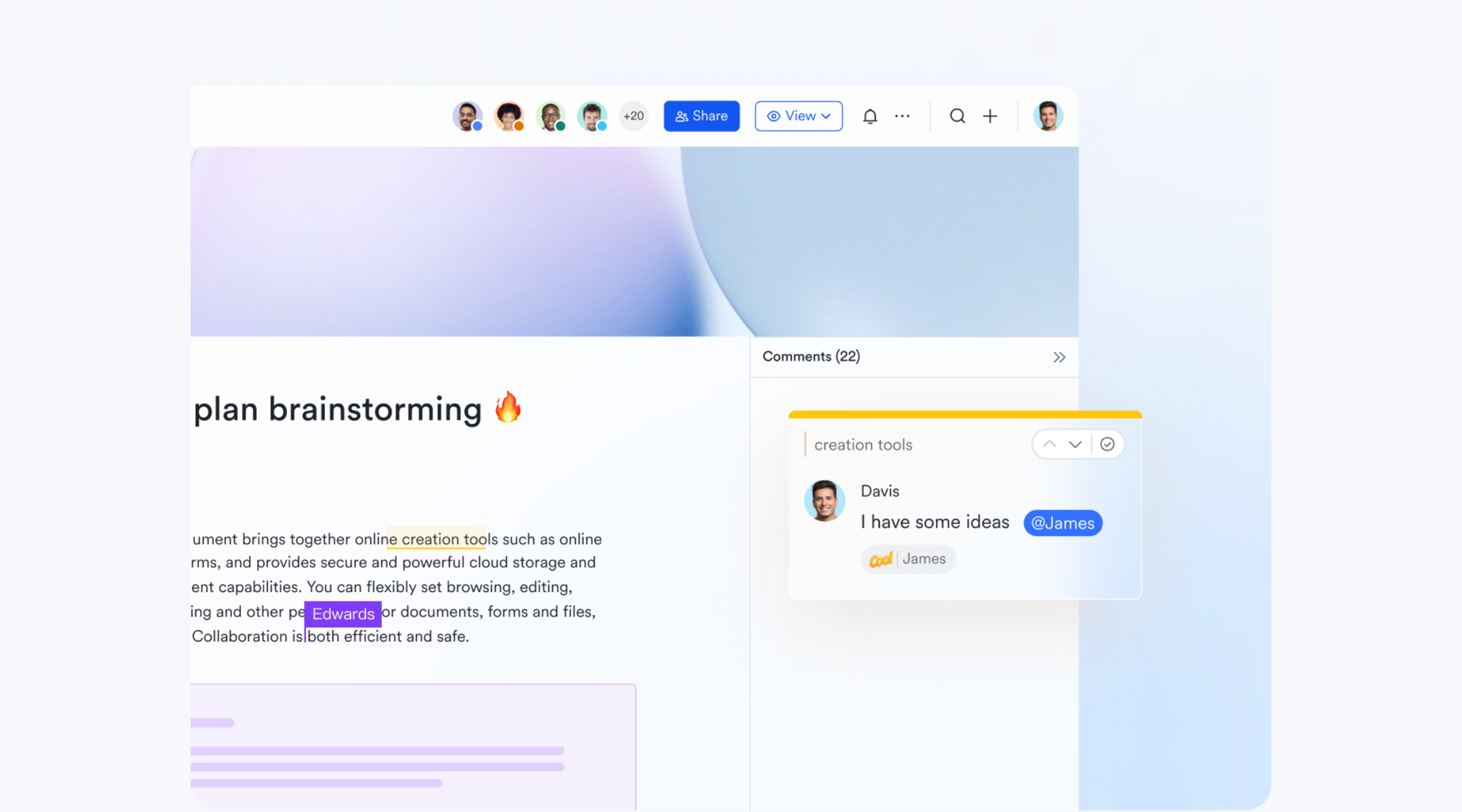
supports permission-based sharing by allowing administrators to define access at granular levels. Teams can assign view, comment, or edit rights depending on roles and responsibilities. Permissions can be applied to documents, folders, and specific sections for individual collaborators or even for people outside your organization. With centralized management and , Lark Docs helps organizations maintain structured, transparent file sharing across projects.
Real-time file editing
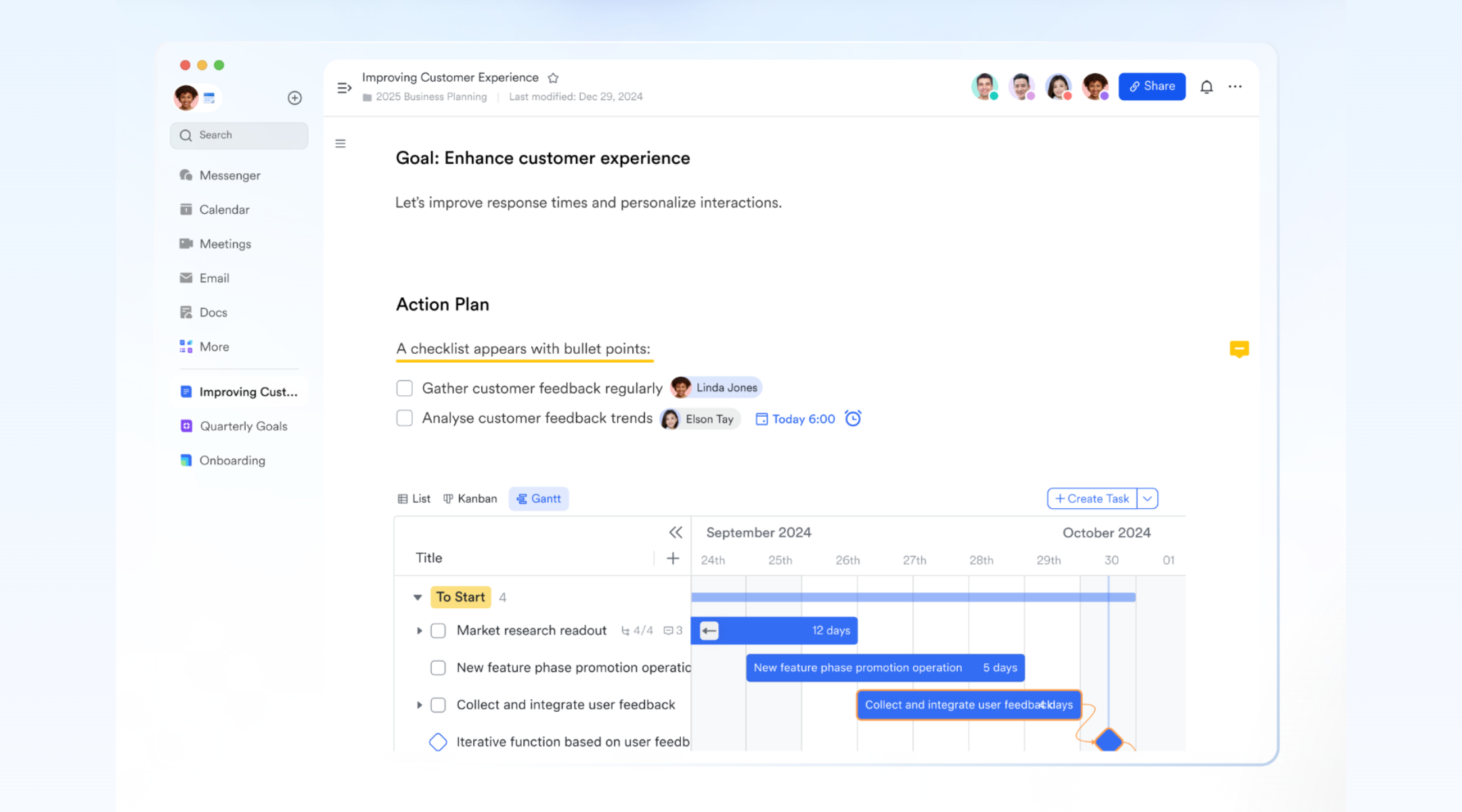
enables multiple team members to work on the same document simultaneously without creating duplicate versions. Changes appear instantly, allowing collaborators to see updates as they happen. This reduces delays caused by back-and-forth revisions. Live cursors, comments, and in-document suggestions during active discussions. By supporting concurrent editing with version history tracking, teams can collaborate faster while maintaining accuracy and control over shared content.
Messenger for contextual collaboration
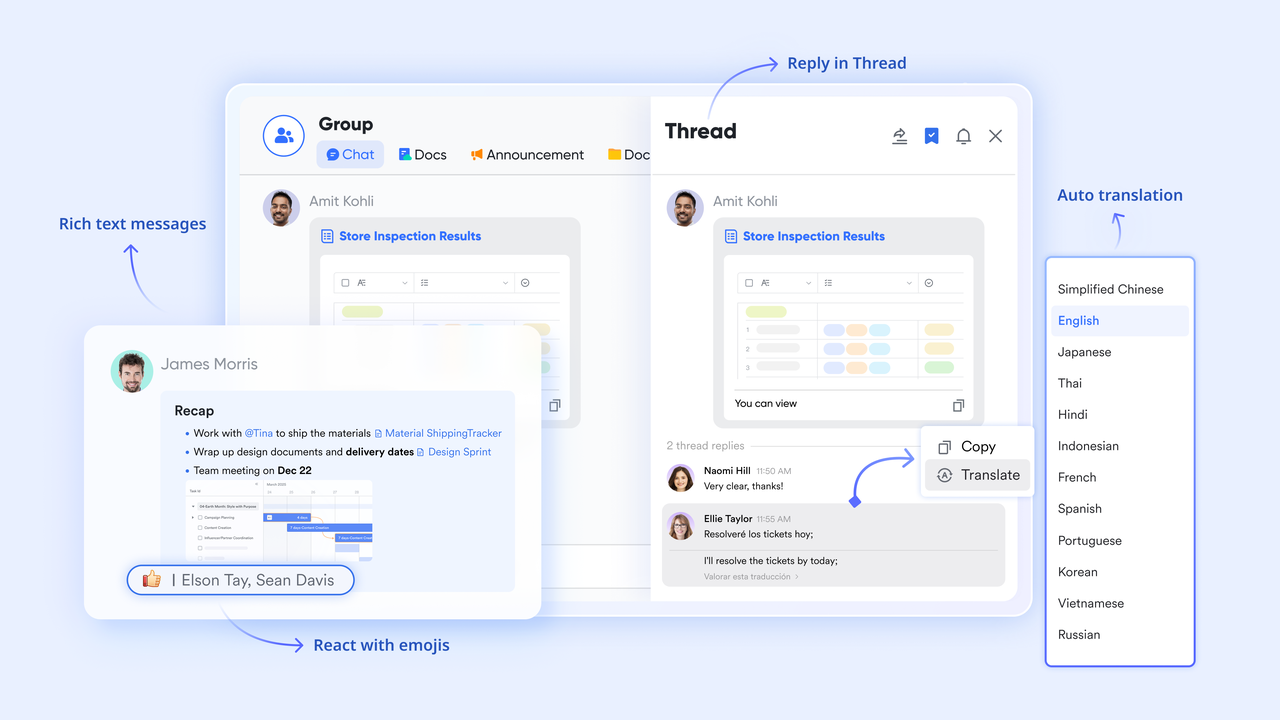
for contextual collaboration connects conversations directly to the files and projects being discussed. Instead of switching between email and , teams can chat alongside documents in real time. This reduces miscommunication and keeps feedback tied to specific tasks or files. Context-rich discussions make it easier to resolve questions quickly and track decisions. By keeping communication and content in one workspace, teams maintain clarity, speed, and alignment across projects.
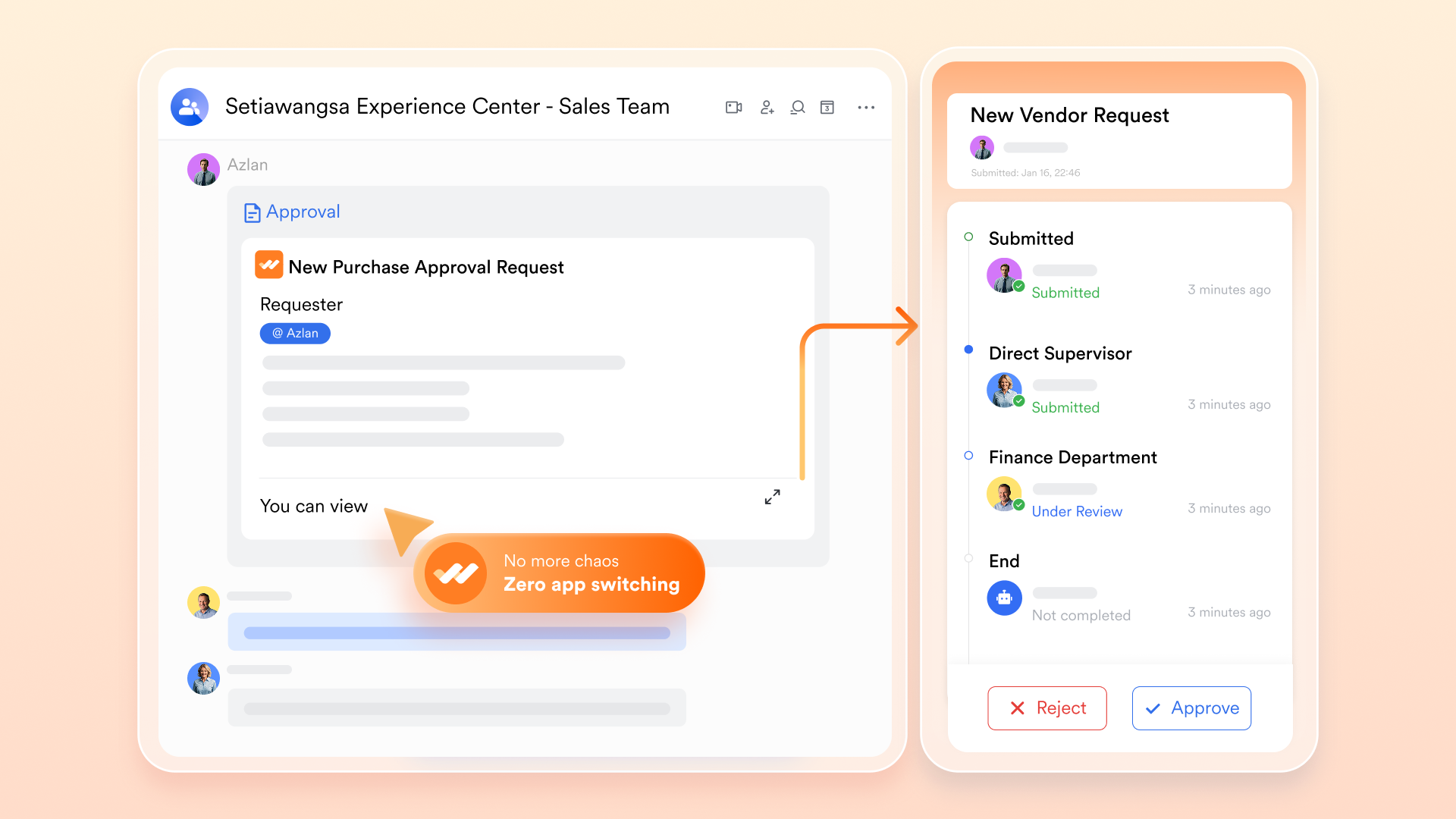
Approval workflows for access validation
for access validation help organizations control who can view or edit sensitive files. Instead of granting permissions instantly, access requests can be routed to managers or administrators for review. This structured process reduces the risk of unauthorized exposure. Automated notifications keep stakeholders informed throughout the approval cycle. With and documented decisions, teams gain better accountability and stronger governance over shared resources.
:
- Starter plan: Free forever plan that includes 11 powerful tools for up to 20 users. It also includes 100GB of storage, 1,000 automation runs, AI translations, and more.
- Pro plan: $12/user/month (billed annually) for up to 500 users. It includes everything in Starter, plus group calling for up to 500 attendees, 15 TB of storage, 50,000 automation runs, and more.
- Enterprise plan: for custom pricing. Supports unlimited users and includes even more automation runs and advanced security, compliance, and management features.
For small teams with simple communication needs

18 months message history
1000 Base automation runs/month
2000 rows per table in Base
Most POPULAR
For companies with comprehensive collaboration and management needs
Unlimited message history
500-participant video meetings
50k Base automation runs/month
20k rows per table in Base
For large companies with advanced security and organizational management needs
Get a personalized demo and pricing
Unlimited message history
500-participant video meetings
15 TB storage + 30 GB storage/user
500k Base automation runs/month
50k Base automation runs/month
Most POPULAR
For companies with comprehensive collaboration and management needs
Unlimited message history
500-participant video meetings
50k Base automation runs/month
20k rows per table in Base
Future of shared OneDrive folder collaboration
The future of shared OneDrive folder collaboration is moving toward stronger security, smarter automation, and tighter governance. As hybrid work becomes standard, organizations require more than basic file sharing. Advanced controls and intelligent monitoring will define the next phase of collaborative storage.
- Zero-trust access: Zero-trust access assumes no user or device should be trusted by default. Every access request is continuously verified based on identity and context. This reduces the risk of unauthorized entry into shared folders.
- AI-driven permission checks: can analyze sharing patterns and flag risky permission settings. It helps detect overexposed folders or unusual access behavior. AI-driven insights support proactive security decisions.
- Encrypted collaboration hubs: Future collaboration environments will emphasize end-to-end encryption. This ensures data remains protected both in transit and at rest. Strong encryption builds confidence when sharing sensitive information externally.
- Automated sharing audits: regularly review folder permissions and access logs. They identify outdated links or unnecessary external access. Continuous auditing strengthens compliance and reduces long-term security risks.
Conclusion
A shared OneDrive folder provides a practical foundation for structured team collaboration. From creating and sharing folders to assigning permissions and resolving sync issues, understanding the setup process helps teams maintain clarity and control. Proper permission management reduces security risks, while syncing shared folders to File Explorer improves accessibility and workflow efficiency. As collaboration needs evolve, features such as zero-trust access, AI-driven checks, and automated audits will play a greater role in protecting shared data.
However, file storage alone is often not enough for growing teams. Organizations increasingly need communication, approvals, and to work seamlessly together. Platforms like bring messaging, real-time editing, and structured access management into a unified workspace. If your team is looking to streamline collaboration beyond basic file sharing, exploring Lark can be a practical next step toward a more connected and efficient work environment.
Make document management effortless with Lark
FAQs
How does a shared OneDrive folder work?
A shared OneDrive folder allows multiple users to access the same files based on assigned permissions, such as view or edit. Changes sync in real time, ensuring everyone works on the latest version. For teams that need communication alongside file access, Lark connects documents, chat, and workflows in one workspace.
How do I access a OneDrive folder that was shared with me?
You can access a shared folder through the "Shared" section in your OneDrive account and add it to "My files" for syncing. If you face issues like not showing in File Explorer, check permissions and sync settings. Lark simplifies access by centralizing shared documents directly within team channels.
How do I give access to a shared OneDrive folder?
Select the folder, click "Share," and enter the recipient's email or generate a secure link with defined permissions. You can control whether users can view or edit files. Similarly, Lark enables structured, role-based access controls for secure document collaboration.
Can you create a shared OneDrive?
Yes, you can create a shared folder within your existing OneDrive account and invite collaborators. OneDrive itself is an individual or organizational storage service, while sharing applies at the folder or file level. Platforms like Lark provide an alternative by combining shared storage with real-time collaboration tools.
Related reading



















![What Is a 2-2-3 Work Schedule? Explanation and More [2026]](https://framerusercontent.com/images/uKHRfkp4v7y4azRNTYUmuteNQz8.png)








