Modern teams rarely struggle with ideas; they struggle with turning scattered input into shared understanding and clear next steps. That's where visual collaboration tools come in: They help people think together using diagrams, canvases, and structured templates—whether they're in the same room or spread across time zones. If you're evaluating options, you'll quickly notice that the category overlaps with online whiteboards, diagramming apps, and project hubs, each optimized for different outcomes. Some teams even start inside an all-in-one workspace like Lark and expand from there as needs become clearer. This guide explains what a visual collaboration tool is and why it has become a practical necessity for teams aiming to move faster with fewer meetings and less rework.
Key takeaways: Top 3 picks to save your time
To help you build the perfect stack, we have handpicked the top 3 most recommended visual collaboration tools for currently shaping the industry for their exceptional performance.
- Lark: Best all-in-one visual collaboration tool
- Miro: Best for flexible workshop whiteboarding
- Mural: Best for structured team facilitation
Go ahead to the #1 tool to save time
What is a visual collaboration tool?
A visual is a shared digital space where teams build and discuss ideas through visuals—together in real time or across time zones. Instead of relying on long chat threads or scattered notes, it gives everyone a single canvas to capture thinking as it evolves: Brainstorming clusters, process flows, journey maps, architecture sketches, planning boards, and simple diagrams.
Most visual collaboration tools combine a flexible canvas with practical mechanics that keep work connected to outcomes. Teams typically expect sticky notes, shapes, connectors, and images; comments and @mentions that anchor feedback to specific elements; templates that speed up repeatable sessions like retrospectives or roadmap framing; and sharing controls that let you collaborate with internal partners or external guests without losing control of access. Exporting, embedding, or linking boards into docs and project spaces matters too, because visual work often needs to become documentation, a spec, or a .
It also helps to understand what a visual collaboration tool is not. Chat captures conversation quickly but struggles to preserve structure. Docs capture narrative well but can be slow for discovery and synthesis. are excellent for execution, yet often too rigid when a team is still exploring options. Visual collaboration sits between these: It's the sense-making layer that turns raw inputs into a shared model of the problem, then supports convergence into decisions and handoffs.
Why visual collaboration tools matter?
In 2026, visual collaboration tools matter because teams are operating with higher complexity and faster cycles, often across functions, time zones, and mixed in-office/. When work is distributed, the bottleneck is rarely effort—it's shared understanding. Visual collaboration reduces that bottleneck by making relationships visible: What depends on what, what changed, which options were considered, and where agreement actually landed.
- Clarity at speed: Visual canvases compress information into a shared model, so teams align faster without long back-and-forth explanations or repeated meetings.
- Lower alignment tax in : Persistent boards capture options, constraints, and decisions, helping people who weren't in the room review asynchronously and comment precisely instead of restarting the discussion.
- Better decisions, less rework: Chat-only decisions can hide assumptions until later. (process flows, journey maps, trade-off sketches) surfaces gaps early and supports converge-and-document habits.
- Reusable knowledge, not one-off meetings: Templates and shared patterns turn good workshops into repeatable systems, improving consistency and onboarding without adding bureaucracy.
- Smarter cost trade-offs: Many teams start with free tiers, but "free" often limits collaboration scale, governance, or exports. It's best for testing adoption, while sensitive or cross-company work usually needs stronger controls.
- Tool plus workflow, not tool alone: The biggest gains come from pairing the platform with simple rules—like ending every board with a decision note and a next-step handoff—so outcomes don't get stranded as "whiteboard graveyards."
How do we select and assess software in our reviews?
Our editorial team follows a transparent, repeatable methodology. Every review is based on using experience in realistic working scenarios, and we always stick to a set of consistent scoring criteria.
- Features and functionality
- Security, privacy, and compliance
- Integrations and compatibility
Our team reviews and assesses tools using consistent datasets and real-world scenarios, focusing on the things users care about most—such as sales pipelines, marketing automation, collaboration, and knowledge management. We confirm the official pricing and release notes of each product we review, and gather user feedback from across different channels. We do not accept paid placements and ensure our reviews are completely unbiased and fair. Additionally, as software and digital work environments constantly evolve, we review our content at least quarterly and update articles whenever products undergo significant changes. For more information about our review methodology, read the full rundown of.
Top 10 visual collaboration tools for modern teams
Choosing visual collaboration tools isn't about flashy features—it's about fit: how your team thinks, decides, and ships. Visual collaboration externalizes ideas, speeds alignment, and keeps decisions visible beyond the meeting. This list mixes whiteboard-first products and adjacent suites with built-in canvases. Use it as a starting point: Pilot a , set board ownership, and validate sharing, permissions, and integrations. You'll find both top brands and practical options depending on your stack, including strong choices for distributed teams. If you're searching for free visual collaboration tools, remember "free" typically limits boards, collaborators, exports, or governance—often not rollout-ready.
1. Lark: Best all-in-one visual collaboration tool
Overview
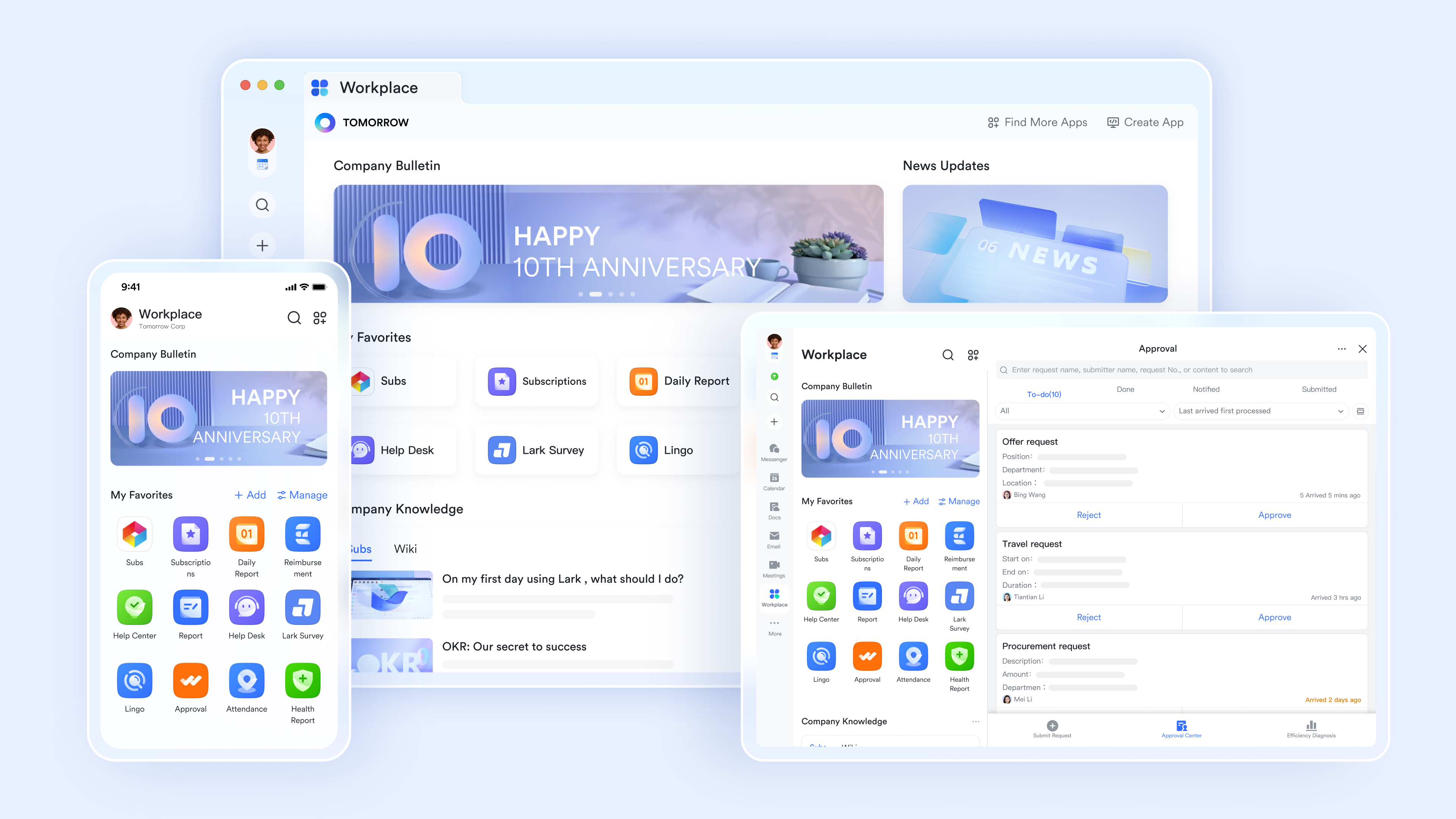
, one of the most versatile , is a collaboration suite that can work well when you want visual work to stay close to communication, documentation, and execution rather than living as a standalone artifact. For modern teams, the practical value isn't only the canvas experience; it's the ability to keep workshop outcomes connected to the conversations and follow-ups that make them real. If your current process involves bouncing between chat threads, docs, and task lists after a whiteboarding session, Lark's workspace approach can reduce context loss and make ownership clearer. It tends to fit teams that prefer fewer tools and stronger continuity from ideation to action, especially when need a shared place to review and contribute.
Key features
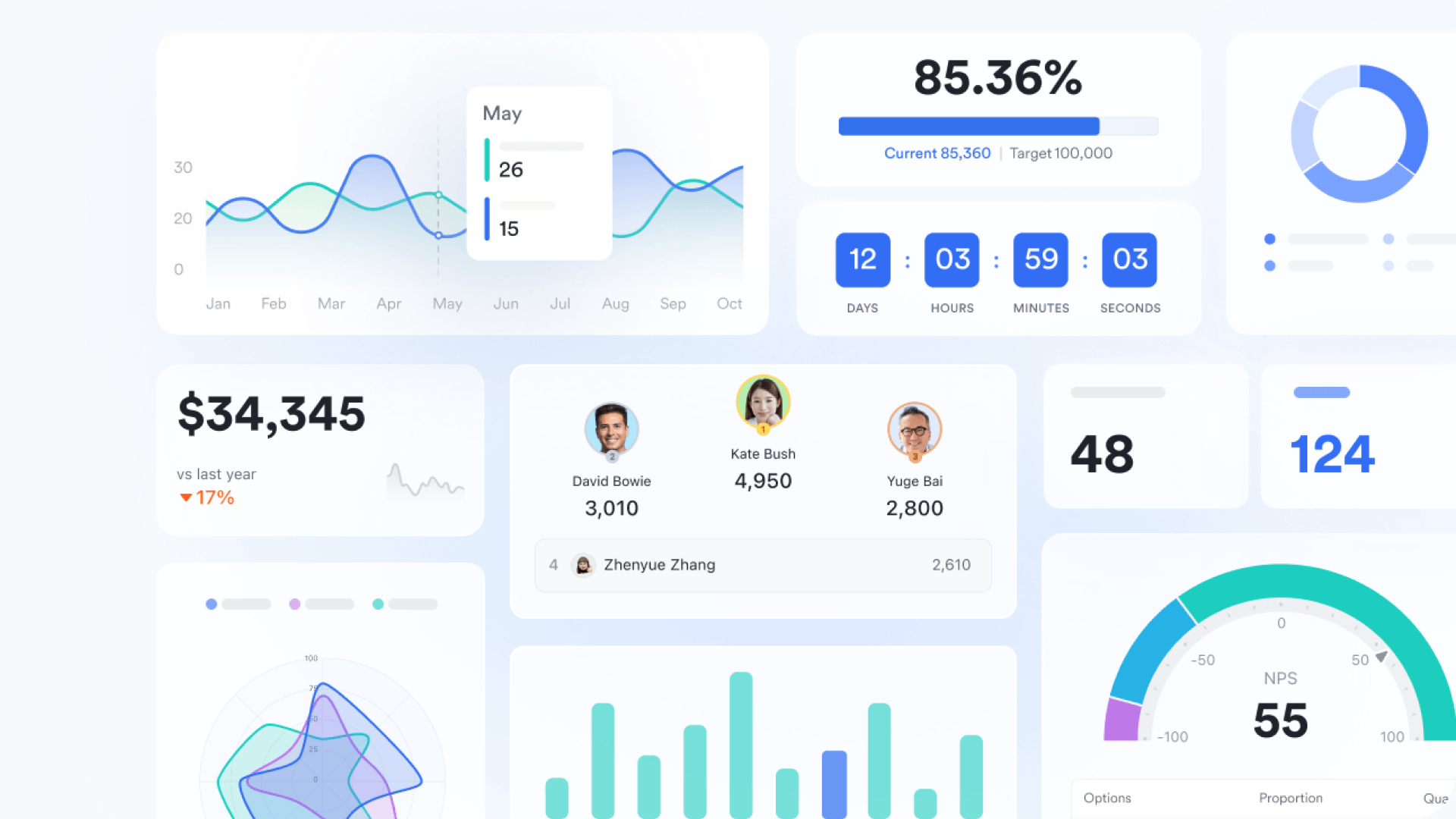
Visual system for work through : Lark Base helps teams turn messy collaboration into a shared, visual source of truth. Instead of relying on scattered spreadsheets and status threads, teams can organize work as structured records and then visualize progress through dashboards. It's particularly useful when "the board" needs to become more than a brainstorming artifact—such as tracking requests, campaigns, product launches, or cross-functional handoffs—so everyone sees the same priorities, owners, and current state. Base also supports , which is valuable for visual collaboration because it reduces manual follow-ups and keeps the system updated as work moves forward.
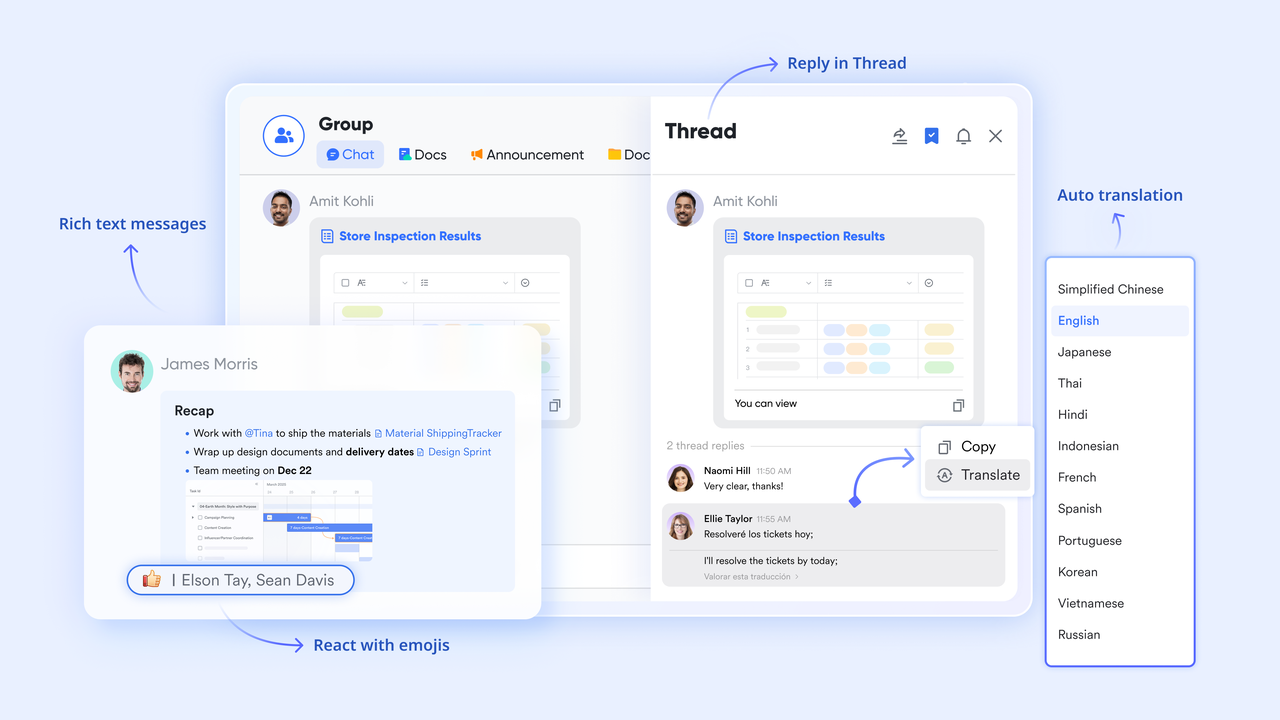
Fast, multilingual alignment through : Visual collaboration breaks down when context lives only in someone's head—or in a language not everyone shares. Lark Messenger supports translation across multiple languages, making it easier for global teams to clarify intent, confirm decisions, and keep discussions inclusive without forcing everyone into a single working language. This is especially helpful when a visual artifact needs quick review cycles and stakeholders respond asynchronously.
"No-lost-decisions" collaboration through , Lark Minutes, and : Lark Minutes automatically transcribes meetings into searchable text that teammates can review and collaborate on later. This strengthens visual collaboration by preserving the "why" behind a board or plan, not just the final snapshot. Lark Meetings also supports real-time translated subtitles, which can reduce misunderstandings in . AI Meeting Notes further support smarter summaries and structured takeaways, helping teams turn discussion into clear next steps without rewriting everything by hand.

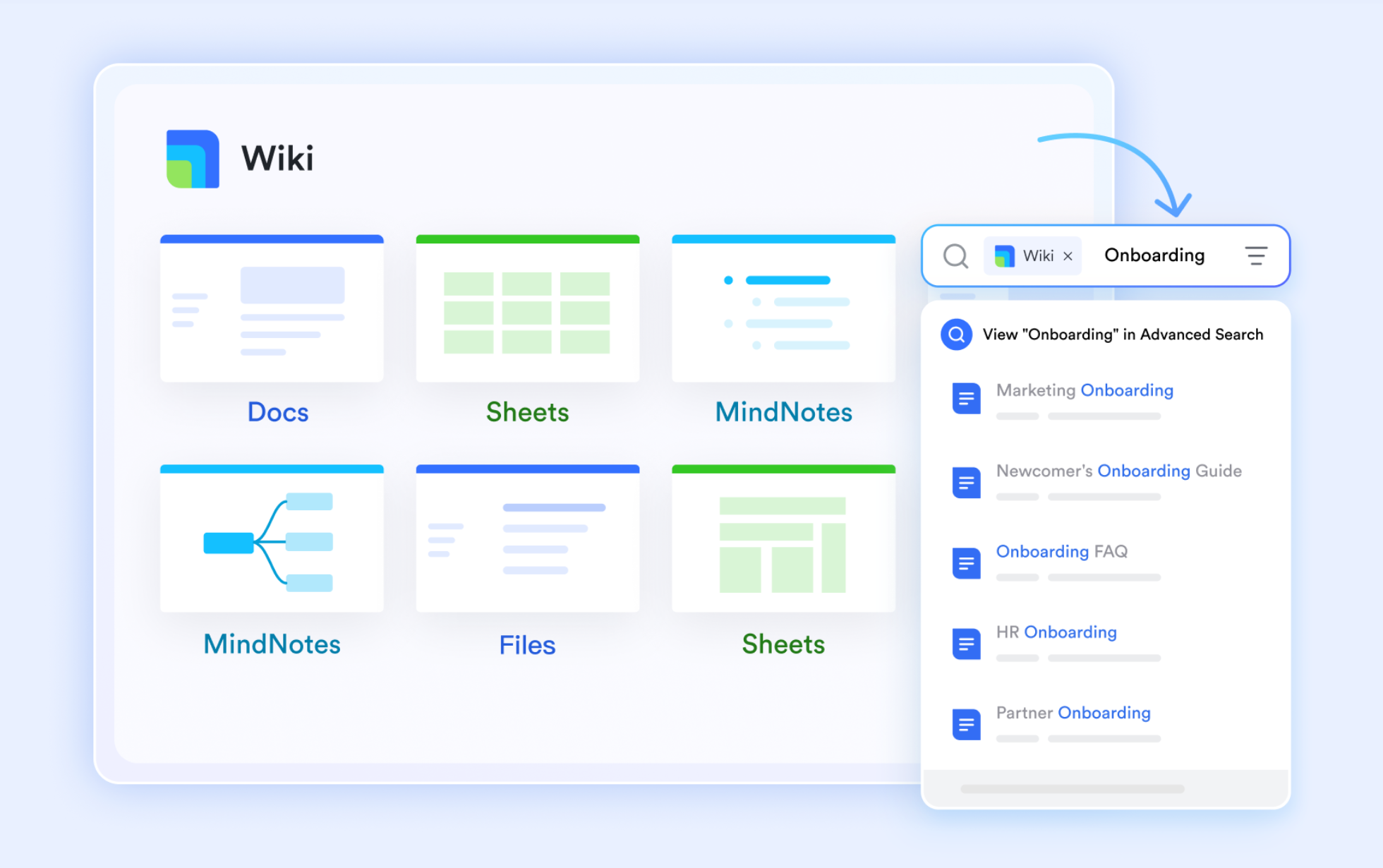
Durable, governed knowledge through Lark Docs and : Visual work becomes truly valuable when it's discoverable and reusable. Lark Wiki supports permission controls (including view/edit/copy/print/export) at user and department levels, which helps teams share visual artifacts responsibly. Combined with collaborative docs, this enables a practical : Workshop outputs become documentation, documentation stays organized, and access is managed consistently.
Pros
- It can reduce fragmentation by keeping collaboration closer to where teams already coordinate.
- It supports clearer handoffs when boards are treated as living project artifacts.
- It can be easier to standardize team practices in one workspace.
Cons
- A little learning curve. Although user-friendly, new users may require time to adapt to its functionalities. But can assist users with potential problems.
Who should opt for Lark
- Teams that want ideation, documentation, and follow-up to live in one place.
- Cross-functional groups that need consistent sharing and ownership practices.
- Organizations trying to reduce tool sprawl without losing collaboration quality.
:
- Starter plan: Free forever plan with 11 powerful tools for up to 20 users, 100GB storage, 1,000 automation runs, AI translations, and more. No credit card needed.
- Basic plan: $6/user/month (billed annually) for up to 500 users. Includes everything in Starter plus unlimited message history, 5TB storage, 1,000 automation runs, and more. Some users may need to to purchase.
- Pro plan: $12/user/month (billed annually) for up to 500 users. Includes everything in Basic plus group calling for up to 500 attendees, 15TB storage, 50,000 automation runs, and more.
- Enterprise plan: for custom pricing. Supports unlimited users and includes advanced automation, security, compliance, and management features.
For small teams with simple communication needs

18 months message history
1000 Base automation runs/month
2000 rows per table in Base
Most POPULAR
For companies with comprehensive collaboration and management needs
Unlimited message history
500-participant video meetings
50k Base automation runs/month
20k rows per table in Base
For large companies with advanced security and organizational management needs
Get a personalized demo and pricing
Unlimited message history
500-participant video meetings
15 TB storage + 30 GB storage/user
500k Base automation runs/month
50k Base automation runs/month
Most POPULAR
For companies with comprehensive collaboration and management needs
Unlimited message history
500-participant video meetings
50k Base automation runs/month
20k rows per table in Base
2. Miro: Best for flexible workshop whiteboarding
Overview
Miro is a widely adopted, whiteboard-first platform built for high-energy workshops and collaborative planning. It's often chosen when teams need a flexible canvas that supports everything from quick brainstorming to structured frameworks like retrospectives, customer journey mapping, and system diagrams. Miro's broad template ecosystem makes it easy to standardize facilitation across teams, which is especially helpful when many people run sessions in different styles. It's also commonly used as a "visual layer" that complements project management and documentation tools, though teams should plan how outcomes become tasks and decisions to avoid boards turning into one-off workshop leftovers.
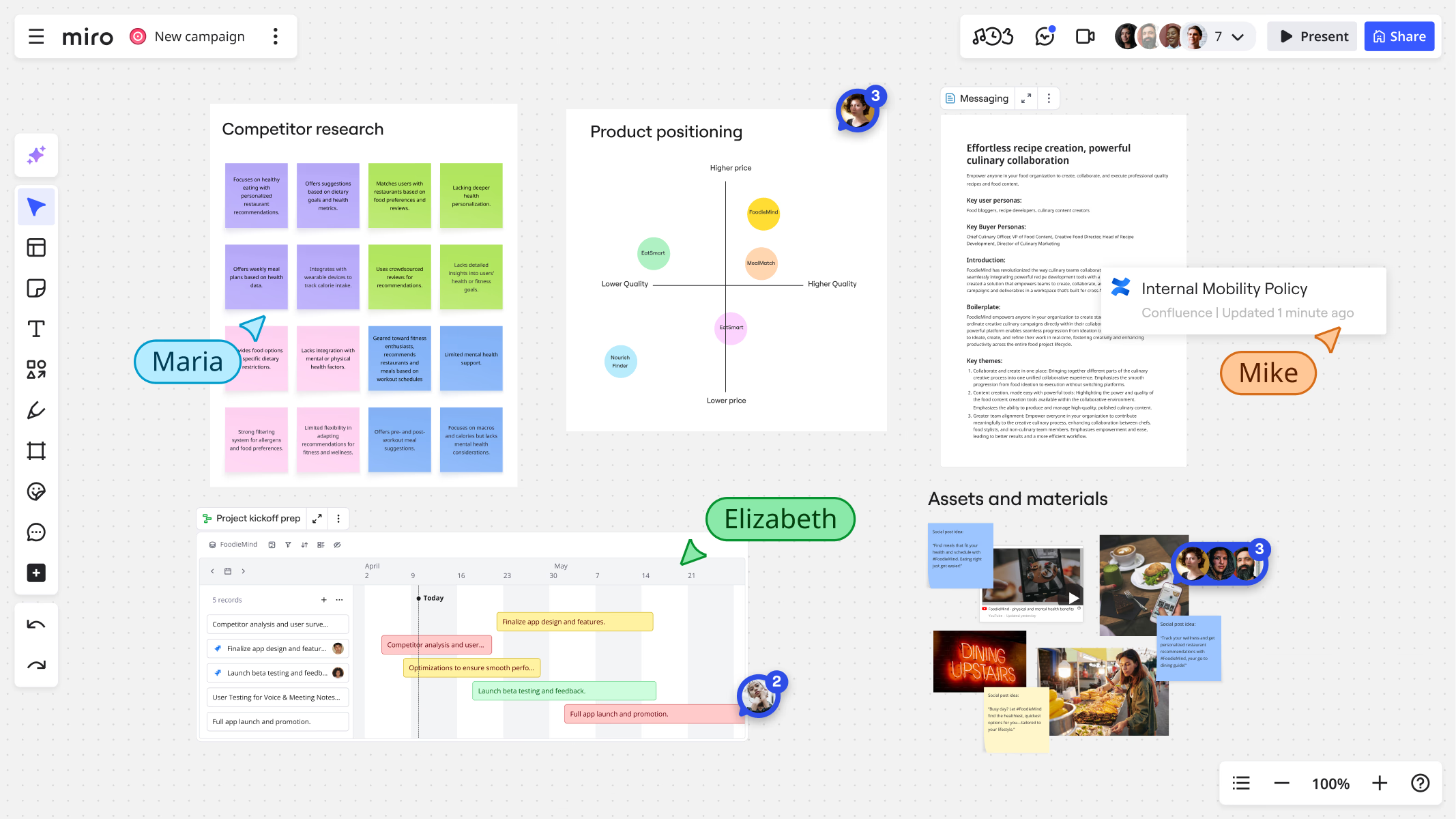
Image source: miro.com
Key features
- Large, flexible canvas with facilitation-friendly interactions.
- Extensive template library for common team workflows.
- Collaboration tools like comments, cursors, and sharing controls.
Pros
- Strong workshop and facilitation support for recurring team sessions.
- Quick onboarding thanks to templates and familiar whiteboard metaphors.
- Useful across many disciplines (product, design, operations, strategy).
Cons
- Without governance, boards can sprawl and become hard to maintain.
- Teams may need explicit rules to convert board outcomes into execution.
- Advanced requirements may push teams toward higher-tier plans.
Who should opt for Miro
- Teams that run frequent workshops and need a flexible facilitation canvas.
- Organizations that benefit from a large template ecosystem.
- Cross-functional teams that collaborate visually across many use cases.
Pricing
- Starter plan: $8/user/month(billed annually)
- Business plan: $16/user/month(billed annually)
- Enterprise plan: Custom pricing
3. ClickUp: Best for visual planning tasks
Overview
ClickUp is primarily a work-management platform, but its whiteboards and visual planning capabilities can be compelling if your biggest pain point is the "brainstorm-to-task" gap. Instead of treating the board as a separate destination, ClickUp can help teams translate workshop notes into trackable work inside the same system where projects are planned and delivered. This is a strong fit for teams that want one environment for tasks, docs, and lightweight visual planning, and who prefer that collaboration artifacts directly connect to assignments and timelines. The trade-off is that teams seeking a specialized, workshop-first whiteboard experience may find ClickUp's visual surface less central than dedicated tools.
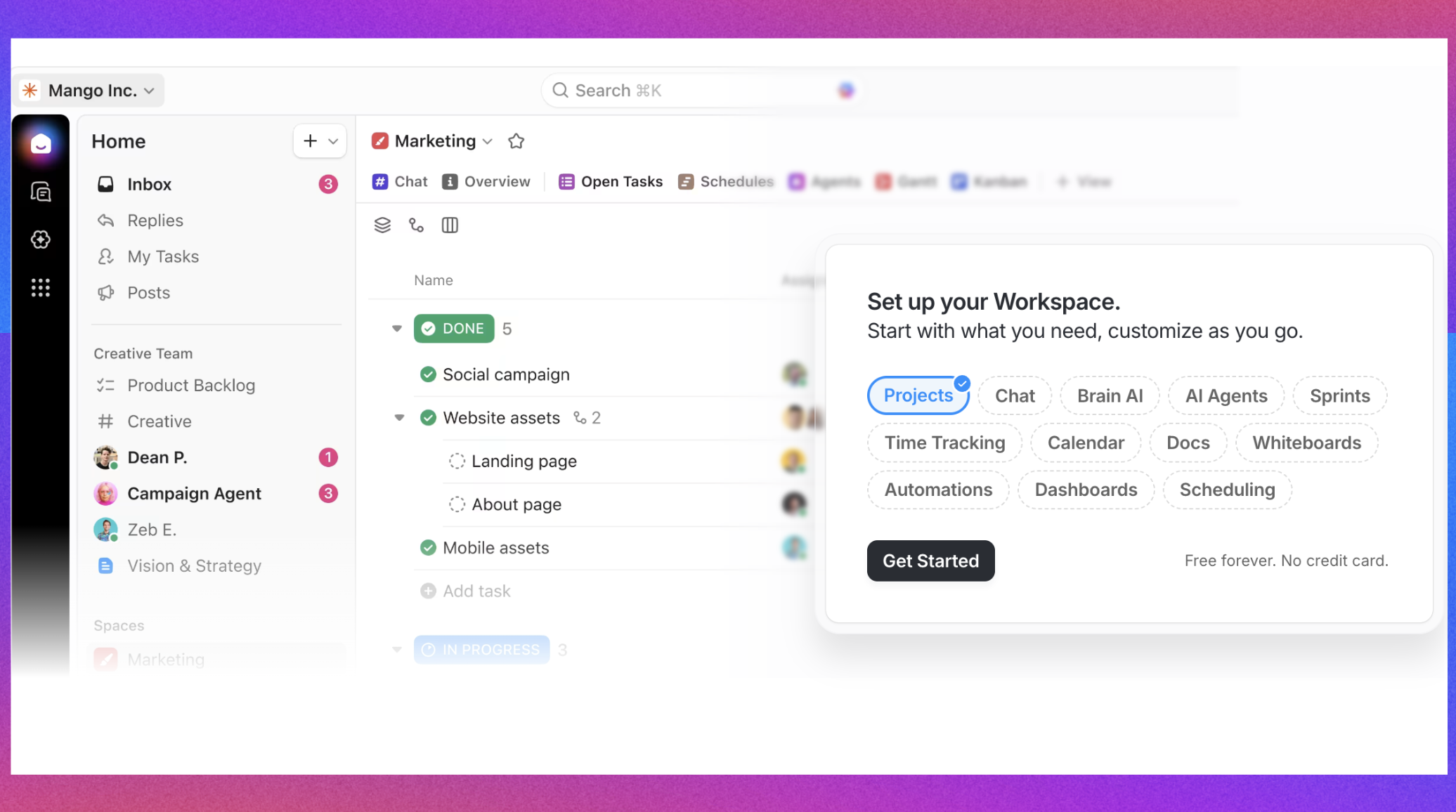
Image source: clickup.com
Key features
- Whiteboards are connected to tasks and work items.
- Docs and task management designed for execution workflows.
- Collaboration features that support cross-team planning.
Pros
- Helps reduce handoff friction from ideas to actionable work.
- Strong for teams that want planning and execution tightly linked.
- Can simplify tool stacks for project-centric organizations.
Cons
- Whiteboarding may feel secondary compared to task management.
- The platform breadth can require setup and governance to avoid clutter.
- Teams may need training to use it consistently across functions.
Who should opt for ClickUp
- Teams that want visual planning are tightly connected to task execution.
- PM and ops-heavy teams standardizing delivery workflows.
- Organizations consolidating multiple productivity tools into one suite.
Pricing
- Unlimited: $7/user/month(billed annually)
- Business: $12/user/month(billed annually)
- Enterprise: Custom pricing
4. Mural: Best for structured team facilitation
Overview
Mural is a digital whiteboard platform with a strong emphasis on structured workshops and facilitation. It's frequently used for collaborative discovery work, design thinking sessions, and alignment workshops where the process matters as much as the artifact. Mural tends to shine when teams need guided collaboration: clear flows for ideation, clustering, prioritization, and presenting outcomes to stakeholders. For modern teams, its value is often in enabling repeatable sessions that produce understandable outputs for people who weren't in the room. As with any whiteboard tool, teams should define how decisions and next steps are captured so workshop energy reliably translates into follow-through.
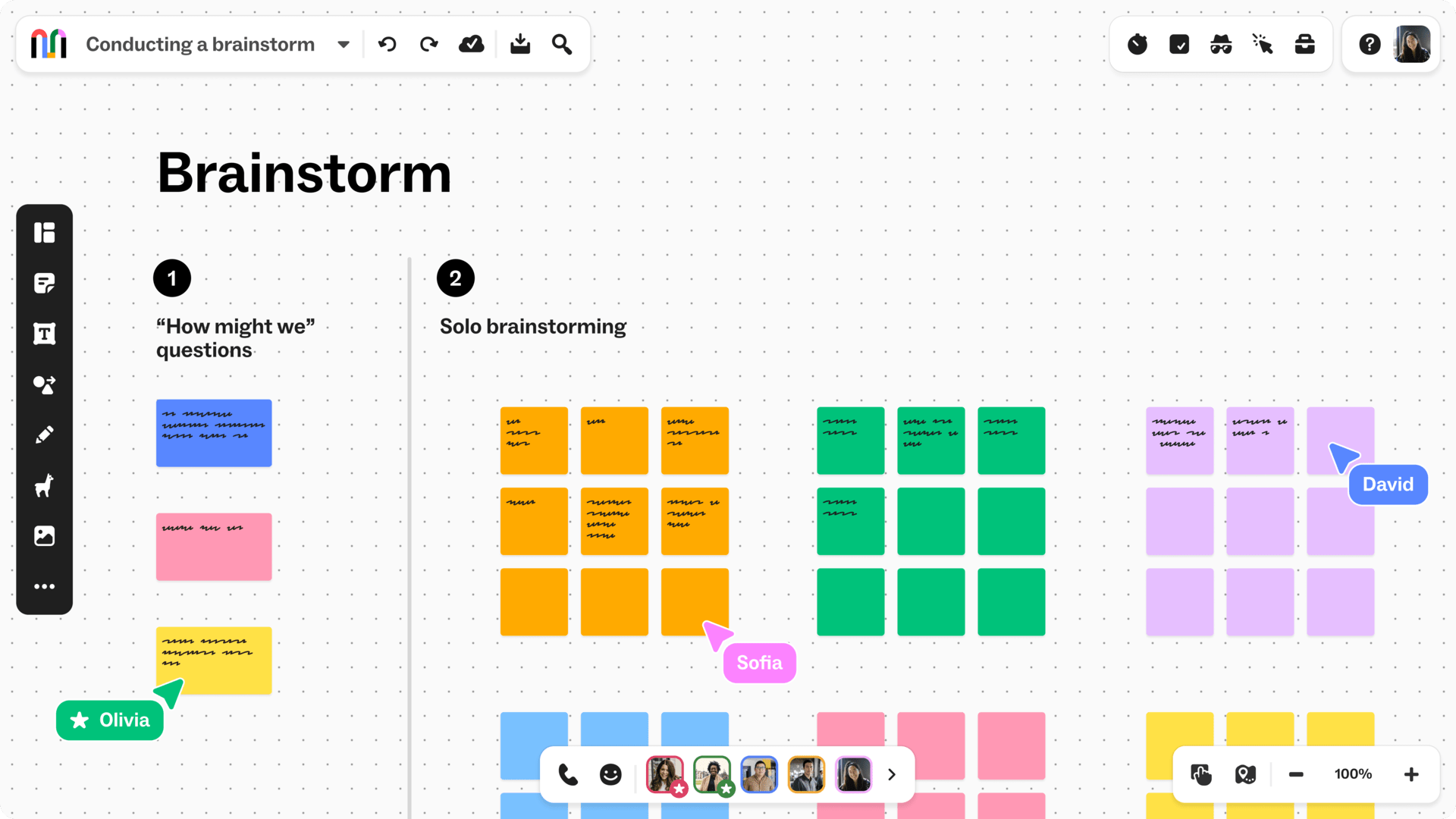
Image source: mural.com
Key features
- Facilitation-oriented whiteboard workflows and templates.
- Tools for organizing and prioritizing ideas on a shared canvas.
- Sharing and presentation patterns for stakeholder reviews.
Pros
- Well-suited for structured workshops and repeatable facilitation.
- Helpful for teams that need consistent, process-driven sessions.
- Clear visual outputs for communicating across functions.
Cons
- Teams focused on execution may still need strong task-system integration.
- Without board hygiene, long-running initiatives can become messy.
- Advanced enterprise needs may require higher-tier plans.
Who should opt for Mural
- Teams running frequent design thinking, discovery, or alignment workshops.
- Facilitators who want structured session flows and repeatability.
- Cross-functional groups that need visual artifacts to socialize decisions.
Pricing
- Team+: $9.99/user/month(billed annually)
- Business: $17.99/user/month(billed annually)
- Enterprise: Custom pricing
5. Microsoft Whiteboard: Best for Microsoft-first teams
Overview
Microsoft Whiteboard is a practical choice for organizations already invested in the Microsoft ecosystem, especially when ease of access and identity management matter more than advanced workshop tooling. For many teams, its key advantage is convenience: it can be easier to roll out when users already operate within Microsoft accounts and collaboration patterns. It supports common whiteboarding behaviors—brainstorming, sketching flows, and lightweight planning—without requiring a separate vendor evaluation for every department. The main consideration is whether your team needs deeper facilitation features, richer template ecosystems, or specialized integration patterns that dedicated whiteboard platforms may provide.
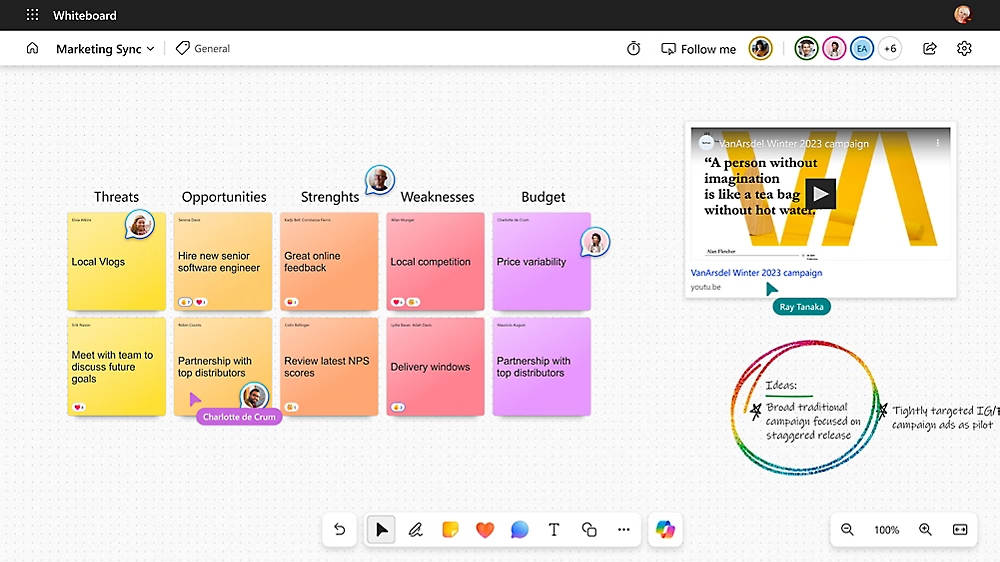
Image source: support.microsoft.com
Key features
- Basic whiteboarding for brainstorming and planning.
- Collaboration tied to Microsoft identities and sharing patterns.
- Integration-friendly usage for Microsoft-centric organizations.
Pros
- Lower friction for Microsoft-based teams to adopt and access.
- Suitable for simple whiteboarding needs across many departments.
- Familiar administrative model for IT-managed environments.
Cons
- May feel limited for complex facilitation or large template-driven programs.
- Less differentiated for teams that need advanced workshop mechanics.
- Feature depth may not match whiteboard-first specialists.
Who should opt for Microsoft Whiteboard
- Organizations standardized Microsoft collaboration and identity.
- Teams needing simple, accessible whiteboarding without heavy setup.
- Groups prioritizing governance consistency over niche features.
Pricing
Its pricing is often bundled with Microsoft 365.
6. Lucidspark: Best for brainstorming and idea synthesis
Overview
Lucidspark is designed for brainstorming and team alignment with a strong emphasis on turning messy thinking into organized outcomes. It's often used alongside diagramming and documentation workflows, making it a good fit for teams that regularly move from ideation to more formal artifacts like processes, systems, or plans. Lucidspark typically supports structured collaboration: capturing inputs, grouping themes, prioritizing, and presenting results. For modern teams, this can reduce the "we have too many sticky notes" problem by making synthesis easier and more repeatable. As always, confirm how your team will store, link, and maintain boards so they remain discoverable and useful beyond the initial workshop.
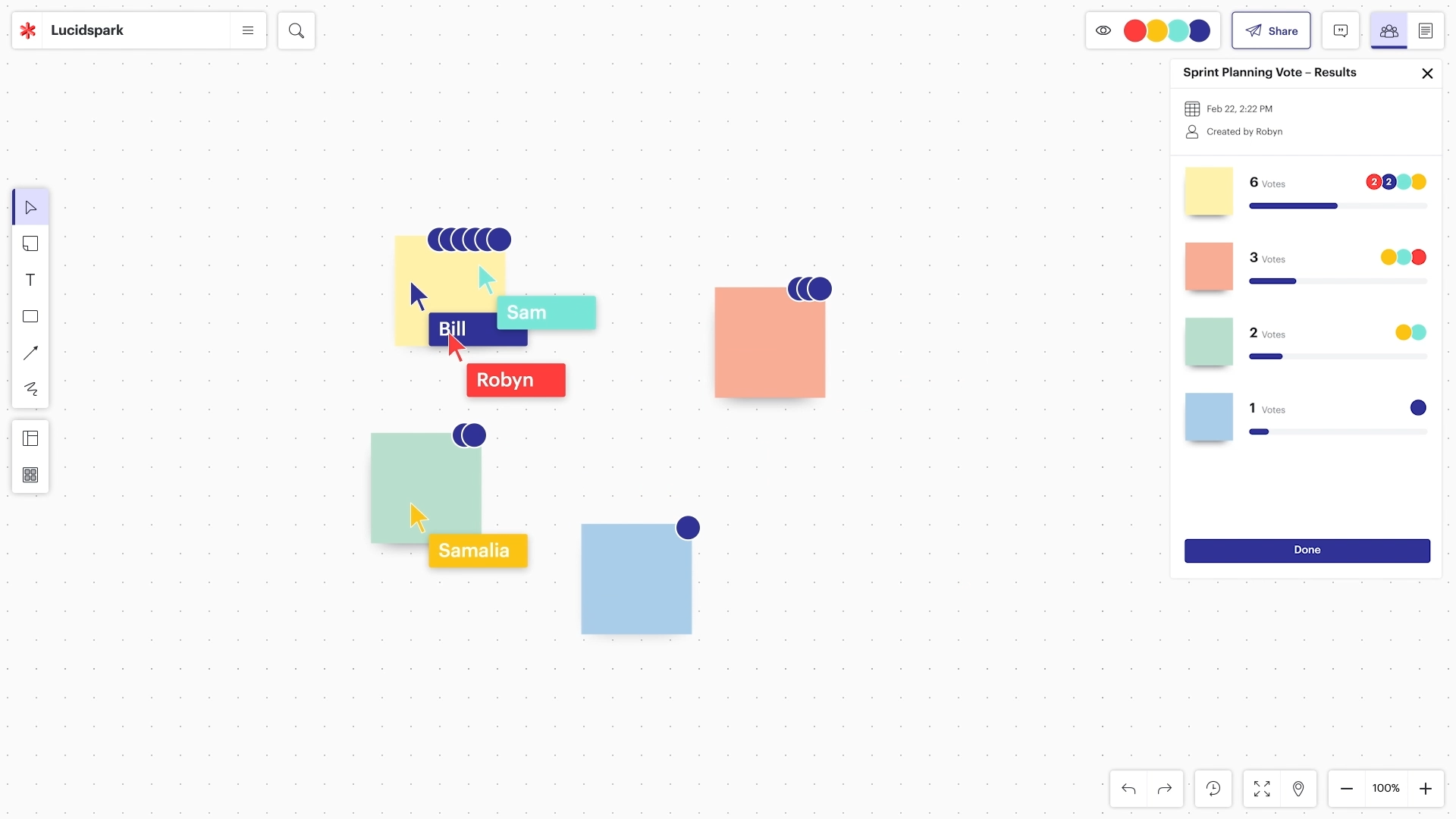
Image source: corporate-assets.lucid.co
Key features
- Brainstorming canvases built for organizing and synthesizing ideas.
- Facilitation and presentation modes for team sessions.
- Workflows that support moving from ideation to structured outcomes.
Pros
- Strong for turning raw ideas into organized themes and next steps.
- Useful for recurring team ceremonies and structured brainstorming.
- Fits teams that frequently transition from ideation to formal artifacts.
Cons
- Teams may still need a clear bridge to task execution systems.
- Some use cases may require complementary diagramming or PM tools.
- Governance and sharing practices still need definition at scale.
Who should opt for Lucidspark
- Teams that do frequent ideation and need reliable synthesis workflows.
- Product and ops groups moving from brainstorming to structured planning.
- Organizations that value repeatable facilitation patterns.
Pricing
- Individual: $9/user/month(billed annually)
- Team: $10/user/month(billed annually)
- Enterprise: Custom pricing
7. FigJam: Best for design-led team collaboration
Overview
FigJam is a collaborative whiteboard commonly used by product and design teams, especially those already working in the Figma ecosystem. It's well-suited for early-stage exploration: mapping user journeys, sketching flows, running lightweight workshops, and capturing feedback in a visual format that feels natural to designers and adjacent stakeholders. For modern teams, FigJam can be effective when collaboration needs to stay close to design workflows and when the board is part of an iterative product discovery rhythm. The main question is whether non-design-heavy organizations will adopt it as readily, and whether you need deeper enterprise governance or cross-department template standardization beyond what design-led teams typically require.
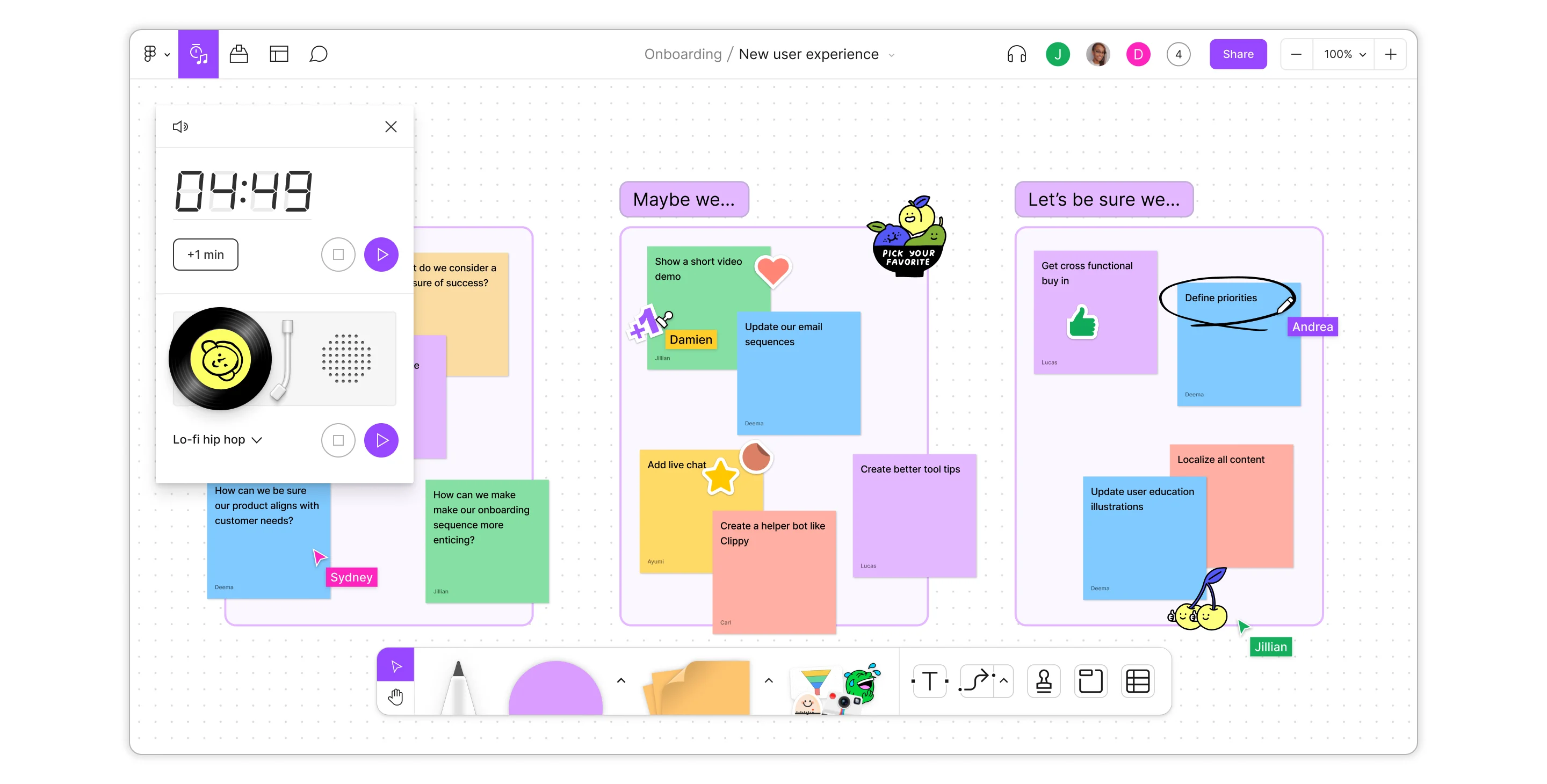
Image source: figjam.com
Key features
- Collaborative canvas optimized for product and design collaboration.
- Templates and interaction patterns for discovery and planning sessions.
- Easy sharing for review and feedback with stakeholders.
Pros
- Very natural fit for teams already using Figma workflows.
- Strong for discovery sessions, mapping, and lightweight planning.
- Encourages quick participation from design-adjacent collaborators.
Cons
- May be less ideal as a company-wide standard outside design-led orgs.
- Some teams may need stronger administration and governance controls.
- Execution handoffs still require discipline and tool integration planning.
Who should opt for FigJam
- Product and design teams collaborating closely on discovery and UX flows.
- Organizations with an established Figma ecosystem.
- Teams that want a lightweight, approachable canvas for workshops.
Pricing
Its pricing is only for quote.
8. Zoom Whiteboard: Best for Zoom-based visual meetings
Overview
Zoom Whiteboard is a natural option for teams that run many meetings in Zoom and want a built-in visual space for planning and facilitation. Its practical advantage is reducing friction: if the meeting happens in Zoom, the whiteboard can be readily available for quick collaboration without switching tools mid-call. This can be especially helpful for teams that rely on synchronous workshops and want a consistent, accessible tool for brainstorming and mapping. The key evaluation point is whether your organization needs advanced template ecosystems, deeper synthesis tools, or richer integrations with task systems. For many teams, Zoom Whiteboard works best as a meeting-adjacent tool rather than the center of a full visual knowledge system.
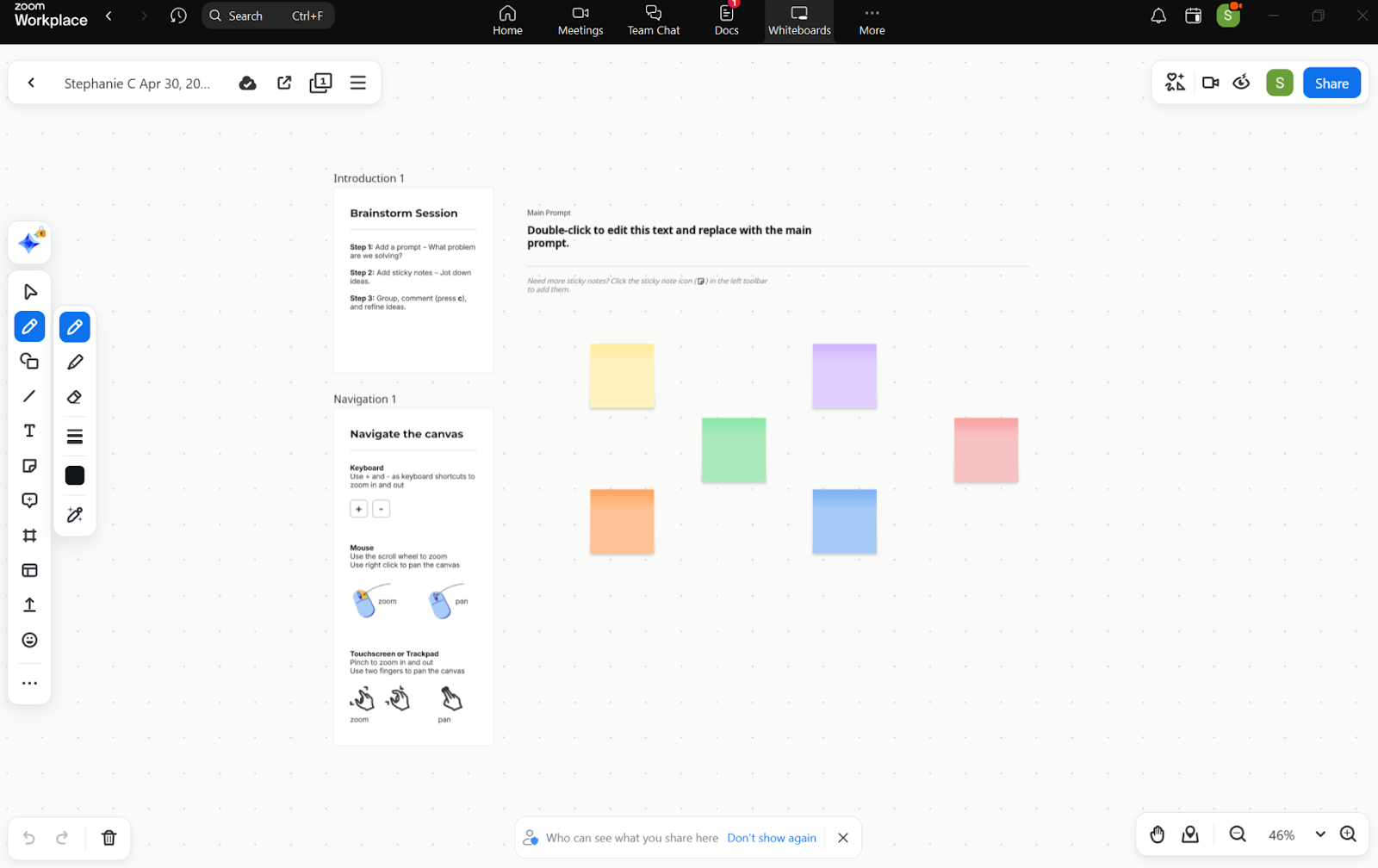
Image source: zoom.com
Key features
- Whiteboarding experience designed to pair with Zoom meetings.
- Real-time collaboration suited for synchronous workshops.
- Sharing options that support review and follow-up.
Pros
- Lower friction for Zoom-heavy teams to add visuals to meetings.
- Convenient for quick workshops, alignment sessions, and planning calls.
- Helps teams keep meeting collaboration more structured than chat alone.
Cons
- May be less robust for complex facilitation or large template programs.
- Boards can become meeting artifacts unless ownership is defined.
- Some teams will still need deeper integration into execution workflows.
Who should opt for Zoom Whiteboard
- Teams that run frequent Zoom workshops and want minimal tool switching.
- Organizations standardizing collaboration inside their meeting platform.
- Groups needing a straightforward, meeting-friendly whiteboard.
Pricing
- Pro: $18.74/user/month(billed annually)
- Team: $25.66/user/month(billed annually)
- Enterprise: Custom pricing
9. Canva Enterprise: Best for branded visual content collaboration
Overview
Canva Enterprise is primarily known for design collaboration and brand-consistent content creation, but it can play a role in visual collaboration when teams need to co-create presentations, diagrams, and internal assets quickly while staying on-brand. For modern teams, this can matter in go-to-market work, internal communications, and stakeholder-ready outputs where speed and consistency are critical. Canva's strengths are less about deep workshop facilitation and more about turning ideas into polished artifacts that are easy to share across the organization. If your visual collaboration needs are heavily oriented toward producing reusable assets—enablement materials, decks, posters, and branded templates—Canva Enterprise can complement or, in some teams, replace a separate whiteboarding tool.For teams creating branded content at scale, access to high-quality visual assets is just as important as the design platform itself. Many marketers supplement their workflows with stock vector libraries such as , which provide professionally designed illustrations, icons, and graphics that can be customized and incorporated into presentations, social media content, and other marketing materials.
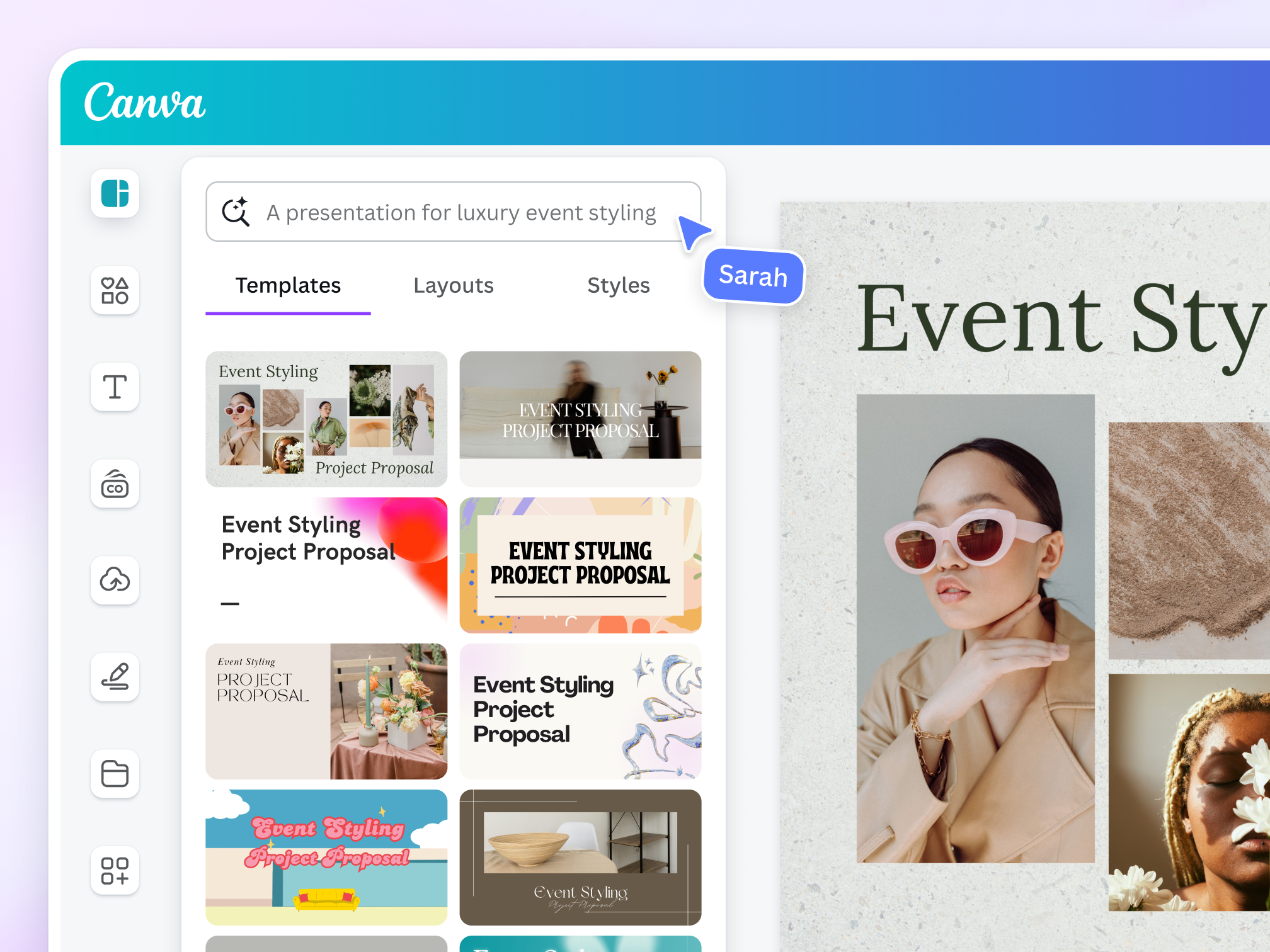
Image source: canva.com
Key features
- Brand controls and template management for consistent outputs.
- Collaborative creation for presentations and visual assets.
- Workflows designed for scalable content production.
Pros
- Strong for producing polished, shareable artifacts quickly.
- Helpful for maintaining brand consistency across many teams.
- Accessible for non-designers creating visual materials.
Cons
- Not optimized for complex workshop facilitation and synthesis.
- Less suitable as the sole tool for deep ideation-heavy collaboration.
- May require a separate whiteboard tool for structured sessions.
Who should opt for Canva Enterprise
- Marketing, comms, and enablement teams producing stakeholder-ready assets.
- Organizations prioritizing brand governance and reusable templates.
- Cross-functional teams that need faster creation of visual materials.
Pricing
- Pro plan: $13.75/user/month(billed annually)
- Business plan: $20/user/month(billed annually)
- Enterprise plan: Custom pricing
10. Creately: Best for process mapping and diagrams
Overview
Creately blends diagramming and collaborative visual work, which makes it attractive for teams that need more structure than sticky-note ideation alone. It's often used for mapping processes, org structures, architecture concepts, and planning artifacts that benefit from clearer notation and consistent shapes. For modern teams, this can help bridge the gap between brainstorming and operational clarity—especially in ops, IT, and business process contexts where the output needs to be understandable and reusable. Creately can work well when your collaboration sessions produce diagrams that must live beyond the workshop as reference models. As with other tools, the long-term value depends on governance: clear naming conventions, ownership, and a place in the workflow where diagrams are reviewed and updated.
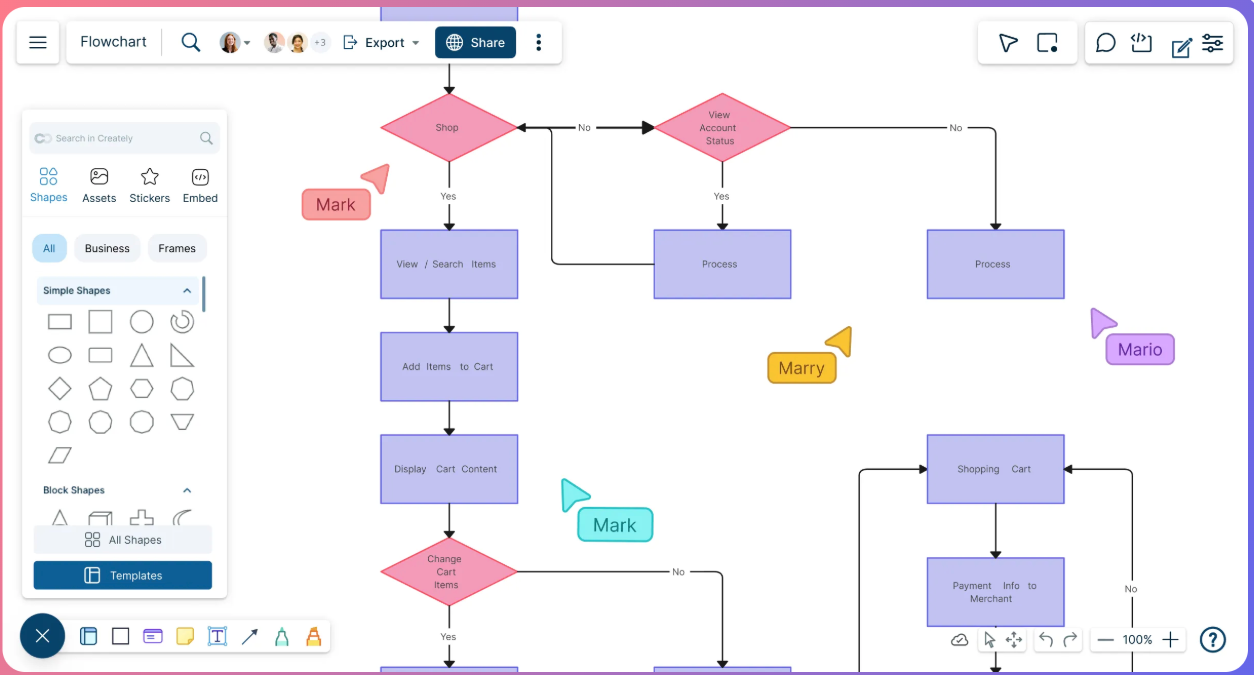
Image source: creately.com
Key features
- Diagramming-oriented collaboration for structured visual artifacts.
- Templates for process maps, planning diagrams, and team visuals.
- Sharing and collaboration features for stakeholder review.
Pros
- Strong fit for process mapping and structured diagram-based collaboration.
- Useful when outputs need to remain as reference documentation.
- Helps teams communicate complex systems more clearly.
Cons
- May feel heavier than pure whiteboards for quick ideation sessions.
- Teams may need facilitation practices for brainstorming-style workshops.
- Execution handoffs still require integration planning and discipline.
Who should opt for Creately
- Ops, IT, and process-focused teams that need structured diagrams.
- Organizations documenting workflows and systems for ongoing reference.
- Teams that want collaboration plus diagram clarity in one place.
Pricing
- Personal: $5/user/month(billed annually)
- Team: $5/user/month(billed annually)
- Business: $89/user/month(billed annually)
Eager to gain more features but spend less?
Key features included in visual collaboration tool
A strong set of visual collaboration tools goes beyond a blank canvas. The best products help teams capture thinking, structure it, and keep it actionable after the session ends—especially when stakeholders join asynchronously.
and clarity
- Multiple people should be able to edit simultaneously with visible cursors, so the group can build shared context instead of merging versions later.
- Comments, @mentions, and threaded discussions should stay anchored to specific objects, so feedback does not get separated from what it refers to.
Flexible canvas plus structured building blocks
- A good canvas supports sticky notes, shapes, connectors, images, and lightweight diagramming so teams can move from divergent ideas to converged plans.
- Grids, sections, and frames help teams keep boards readable, which is critical once boards become living artifacts rather than one-off meeting outputs.
Templates and facilitation mechanics
- Templates should cover recurring workflows (workshops, retros, journey mapping, process mapping) so teams can start fast and standardize outcomes.
- Facilitation features like timers, voting, grouping, and presentation mode help sessions stay focused and make synthesis easier.
Async-friendly collaboration
- Boards should support durable context through descriptions, labels, and links, so teammates in different time zones can understand "why" without another meeting.
- Notification controls matter, because noisy updates can reduce adoption even when the tool is powerful.
Governance, security, and lifecycle
- Permissioning should support internal teams, guests, and external partners without forcing workarounds that create shadow copies.
- , ownership, and archiving are essential when boards contain decisions that must be discoverable later.
- Enterprise-ready visual collaboration software should offer admin visibility and policy controls that align with how your organization manages access.
Integrations and output formats
- Integrations should match your workflow, such as linking a board to tasks, docs, or a so outcomes do not die on the canvas.
- Export and embedding options help teams reuse work in stakeholder decks, project documentation, or onboarding materials.
Accessibility and usability
- A tool should be usable for occasional contributors, not only power users, with clear onboarding cues and predictable interactions.
- Cross-device support is important when workshops include mobile or tablet participants.
Find all these features in a versatile tool
How to choose your ideal visual collaboration tool
Selection gets easier when you evaluate tools against the collaboration problems you actually have, not against a generic feature checklist. Start with the workflow you want to improve, then test whether a tool makes that workflow repeatable.
Match the tool to your collaboration style
- If your team is meeting-heavy, evaluate how well the tool supports structured workshops, presenting, and capturing decisions live.
- If your team is async-first, prioritize comment clarity, lightweight narration, notifications, and discoverability so boards work without a facilitator present.
Evaluate governance before you scale
- Ask how external sharing works, how permissions are managed, and what happens when employees change roles.
- Check whether you can enforce naming conventions, ownership, and archiving practices, because unmanaged boards become a long-term tax.
Verify integration fits with your existing stack
- For online visual collaboration tools, the "best" experience usually depends on whether the tool connects to where work is tracked and where knowledge is stored.
- Choose tools that reduce context switching rather than adding a new destination that teams must remember to update.
Use a realistic pilot, not a demo
- Run one real workshop and one async review cycle, then inspect the artifact a week later to see if it still makes sense.
- Define such as faster decisions, clearer handoffs, or fewer rework loops, rather than relying on subjective impressions.
Treat "free" as a controlled trial, not a rollout plan
- Free tiers can be useful for testing adoption, but they often limit collaboration scale, governance, or exports; that is why "free visual collaboration tools" searches can lead to frustration if expectations are enterprise-level.
- If you find yourself searching "visual collaboration tools free," decide what you are willing to compromise on (board retention, guest access, admin controls) and document it upfront.
Don't over-index on popularity
- The best visual collaboration tools for your team are not always the same as the top brands in visual collaboration tools, because your constraints may be different (compliance, client access, or workflow integration).
- If you support distributed teams, prioritize reliability and async clarity over novelty, even among leading tools for .
Conclusion
Visual collaboration works when it reduces ambiguity: what the team explored, what it decided, and what happens next. The right tool makes that clarity durable by combining a usable canvas, facilitation support, async feedback, governance, and clean handoffs into the rest of your workflow. Before you commit, choose a real use case, pilot with the people who will actually contribute, and define simple standards for ownership, naming, and archiving so boards stay valuable over time. If you want an approach that keeps visual work closer to everyday communication and follow-through, it's worth evaluating as part of your shortlist.
Start your journey to visual collaboration in Lark
FAQs
What are some virtual collaboration tools?
Common options include Lark, Miro, Mural, Microsoft Teams/Whiteboard, Zoom Whiteboard, ClickUp, and Lucidspark. Many standalone tools add context-switching and fragmented follow-ups; an all-in-one workspace like Lark can keep chat, docs, meetings, and work tracking connected.
What is a visual collaboration?
Visual collaboration is working together using shared visuals—whiteboards, diagrams, maps, and templates—to align faster and document decisions. Pure whiteboards can leave outcomes "stuck on the canvas"; Lark can pair visual planning with docs, messaging, and workflow tracking for better execution.
What are the 5 P's of collaboration?
A practical 5 P's model: Purpose, People, Process, Platforms, and Progress. Many tools cover "platforms" well, but neglect progress tracking. Lark helps link purpose and progress by connecting discussions, documentation, and structured work management in one place.
What are the four types of collaboration tools?
Four common types: Communication (chat/email), meeting (video/voice), content (docs/knowledge), and coordination (tasks/workflows). Buying separate tools can create silos; Lark can unify these, while tools like Miro or Lucidspark remain great for workshop-heavy ideation.
How can we avoid "board graveyards" after workshops?
Define ownership, archive rules, and a handoff into tasks or docs. Whiteboard-only tools often lose momentum after meetings; Lark can keep notes, decisions, and follow-ups in the same workspace. Pair it with Miro if you need a deeper facilitation canvas.
Related reading




















![What Is a 2-2-3 Work Schedule? Explanation and More [2026]](https://framerusercontent.com/images/uKHRfkp4v7y4azRNTYUmuteNQz8.png)








