














A Complete Guide to Creating and Managing Kanban boards in Jira

Sreya Anumolu
Content Specialist
Nov 3, 2026
Sreya Anumolu
Nov 3, 2026

17 min read
Add to preferred sources


A Kanban board helps teams visualize workflows, limit work in progress, and continuously improve delivery speed. Jira, one of the most widely used project management platforms, offers flexible Kanban boards that let teams track issues, tasks, and stories across different workflow stages. However, setting up and maintaining these boards can feel complex, especially for non-technical users.
This guide explains how to create a Kanban board in Jira, along with best practices to keep your projects flowing smoothly. You'll also discover how Lark provides a smarter, connected workspace that turns your Kanban process into a collaborative and automated system.

What is a Kanban board in Jira?
A Kanban board in Jira is a visual tool used to manage tasks through different stages of completion. It represents work items such as cards that move from left to right through workflow columns such as "To do," "In progress," and "Done."
Kanban boards help teams balance workload and eliminate bottlenecks by making task progress visible to everyone. In Jira, you can configure your board to match your team's workflow, whether you're handling product development, design projects, or marketing campaigns. You can also monitor work capacity and lead time to ensure projects stay on track.
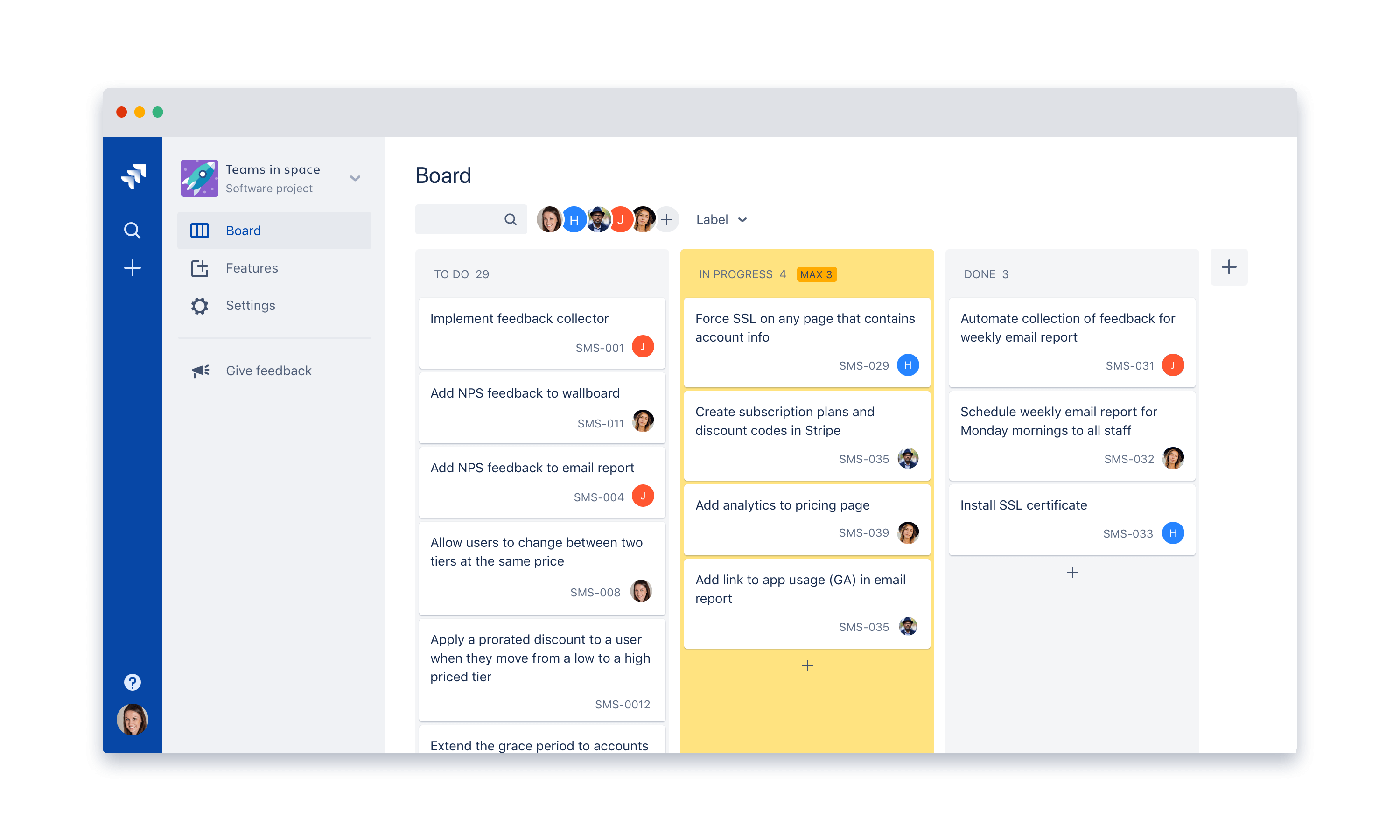
Image source: atlassian.com
How to create a Kanban board in Jira step by step
Setting up a Kanban board in Jira helps teams organize work visually and track performance metrics easily. The process allows you to define stages, assign responsibilities, and visualize bottlenecks early. Below are the key steps to create your first Jira Kanban board effectively.
- Step 1: Log in to Jira and go to your dashboard
- After signing in to Jira, go to your main project dashboard. Here, you can access all your projects and view summaries of ongoing work. Choose the project you want to manage using Kanban. A well-defined starting point ensures clarity before you begin adding workflows or tasks.
- Step 2: Click on Boards → Create board → Create a Kanban board
- Open the "Boards" menu from the top navigation bar and click on "Create board." Choose "Create a Kanban board" from the available options. Jira's setup wizard will appear, helping you configure important settings such as workflow, board type, and access permissions.
- Step 3: Choose between "Create a new board" or "Use an existing project"
- You can create a new board or base it on an existing project. Selecting "Use an existing project" is quicker if you already have defined issues or epics. If not, "Create a new board" lets you design a fresh setup tailored to your team's workflow from the ground up.
- Step 4: Name your board and select the relevant project
- Assign a clear, descriptive name to your board that reflects the project or team it serves. Then select the associated project from the list. This ensures the board links correctly to existing data, team members, and workflows, keeping everything aligned and easy to locate later.
- Step 5: Configure your workflow columns (To do, In progress, Done)
- Set up workflow columns that mirror your team's real process stages. You can rename or add stages like "Under review" or "QA testing" for greater precision. Each column represents a unique phase of progress, giving your team better visibility into what's pending or completed.
- Step 6: Add issues, stories, or epics to start tracking progress
- Begin populating the board with issues or import existing ones from your project. Each issue appears as a card that can be moved between columns. Assign owners, set deadlines, and prioritize tasks. This visual approach helps teams stay organized and prevents overlapping responsibilities.
- Step 7: Customize swimlanes, filters, and WIP limits
- Use swimlanes to categorize tasks by type, priority, or owner. Filters let you show only what matters in specific views. Setting Work In Progress (WIP) limits prevents overload and ensures that teams maintain steady progress across all active workstreams.
How to customize your Jira Kanban board
Customization lets teams make the board reflect their real-world workflow. Jira offers a range of customization options to improve clarity and control.
- Add custom columns to match your team's workflow.
- Adding new columns helps represent specific stages, such as review, QA, or client approval. A well-structured board mirrors how your team actually works and helps detect bottlenecks early.
- Use color-coded labels or tags for different task types.
- Colors bring visual clarity to boards. You can assign labels for bugs, new features, or urgent issues, making it easier to prioritize work.
- Create filters for specific team members or issue types.
- Filters simplify views by showing only what's relevant to a specific role. This helps each team member focus on their assigned work.
- Automate recurring processes with Jira automation rules.
- Automation allows Jira to trigger actions such as sending alerts or updating fields. It saves manual effort and keeps the board accurate.
- Link Kanban cards to epics, sprints, or dependencies for visibility.
- Linking cards to related work provides a complete picture of dependencies, ensuring teams coordinate seamlessly across projects.
Tips to make your Kanban board more effective
Kanban boards perform best when teams regularly review and refine them. Applying these practices helps maintain flow and continuous improvement.
- Keep your WIP limits realistic to avoid bottlenecks.
- Setting realistic work limits ensures no team member is overloaded. It promotes steady progress and higher quality output.
- Regularly review and update tasks.
- Remove outdated tasks and add new ones promptly. This keeps the board accurate and prevents confusion.
- Use metrics like cycle time and lead time to evaluate performance.
- Monitoring these metrics helps identify process slowdowns and areas for optimization.
- Schedule periodic team reviews to discuss improvements.
- Regular retrospectives ensure that team members discuss workflow changes and refine processes collaboratively.
With the right platform to visualize workflows, automate updates, and keep discussions linked to the work, your Kanban board becomes a system for continuous improvement rather than a static tracker.
Common challenges with Kanban in Jira
While Jira is a powerful tool, many teams encounter friction when trying to manage Kanban boards effectively:
- Complex setup: Creating or adjusting workflows often requires admin access or technical configuration.
- Fragmented communication: Comments, messages, and files are spread across multiple tools like Slack and Confluence.
- Limited real-time visibility: Progress tracking depends on manual dashboard setup and frequent updates.
- Steep learning curve: Non-technical users may find the interface overwhelming or time-consuming to navigate.
- Slow feedback loops: Collaboration happens through ticket threads instead of fluid, real-time discussions.
If you've ever felt weighed down by the complexity of tools like Jira, you're not alone. Many teams spend more time managing their software than managing their actual work. But, there is always an alternative. For example, Lark changes that by bringing all project management into one seamless workspace. No setup headaches, no extra plug-ins, just instant collaboration and visibility. Follow our steps and take a close glance at why Lark can be your new partner.
Alternative: Lark's all-in-one Kanban and collaboration platform
As an all-in-one collaborative platform, Lark offers a more intuitive, connected way to manage Kanban workflows: it combines task visualization, automation, communication, and documentation in a single unified workspace. For cross-functional teams that want to manage work like Jira but with less friction, Lark provides smart control and multiple advanced features.
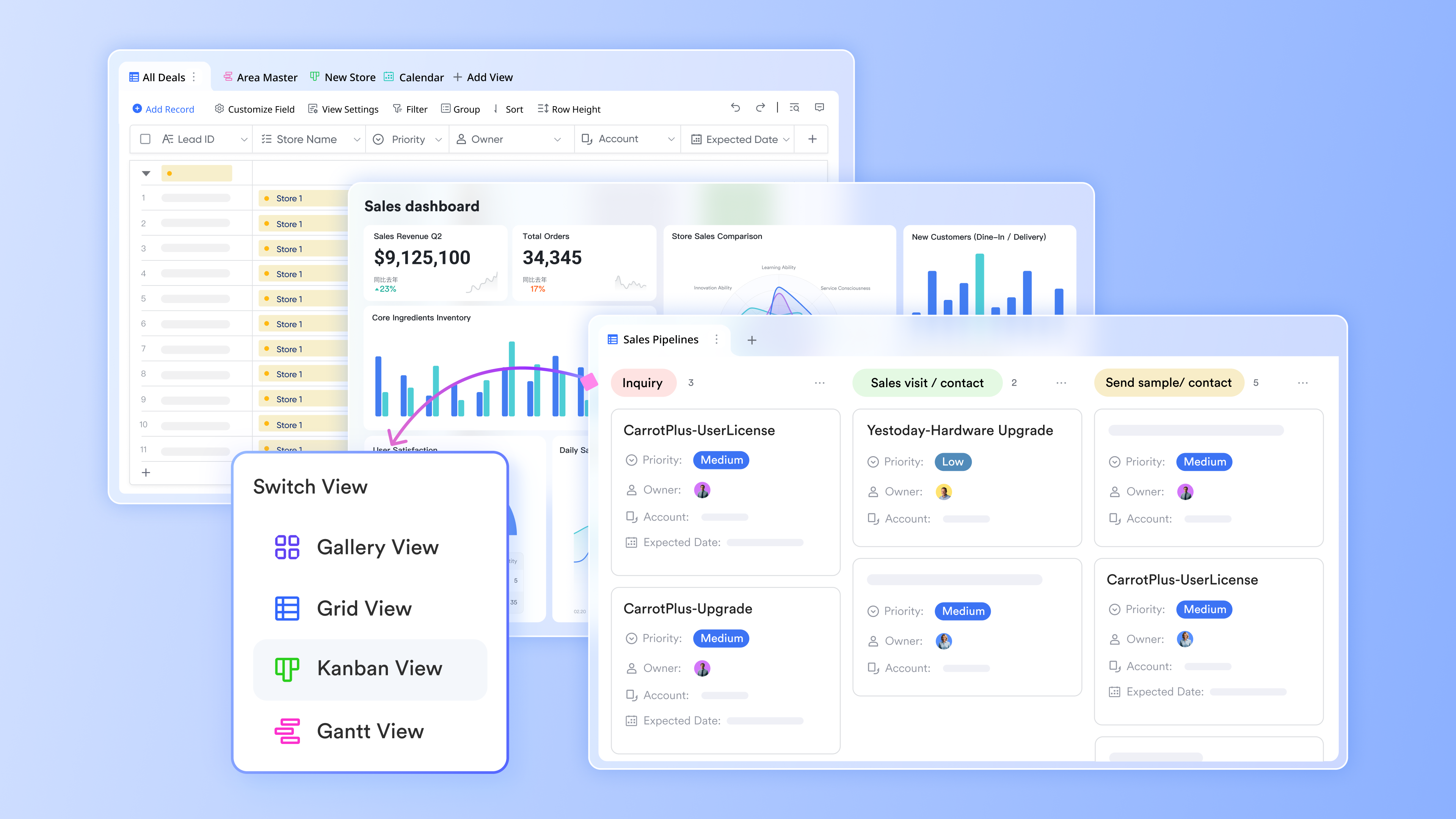
Lark Base: Visual Kanban, adaptable views, synced data, and automated workflow
Lark Base brings structure and flexibility together, allowing teams to manage Kanban workflows visually while maintaining accurate, real-time data. Each card represents a task or project item that moves smoothly from "To do" → "In progress" → "Done." Unlike static boards, Lark Base supports multiple views—Kanban, Grid, Gantt, and Calendar—so users can toggle between high-level timelines and detailed task tracking.
Base also supports automation, meaning when a project is completed, related fields such as status, owner, or progress in connected dashboards update automatically. This makes it easy to track dependencies, visualize progress, and eliminate manual data entry—something that often clutters traditional Jira boards.
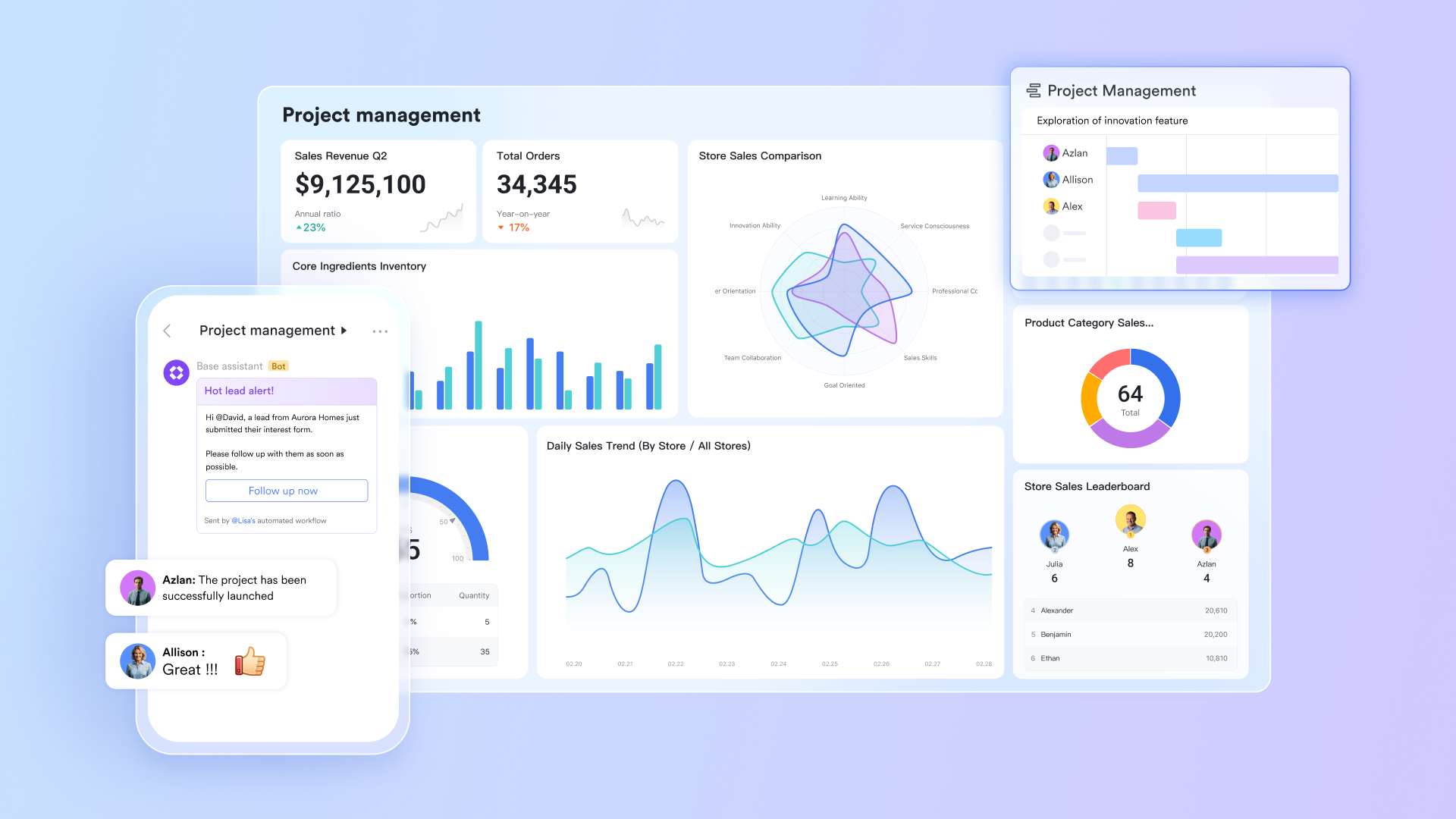
Lark Messenger: Conversations that stay connected to work
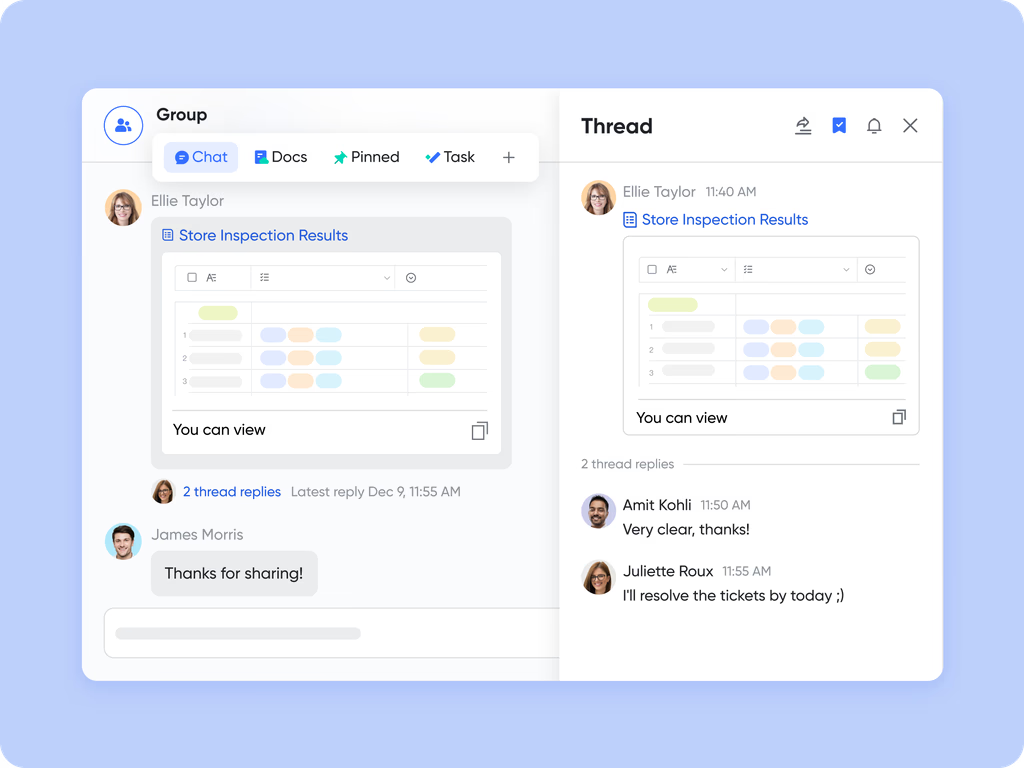
One of the biggest challenges in Jira is keeping discussions and updates tied directly to the work. Teams often jump between Jira tickets, Slack messages, and emails—losing time and context. However, in Kanban view of Lark, you can manage tasks visually, edit or share them instantly, and keep every discussion in one place. Lark Messenger lets you mention teammates, pin important notes, flag urgency, send messages, and share files without leaving the app.
Every chat thread, message, and attachment remains closed to context. This ensures that decisions made in chat automatically stay visible to everyone tracking the task, promoting accountability and alignment across teams.
Lark Docs and Lark Wiki: Documentation that drives action
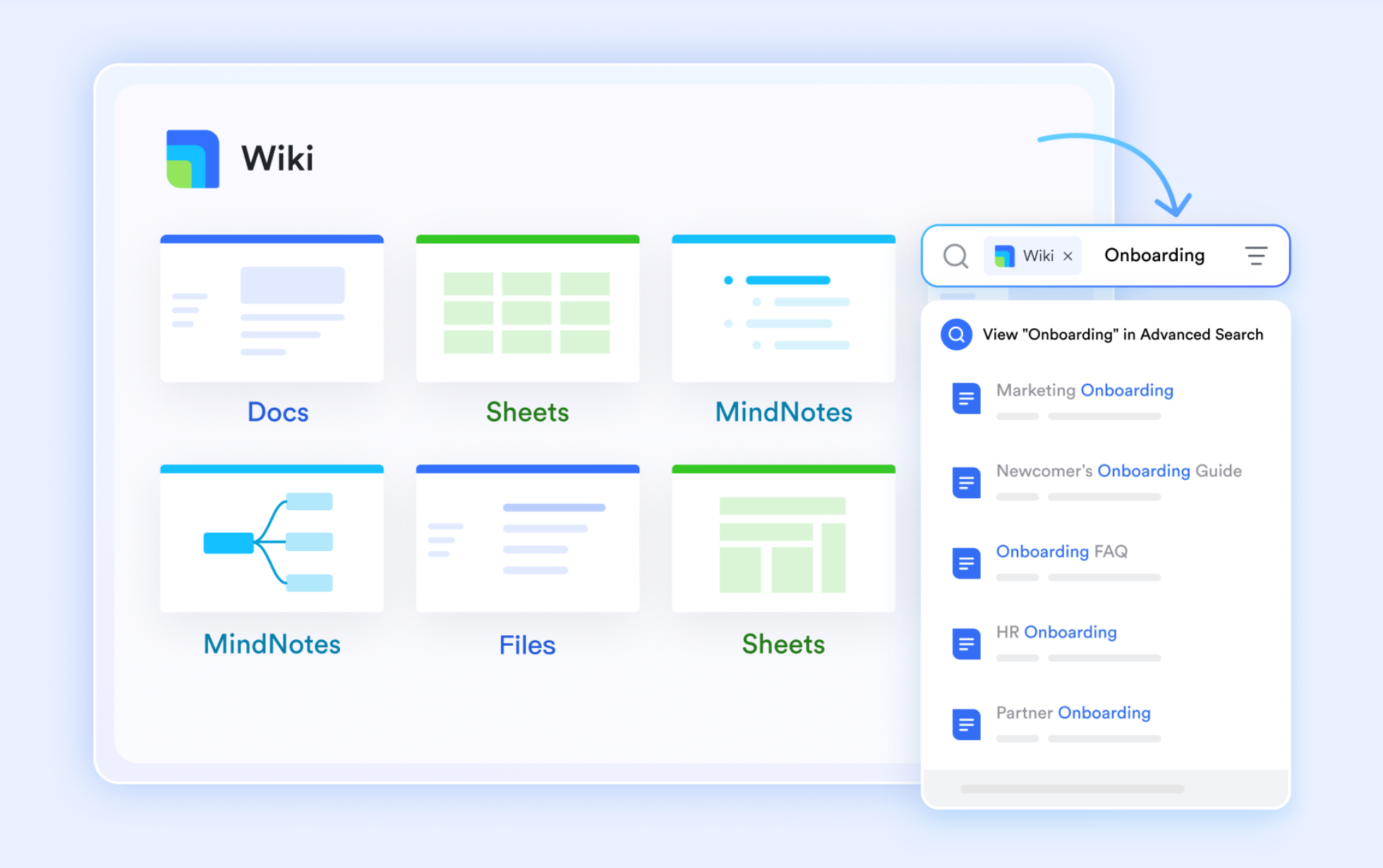
In Jira, documentation typically lives outside the platform—in Confluence, Google Docs, or shared drives—forcing users to jump between systems. Lark merges documentation and execution seamlessly. Lark Docs serves as a collaborative space for project briefs, sprint goals, meeting notes, and checklists. These Docs can be linked directly to Kanban cards for easy access. Also, it supports common third-party tool integration, USC Google Docs and the Microsoft Office suite, which streamlines documentation across platforms.
Once documents are finalized, they can be published on Lark Wiki, creating a searchable, up-to-date knowledge base for ongoing projects. This ensures that every task on your Kanban board is supported by the right context—from requirements to delivery guidelines and everyone references the same information.
Lark Meetings and Lark Calendar: Visibility-driven standups and reviews
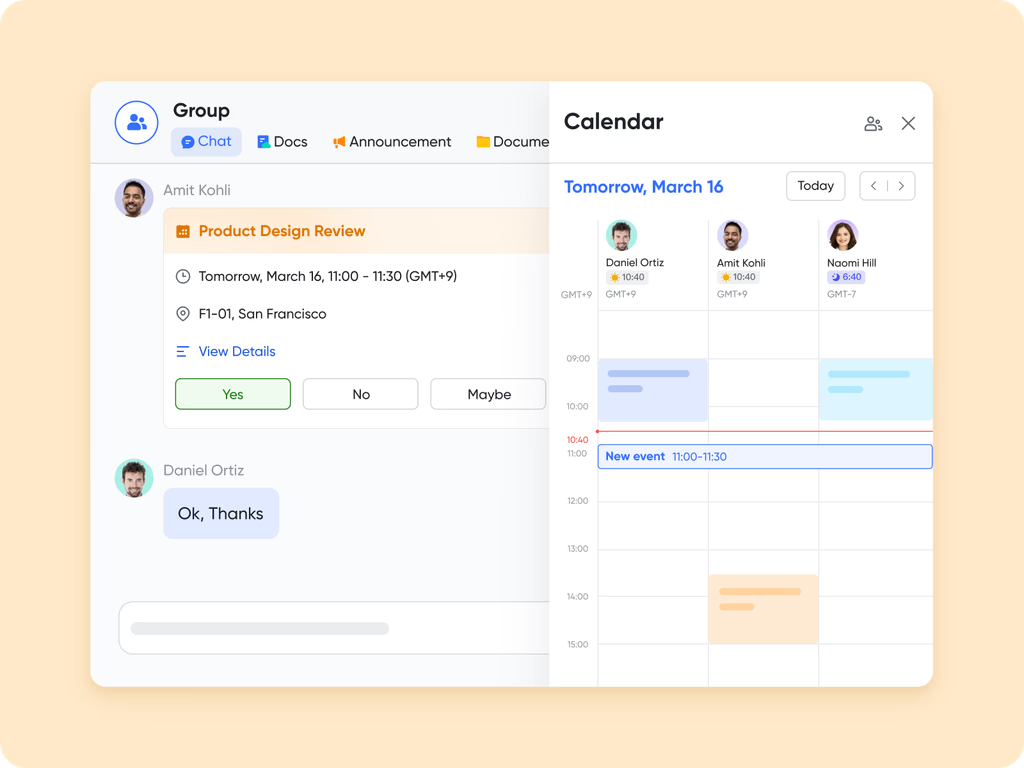
Agile and Kanban teams rely on standups and sprint reviews to stay on track—but those meetings often require toggling between Jira boards, calendars, and video tools. Lark simplifies this with Lark Meetings and Calendar fully connected to your Kanban boards.
During a meeting, teams can open their Lark Base board via Magic Share, allowing everyone to view live progress as they discuss updates. The built-in AI Meeting Notes automatically captures action items, summaries, and follow-up tasks, reducing post-meeting admin work. Meanwhile, Lark Calendar organizes recurring standups, sprint reviews, and delivery deadlines so that ceremonies are visible to the entire team.
Lark Approval: Controlled sign-offs and faster decisions
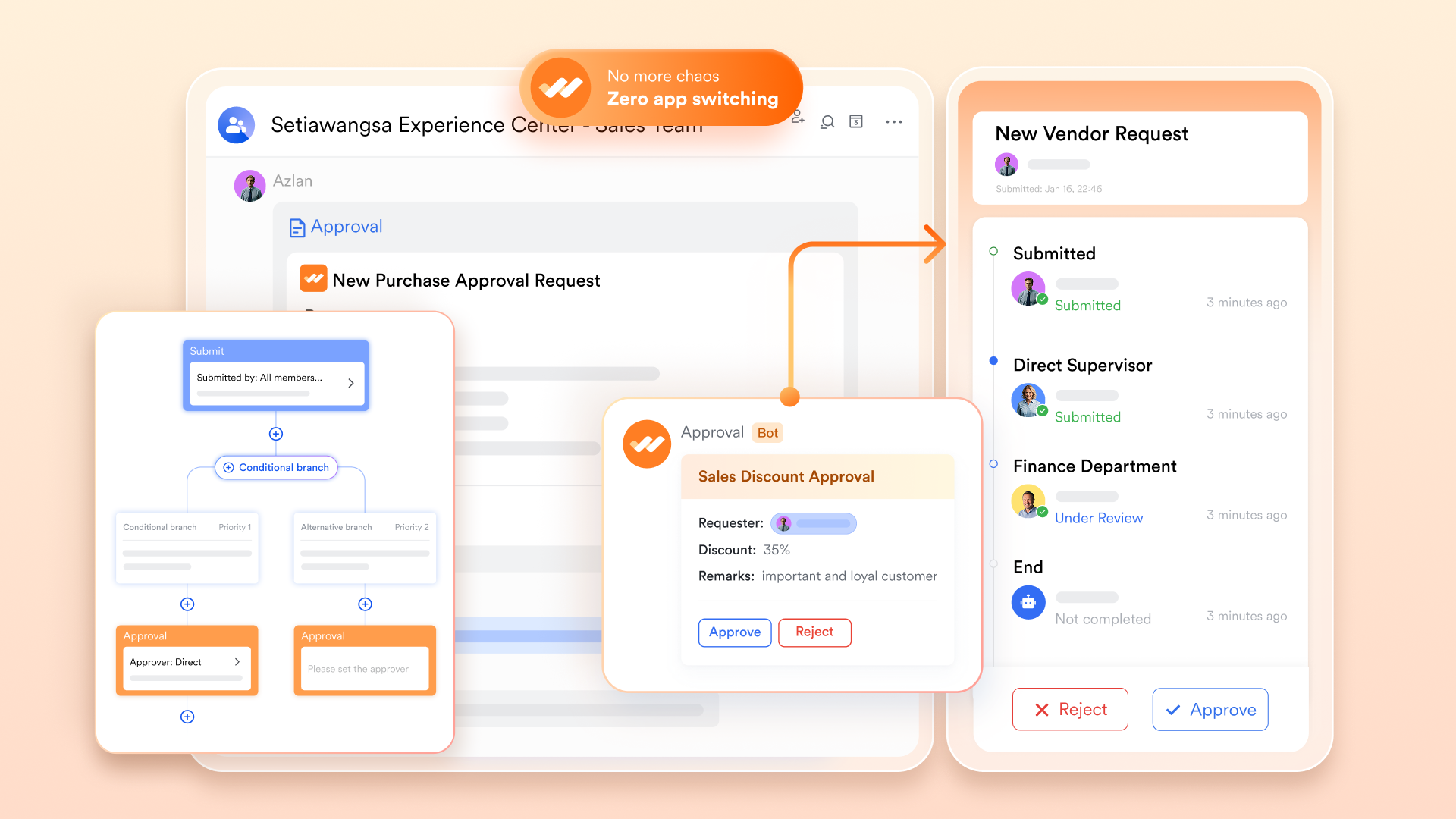
In traditional Jira setups, approvals often happen manually—through email threads or comment chains—which slows down progress and makes compliance tracking harder. Lark Approval replaces that with a streamlined, rule-based process. When a Kanban card reaches a stage like "Ready for Review" or "Client Approval," a pre-defined workflow automatically routes it to the right reviewer.
Once approved, the result is synced to Lark Base, and all stakeholders receive real-time notifications. Each approval flow keeps a transparent audit trail, which helps teams stay compliant and maintain accountability without needing separate tools or plugins.
- Starter plan: Free forever plan that includes 11 powerful tools for up to 20 users. It also comes with 100GB of storage, 1000 automation runs, AI translations, and more.
- Pro plan: $12/user/month (billed annually) for up to 500 users. It includes everything in Starter plus group calling for up to 500 attendees, 15TB of storage, 50,000 automation runs, and more.
- Enterprise plan: Contact sales for custom pricing. Supports unlimited users and includes even more automation runs and advanced security, compliance, and management features.
Jira vs Lark: Which is better for agile and Kanban teams
Choosing the right tool for agile and Kanban management depends on how your team works, collaborates, and scales. Jira is a powerful platform widely used by development teams for structured issue tracking and advanced configurations. However, it often requires technical setup and additional tools for full collaboration. Lark, on the other hand, brings a simpler and connected experience where Kanban boards, chats, documents, and meetings exist in one workspace. The comparison below highlights how both platforms support agile workflows and where Lark offers a smoother, more unified experience for growing teams.
Conclusion
A Kanban board in Jira provides a clear visual view of work in progress and helps teams monitor productivity across every stage. It's a proven system for bringing structure to projects and identifying bottlenecks early. Yet as workflows expand, maintaining boards, configuring automations, and connecting communication tools can become challenging and time-consuming.
Lark offers a more connected and flexible alternative designed for modern teams. Within one workspace, users can plan projects, chat in real time, manage approvals, and document progress without switching between tools. Tasks, conversations, and files stay synchronized so that everyone has visibility into the same source of truth. This connected setup not only saves time but also strengthens collaboration and accountability. For businesses looking to simplify project management while maintaining agility, Lark transforms Kanban from a static tracker into a fully dynamic, automated system that drives continuous improvement.
FAQs
Can I use Jira Kanban boards for non-software projects?
Yes, Jira Kanban boards can support any structured workflow beyond software development. Teams often use them for HR recruitment stages, content planning, or client project tracking. However, setup in Jira can still feel technical for smaller or cross-functional teams. Platforms like Lark simplify this process by providing ready-made Kanban templates and visual tracking that anyone can use instantly.
What's the difference between Scrum and Kanban boards in Jira?
Scrum boards focus on short, time-boxed sprints with fixed goals, while Kanban boards emphasize continuous delivery with flexible task flow. Jira supports both methods, though Scrum boards require more setup. For teams looking for continuous and adaptable workflows, Lark's Kanban-style views offer a smoother experience where boards update automatically as work progresses.
How do I create reports from my Jira Kanban board?
In Jira, reports like Control Charts and Cumulative Flow Diagrams help analyze task progress and identify bottlenecks. However, these reports often require manual setup or admin access. Lark takes a simpler route by generating real-time performance dashboards automatically, allowing teams to see productivity trends without additional configuration.
Can I set automation for my Kanban workflow in Jira?
Yes, Jira supports automation through rules that trigger based on events such as issue transitions or status updates. However, these automations can become complex for users without admin rights. Lark streamlines automation with a no-code builder that helps teams schedule reminders, trigger approvals, and update tasks automatically with minimal setup effort.
How does Lark improve Kanban board collaboration compared to Jira?
Jira helps teams visualize work but often requires separate tools for communication or documentation. Lark brings these functions together in a connected workspace, allowing users to chat, edit documents, and update tasks without leaving the board. This seamless setup improves visibility and ensures all project discussions stay tied to the right work.
Related reading
Table of contents
Start using Lark today

Manage all your work in one place
Boost team efficiency by 10x
Save up to 70% on software costs
Table of contents
Start using Lark today
Manage all your work in one place
Boost team efficiency by 10x
Save up to 70% on software costs
Keep reading








2026 Lark Technologies Pte. Ltd.
Headquartered in Singapore with offices worldwide.






Explore: