Imagine you're preparing a project proposal or a class report, and you realize a simple visual timeline would make everything clearer. You open Google Docs because it's familiar, collaborative, and easy to share—but then the question hits: Can you make a timeline on Google Docs without special tools or design skills? This is a common situation for students, marketers, project coordinators, and anyone who needs a clear sequence of events without switching platforms. In this guide, we'll walk through how to make a timeline on Google Docs using built‑in features, templates, and practical formatting techniques. Along the way, we'll also look honestly at where Google Docs works well—and where it quietly creates extra work—so you can choose the most realistic approach for your needs.
How to make a timeline on Google Docs using built‑in tools
When people ask how do you make a timeline on Google Docs, they're often expecting a built‑in "timeline" feature. Google Docs doesn't have one. Instead, it offers flexible tools—Drawings and tables—that you can combine to make a timeline in Google Docs that is clear and usable, as long as you follow the right steps.
Below are two step‑by‑step methods you can use, depending on whether you value visual design or long‑term stability more.
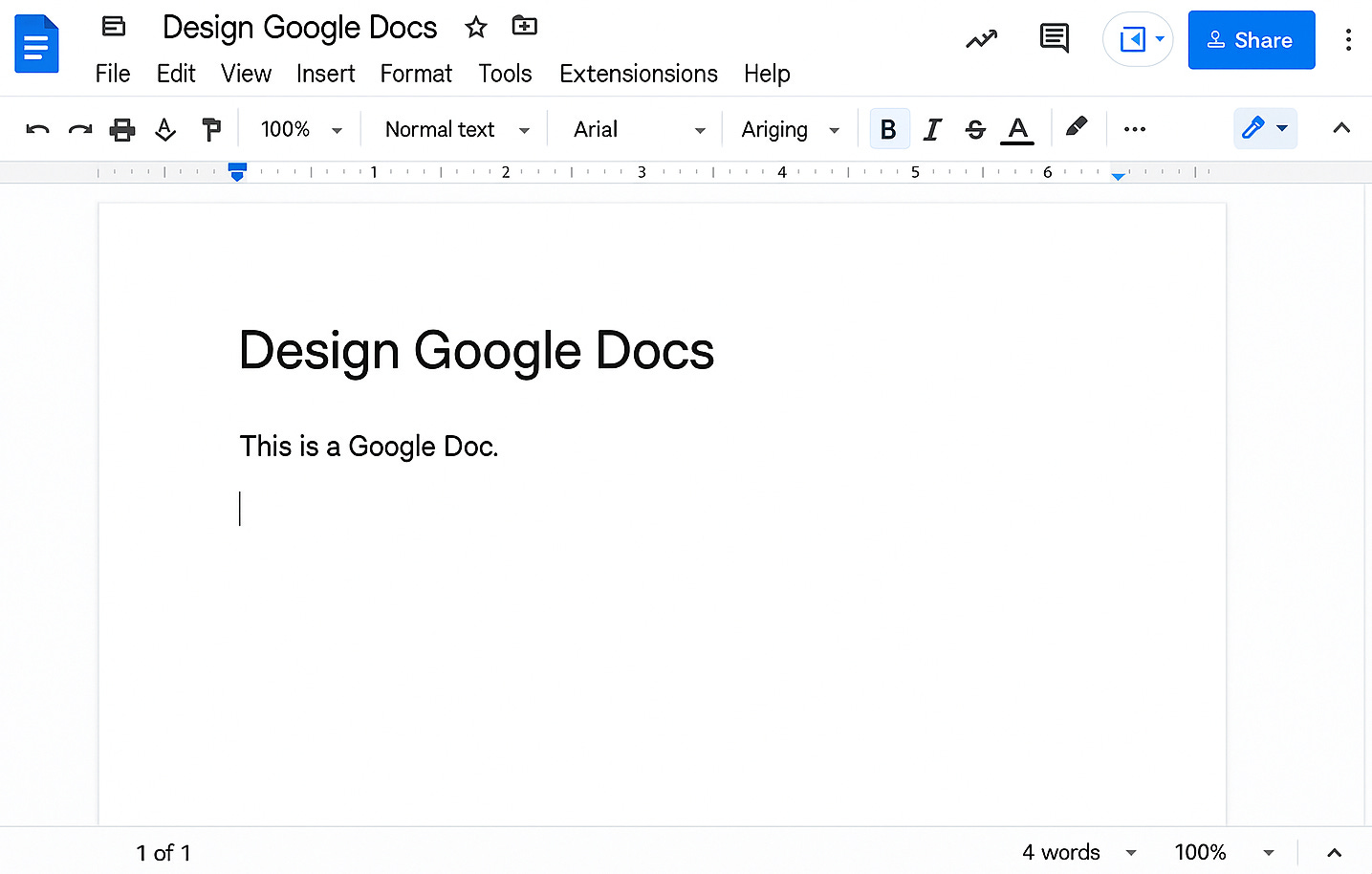
Image source: google.com
Method 1: Create a timeline with Google Drawings (step‑by‑step)
This is the most common approach for users searching for how to make a timeline in Google Docs because it offers the most visual freedom. It works best for short, presentation‑style timelines that won't change often.
Step 1: Insert a drawing canvas
- Place your cursor in the document where you want the timeline to appear.
- Click Insert → Drawing → New.
- A drawing canvas opens in a separate window, allowing you to design the timeline independently from your text.
Step 2: Draw the timeline axis
- Select the Line tool from the toolbar.
- Draw a straight horizontal line for a left‑to‑right timeline, or a vertical line for a top‑to‑bottom timeline.
- Hold "Shift" while drawing to keep the line perfectly straight.
This line represents the flow of time and acts as the foundation for .
Step 3: Add milestone shapes
- Use the "Shape" tool to insert circles or rectangles along the line.
- Place each shape at a point where an event or milestone occurs.
- Keep the shapes evenly spaced to visually suggest progression over time.
Each shape typically represents a date, phase, or key event.
Step 4: Insert text labels and descriptions
- Click inside a shape to add short labels such as dates or milestone names.
- Use "Text" boxes for longer descriptions and position them above or below the timeline axis.
- Keep text concise to avoid overcrowding the design.
At this stage, you've answered the basic question of how to make timeline on Google Docs, but refinement is essential.
Step 5: Align and distribute elements
- Select multiple shapes at once.
- Use "Arrange" → "Align" to line them up consistently.
- Use "Arrange" → "Distribute" to space them evenly.
Alignment tools reduce visual clutter but require careful selection to work correctly.
Step 6: Keep spacing consistent
- To prevent the timeline from breaking later:
- Duplicate existing shapes instead of creating new ones, so size and style stay uniform.
- Avoid dragging elements freehand whenever possible.
- Group each milestone shape with its text label to prevent accidental movement.
Step 7: Save and insert the timeline
- Click "Save" and "Close" to insert the drawing into your document.
- Resize the timeline carefully within the document without stretching it disproportionately.
Why this method works: It offers full visual control and is ideal for simple, static timelines.
Why it fails: Every update requires manual repositioning. If you've ever wondered how to in Google Docs that doesn't fall apart after edits, this method can become frustrating as timelines change.
Method 2: Build a timeline using tables and formatting (step‑by‑step)
If you're asking, can you make a timeline on Google Docs that stays intact through revisions? Tables are often the more reliable answer. This method sacrifices some visual flair for long‑term stability.
Step 1: Insert a table
- Place your cursor where the timeline should appear.
- Click "Insert" → "Table".
- Choose the number of columns or rows based on how many time periods or milestones you need.
Each cell becomes a structured time unit.
Step 2: Define the timeline structure
- Use columns for chronological stages (for horizontal timelines).
- Use rows for dates or phases (for vertical timelines).
- Add dates, milestone titles, or phase names directly into the cells.
The table acts as a fixed grid that keeps content aligned.
Step 3: Merge cells for longer phases
- Select adjacent cells that belong to the same phase.
- Right‑click and choose "Merge" cells.
- Use merged cells to show duration instead of single‑point events.
This helps convey time spans rather than just sequence.
Step 4: Adjust formatting for clarity
- Center text vertically and horizontally where appropriate.
- Adjust column width or row height for readability.
- Use subtle background colors to distinguish phases without overwhelming the layout.
Step 5: Refine borders and spacing
- Reduce border thickness or use light border colors for a cleaner look.
- Add padding inside cells so text doesn't feel cramped.
- Keep font styles consistent throughout the table.
Step 6: Update and maintain the timeline
- When dates or milestones change.
- Edit the text directly inside cells.
- Add or remove rows or columns without breaking alignment.
Why this method works: Tables resist accidental misalignment and handle edits gracefully.
Why it fails: They look more rigid and less visual, which may not suit design‑heavy documents or presentations.
Choosing the right method and formatting your timeline effectively
In practice, the answer to how to make a timeline on Google Docs depends less on the tool itself and more on how you plan to use the timeline over time. Google Docs gives you multiple ways to build a timeline, but each comes with trade‑offs that affect maintenance, readability, and sharing.
Both built‑in methods can work, but they serve different priorities:
- Use Google Drawings if matters more than frequent updates. Drawing‑based timelines are better suited for presentations, reports, or one‑off documents where layout and visual flow are important. They allow more creative freedom, but even small changes often require manual realignment.
- Use tables if the timeline will change over time and needs to stay organized. Table‑based timelines are less visually expressive, but they are far more stable. Dates, milestones, and phases remain aligned even as content is edited, making this approach more reliable for documents that evolve.
Understanding this trade‑off helps you make a timeline in Google Docs that fits your real workflow, not just your initial idea. Many frustrations come from choosing a visually appealing method for a timeline that later needs frequent updates.
Formatting and readability best practices
No matter which method you choose, formatting plays a decisive role in whether your timeline is helpful or confusing. A well‑structured timeline guides the reader's eye naturally, while a poorly formatted one creates friction.
1. Fonts, colors, and spacing should support clarity rather than decoration
Choose a single, clean font for dates and labels to keep the timeline cohesive. Mixing too many font styles often makes timelines harder to scan. Color can be effective for grouping phases or highlighting , but restraint matters. Subtle contrast usually communicates structure better than bright or overly saturated combinations.
2. Accessibility should be considered from the start
High color contrast improves readability for everyone, including users with visual impairments. Text labels should always be clear enough to stand on their own, so the timeline still makes sense if colors are not visible. When people ask how to make a timeline on Google Docs for sharing, accessibility is an essential part of the answer.
3. Think ahead to printing and sharing
Timelines created with drawings may shift slightly when printed or exported, especially if the document layout changes. Table‑based timelines are usually more consistent across formats. Testing your timeline both on screen and in print helps avoid last‑minute surprises and ensures your work communicates what you intend.
By choosing the right method and applying thoughtful formatting, you can make a timeline in Google Docs that is not only visually clear, but also practical to maintain and share.
Ready to make your timeline more effortlessly?
Using Google Docs timeline templates to save time
If starting from a blank page feels inefficient, templates can be a faster way to make a timeline in Google Docs. Many users search for shortcuts because they want results quickly, not because they want to design from scratch.
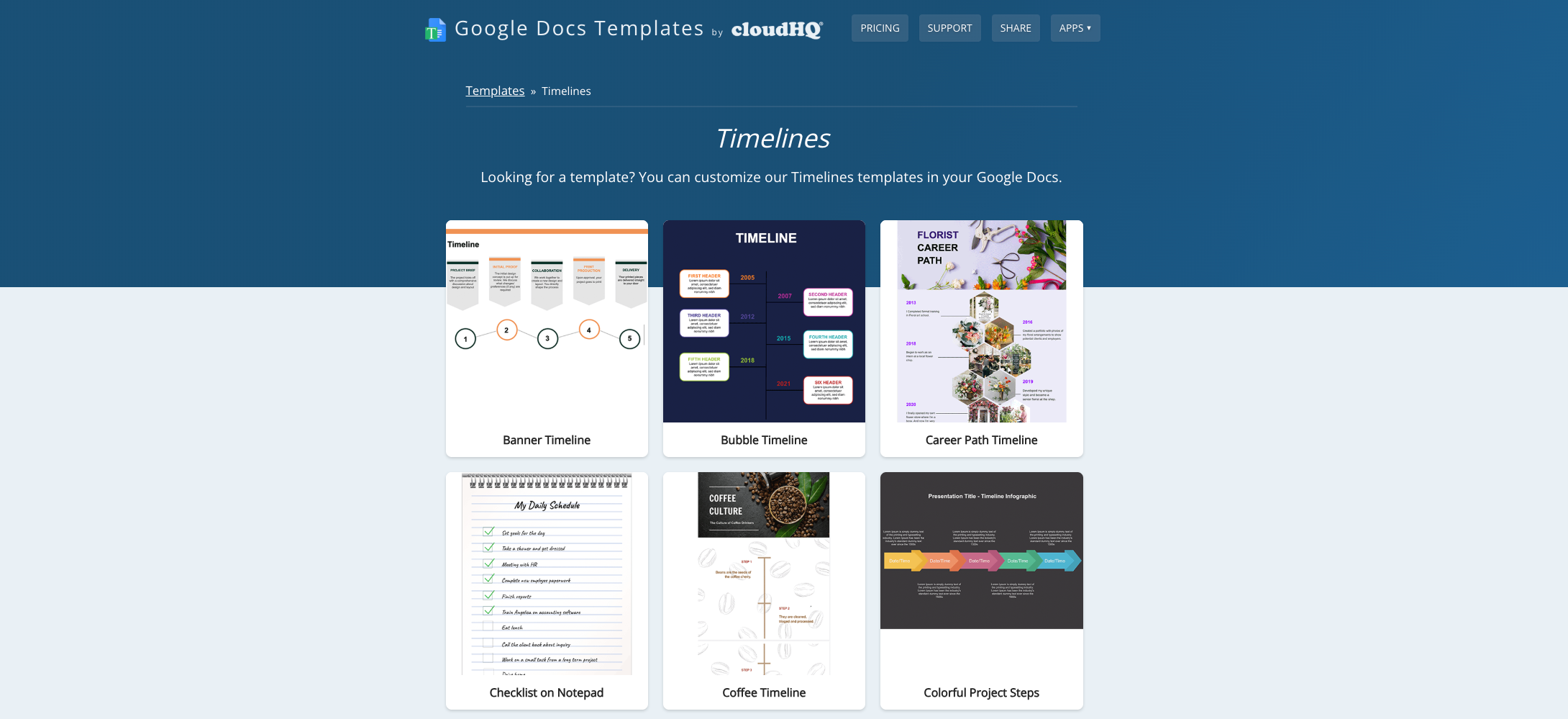
Image source: google-docs-templates.com
Where to find Google Docs timeline templates
Google Docs includes a template gallery, but its timeline options are limited and often basic. They're useful for simple projects, but they rarely cover more complex needs. This is why many people look to third‑party template sources that offer more visually refined designs.
Another common approach is the copy‑and‑paste workflow. You find a timeline layout in an existing document, duplicate it, and adapt it for your own use. This method technically answers how to make a timeline on Google Docs, but it depends heavily on the quality of the original template.
Templates help because they provide a starting structure. They reduce the initial setup time and give you a sense of how content might be organized. However, they don't remove the underlying limitations of Google Docs timelines.
How to customize a template without breaking the layout
is where many timelines start to unravel. Updating dates and milestones seems simple, but small changes can disrupt alignment or spacing, especially in drawing‑based templates.
To update safely, it's best to:
- Replace text within existing shapes or cells rather than resizing them.
- Add or remove phases in small increments, checking alignment after each change.
- Avoid mixing formatting styles, which often leads to visual inconsistency.
If you need to add milestones, duplicating existing elements preserves spacing better than inserting new ones. This approach helps maintain visual balance and reduces the chance of layout drift. It's a practical answer for users wondering how to make a timeline in Google Docs that stays intact after customization.
Template limitations you should know upfront
Templates are excellent for starting fast, but they don't solve long‑term maintenance. Most templates are static by design, meaning they don't adapt automatically when dates change or phases shift. Reusing the same template across often requires repetitive manual work.
Over time, every update becomes a small redesign task. This is why templates feel efficient at first and frustrating later. Understanding this trade‑off helps set realistic expectations and prevents disappointment after the initial setup.
Eager to discover more powerful templates?
The hidden cost of maintaining timelines in Google Docs
Many guides focus on creation, but fewer address what happens afterward. The real challenge of how to make a timeline on Google Docs isn't the first version—it's everything that follows.
What happens when timelines change frequently
When timelines evolve, drawing‑based designs require constant redrawing of shapes and connectors. Each small change can cascade into multiple adjustments. Version history helps track changes, but it doesn't prevent visual inconsistency.
Over time, timelines often lose alignment, spacing becomes uneven, and the overall design feels less intentional. This is not because users lack skill, but because the tool wasn't designed for ongoing .
Collaboration challenges in real teams
Google Docs excels at collaboration, but timelines introduce unique problems. Multiple editors can accidentally shift elements, especially in drawings. Comments may explain what should happen, but they don't assign ownership or update the timeline itself.
Without a clear source of truth, teams end up discussing the timeline more than using it. For anyone asking, can you make a timeline on Google Docs for a team project? This is where friction usually appears.
A simple decision guide: Should you stay in Google Docs?
Choosing whether to continue using Google Docs depends on the nature of your timeline.
- Yes, if the timeline is short, static, and owned by one person.
- Maybe, if a small team makes limited changes and values simplicity.
- No, if the project is growing, recurring, or closely tied to execution and accountability.
Thinking this way shifts the question from how to make a timeline on Google Docs to whether Google Docs still serves your goals. That perspective helps you choose tools intentionally, rather than out of habit.
Smarter ways to handle timelines when Google Docs is not enough
Learning how to make a timeline on Google Docs is valuable, but it is only part of the story. Over time, many teams realize that while Google Docs is accessible and familiar, it was not designed to support timelines as living, evolving objects. Understanding why teams move beyond Google Docs helps clarify when it is time to .
Why teams look beyond Google Docs for timelines
Teams rarely leave Google Docs because they dislike it. They move on because their timelines outgrow what the tool can realistically support. Common reasons include:
- Lack of and structural logic: When you make a timeline in Google Docs, dates are just text. Shapes do not understand sequencing, dependencies, or duration. Every update relies on manual edits, which increases the risk of inconsistency over time. As projects evolve, this manual effort becomes a hidden cost.
- Weak connection between timelines and actual work: A timeline in Google Docs is usually descriptive, not operational. It shows what should happen, but it does not reflect what is happening. When responsibilities shift or deadlines move, the timeline must be updated separately from the work itself. This disconnect often leads teams to ask again, can you make a timeline on Google Docs that truly stays aligned with execution? In practice, that alignment is difficult to maintain.
- Poor reusability across documents and projects: Many teams want to reuse timelines across documents, meetings, and recurring projects. When you make a timeline in Google Docs, duplication often means copying and pasting drawings or tables. Over time, multiple versions appear, and it becomes unclear which one is current. This version drift undermines trust in the timeline as a reliable reference.
These pressures do not mean Google Docs has failed. They simply highlight that Google Docs is optimized for documents, not for dynamic planning artifacts like timelines.
Why Lark Docs supersedes Google Docs
Google Docs is often the default choice for collaborative writing, but its limitations become more noticeable as teamwork grows more complex. At its core, Google Docs is designed for document creation, not for coordinating work across people and tools. Content, discussions, and tasks are typically scattered across different apps, which makes it harder to maintain context and alignment.
Common limitations of Google Docs:
- Fragmented workflows, where documents, chats, and tasks live in separate places
- Passive collaboration, with comments that suggest actions but do not create ownership
- Limited support for , such as flow charts or diagrams that require external tools
- Manual follow‑ups, which increase the risk of missed tasks as documents evolve
Lark Docs is designed to address these gaps while keeping the collaborative experience familiar. It functions as more than a shared document, acting as a central hub where writing, discussion, and execution come together.
Key advantages of Lark Docs:
- , similar to Google Docs but more tightly connected to teamwork
- Built‑in interactive elements such as flow charts, UML diagrams, and collaborative whiteboards, embedded directly in documents
- The ability to convert any text or comment into an actionable to‑do and assign it to a teammate
- Seamless document sharing and permission management directly from chat
- Easy referencing of documents in chats, , and calendar invites to keep all related work connected
By reducing tool switching and turning documentation into action, Lark Docs offers a more integrated and effective alternative for teams that have outgrown the limitations of Google Docs.
Lark's solution: Templates that replace manual drawing
Once teams clearly feel these pain points, the question becomes practical rather than theoretical. When how to make a timeline on Google Docs is no longer the right question, the focus shifts to how timelines can be easier to build, update, and reuse.
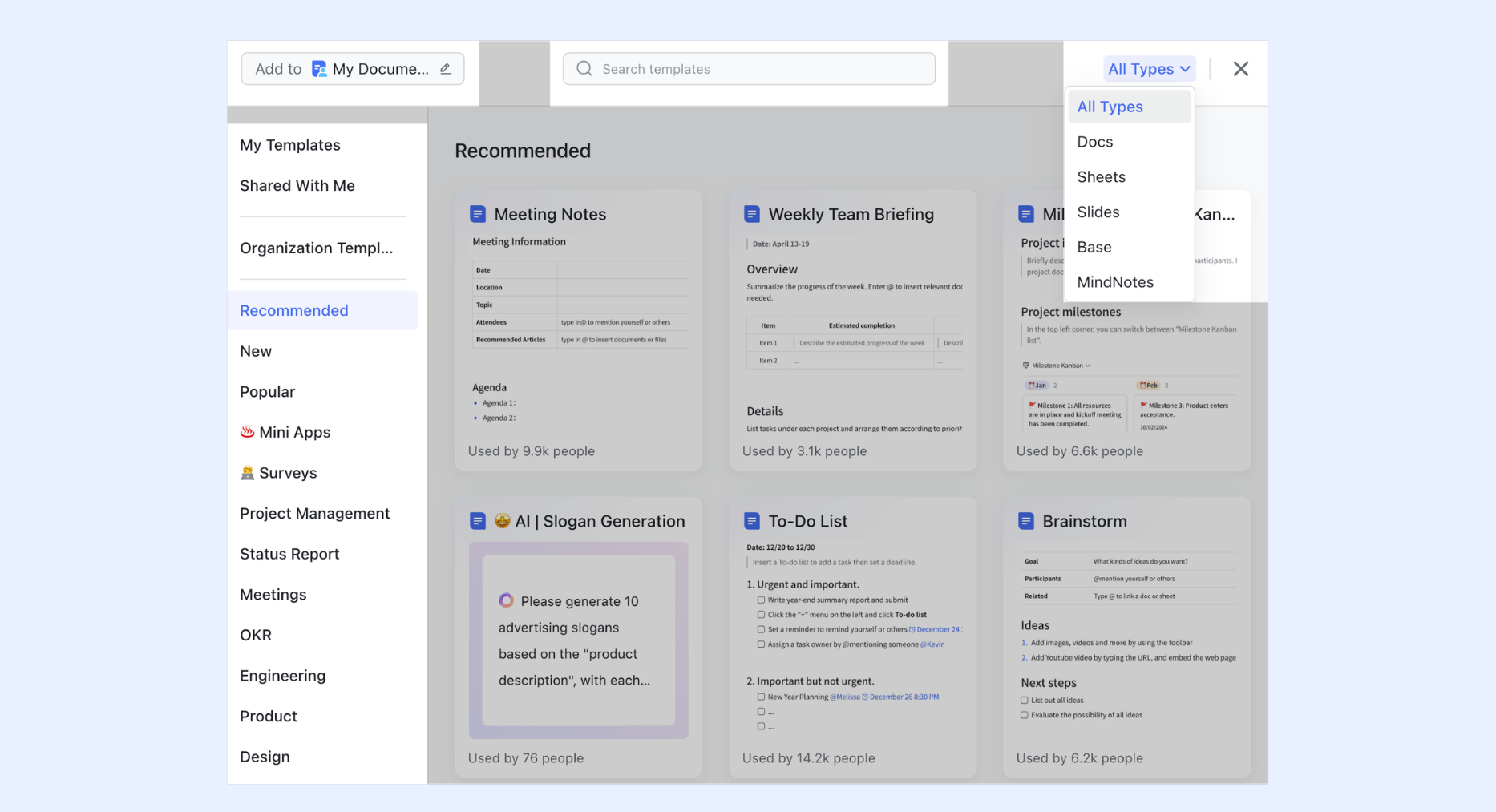
addresses the limits of document‑based timelines by removing the need for manual drawing. In , users can start with ready‑to‑use timeline and roadmap templates that are structured from the beginning. Instead of assembling shapes or formatting tables, these templates reflect and help teams move forward with clarity rather than a blank page.
A key improvement is the use of structured date fields instead of visual shapes. Dates behave like actual data, not decorative text. When a milestone changes, the timeline updates without requiring users to realign elements manually. This directly solves a common frustration experienced after learning how to make a timeline in Google Docs, only to discover how fragile that timeline becomes as plans evolve.
Lark Base templates: Timelines connected to data and repetition
For teams that need more than documentation, extend timelines into a more structured, data‑driven environment. These templates are designed for recurring workflows such as onboarding, product launches, or campaign planning, where timelines need to be duplicated, tracked, and adjusted repeatedly.
Because timelines in are built on structured fields, they are easy to reuse without rebuilding from scratch. Teams can duplicate a template, update dates or owners, and keep consistency across projects while reducing repetitive work. This is an area where Google Docs timelines often struggle, especially as versions multiply over time.
The goal is not to replace documentation, but to provide timelines that are easier to maintain, adapt, and scale than those created manually in Google Docs.
Welcome more templates at lower cost
Lark's solution: Linking timelines with execution
Another reason teams look beyond Google Docs is the gap between planning and execution. A timeline created in Google Docs often lives separately from tasks, owners, and day‑to‑day progress.
Lark's solution bridges that gap by linking timelines directly to execution. Timelines can be connected to tasks and owners, which means responsibilities are visible within the timeline itself. Instead of asking who owns a milestone, stakeholders can see it immediately. Automatic updates are another practical advantage. When dates change at the task level, the timeline reflects those changes without requiring a redesign. This reduces the manual maintenance that frustrates users who initially searched how to make a timeline on Google Docs, hoping for a simple answer.
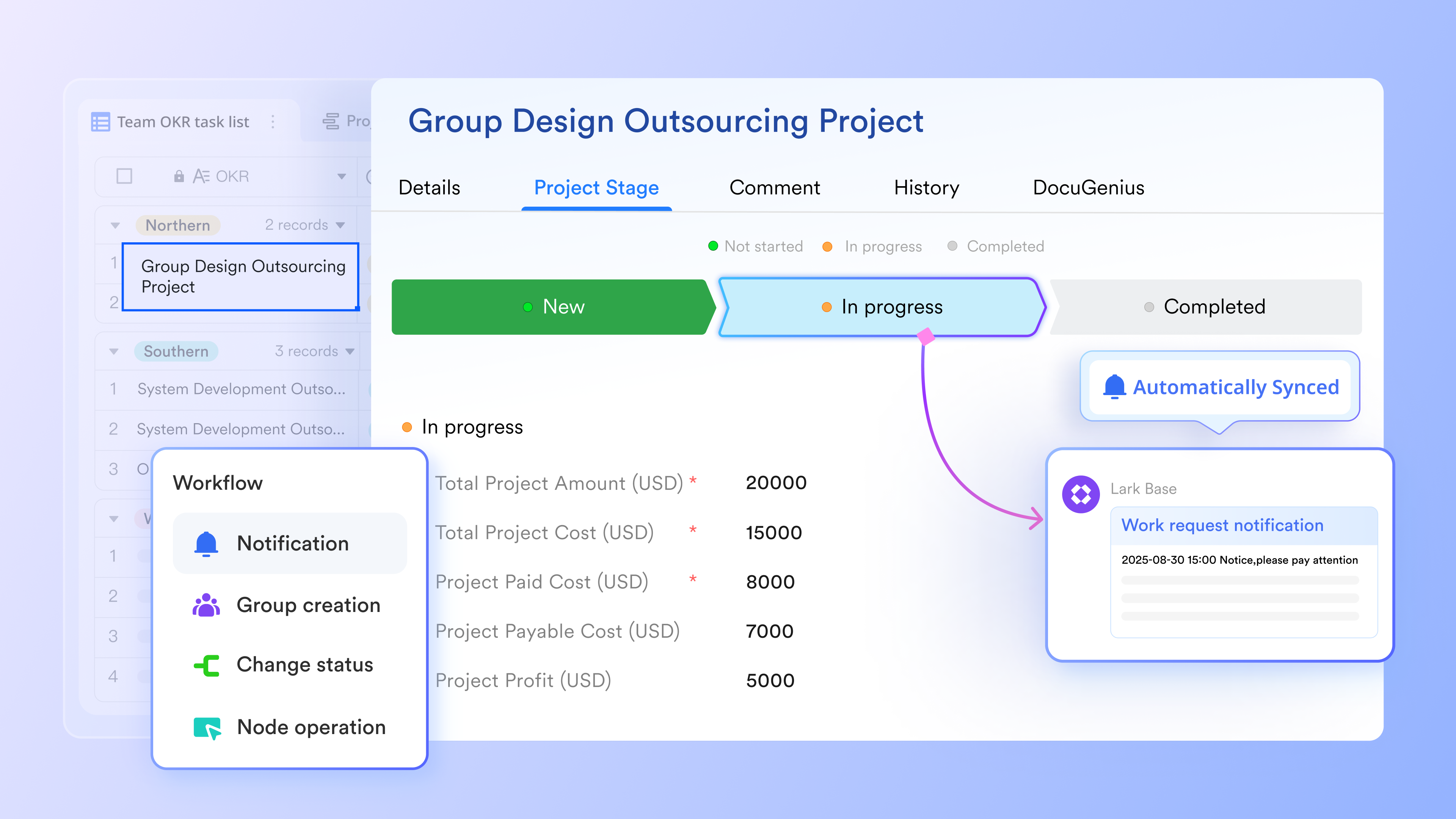
Clear visibility for all stakeholders is a natural result of this connection. Everyone sees the same timeline, , which reduces misunderstandings and side conversations. The timeline becomes a shared reference point rather than a static image embedded in a document.
This approach does not eliminate the need for communication. It simply ensures that the timeline supports communication instead of creating additional work.
:
- Starter plan: Free forever plan with 11 powerful tools for up to 20 users, 100GB storage, 1,000 automation runs, AI translations, and more. No credit card is needed.
- Pro plan: $12/user/month (billed annually) for up to 500 users. Includes everything in Starter plus group calling for up to 500 attendees, 15TB storage, 50,000 automation runs, and more.
- Enterprise plan: for custom pricing. Supports unlimited users and includes advanced automation, security, compliance, and management features. A closer look at and can help businesses determine whether the platform fits their budget.
For small teams with simple communication needs

18 months message history
1000 Base automation runs/month
2000 rows per table in Base
Most POPULAR
For companies with comprehensive collaboration and management needs
Unlimited message history
500-participant video meetings
50k Base automation runs/month
20k rows per table in Base
For large companies with advanced security and organizational management needs
Get a personalized demo and pricing
Unlimited message history
500-participant video meetings
15 TB storage + 30 GB storage/user
500k Base automation runs/month
50k Base automation runs/month
Most POPULAR
For companies with comprehensive collaboration and management needs
Unlimited message history
500-participant video meetings
50k Base automation runs/month
20k rows per table in Base
Conclusion
Google Docs is often the first place people turn when asking how to make a timeline on Google Docs, and for good reason. It's familiar, accessible, and works well for short, static timelines owned by a single person. As a starting point, it does the job.
However, timelines rarely remain simple. As plans change and more people get involved, the question shifts from how to build a timeline to whether the tool still fits the work. Ongoing edits, collaboration, and reuse quickly expose limits that Google Docs wasn't designed to handle.
The key is matching the tool to the timeline's complexity. Start simple, but stay open to more structured options as needs grow. Tools like offer timelines that connect planning with execution, helping teams stay aligned without constant manual updates. Choosing intentionally ensures your timeline supports progress instead of slowing it down.
Optimize your content creation in Lark
FAQs
Is there a timeline template in Google Docs?
Google Docs does not offer a dedicated timeline template. You can adapt existing templates using tables or drawings, but they are static and require manual updates when dates or milestones change.
How do I add a timeline in a doc?
You can add a timeline by inserting a Google Drawing or using a table. Drawings work for visual layouts, while tables provide better structure but less design flexibility.
Why is Google timeline no longer available?
Google removed timeline features from certain products as it shifted focus to simpler document editing. Timeline views now exist mainly in Google Sheets, not in Google Docs.
How to make a timetable in Google Docs?
A timetable is usually created with tables. Tables keep rows and columns aligned, but they do not support automatic scheduling or dynamic updates.
How do you make a timeline in Google Docs?
You create one manually using Google Drawings or tables. Google Docs has no native timeline function, so updates and alignment must be handled by hand.
Related reading