














The Practical Guide to Power Automate Approvals

Ryan Tanner
Product Marketing Specialist
Sep 18, 2026
Ryan Tanner
Sep 18, 2026

22 min read


Power Automate is one of the most widely used workflow tools for teams operating inside the Microsoft 365 ecosystem, and its Power Automate approvals feature is central to managing requests, documents, and decisions at scale. Yet many teams still face challenges around setup complexity, connector limits, and multi-app dependencies. In this guide, we break down how Power Automate approvals work, the different approval types you can build, and the common limitations to watch for. We'll also introduce Lark, an all-in-one workspace with built-in approvals, as a simpler alternative for teams seeking a more unified experience.

What are Power Automate Approvals?
Power Automate Approvals are workflow components that allow users to request, review, and confirm decisions directly within Microsoft's automation platform. At their core, approvals in Power Automate streamline any process where someone needs to say "yes," "no," or "review again", from purchase orders to HR requests to budget sign-offs. According to Power Automate approvals overview documentation, each approval is generated as an actionable card that appears in Outlook, Teams, or the Power Automate portal. These cards include requester details, data fields, attachments, and response options, making it easier for approvers to act without switching applications.
The system also supports different routing patterns, such as single-person reviews, multi-level workflows, and parallel approvals, which SharePoint, Dataverse, Forms, or other connectors can trigger. While the Power Automate approvals connector documentation highlights rich capabilities, teams often need supporting lists or tables to structure data, an essential consideration when building scalable, cross-departmental workflows.
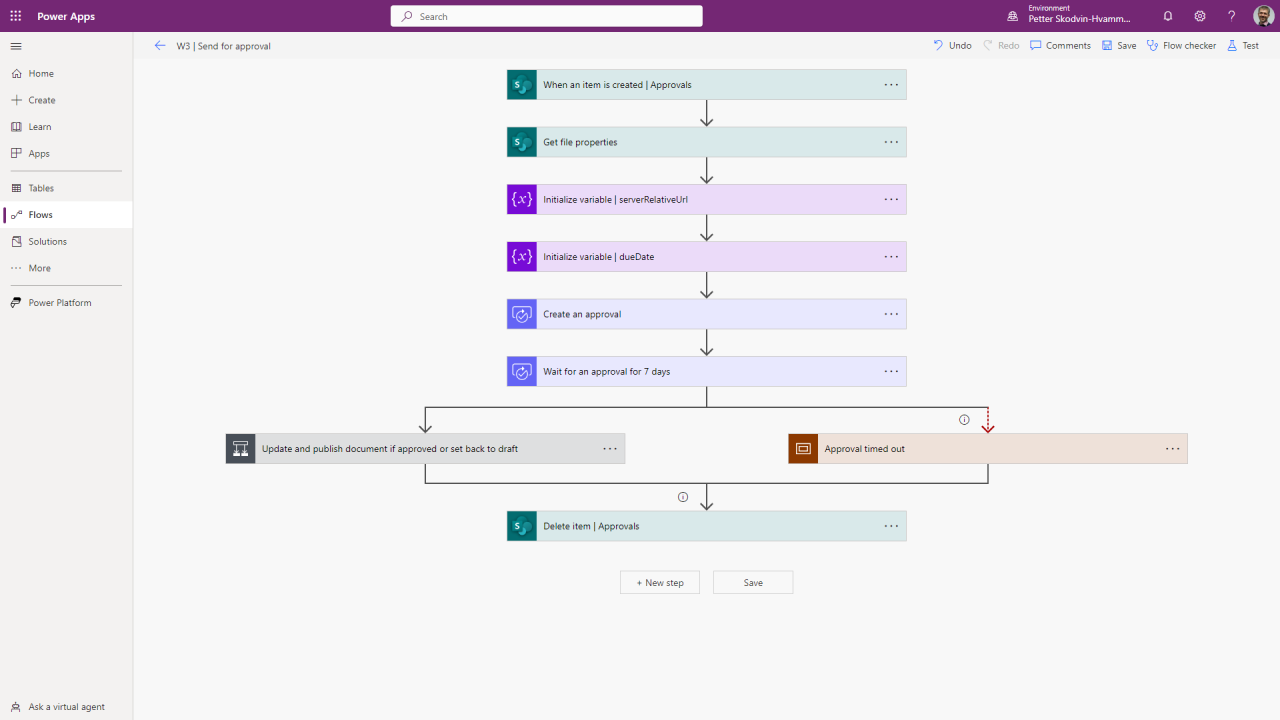
Image source: microsoft.com
Power Automate approvals overview documentation: What Microsoft defines
Power Automate approvals streamline decision-making by routing requests, capturing responses, and automating follow-up actions. They help teams reduce manual delays and maintain consistent governance across workflows.
- Approval types: Power Automate supports multiple approval types: Approve/Reject, Custom Responses, and Everyone/First to Respond to match different business rules. Each type defines how decisions are collected and when the flow proceeds. Choosing the right type ensures accurate routing, faster turnaround, and clean audit trails.
- Request endpoints: Approvals rely on secure Microsoft 365 and Dataverse endpoints to send, receive, and track responses. These endpoints accept requests via email, Teams, and the Power Automate app, making them accessible across devices. Proper endpoint configuration ensures reliable, real-time notification delivery.
- Connector limitations: Not all connectors support approvals, and some restrict advanced triggers, dynamic data, or multi-step logic. Certain third-party services may allow sending approval requests but not retrieving status updates. Understanding these limitations helps teams design stable, compliant flows.
- Permissions and routing: Approval routing depends on Azure AD roles, mailbox access, and app permissions, which control who can send or receive requests. Misconfigured permissions can block notifications, delay actions, or cause routing failures. Clear access policies ensure approvals reach the right stakeholders every time.
Types of Power Automate approval workflows
These approval models go beyond simple one-click decisions and align with real operational processes across HR, finance, procurement, and IT. Each type reflects how organizations handle risk, documentation, and multi-step governance.
Basic approvals
Basic approvals are single-person decision flows, usually triggered by a specific event, such as a new form submission, a CRM update, or the creation of a SharePoint item. The request is routed to one defined approver who must approve or reject the item. Once completed, Power Automate updates the originating system, notifies the user, and moves the workflow to the next step. These are ideal for simple, low-risk decisions that need quick, trackable responses.
Multi-level approval workflows
Multi-level approvals follow structured, sequential decision paths where Approver A → Approver B → Approver C, and so on. Unlike standard approvals, these flows often include conditional logic, dynamic routing based on amount thresholds, department rules, or metadata values. SERP content highlights that many teams overlook hidden multi-stage logic, such as skipping levels, auto-reject rules, or re-routing on partial approvals. Multi-level approvals are essential for procurement, compliance-heavy processes, and HR policy governance.
Parallel approvals
Parallel approvals send the same request to multiple stakeholders simultaneously, and the workflow waits for all, or a defined number, of decisions to be completed. Finance and IT risk teams use parallel routing to gather checks across audit, security, budgeting, and legal simultaneously. This reduces bottlenecks because reviewers do not wait for each other's input. Power Automate can reconcile all responses into a unified outcome, ensuring no critical domain is overlooked.
Escalation-based approvals
Escalation-based approvals introduce time-bound logic where, if an approver does not respond within a set timeout (e.g., 24 or 48 hours), Power Automate automatically reassigns the request. Escalations can send approval to a manager, backup owner, or a functional group mailbox. Businesses use this model to avoid workflow stalls, maintain SLA compliance, and ensure urgent requests, such as incident responses or vendor onboarding, never go unresolved. Timeouts can be chained to create multi-tier escalation paths for high-risk workflows.
Document-centric approvals
Document-centric approvals revolve around files stored in SharePoint, OneDrive, or structured document packs. Power Automate listens for updates such as file creation, metadata changes, or version updates, then sends an approval request tied directly to the document. Approvers can view the file, leave comments, request edits, and trigger controlled document publishing once approved. This approach is heavily used for contract reviews, policy updates, content publishing, and regulated document lifecycles. Versioning, access control, and audit histories are automatically captured through the document repository.
How Power Automate approval connectors work
Each Microsoft 365 connector influences how approval workflows start, what information can be passed, and how responses update the source system. Understanding these differences helps teams design predictable, scalable approval logic.
Outlook
Outlook does not directly trigger approvals but acts as a delivery and response endpoint.
- Trigger behavior: Emails themselves don't trigger approvals unless paired with rules like "When a new email arrives (V3)."
- Actions: Power Automate sends actionable approval cards to Outlook inboxes. Users can approve/reject without opening Power Automate.
- Constraints: Formatting is limited; email attachments aren't automatically pulled into the approval card. Ideal for lightweight decision routing and quick responses.
SharePoint
SharePoint is one of the most powerful approval triggers.
- Trigger behavior: Common triggers include "When an item is created," "When a file is created," "When a file is modified," or metadata-based triggers.
- Actions: Approvals can update columns (status, approver comments), move documents, adjust permissions, or create new versions.
- Workflow notes: Great for document-centric approvals, but complex list structures may require multiple Get Item calls, slowing flows. Permissions deeply influence trigger reliability.
Dataverse
Dataverse provides the most structured and enterprise-grade data interactions.
- Trigger behavior: "When a row is added/modified/deleted," triggers are precise and event-driven.
- Actions: Approvals can write back decisions, update statuses, set option-set values, or launch child flows using Dataverse tables.
- Advantages: Field-level updates, attribute filtering, and rich metadata make Dataverse ideal for multi-level, conditional approvals.
- Limitations: Requires proper table permissions and environment-level security to avoid failed runs.
Teams
Teams is primarily an approval interface, not a data source.
- Trigger behavior: Limited direct triggers (e.g., "When someone posts a message in a chat or channel"). Not ideal for structured workflows.
- Actions: Approvals appear as Teams adaptive cards. Users can comment, approve, or reject in real time.
- Workflow notes: Teams enhances visibility but does not store approval data, so flows must write back to SharePoint, Dataverse, or another system.
Forms
Forms are a common starting point for request-based approvals.
- Trigger behavior: "When a new response is submitted" is instant and reliable.
- Actions: Power Automate fetches the full response details, then creates structured approval requests based on fields such as requester, amount, category, or justification.
- Limitations: No native branching logic within Forms, so all conditional routing must happen inside Power Automate.
- Use case strength: Perfect for intake workflows such as leave requests, vendor onboarding, budget approval, and service requests.
How to create Power Automate approvals
Building a Power Automate approval flow requires aligning triggers, routing logic, and follow-up actions to ensure decisions flow smoothly across your systems. In this guide, each step breaks down the exact sequence for designing a predictable, audit-friendly approval process.
Step 1: Define the trigger
Every approval flow starts with an event. This could be a SharePoint item creation, a Forms response submission, a Dataverse row update, or a file upload. Choose a trigger that reflects where your request originates, and ensure it can pass the necessary metadata forward (requester, file link, amount, category, etc.). Reliable triggers set the foundation for predictable, audit-ready approvals.
Step 2: Choose the approval type
Select an approval type based on the decision structure. Your process requires a basic, multi-level, sequential, or parallel approach. Power Automate's approval action supports multiple routing patterns, so define whether a single person, several people, or various departments must respond before the workflow can continue. The approval type determines how logic flows through the remaining steps.
Step 3: Set approvers
Specify the approver(s) using email addresses, dynamic values, or data pulled from the trigger. Approvers can be individuals, managers, groups, or values retrieved from lookup columns or Dataverse tables. This step is where conditional logic often kicks in, for example, routing approvals above a cost threshold to senior management or changing approvers based on department.
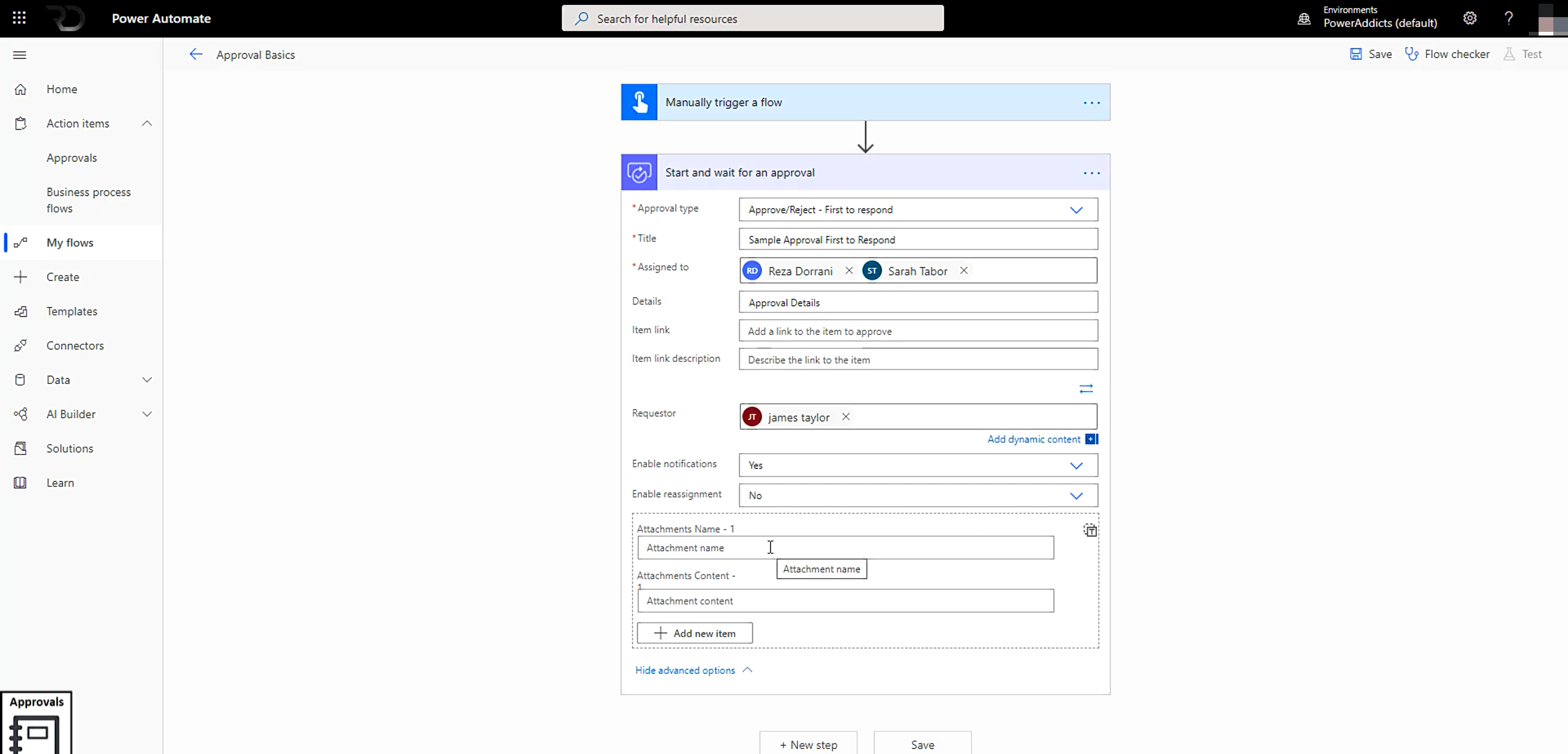
Image source: microsoft.com
Step 4: Map data fields
Connect the key information from your trigger to the approval card. This includes requester details, descriptions, file URLs, form responses, or custom metadata. Proper data mapping ensures the approver sees everything they need to decide without opening multiple systems. Missing or poorly mapped fields are the most common cause of incomplete or delayed approvals.
Step 5: Define outcome paths
Every approval has at least two outcomes: Approved or Rejected. Configure separate branches that define what should happen after each decision: update a SharePoint status column, write back to Dataverse, notify the requester, or trigger additional steps in a multi-level workflow. This branching logic determines how the system behaves and ensures clean audit trails.
Step 6: Add follow-up actions
Finally, add all necessary post-approval automation. These could include sending confirmation emails, generating documents, creating tasks, updating lists, moving files, triggering integrations, or launching secondary workflows. This step turns your approval flow into a complete operational process rather than a one-off decision.
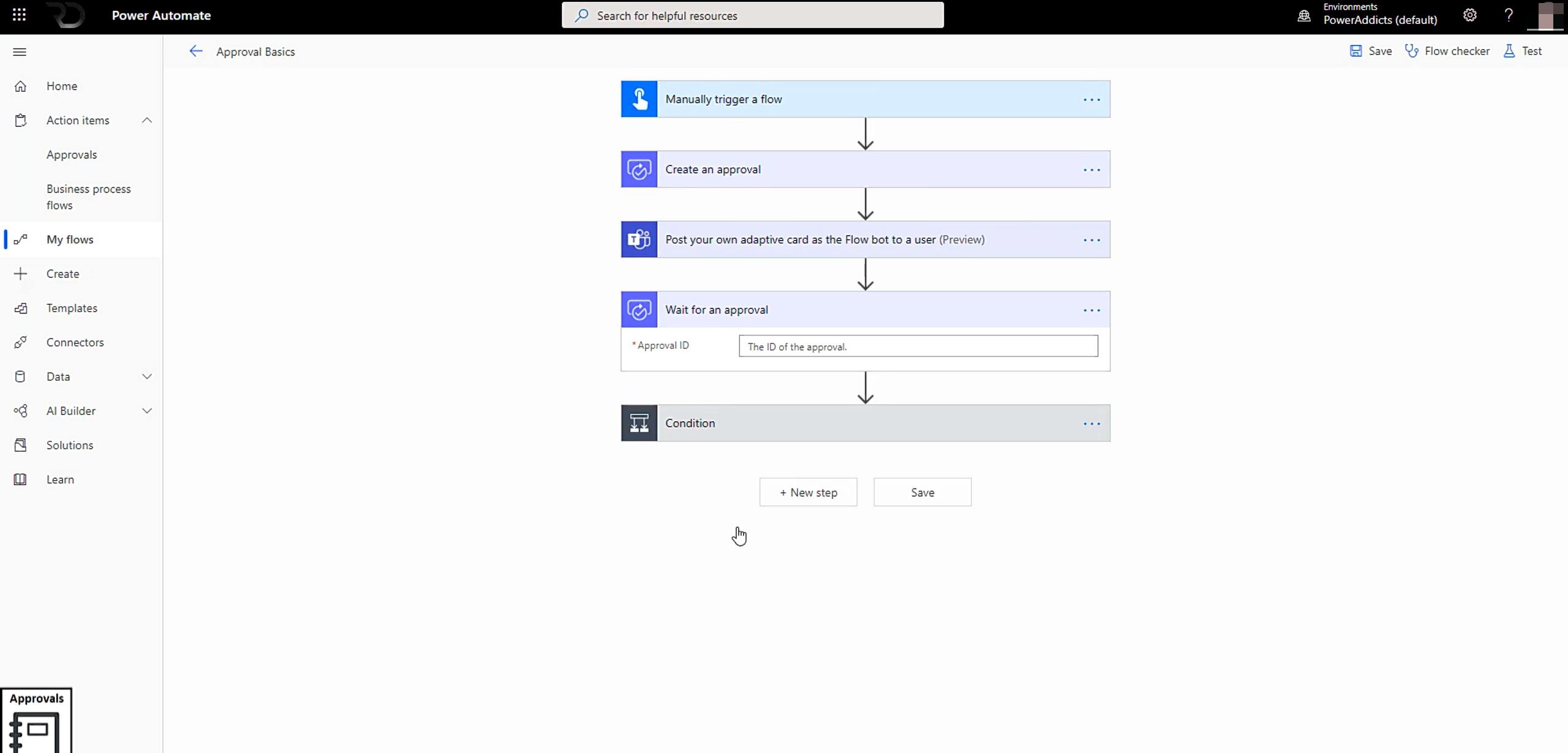
Image source: microsoft.com
Everyday use cases for Power Automate approvals
Power Automate approvals are used across departments to streamline decisions, reduce manual follow-ups, and maintain compliance. These workflows help teams automate routine sign-offs while keeping every request traceable and auditable.
- HR onboarding and employee requests: HR teams use approvals to validate new-hire paperwork, equipment requests, leave requests, and policy acknowledgements. Power Automate routes requests to managers, HR leads, or IT, depending on the employee type. It also ensures documentation and confirmations stay consistent across systems.
- Finance budget sign-offs: Finance teams rely on structured, multi-level approval flows for budget increases, expense approvals, and department spend. Threshold rules automatically send higher-value requests to senior leadership. Parallel reviews allow finance, procurement, and business owners to weigh in simultaneously.
- Purchase order flows: Purchase orders typically include vendor data, cost centers, and item details stored in SharePoint or Dataverse. Power Automate approvals help validate compliance before routing the PO to procurement or ERP systems. Every approval is logged for audit and reporting.
- Legal document review: Legal teams use document-centric workflows for contracts, NDAs, and policy changes. Files stored in SharePoint or OneDrive trigger review requests, enabling version control and tracked revisions. Multi-stage routing ensures the right stakeholders provide sign-off.
- IT access permissions: Power Automate helps IT teams manage system access, license requests, and permission updates. Triggers from Microsoft Forms, SharePoint, or identity systems initiate approvals that route to IT administrators or security teams. Escalation timers maintain fast turnaround for urgent access.
- Vendor onboarding: Vendor onboarding workflows gather compliance documents, tax forms, and bank details. Power Automate routes approvals through procurement, finance, security, and legal, depending on vendor risk level. This ensures that new vendors are adequately validated before being activated in internal systems.
Limitations of Power Automate approval workflows
While Power Automate approvals are powerful, certain architectural and ecosystem constraints make them challenging for teams that need flexible, cross-department workflows.
- Requires deep Microsoft ecosystem; cross-team use becomes complex: Power Automate works best when every department uses SharePoint, Teams, Outlook, and Dataverse consistently. The moment a team operates outside this ecosystem, using external CRMs, project tools, or non-Microsoft databases, approval flows require extra connectors, workarounds, or API configurations that add friction and cost.
- Multi-step flows become harder to maintain visually: Complex multi-level approvals quickly turn into long, branching flow diagrams with nested paths and timeout loops. Editing these visual flows becomes time-consuming, especially for non-technical users, and small changes often require scanning the entire flow structure to avoid breaking existing logic.
- Approval history tied to Outlook/Dataverse dependencies: Power Automate stores approval outcomes inside Outlook or Dataverse tables, creating reliance on these services for long-term auditability. If mailboxes are archived or Dataverse storage is limited, tracking older approvals becomes difficult, especially for audit-heavy industries that require multi-year retention.
- Document routing relies on the SharePoint structure: Document-centric approvals only work smoothly when files are stored in the correct SharePoint libraries with proper metadata. Any inconsistencies in folder structure, permissions, or naming conventions can cause the approval trigger to fail. Teams with decentralized file practices often struggle to maintain reliable document routing.
- Hard to connect with task systems outside Microsoft: Power Automate approvals don't naturally sync their status with tools like Jira, Asana, ClickUp, or industry-specific platforms. While integrations exist, they require additional connectors, custom API calls, or paid premium actions. As a result, approvals and task execution frequently stay in separate systems.
- Real-time collaboration (chat, docs, comments) is external: Approval decisions are usually sent via Outlook or Teams, but the discussion that leads to those decisions happens on fragmented channels. Comments, clarifications, and file updates live outside the approval record, forcing users to jump between Outlook threads, Teams chats, and SharePoint documents to find context.
Considering these limitations, many teams start to feel that Power Automate becomes harder to scale once workflows involve multiple departments or tools outside the Microsoft ecosystem. As approvals get more complex, it takes more effort to maintain flows, connect external systems, and keep communication in one place. This often slows down HR, finance, and operations teams that need quick, transparent decisions. That's why many organizations begin looking for a more flexible and unified option—one that simplifies collaboration and keeps workflows running smoothly. Lark fits naturally into that gap.
New option: Try Lark as a smart, modern platform for approval & requests
Lark takes a different approach by combining approvals, data, documents, and team communication in a single unified workspace. Instead of stitching together tools, teams get a single seamless system built for real-world collaboration. This makes approval workflows faster to launch, easier to maintain, and far more intuitive at scale.
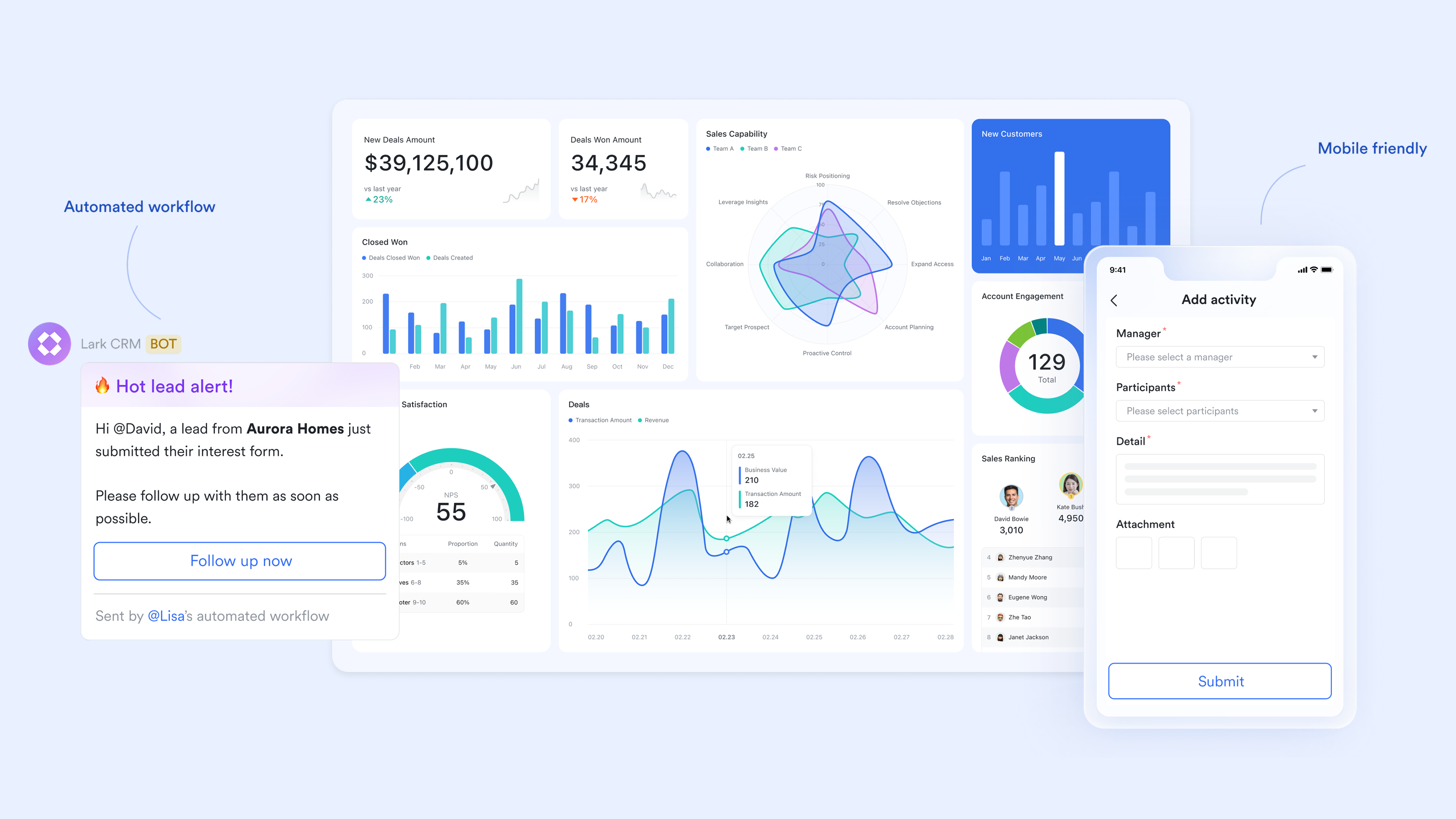
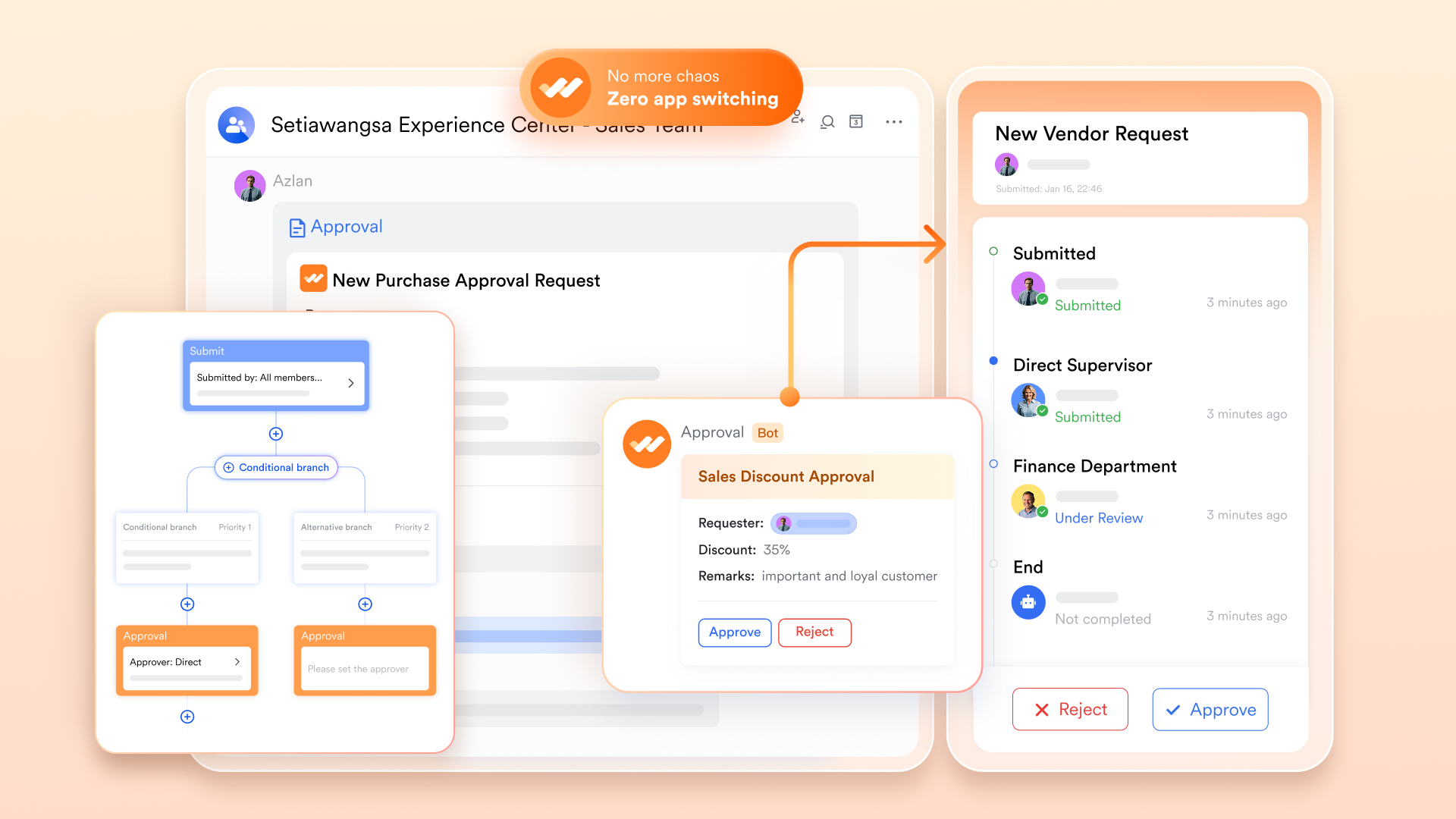
Customizable approval forms and processes built for real-world use
Lark lets teams design approval forms that reflect their exact business rules, whether it's multi-field budget submissions, HR requests, procurement data, or IT access needs. Fields, sections, routing logic, and permission settings can be tailored without needing advanced setup. Because these forms sit directly inside Base, every approval request is tied to structured data in one place.
Why Lark is better than Power Automate here: Power Automate approvals often depend on SharePoint lists, Forms, or Dataverse tables. This means teams must build data structures across several Microsoft apps before approval can work. Lark eliminates this extra scaffolding by providing teams with a ready environment where forms and data already coexist, making setup faster and easier for non-technical users.
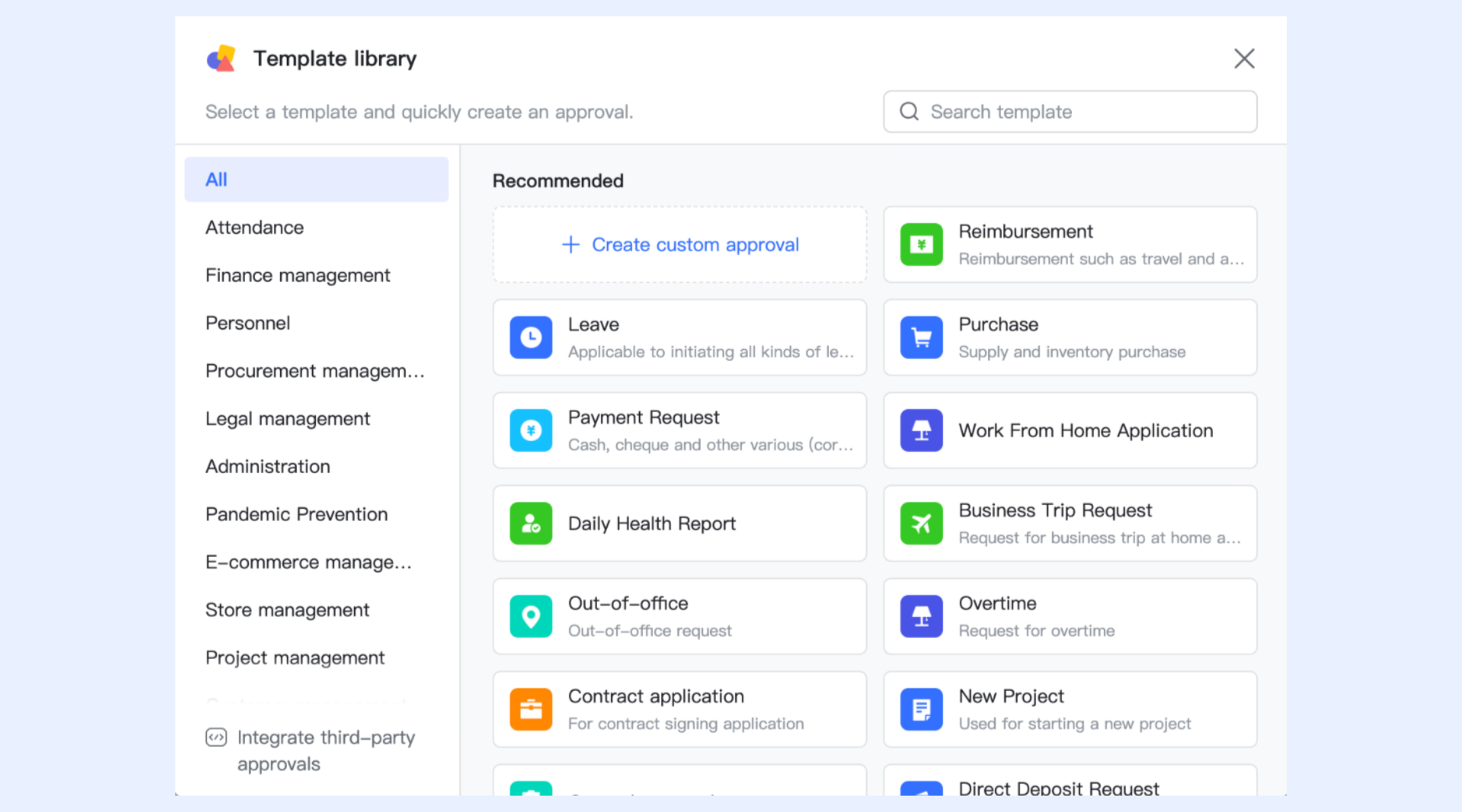
Ready-made templates for HR, admin, finance, and more
Lark provides practical approval templates for new-hire onboarding, leave requests, asset allocation, reimbursement, vendor onboarding, and budget checks. These templates already include routing paths, fields, and reminders, requiring only minor customizations before deployment. It significantly reduces the time needed to launch an approval system.
Why Lark is better than Power Automate here: Power Automate also has templates, but most require users to configure connectors, link SharePoint lists, create Teams channels, or adjust Dataverse relationships. Lark's templates work instantly within a single workspace, with no external setup or cross-application dependencies.
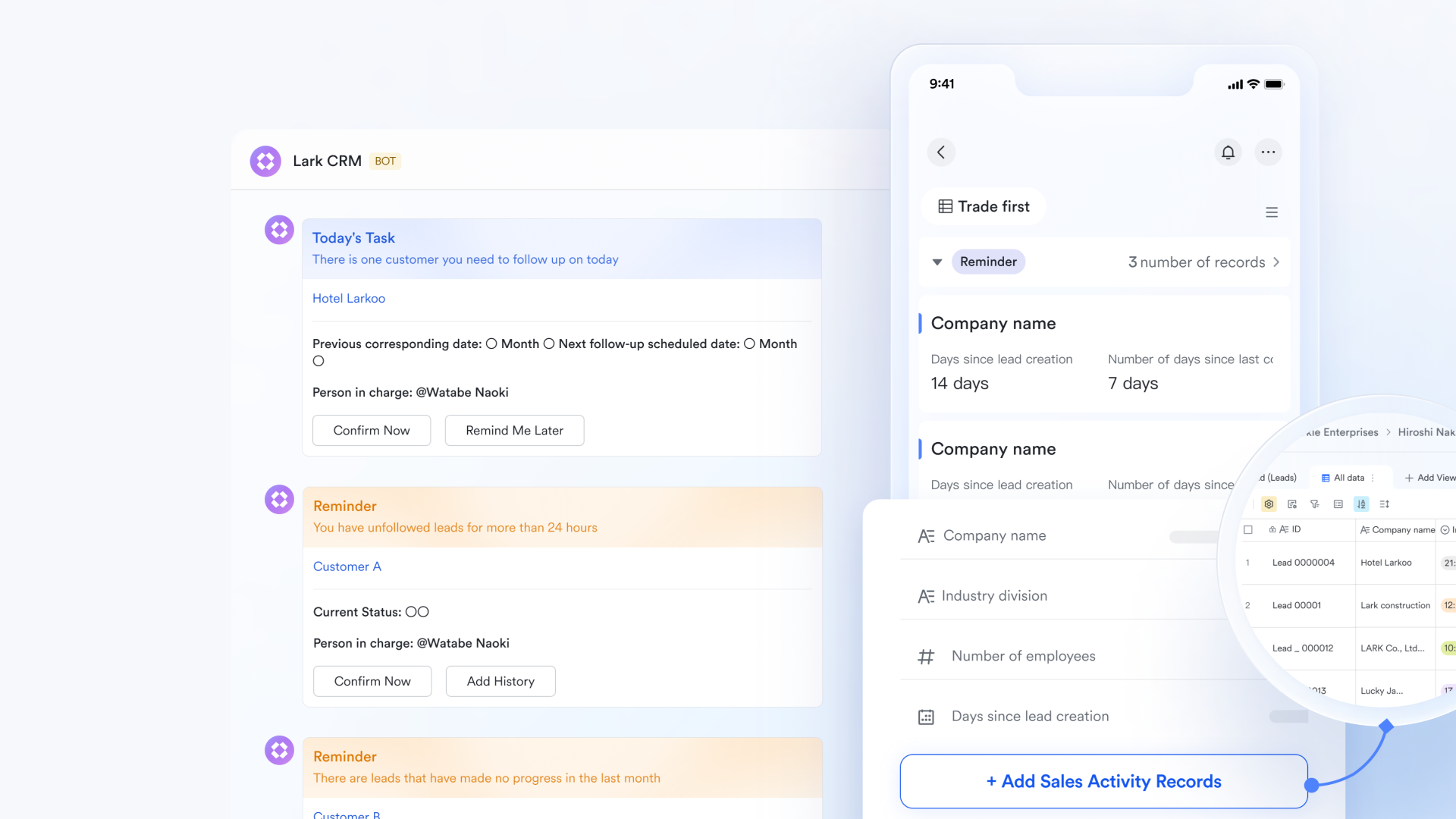
Automated reminders that keep approvals moving without manual tracking
Lark automatically triggers reminders when approvals are pending for too long or when deadlines approach. Teams don't need to track response times manually; Lark monitors the approval lifecycle and sends timely nudges to prevent workflows from getting stuck.
Why Lark is better than Power Automate here: Power Automate reminders must be built as separate conditions or scheduled actions. Lark includes reminders as a native productivity feature, making it easier to maintain faster turnaround times without editing flows.
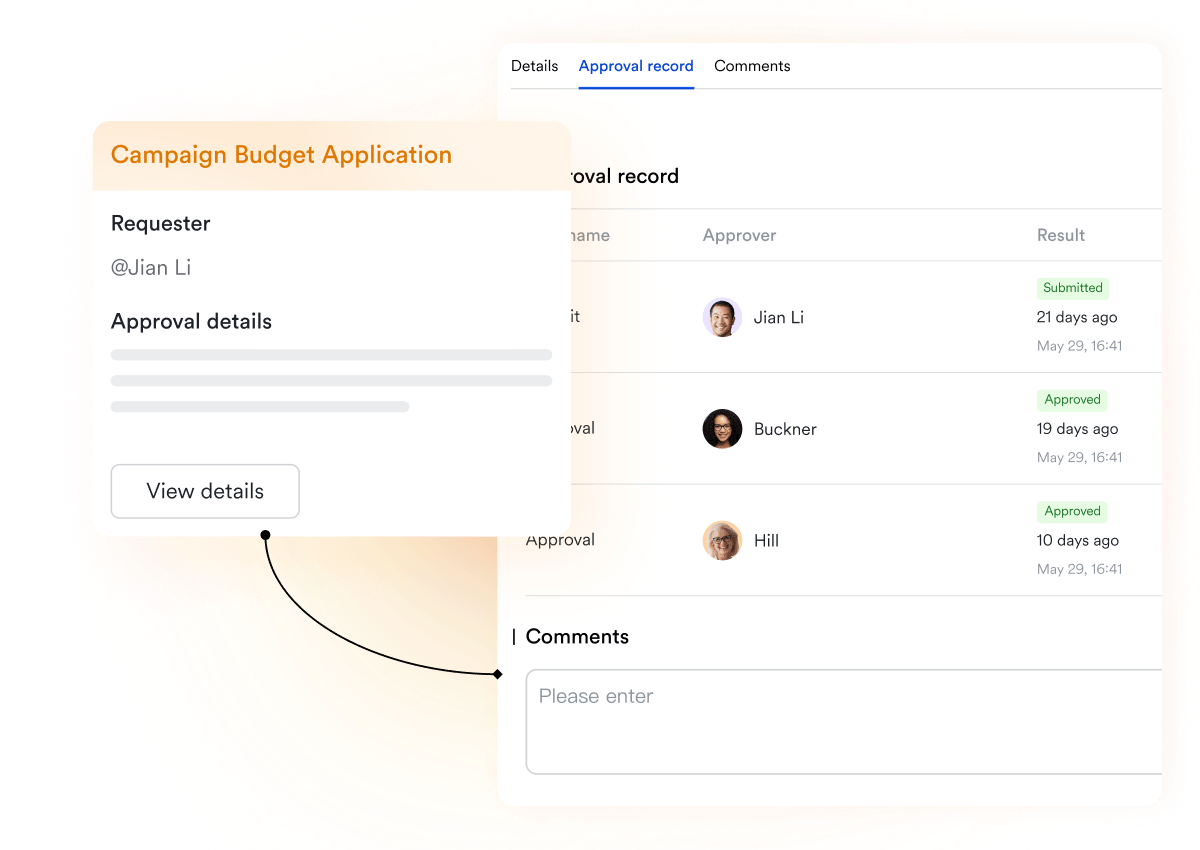
Approval document hosting is available on all devices
Lark stores all approval documents, contracts, quotations, invoices, forms, attachments, directly within the approval record. These documents are available on desktop, mobile, and tablet, with consistent formatting and real-time syncing. Approvers can view everything they need from anywhere.
Why Lark is better than Power Automate here: Power Automate approval documents often sit in SharePoint or OneDrive, requiring users to open separate apps or navigate file libraries. Lark keeps documents alongside the request, so approvers never need to go hunting for attachments.
Built-in link between Messenger and Base for real-time communication
In Lark, approval requests exist alongside active communication. Teams can open a Base record and instantly launch a targeted Messenger group, send updates, or sync status changes into chats. Discussions, decisions, and clarifications stay tied to the workflow itself rather than scattered across email or group chats.
Why Lark is better than Power Automate here: Power Automate sends approval notifications through email or teams, but conversations happen outside the workflow. Users have to search through teams or mailbox threads to find context. Lark keeps collaboration attached to the approval record, making conversations searchable and cohesive without jumping between tools.
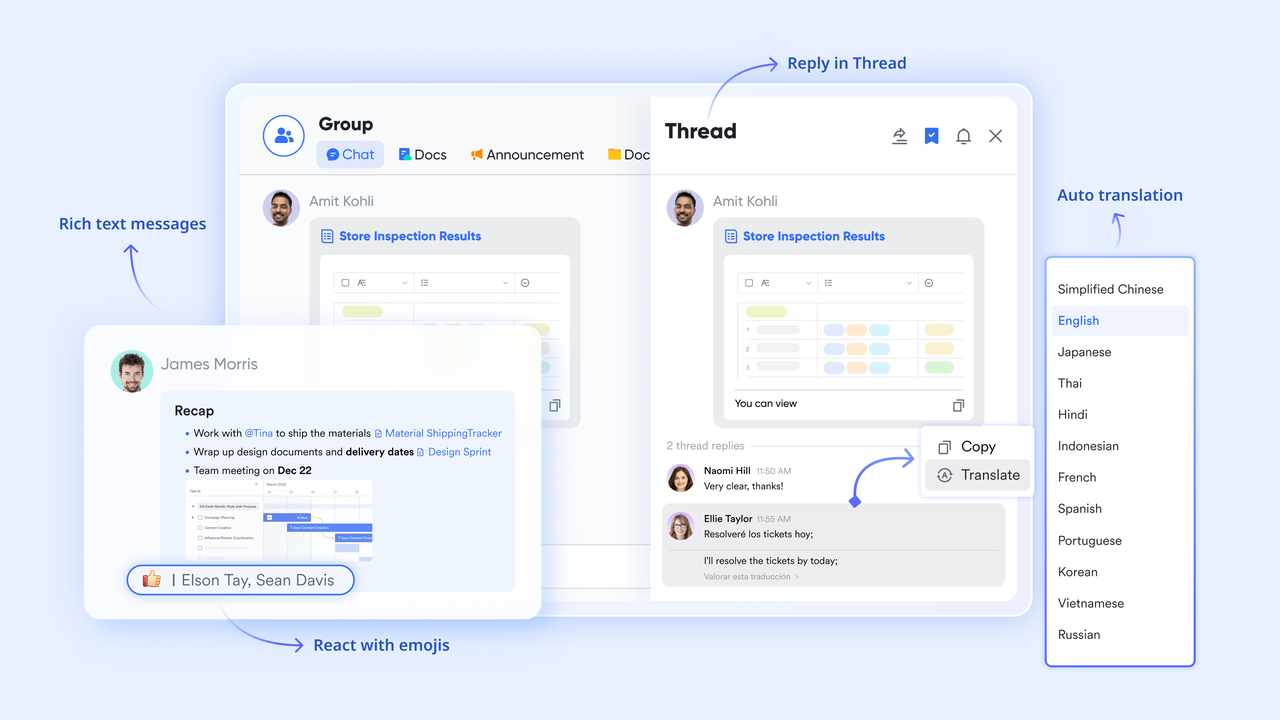
One-click grouping, sharing, copying links, and reminders for effortless productivity
Lark includes small but powerful usability features:
- You can create a chat group directly from a Base record.
- Share the approval link to a chat or a document with a single click.
- Copy a link to the approval item instantly.
- Send one-click reminders to approvers when needed.
These features help teams stay aligned without manual follow-ups.
Why Lark is better than Power Automate here: Power Automate's reminders often require extra flow steps, time-based conditions, or custom loops. Lark offers a straightforward one-click reminder function, so no workflow redesign is needed to nudge someone.

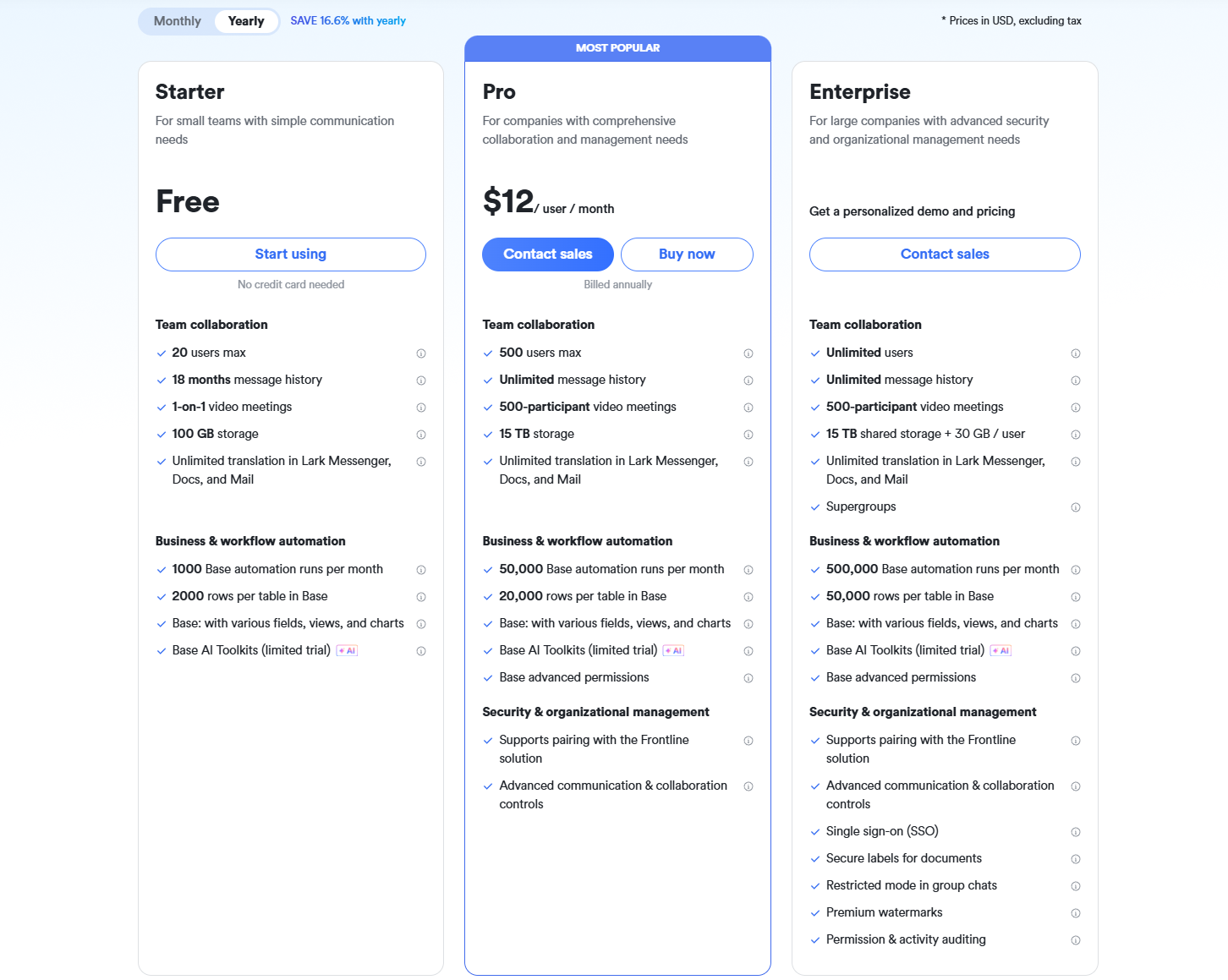
- Starter plan: Free forever plan that includes 11 powerful tools for up to 20 users. It also comes with 100GB of storage, 1000 automation runs, AI translations, and more.
- Pro plan: $12/user/month (billed annually) for up to 500 users. It includes everything in Starter plus group calling for up to 500 attendees, 15TB of storage, 50,000 automation runs, and more.
- Enterprise plan: Contact sales for custom pricing. Supports unlimited users and includes even more automation runs and advanced security, compliance, and management features. A closer look at Google Workspace pricing and ClickUp pricing can help businesses determine whether the platform fits their budget.
Power Automate vs Lark: Approval workflow comparison
Summary: Why Lark might be a better choice for many teams
While Power Automate delivers deep and flexible approval workflow capabilities, especially within the Microsoft ecosystem, Lark stands out for organisations that want a simpler, more unified experience. Lark connects approvals, data management, tasks, communication, and documents in a single workspace, reducing tool-switching and speeding up rollouts. For teams spanning multiple departments, needing cross-team processes, or wanting quicker deployment with fewer dependencies, Lark offers a significant advantage.
Conclusion
Power Automate approvals give organizations a powerful way to automate decisions, streamline documentation, and reduce manual follow-ups, especially for teams operating fully inside the Microsoft ecosystem. But as workflows become multi-stage, cross-department, or document-heavy, the complexity of connectors, SharePoint dependencies, and maintenance can slow teams down. In this guide, you explore how approvals work, their setup, limitations, and real procedural nuances that affect scalability. For teams that want a simpler, unified, collaboration-ready alternative, Lark delivers an all-in-one workspace where approvals, data, communication, and documents live together, making every workflow faster and easier to manage.
FAQs
Can Power Automate approvals work if my team doesn't use the full Microsoft 365 suite?
Yes, but there are limitations. As outlined in Power Automate Approvals documentation and Power Automate Approvals overview documentation, many features depend on Outlook, SharePoint, and Dataverse. While approvals Power Automate flows can run with external apps, missing Microsoft services reduces reliability. According to the Power Automate approvals overview and approvals in Power Automate, connectors may require extra setup.
How do approval response times affect Power Automate flow performance?
Response times influence total workflow duration. Power Automate approvals documentation and Power Automate approvals overview documentation explain that each approval pauses until users act. In approvals Power Automate workflows, slow responses delay all downstream steps. As noted in Power Automate Approvals Overview, connector-based waits depend on mailbox and Teams activity. This impacts approvals in Power Automate at scale.
Are Power Automate approvals suitable for industries with high audit requirements?
Often, yes. Power Automate approvals documentation highlights detailed logs stored in Outlook or Dataverse. Power Automate approvals overview documentation notes strong timestamp tracking, though distributed storage complicates audits. In approvals, Power Automate setups, SharePoint, and Dataverse must be consistently maintained. As explained in the Power Automate Approvals Overview, strict industries must manage retention carefully to ensure compliant approvals in Power Automate.
Can I migrate my Power Automate approval workflows to another platform?
Migration is possible but manual. The Power Automate approvals documentation and the Power Automate approvals connector documentation indicate that flows rely heavily on Microsoft-specific triggers. Rebuilding approvals Power Automate logic elsewhere requires recreating routing and data models. According to the Power Automate Approvals Overview and its documentation, cross-platform mapping is unavoidable for approvals during Power Automate migrations.
How do attachment-heavy approvals perform in Power Automate?
Performance depends on storage design. Power Automate approvals documentation notes that SharePoint and OneDrive handle attachments reliably, but large files stress connectors. Power Automate approvals connector documentation and Power Automate approvals overview documentation warn of size limits and permission conflicts. In Power Automate approvals scenarios, consistent file structures recommended in the Power Automate approvals overview improve stability.
Related reading
Table of contents
Start using Lark today

Manage all your work in one place
Boost team efficiency by 10x
Save up to 70% on software costs
Table of contents
Start using Lark today
Manage all your work in one place
Boost team efficiency by 10x
Save up to 70% on software costs
Keep reading



Lark recognized in 2023 Gartner® Collaborative Content Workspaces and Meeting Solutions reports
Lark, the global superapp for productivity, is delighted to announce it receives recognition in the Gartner's 2023 Innovation Insight for Collaborative Content Workspaces and Market Guide for Meeting Solutions.





2026 Lark Technologies Pte. Ltd.
Headquartered in Singapore with offices worldwide.






Explore: