We’ve all been there: staring at a tangle of tasks, deadlines, and team members, feeling the familiar pressure of an upcoming project. A well-designed project tracker template is often the first step toward bringing order to that chaos, because it’s accessible and familiar. However, as projects grow in complexity and teams become more distributed, a static project management tracker Excel sheet can quickly reveal its limitations. This guide will walk you through the essential components of any effective project tracker, explore popular Excel template structures, and then introduce you to smarter, more dynamic alternatives that can truly elevate your team's productivity and collaboration.
What is a project management tracker?
At its core, a is a centralized system designed to help you monitor and manage all aspects of a project. Think of it as your project's heartbeat—it keeps a live record of tasks, assigned owners, due dates, budgets, and overall progress. Its purpose is to provide a clear, real-time overview, ensuring everyone on the team understands what needs to be done, who is responsible, and by when.
The key distinction lies between a static template and a dynamic system. A static template, often an Excel project plan template, provides a fixed structure you can populate. It's excellent for initial planning and basic tracking. A dynamic tracking system, on the other hand, is usually software-based, offering , , and . While static templates are a common starting point, dynamic systems are designed to adapt and evolve with your project, providing a more robust and collaborative environment.
Core components every project tracker template needs
Regardless of whether you're using a simple project tracker Excel template or a sophisticated software solution, certain fundamental elements are crucial for effective project oversight. These components ensure clarity, accountability, and the ability to measure progress accurately.
Task definition and ownership parameters
Every project breaks down into individual tasks. A good project tracker clearly defines each task, providing enough detail for team members to understand the scope and expected outcome. More importantly, it assigns a clear owner to each task. This eliminates ambiguity and ensures accountability. Think about fields like:
- Dependencies (which tasks must be completed before this one can start)
Timeline management and milestones
Projects operate within a time frame. Your tracker needs to clearly lay out deadlines for individual tasks and —significant points in the project lifecycle that mark progress. This helps in pacing the work, identifying potential delays early, and ensuring the project stays on schedule. Essential elements include:
- Duration (estimated and actual)
Resource allocation and budget constraints
Projects consume resources, whether they are human, financial, or material. An effective project tracker helps you allocate these resources efficiently and monitor against budget constraints. While basic Excel templates might track high-level budgets, more advanced systems can integrate with . Key fields could be:
- Assigned Resources (team members, equipment)
Status indicators and visual progress tracking
and the overall project is vital. A good tracker uses clear status indicators (e.g., "Not Started," "In Progress," "Completed," "Blocked") and visual cues to quickly communicate progress. This might involve color-coding, progress bars, or even Gantt charts in more advanced templates. The goal is to provide an at-a-glance understanding of where the project stands.
- Comments/Notes for updates
Popular project management tracker templates (and how to structure them)
When you're looking for a project tracker template, you'll find a variety of options, particularly in Excel. These templates serve as practical starting points for many teams. Let's explore some common types and how they are typically structured to provide maximum utility.
The standard project management plan Excel template
This is often the go-to Excel project plan template for linear, traditional projects. It provides a comprehensive, sequential view of the project from start to finish. You’ll typically find columns for:
- Task ID: A unique identifier for each task.
- Task Name: A clear description of the work.
- Assigned To: The team member responsible.
- Start Date & End Date: For scheduling.
- Duration: The estimated time to complete the task.
- Predecessors: Tasks that must be completed first (for managing dependencies).
- Status: "Not Started," "In Progress," "Completed," etc.
- Progress (%): A numerical representation of completion.
- Notes: For any relevant details or updates.
- Milestone: Mark key project deliverables.
This structure is effective for projects with clearly defined phases and predictable outcomes, offering a robust for initial planning and oversight.
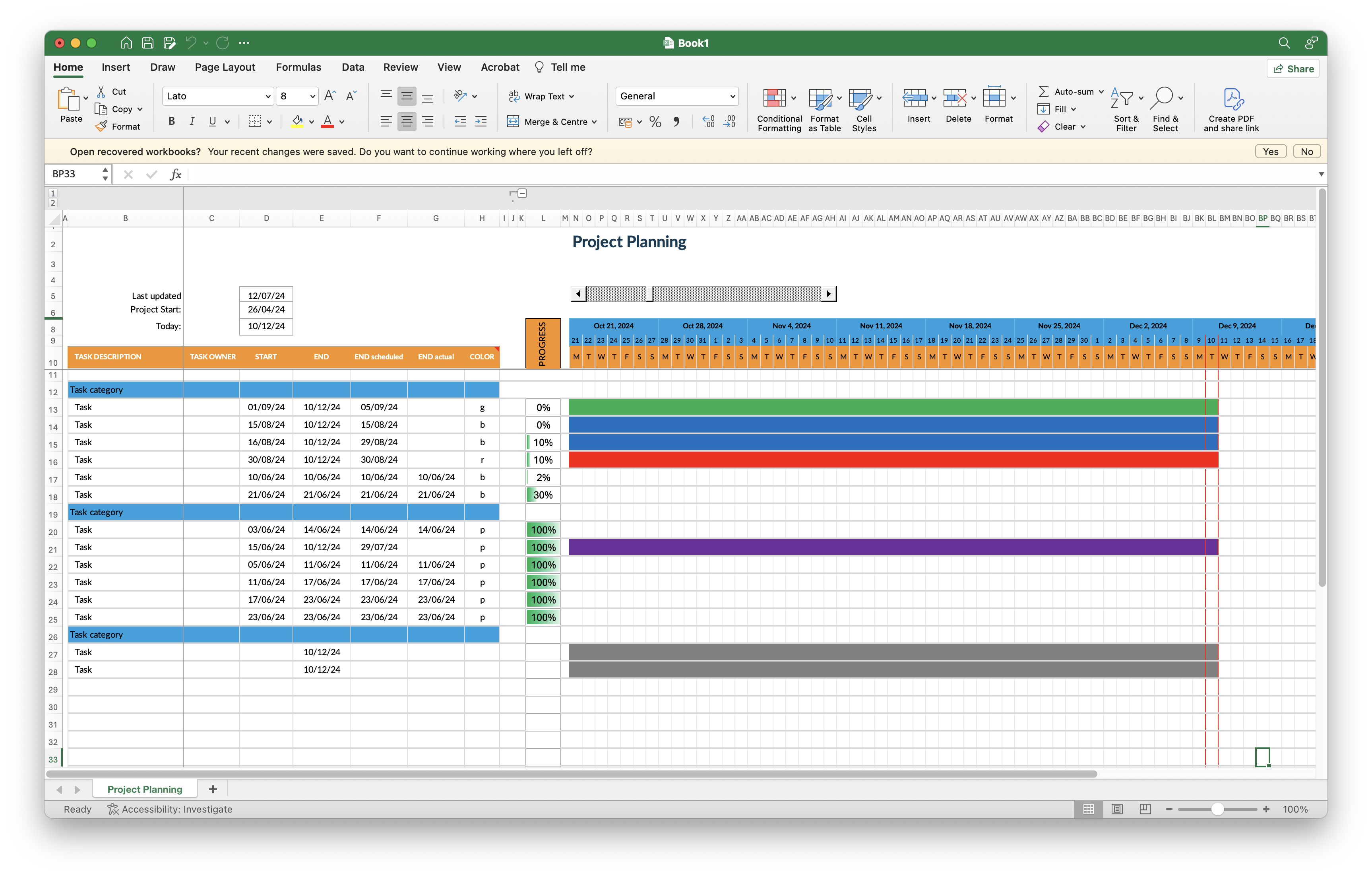
Image source: Excel.cloud.microsoft
The Excel IT project plan template
IT projects often have unique requirements, including , handling bug tracking, and coordinating technical resources. An Excel IT project plan template adapts the standard structure to these needs, often incorporating elements from . Key additions might include:
- Sprint Number: For agile teams, indicating which sprint a task belongs to.
- User Story/Feature: Linking tasks to larger project requirements.
- Bug ID/Issue: For tracking defects and their resolution.
- Severity: Prioritizing bugs or issues.
- Environment: (e.g., Development, Staging, Production) for testing.
- Test Status: (e.g., "Passed," "Failed," "Pending").
A project tracker Excel template tailored for IT projects helps teams maintain focus on specific development cycles and promptly address technical challenges.
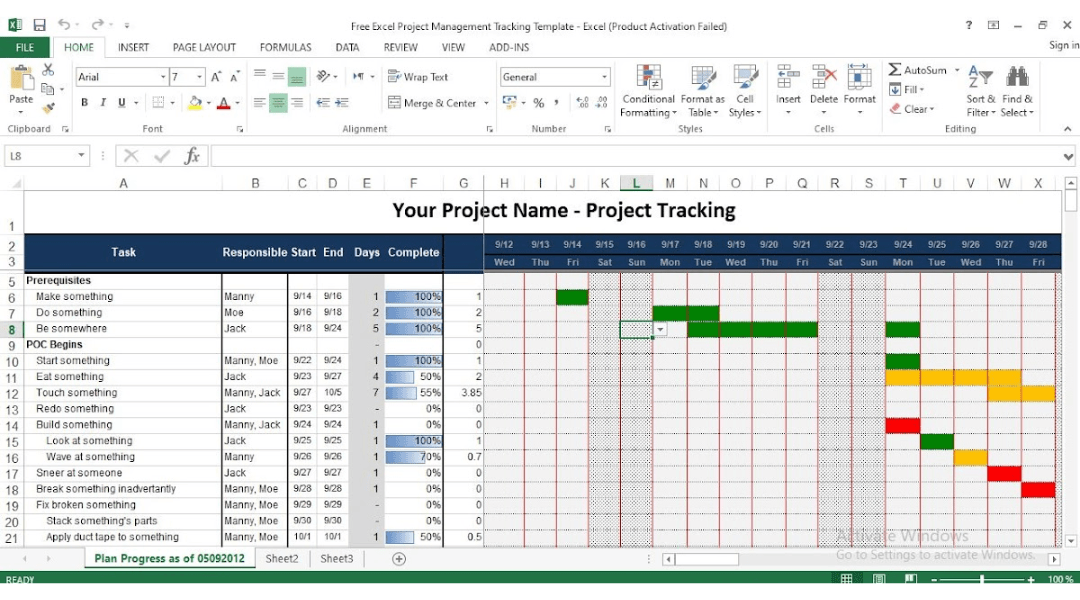
Image source: engineeringmanagement.info
The sample project tracker Excel for cross-functional campaigns
Cross-functional campaigns, common in marketing or product launches, involve . A sample project tracker Excel for these campaigns emphasizes inter-departmental coordination and communication. This type of template needs to highlight dependencies across teams and often includes:
- Department/Team: Clearly indicating which team owns a task.
- Cross-functional Dependency: Naming the task or team it depends on.
- Reviewer/Approver: For tasks requiring sign-off from other departments.
- Campaign Phase: (e.g., "Planning," "Execution," "Review").
- Target Audience: For marketing-specific tasks.
This specialized project tracker template Excel helps ensure that all moving parts of a complex campaign remain aligned, preventing bottlenecks and miscommunications between different functional groups.
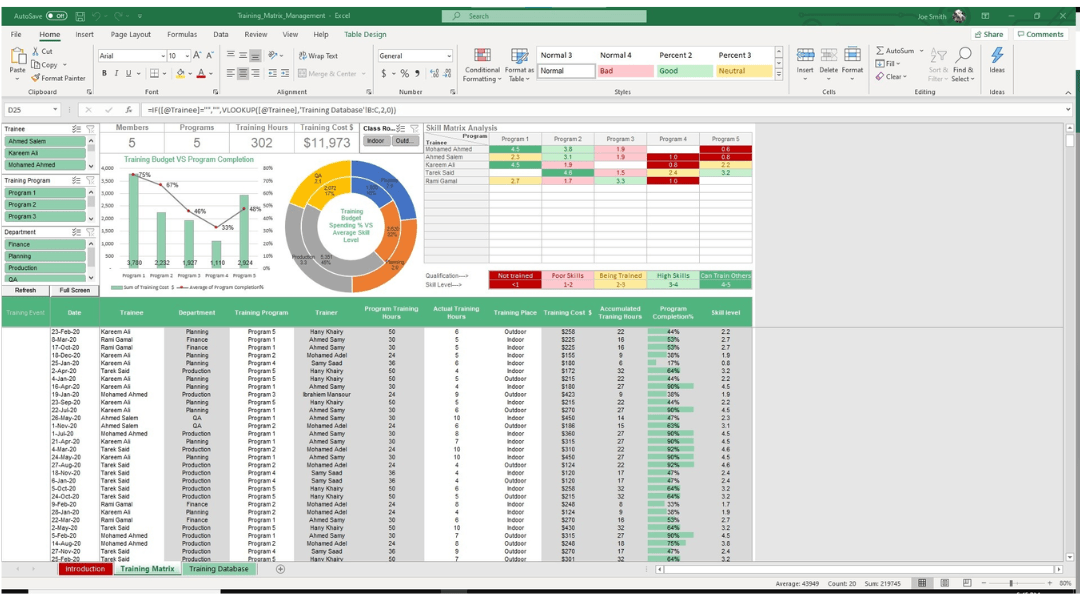
Image source: simplesheets.co
The hidden costs of using an Excel project plan template
While an Excel project plan template might seem like a cost-effective solution initially, especially for those familiar with spreadsheets, relying solely on it for complex or growing projects can introduce significant hidden costs and inefficiencies. What begins as a simple project tracker Excel template can quickly become a source of frustration, impacting productivity and collaboration across your team.
The version control nightmare
One of the most common pitfalls of using a static project management tracker Excel file is the inherent challenge of version control. Imagine this scenario: multiple team members need to update the same template simultaneously. Someone downloads the file, makes their changes, and saves it. Another team member does the same, potentially overriding the first person's updates or creating multiple, conflicting copies like "Project_Tracker_Final_v1.xlsx," "Project_Tracker_Final_v2_JohnsEdits.xlsx," and "Project_Tracker_Final_v3_REALFINAL.xlsx." This leads to outdated information, wasted effort, and critical decisions being made based on incorrect data. The manual nature of Excel makes real-time, simultaneous editing a significant hurdle, which can quickly derail a project's progress.
Fragmented tool stacks and lost context
Many teams try to manage projects by combining a project management tracker in Excel with separate tools for communication (like chat apps) and document sharing. This approach leads to a fragmented tool stack, where project details live in one place, conversations about those details happen in another, and supporting documents are stored elsewhere. The result? Constant context switching. A team member might see a task assigned in the project tracker template Excel, then have to search through chat histories or email threads to find the relevant discussion or the latest document related to that task. This isn't just an inconvenience; it's a productivity drain that slows down decision-making and increases the likelihood of miscommunication. Excel is simply not designed to be a communication tool.
The burden of manual follow-ups
Static projects tracker template sheets require constant manual updates. If a task status changes, someone has to open the file, locate the task, and manually update the status. For a manager, this means frequently chasing team members for updates to accurately populate the Excel template. This administrative overhead consumes valuable time that could be better spent on strategic planning or addressing actual project issues. Furthermore, these templates lack the ability to send automated reminders, trigger notifications based on due dates, or initiate approval workflows, all of which contribute to delays and a heavy workload for project leads.
Moving beyond spreadsheets: Why teams need a unified workspace
Recognizing the limitations of static spreadsheets for project tracking, many teams are now moving towards a more integrated approach: the unified workspace. A unified workspace is a digital platform that brings together all the tools necessary for collaboration—tasks, documents, communication, and more—into a single, centralized environment. This shift addresses the core problems of fragmented tool stacks and lost context by providing a single source of truth for all project-related information.
The benefits of this approach are compelling: enhanced employee experience, increased productivity, and improved collaboration. Teams gain greater transparency into project statuses and individual contributions, along with increased flexibility to adapt to changing project needs. For project managers, a unified workspace offers real-time visibility into every project, with . This centralization not only streamlines workflows but also significantly reduces the total cost of ownership by consolidating various tools into one platform.
Lark review: A unified workspace with powerful approval flows
For teams seeking an advanced solution to manage projects effectively, stands out as an all-in-one productivity powerhouse. Lark is an all-in-one super app/digital workspace that brings , , , , and into a single platform. It’s designed to help teams of every size manage projects and work smarter together, especially for growing SMEs to large enterprises struggling with fragmented tool stacks.
Real-time collaboration without context switching
One of Lark’s most significant advantages is its ability to integrate communication directly with project work. Imagine discussing a task and updating its status within the same interface, rather than toggling between a project tracker Excel template and a chat application. Lark combines all functions into a single interface, eliminating . This means conversations, decisions, and files are all linked to the relevant tasks, creating a rich, contextual history that is always accessible. Teams can communicate seamlessly and work smarter together, keeping all project-related discussions and updates in one place.
Replacing static sheets with scalable cloud-native docs
While a project tracker Excel template provides a basic structure, Lark’s and spreadsheet offer a far more robust and collaborative experience. These aren't just online versions of Excel; they are built for . Multiple team members can edit a project plan simultaneously, see changes as they happen, and leave comments directly within the document. This eliminates the version control nightmares associated with passing around project management tracker Excel files. Furthermore, offers multilingual support, making it an ideal platform for remote or hybrid teams spread across different geographies, ensuring everyone is always working on the most current and accurate data.
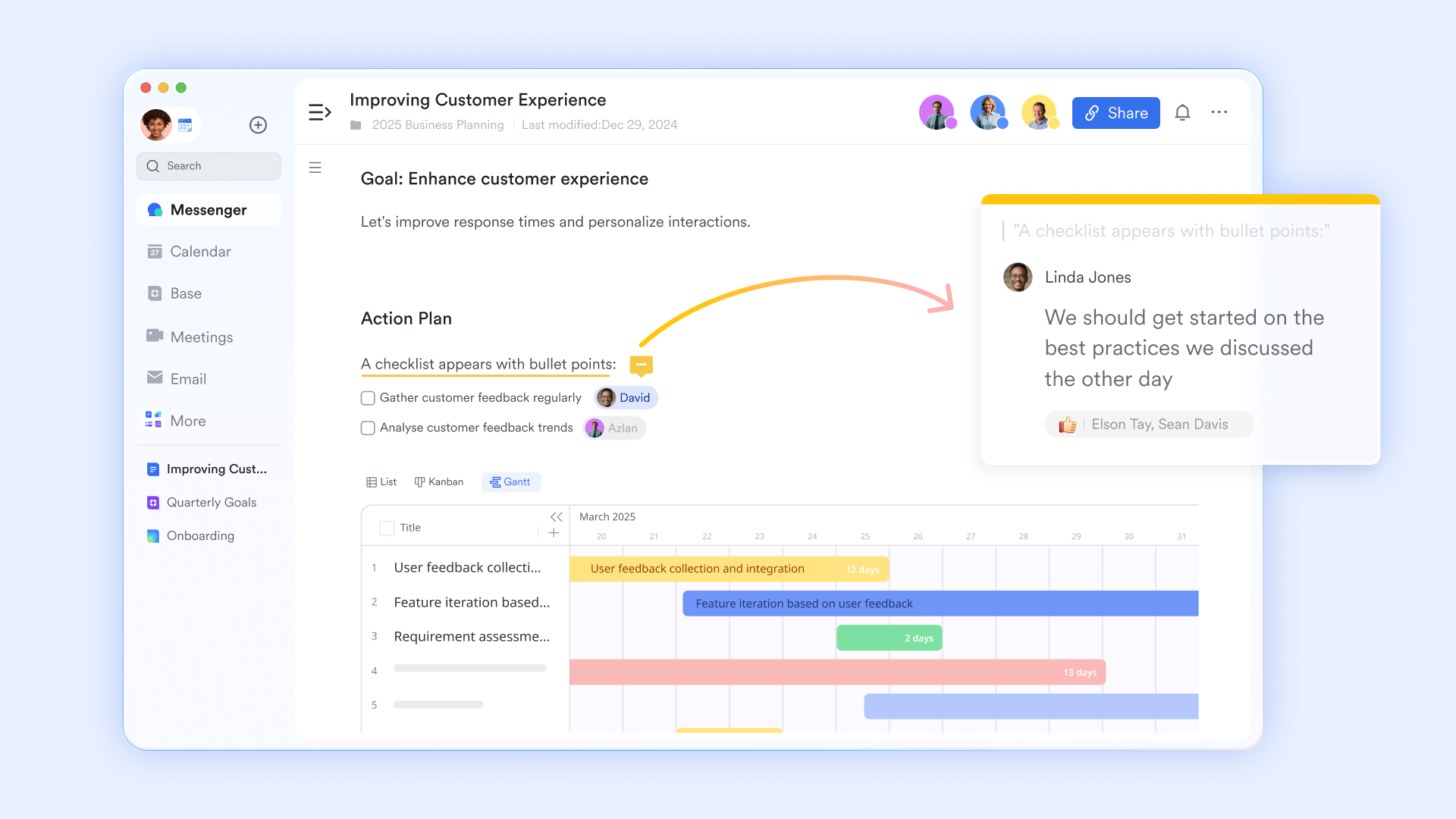
Built-in workflow automation and OKR tracking
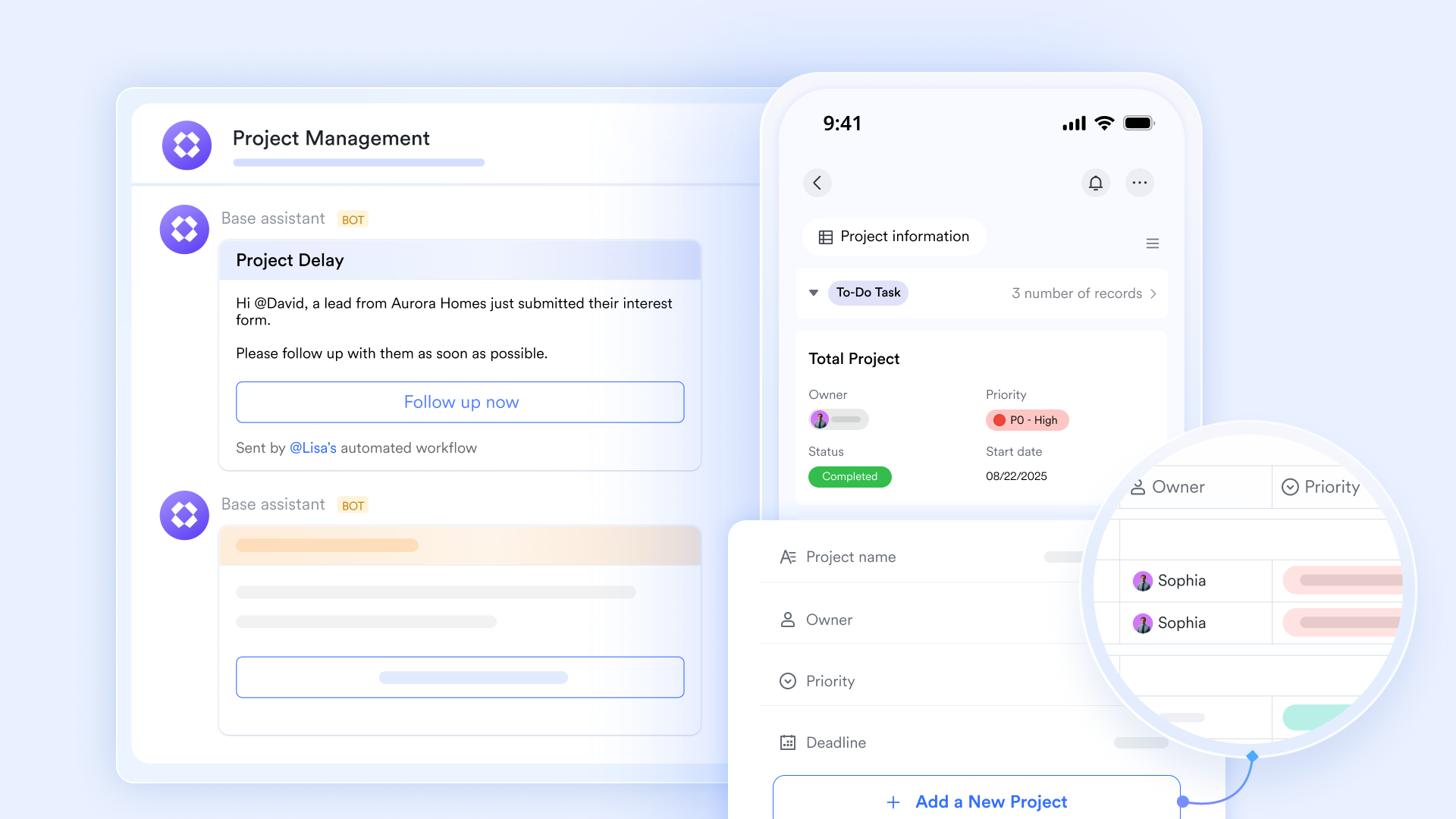
provides the you expect from dedicated tools, but with built-in communication and automation that reduces friction and keeps work moving. Instead of manually updating a project management tracker spreadsheet, teams can leverage Lark's automation tools to , status changes, and even complex approval flows. For instance, a task completed can automatically trigger a notification to the next team member in the workflow, or initiate a manager's approval process. The platform also includes , allowing teams to link individual tasks directly to larger organizational objectives, providing a clear line of sight from daily work to strategic goals. This integrated approach ensures that your project tracking isn't just a record of tasks, but a living system that drives progress.
Lark pricing: A cost-effective solution for high-performing teams
Lark offers a range of pricing plans designed to accommodate teams of various sizes and needs, from startups to large enterprises. The focus is on providing a comprehensive, all-in-one suite that can potentially reduce overall software costs by consolidating multiple tools into one.
- Starter plan: Free forever plan with 11 powerful tools for up to 20 users, 100GB storage, 1,000 automation runs, AI translations, and more. No credit card needed.
- Basic plan: $6/user/month (billed annually) for up to 500 users. Includes everything in Starter plus unlimited message history, 5TB storage, 1,000 automation runs, and more. Some users may need to to purchase.
- Pro plan: $12/user/month (billed annually) for up to 500 users. Includes everything in Basic plus group calling for up to 500 attendees, 15TB storage, 50,000 automation runs, and more.
- Enterprise plan: for custom pricing. Supports unlimited users and includes advanced automation, security, compliance, and management features.
For small teams with simple communication needs

18 months message history
1000 Base automation runs/month
2000 rows per table in Base
Most POPULAR
For companies with comprehensive collaboration and management needs
Unlimited message history
500-participant video meetings
50k Base automation runs/month
20k rows per table in Base
For large companies with advanced security and organizational management needs
Get a personalized demo and pricing
Unlimited message history
500-participant video meetings
15 TB storage + 30 GB storage/user
500k Base automation runs/month
50k Base automation runs/month
Most POPULAR
For companies with comprehensive collaboration and management needs
Unlimited message history
500-participant video meetings
50k Base automation runs/month
20k rows per table in Base
This tiered structure allows teams to scale their usage as their needs evolve, ensuring that Lark remains a cost-efficient and capable solution for managing their projects.
Step-by-step: How to build a dynamic project tracker in Lark
Transitioning from a static project tracker Excel template to a dynamic system in Lark might seem like a big step, but the process is intuitive and highly beneficial. Here’s a simplified guide to building your project management tracker within Lark's integrated environment.
Step 1: Setting up your base structure and views
In Lark, you can leverage (its database tool) to create a robust project tracker template. Start by outlining the core components we discussed earlier: Task Name, Assigned To, Due Date, Status, etc. Lark Base allows you to customize columns with various field types (text, date, dropdowns, users, attachments) and create different views (grid, Gantt, Kanban, calendar) to visualize your project data in the most useful way. This flexibility transforms a static Excel project plan template into an .
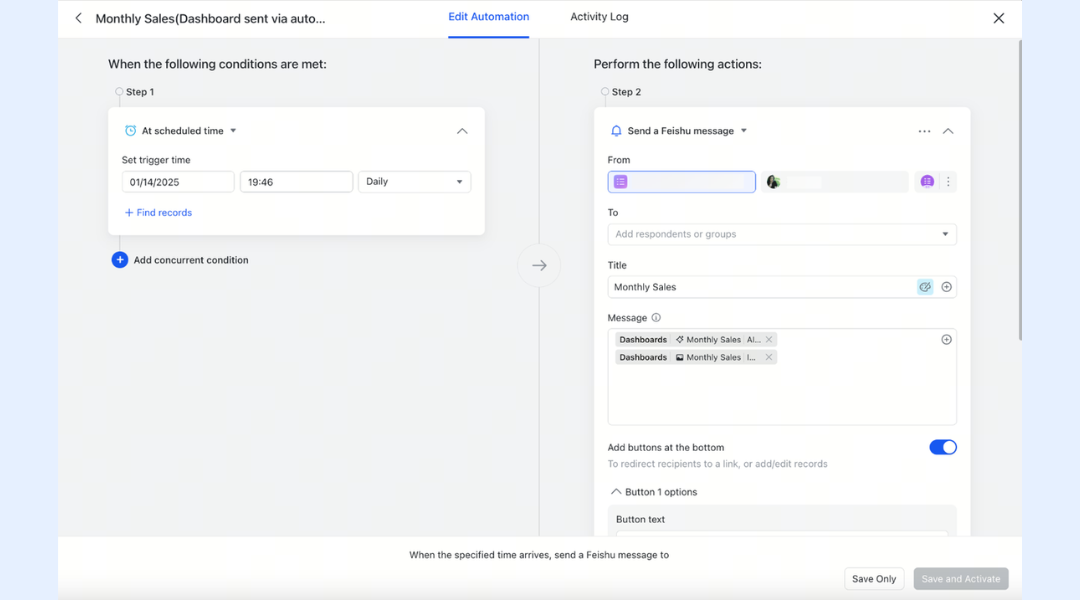
Step 2: Integrating team chat for automated reminders
One of the key advantages of a unified workspace is the direct integration of communication. Once your project tracker is set up in Lark Base, you can link it directly to relevant chat groups. Configure automation rules within Lark Base to send automatic reminders to task owners as deadlines approach, or to notify project leads when a task status changes. This eliminates the need for manual follow-ups and ensures that communication is always contextually relevant, directly tied to the specific items in your project management tracker.
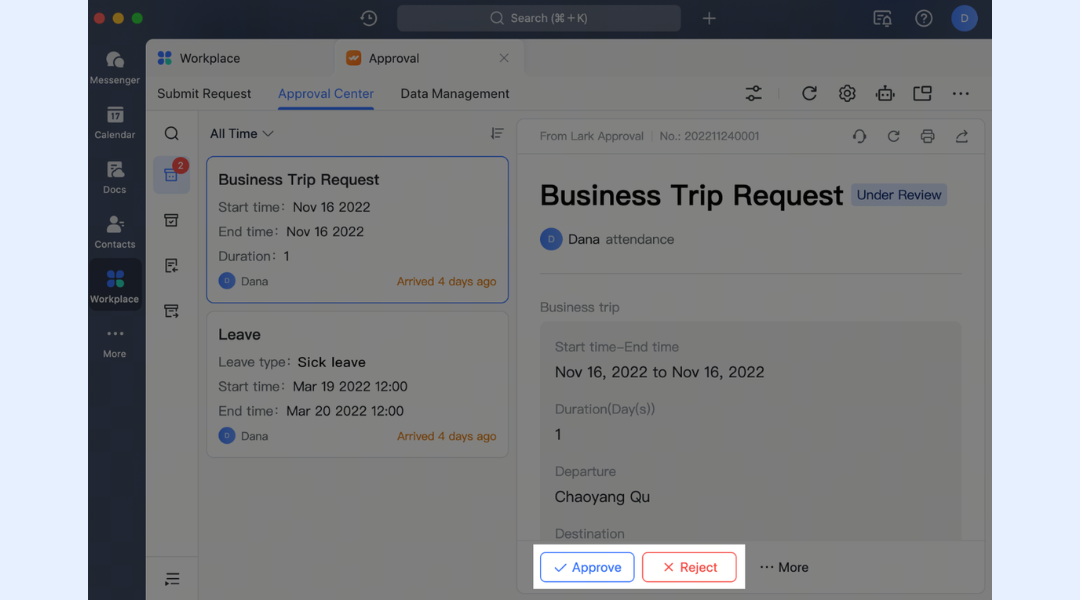
Step 3: Configuring custom approval workflows
For tasks requiring sign-off, Lark's built-in tool can automate what would otherwise be a manual, email-based process. You can design custom approval flows directly linked to your project tracker template. For example, when a task reaches "Review" status in your Lark Base project tracker, an approval request can be automatically sent to the designated reviewer. This streamlines processes, provides a clear audit trail, and removes bottlenecks, ensuring that your projects tracker template is supercharged with dynamic, actionable workflows.
Start building your tracker in Lark now
Choosing the right project tracking approach for your team size
The decision between a simple project tracker Excel template and a comprehensive unified workspace often boils down to your team's size, the complexity of your projects, and your collaborative needs.
For very small teams or highly independent projects with minimal cross-functional collaboration, a basic project management tracker template might suffice. It’s accessible, familiar, and requires no additional software investment.
However, as your team grows, projects become more intricate, or if you operate in a remote/hybrid model, the limitations of static project plan template quickly outweigh their perceived simplicity. If your team frequently struggles with version control, lost context between communication and project data, or the burden of manual status updates, it’s a clear indicator that you’ve outgrown traditional spreadsheet-based tracking. This is when upgrading to a unified B2B SaaS platform like Lark becomes not just an advantage, but a necessity for maintaining efficiency and fostering effective collaboration. A dynamic project management tracker integrated with communication and automation tools can genuinely transform how your team operates. Conclusion
Embarking on any project brings its challenges, but with the right project tracker template, you can navigate these complexities with greater ease. While a traditional Excel project plan template offers a familiar starting point, lasting productivity and truly effective collaboration demand more than static sheets. Embracing a unified workspace like moves beyond simply tracking tasks; it integrates communication, automates workflows, and provides a real-time, single source of truth for all your project needs. This integrated approach ensures your team stays aligned, informed, and ultimately, more successful.
Get the best project management tool for free
FAQs
Does Excel have a project tracker template?
Yes, Excel offers various project tracker template options. These range from simple Excel project plan template designs for linear projects to more specialized versions like an Excel IT project plan template for agile development or a sample project tracker Excel for cross-functional campaigns. While accessible and familiar, these static templates come with limitations as projects grow in complexity.
How to make a tracker for a project?
To make a project management tracker, start by defining core components: task definitions (with owners and dependencies), timeline management (including start/end dates and milestones), resource allocation, and status indicators. You can create a basic version using a project tracker Excel template. For a more dynamic and collaborative approach, platforms like Lark allow you to build a robust project tracker template using tools like Lark Base, integrate chat for automated reminders, and configure custom approval workflows, transforming a static concept into a live system.
What is the best tool to track a project?
The "best" tool to track a project depends on your team's size, project complexity, and collaboration needs. For very small, independent projects, a basic project management tracker template Excel might suffice. However, for growing teams, complex projects, or remote/hybrid work, a unified workspace like Lark is often superior. It brings messaging, video calls, documents, and project tracking into one platform, addressing issues like version control and fragmented communication that static Excel project plan template files create. Lark offers real-time collaboration, workflow automation, and OKR tracking for a truly dynamic project management tracker.
What is the 50 30 20 rule in Excel?
The 50/30/20 rule is primarily a budgeting guideline, typically used in personal finance to allocate 50% of income to needs, 30% to wants, and 20% to savings and debt repayment. While you can certainly create an Excel spreadsheet to manage a budget using this rule, it is not a standard project tracking methodology or an inherent feature within project management itself. This guide focuses on tools and methods specifically designed for project planning, execution, and monitoring.
Related reading