Project tracking is the backbone of successful delivery, whether you are managing a personal to-do list, coordinating a small team, or overseeing multiple business initiatives. A sample project tracker Excel sheet helps bring clarity by giving you a simple, structured way to view tasks, timelines, and responsibilities in one place. Because Microsoft Excel is familiar, flexible, and widely available, it remains a popular choice for quick and accessible project tracking. In this guide, we explore what an Excel project tracker is, the key elements of an effective template, step-by-step instructions for building and using one, and a variety of sample templates for different use cases.
What is a project tracker in Excel
A project tracker in Excel is a structured spreadsheet designed to help individuals and teams plan, organize, and monitor tasks, timelines, and responsibilities . A sample project tracker Excel file typically includes columns for task names, owners, priorities, start and due dates, status, and notes, allowing users to see progress at a glance and quickly identify what needs attention.
An Excel project tracking template is especially or personal projects because it requires no specialized software and can be easily customized to fit different workflows. Users can apply filters, conditional formatting, and simple formulas to highlight overdue tasks, sort by priority, or calculate completion percentages. While Excel offers flexibility and familiarity, it relies on manual updates and file sharing, which can limit real-time collaboration as projects grow more complex.
5 common elements of a successful Excel project tracking template
A well-structured Excel project tracker template brings clarity and consistency to how tasks are planned, assigned, and reviewed. Whether you're managing a small initiative or , these core elements ensure your project tracker template Excel sheet remains easy to use and reliable for daily updates.
- Task name and description: This field defines what needs to be done and provides context for each activity. Clear, actionable titles and short descriptions help everyone understand expectations in a project tracking Excel workflow.
- Owner and priority: Assigning an owner ensures accountability for every task in the tracker. Adding a priority level helps teams focus on high-impact or time-sensitive work first.
- Start and due dates: Dates and keep progress aligned with deadlines. They also make it easier to identify overdue tasks or upcoming milestones at a glance.
- Status and progress: This section shows whether tasks are to-do, in progress, or completed. Including progress percentages can give a quick visual sense of how close the project is to completion.
- Notes and dependencies: Notes capture updates, blockers, or special instructions for each task. Dependencies highlight which activities rely on others, helping teams plan work in the right sequence.
How to make a project tracker template in Excel
Using an Excel sheet as a project tracker is about building a simple system that stays easy to update and review over time. By following these steps, you can turn a basic spreadsheet into a practical tool for organizing work and .
Step 1: Set up columns.
Start by creating columns for task name, owner, priority, start date, due date, status, and notes. This structure ensures all essential project details are captured in a consistent format.
Step 2: Enter tasks and owners.
List all project tasks in the first column and to each one. This helps establish accountability and makes it easy to see who is responsible for what.
Step 3: Update status regularly.
Review the tracker daily or weekly and update each task's status as work progresses. Regular updates keep the spreadsheet accurate and prevent small delays from slipping through the cracks.
Step 4: Use filters and sorting.
Apply Excel's filter and sort features to view tasks by owner, priority, or due date. This allows you to quickly focus on urgent work or track progress for specific team members.
Step 5: Write automation formulas for your project management tracker Excel sheet.
A successful project management tracker Excel file is driven by formulas that automate manual reporting and flag risks. Use formulas to reduce manual calculations, highlight potential risks, and summarize project progress. Start with formulas that help you:
- Calculate task duration in calendar or working days
- Flag at-risk tasks using red, amber, and green (RAG) status rules
- Summarize task completion on your project dashboard
Discover a flexible tool like Lark to track projects better
Project tracker Excel templates you can explore
Choosing the right Excel template can make project tracking faster and more consistent from day one. These sample formats give you a practical starting point for organizing tasks, timelines, and responsibilities without having to build a tracker from scratch. Explore the options below to find a layout that best matches your project size and workflow style.
Basic task tracker template
A basic task tracker template focuses on a clean, simple task list that captures essential details like task names, owners, and due dates without unnecessary complexity. It's designed to be quick to set up and easy to maintain, making it perfect for everyday use. This format is especially ideal for small teams or personal projects that need clarity and structure without .
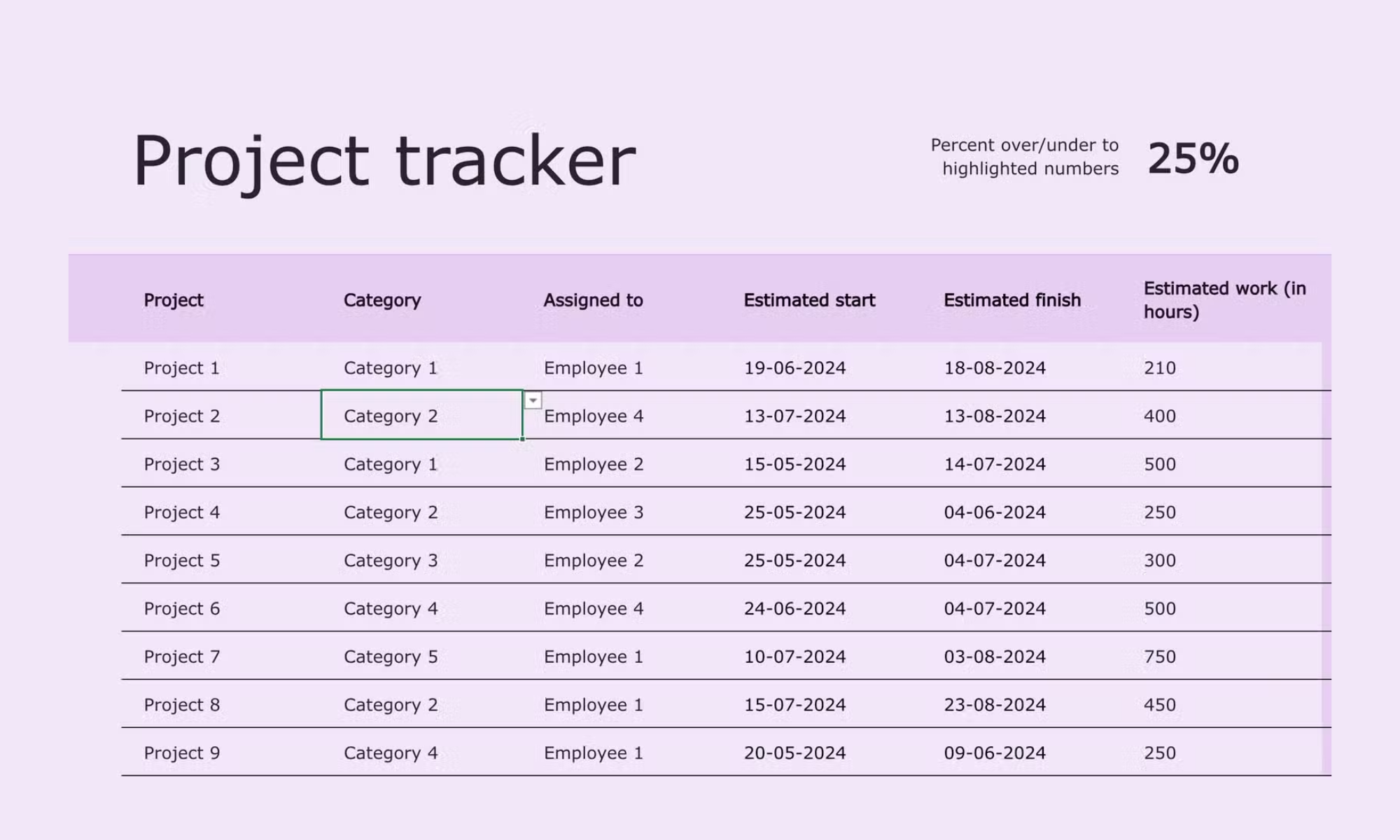
Image source: microsoft.com
Project timeline tracker template
A project timeline tracker template is built around date-based tracking, allowing you to map tasks against start and due dates for a clear view of progress over time. This layout helps you visualize how activities align across the project schedule and where potential delays may occur. It is especially useful for , making it easier to track key phases and ensure important deadlines are met.
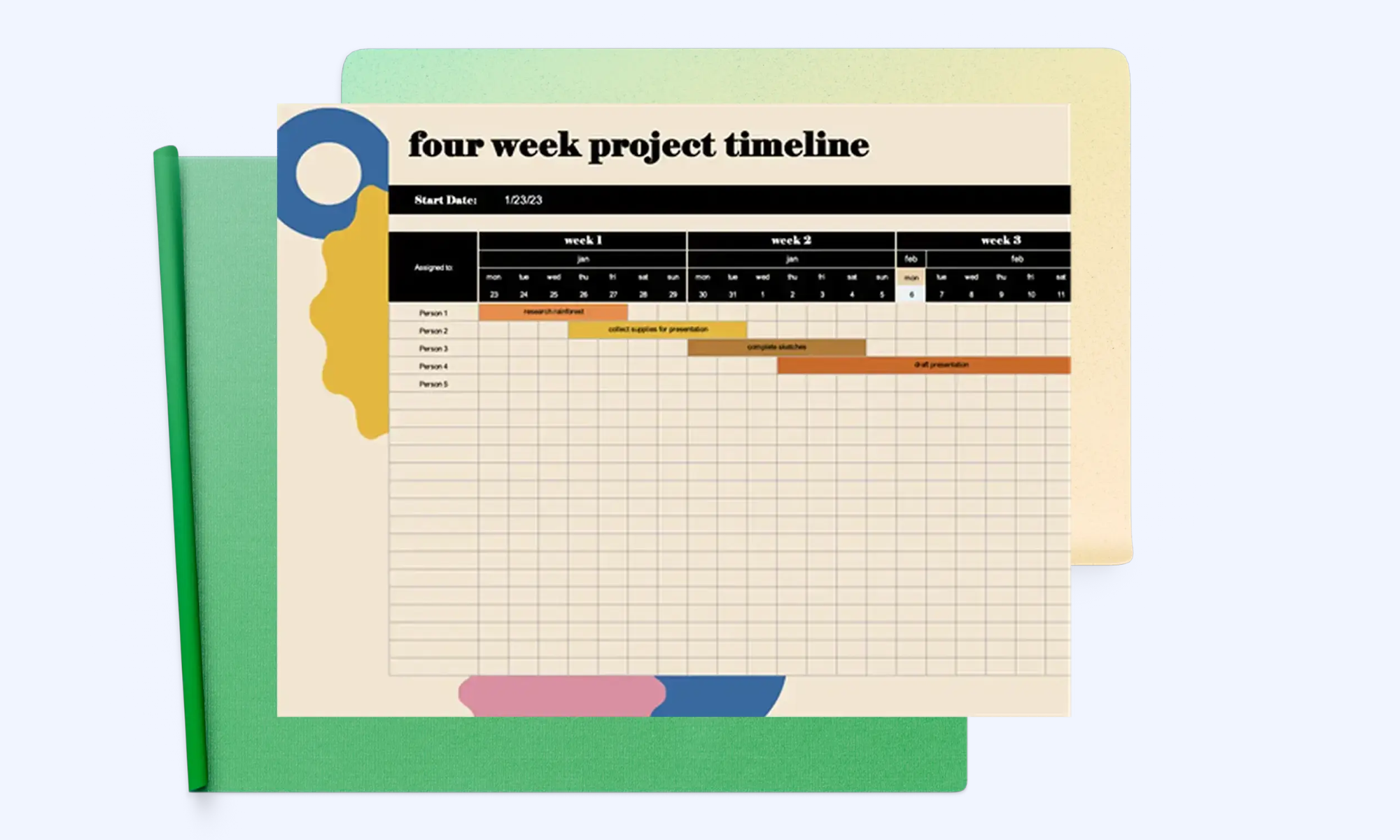
Image source: microsoft.com
Status-based project tracker template
A status-based project tracker template organizes like to-do, in progress, and completed for quick understanding. This structure makes it easy to scan the sheet and see how work is moving across different phases. Grouping tasks visually provides clear progress visibility and helps teams spot bottlenecks early.
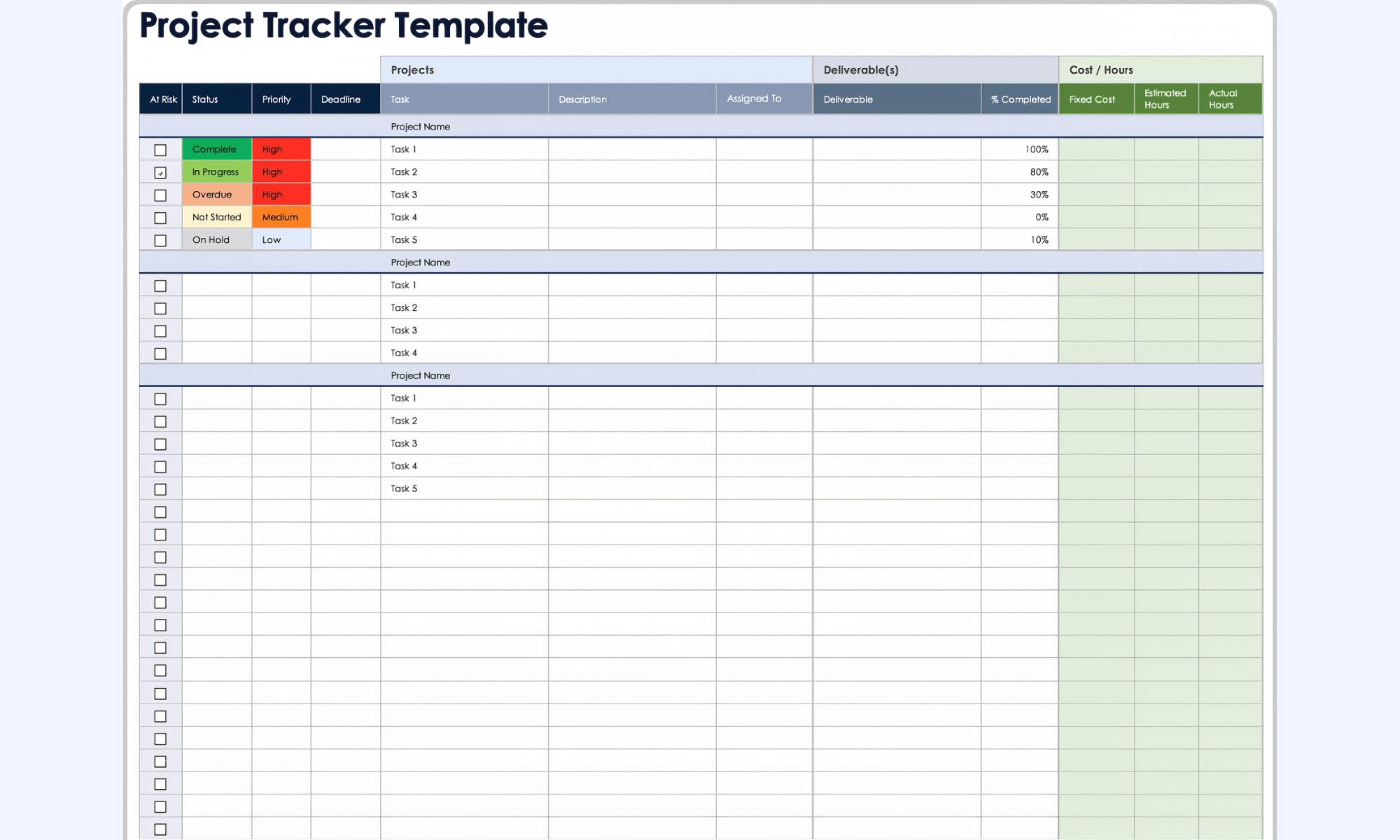
Image source: smartsheet.com
Resource and workload tracker template
A resource and workload tracker template focuses on tracking assignments by person, giving you a clear view of who is responsible for each task. This layout makes it easier to balance work across the team and identify uneven distribution. Highlighting capacity and commitments helps avoid overload and supports more realistic project planning.
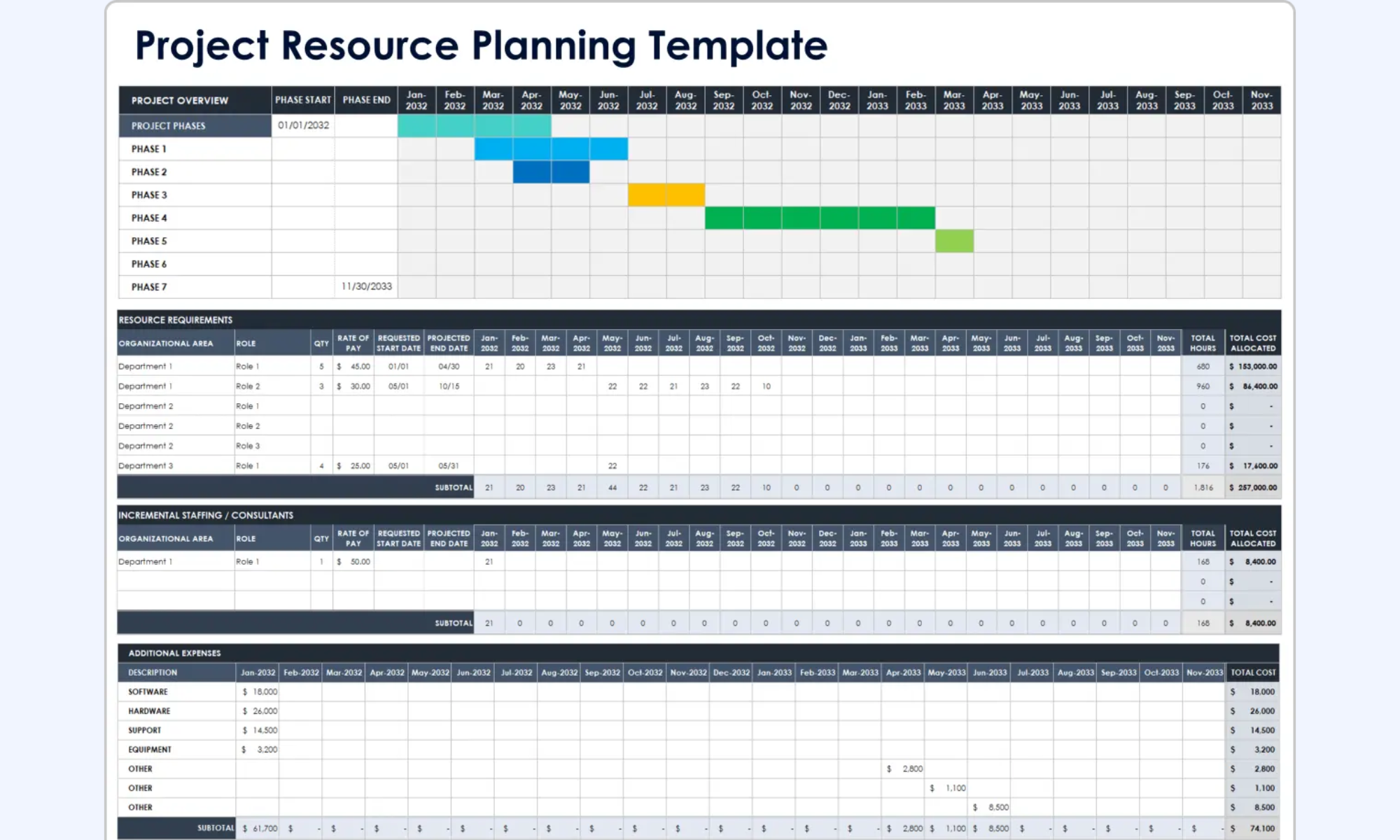
Image source: smartsheet.com
Multi-project tracker Excel template
A multiple project tracking template in Excel is designed to track multiple projects on a single sheet, providing a centralized overview of tasks, timelines, and ownership. This unified view helps you compare progress across different initiatives without switching between multiple files. It is especially suitable for coordinators and managers who need high-level visibility and efficient reporting.
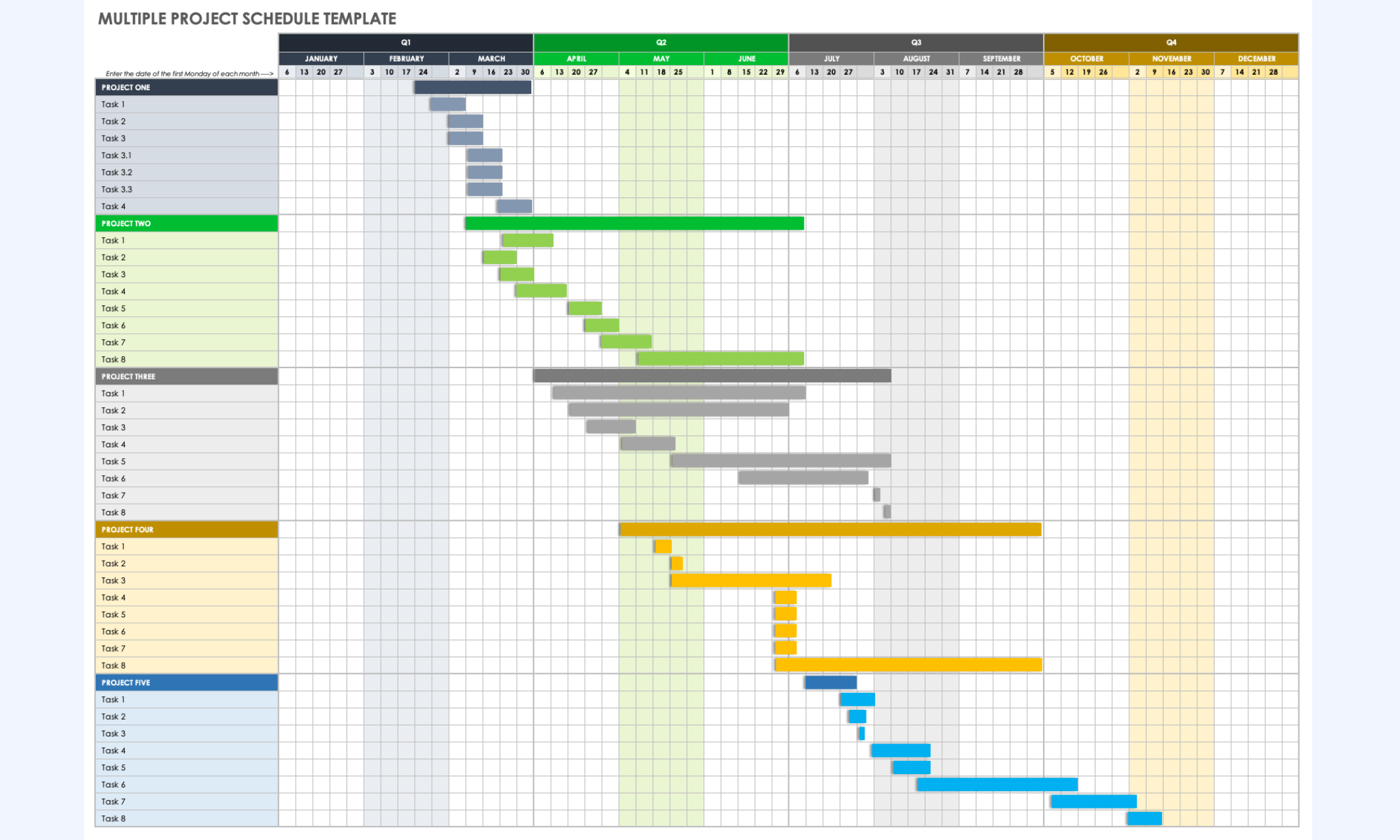
Image source: smartsheet.com
Pros and cons of using Excel for project tracking
Using Excel for project tracking offers a practical starting point for organizing tasks and timelines in a familiar format. Its simplicity and accessibility make it appealing for individuals and small teams managing straightforward projects. However, as and project complexity increase, it's important to weigh these benefits against limitations in scalability, automation, and real-time visibility.
Pros
- Easy to set up with familiar spreadsheet tools: Excel's interface is widely known, so most users can start building a tracker without training or onboarding. This makes it a convenient option for quickly setting up basic project tracking.
- Flexible and customizable for simple project needs: You can tailor columns, formulas, and layouts to match your specific workflow. This flexibility is ideal for small projects that don't require advanced automation or integrations.
- No additional software cost for most teams: Many organizations already have access to Excel through existing licenses. This keeps project tracking affordable and accessible without investing in new tools.
- Works offline without an internet connection: Excel files can be updated and reviewed without an internet connection. This is or environments with limited connectivity.
Cons
- Manual updates increase the risk of errors: Because data is entered and maintained by hand, mistakes can happen easily. Over time, small inaccuracies can undermine the tracker's reliability.
- Limited collaboration and version control: Sharing files often results in multiple versions and confusion about which version is current. This can slow down teamwork and create misalignment.
- No real-time visibility for team members: Changes are not always instantly visible to everyone involved. Team members may rely on outdated information until the file is shared again.
- Difficult to scale for complex or multi-project tracking: As the number of tasks and projects grows, spreadsheets can become hard to manage. Complex formulas and multiple tabs increase the chance of errors and maintenance effort.
Find a new way to streamline project tracking
Modern choice: Why teams choose Lark over Excel
As projects grow and teams become more distributed, many organizations look beyond traditional spreadsheets for better ways to manage work. While Excel remains useful for basic tracking, it can fall short when , automation, and shared visibility become priorities. is designed to bring tasks, communication, and data into a single connected workspace. This approach helps reduce back-and-forth across emails and chat tools while keeping project information in one place.
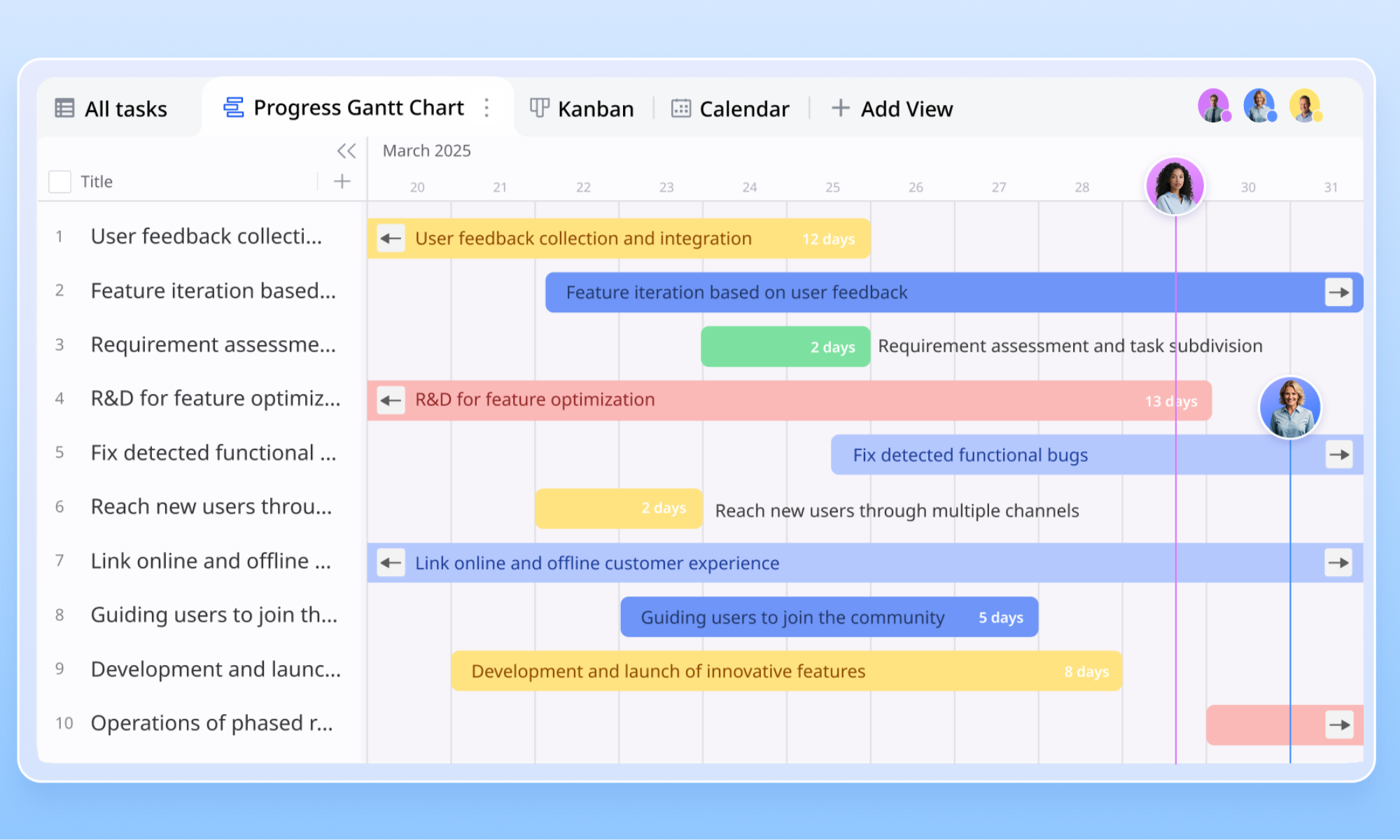
Real-time teamwork via collaborative editing
While Excel often suffers from "File is locked for editing" errors or version control issues, and feature seamless . By using the @mention function, you can tag a teammate on a specific row. This allows dozens of team members to update a template simultaneously. Every change is , ensuring that the team always works from a single, live source of truth.
Scalable architecture with link fields
As projects grow, Excel files become bloated and prone to formula errors across multiple tabs. Lark Base uses two-way links to create a . You can link a "Client" in one table to multiple "Projects" in another without duplicating data. This ensures that when you update a client's name once, it is reflected across the entire system, making it far easier to scale complex operations than with a traditional spreadsheet. 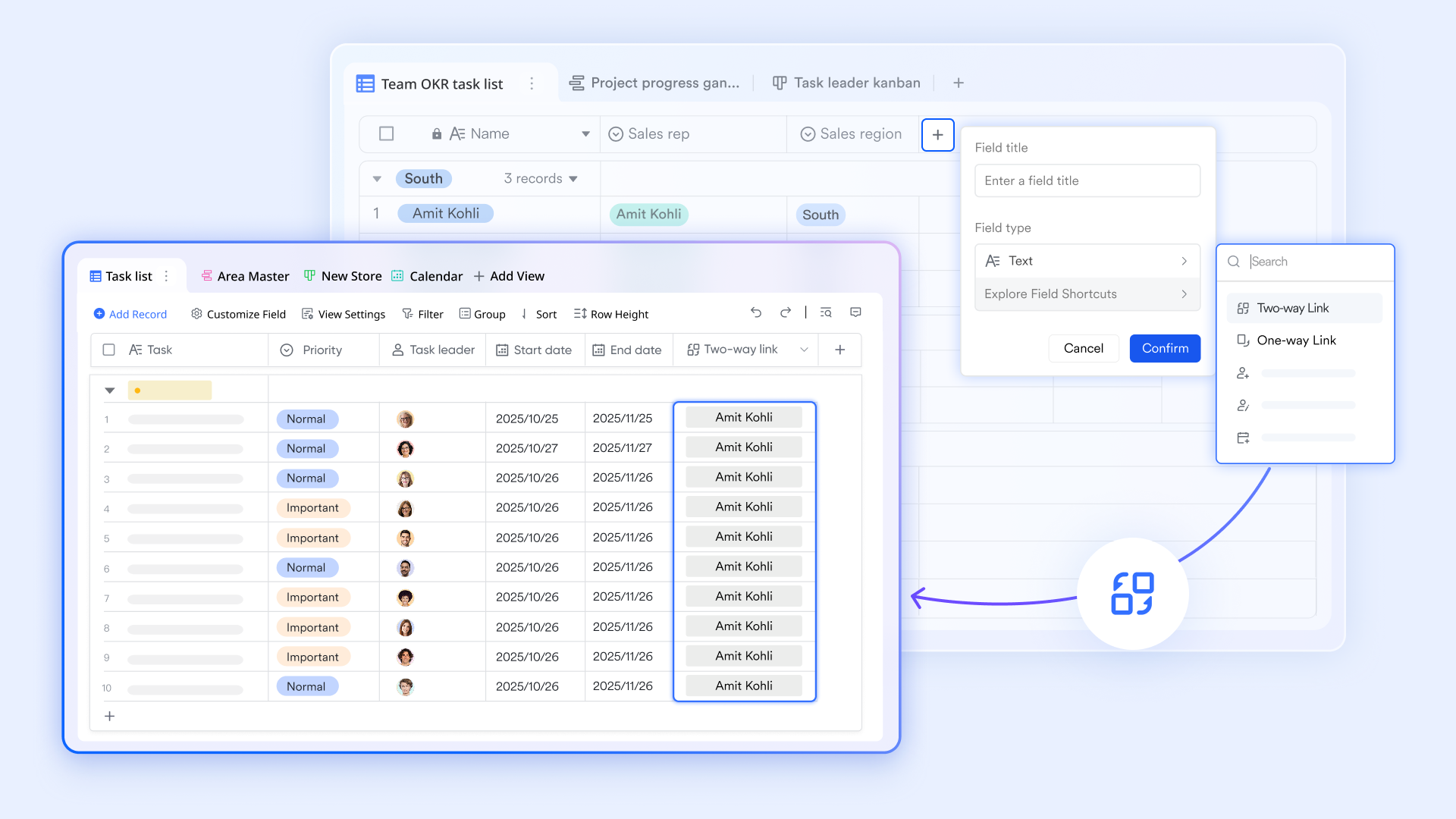
Project insights via block-based dashboard
While Excel often leaves you struggling with disconnected data and manual updates, Lark Base dashboards transform project information into a real-time "command center" through a wide variety of customizable chart types and blocks. Users can leverage specialized Gantt and Kanban views to monitor timelines and dependencies, while automated progress charts provide instant, living updates on the . 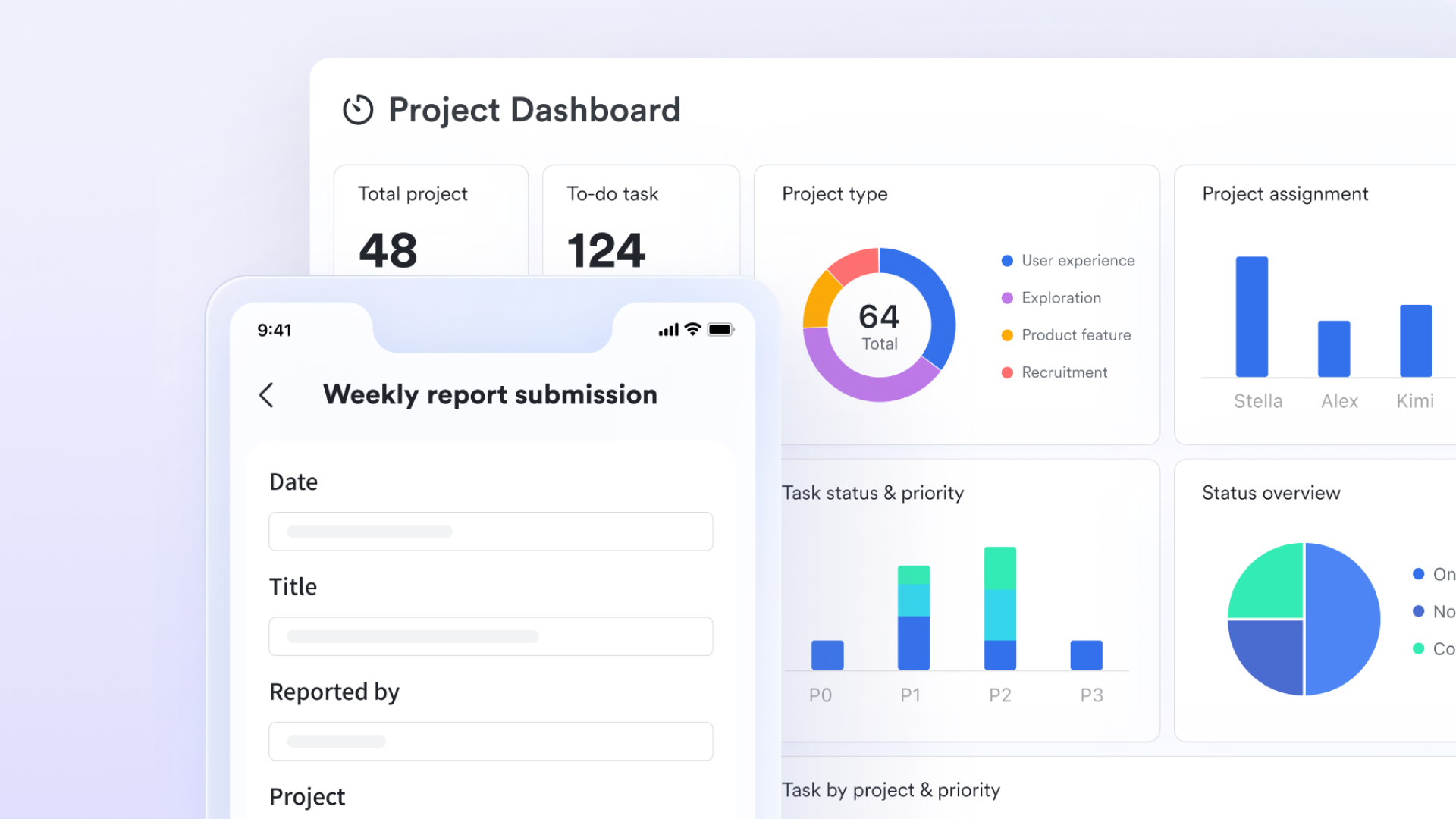
Automated triggers for status changes
Excel requires manual checking to determine whether a task is overdue or its status has changed. In Lark, you can design with the "When a record matches certain conditions" trigger. For example, if a "Project Status" column changes to "Delayed," the system can automatically execute a "Send a message" action to a specific group in . This turns a passive spreadsheet into an active, self-reporting system.
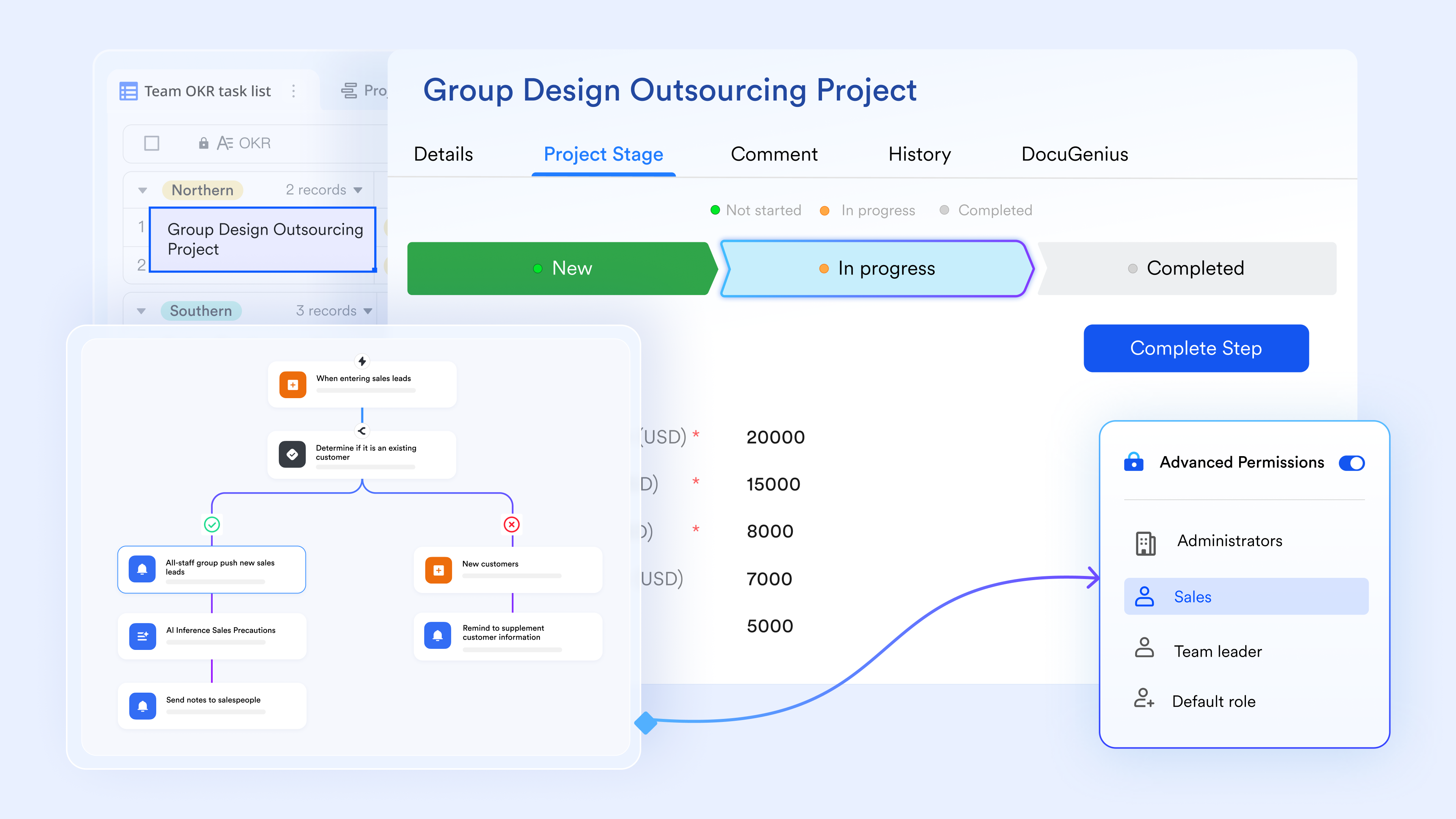
For fast-growing organizations, having communication, tracking, and data in one connected space translates directly into daily agility. Here is how growing teams experience this unified approach in practice:

"Lark is a powerful all-in-one tool for team collaboration and engagement. As the modern workplace evolves, the demand for agile and integrated digital workspaces continues to grow. Lark rises to the challenge with a platform that combines communication, collaboration, project tracking and customizable knowledge management into a seamless experience."

Widya Estritarini
VP of HC
:
- Starter plan: that includes 11 powerful tools for up to 20 users. It also comes with 100GB of storage space, 1,000 automation runs, AI translations, and more. No credit card needed.
- Basic plan: (billed annually) for up to 500 users. It includes everything in Starter and unlimited message history, 5TB of storage space, 1,000 automation runs, and more. Some users may need to to purchase this plan.
- Pro plan: (billed annually) for up to 500 users. It includes everything in Basic plus group calling for up to 500 attendees, 15TB of storage space, 50,000 automation runs, and more.
- Enterprise plan: for custom pricing. Supports unlimited users and includes even more automation runs and advanced security, compliance, and management features.
For small teams with simple communication needs

18 months message history
1000 Base automation runs/month
2000 rows per table in Base
Most POPULAR
For companies with comprehensive collaboration and management needs
Unlimited message history
500-participant video meetings
50k Base automation runs/month
20k rows per table in Base
For large companies with advanced security and organizational management needs
Get a personalized demo and pricing
Unlimited message history
500-participant video meetings
15 TB storage + 30 GB storage/user
500k Base automation runs/month
50k Base automation runs/month
Most POPULAR
For companies with comprehensive collaboration and management needs
Unlimited message history
500-participant video meetings
50k Base automation runs/month
20k rows per table in Base
Ready-to-use project tracker templates
Lark offers a variety of ready-to-use project tracker templates to help teams get started quickly without having to build layouts from scratch. These templates are designed to support project planning, , and progress tracking.
Project tracking
A project tracking template provides a centralized space to record tasks, owners, deadlines, and status updates in one clear layout. It helps teams monitor progress over time and quickly identify delays or bottlenecks. By keeping all key project details in a single view, it supports better communication and more consistent follow-through.
Multi-project tracker
A multi-project tracker template allows you to manage several initiatives from a single, unified dashboard. It helps compare timelines, priorities, and ownership across projects without switching between different files or views. This setup is especially useful for coordinators and managers who need high-level visibility and efficient reporting.
Project problem tracker
A project problem tracker template is designed to log, monitor, and resolve issues that may impact project delivery. It helps teams document the problem, assign an owner, and track status from identification to resolution. Maintaining a clear record of challenges and actions taken supports accountability and continuous improvement.
Project roadmap Gantt chart
A project roadmap Gantt chart template visualizes tasks and milestones across a timeline for a clear, long-term view of the project. It helps teams understand how activities overlap, identify critical phases, and plan resources more effectively. This format supports better alignment by showing how individual tasks contribute to overall project goals.
Employee task tracker
An employee task tracker template focuses on assigning, monitoring, and reviewing individual workloads in a clear, organized format. It helps managers see what each team member is working on and against deadlines. This visibility supports fair task distribution and more informed performance discussions.
4x4 risk assessment
A 4x4 risk assessment template helps teams evaluate potential risks based on their likelihood and impact on a simple visual matrix. It allows you to prioritize issues that need immediate attention versus those that can be monitored over time. This structured approach supports better decision-making and proactive risk management throughout the project lifecycle.
OKR task subdivision and progress control
An OKR task-subdivision and progress-control template breaks high-level objectives into that teams can work on daily. It helps link individual activities directly to measurable key results, improving alignment. By tracking progress in one view, teams can quickly see how their efforts contribute to overall goals.
Roadmap
A roadmap template provides a high-level visual plan that outlines key goals, phases, and milestones over a defined timeline. It helps teams align on priorities and understand how work will progress across different stages. This shared view supports clearer communication with stakeholders and more confident long-term planning.
Best practices to keep your Excel project tracker maintainable
Keeping your tracker accurate and consistent is essential for reliable project visibility and decision-making. By following a few simple guidelines, you can ensure your Excel project tracker remains useful as projects evolve.
- Naming conventions. Prefix phases with numbers ("1.0 Market Research," "2.0 Creative Production") so tasks sort in logical order. Use Task IDs (T-001, T-002) for dependency references.
- Sheet protection. Lock formula cells and protect the Dashboard and Settings sheets. Allow edits only in Status, % Complete, Actual Finish, and Notes columns. This prevents accidental formula breakage.
- Data validation lists. Maintain master lists for Status, Priority, and Owner on the Settings sheet. Dropdowns enforced by data validation keep the template consistent across users.
- Update cadence. Regular status reviews help ensure project timelines are met. Set a weekly : every Monday, each owner updates their task statuses and % complete. Regular updates are crucial for maintaining accurate project tracking; without them, the dashboard becomes misleading. Project milestone templates track key decision points in projects; review milestones at each status meeting.
- Version control. Store the file in a cloud folder with version history (OneDrive, SharePoint, or Lark Docs). This prevents the "v3_final_FINAL_Sarah.xlsx" problem that plagues teams emailing attachments.
Conclusion
Project tracking with Excel remains a practical and familiar , timelines, and responsibilities, especially for individuals and small teams managing straightforward projects. Throughout this guide, we explored what an Excel project tracker is, the essential elements of a strong template, step-by-step methods for using it effectively, and a range of sample formats suited for different project needs. We also looked at the advantages of Excel's flexibility and low cost, alongside its limitations in collaboration, automation, and scalability as projects grow.
If your team is reaching a point where real-time visibility, shared workflows, and easier coordination matter more, it may be worth exploring a more connected workspace. offers ready-to-use templates and built-in communication tools that can complement or extend what you already do in Excel. Try Lark today to see how your team can track projects with greater clarity and collaboration.
Try a modern workspace for clearer project visibility
FAQs
Can Excel project trackers handle large projects?
Excel can manage large projects to a point, but performance and clarity often decline as tasks, sheets, and formulas increase. An Excel-based project tracker may become harder to maintain as multiple contributors and complex dependencies increase. Some teams pair Excel with platforms like Lark to gain better visibility and coordination at scale.
How do I track dependencies in Excel?
You can list prerequisite tasks in a dependencies column and use formulas or conditional formatting to flag blocked items. While this works for simple setups, Excel for tracking projects requires manual updates to keep relationships accurate. Tools like Lark can automate status changes and notifications tied to task dependencies.
Is Excel suitable for team project tracking?
Excel supports basic collaboration through shared files, but version control and real-time editing can be challenging. As teams grow, an Excel-based project tracker may lead to duplicated files or delayed updates. Many teams use Lark to centralize communication and keep everyone aligned in one workspace.
Can Excel replace project management software?
For small or short-term initiatives, Excel can serve as a lightweight solution for organizing tasks and deadlines. However, Excel for project tracking lacks built-in automation, reporting, and integrated communication features found in dedicated tools. Platforms like Lark are often used when teams need more scalable and connected project management features.
What is the standard project tracker format for a spreadsheet?
A standard project tracker format typically includes columns for Task ID, Description, Assigned Owner, Start/Due Dates, Status, Priority, and Dependency Notes. Using a structured sample project tracking spreadsheet ensures consistent updates and helps team members quickly understand project progress at a glance.
Can I use a single multiple project tracking template in Excel to manage cross-team initiatives?
Yes. A multiple project tracking template in Excel allows managers to consolidate high-level milestones, resources, and deadlines across several initiatives into one master project tracking sheet. However, as data scales, many teams transition from an Excel based project tracker to connected platforms like Lark to automate portfolio dashboards and prevent formula errors.
Where can I find practical project tracker examples for different workflows?
Common project tracker examples range from simple to-do lists and milestone Gantt charts to resource allocation sheets. While using Excel for tracking projects is suitable for basic schedules, modern teams often look for interactive project tracking examples like Lark that support real-time co-editing and automated status notifications.
Related reading