














A Comprehensive Guide to Trello Project Tracking

Benjamin Grant
Lark Content Manager
Sep 18, 2026
Benjamin Grant
Sep 18, 2026

10 min read


In an alternate universe, you might be using Cardvark or Planatee for project management — those were the two names under serious consideration before Trello stuck. Hard to imagine either one catching on quite the same way.
And catch on it did. Trello project tracking has since become a go-to for many teams, thanks to its clean visual interface and near-zero learning curve. In this guide, we'll look at what Trello is and how it can be used for daily project management. We'll also break down the true costs of the platform, share practical tips to improve your experience, and explore top alternatives in case you're looking for something new.
Key takeaways
- Trello is a visual project management tool based on the Kanban framework that organizes tasks using a system of boards, lists, and cards.
- Pricing starts with a free plan. Paid subscription tiers range from $5.00 to $17.50 per user per month.
- Core features include drag-and-drop task management, checklists, due dates, file attachments, and no-code workflow automation.
- Trello is suitable for linear workflows and straightforward projects, such as marketing content calendars, HR onboarding, simple sales pipelines, and agile software sprints.
What is Trello?
Trello is an interactive digital whiteboard built around the Kanban project management philosophy, which emphasizes visualizing work and maximizing workflow efficiency. Trello took this concept and translated it into a browser-based interface that teams across various industries quickly adopted.
Here's how it works: A board represents an entire project, client, or departmental workspace, and vertical lists act as workflow stages, such as "To Do," "In Progress," and "Ready for Launch". Within these lists are individual cards that represent specific tasks and hold essential details like due dates, attachments, and subtasks. When team members need to update a task's status, they simply have to drag cards across the lists.
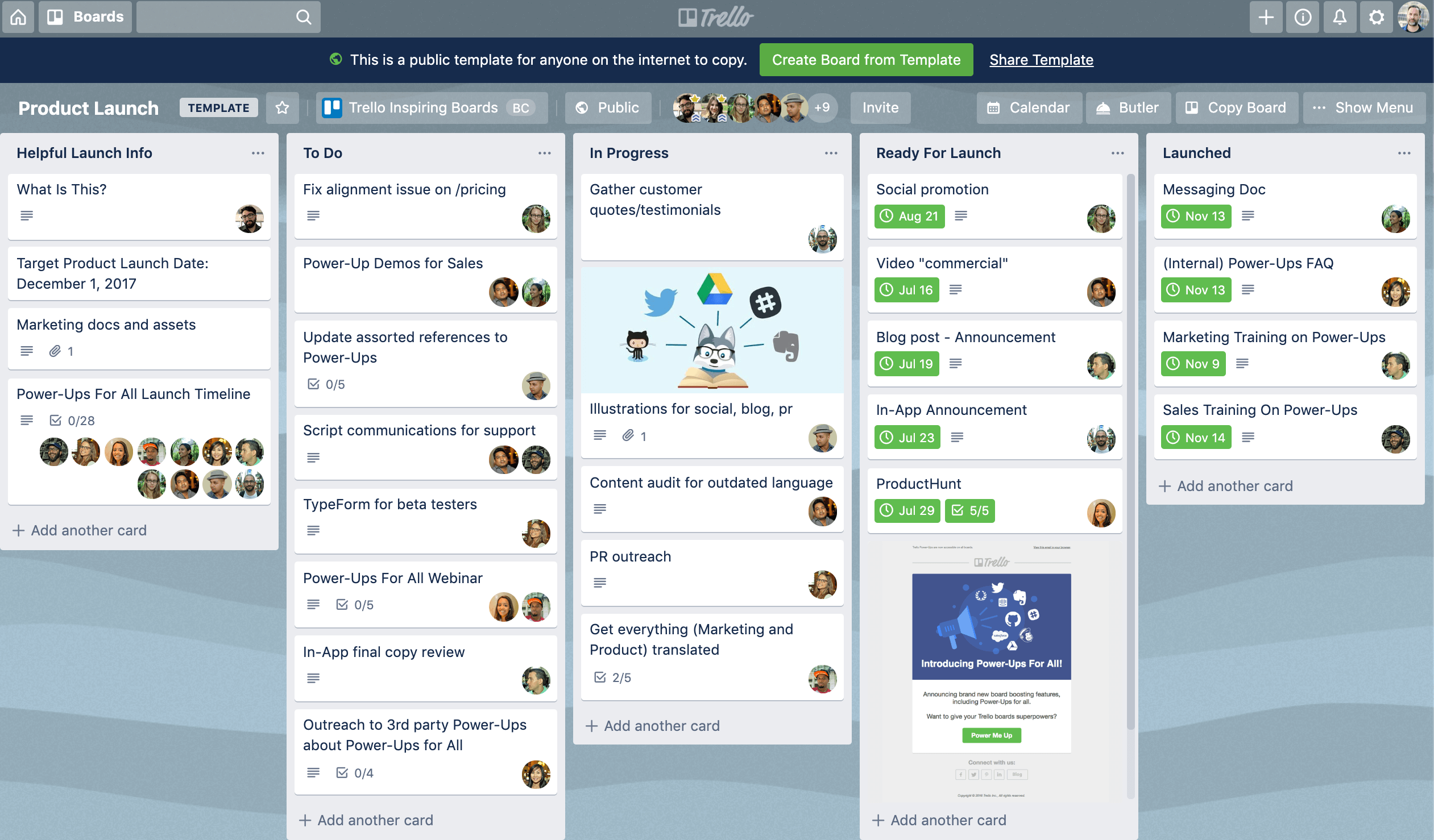
Image source: trello.com
After being bought by Atlassian in 2017, Trello became a major piece of a larger software ecosystem. Early iterations focused purely on giving small teams a lightweight alternative to clunky enterprise software. More recent updates, on the other hand, introduced integrations, automation, and premium views to handle larger organizational workflows.
How to use Trello for project tracking and management
You need a strategic approach to turn a blank board into a functional project management system. Instead of looking at it through traditional project phases, it helps to view Trello as a series of building blocks. You start with a broad workspace and continually drill down into the granular details of your daily work.
1. Laying the groundwork
You can get started quickly with a Trello project management template or create a board from scratch. From there, build out your lists. These vertical columns should accurately reflect your unique operational processes rather than just serving as a data dumping ground. Many teams use a simple "To Do," "Doing," and "Done" format, but you can easily adapt these lists to match exact workflow stages like "Brainstorming," "Client Review," or "Awaiting Approval."
2. Fleshing out task details
Once the board structure is created, add cards to represent required deliverables. The key to effective tracking is providing rich context within each card. You can break down larger deliverables into manageable steps using advanced checklists, set firm due dates to keep things on schedule, and attach relevant files directly from your computer or cloud storage. You can use color-coded labels to categorize work by priority level or specific departments.
3. Connecting the team
A project tracker only works if the team actually communicates within it, which Trello aims to facilitate through card comments. You can assign specific team members to cards so everyone knows exactly who owns what. Team members simply use the "@" symbol to notify colleagues, which keeps discussions contextually bound to the specific task and ensures important details don't fall through the cracks.
4. Supercharging the workflow
Basic boards work great for simple tasks, but you can significantly enhance your setup using Power-Ups (add-ons) and automation. For example, you can add integrations to score tasks based on value and effort, visualizing priorities directly on the card covers. You can also use Trello's built-in automations to auto-generate cards, set reminders, and update progress.
5. Adding advanced project views
The traditional Kanban board may not be enough for more complex projects. If you are on the Premium or Enterprise tiers, you can try these advanced project views that transform how data is displayed
How different teams can use Trello
Marketing
A digital marketing team can launch a new content initiative with a flow that accommodates writing, editing, and client approval. On the board, they can create this left-to-right list structure: Ideas, Ready to Start, Concept, Concept Review, In Progress, Content Review, Waiting on 3rd Party, and Done. Writers simply move finished drafts into "Content Review" to instantly signal editors that the piece is ready for evaluation.
Human resources
HR departments can use Trello to standardize the new hire experience, so no crucial paperwork gets missed. A board for onboarding can have lists like these: Manager Reaches Out, Forms to Sign, First Day IT Setup, First Week Training, and 30-Day Check-ins. HR personnel simply duplicate a master template board for every new employee to create a structured and repeatable process.
Sales
Sales teams can even use the boards as a lightweight Customer Relationship Management (CRM) system. A typical pipeline uses lists to represent deal stages, such as Incoming Leads, Contacted, In Negotiation, and Closed Won. Each card acts as an individual lead, centrally holding contact information, attachments, and meeting notes. Teams looking to expand this functionality can use add-ons to automatically organize fields and visualize the entire sales funnel.
Software development
Trello is often used by software engineering teams to manage their Agile and Scrum workflows. A typical sprint board features lists broken down into a General Backlog, Sprint Backlog, Work in Progress, and Completed Sprints, allowing developers to pull cards from the backlog into active lists to tackle new features or bug fixes. They can add code snippets and spec requirements to the cards, which enables product managers to easily see what shipped without scheduling yet another sync meeting.
How much does Trello cost?
Trello offers four pricing plans, with monthly and annual billing options.
Small teams can try the free plan to see if Trello is a good fit without any upfront costs. For more complex projects, the Standard plan unlocks unlimited boards and a much more practical 250MB file limit. Premium caters to serious project management by introducing advanced views and AI assistance, while the Enterprise plan offers more advanced IT governance and security protocols.
The subscription fees are not the only thing to consider, however. Trello lacks many essential project management features like time tracking or advanced reporting, so add-ons (Power-Ups in Trello lingo) are needed to fill the gaps. Some of these are free, but a lot of them require separate payment, so make sure to take that cost into account.
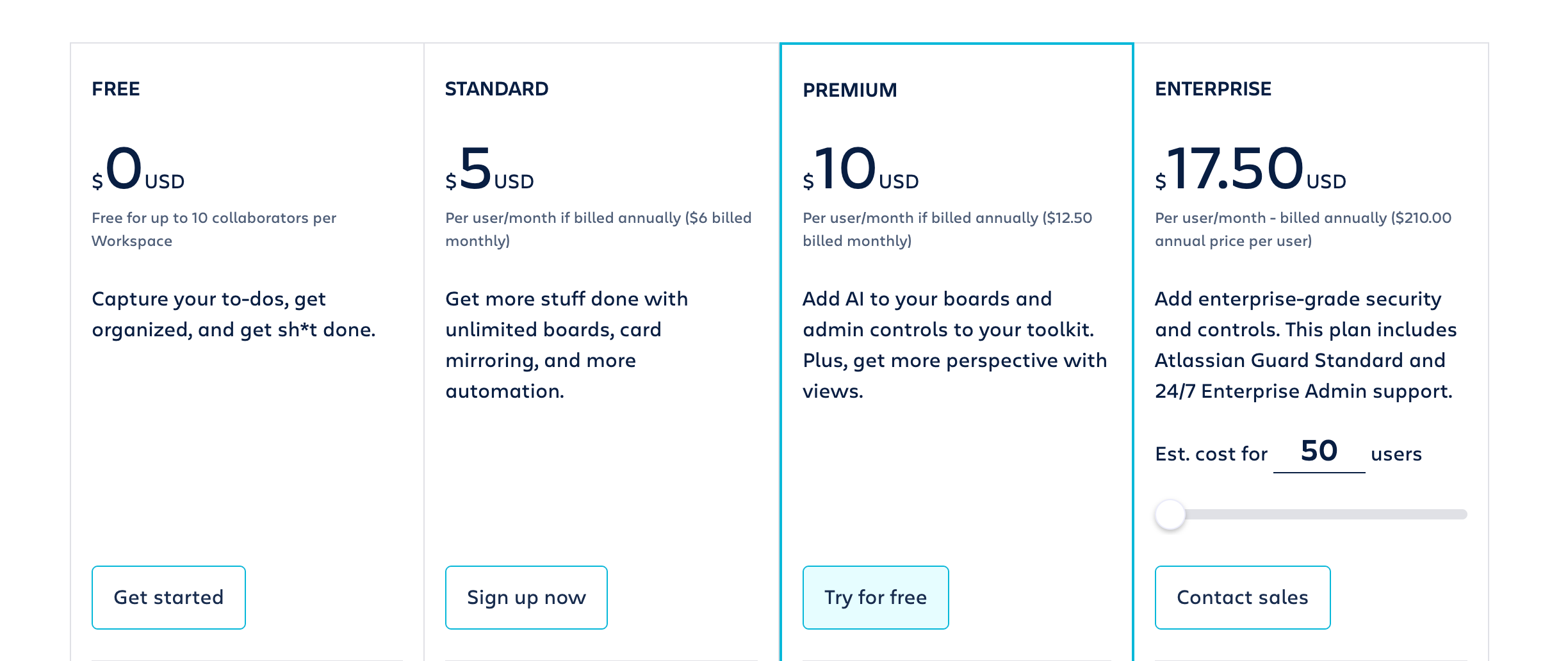
For even more on Trello pricing, see Trello Pricing: Plans, Features, and Tips to Find Your Perfect Fit.
Pros and cons of Trello
Trello has a lot going for it, but there are also notable limitations. The platform really excels in delivering a clean and simple design, but that exact same simplicity often creates major roadblocks for rapidly scaling businesses.
Pros | Cons |
Intuitive user interface The drag-and-drop mechanism requires virtually no training, leading to incredibly high adoption rates among non-technical staff. | Shallow hierarchy Complex operations expose the software's flat structure. Managing hundreds of interrelated tasks creates severe visual clutter. |
Extreme flexibility Because a card can represent anything from a software bug to a blog post, the platform adapts to marketing, IT, and HR workflows equally well. | Fragmented communication The lack of a native built-in chat function forces teams to juggle separate applications like Slack or Teams. |
Generous free entry The basic tier remains highly competitive for startups, offering unlimited cards without putting core tracking features behind an immediate paywall. | Reliance on third parties Without native time tracking, shift scheduling, or advanced analytics, teams must depend on potentially buggy or expensive Power-Ups. |
Mobile accessibility Robust mobile applications for both iOS and Android ensure that field workers and remote staff remain connected to project updates. | Basic permission controls Lower tiers lack granular role permissions, meaning administrators cannot restrict certain users from altering or deleting critical cards. |
Tips and tricks to make Trello even better
You can master the platform by moving beyond simply dragging cards with a mouse and using some of these features designed for advanced users.
Keyboard shortcuts for rapid navigation
Power users rarely rely on mouse clicks to manage their boards. There is actually a robust set of keyboard shortcuts designed to bypass menus completely, which allows for lightning-fast task management.
Automating workflows with Butler
Butler serves as the built-in, no-code automation engine that eliminates repetitive administrative actions. Teams can create automations without any coding and save countless hours of manual data entry.
Let's say an operations team wants to save time. They can easily create a trigger-based rule stating: When a card is moved into the 'Done' list, automatically mark the due date as complete, cross off all remaining checklist items, and remove all assignees. Automations can also trigger based on specific dates. A scheduled command could automatically generate a new recurring maintenance card every Monday morning at 9:00 AM, complete with a standardized checklist and assigned to a specific engineer.
Hidden gems and productivity hacks
Several lesser-known features enhance both productivity and overall board hygiene to prevent your active projects from becoming a disorganized mess.
- Email-to-board: Every individual board possesses a unique, hidden email address. Forwarding an email from a client directly to this address automatically generates a new card. The email subject line becomes the card title, the body text populates the description, and any attached files automatically upload to the card, completely eliminating manual copying and pasting.
- Card aging: The Card Aging feature causes inactive tasks to visually fade and deteriorate over time once you enable it. This provides an immediate, visual cue regarding which tasks are stagnating in the pipeline and require management intervention.
- Custom fields: For teams requiring highly structured data, custom fields allow the addition of dropdown menus, specific text boxes, or numerical inputs directly onto the front of the cards. This ensures that every task intake includes all necessary parameters before the actual work begins.
Who are Trello's competitors?
The simple card-based approach revolutionized basic task management years ago, but the broader software market has evolved significantly since then. Organizations that need deeper financial tracking, robust reporting, or unified communication often look toward more comprehensive solutions. Here are some Trello alternatives to consider:
Lark
Lark takes a completely different approach by bringing all your essential project management tools together on one unified platform. Your work happens directly alongside built-in messaging, video conferencing, and document collaboration, eliminating the need to juggle a task tracker with outside integrations. This naturally creates better team collaboration without the friction of context switching and slashes subscription costs.
Lark features an intuitive yet versatile design that easily adapts to your team's workflow. You can use a familiar drag-and-drop Kanban view for everyday project management or add a Gantt view, calendar view, or even a dashboard with a few clicks. Lark also includes powerful no-code automation features, giving anyone the ability to set up custom rules that keep projects moving effortlessly.
Ready to get started? Try this project management template that comes with kanban, Gantt charts, timelines, dashboards, and more!
Wrike
Wrike positions itself as the optimal solution for complex, cross-functional collaboration and enterprise-scale deployments. The platform skips the simple visual board approach and opts for highly interactive Gantt charts, dynamic request forms, and new AI Agents that automate task triage. It does demand a much steeper learning curve, but it provides the structural depth needed to monitor budgets, track billable hours natively, and manage complex portfolios across multiple departments.
Basecamp
Basecamp operates on a completely different philosophy that ignores complex automation rules in favor of a minimalist, anti-meeting ethos centered around calm, asynchronous communication. It organizes work into isolated project spaces that contain message boards, group chats, and automatic daily check-ins rather than relying on a single sprawling board. Users also track their progress using the unique Hill Chart, which provides instant visual context to show whether a project is bogged down in uncertainty or cruising right along toward completion.
ClickUp
ClickUp markets itself as the application to replace all others, packing in an incredibly feature-dense environment designed for ultimate customization. Users can visualize the exact same dataset in over 15 different ways and seamlessly integrate document collaboration, whiteboards, and advanced AI capabilities natively within the platform. The pricing remains highly competitive, yet this sheer volume of features often leads to overwhelming complexity that requires significant administrative oversight to get everything configured correctly.
Final thoughts
Trello provides an excellent starting point for simple project tracking thanks to its highly intuitive, visual boards. But as teams grow and projects become more complex, Trello's greatest strength of simplicity can become a burden. Without native reporting or advanced communication tools, using cards and lists for tracking can lead to cluttered workflows and fragmented information.
Lark solves this scaling problem by unifying your essential project management and team communication features into one powerful workspace. Leading global organizations like Xiaomi, GoTo, and 7-Eleven have already picked Lark to streamline their complex operations and reduce software bloat. You can finally stop juggling disparate applications, cut out costly software subscriptions, and achieve your goals without the constant friction of context switching.

FAQs on Trello project tracking
What are some Trello project management examples?
Trello's cards are highly customizable, so they can be adapted to almost any projects. For example, marketing teams often use it to track content calendars by moving article drafts from "Ideation" to "Published," while human resources departments create dedicated boards to ensure new hires complete all necessary paperwork during onboarding.
Technical teams can use Trello to manage Agile software development sprints by setting up lists for backlogs, in-progress code, and completed features. Similarly, sales teams can transform a simple board into a lightweight CRM, using cards to track individual leads as they move through the pipeline.
Can I use Trello for free?
Yes, Trello offers a free tier that comes with 10 boards per workspace, 10 collaborators, and unlimited cards. You won't be able to use more advanced features like Trello Timeline, Calendar, Dashboard, or Map views though, so the free plan is only suitable for small teams or simple projects.
What platforms can I use Trello on?
You can use Trello on any web browser. There are also dedicated desktop apps for Mac and Windows, alongside mobile apps for both iOS and Android devices.
Related reading
Table of contents
Start using Lark today

Manage all your work in one place
Boost team efficiency by 10x
Save up to 70% on software costs
Table of contents
Start using Lark today
Manage all your work in one place
Boost team efficiency by 10x
Save up to 70% on software costs
Keep reading



Lark recognized in 2023 Gartner® Collaborative Content Workspaces and Meeting Solutions reports
Lark, the global superapp for productivity, is delighted to announce it receives recognition in the Gartner's 2023 Innovation Insight for Collaborative Content Workspaces and Market Guide for Meeting Solutions.





2026 Lark Technologies Pte. Ltd.
Headquartered in Singapore with offices worldwide.






Explore: