














13 Best Google Project Tracking Tools for Google Workspace in 2026

Vivienne Quinn
Product Marketing Manager
Sep 18, 2026
Vivienne Quinn
Sep 18, 2026


- Option 1: Repurpose native apps (Google Sheets, Calendar, and Tasks). Best for solo users or small teams who want to build a simple project tracker in Google Sheets setup with zero extra cost.
- Option 2: Integrate external platforms (Lark Base, Asana, ClickUp, Smartsheet). Best for scaling teams who need advanced project management features like basic Gantt charts, status updates, and automated notifications.
- Option 3: Install specialized add-ons (Kanbanchi, Yanado, GQueues). Best for users who want to stay strictly inside Gmail or Drive while adding visual Kanban boards or email-to-task creation.
Is there a native Google project tracker in Google Workspace?
- Task lists with owners, due dates, and priorities, with dependencies between tasks
- Multiple views (Kanban board, Gantt charts, timeline, calendar), with dashboards and reporting
- Automated notifications, status updates, plus resource and workload management
What "Google project tracking tool" really means
- Repurposing Google tools to manage projects
- Connecting external project management platforms to Google Workspace
- Using add-ons to extend functionality inside Google Workspace
Option 1: Turn Google apps into project tracking tools
Google Sheets - For creating a lightweight project database
- Customizable columns & rows: Track project attributes, including task name, owner, due date, status, and priority.
- Filtering and sorting: Quickly organize tasks by priority, deadlines, or team member.
- Conditional formatting: Highlight overdue tasks, completed items, or other critical project metrics.
- Collaboration & sharing: Multiple users can view and edit in real time with granular permissions.
- Relational limitations: Cannot easily manage complex relationships between tables like a true database.
- Limited automation: Advanced triggers, notifications, and workflows require Apps Script or third-party tools.
- Security & access control: Fine-grained database-level security is limited; access is mostly at the file- or sheet-level.
- Define your headers: Set columns for Task Name, Task Owner, Task Status, Priority, Start Date, and Due Date.
- Add dropdowns for task status: Use Google Sheets' data validation tool to create dropdown lists containing "To Do," "In Progress," and "Done."
- Apply conditional formatting: Color-code your statuses—such as green for "Done" and red for "Blocked"—to keep the team aligned visually.
- Draft your timeline: Utilize bar chart formulas or simple conditional formatting to simulate basic Gantt charts.

Google Calendar - For managing a visual timeline
- Multiple Calendar Layers: Separate calendars for projects, teams, or task types that can be overlaid for a complete timeline view.
- Event Scheduling with Deadlines: Assign tasks or milestones as events with start and end times.
- Color-Coding: Differentiate projects, teams, or priority tasks visually.
- Integration with Google Workspace: Connects with Google Tasks, Sheets, and Meet for a seamless project workflow.
- Relational limitations: Cannot easily manage complex relationships between tables like a true database.
- Limited automation: Advanced triggers, notifications, and workflows require Apps Script or third-party tools.
- Security & access control: Fine-grained database-level security is limited; access is mostly at file or sheet level.
Google Tasks - For assigning action items
- Task Creation & Subtasks – Break projects into manageable tasks and subtasks.
- Due Dates & Deadlines – Assign due dates that sync directly with Google Calendar for timeline visibility.
- Integration with Gmail & Calendar – Convert emails into tasks and see them alongside other scheduled events.
- Simple Lists – Organize tasks by project or category using separate lists.
- Minimal visualization – Tasks appear as lists; no Kanban boards, Gantt charts, or calendar views beyond due dates in Calendar.
- No advanced automation – Requires third-party tools for reminders beyond Google's basic notifications.
- Scaling limitations – Best for small projects or personal task tracking; large team projects become hard to manage.
Google Drive - For storing project files
- Centralized file storage: Store all project files in one organized location with folder hierarchies.
- Version history: Track changes and revert to previous versions of documents.
- Access control & sharing: Fine-grained sharing permissions (view, comment, edit) at file or folder level.
- Integration with Google Workspace: Works seamlessly with Docs, Sheets, Slides, Calendar, and Gmail.
- Scalability concerns for large teams: Complex folder structures can become hard to navigate without strict governance.
- Limited automation: Automating workflows requires Google Apps Script or third-party tools.
Google Docs - For meeting notes and planning
- Real-time collaboration: Multiple team members can edit a document simultaneously with visible changes.
- Comments & suggestions: Add inline comments, suggestions, and resolve feedback to streamline team communication.
- Version history: Track changes over time and revert to earlier versions if needed.
- Templates: Use pre-built templates for project plans, meeting notes, or reports.
- No Native timeline or visualization: Cannot display Gantt charts, Kanban boards, or project timelines.
- Limited automation: Any automation (e.g., generating reports or linking with other tools) requires Google Apps Script.
Option 2: Connect with external project management platforms
1. Lark - For the ultimate project management solution
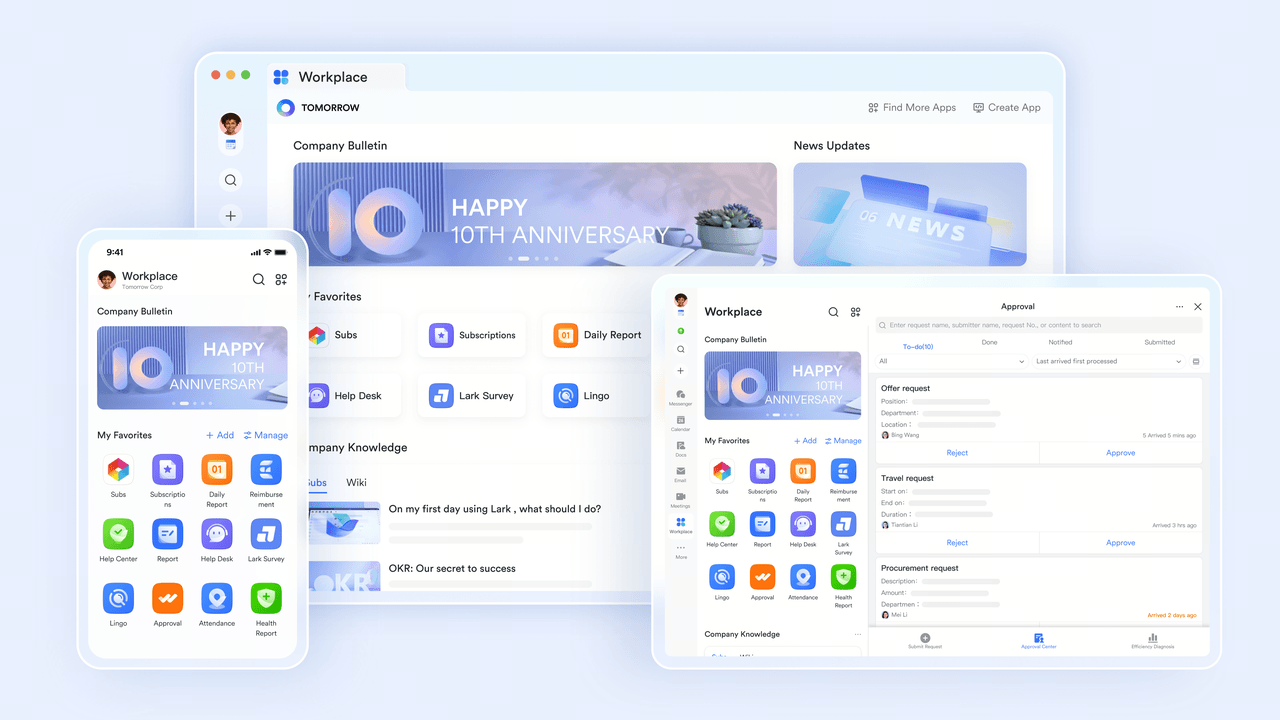
- Keep project communication unified: Launch initiatives with dedicated group chats so team members can exchange ideas, ask questions, and align on priorities. Chats remain centralized, making it easy for everyone to reference updates and stay informed.
- Monitor progress with clarity: Organize tasks in Lark Base by assigning clear owners, setting deadlines, and defining priority levels. Use multiple views, such as Gantt charts or Kanban boards, to understand timelines at a glance or dive into specific task details. When responsibilities change, adjust assignments quickly with simple drag-and-drop updates.
- Reduce manual follow-ups through automation: Eliminate repetitive coordination by creating automated reminders, notifications, and status changes without writing code. These workflows keep projects advancing while ensuring the team remains focused on high-value work.
- Leverage AI for faster insights: Cut down the time spent on reporting with AI-generated summaries, sprint overviews, and feedback breakdowns. After meetings, key decisions, action steps, and task owners are automatically captured, so nothing important is missed.
- Simplify approval processes: Manage requests such as budgets, travel reimbursements, or resource approvals directly within chat. Leaders can review and respond immediately without switching platforms, accelerating decision-making and maintaining project momentum.
"Lark has changed how we uplevel sales and customer success. The month I shared our sales boards in Lark Base with our teams, I saw a real lift in digital advertising sales. These boards are where our race to the top can happen, and we finally have the transparency to do so efficiently."

Mona Abisourour
Chief Growth Officer
- Two-way calendar sync: Your team can view and edit tasks created in Google Calendar directly within Lark Calendar, and vice versa. Changes made in one calendar are automatically reflected in the other, ensuring project deadlines stay aligned.
- Live Gmail binding: Keep your projects moving without context-switching. Connect your Google Workspace email directly to Lark to read, organize, and reply to your Gmail messages alongside your tasks.
- Google Drive connectivity: Files stay exactly where they belong. Embed, share, and preview Google Drive links directly inside Lark tasks and chats.
- Frictionless Google SSO: Your team can log in to Lark securely with their standard Google Workspace credentials, and admins can set up Directory Sync to automate user provisioning.
- Easy access to project docs: Links to documents, spreadsheets, slides, project databases, mind maps, and other content you create in Lark can be added to Google Tasks
- Limitless automations via Zapier: Build custom, no-code workflows to connect Lark with tools like Google Sheets and Forms.
- For some advanced features, new users may need to explore the Lark Help Center or YouTube channel for more guidance.
- Starter plan: Free forever plan that includes 11 powerful tools for up to 20 users. It also comes with 100GB of storage space, 1000 automation runs, AI translations, and more. No credit card is needed.
- Basic plan: $6/user/month (billed annually) for up to 500 users. It includes everything in Starter, plus unlimited message history, 5TB of storage space, 1,000 automation runs, and more. Some users may need to contact sales to purchase this plan.
- Pro plan: $12/user/month (billed annually) for up to 500 users. It includes everything in Basic plus group calling for up to 500 attendees, 15TB of storage space, 50,000 automation runs, and more. Understanding current Google Workspace pricing and ClickUp pricing can help organizations better evaluate overall software costs.
- Enterprise plan: Contact sales for custom pricing. Supports unlimited users and includes even more automation runs and advanced security, compliance, and management features.
Starter
For small teams with simple communication needs
$0
/ user / month

Pro
For companies with comprehensive collaboration and management needs
$12
/ user / month
Enterprise
For large companies with advanced security and organizational management needs
Get a personalized demo and pricing
Pro
For companies with comprehensive collaboration and management needs
$12
/ user / month
2. Asana - For cross-functional workflows
- Multiple views: List, Board, Timeline, Calendar
- Portfolio tracking for managing multiple projects
- Workload view to prevent team member overallocation
- Automation rules for recurring workflows
- Strong mobile apps for on-the-go updates
- Create tasks directly from Gmail using the Asana for Gmail add-on
- Attach Google Drive files to any task
- Sync task due dates with Google Calendar
- Sign in with Google accounts (Google SSO)
- Free plan for up to 2 users, with unlimited projects and tasks.
- Paid plans start at $10.99/user/month (billed annually).
3. Trello - For simple kanban-style tracking
- Extremely low learning curve
- Intuitive interface with drag-and-drop cards
- Great for marketing campaigns, content calendars, and simple product roadmaps
- Free tier is generous for basic tasks
- Attach Google Drive files directly to Trello cards.
- Sign in to Trello using your Google account.
- Sync Trello due dates with Google Calendar using Power-Ups.
- Use Butler automation to trigger Google Workspace actions (e.g., automatically sending an email via Gmail when a task is marked complete).
- Free plan for up to 10 collaborators per workspace. Includes unlimited cards and up to 10 boards.
- Paid plans start at $5 per user/month (billed annually). Includes unlimited boards, advanced checklists, and custom fields.
4. ClickUp - For extensive customization options
- Gantt charts with dependencies
- Extensive customization, such as custom fields
- Time tracking and goal tracking are built in
- Offers a large variety of views, including list, board, and calendar views
- Attach Google Drive documents to tasks
- Sync Calendar events
- Gmail integration for email-to-task creation
- Google SSO for easy sign-in
- Free plan with unlimited projects and unlimited users, but only 60MB of storage.
- Paid plans start at $7/user/month (billed annually).
5. Smartsheet - For working with spreadsheets
- Gantt charts with drag-and-drop scheduling
- Resource management and workload views
- Forms for intake workflows
- Automation workflows
- Executive dashboards
- Google Drive attachments
- Gmail add-on for creating tasks from email
- Calendar sync for due dates
- Import/export data to and from Google Sheets
- No free plan available.
- Paid plans start at $9/user/month (billed annually).
Option 3: Leverage Google project tracking tools and add-ons
1. Kanbanchi - For teams who need to visualize project tasks
- Kanban boards & cards: Drag‑and‑drop visual workflow management.
- Gantt chart timeline: Plan and visualize task sequences and timelines.
- Google Drive integration: Boards are stored in Drive and follow Drive sharing/permissions.
- Google Calendar sync: Push start/end dates from cards to Google Calendar events.
- Setup overhead: Requires configuration (boards, templates) to fit your workflow.
- Feature depth varies by plan: Advanced timeline, workload, and reporting features are in higher tiers.
- Available for free.
- Paid plans start at a fixed price of $3.97 (billed annually).
2. Yanado - For teams who handle projects through email
- One-click task creation: Turn any email into an actionable task. Tasks remain linked to their original email threads to preserve context.
- Kanban boards: Organize work into customizable, drag-and-drop views.
- Team collaboration: You can edit and delegate tasks, plus discuss task details with your colleagues.
- Subtasks and tagging: Helps you break projects into manageable tasks and use tags to filter and prioritize your work.
- Scaling: Because its primary interface is within Gmail, it can become cumbersome when managing highly complex, enterprise-level projects with extensive dependencies.
- Mobile experience: Users frequently note that the mobile app functionality is less robust and harder to navigate than the desktop Gmail extension.
- Available for free.
- Paid plans start at $6 per user/month (billed annually).
3. GQueues - For teams who need basic task tracking
- Emails to tasks: Turn your emails into tasks instantly with the Gmail add-on.
- Easy access: Open GQueues from anywhere in Google Workspace without logging in again. You're automatically signed in using Google's secure SSO authentication.
- Secure and reliable: GQueues runs on the same infrastructure and servers used by Google. It's reliable, robust, and built on a system you already trust.
- Accessibility: GQueues has dedicated mobile apps for iOS and Android, plus a Chrome extension for capturing tasks anywhere on the web.
- Google lock-in: As GQueues is built for Google, if your team ever migrates to another ecosystem, GQueues will become less useful without its add-on functionality.
- Task management: While the add-on works great for task tracking, it may not offer enough project management features to meet your team's needs.
- A free plan is available
- Paid plans start at $3 per user/month (billed annually).
How to choose the best Google project tracking tool
Map your current workflow
- Where does work originate? Email, internal chat, meetings, or client requests?
- How are tasks assigned and tracked today?
- Who needs visibility into progress and how often?
- What consistently falls through the cracks?
Define your non-negotiables
1. Team size
- How many users require access?
- Do you need guest or client permissions?
2. Must-have features
- Gantt charts for timeline planning?
- Time tracking for billing or capacity management?
- Automation to reduce manual updates?
- Client-facing dashboards?
3. Budget and cost calculation
- Is a free tier sufficient, or will you invest in paid plans?
- If considering third-party tools, calculate the total cost of ownership (subscription fees, per-user charges, and add-ons) to avoid surprise expenses.
- Compare that cost against the value gained in productivity and time saved.
4. Compliance and security
- Do you require SSO?
- Are there data residency or audit log requirements?
5. Integration depth
- How critical is seamless integration with Gmail, Calendar, and Drive?
- Do you need two-way syncing, or is a simple file attachment enough?
Read user reviews and case studies
- Ease of use in everyday scenarios
- Reliability of Google Workspace integration
- Support responsiveness
- Hidden limitations that might not show up in marketing materials
Test before you commit
Evaluate usability within Google Workspace
- Does Google Calendar sync reliably with the tracking tool?
- Is attaching Drive files fast and intuitive?
The Verdict:
Final thoughts on Google project tracking tools
FAQ About Google project tracking tools
What is the best Google alternative for project management?
The best alternatives to Google for project management are Lark, Asana, Monday.com, ClickUp, Wrike, and Trello. However, there are thousands of project management tools on the market, so it's better to test software through free plans and trials before making a purchase.
Does Microsoft offer project tracking tools?
Microsoft Planner (which merged with Microsoft Project in 2025) is a popular tool for project scheduling and resource planning. The project management software integrates with other Microsoft tools, making it a strong choice for businesses considering or using Microsoft Teams.
Does Google have something like Trello?
No. Google doesn't have a native task management app like Trello. However, within the Google suite, you can create kanban-style boards using Google Tasks and Google Calendar, or use third-party add-ons like Kanbanchi, which can be embedded directly in Gmail.
Does Google have a Kanban tool?
No. There are no built-in Kanban tools available. However, with add-ons, you can bring Trello-style boards into the Google suite.
Does Google have a task tracker?
Yes. Google Tasks, which integrates with Gmail and Calendar, lets you create tasks and even assign tasks to other users. However, task tracking is limited compared to the enterprise tools offered by platforms like Lark.
What's the best task tracker?
For personal use, tools like Todoist and TickTick offer great task tracking apps. For businesses, Lark, Asana, and Trello all offer best-in-class task tracking. While each offers unique strengths, Lark provides the most comprehensive task management solution with its all-in-one AI platform.
What's the best project management tool?
The best project management software depends on your specific needs. For most businesses, Lark offers the most comprehensive and advanced project management experience for project managers, as well as sales, marketing, and other departments, thanks to its extensive collection of integrated tools, AI capabilities, and automated workflows.
What's the best tool for project planning?
For visual project planning, tools like Lark, Smartsheet, ClickUp, and Monday.com offer timelines, Gantt charts, and roadmap views to map out project stages and dependencies.
What other Google tools can I use for project tracking?
In addition to Google Sheets, Calendar, Drive, and Docs mentioned above, you can also use Google Chat for instant messaging and real-time communication with project stakeholders. Additionally, with Google Meet, you can hold video meetings to discuss projects in more detail.
What is the G Suite called now?
G Suite was renamed Google Workspace by Google in 2020.
Does Google have a project management app?
There are no official Google project management tools available on the market. While you can use Google apps within Google's suite of productivity tools, most teams end up paying for add-ons, third-party project management tools, or switching from Google Workspace to one of its alternatives, like Lark.
Can I use Google Sheets for task and project management?
Yes, for lightweight projects. While it may not provide a complete project management solution, Google Sheets lets you create task lists with columns for assignees, due dates, and status updates.
What is the difference between a simple google project tracker and advanced PM software?
A basic Google project tracker (like one built on Google Sheets) is excellent for task logging but lacks relational database structures, automated workflow rules, and real-time project communications. Advanced google project tracking tools like Lark bridge this gap by housing your project tracker, team chat, and documentation in a single unified workspace.
Related reading

Start using Lark today

Manage all your work in one place
Boost team efficiency by 10x
Save up to 70% on software costs
Start using Lark today
Manage all your work in one place
Boost team efficiency by 10x
Save up to 70% on software costs
Keep reading








2026 Lark Technologies Pte. Ltd.
Headquartered in Singapore with offices worldwide.





