An OneNote project tracker template is a pre-structured notebook layout designed to help project managers, team leads, consultants, and small business owners centralize tasks, notes, timelines, and decisions in one searchable workspace. Whether you're coordinating a product launch or overseeing a client implementation, the right template reduces setup friction and ensures consistency across every initiative.
OneNote can act as a lightweight project management hub when structured with reusable templates, though many teams also pair it with a unified suite like Lark Suite for execution, automation, and real-time collaboration. This article provides a practical template guide, walking you through different OneNote project tracking templates and showing how to customize them for real projects.
What makes OneNote effective for project tracking
isn't a full project management suite with Gantt charts and resource leveling. However, its notebook structure, flexible tagging system, and powerful search make it ideal for capturing everything around a project—context, decisions, meeting notes, and tasks, even though some teams ultimately look for when their collaboration needs grow. Teams that need a central hub for project information without the overhead of complex tools often find OneNote hits the right balance.
- Notebook as a project hub: A single notebook per project (such as "Q3 2026 Marketing Launch") can hold sections for Overview, Planning, Meetings, Risks, and Retrospectives. This forms the base for any OneNote . Each section becomes a container for related information, and the notebook itself becomes the single source of truth for that initiative. When someone new joins the project, they can explore sections to understand , progress, and history without digging through scattered emails or chat threads.
- Sections and pages for hierarchy: Sections can mirror project workstreams—Product, Marketing, Engineering, Operations—while pages map to sprints, milestones, or individual work packages. For example, an Engineering section might contain pages titled "Sprint 4 – May 2026 tasks," "API integration decisions," and "Tech debt backlog." This hierarchy helps teams stay organized without overcomplicating the structure.
- Tags and checkboxes as trackers: OneNote tags and checkboxes turn raw notes into a simple OneNote task tracker template. You can mark action items with a "To Do" tag, flag critical decisions as "Important," and filter everything through the Find Tags feature. Adding owners and due dates in a table alongside these tags creates a lightweight but effective tracking system.
- Search, links, and attachments: Search lets you find any piece of information across all notebooks instantly. Internal page links connect related elements—your project overview can link directly to the risk log or sprint task list. File attachments keep reference materials, contracts, and specifications right next to the tasks they support.
- Cross-device use case: Being able to open the same project tracker on desktop and mobile helps managers capture ideas during commutes, client visits, or remote meetings. Notes sync across devices, so that quick idea jotted down on your phone appears on your laptop when you're ready to work on it.
Organize notes, tasks, and teamwork in one place
Core structure of a reusable OneNote project tracker template
Before diving into specific downloadable templates, it helps to understand the ideal skeleton of a reusable OneNote project tracking template. Having this foundation means you can adapt any external template to fit your workflow or build your own from scratch.
Notebook-level structure: For larger initiatives with multiple related projects, consider one notebook per portfolio (such as "2026 Product Roadmap Projects") with sections for individual projects. For simpler scope, one notebook per project keeps things clean. Either approach works—what matters is consistency across your organization so team members always know where to find information.
Essential sections list: Most effective OneNote project tracker templates include these core sections:
- Project overview: Charter, objectives, stakeholders, success criteria
- Project planning: Timeline, milestones, dependencies, resource allocation, supported by a clear
- Task tracker: Backlog items, sprint tasks, owners, statuses
- Meetings and decisions: Agendas, minutes, decisions, action items
- Risks and issues: Risk register, issue log, mitigation plans
- Budget and resources: Cost tracking, resource plan, variance analysis
- Reporting and dashboards: Status summaries, metrics, retrospectives often consolidated into a
Page examples with concrete names: Specific, descriptive page names improve searchability and navigation. Examples include "Project charter – CRM rollout 2026," "Sprint 4 – May 11–24, 2026 tasks," "Stakeholder map – Sales leadership," and "Risk log – Data migration." Avoid generic names like "Notes" or "Tasks" that become meaningless when you have dozens of projects.
Visual layout guidance: Each section should start with a simple text introduction explaining its purpose, followed by bullet lists and tables for structured data. Complex formatting tends to break when copying templates or viewing on mobile—keeping layouts simple ensures your OneNote project tracking template works reliably across devices.
Reusability and duplication: The real power of templates comes from reuse. Create a master notebook with blank structures for all your core sections and pages. When starting a new project, duplicate the entire notebook (or specific sections) and rename it. Over time, this becomes your practical OneNote project tracking template library that saves hours of setup on every new initiative.
OneNote project tracker template guide
Here are several templates for a OneNote project tracker. You can choose one according to your needs.
Address book for OneNote
The Address Book for OneNote offers a streamlined approach to contact management. Users can select from four distinct layouts: Single Page, Grid, Extended List, and Simple List, each available in three color schemes (Aegean, Crimson, and Indigo) for personalized customization. Setting up the address book is straightforward, involving the selection of a preferred format, copying the template, and then populating it with contact information. Lifetime All Access Pass grants permanent access and support. Key features include a robust search function and an A-Z index, enhancing usability. The tool prioritizes user privacy and data integrity, leveraging Office 365 security measures. Templates are delivered directly via email, allowing for immediate integration into your OneNote environment.
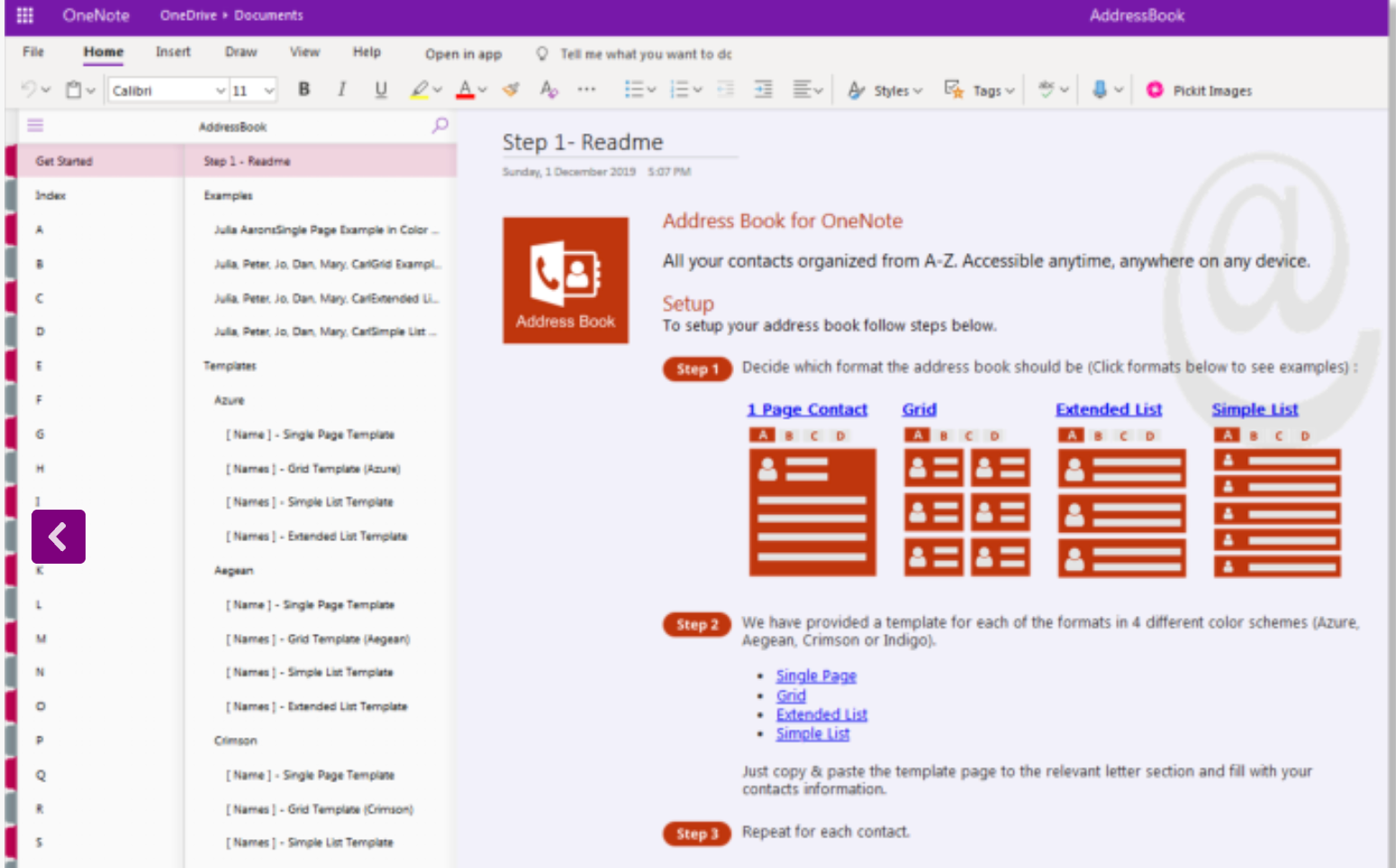
Image source: onenote.auscomp.com
Personal organizer for OneNote
myLIFE at a Glance is a comprehensive OneNote-powered template solution designed for efficient personal . This suite of organizational tools covers a wide array of personal information, including personal details, property management, vehicle records, IDs and licenses, assets, emergency contacts, passwords, heirlooms, medical history, goals, memberships, and pet information. These templates are user-friendly to install and come with lifetime support, ensuring a secure and centralized location for managing all your essential personal data. Delivered as OneNote notebooks via email, myLIFE at a Glance provides quick and convenient access to critical information, helping users maintain an organized and stress-free personal life.
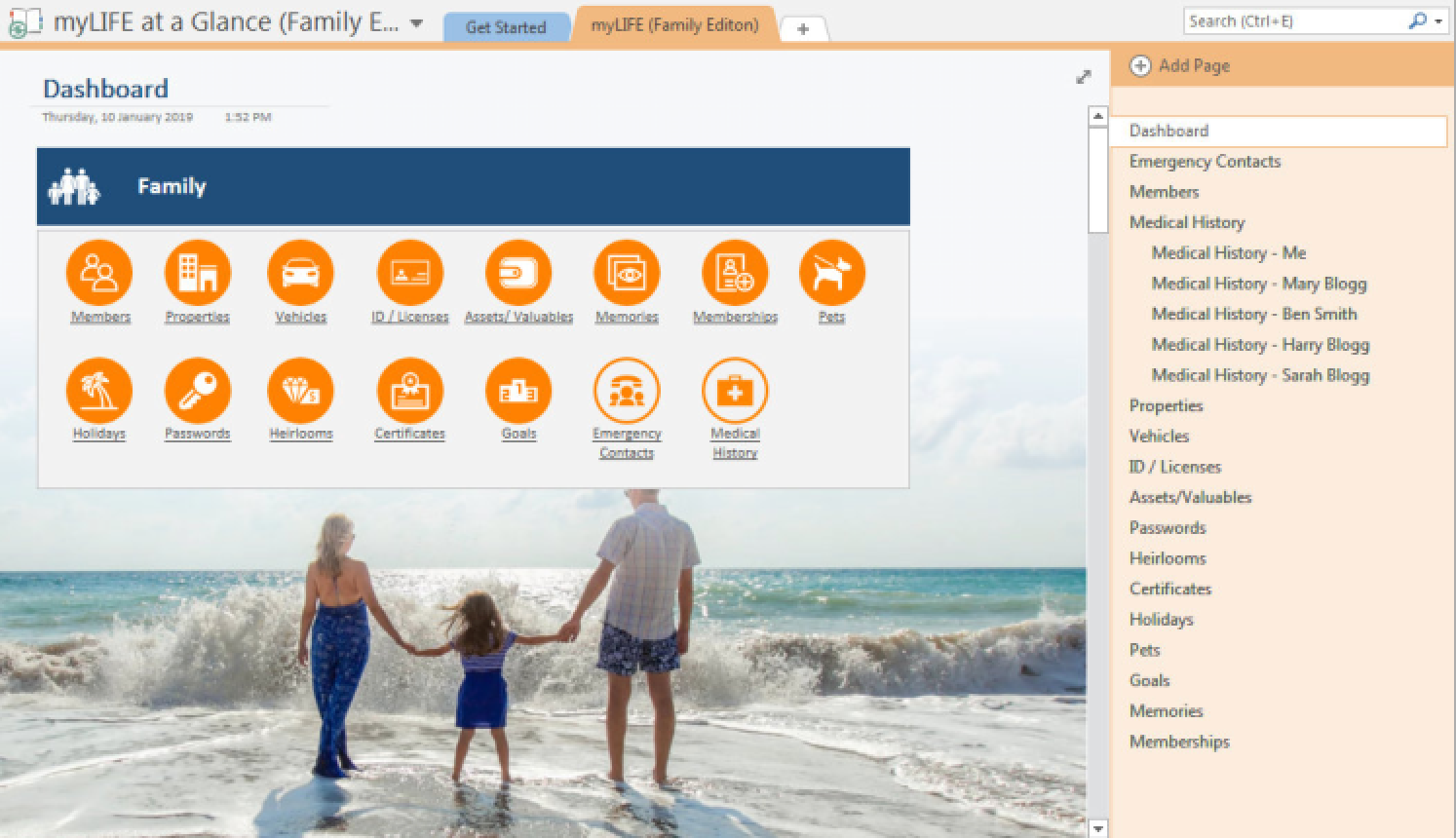
Image source: onenote.auscomp.com
Productivity maximizer for OneNote
The Productivity Maximizer for OneNote is a robust tool engineered to elevate efficiency and facilitate goal achievement. Version 4 introduces additional templates, such as the "Last Year Recap," alongside its core features. This maximizer employs the Start-Stop-Continue technique for evaluating productivity, incorporates an Eisenhower Matrix for effective prioritization, and offers various goal planners for long-term, short-term, and financial objectives. A dedicated brainstorm worksheet further supports idea generation and planning. The product includes comprehensive support. All templates are provided in OneNote format and delivered via email, with licenses ensuring usability across multiple devices, empowering users to optimize their workflow and achieve their aspirations.
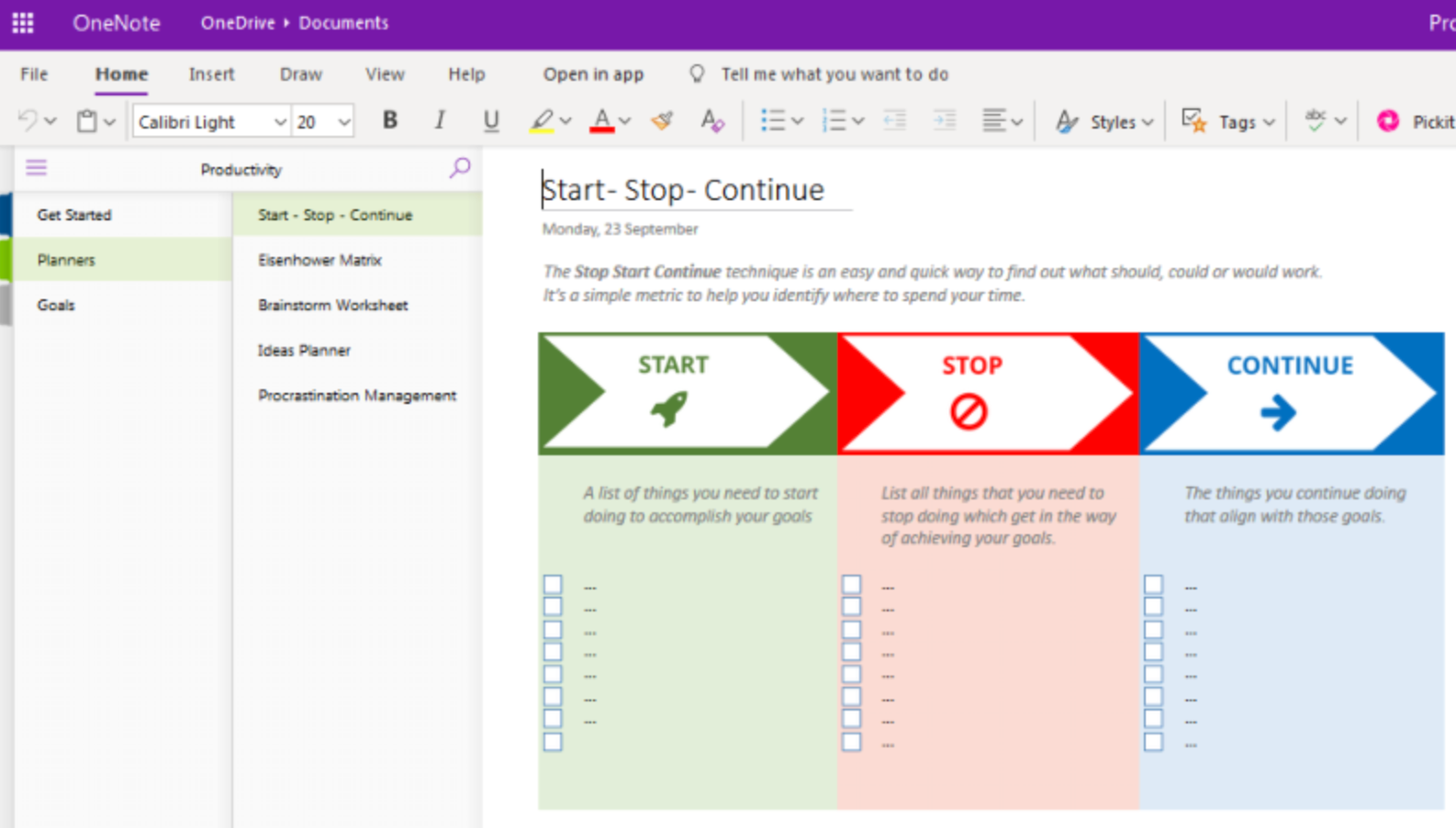
Image source: onenote.auscomp.com
Get Things Done (GTD) with OneNote
The "Get Things Done" (GTD) system leverages OneNote to provide a structured approach to productivity and . It offers specialized templates for overseeing ongoing tasks and provides invaluable guidance for conducting effective weekly reviews. Users can categorize and organize tasks related to various aspects of their lives, including finance, health, work, sports, and family, fostering a stress-free and organized workflow. Key components encompass a detailed step-by-step installation guide, templates for tracking weekly goals, and an integrated Cornell for enhanced information capture. The emphasis on weekly reviews helps users clean up pending tasks, reflect on accomplishments, and strategically adjust plans to continuously improve productivity. The OneNote format ensures a customizable user experience and seamless task management, which can be easily linked to specific projects.
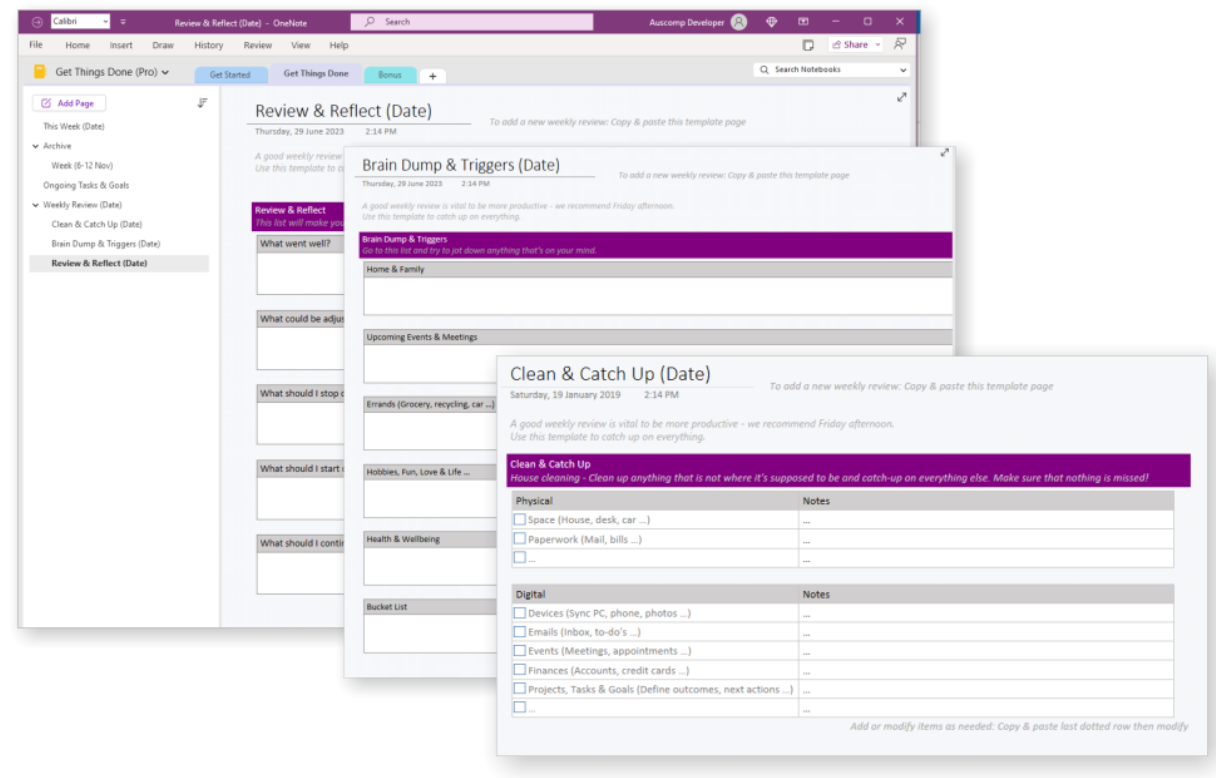
Image source: onenote.auscomp.com
Kanban board for OneNote
The Kanban Board for OneNote is a dynamic productivity tool designed to enhance visualization and management of . It facilitates the organization of tasks into distinct swimlanes, categorized by project or other criteria, and allows for linking these tasks to relevant project pages within OneNote. The PRO version extends these capabilities with advanced features, including visually appealing visualizations, a comprehensive library of symbols and images, customizable task cards, and the ability to track progress through sub-tasks. Users can quickly install the tool upon email delivery and access a variety of templates tailored for different workflows, such as project management, personal organization, human resources, and . This product aims to significantly improve productivity and task completion by offering a clear, visual strategy for organizing and prioritizing work.
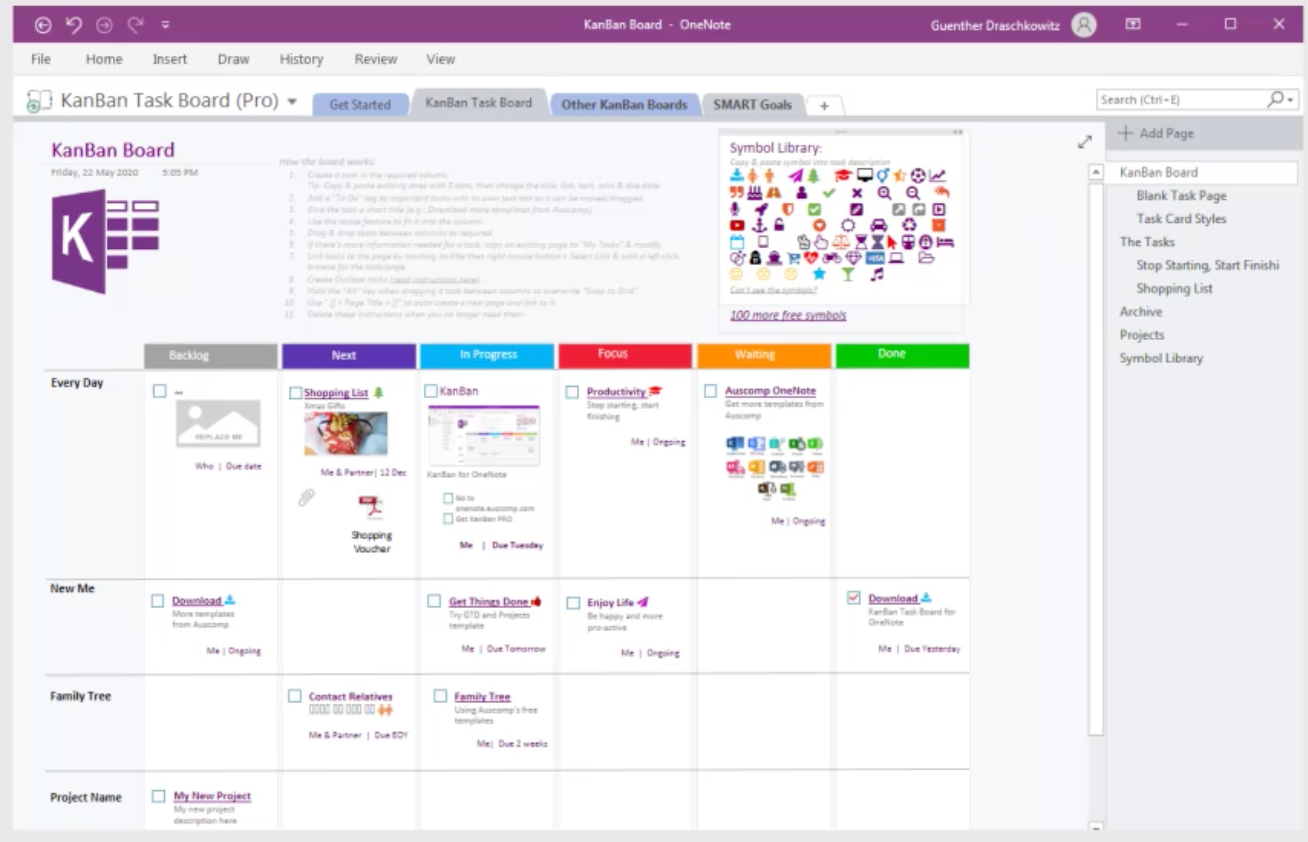
Image source: onenote.auscomp.com
How to use your own OneNote for project management
Learning how to use OneNote effectively for project management isn't only about structure, but also about refining habits and taking advantage of the app's built-in intelligence. Once your notebooks are organized and your task lists are in place, improving efficiency comes down to working smarter inside each workspace. The following practices help you and avoid duplication of effort.
Use tags and search smartly
Tags are one of the most underused yet powerful features in OneNote. They help project managers categorize information quickly and find it again when it matters most.
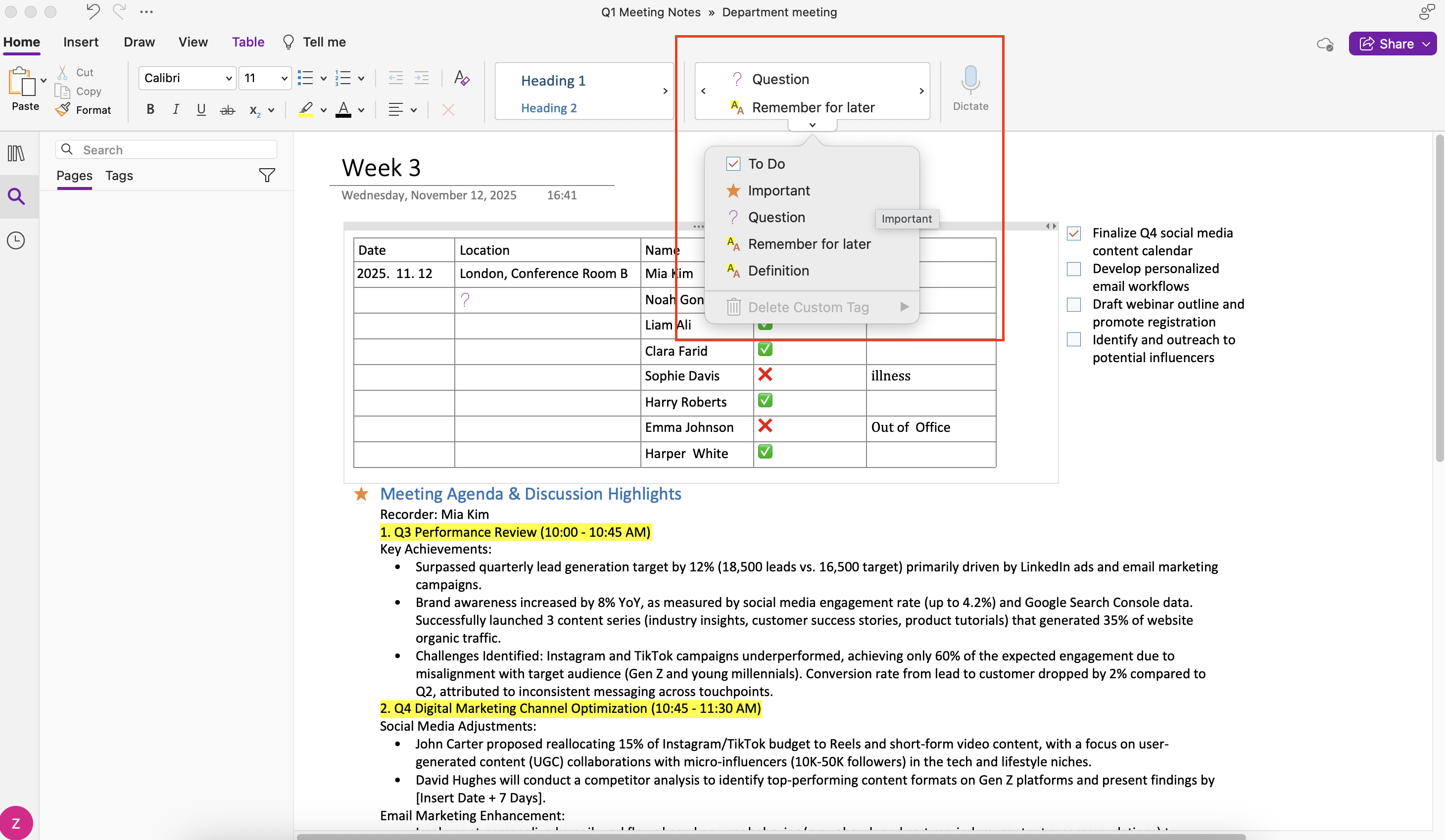
Image source: Screenshots of OneNote
To make tagging work for real project workflows:
- Create your own tagging system for priorities, risks, or pending tasks. For instance, use tags like "To-do," "Important," "Follow Up," "In Review," or "Budget."
- Regularly perform a tag summary search to collect all tagged items across notebooks in one view. This gives a ready-made action list.
- Encourage your team to use the same label structure so that project-wide searches provide consistent results.
In my experience, tagging can turn a cluttered notebook into , a core skill when exploring how to best use OneNote for project management at scale.
Combine handwritten notes and digital artifacts
OneNote's flexibility stands out when project discussions shift between whiteboards, sketches, and digital resources. Project managers who know how to use Microsoft OneNote for project management often mix quick handwritten inputs with files and references.
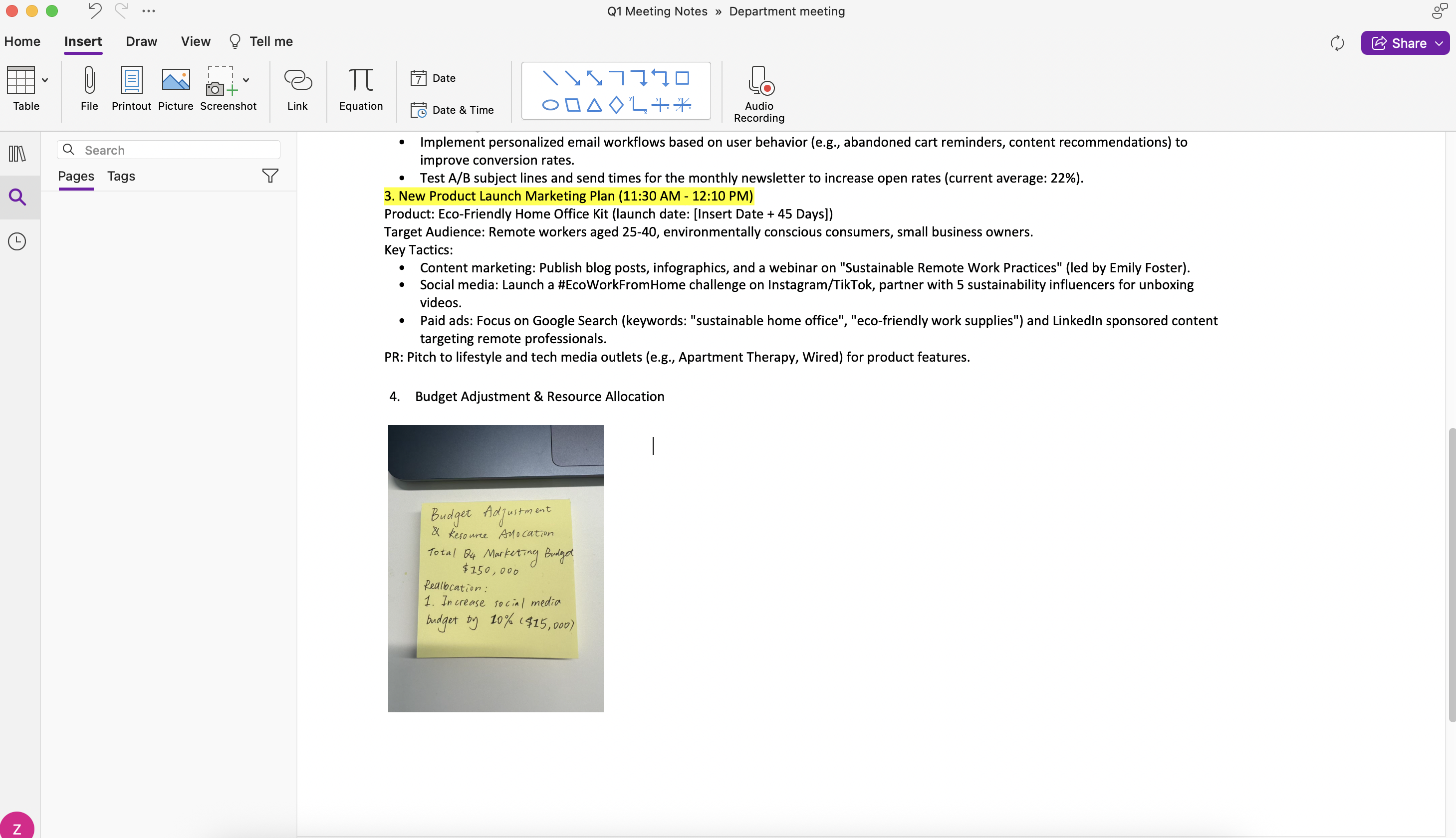
Image source: Screenshots of OneNote
For better performance:
- Use a tablet or stylus during planning sessions to draw workflows or brainstorm diagrams directly into project pages.
- Capture snapshots of whiteboards or sticky notes and embed them with related written notes.
- Link these visuals to related deliverables or meeting notes for easy revisiting later.
This hybrid approach preserves creative thinking while keeping everything searchable and centralized — something that simple shared documents or basic task boards often can't replicate.
Create templates for consistency
One of the reasons project notebooks lose momentum is inconsistency — every meeting looks different, and every plan follows a different structure. Templates fix that. Creating reusable templates is key if you want to know how to use OneNote effectively for project management over time.
Try these approaches:
- Design a "Project Kickoff Template" with sections for objectives, , milestones, and risks.
- Build a "Meeting Notes Template" that includes agenda, decisions, and next steps.
- Store all templates in a shared "Resources" notebook so your team can duplicate and adapt them easily.
Over time, these templates standardize how projects are documented without constraining creativity. They also shorten setup time for new initiatives — a significant boost for managers juggling multiple projects simultaneously.
When you incorporate tagging, multimedia notes, and reusable templates into your daily workflow, OneNote feels less like a static archive and more like a living project dashboard. It's a step closer to the agility and connectedness we often associate with such as Lark — but it remains within the trusted Microsoft environment that many teams rely on.
Limitations of OneNote for project tracking
While a OneNote project tracker template is powerful for structure and documentation, teams often outgrow it when they need automation, real-time collaboration, and advanced reporting. Recognizing these limitations helps you make informed decisions about your tool stack.
- No native Kanban boards: You can create tables that mimic task boards, but there's no drag-and-drop interface for moving tasks through workflow stages
- Limited reporting: Status dashboards must be created and updated manually—there's no automatic roll-up of task completion or budget variance
- Manual status updates: Without automation, someone must remember to update task statuses, risk assessments, and budget actuals
- Fragmented experience: Teams often juggle OneNote for notes, Outlook for calendar, Teams for chat, and Planner for tasks—context-switching reduces productivity
- Collaboration constraints: While notebooks can be shared, real-time co-editing is less smooth than in cloud-native document tools
Overcome those limitations with Lark
Meet Lark: The smarter way to organize work and projects
If you've reached the point where OneNote feels stretched, you're not alone. Many project professionals who start by mastering how to use Microsoft OneNote for project management eventually seek tools that eliminate manual work and centralize operations. The ideal solution builds on what OneNote does right — flexibility and organization — and adds structured data, automation, and . Let's explore how modern integrated workspaces address these pain points and create smoother project experiences.
Turning notes into data-driven project workflows
The challenge: OneNote is great for capturing ideas but not for transforming them into actionable data. Milestones, tasks, and owners exist as notes, not as trackable entities.
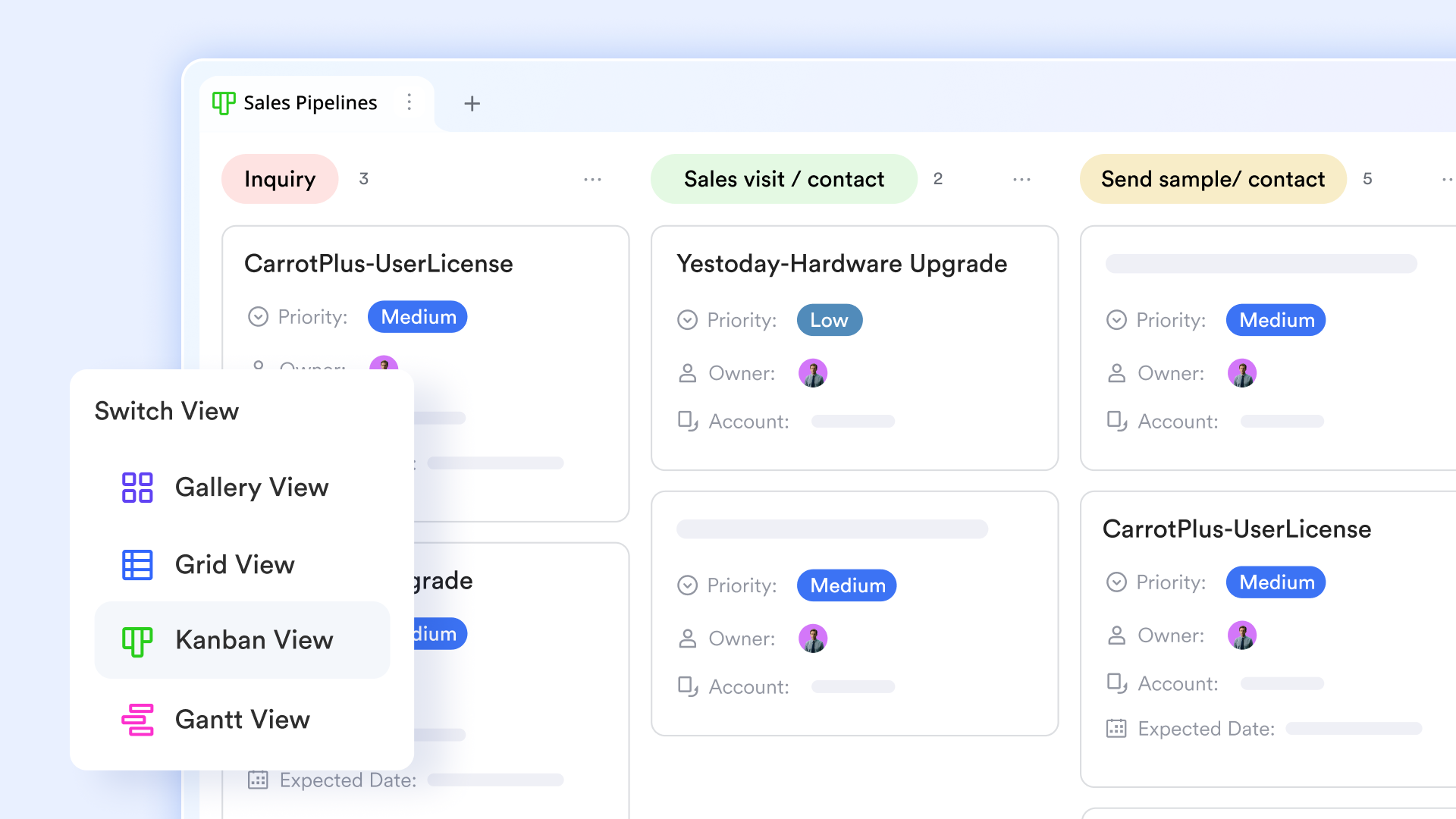
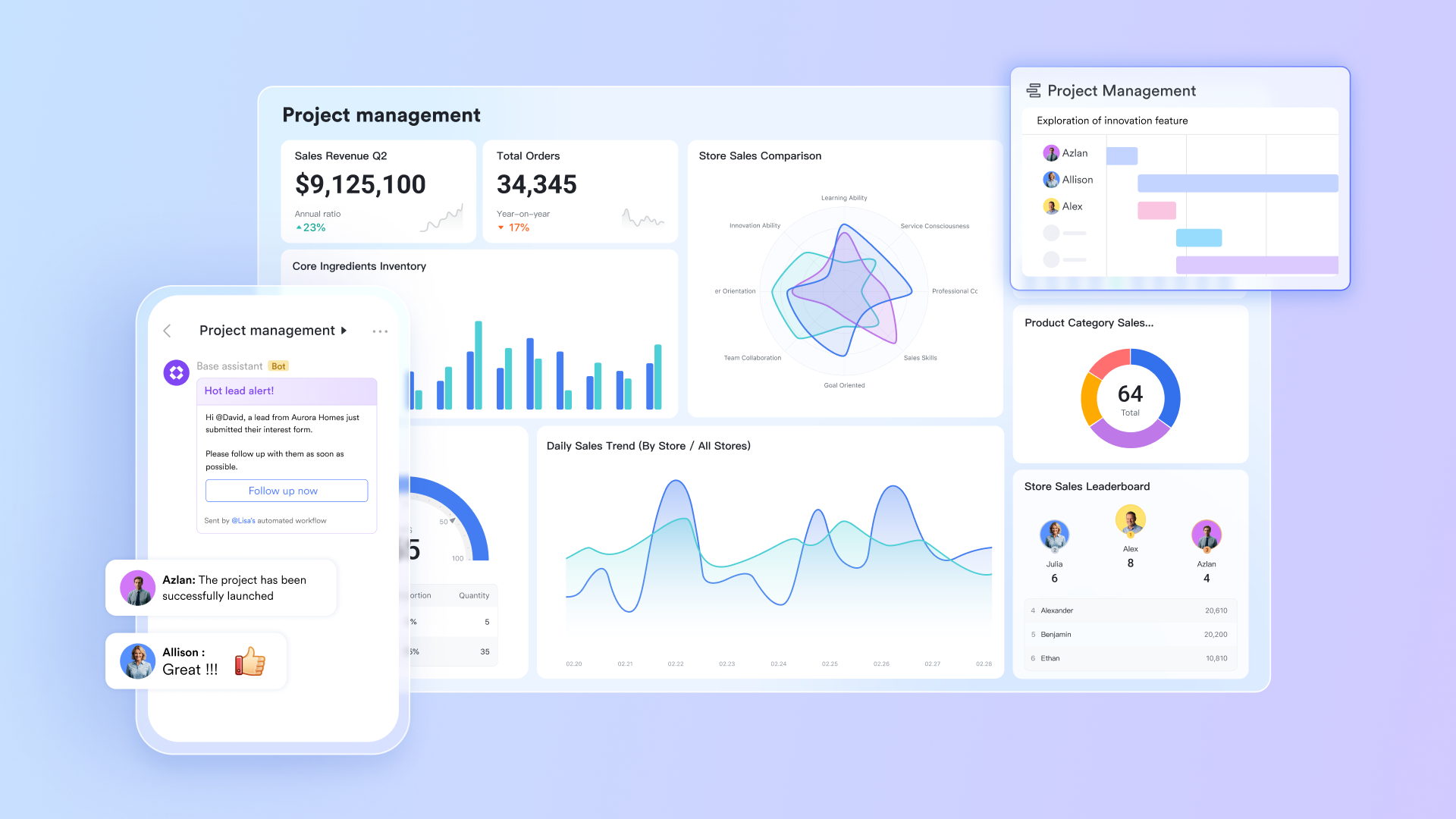
Lark's solution: bridges the gap between free-form notes and . It lets teams take ideas captured in documents or discussions and instantly turn them into dynamic, trackable records. Each piece of information — from milestones and task owners to progress updates — becomes a connected data field that can be filtered, sorted, or visualized in real time. Instead of static lists, you get a living workspace where documentation and execution happen side by side, ensuring that every note naturally evolves into measurable project progress.
- Updates sync instantly across participants, reducing delays from manual reporting.
- Using Lark Base's with pre-set, customizable triggers to manage teams and projects effortlessly and efficiently.
This balance of freedom and structure supports teams that have outgrown pure note-taking systems without moving to rigid enterprise software.
Bringing communication, meetings, and tasks together
The challenge: OneNote users often rely on email, Teams, or other chat tools to discuss tasks, which fragment context across platforms.
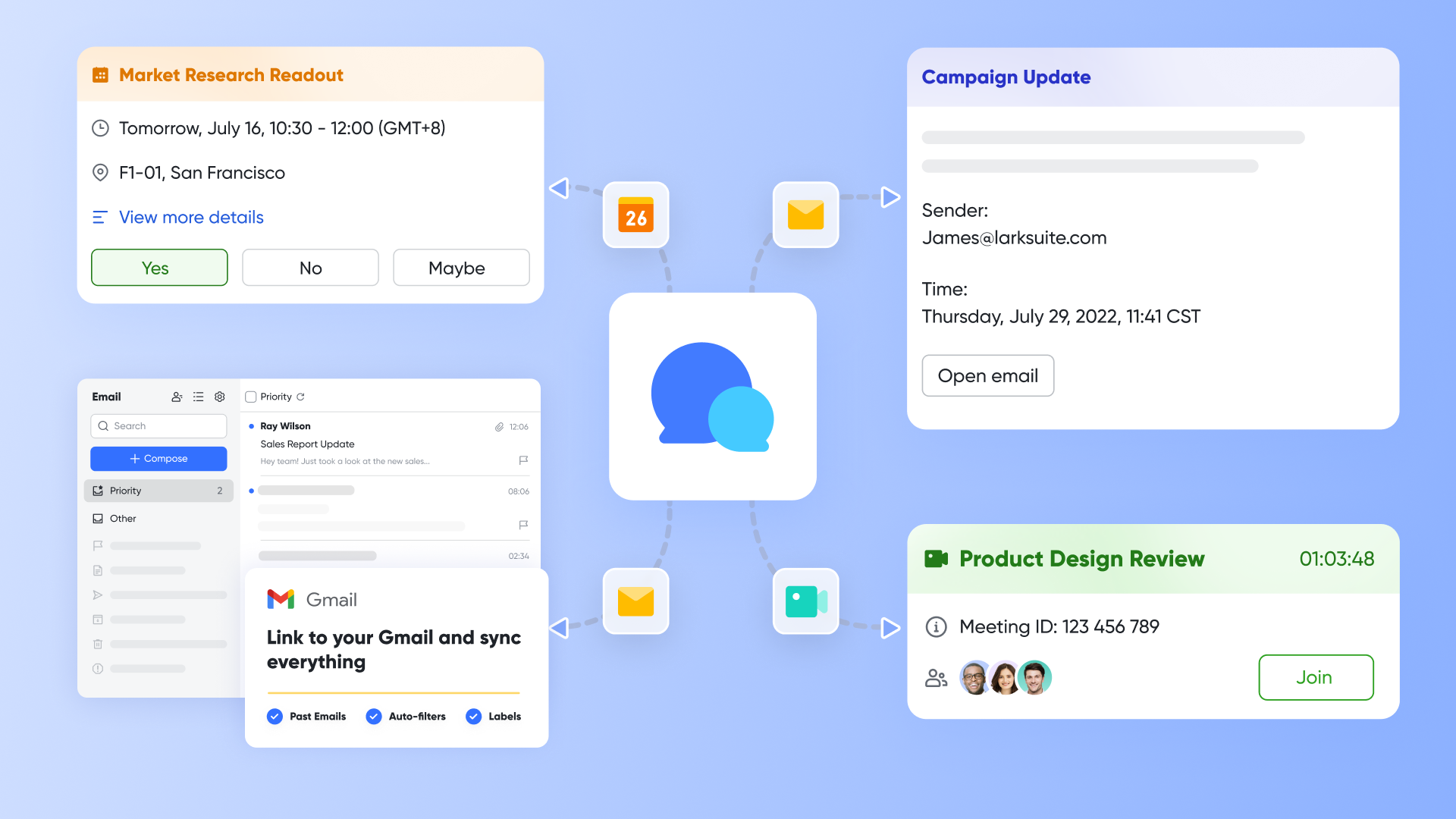
Lark's solution: brings chat, meetings, and task management together in one seamless communication hub. Conversations aren't isolated threads — they're directly connected to actionable work. Within a chat or a thread, you can create and assign tasks, schedule meetings, share documents, or jump into a video call without switching apps. All updates stay synchronized across chats, calendars, and project spaces. This deep integration transforms everyday discussions into coordinated action, keeping teams aligned, responsive, and productive no matter where they work. - Virtual meetings and follow-ups live side by side with the notes they produce.
- Status reports update themselves when team members mark tasks as complete.
While OneNote requires switching between multiple Microsoft apps, this kind of unified environment offers a single continuous working cycle from discussion to delivery.
Visualizing progress and alignment effortlessly
The challenge: In OneNote, measuring performance or connecting outcomes to strategic goals is difficult. There's no built-in mechanism for dashboards or OKRs.
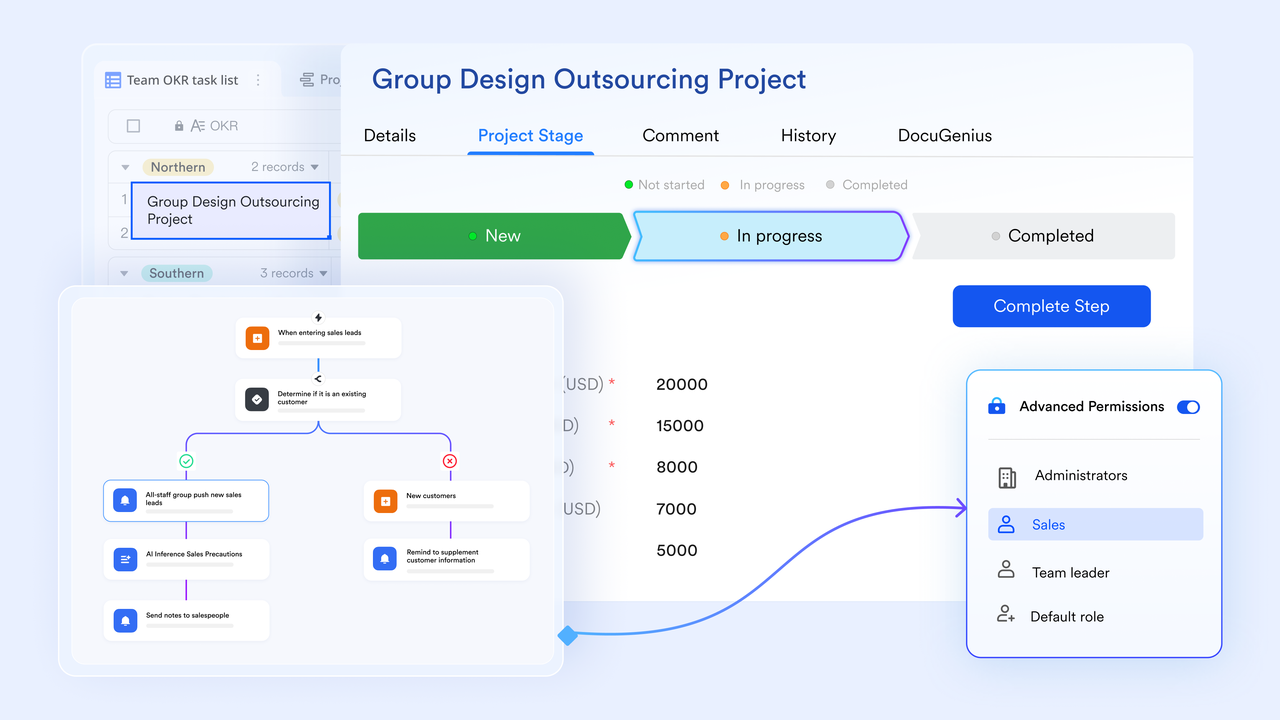
Lark's solution: Lark Base and work together to close OneNote's gap in performance tracking and goal alignment. With Lark Base, teams can organize project data — such as tasks, owners, and progress updates — in customizable tables that automatically feed into visual dashboards. This allows everyone to monitor real-time progress and dependencies without leaving the workspace. In parallel, Lark OKR helps teams define, align, and track objectives and key results within the same platform. - In Lark Base, you can create and track project milestones using the Gantt view, which allows you to visualize progress and update tasks. Managers gain instant visibility over progress at every level.
- For OKRs, you can monitor completion progress and send reminders via the dashboard in Lark OKR.
- Dashboards in Lark Base can display key milestones and project progress, helping teams focus on objectives.
Building a connected knowledge hub
The challenge: OneNote organizes notes well, but it struggles to evolve into a true knowledge hub where information stays connected, searchable, and collaboratively updated. As projects expand, knowledge often becomes fragmented across notebooks, making it hard for teams to maintain a single source of truth. 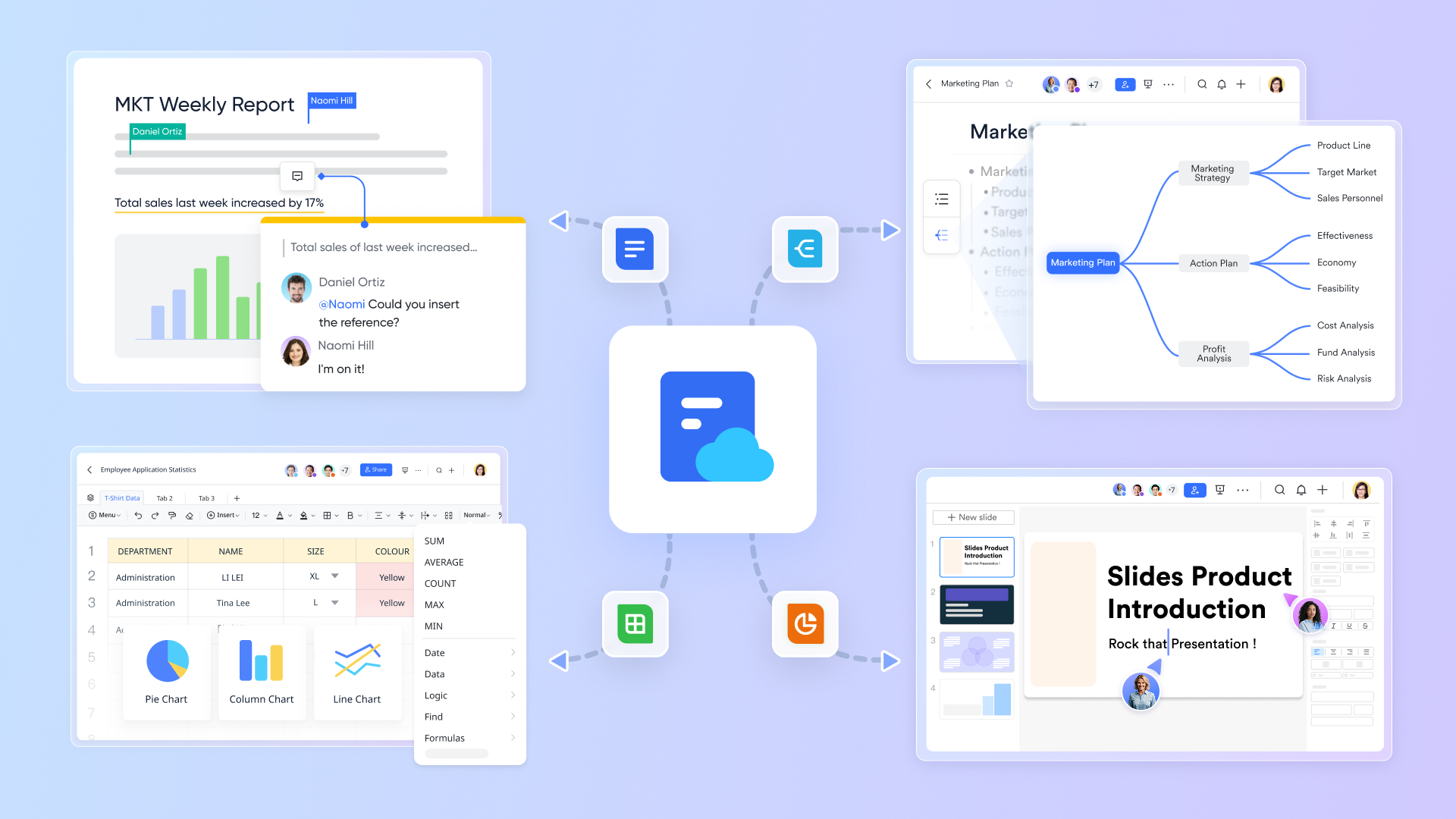
Lark's solution: & provide a powerful, collaborative environment that matches — and in some cases surpasses — OneNote's knowledge-sharing capabilities. With Lark Docs, teams can co-edit in real time, comment inline, and embed rich content such as tables, videos, or Lark Base data — ensuring that every plan or guideline stays dynamic and context-rich. The built-in Wiki feature allows teams to structure and publish internal documentation into an easily navigable, searchable space, creating a single source of truth for policies, processes, and best practices.
- Create and manage different types of files in Lark Docs, including decks (Slides), Docs, Sheets, Forms, Boards, MindNotes, all stored in Lark Wiki.
- Docs link seamlessly to tasks, OKRs, and Lark Base records, ensuring knowledge connects with execution.
- Permission control and version history safeguard transparency and accountability as content grows.
This tight integration between documentation, communication, and project data transforms Lark Docs & Wiki from a simple note storage space into a true collaborative knowledge ecosystem, helping teams capture ideas, collaborate smoothly, and build institutional memory — all within the same platform.
:
- Starter plan: Free forever plan that includes 11 powerful tools for up to 20 users. It also comes with 100GB of storage, 1000 automation runs, AI translations, and more.
- Basic plan: $6/user/month (billed annually) for up to 500 users, including everything in Starter plus 1-on-1 video meetings, 5TB of storage, 1,000 automation runs, and more. To know more about Basic plan, .
- Pro plan: $12/user/month (billed annually) for up to 500 users. It includes everything in Starter plus group calling for up to 500 attendees, 15TB of storage, 50,000 automation runs, and more.
- Enterprise plan: for custom pricing. Supports unlimited users and includes even more automation runs and advanced security, compliance, and management features.
For small teams with simple communication needs

18 months message history
1000 Base automation runs/month
2000 rows per table in Base
Most POPULAR
For companies with comprehensive collaboration and management needs
Unlimited message history
500-participant video meetings
50k Base automation runs/month
20k rows per table in Base
For large companies with advanced security and organizational management needs
Get a personalized demo and pricing
Unlimited message history
500-participant video meetings
15 TB storage + 30 GB storage/user
500k Base automation runs/month
50k Base automation runs/month
Most POPULAR
For companies with comprehensive collaboration and management needs
Unlimited message history
500-participant video meetings
50k Base automation runs/month
20k rows per table in Base
Best practices for maintaining your OneNote project tracker over time
Templates only deliver value if they're kept current and consistently used. These maintenance habits ensure your OneNote project tracker remains useful throughout the project lifecycle.
- Define ownership: Assign a project "notebook owner" responsible for structure, cleanup, and access control. Even when everyone contributes content, one person should ensure the notebook stays organized, outdated information gets archived, and new team members receive orientation.
- Weekly review ritual: Set aside 30 minutes weekly where the team checks the OneNote task tracker template, , and meeting decisions to ensure accuracy. Update task statuses, close resolved risks, and flag items needing escalation. This ritual prevents the tracker from becoming a graveyard of stale information.
- Archive completed work: Move completed tasks and closed risks to a separate "Archive – 2026" section. This keeps active pages lean and reduces clutter, making it faster to find current information. Archived content remains searchable for historical reference.
- Versioning and change history: Create a "Change log" page to record major changes to scope, timeline, or budget. Include date, description of change, impact assessment, and approval notes. When ask why something changed months later, this page provides the answer.
- Cross-linking pages: Use internal links liberally. The project overview should link to task trackers, risk logs, and key meeting notes. Meeting notes should link to related tasks created from action items. This interconnected structure helps new contributors navigate from high-level to granular information quickly.
- Security and access: Align notebook access with project confidentiality needs. Not everyone in your organization needs access to every project tracker. For sensitive initiatives, restrict sharing appropriately. At project closure, consider backing up or exporting critical notebooks for long-term retention.
Conclusion
OneNote can be turned into a capable project hub with the right mix of overview, task tracker, meeting minutes, risk log, and budget templates. A reusable OneNote project tracking template library saves time across multiple initiatives while ensuring consistency and improving team onboarding.
The templates outlined in this guide give you a starting point—adapt them to your workflow, test them on real projects, and refine based on experience. Create a master "Project templates – 2026" notebook today, populate it with the core templates described here, and pilot it on your next initiative.
For teams feeling constrained by OneNote alone—missing automation, struggling with tool sprawl, or needing better real-time collaboration—try to centralize chat, meetings, docs, and automated workflows. You can keep OneNote as an optional note capture tool while running execution in a more integrated environment.
Move beyond personal note-taking and organize as a project
FAQs
Is Microsoft discontinuing OneNote?
Microsoft is not discontinuing OneNote entirely. The company retired support for the "OneNote for Windows 10" app in October 2025, consolidating around the unified modern OneNote app within Microsoft 365. This means development continues on the main OneNote application, with ongoing feature updates, cloud sync improvements, and integration with other Microsoft 365 tools. Users should migrate to the current OneNote app to ensure full functionality and support.
What program is replacing OneNote?
Microsoft is not fully replacing OneNote with another program. Instead, it has consolidated different Windows versions into a single unified app. Some users choose alternative tools depending on their needs—platforms like Lark Suite offer integrated collaboration, task management, and automation alongside document capabilities. The choice depends on whether you need simple note-taking or a comprehensive workspace combining communication, documents, and project execution.
Can Microsoft OneNote be used for project management?
OneNote can be used for lightweight project management by organizing notebooks into project hubs, using templates for tasks, meetings, and risks, and integrating with Outlook for calendar and task sync. It works well for documentation-heavy projects where capturing decisions, meeting notes, and reference materials matters. However, it lacks advanced project management features like native Gantt charts, automated workflows, resource management, and portfolio dashboards.
Where can I find OneNote templates?
Built-in templates are accessible via Insert > Page Templates in OneNote, offering categories like Business, Planning, and Meeting Notes. Downloadable template packs are available from sites like NotesTemp, Auscomp, and OrganisedNotes—many found through search results for OneNote project tracker template queries. Community-shared layouts appear on blogs and forums where users share their custom designs. Remember to adapt any template to your own process and consider complementary tools like Lark for areas where OneNote templates fall short.
Related reading