Everyone wants to be more efficient, but work keeps getting more complex, and the distractions never seem to end. There are more productivity tools than ever in app stores, but reviews contradict each other, and most tools promise more than they deliver.
To help you find your zen and build your perfect workflow, we've evaluated 70+ leading tools from the app store. We shortlisted the top 21 for 2026 across every major category, including project management, automation, and visual collaboration, to help you find what works best for you.
What are productivity tools?
Productivity tools are software applications that help people plan, organize, communicate, , and complete work more efficiently. They can be simple personal task managers, team project management platforms, time tracking apps, note-taking tools, or all-in-one collaboration suites.
Common examples of productivity tools include:
- Task and project management tools for planning work and tracking progress
- Communication tools for team chat, video meetings, and announcements
- Note-taking and knowledge management tools for capturing ideas and decisions
- Calendar and scheduling tools for managing time
- AI productivity tools for summarizing content, drafting text, translating messages, and automating repetitive work
- Automation tools that connect apps and reduce manual handoffs
For modern teams, the best tools are not just apps that help individuals work faster. They also reduce context switching, keep information searchable, and make collaboration easier across departments, time zones, and devices.
Image source: unsplash.com
Review of the top 21 productivity tools for different use cases
Here is a table you can use to compare all the tools covered in this guide in the overviews.
Comprehensive collaboration suites
1. Lark: An all-in-one productivity tool for connected work
is an all-in-one productivity platform built for teams that want to reduce app switching and manage more work in one connected workspace. Instead of separating , , , , , , and automation across different tools, Lark brings them together so teams can move from discussion to execution without losing context.
This makes Lark especially useful for fast-growing teams, distributed companies, operations-heavy businesses, and managers looking for the best team productivity tools that support both daily collaboration and structured workflows.
Key features:
- A flexible no-code database for building , dashboards, Kanban boards, and automation.
- Real-time document collaboration where teams can co-edit documents, insert multimedia, and tag colleagues.
- Advanced chat features that keep conversations tied to work, allowing you to pin documents, assign tasks directly from messages, and edit files inside the chat window.
- Video meetings that allow participants to edit documents together directly inside the meeting window, turning passive viewing into active collaboration.
- All-in-one design that connects scheduling, email, task tracking, knowledge management, and more.
- A mobile experience that mirrors desktop power, allowing you to approve requests, edit documents, and manage projects fully from anywhere.
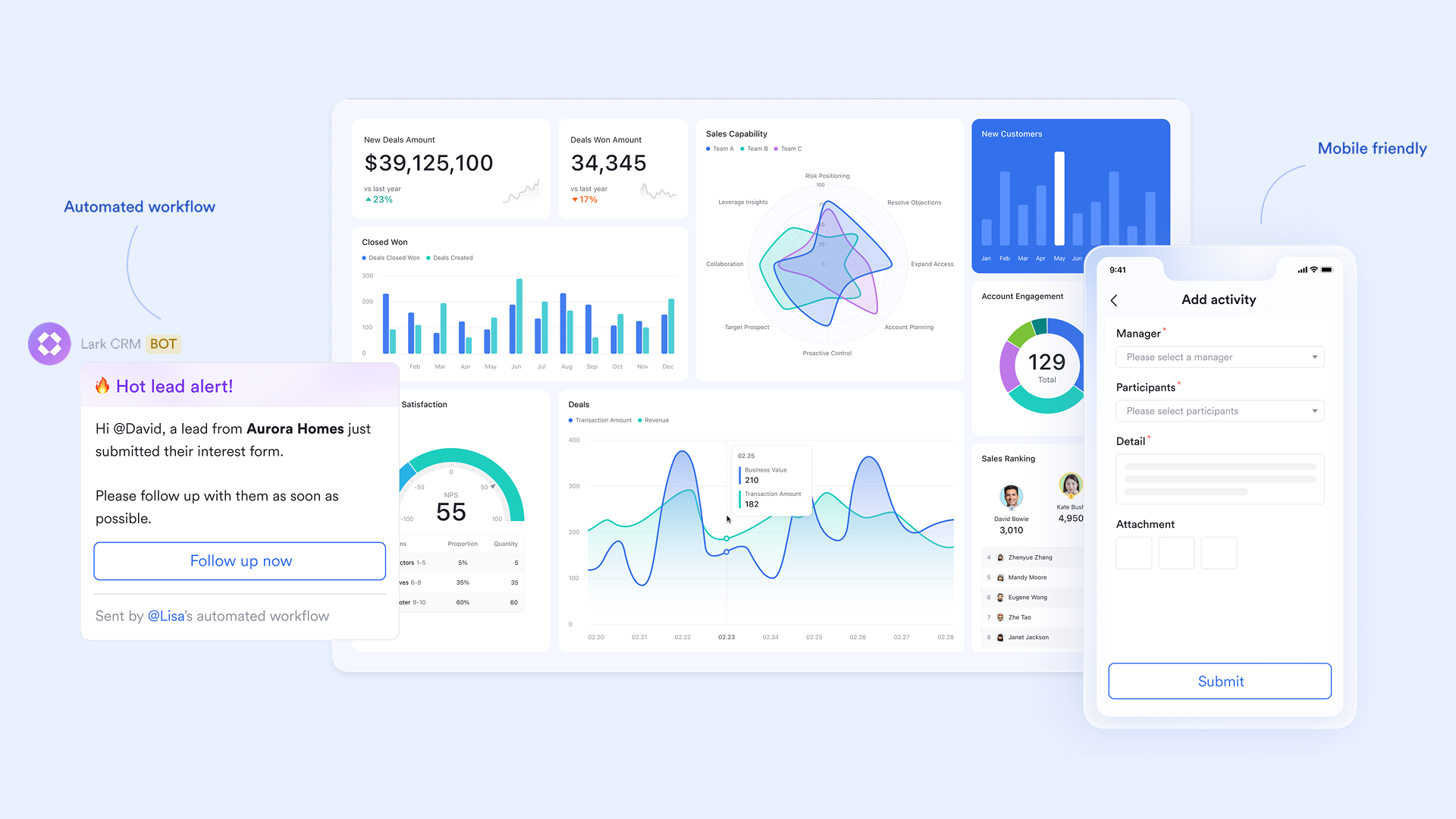
What we found useful:
We found working on a unified platform to be a massive productivity booster. Because Messenger, Docs, Mail, and Meetings work seamlessly within the app, we stopped wasting time searching for links or switching between tabs.
The "Magic Share" feature during video calls was also a standout for us. We could scroll through a document and make edits together inside the video window, which made brainstorming and discussions a lot more interactive.
We were also impressed by the power of Lark Base for managing our internal workflows. We built custom project trackers that automatically notify the right team members in chat when a status changed. There was no need for constant "status update" emails anymore, and our projects could move forward automatically.
What we didn't like:
Lark combines so many collaboration features in one workspace that it takes some time to try them out. The initial switch from using spreadsheets to Lark Base also took some getting used to, but the made it painless.
Best for: Teams that want to bring messaging, documents, and workflow together in one place. Here's what one team experienced after making the switch.

"Lark has given us a place for our team to feel like one community, before we were all fragmented and our teamwork was affected. With Lark, we are all in one place."

Donald Wono
CTO & Co-Founder
Pricing
- Starter plan: that includes 11 powerful tools for up to 20 users. It also comes with 100GB of storage space, 1000 automation runs, AI translations, and more. No credit card needed.
- Basic plan: (billed annually) for up to 500 users. It includes all the features in Starter and unlimited message history, 5TB of storage space, 1,000 automation runs, and more. Some users may need to to purchase this plan.
- Pro plan: (billed annually) for up to 500 users. It includes everything in Basic plus group calling for up to 500 attendees, 15TB of storage space, 50,000 automation runs, and more.
- Enterprise plan: for custom pricing. Supports unlimited users and includes even more automation runs and advanced security, compliance, and management features.
For small teams with simple communication needs

18 months message history
1000 Base automation runs/month
2000 rows per table in Base
Most POPULAR
For companies with comprehensive collaboration and management needs
Unlimited message history
500-participant video meetings
50k Base automation runs/month
20k rows per table in Base
For large companies with advanced security and organizational management needs
Get a personalized demo and pricing
Unlimited message history
500-participant video meetings
15 TB storage + 30 GB storage/user
500k Base automation runs/month
50k Base automation runs/month
Most POPULAR
For companies with comprehensive collaboration and management needs
Unlimited message history
500-participant video meetings
50k Base automation runs/month
20k rows per table in Base
2. Google Workspace: Familiar tools for document collaboration
Google Workspace offers a familiar suite of collaboration tools including Gmail, Docs, Sheets, and Drive. It allows teams to co-create documents, manage schedules, and communicate seamlessly. As one of the best productivity tools for professionals and educators, it supports real-time collaboration from anywhere. Its reliability and ease of use make it a staple for businesses of all sizes.
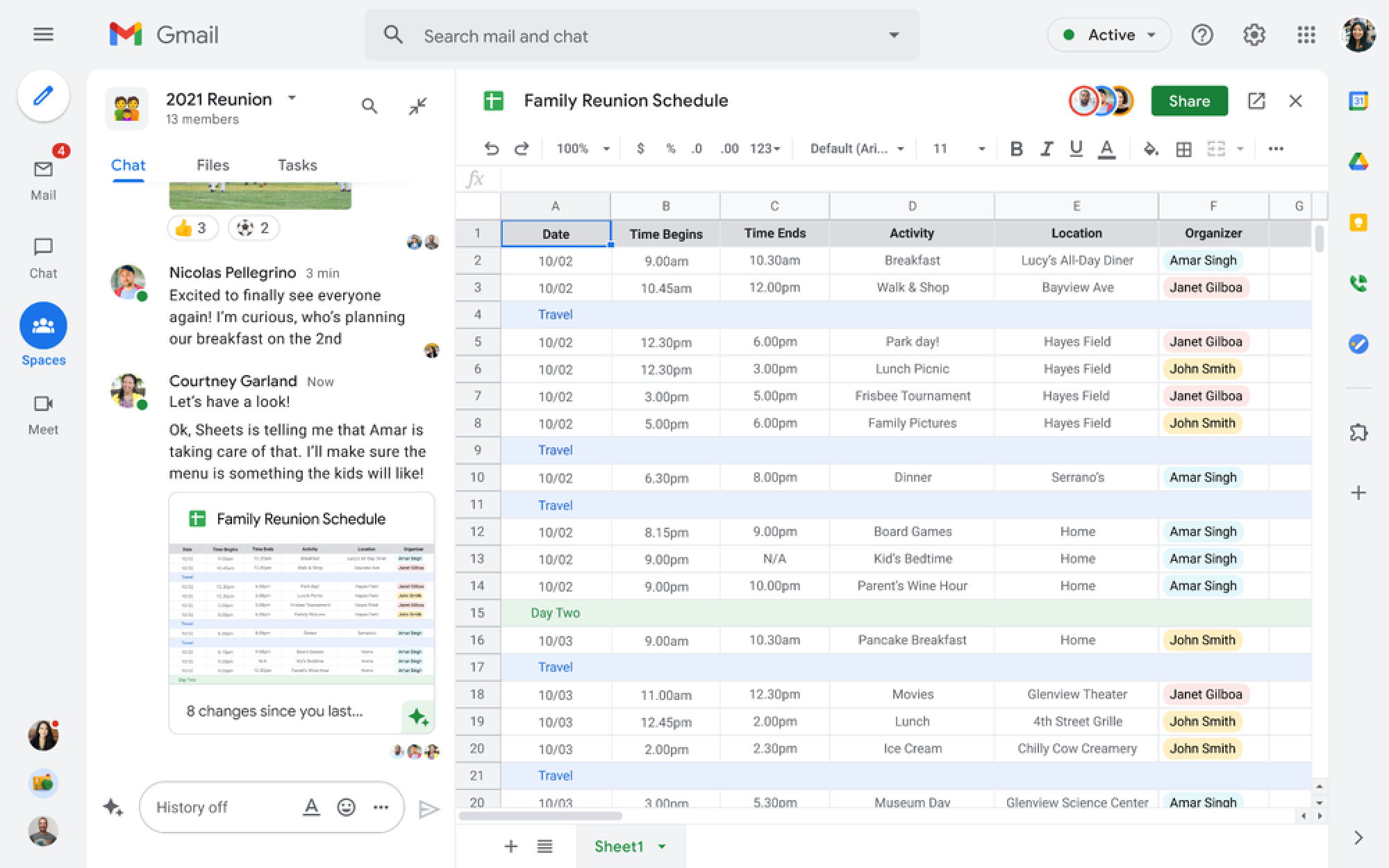
Image source: google.com
Key features:
- Secure custom business email (you@your-company.com) along with core apps like Docs, Sheets, Slides, Calendar and Drive.
- Video meetings, chat, and file sharing built in—plus AI features like the Gemini assistant for smarter workflows.
- Pooled cloud storage per user (ranging from 30 GB to 5 TB depending on plan) and administrative controls for data and device management.
- Shared drives, eSignatures, appointment booking, advanced security and compliance features on higher tiers.
What we found useful:
We found adoption to be incredibly fast because nearly everyone on our team was already familiar with the Gmail and Drive interface. The real-time collaboration in Docs and Sheets is still the gold standard, allowing us to co-edit files during meetings without any version control issues.
We also appreciated the new AI integrations in the sidebars. Being able to quickly summarize a long email thread or generate a template in Docs saved us meaningful time during our busy periods, keeping our workflow smooth.
What we didn't like:
We didn't like that the lower-tier plans cap storage at 30 GB per user. For our creative team dealing with high-res images and video files, we hit that limit much faster than expected, forcing an awkward conversation about upgrading.
Best for: Businesses relying on Gmail, Docs, and Drive for team productivity.
Pricing:
- Business Starter Plan: $7 per user/month (billed annually).
- Business Standard Plan: $14 per user/month (billed annually).
- Business Plus Plan: $22 per user/month (billed annually).
- Enterprise Plan: Custom pricing.
For more on Google Workspace pricing, see .
3. Microsoft 365: Enterprise productivity suite
Microsoft 365 is a comprehensive enterprise productivity suite that integrates Word, Excel, Teams, and SharePoint. It's ideal for organizations seeking secure communication, collaboration, and document management. Among the best productivity tools for corporate teams, it ensures consistent workflows across departments. With robust security and cloud integration, it supports global collaboration with ease.
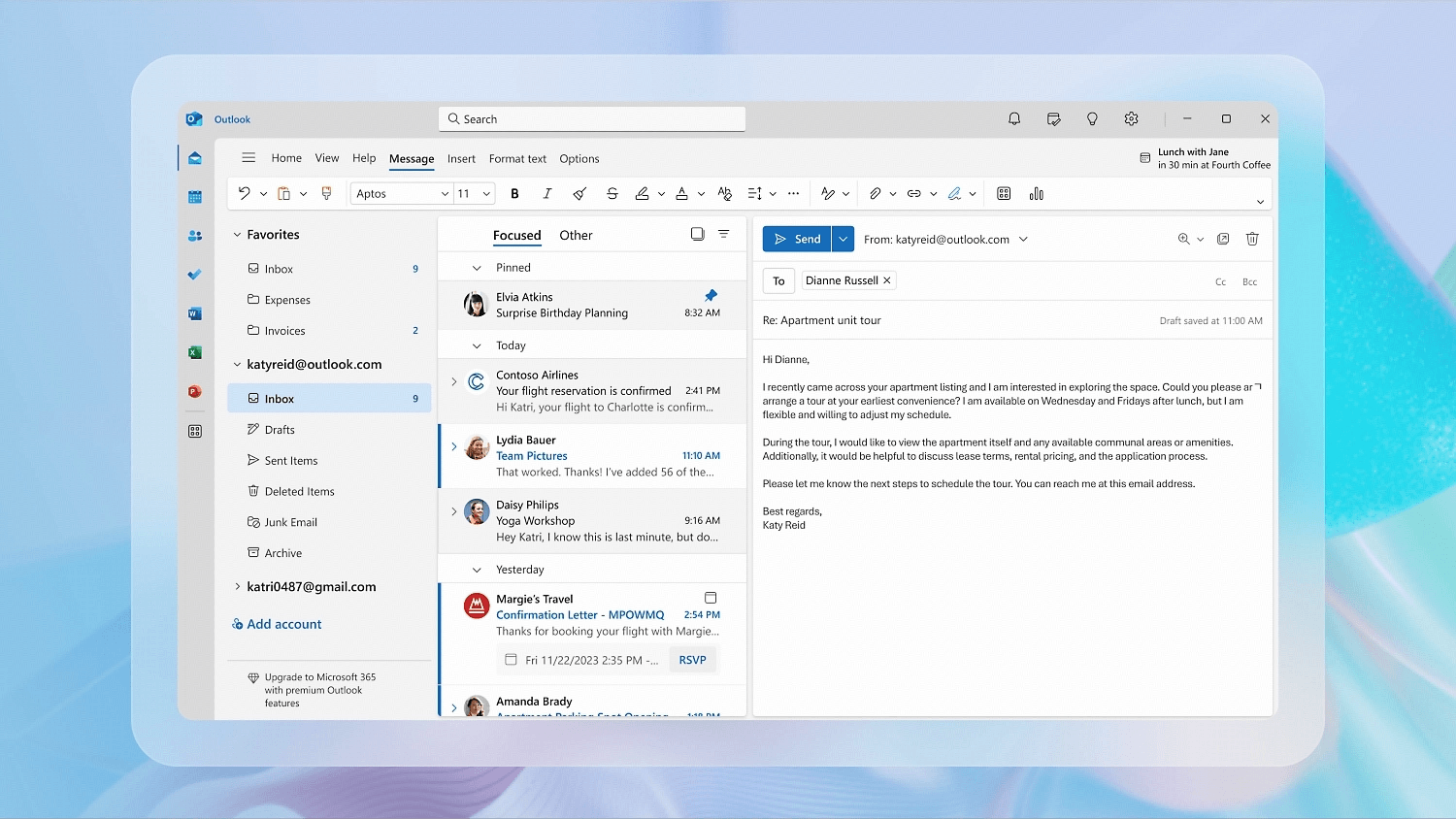
Image source: microsoft.com
Key features:
- Includes desktop and web versions of core apps like Word, Excel, PowerPoint, Outlook, Teams and OneDrive for real-time co-editing and sharing.
- Pooled cloud storage (typically 1 TB or more per user) alongside advanced collaboration via Teams, SharePoint, and OneDrive.
- Built-in security and device management tools (e.g., Microsoft Defender, Intune) especially in higher tiers for enterprise-grade protection.
- AI-enhanced functionality (via Copilot) in apps like Word, Excel and Outlook—enabling automation, insights, content generation and smarter workflows.
What we found useful:
We found the deep integration between desktop apps like Word and Excel and the cloud features of Teams to be incredibly robust. For our finance and legal departments, being able to work on complex, macro-heavy spreadsheets while co-authoring in real-time was indispensable.
The enterprise-grade security features gave us peace of mind immediately. Knowing that mobile device management and data protection were baked in meant we didn't have to scramble to find third-party security tools as we scaled.
What we didn't like:
We feel the cost escalates significantly if you need the advanced AI add-ons. The initial setup and license management can also be quite a headache for smaller teams without a dedicated IT department.
Best for: Organizations already using Microsoft Office tools.
Pricing:
- Business Basic Plan: $7 per user/month (billed annually).
- Business Standard Plan: $14 per user/month (billed annually).
- Business Premium Plan: $22 per user/month (billed annually).
- Enterprise: Custom pricing.
For more on Microsoft 365 pricing, see .
Simple project & task management
1. Asana: Clear task and project tracking
Asana simplifies project and task management by providing teams with a clear view of ownership, deadlines, and progress. It uses boards, lists, and timelines to keep everyone aligned from planning to execution. As one of the best team productivity tools, it promotes accountability and transparency across departments. Perfect for marketing, operations, and product teams, Asana helps prevent work from falling through the cracks.
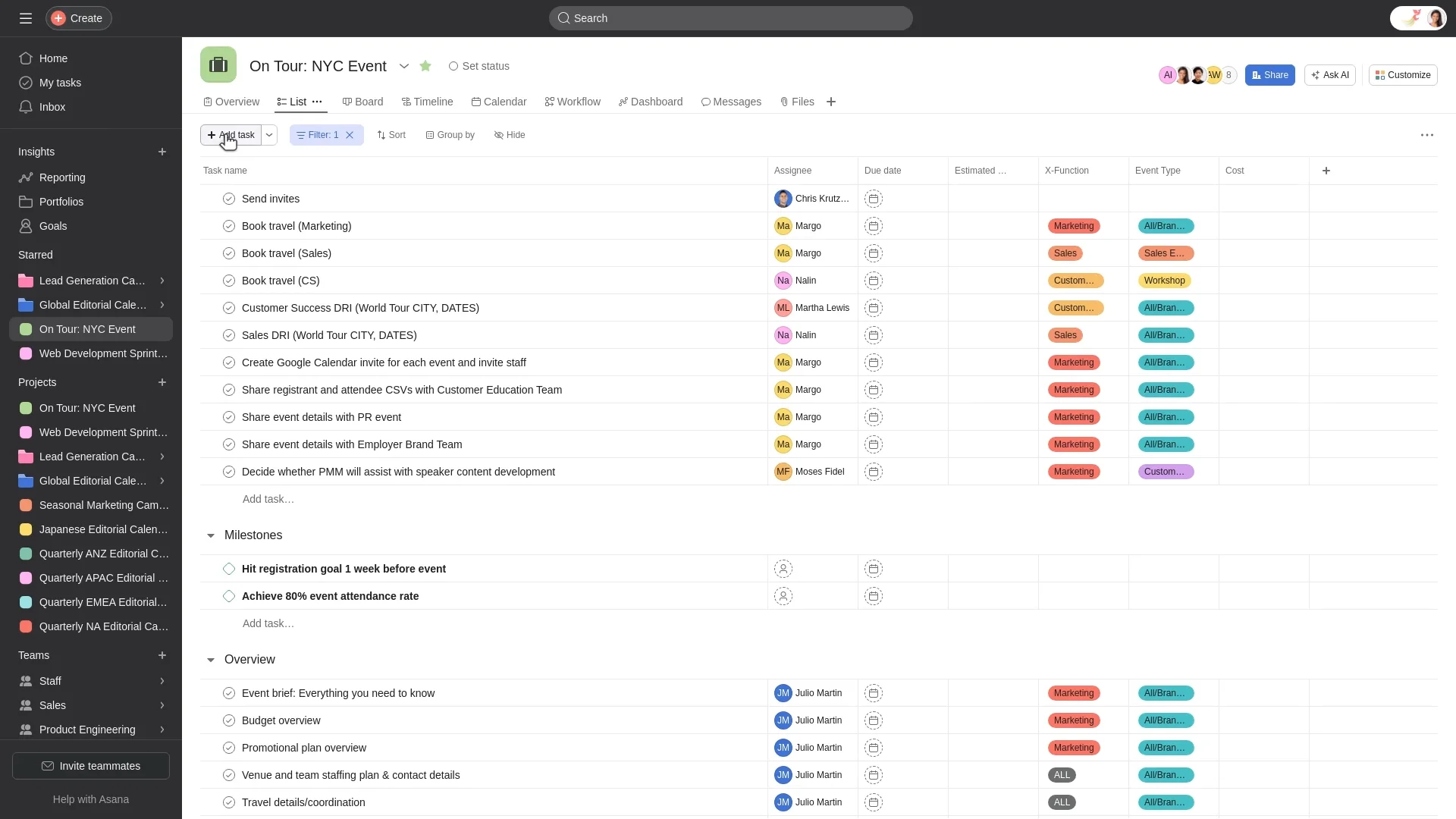
Image source: asana.com
Key features:
- Organizes work through lists, boards, timelines, and calendars for better visibility.
- Allows task assignment, due dates, and dependencies for clear accountability.
- Offers integrations with Slack, Google Workspace, Zoom, and other productivity tools.
- Includes automation features to simplify recurring workflows and updates.
What we found useful:
We appreciated how intuitive the interface is; visualizing our project timeline and setting dependencies felt natural immediately. It gave us a clear picture of who was blocking whom, which helped us solve bottlenecks before they became real problems.
The detailed reporting features were also a huge help for our managers. We could easily pull up charts showing task completion rates and team bandwidth, which made status meetings much more data-driven and efficient.
What we didn't like:
We found the sheer number of features a bit overwhelming for smaller, simpler projects. We also struggled with "notification fatigue" until we dialed the settings back, and the free version felt a bit too restrictive on customization.
Best for: Teams managing multi-step projects and dependencies.
Pricing:
- Starter (Premium) Plan: $10.99 per user per month (billed annually).
- Advanced (Business) Plan: $24.99 per user per month (billed annually).
- Enterprise & Enterprise+ Plans: Custom pricing.
For more on Asana pricing, see
2. Trello: Visual task management with Kanban simplicity
Trello makes project organization visual and intuitive through its Kanban-style boards. Users can drag and drop cards, assign tasks, and track progress effortlessly. It's one of the best productivity tools for small teams and individuals who value simplicity and flexibility. With integrations and automation, Trello helps keep workflows efficient without overwhelming users.
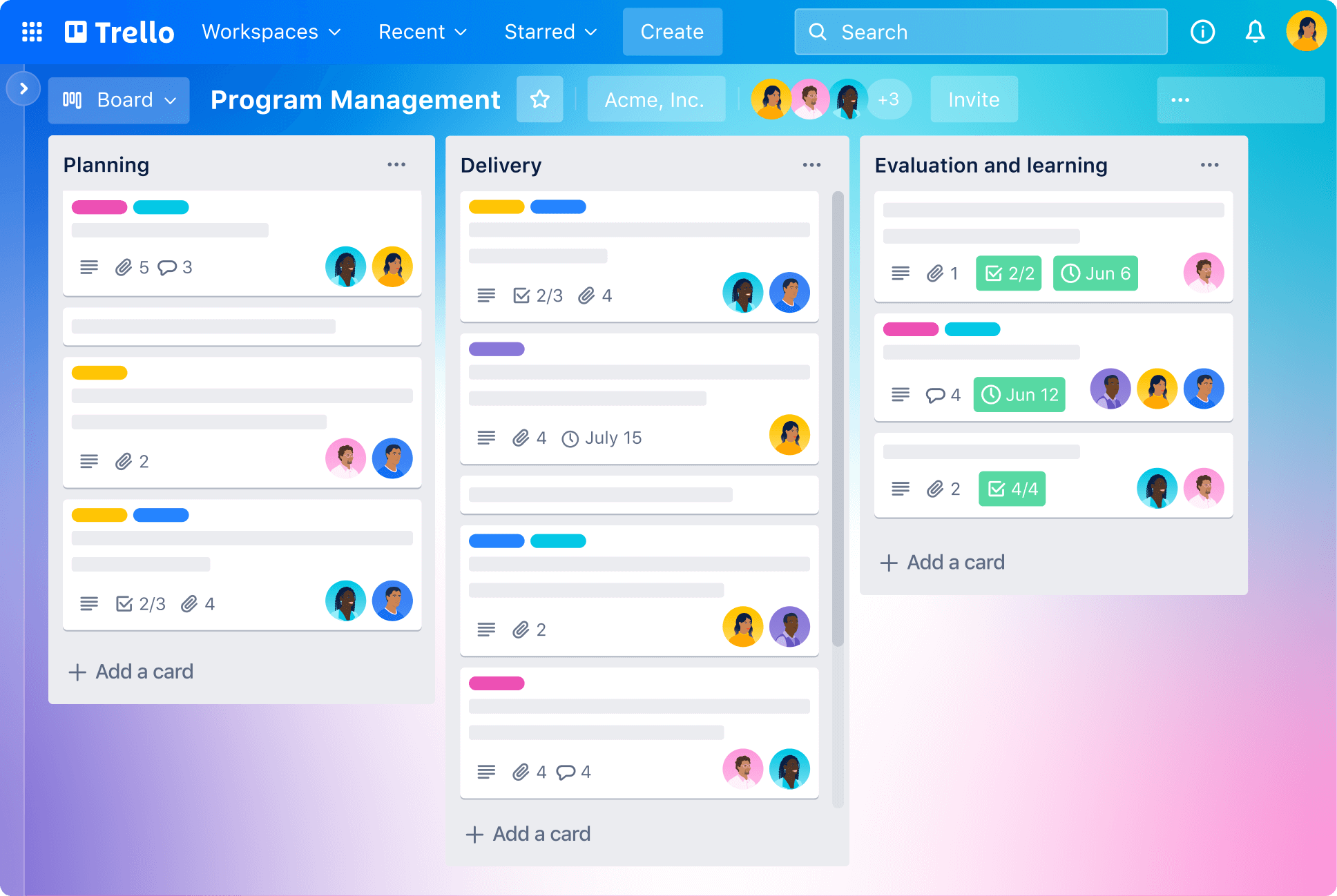
Image source: trello.com
Key features:
- Uses a card-and-board system for organizing projects and tracking progress.
- Offers automation through Butler for repetitive task management.
- Integrates with tools like Slack, Google Drive, and Jira for seamless collaboration.
- Provides templates for project planning, marketing campaigns, and agile workflows.
What we found useful:
We all loved the visual simplicity of the Kanban boards. Moving a card from "Doing" to "Done" gave our team a tangible sense of progress, and the interface is friendly enough that even our non-technical clients understood it instantly.
It proved to be incredibly flexible for us. We used the same tool to manage our software development sprints, our marketing content calendar, and even our office party planning without any friction or complex setup.
What we didn't like:
We didn't like how cluttered the boards became once we added too many tasks. Once a list had more than 50 cards, it became difficult to scroll through and prioritize, making it hard to get a high-level view of complex projects.
We also missed having native, in-depth reporting tools on the standard plan. When upper management asked for burn-down charts or detailed productivity metrics, we had to rely on "power-ups" or external integrations to get the data.
Best for: Small teams or individuals who prefer drag-and-drop organization.
Pricing:
- Standard Plan: $5 per user per month (billed annually).
- Premium Plan: $10 per user per month (billed annually).
- Enterprise Plan: $17.50 per user per month (billed annually).
For more on Trello pricing, see .
3. ClickUp: Customizable productivity and project management
ClickUp is a customizable all-in-one productivity tool built to manage everything from daily tasks to complex workflows. It combines docs, dashboards, goals, and time tracking in one unified platform. As one of the best productivity tools for professionals, it suits businesses that manage multiple projects simultaneously. Its flexibility allows teams to design their workspace exactly how they want.
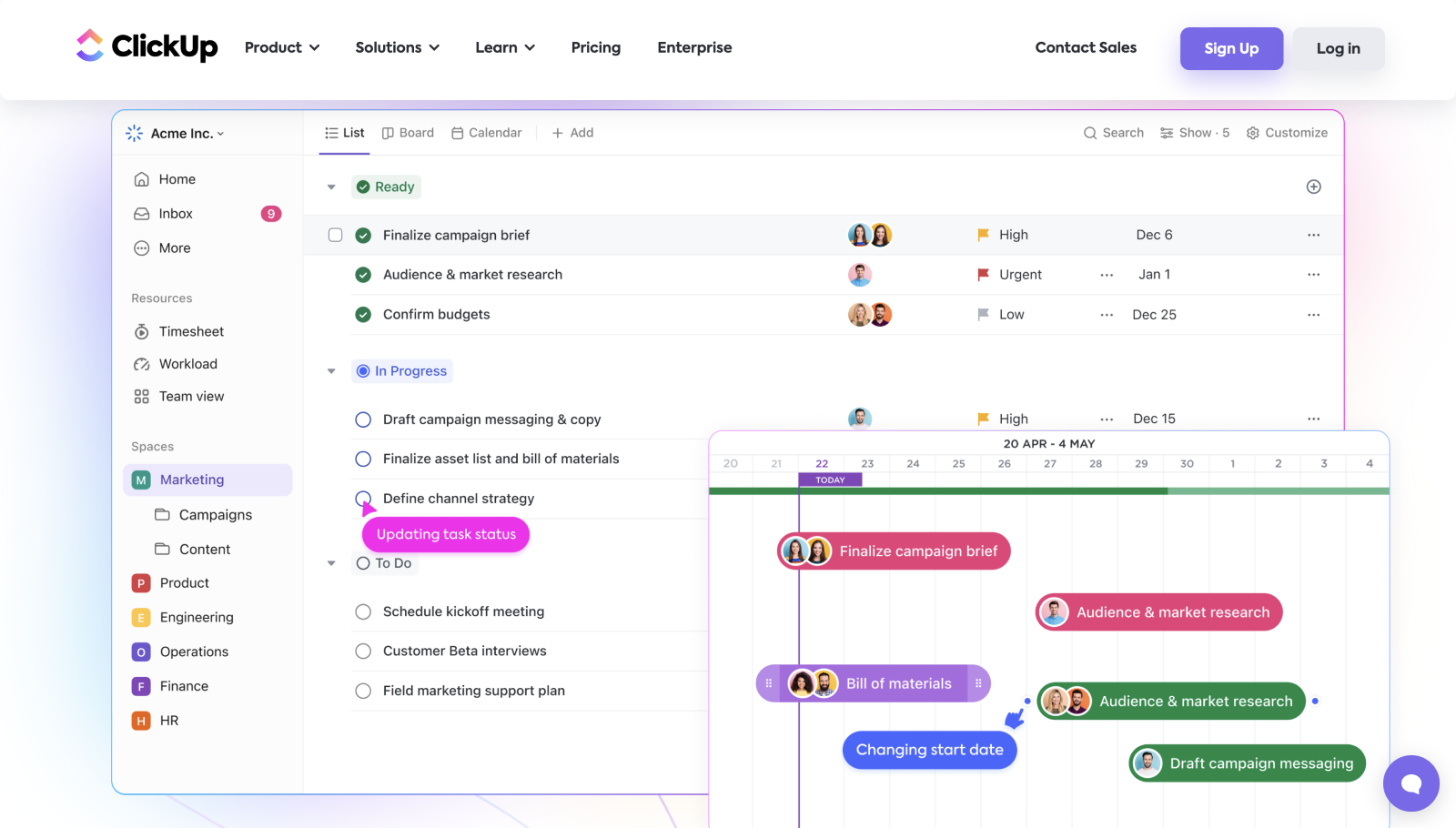
Image source: clickup.com
Key features:
- Offers multiple project views like List, Board, Calendar, and Gantt for flexible workflow visualization.
- Provides built-in Docs, time tracking, goal setting, and chat for seamless team collaboration.
- Includes workflow automation to trigger reminders, updates, and notifications automatically.
- Integrates with tools like Slack, Google Drive, and Zoom for unified productivity.
What we found useful:
We were impressed by the extreme customization available. Being able to toggle between a list view for engineers, a board view for creative, and a Gantt chart for managers meant the entire company could work from a single source of truth.
What we didn't like:
We found the interface a bit daunting at first because there are just so many options and settings. New hires often spent their first week just trying to figure out the "right" way to view their tasks, which slowed down onboarding.
We also noticed the platform can get sluggish when loading complex dashboards. On days when we had heavy traffic and lots of automations running, navigating between views felt slower than on lighter tools like Trello.
Best for: Teams that want one platform for tasks, docs, and goals.
Pricing:
- Free Plan: $0 per user/month.
- Unlimited Plan: $7 per user/month (billed annually).
- Business Plan: $12 per user/month (billed annually).
- Enterprise Plan: Custom pricing.
For more on ClickUp pricing, see .
4. Todoist: Streamlined personal task manager
Todoist is a streamlined personal task manager that keeps daily priorities organized and achievable. It helps users plan, schedule, and track tasks with simple lists and reminders. Recognized as one of the best productivity tools for individuals, Todoist syncs across all devices for consistent focus. Professionals and freelancers rely on it to manage workload balance effectively.
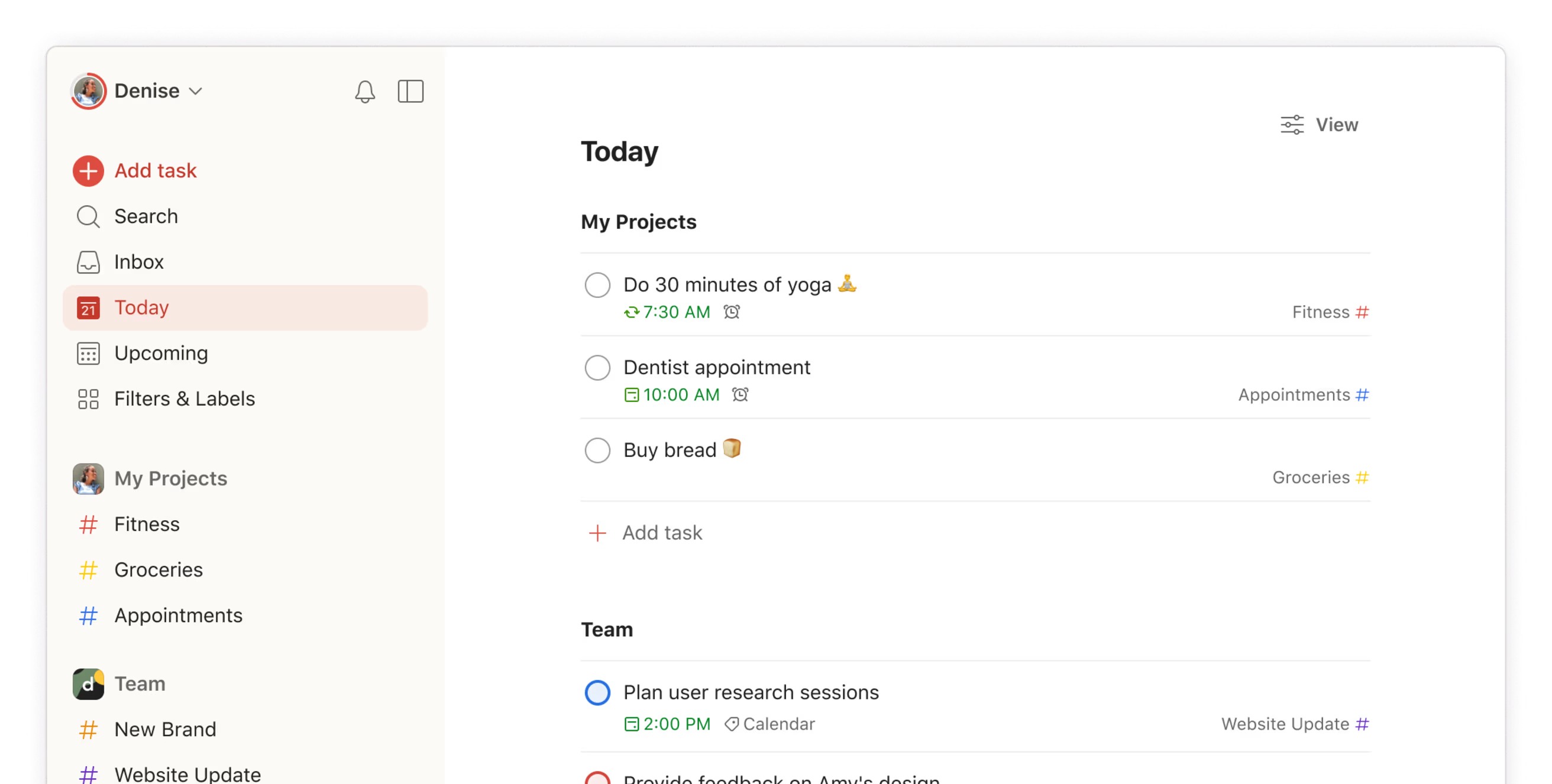
Image source: todoist.com
Key features:
- Intuitive task creation with due dates, priorities, labels, subtasks and recurring schedules.
- 300+ project support (on paid plans), calendar view, custom filters and unlimited activity history.
- Cross-platform support (web, mobile, desktop), integrations with calendars, email, and automation tools.
- Team workspace (on business plans) with shared project folders, team roles, permissions and centralised billing.
What we found useful:
We really liked how clean and accessible the interface is, it just stays out of your way and lets you focus. The natural language input, where you can type "meeting every Friday at 2pm" and it auto-schedules, felt like magic and saved us clicks every day.
The sync reliability across our devices was also flawless. We could add a task on our phone while commuting and have it waiting on our desktop the moment we walked into the office, ensuring nothing fell through the cracks.
What we didn't like:
We didn't like the strict limits on the free plan, especially the cap on active projects. It also falls short for collaborative work since it lacks the robust dependency planning and time tracking we need for team projects.
Best for: Professionals who want simple, reliable task tracking.
Pricing:
- Pro Plan: $5 per user/month (billed annually).
- Business Plan: $8 per user/month (billed annually).
- Enterprise: Custom pricing.
For more on Todoist pricing, see .
Messaging and video conferencing
1. Slack: Instant communication and quick collaboration
Slack revolutionizes team communication with real-time messaging, organized channels, and instant file sharing. It reduces email clutter and keeps conversations transparent across teams and departments. As one of the best team productivity tools, Slack helps hybrid teams stay aligned and responsive. With AI-powered search and integrations, it's a must-have for fast-moving organizations.
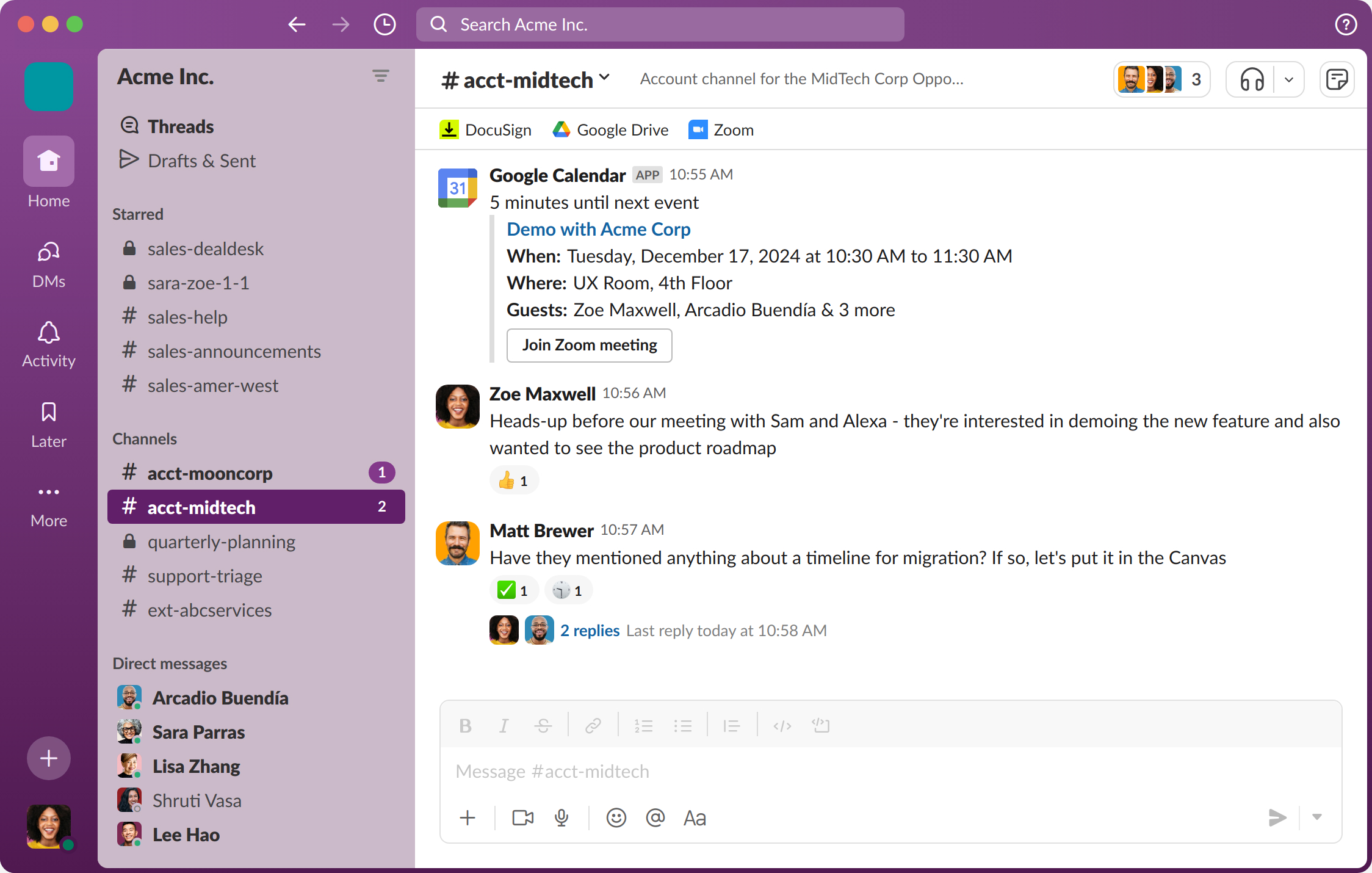
Image source: slack.com
Key features:
- Real-time messaging, channels, file sharing, voice/video huddles, and screen sharing for seamless team interaction.
- Integrations with hundreds of apps (CRMs, project-tools, file-storage) so teams can centralise workflows.
- AI-powered capabilities (conversation summaries, workflow generation, smarter search) in paid plans.
- External collaboration via Slack Connect—allowing secure communication with outside partners, clients, or vendors.
What we found useful:
We found that organizing chats by channels drastically reduced our email clutter. Instead of digging through endless "Reply All" threads, we could just hop into the #marketing or #design channel to find exactly the conversation we needed.
The ability to integrate almost every other tool we use was a game-changer. Seeing updates from Jira, Google Drive, and HubSpot pipe directly into our chat channels meant we could stay on top of our entire workflow without constantly switching tabs.
What we didn't like:
We struggled with the message history limits on the free plan. It was frustrating to try and search for a decision we made three months ago, only to realize the conversation had disappeared into the void.
We also found that without strict discipline, the constant pinging became a major distraction. The expectation of an "instant response" sometimes made it hard for our developers and writers to get the deep focus time they needed to actually do the work.
Best for: Fast-moving teams that thrive on chat-based communication.
Pricing:
- Pro Plan: $7.25 per user/month (billed annually).
- Business+ Plan: $15 per user/month (billed annually).
- Enterprise+ Plan: Custom pricing.
For more on Slack pricing, see .
2. Zoom: Reliable video conferencing
Zoom is the industry standard for video conferencing, offering a reliable platform for virtual meetings, webinars, and collaboration. It goes beyond simple video calls with features like Team Chat, AI Companion, and Whiteboards to keep distributed teams connected. Its ubiquity means most clients and partners already know how to use it, reducing friction in external communication.
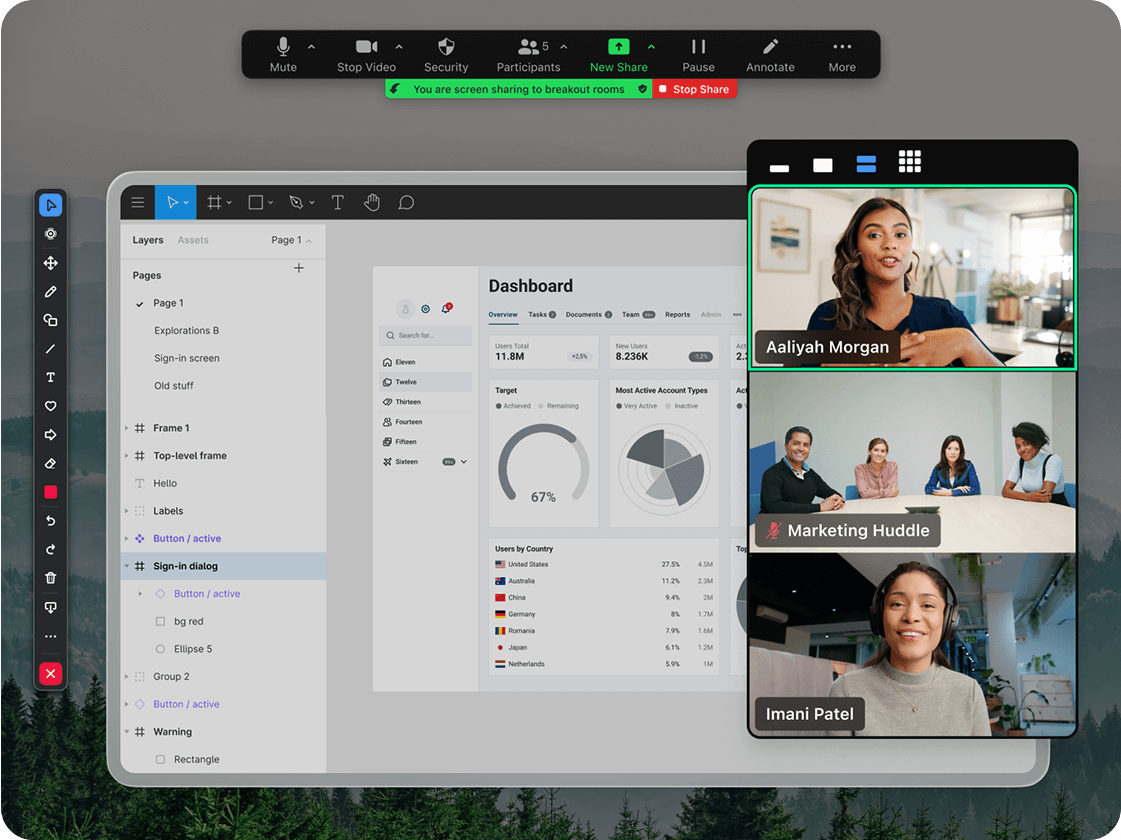
Image source: zoom.com
Key features:
- Hosts high-quality video meetings with up to 1,000 participants (depending on the plan).
- Includes AI Companion to summarize meetings, draft emails, and organize ideas.
- Offers Team Chat for persistent messaging outside of video calls.
- Provides Whiteboards for real-time visual collaboration during meetings.
What we found useful:
We relied heavily on its connection stability; it rarely dropped calls even when our internet was spotty. The audio and video quality remained consistent, which is critical when we are pitching to clients or hosting important all-hands meetings.
Since everyone already has it installed, jumping on calls with external partners was seamless. We never had to waste the first ten minutes of a meeting walking a client through how to download a plugin or enable their microphone.
What we didn't like:
We didn't like the strict 40-minute cutoff on the free plan, which creates awkward interruptions. We also felt that adding essential extras like cloud storage or webinar features drives the price up very quickly.
Best for: Teams needing a reliable, all-in-one platform for video meetings and webinars.
Pricing:
- Basic Plan: Free (40-min limit per meeting).
- Pro Plan: $14.16 per user/month (billed annually).
- Business Plan: $18.33 per user/month (billed annually).
For more on Zoom pricing, see .
3. Loom: Asynchronous video messaging
Loom revolutionizes team communication by letting you record quick screen and camera videos instead of holding a meeting. It’s perfect for explaining complex ideas, giving feedback on designs, or walking through code. By replacing live calls with "async" video, Loom helps teams recover deep work time while maintaining a personal connection.
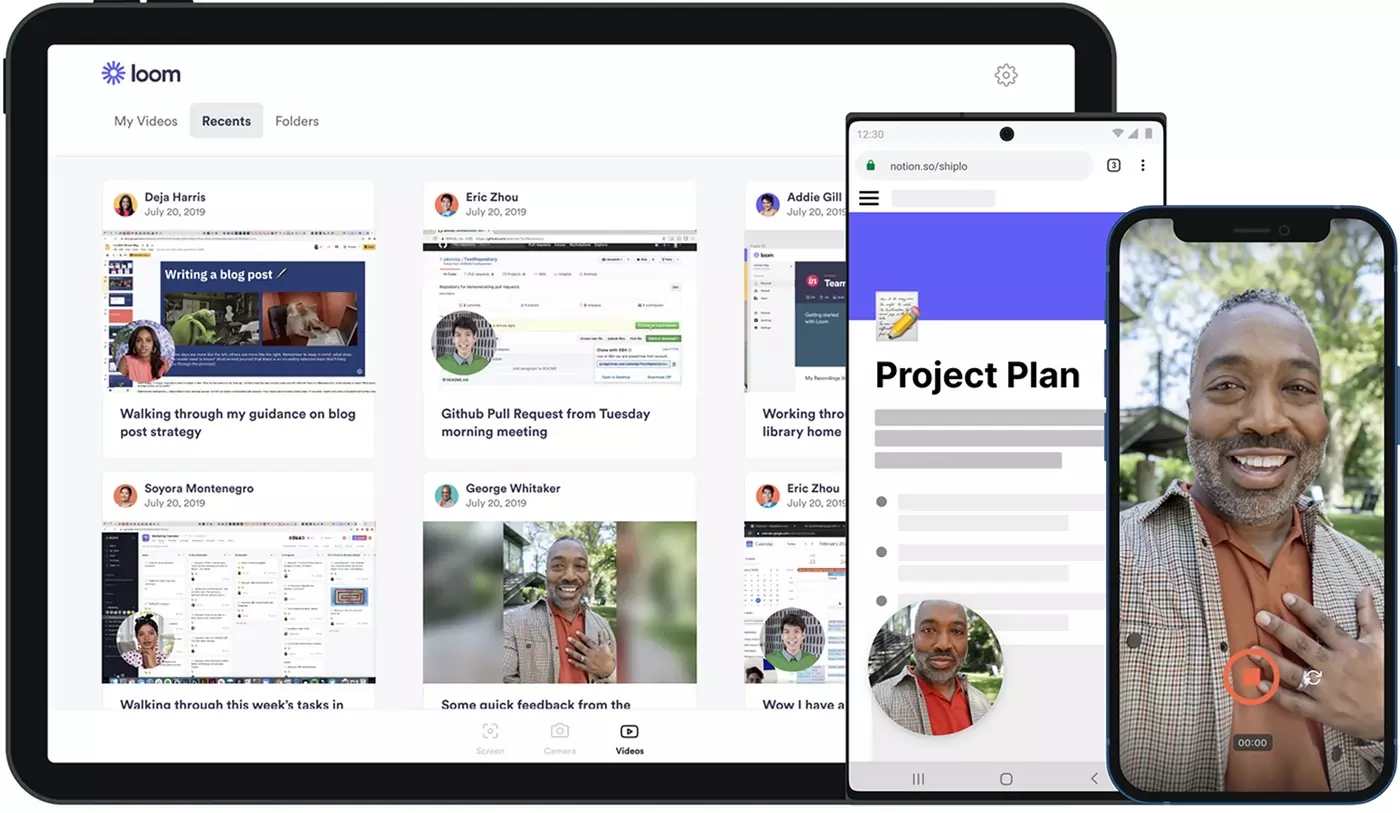
Image source: loom.com
Key features:
- Records your screen, camera, or both simultaneously with a simple click.
- Automatically generates transcripts, summaries, and chapters using AI.
- Allows viewers to leave time-stamped comments and emoji reactions on videos.
- Integrates with Slack, Gmail, and Notion to embed videos directly in your workflow.
What we found useful:
We found it incredibly useful for cutting down on those "quick sync" meetings that interrupt the day. Sending a 3-minute video walkthrough of a bug or a design mock-up was often clearer than an email and faster than scheduling a call.
Loom also added a personal touch to our remote culture since we can hear a teammate's voice and see their face in the corner of the screen, which made feedback feel more constructive and less cold than a text-based comment.
What we didn't like:
We didn't like the 5-minute limit on the free version, which often cut us off mid-explanation. We also found that our video library became a disorganized mess pretty quickly without someone actively managing it.
Best for: Remote teams looking to replace unnecessary meetings with video updates.
Pricing:
- Starter: Free (limit of 25 videos, 5 mins each).
- Business: $18/user/month (billed annually).
- Business + AI: $24/user/month (billed annually).
- Enterprise: Custom pricing.
Visual collaboration
Miro: Visual collaboration for brainstorming and planning
Miro empowers visual collaboration with an infinite digital whiteboard that supports brainstorming, mapping, and strategy sessions. It's one of the best productivity tools for creative and remote teams working visually. From project planning to mind-mapping, Miro fosters interactive and engaging teamwork. Its real-time collaboration features enhance communication across time zones.
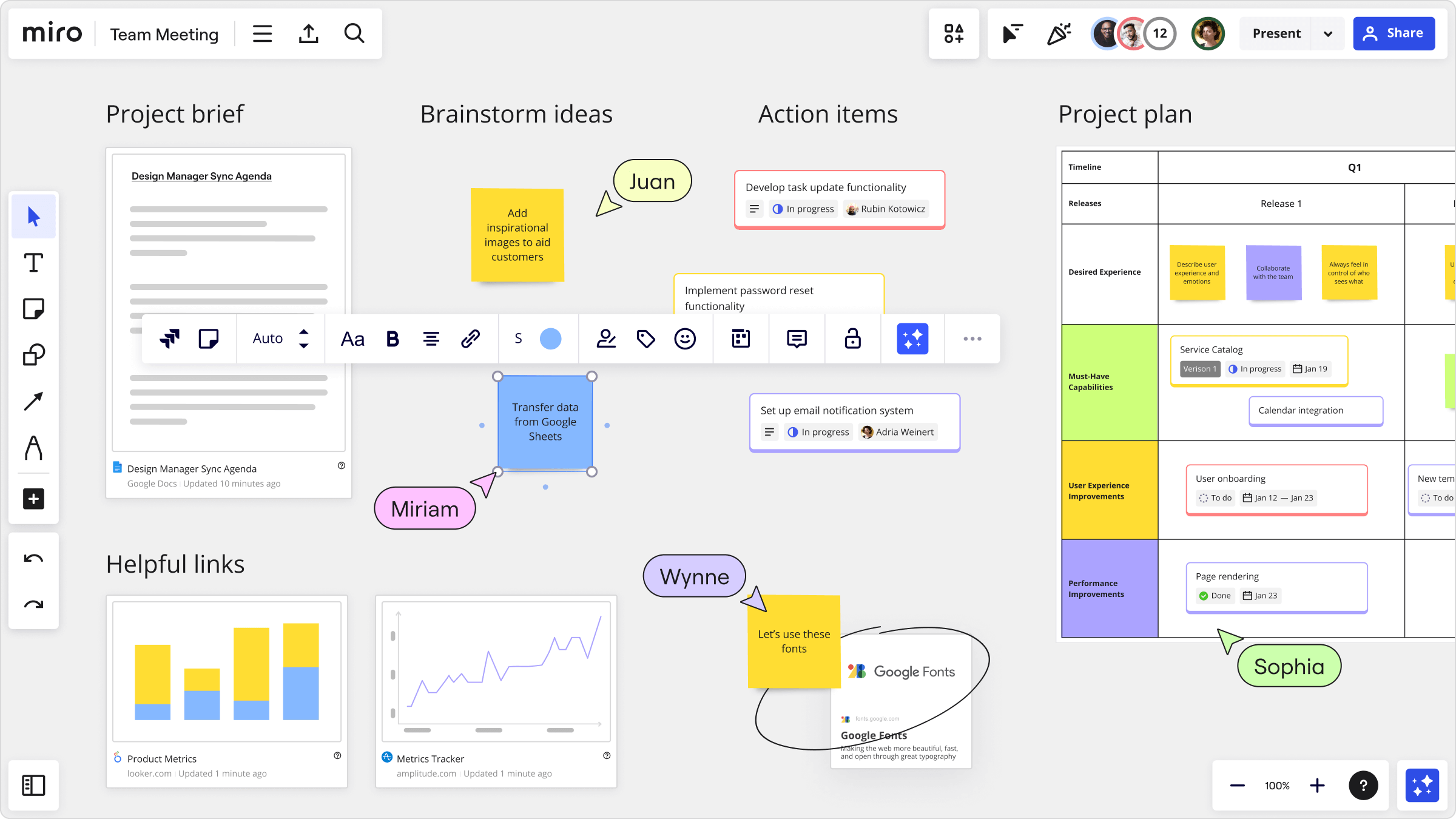
Image source: miro.com
Key features:
- Infinite, real-time collaborative canvas with support for flowcharts, mind maps, sticky notes, sketches, and diagrams.
- Large template library (hundreds of templates) and integrations with tools like Slack, Google Drive, Jira, Trello, and more.
- Workshop and meeting facilitation tools: voting, timers, video and chat embedded, frames for presentation mode.
- Private boards, guest/visitor access, advanced admin controls, and AI-enhanced features for diagramming and visual insight.
What we found useful:
We loved the infinite canvas for our remote brainstorming sessions. It allowed us to dump all our ideas, screenshots, and references in one place, mimicking the creative energy of a real war room whiteboard.
The integrations with tools like Jira were incredibly helpful. We could turn a sticky note from a brainstorming session into a live Jira ticket instantly, ensuring that our great ideas actually made it into the development pipeline.
What we didn't like:
We found the free plan too restrictive since it only allows three boards. We also experienced some lag when our boards got too complex, and the sheer number of features took some time for new users to master.
Best for: Creative and remote teams that work through visual mapping.
Pricing:
- Starter/Team Plan: $8 per user/month (billed annually).
- Business Plan: $20 per user/month (billed annually).
- Enterprise Plan: Custom pricing.
For more on Miro pricing, see .
Knowledge management & notes
1. Notion: Flexible workspace for structured notes and tasks
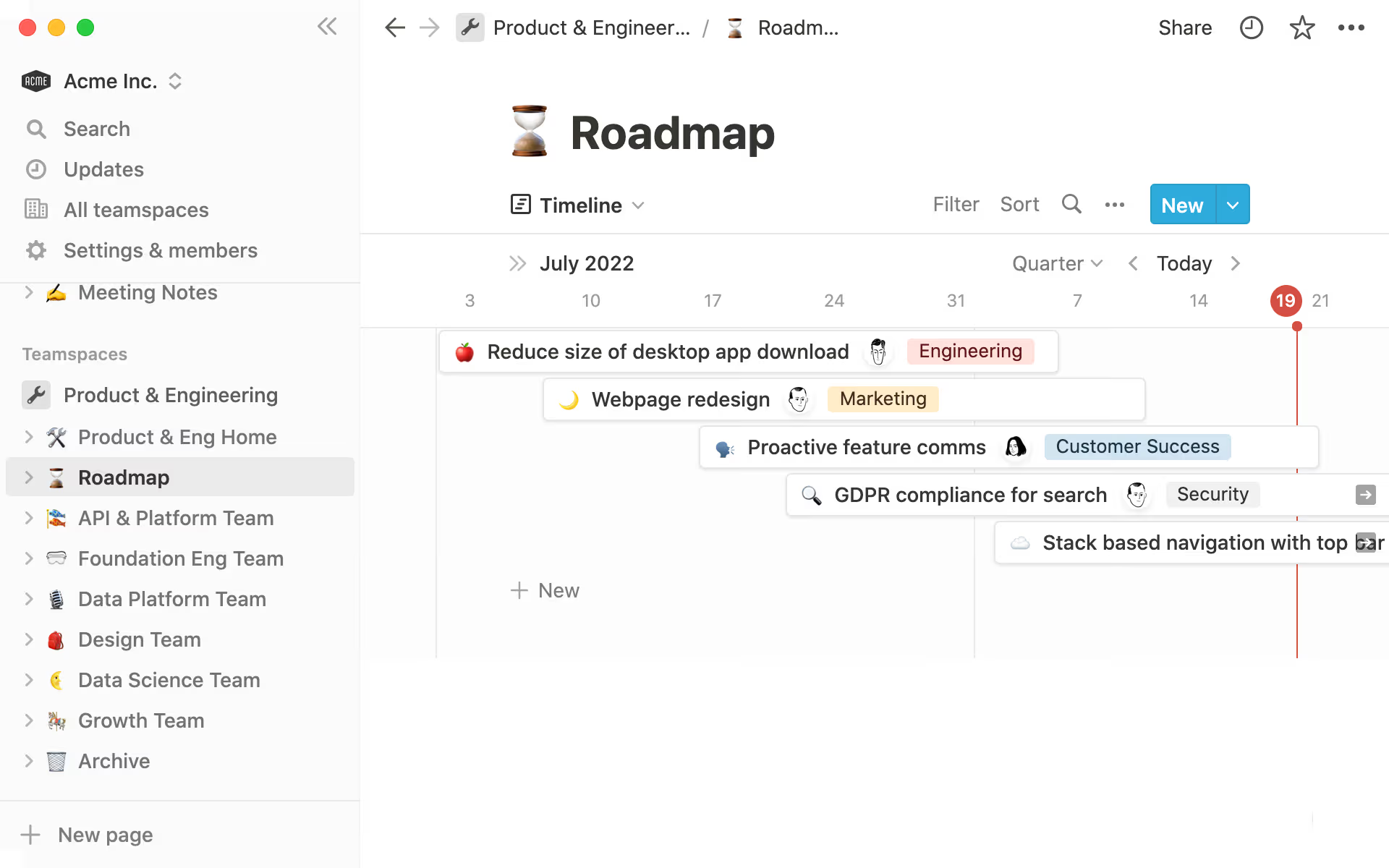
Image source: notion.com
Notion is a flexible, all-in-one workspace that blends notes, tasks, databases, and wikis into one powerful interface. It lets users create customized systems for project tracking, content planning, and personal productivity. With AI features and endless templates, Notion is among the best AI productivity tools for organizing complex information. Its modular structure makes it ideal for creative professionals and small teams.
Key features:
- Combines note-taking, task management, and database creation in a single workspace.
- Offers customizable templates for project planning, content calendars, and team wikis.
- Enables real-time collaboration and sharing with team members.
- Integrates with popular productivity tools like Slack, Google Drive, and Trello.
What we found useful:
We really liked how we could build almost a lot of different things like a wiki and a project tracker in one space. It was a great solution for centralizing our team's knowledge, and it adapted easily as our workflows became more complex.
The database features were particularly powerful for us. Being able to view the same set of notes as a list, a calendar, or a Kanban board gave different teams the flexibility to work the way they wanted without duplicating data.
What we didn't like:
We found the blank slate intimidating at first, and it took time to set up a system that worked. We also hit a few frustrating moments where offline syncing didn't work as expected, causing version conflicts.
We also hit a few frustrating moments with offline syncing. If two people edited a page while one was offline, resolving the version conflicts later was messy and sometimes resulted in lost text.
Best for:
Professionals who want to organize notes, projects, and databases in one customizable view.
Pricing:
- Free Plan: $0 per user per month.
- Plus Plan: $10 per user per month (billed annually).
- Business Plan: $20 per user per month (billed annually).
- Enterprise Plan: Custom pricing.
For more on Notion pricing, see .
2. Evernote: Organized note-taking and information capture
Evernote is a trusted note-taking and organization tool designed to capture ideas, research, and tasks. It centralizes information across devices, making retrieval quick and easy. As one of the best productivity tools for professionals, it suits consultants, writers, and researchers. With search, tagging, and document scanning, Evernote keeps your knowledge base well-structured.
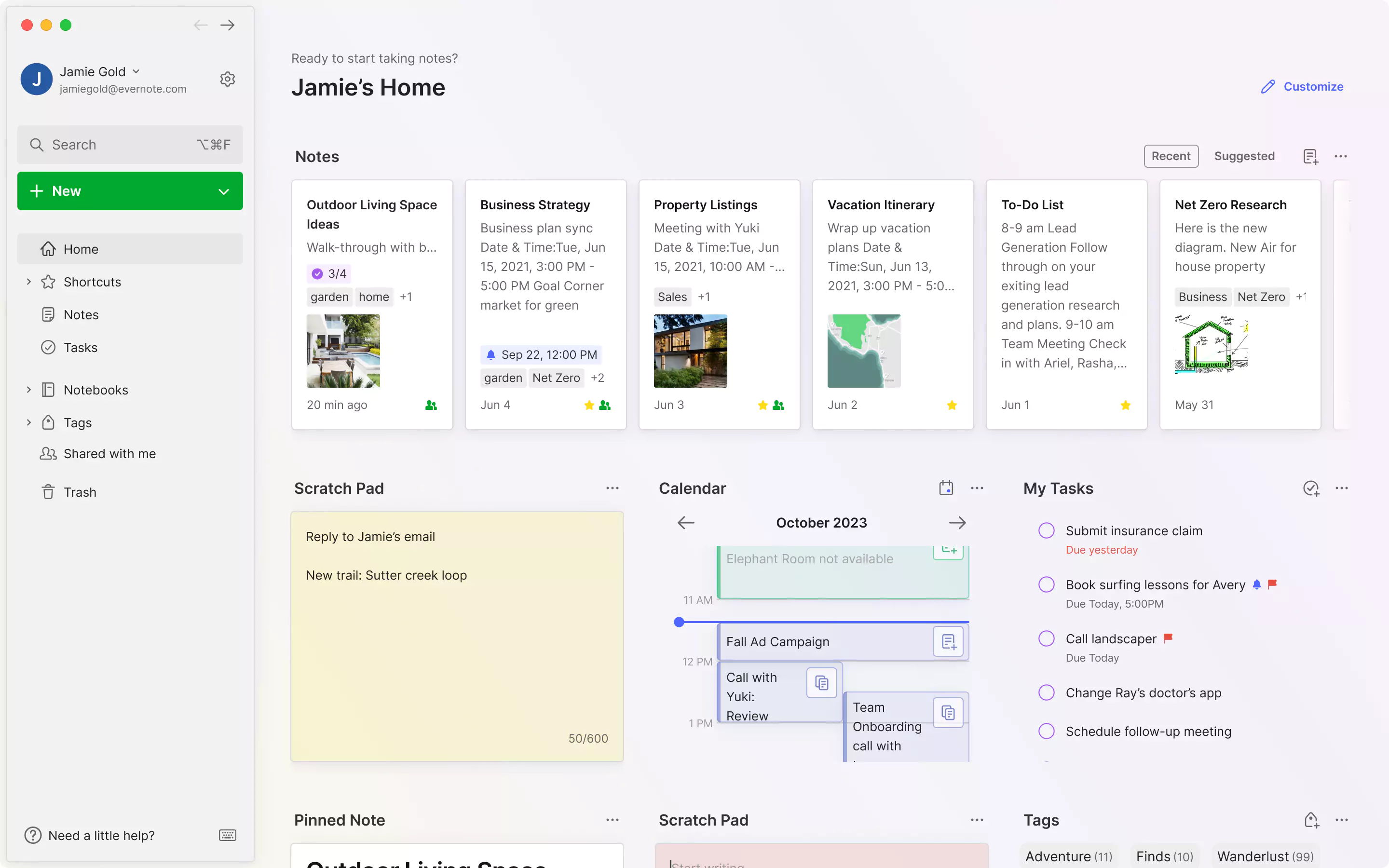
Image source: evernote.com
Key features:
- Unlimited devices (on paid plans), with support for text, images, PDFs, voice recordings, and attachments.
- Powerful search, including within attachments and images, plus templates, note linking, and AI-enhanced tools like smart cleanup.
- Cross-platform sync on web, desktop, and mobile, with offline access on paid plans.
- Integration with calendar, email, and task management tools for unified productivity.
What we found useful:
The web clipper is still one of the best ways to grab research from the internet and store it without worrying about broken links or weird formatting.
What we didn't like:
We didn't like how restrictive the free plan has become regarding device limits. The price point feels high for just note-taking, and the collaboration features just can't compete with dedicated project management tools.
Best for:
Professionals who prioritize fast web clipping, reliable document archiving, and deep in-image search over complex database setups.
Pricing:
- Starter Plan: $8.25 per user/month (billed annually).
- Advanced Plan: $20.83 per user/month (billed annually).
- Enterprise Plan: Custom pricing.
Databases & spreadsheets
1. Airtable: Database meets spreadsheet for team organization
Airtable merges spreadsheet simplicity with database power to organize information intuitively. It's perfect for content calendars, project pipelines, and inventory tracking. As one of the best AI tools for business productivity, Airtable helps teams visualize data using grids, Kanban boards, and forms. Its flexibility and integrations make it indispensable for data-driven professionals.
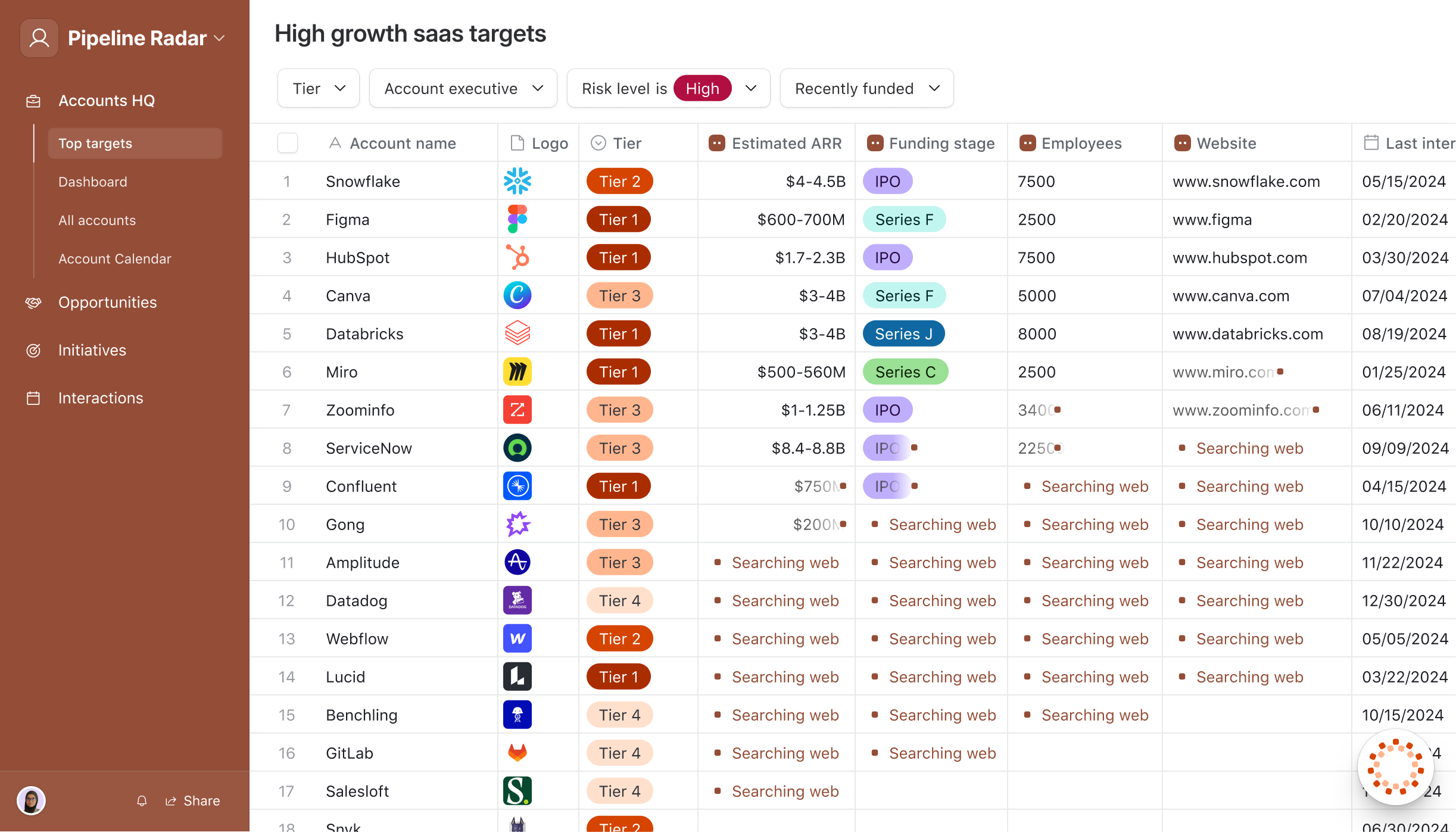
Image source: airtable.com
Key features:
- Enables users to create bases (akin to spreadsheets) with customizable fields, views (Grid, Kanban, Gantt, Timeline) and "Interface Designer" for tailored user-experiences.
- Offers automation (triggers, actions, integrations) and extensions/apps to build low-code workflows without full development.
- Supports collaboration across teams with shared workspaces, sync integrations, and permissions control (editor/viewer roles).
- Includes AI-credits (for paid plans) to power features like formula generation, summarisation, and workflow intelligence.
What we found useful:
We were amazed by how it combines the ease of Excel with the power of a database. It allowed us to build custom workflows for our content calendar that simply wouldn't have been possible in a standard spreadsheet.
The "Interface Designer" was also a popular feature among our team. We could build simplified dashboards for our executives so they could interact with the data and approve items without needing to understand the complex grid view underneath.
What we didn't like:
We didn't like how quickly we hit the record limits on the free plan. As our data grew, the per-user pricing became quite steep, and setting up complex automations required more technical skill than we expected.
Best for: Teams managing data-heavy projects like content calendars or inventory.
Pricing:
- Team Plan: $20 per user/month (billed annually).
- Business Plan: $45 per user/month (billed annually).
- Enterprise / Scale Plan: Custom pricing.
For more on Airtable pricing, see
2. monday.com: Flexible and visual work management
Monday.com is a versatile work operating system that lets teams build custom workflows, manage complex projects, and visualize data across their entire organization. Built around customizable, color-coded boards, monday.com bridges spreadsheet simplicity with robust project management power. It excels at managing cross-functional operations, tracking team capacity, and automating routine handoffs with minimal setup.
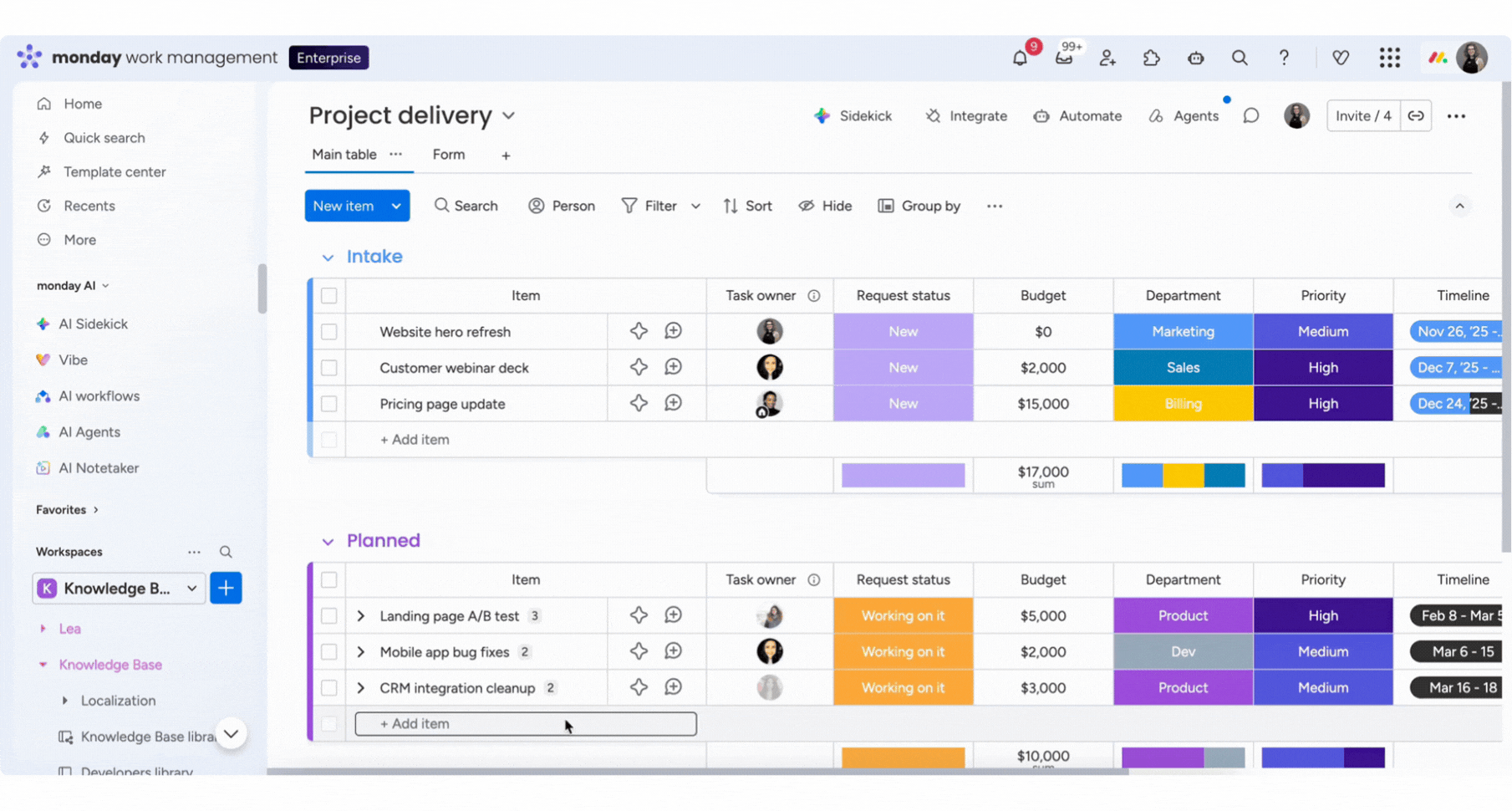
Image source: monday.com
Key features:
- Multiple flexible data views including Table, Kanban, Gantt, Timeline, Calendar, and Workload.
- Powerful no-code automations to notify owners, move items between boards, and update statuses.
- Customizable dashboards with 30+ widgets to track team KPIs, budgets, and milestones in real time.
- Extensive integrations with tools like Slack, Google Drive, Microsoft Teams, Jira, and Zoom.
What we found useful:
We were impressed by how visually intuitive and customizable the boards are. Color-coding columns and toggling between Kanban and Gantt views allowed our marketing and operations teams to see status and bottlenecks at a glance without any training.
The built-in Workload view was a standout feature for resource management. It allowed managers to see exactly who had bandwidth and who was overbooked, making it easy to rebalance tasks and prevent burnout across the team.
What we didn't like:
The pricing tiers can be confusing, especially with the 3-seat minimum requirement on paid plans, which can be restrictive for solo operators or pairs. The free plan is also limited to basic features and only 2 seats.
Best for: Growing teams and cross-functional departments that need visual, highly customizable project and operations tracking.
Pricing:
- Free Plan: $0 for up to 2 seats.
- Basic Plan: $9 per seat/month (billed annually).
- Standard Plan: $12 per seat/month (billed annually).
- Pro Plan: $19 per seat/month (billed annually).
- Enterprise: Custom pricing.
Time tracking & focus
1. Toggl Track: Effortless time tracking and reporting
Toggl Track is an intuitive, fast time-tracking solution built to help individuals, freelancers, and teams understand where their working hours go. With simple one-click timers and background auto-tracking, Toggl Track removes the friction of manual timesheets. Its robust reporting and client billing tools make it an essential productivity utility for anyone managing billable hours or optimizing their daily workflow.
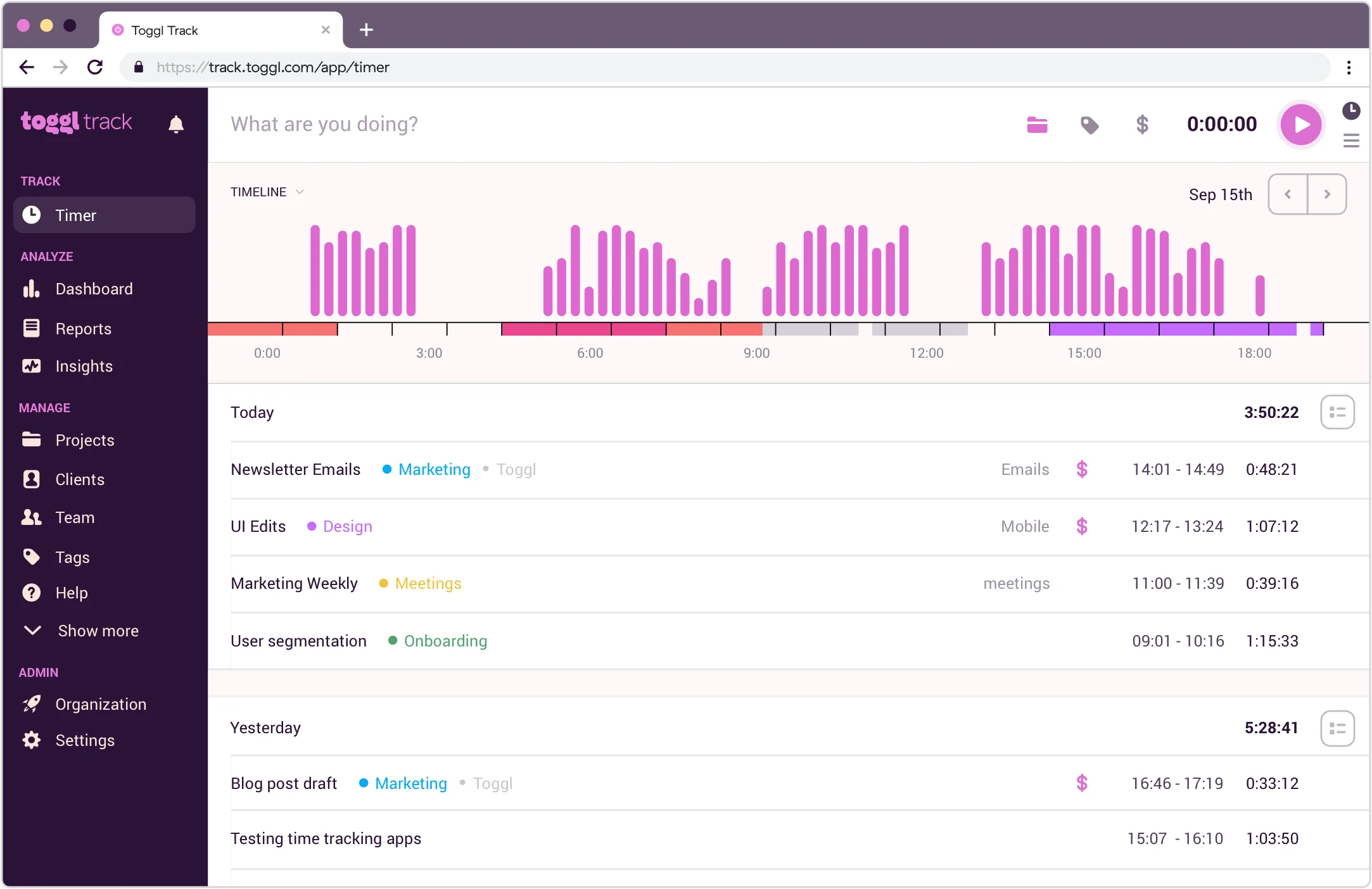
Image source: pcmag.com
Key features:
- One-click timer across web, desktop apps, mobile, and browser extensions with idle detection.
- Automated tracking and background timeline logging to capture forgotten work intervals.
- Comprehensive reporting dashboards with billable rates, project budgeting, and exportable timesheets.
- Seamless integrations with 100+ tools including Asana, Trello, Notion, Jira, and Slack.
What we found useful:
We loved how frictionless the tracking experience is. With the browser extension enabled, starting a timer directly from inside Asana or Google Docs took a single click, ensuring accurate time logs without breaking our flow state.
The visual reporting and analytics were standout for reviewing team capacity. Drilling down by client, project, or billable rate gave us clear visibility into whether projects remained profitable before month-end reviews.
What we didn't like:
Advanced features like project budget alerts, audits, and required fields are locked behind the higher-tier paid plans. It also focuses specifically on time logging and reporting rather than full-scale project management.
Best for: Freelancers, agencies, and distributed teams needing clean, low-friction time tracking and billable reporting.
Pricing:
- Free Plan: $0 with unlimited tracking and reporting.
- Starter Plan: $9 per user/month (billed annually).
- Premium Plan: $16 per user/month (billed annually).
- Enterprise: Custom pricing.
2. Sunsama: Mindful daily planning and time blocking
Sunsama is a daily planner and time-blocking tool designed to help professionals stay focused, calm, and intentional with their workload. Unlike standard to-do apps, Sunsama emphasizes mindful productivity—encouraging users to pull tasks from tools like Trello, Asana, Gmail, and Slack directly into a guided daily schedule. By establishing realistic work boundaries and daily planning rituals, Sunsama helps prevent burnout and keeps daily goals manageable.
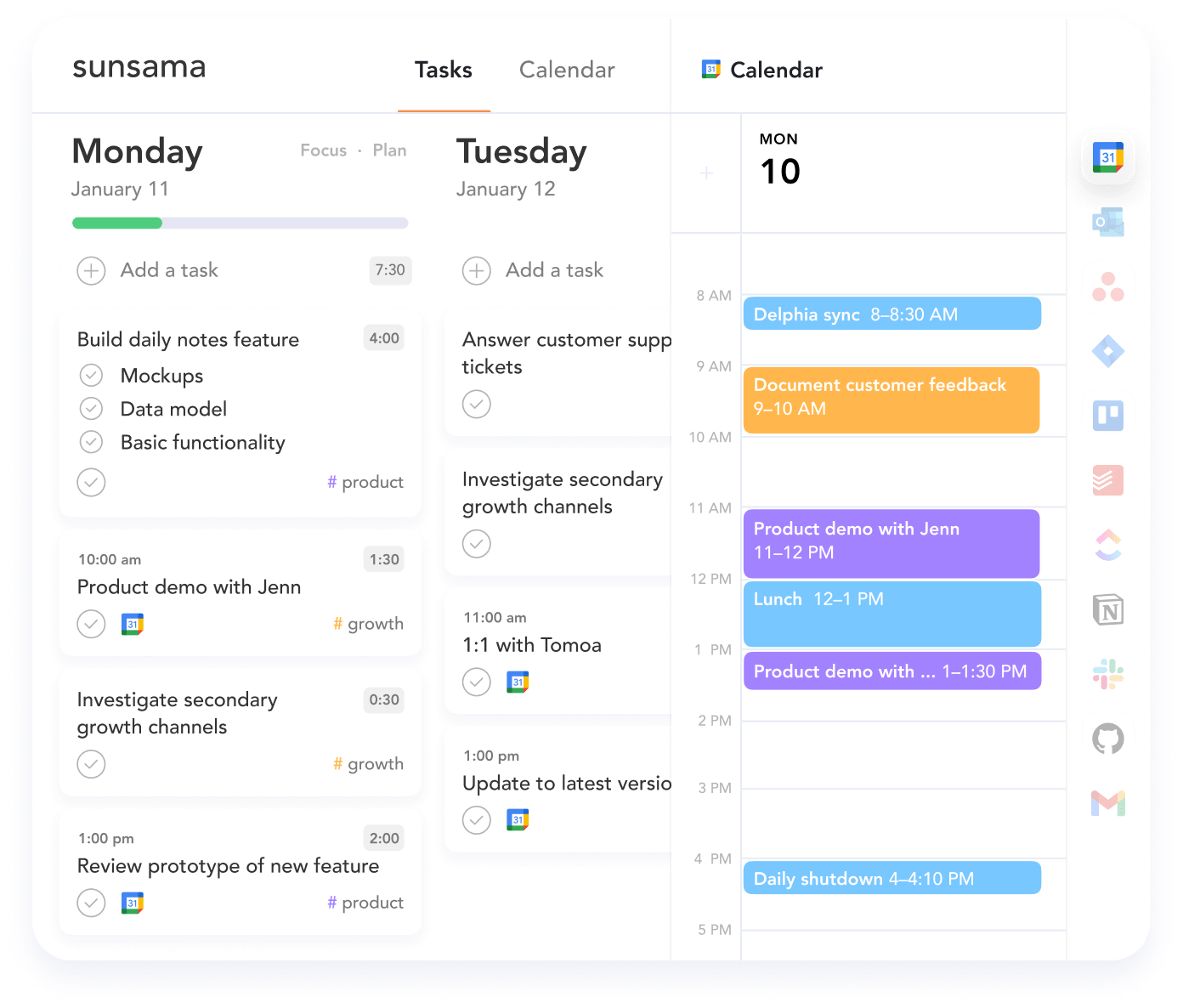
Image source: sunsama.com
Key features:
- Guided daily planning and shutdown rituals to review accomplishments and set realistic expectations.
- Unified task consolidation from tools like Trello, Asana, Jira, GitHub, Slack, and Google/Outlook Calendars.
- Built-in time-boxing and calendar integration for seamless drag-and-drop scheduling.
- Focus mode with integrated timers and analytics to track where your time actually goes.
What we found useful:
We loved the guided daily planning ritual. Taking five minutes each morning to pull our scattered tasks from email and project boards onto our calendar created a realistic roadmap for the day and eliminated task paralysis.
The built-in workload boundary alerts were also a game-changer. Whenever we scheduled more than six hours of deep work, Sunsama gently warned us that we were overcommitting, which helped our team avoid overpromising on deadlines.
What we didn't like:
The pricing is on the higher side compared to simple task managers, and there is no permanent free tier after the 14-day trial. It also focuses purely on personal daily execution rather than team-wide project portfolio management.
Best for: Professionals and knowledge workers who want mindful, structured daily planning and time blocking.
Pricing:
- 14-day free trial available (no permanent free plan).
- Pro Plan: $17 per month (billed annually).
- Enterprise Plan: Custom pricing.
3. Clockify: Simple time tracking for professionals
Clockify simplifies time tracking for freelancers, agencies, and enterprises alike. It allows users to log hours, manage billable time, and generate insightful reports. As one of the best free productivity tools, it provides unlimited tracking and team collaboration features. Its clean interface and scalability make it suitable for teams of all sizes.
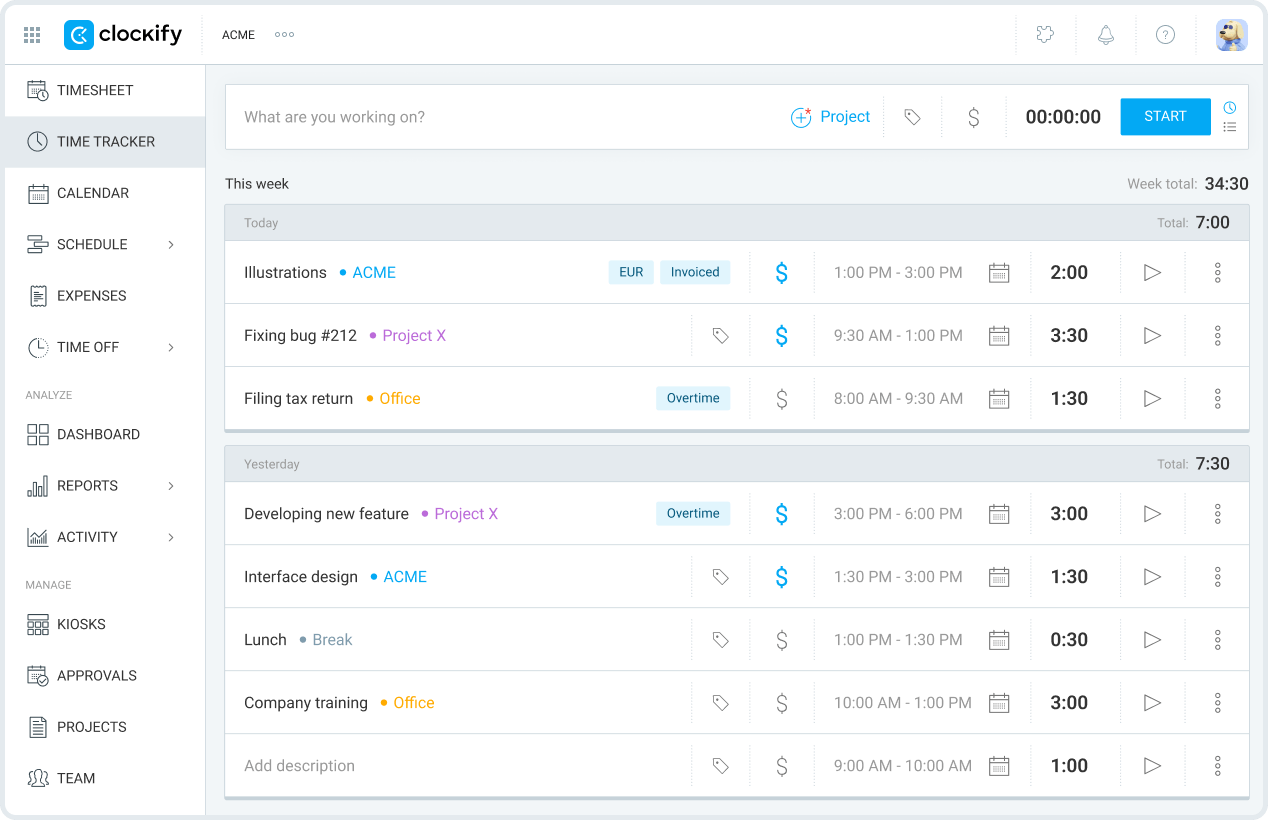
Image source: clockify.com
Key features:
- Unlimited time-tracking for users with timers and manual entry, across devices (desktop, mobile, web) for comprehensive workflow visibility.
- Reports and dashboards for insights into time spent by project, client, task, or user—helping you analyse productivity and billing.
- Timesheet approvals, attendance management, invoicing and locking of entries for teams needing control and accuracy.
- Advanced project budget/forecast tools, expense tracking, screenshot captures, and GPS tracking (in higher tiers) to support client billing and team cost management.
What we found useful:
We were impressed by how much value is packed into the free plan. Finding a tool that allows unlimited users and unlimited time tracking for free is a rarity, and it was perfect for our team when we were just starting out.
It was incredibly easy to set up and use. The browser extension meant we could start a timer directly from inside Trello or Asana, which kept our workflow smooth and ensured we didn't forget to log hours.
What we didn't like:
We didn't like that the project management features were so basic. We could track time, but we couldn't really plan complex schedules or manage dependencies, so we had to use it alongside another tool.
We also found that essential security features, like locking timesheets or GPS tracking for mobile staff, were locked behind the higher-tier paid plans, which forced us to upgrade eventually.
Best for: Freelancers and project teams managing billable hours.
Pricing:
- Basic Plan: $3.99 per user/month (billed annually).
- Standard Plan: $5.49 per user/month (billed annually).
- Pro Plan: $7.99 per user/month (billed annually).
- Enterprise Plan: $11.99 per user/month (billed annually).
Automation
1. Zapier: Automation for repetitive work
Zapier automates repetitive tasks by connecting thousands of apps with no coding required. It's among the best AI tools for productivity, enabling professionals to save hours by building automated workflows. From sending emails to updating CRM data, Zapier handles tasks in the background effortlessly. Ideal for tech-savvy teams that want to boost efficiency through automation.
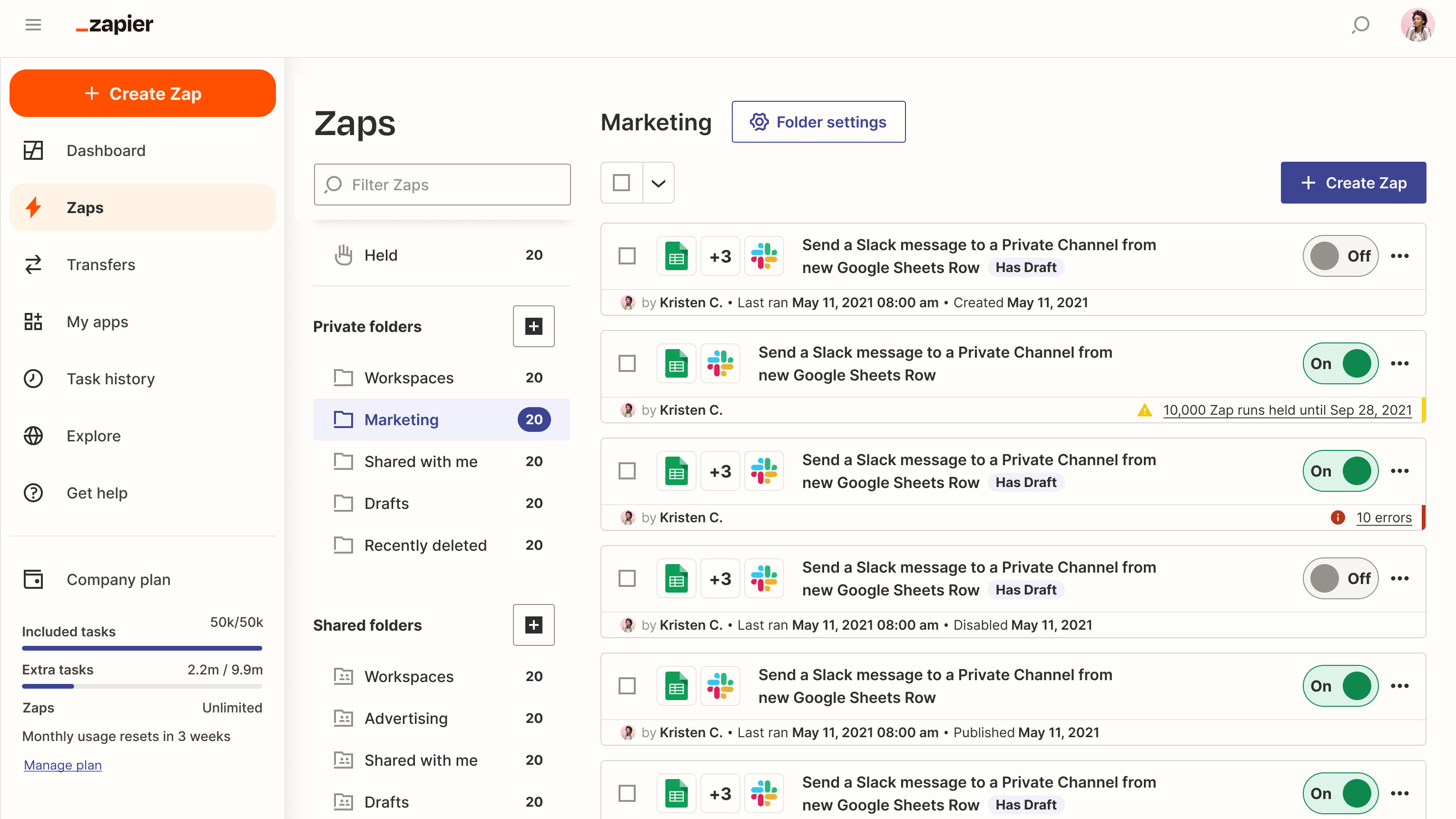
Image source: zapier.com
Key features:
- Visual no-code workflow builder ("Zaps") linking triggers and actions across thousands of apps.
- Includes Tables and Interfaces for structured data and custom forms embedded in workflows.
- AI-powered automation capabilities for smarter decision-making and workflow logic.
- Unlimited app integrations and multi-step workflows on paid plans.
What we found useful:
We found it incredibly empowering to build complex automations without writing a single line of code. It saved us countless hours by connecting apps that otherwise wouldn't talk to each other, like automatically saving email attachments to Dropbox.
The vast library of integrations is its biggest strength. No matter how obscure the software we were using was, there was almost always a "Zap" available for it, which made integrating new tools into our stack very low-risk.
What we didn't like:
We didn't like how confusing the pricing model is. Costs are based on "tasks," and a single error in a loop can accidentally burn through your monthly allowance in minutes if you aren't careful.
We also hit the limits on the free plan very quickly. Since multi-step Zaps (e.g., "If this, then that, AND that") are paid-only, we couldn't build any truly useful workflows without entering a credit card.
Best for: Professionals connecting multiple apps to eliminate manual tasks.
Pricing:
- Professional Plan: $19.99/month (billed annually).
- Team Plan: $69/month (billed annually).
- Enterprise Plan: Custom pricing.
For more on Zapier pricing, see .
Choose the right productivity tool for your workflow
2. Make: Advanced visual automation
Make (formerly Integromat) is a powerful visual platform that lets you connect apps and automate workflows without writing code. Unlike simpler tools, Make allows for complex logic, branching, and data transformation. It visualizes your workflows as bubbles connected by lines, making it easier to understand and debug intricate automations between your favorite tools.
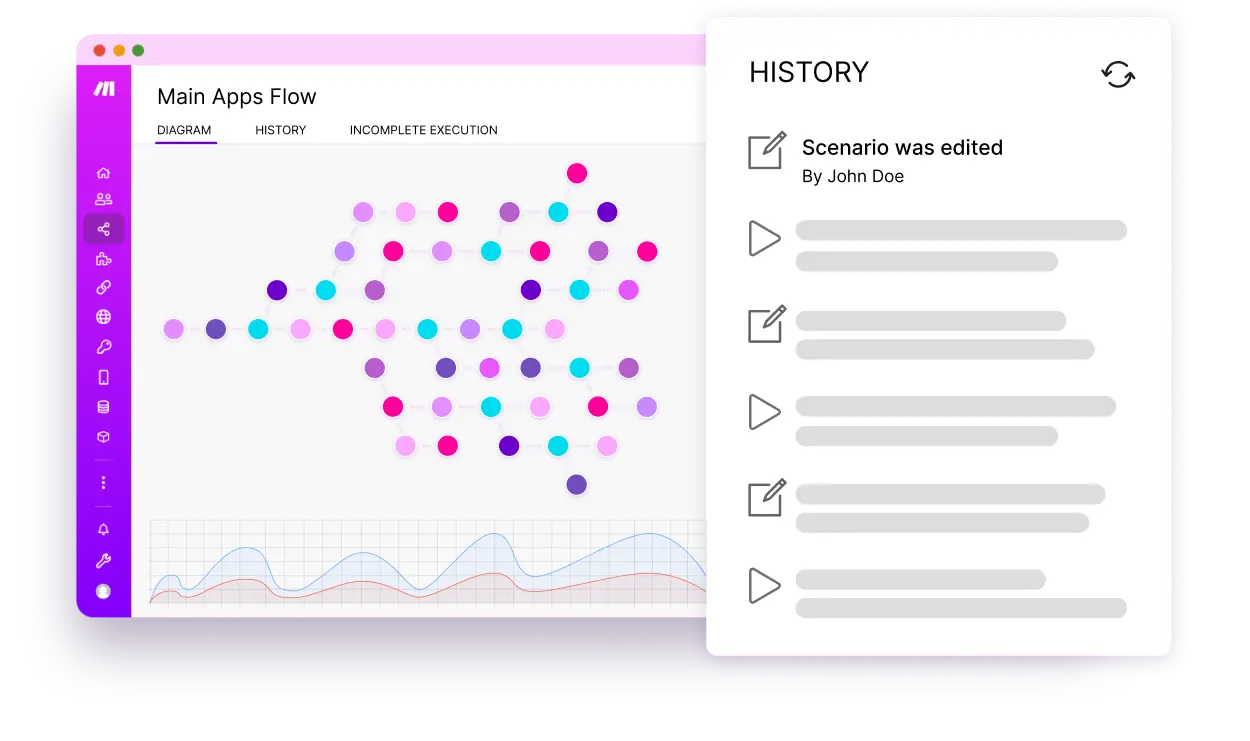
Image source: make.com
Key features:
- Visual drag-and-drop builder to connect thousands of apps (Slack, Google Sheets, Shopify, etc.).
- Supports advanced logic like routers, filters, and iterators to handle complex scenarios.
- Includes specific AI modules to integrate ChatGPT or other AI agents into your workflow.
- Provides detailed execution history to see exactly how data moved through your automation.
What we found useful:
We were big fans of the visual "bubbles" interface, which made building and debugging workflows actually fun. Being able to watch the data move through the pipes in real-time helped us spot exactly where our logic was breaking.
The free plan was surprisingly generous compared to competitors. It allowed us to test intricate, multi-step scenarios and use advanced logic functions that would have cost a fortune on other platforms right out of the gate.
What we didn't like:
We found the learning curve much steeper than other tools. It'’s definitely made for more technical users, and understanding concepts like "iterators" and "aggregators" took our non-dev team members some serious study time.
We also felt that very large scenarios became visually overwhelming. Once a workflow had 20 or 30 modules, navigating the canvas on a laptop screen became difficult, and managing the spaghetti of connections got messy.
Best for:
Advanced technical users and teams needing visual app connections and complex workflow automation.
Pricing:
- Free Plan: $0 (1,000 ops/month).
- Core Plan: $9 per month (10,000 ops/month).
- Pro Plan: $16 per month (10,000 ops/month).
Calendar & scheduling
Calendly: Automated meeting scheduling and booking
Calendly eliminates the friction of scheduling by replacing endless back-and-forth emails with a streamlined booking link. By syncing in real time with Google, Outlook, and Office 365 calendars, Calendly allows clients, candidates, and teammates to view your up-to-date availability and book meetings instantly within boundaries you define. It is the gold standard for sales reps, recruiters, consultants, and busy professionals who want to reclaim hours spent coordinating meeting slots.
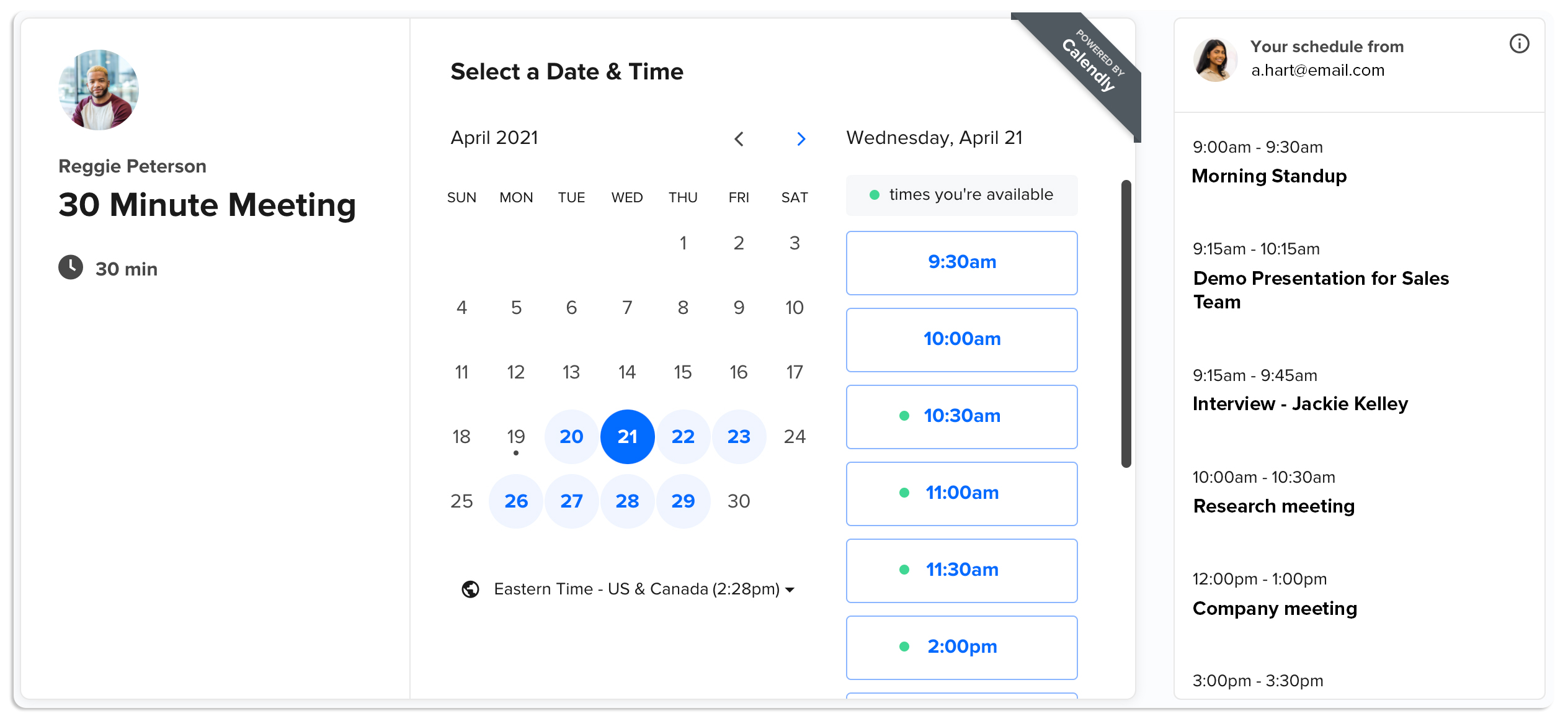
Image source: calendly.com
Key features:
- Multi-calendar integration with Google Calendar, Microsoft Outlook, Office 365, and iCloud to prevent double-booking.
- Flexible meeting types including one-on-one sessions, collective group bookings, round-robin team scheduling, and webinars.
- Custom booking limits, automated buffer times between calls, and minimum scheduling notice to protect deep-work focus.
- Automated pre-meeting email/SMS reminders, custom intake questions, and post-meeting follow-ups.
- Native integrations with Zoom, Google Meet, Microsoft Teams, Slack, Salesforce, and Stripe/PayPal for paid bookings.
What we found useful:
We loved how much time it saved across our client-facing workflows. Instead of exchanging five emails to lock in a 30-minute sync, sending a single customized Calendly link resolved scheduling in seconds and drastically cut down on no-shows thanks to automated calendar invites and reminders.
The team round-robin feature was especially valuable for inbound inquiries. Distributing incoming client discovery calls automatically based on real-time team availability ensured our response times stayed fast without manual coordination.
What we didn't like:
The free plan is quite limited, allowing only one active event type and one connected calendar. Teams managing multiple complex meeting structures or requiring custom email branding will need to upgrade to paid tiers.
Best for:
Professionals, sales teams, recruiters, and consultants who want an effortless way to automate meeting bookings and eliminate calendar ping-pong.
Pricing:
- Free Plan: $0 (1 active event type, 1 calendar connection).
- Standard Plan: $10 per user/month (billed annually).
- Teams Plan: $16 per user/month (billed annually).
- Enterprise Plan: Custom pricing.
How we select and assess software in our reviews
Our editorial team follows a transparent, repeatable methodology. Every review is based on our hands-on experience in realistic working scenarios, and we always stick to a set of consistent scoring criteria.
- Features and functionality
- Security, privacy, and compliance
- Integrations and compatibility
Our team reviews and assesses tools using consistent datasets and real-world scenarios, focusing on the things users care about most—such as sales pipelines, marketing automation, collaboration, and knowledge management. We confirm the official pricing and release notes of each product we review, and gather user feedback from across different channels. We do not accept paid placements and ensure our reviews are completely unbiased and fair. Additionally, as software and digital work environments constantly evolve, we review our content at least quarterly and update articles whenever products undergo significant changes. For more information about our review methodology, read the full rundown of.
Why productivity tools are essential for modern teams
As organizations shift toward flexible work models, the need for digital platforms that streamline communication, , and improve visibility has never been greater. The best productivity tools for professionals now integrate AI capabilities, helping teams make faster, data-driven decisions while minimizing manual effort.
- Increased tool dependency: With teams working across locations and time zones, cloud-based productivity tools enable and seamless communication, ensuring projects stay on track and deadlines are met.
- Simplify task management: It reduces manual work and enhances visibility. By integrating project tracking, document sharing, and workflow automation, the best AI productivity tools help teams and eliminate repetitive tasks.
- Promote accountability and cross-functional collaboration: Centralized platforms like Lark ensure every team member stays aligned, encouraging transparency and faster decision-making.
- Smarter decision-making and automation: From summarizing meeting notes to automating reports, allow professionals to focus on high-value tasks, improving both efficiency and innovation across teams.
Best AI productivity tools for modern teams
Artificial intelligence has quickly shifted from an experimental feature to a core part of daily workflows. Today, specialized standalone AI tools help individuals tackle specific tasks with greater speed and focus:
- ChatGPT (by OpenAI): Best for brainstorming ideas, drafting long-form content, summarizing complex documents, and answering technical questions.
- Grammarly: Best for real-time writing polish, tone adjustment, and catching grammatical nuances across emails, docs, and browser apps.
- Motion: Best for automated daily planning, using AI to dynamically re-prioritize tasks, meetings, and project deadlines directly on your calendar.
- Reclaim.ai: Best for smart time-blocking, automatically defending dedicated focus time for deep work, personal routines, and team syncs.
While standalone tools excel at solving isolated challenges, managing multiple individual subscriptions can lead to fragmented context, scattered data, and frequent app-switching.
To streamline operations, many teams are transitioning toward all-in-one productivity platforms that embed AI directly into daily collaboration. Platforms like integrate intelligent capabilities—such as automated meeting summaries, smart task generation, and automated database triggers—directly alongside messaging and documents. This allows teams to without losing the broader context of their ongoing projects.
See how teams work smarter with Lark
How to choose the right productivity tools for your team
Choosing the right productivity tools can make or break your team's efficiency. With so many best productivity tools and AI solutions available, it's important to focus on what truly improves collaboration, visibility, and output. The ideal toolset should simplify your workflows, connect departments seamlessly, and empower professionals to work smarter.
Here's how to identify and select the best productivity tools for your team.
- Identify your team's main productivity blockers: Start by mapping where your workflows slow down—missed updates, unclear ownership, or repetitive manual work. The best productivity tools for professionals help remove these friction points through automation and . By addressing these blockers, you can immediately boost focus and accountability across teams.
- Choose tools that integrate easily and reduce friction between workflows: Integration matters as much as functionality. Best team productivity tools should connect seamlessly with your existing ecosystem—from chat and CRM to . The goal is a connected workspace where data and communication flow effortlessly without constant switching.
- Prioritize all-in-one platforms over siloed apps to reduce costs and complexity: Using too many disconnected apps creates confusion and extra costs. All-in-one productivity platforms combine messaging, documentation, and task management in one place. This approach supports smarter collaboration and helps teams stay aligned without juggling multiple subscriptions.
- Ensure data security, mobile access, and ease of onboarding: No productivity tool is effective if it's hard to adopt or lacks proper safeguards. Look for solutions that prioritize compliance, data encryption, and easy onboarding for hybrid or remote teams. The best employee productivity tools balance flexibility with control, ensuring smooth and secure collaboration.
Final thoughts
When building an efficient workflow, less is often more—cluttering your workday with too many disconnected apps only leads to constant context switching and notification fatigue. For individuals and smaller projects, a few lightweight, specialized tools are usually enough to stay organized. Meanwhile, growing organizations with cross-functional workflows may benefit from consolidating chat, docs, and project tracking into a unified workspace like to reduce app sprawl. Ultimately, start by diagnosing your biggest daily friction points and choose the minimal set of tools that truly keeps your team focused.
"Before Lark, we were juggling spreadsheets for hours, and we couldn't tell when the shoppers would submit feedback—it was honestly a headache. Now, everything is streamlined, and it takes just seconds to share and discuss the results with the team."
- Xavier, Dasher
"We've seen an 80% improvement in workflow efficiency and document collaboration."
- Jia Yong Chuah, Sixth Party Logistics
"With Lark, we automated complex workflows without writing a single line of code."
- Arvin Reyes, 7-Eleven Philippines
"We don't have to look for information, information finds us. By using Lark as a digital hub integrated with our other systems, critical updates are automatically pushed to the right teams."
- Muliya Jaya Fathullah, Digital Maritime Development Centre
Get Lark for free, no credit card needed
FAQs
What are the best free productivity tools?
Lark offers one of the best free productivity tools for modern teams, combining chat, docs, tasks, and meetings in one platform. Other great free options include Trello for visual task management, Clockify for time tracking, and Notion for notes and databases. These tools provide essential features without upfront costs, helping individuals and small teams get organized efficiently.
How do productivity tools help in team collaboration?
Productivity tools help teams collaborate by centralizing communication, file sharing, and project tracking. They eliminate silos, keeping everyone aligned and updated in real time. With features like shared workspaces, version control, and instant feedback, teams can make faster decisions and maintain transparency.
What's the difference between productivity tools and project management software?
Productivity tools focus on improving individual and team efficiency through automation, scheduling, and communication. Project management software, on the other hand, is designed for planning, tracking, and delivering specific projects. While both overlap, productivity tools often support broader workflows beyond project boundaries.
What are examples of productivity tools?
Examples of productivity tools include project management apps, task managers, team chat platforms, video meeting tools, note-taking apps, document collaboration tools, time tracking software, automation platforms, and AI writing assistants. For teams, all-in-one platforms like Lark can combine several of these functions in one workspace.
What are the 5 most commonly used productivity tools?
The five most commonly used types of productivity tools are task management tools, communication tools, document collaboration tools, calendar or scheduling tools, and project management tools. Many teams also use AI productivity tools and automation platforms like Lark to reduce repetitive work.
How can AI improve productivity at work?
AI improves productivity at work by automating repetitive tasks, analyzing data, and generating insights. AI productivity tools like Notion AI or Lark's AI Assistant save time on writing, scheduling, and data reporting. They also enable smarter decision-making by predicting trends and highlighting key priorities.
What are the best AI tools for productivity?
The best AI tools for productivity help with meeting summaries, writing, translation, workflow automation, task generation, and information search. For teams, AI is most valuable when it is built into the tools employees already use for communication, documents, projects, and approvals.
Are there any productivity tools that are open-sourced?
Yes, there are many open-source productivity tools available, including LibreOffice (an office suite alternative to Microsoft Office), Joplin (for note-taking), and Penpot (for design and prototyping). You can give these tools a try if you want to access and modify the source code freely or want greater customization and privacy control.
What are the best productivity tools for developers?
The best productivity tools for developers usually include issue tracking, documentation, communication, code collaboration, and sprint planning tools. Common examples include Jira, Linear, GitHub, Notion, Slack, and Lark for cross-functional collaboration.
Related reading