














15 Best Team Workflow Apps: A Complete Guide

Donna Shao
Content Specialist
Nov 3, 2026
Donna Shao
Nov 3, 2026

21 min read
Add to preferred sources


If you have ever spent twenty minutes frantically searching through a Slack thread, three different Google Docs, and an email inbox just to find a single project approval, you are not alone. Modern work was supposed to be seamless, but for many remote and hybrid teams, it has devolved into a chaotic juggling act of fragmented tools.
To regain control, streamline communication, and actually get work done, you need a centralized system. In this guide, I will walk you through the landscape of the modern team workflow app, help you identify when your current processes are breaking down, and compare the best tools to bring order back to your daily operations.
What is a team workflow app, and why do you need one?
A team workflow app is a digital workspace designed to map out, execute, and monitor the sequence of tasks required to achieve a specific business goal.
While a simple to-do list application tells you what needs to be done, a robust team workflow app dictates how the work travels from one person to the next. It acts as the digital connective tissue of your organization, integrating task assignments, data storage, communication, and automated approvals into a predictable, repeatable process. Let me share a brief scenario to illustrate the difference.
The broken workflow: A marketing manager wants to launch a new campaign. They message a designer in a chat app. The designer creates the asset and emails a link to a cloud drive. The manager misses the email, the designer gets frustrated, and the campaign is delayed.
The managed workflow: The marketing manager creates a task in a team workflow app. When the designer attaches the asset to the task, the app automatically pings the manager in their unified chat interface with an "Approve/Reject" button. The context, the file, and the communication happen in the exact same place.
You need a team workflow app because relying on human memory and disjointed software is not scalable. Whether you are managing complex software development cycles or streamlining HR onboarding, workflow apps provide the predictability required to keep teams aligned.
Benefits of team workflow apps
While the initial setup of a new digital workspace requires a time investment, the long-term dividends are transformative for growing organizations. Transitioning from scattered spreadsheets and endless email chains to a dedicated team workflow app yields several compounding business benefits:
- Drastic reduction in administrative busywork: Human beings are not meant to be manual data routers. Without a workflow app, project managers spend hours every week just asking, "What is the status of this?" or manually copying data from one system to another. By automating routine handoffs and status updates, your team reclaims those hours for deep, focused work.
- Enhanced cross-functional alignment: In many companies, the marketing team operates in a silo, completely separated from the product team. A centralized workflow platform creates a single source of truth. When a product launch is delayed, the marketing timeline automatically shifts, and stakeholders across both departments are notified simultaneously, eliminating costly miscommunications.
- Unambiguous accountability and transparency: When tasks are buried in private chat messages, it is impossible to know who is responsible for the next step. A structured workflow ensures every task has a clear assignee, a strict deadline, and a visible history log. This transparency naturally reduces finger-pointing and builds a culture of ownership.

Top 15 team workflow apps in 2026
When evaluating software to manage your team's daily operations, the market can feel overwhelmingly crowded. To help you navigate the landscape, I have compiled a detailed breakdown of the top 15 workflow applications. Whether you need a simple visual board or a comprehensive enterprise ecosystem, here is an objective look at the best tools available.
1. Lark: The ultimate unified team productivity suite
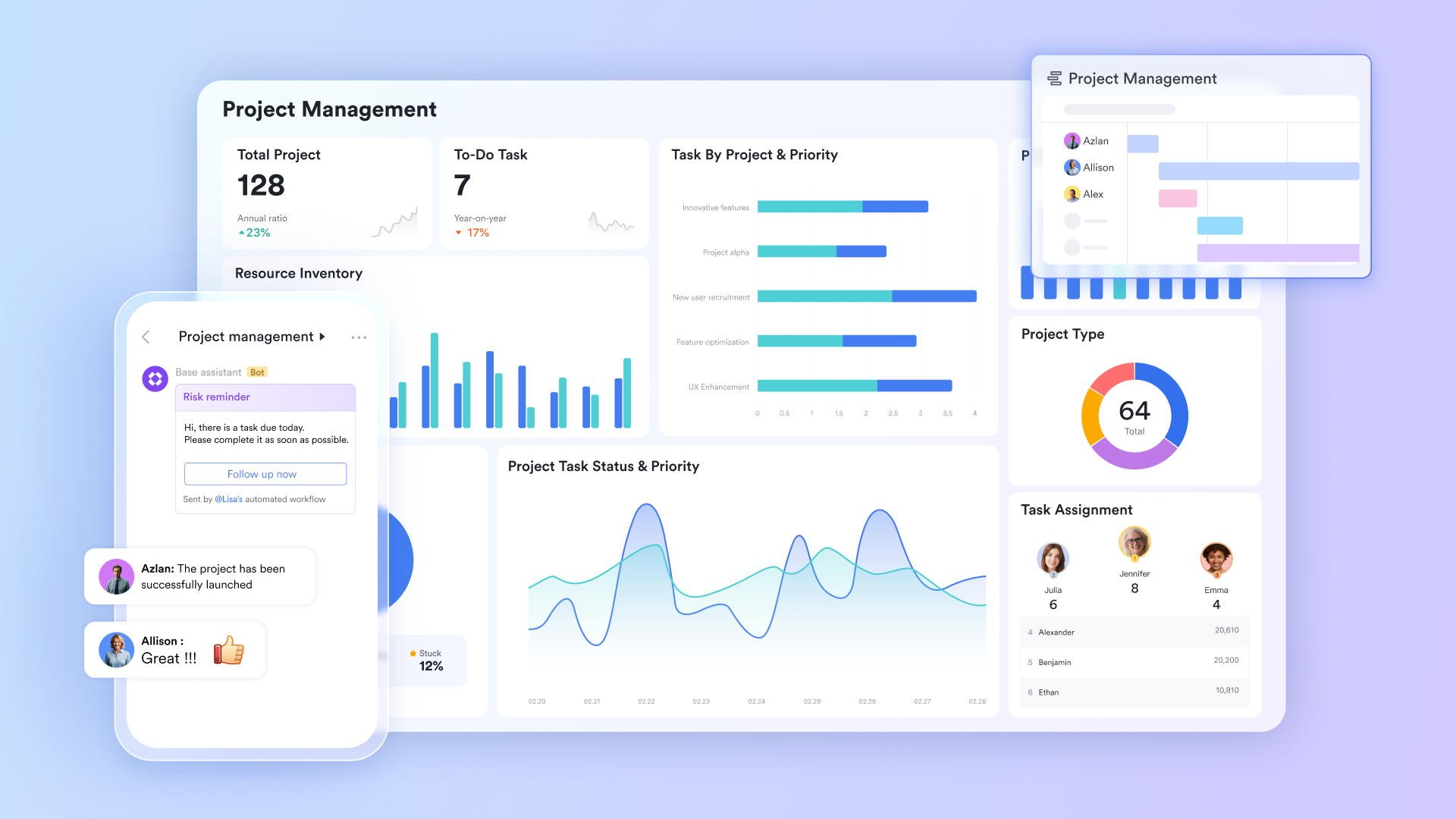
Lark approaches workflow management by dismantling the walls between different software categories. Instead of forcing teams to jump between Slack for chat, Zoom for meetings, Google Drive for documents, and a standalone app for approvals, Lark combines messaging, video meetings, cloud-native documents, sheets, calendars, and email into one unified interface. This architecture inherently solves the "lost context" pain point. If a team member submits a PTO request or a budget approval, the workflow routes directly through the built-in chat system, allowing managers to review and approve without ever leaving the conversation.
The user experience is built around seamless interoperability. You can embed a live project tracker directly into a team Wiki or trigger an automated workflow directly from a shared document. While the initial setup requires a commitment to migrating multiple processes into one ecosystem, the resulting operational efficiency is unmatched. Teams seeking workflow automation, real-time multilingual collaboration, and scalable cloud-native tools will find Lark to be a powerful, all-in-one solution.
Pros:
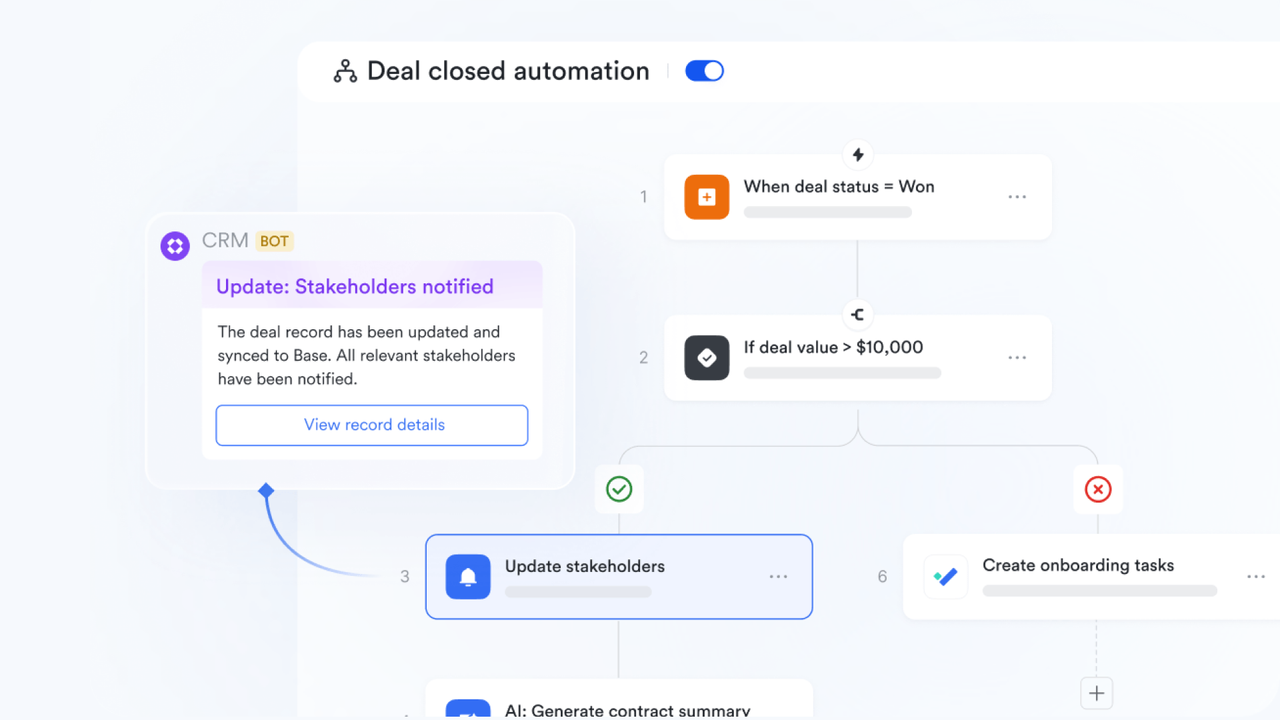
Build sophisticated automated processes without writing code
Repetitive manual tasks are the biggest drain on team productivity. Lark Base offers powerful workflow capabilities that go far beyond simple automation rules. You can create complex, multi-step processes using a visual node editor that supports conditional logic like If/Else branches and switch statements. For example, when a new project request is submitted, a workflow can automatically check the request type, route it to the appropriate team lead, and send reminder notifications at specified intervals. Unlike basic automations, these workflows can handle multiple branches and decisions, ensuring that even your most complex team processes run reliably in the background.
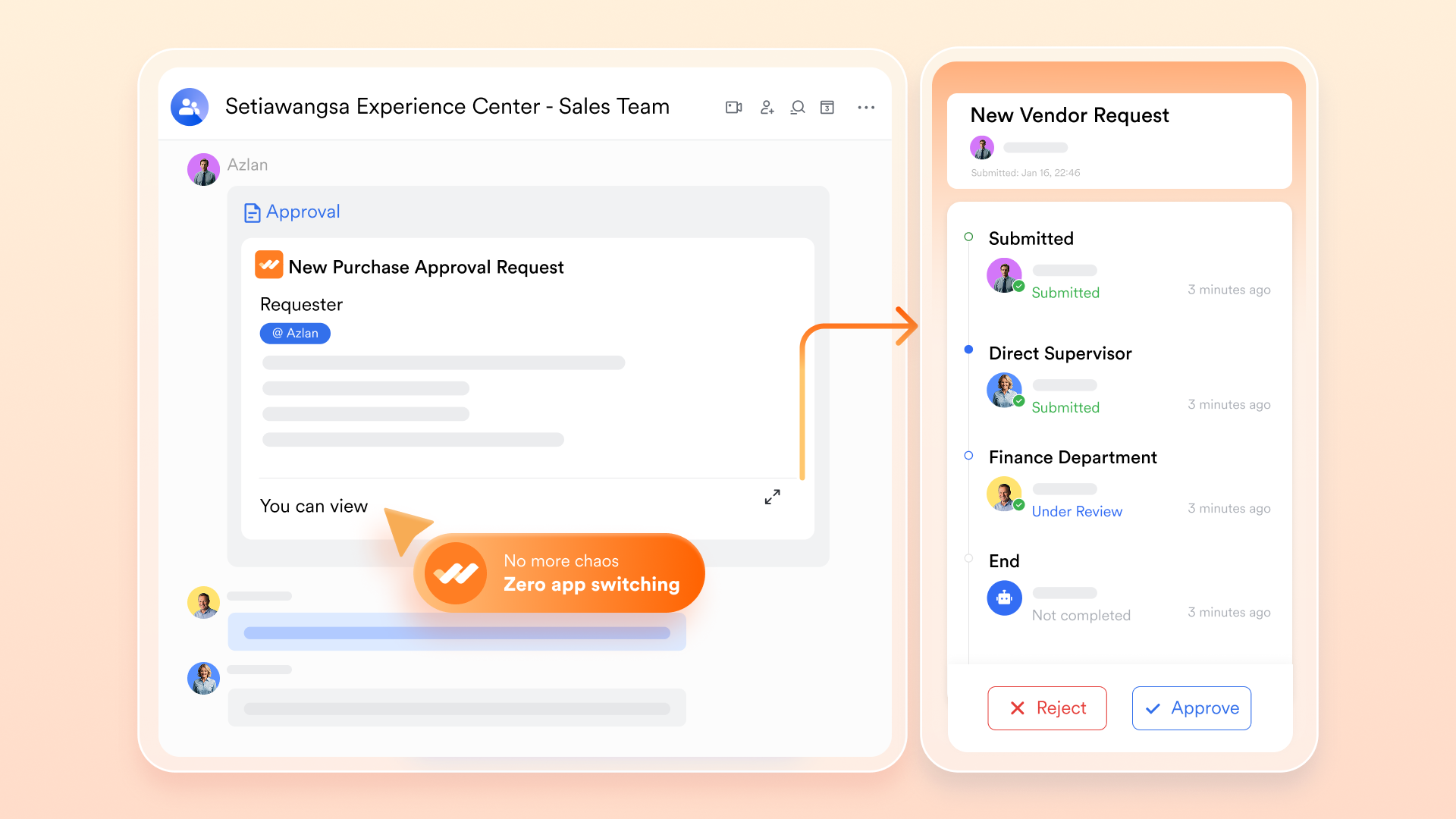
Standardize and accelerate organizational approvals
Manual approval processes—whether for purchase requests, time-off, or project sign-offs—often get stuck in email chains and create frustrating delays. Lark Approval provides a centralized platform where you can design customized approval flows for any business need. When a request is submitted, it automatically follows the configured path—sequential, parallel, or conditional based on thresholds like amount or department. Approvers receive notifications directly in Lark Messenger, can review all details in one place, and approve with a single click. Every decision is logged with a timestamp, giving you a complete audit trail for compliance. By eliminating manual forwarding and chasing, approval workflows that once took days can now be completed in hours.
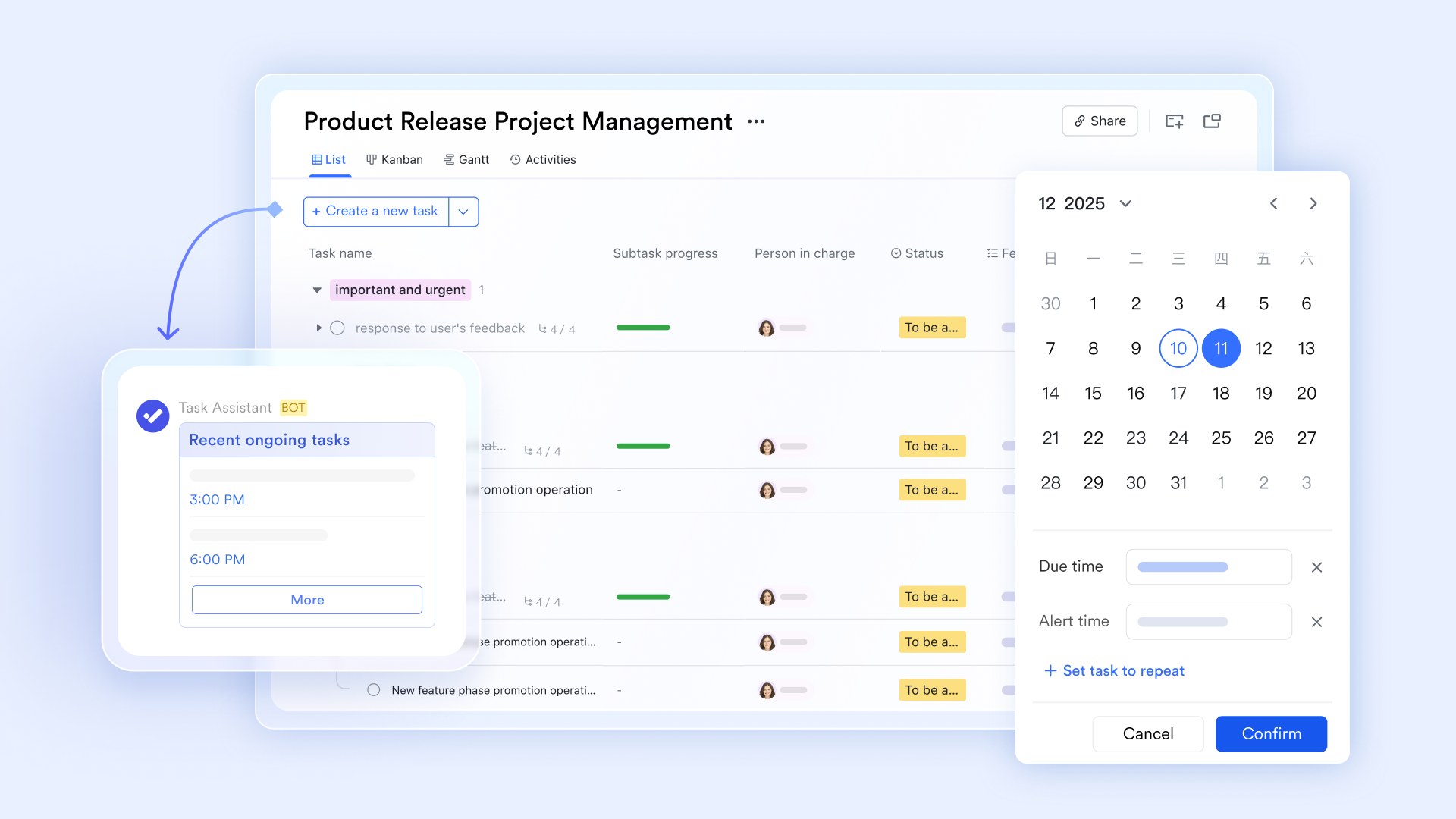
Transform chat messages into trackable tasks instantly
How many times has a task been discussed in a team chat, only to be forgotten or lost in the scroll? Lark Messenger solves this by letting you convert any message directly into a task without leaving the conversation. When a teammate mentions a new action item, simply convert that message—assign an owner, set a due date, and add detailed instructions right there in the chat. The newly created task automatically appears in the assignee's Lark Tasks list and can be visualized on their calendar alongside meetings and deadlines. This eliminates the need to switch to other project management tools or manually re-enter information. Decisions made in conversation become actionable outcomes instantly, ensuring nothing falls through the cracks.
Cons:
- It may take some time to adapt, but Lark Help Center helps a lot.
The verdict: Lark is best for growing SMEs and remote or hybrid teams struggling with fragmented tool stacks and app fatigue. It stands out by aggressively reducing context switching, unifying communication and workflows into a single, highly cost-efficient workspace.
- Starter plan: Free forever plan that includes 11 powerful tools for up to 20 users. It also comes with 100GB of storage, 1000 automation runs, AI translations, and more.
- Basic plan: $6/user/month (billed annually) for up to 500 users. It includes everything in Starter plus group calling for up to 500 attendees, 5TB of storage, 1000 automation runs, and more. For more details, please contact sales.
- Pro plan: $12/user/month (billed annually) for up to 500 users. It includes everything in Basic plus group calling for up to 500 attendees, 15TB of storage, 50,000 automation runs, and more.
- Enterprise plan: Contact sales for custom pricing. Supports unlimited users and includes even more automation runs and advanced security, compliance, and management features.

Starter
Pro
Enterprise
Starter
For small teams with simple communication needs
$0
/ user / month
20 users max
18 months message history
1-on-1 video meetings
100 GB storage
Lark Docs & Mail
1000 Base automation runs/month
2000 rows per table in Base
Pro
For companies with comprehensive collaboration and management needs
$12
/ user / month
500 users max
Unlimited message history
500-participant video meetings
15 TB storage
Lark Docs & Mail
50k Base automation runs/month
20k rows per table in Base
Enterprise
For large companies with advanced security and organizational management needs
Get a personalized demo and pricing
Unlimited users
Unlimited message history
500-participant video meetings
15 TB storage + 30 GB storage/user
Lark Docs & Mail
500k Base automation runs/month
50k Base automation runs/month
Single sign-on (SSO)
Pro
For companies with comprehensive collaboration and management needs
$12
/ user / month
500 users max
Unlimited message history
500-participant video meetings
15 TB storage
Lark Docs & Mail
50k Base automation runs/month
20k rows per table in Base
2. Monday: Highly visual and customizable work OS
Deep Dive: Monday operates as a "Work OS," allowing users to build custom workflows using modular building blocks. The core interface revolves around color-coded columns that can track anything from task status and priority to budget numbers and geographic locations. This visual approach solves the pain point of opaque project statuses, giving stakeholders an immediate, at-a-glance understanding of where a project stands without needing to read through dense text logs.
The platform excels in its user experience for non-technical users. Setting up automated workflows—such as "When status changes to Done, notify the Project Manager"—is handled via simple, plain-English dropdown menus. However, while it is excellent for tracking high-level milestones and CRM data, teams heavily reliant on long-form document creation may find Monday's native text-editing capabilities somewhat lacking compared to dedicated wiki tools.
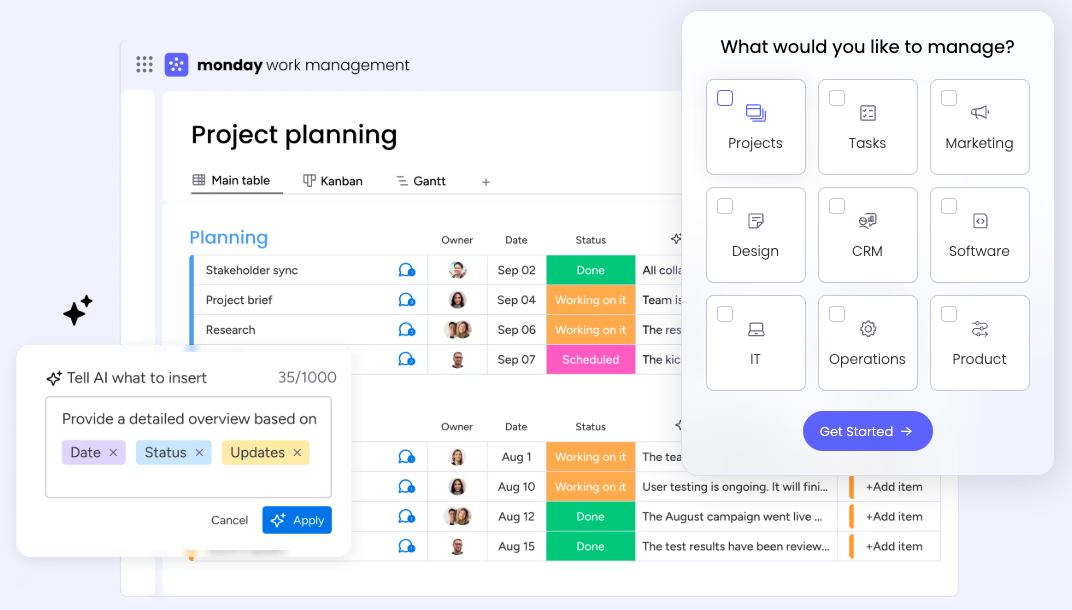
Image source: monday.com
Pros:
- Extremely intuitive, visually appealing interface that drives high user adoption rates.
- A vast marketplace of native integrations with other popular enterprise tools.
- A no-code automation builder is simple enough for anyone on the team to use.
Cons:
- Pricing can scale aggressively, as essential features like time tracking and advanced automations are locked behind higher premium tiers.
- Not ideal for text-heavy, document-centric workflows or comprehensive knowledge management.
The verdict: Monday is best for cross-functional teams, marketing departments, and agencies that require colorful, highly adaptable boards. It stands out for its intuitive data visualization and easy-to-build automations.
Pricing:
- Free: $0.
- Basic: $9/seat/month (billed annually).
- Standard: $12/seat/month (billed annually).
- Pro: $19/seat/month (billed annually).
- Enterprise: Contact sales.
3. Wrike: Enterprise-grade workflow and resource management
Wrike is built for heavy-duty project management. Unlike simple list apps, Wrike utilizes a robust folder-and-project hierarchy that can handle thousands of concurrent tasks without buckling. It directly addresses the pain point of resource management; project managers can use its advanced workload views to see exactly which team members are overbooked and instantly redistribute tasks to prevent burnout and bottlenecks.
The platform offers highly customizable request forms that automatically trigger specific workflow templates based on the answers provided, effectively standardizing the intake process for creative or IT requests. Because it is engineered for enterprise complexity, the user interface leans toward functional rather than purely aesthetic. New users often experience a steep learning curve when navigating its extensive dashboards, Gantt charts, and custom field configurations.
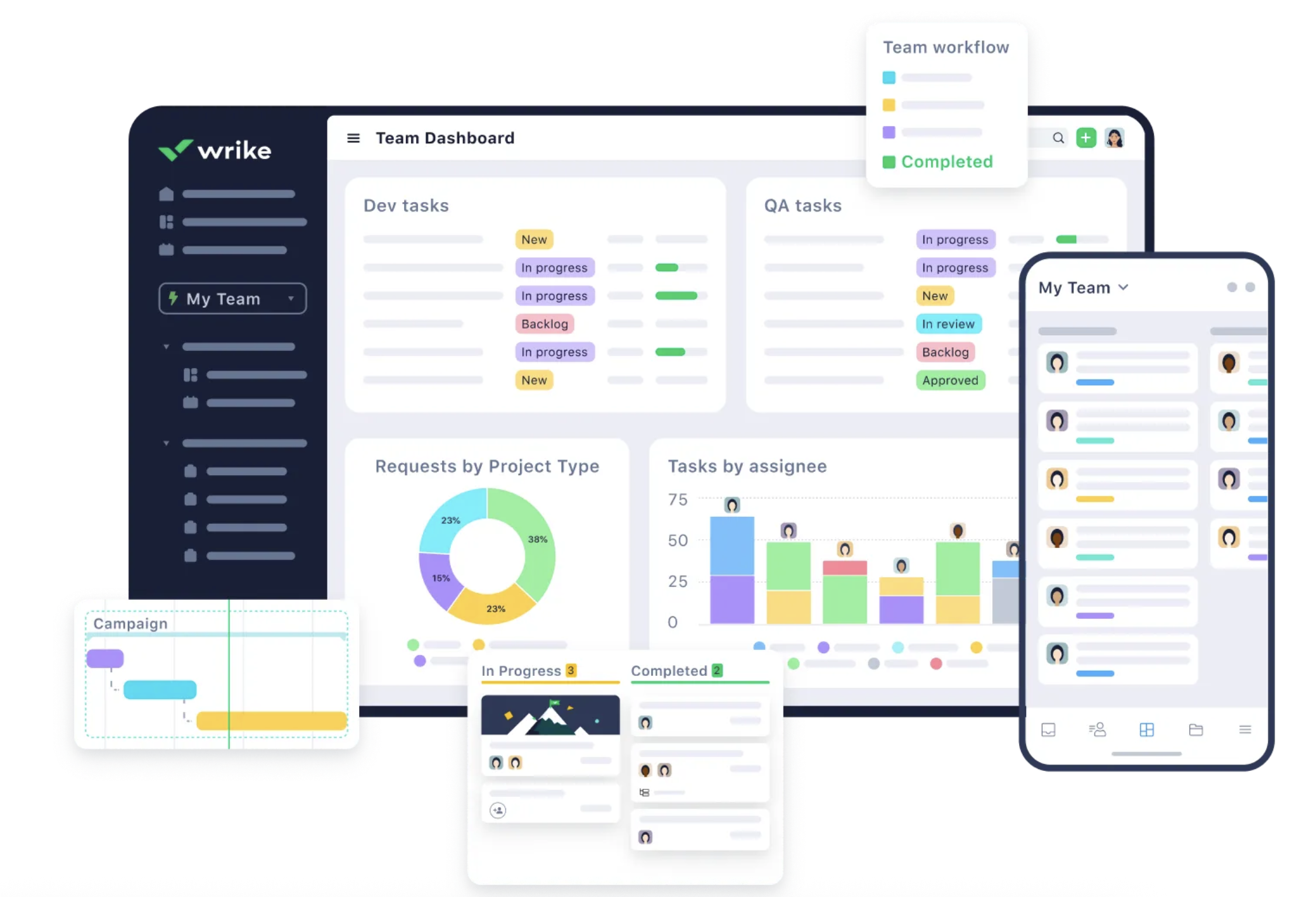
Image source: wrike.com
Pros:
- Exceptional time tracking and workload management features are built natively into the platform.
- Dynamic request forms streamline project intake and automatically assign the correct workflows.
- Enterprise-grade security features and highly granular user permission settings.
Cons:
- The interface can feel clunky and overly complex for standard users who just need simple task tracking.
- Requires dedicated training and onboarding for teams to utilize the software effectively.
The verdict: Wrike is best for large agencies, PMOs, and enterprise IT teams handling complex, multi-phase deliverables. It excels in precise resource allocation, cross-departmental visibility, and deep project reporting.
Pricing:
- Free: $0.
- Team: $10/seat/month (billed annually).
- Business: $25/seat/month (billed annually).
- Pinnacle: Contact sales.
- Apex: Contact sales.
4. Lucidchart: Intelligent diagramming for process mapping
Lucidchart is not a traditional task execution app; rather, it is a visual workspace designed to map out the logic of your workflows. It solves the critical pain point of undocumented, invisible processes. Before a team configures an automation in a project management tool, they use Lucidchart to draw the flowcharts, define conditional logic, and map out API data flows.
The interface relies on an intelligent drag-and-drop canvas. Users can pull from hundreds of standard industry shapes (BPMN, UML) to create precise diagrams. Furthermore, Lucidchart allows users to link real-world data to their diagrams, turning static flowcharts into living operational dashboards. While it is an essential part of the workflow design phase, it does not replace the need for a separate task management app to actually execute the daily work.
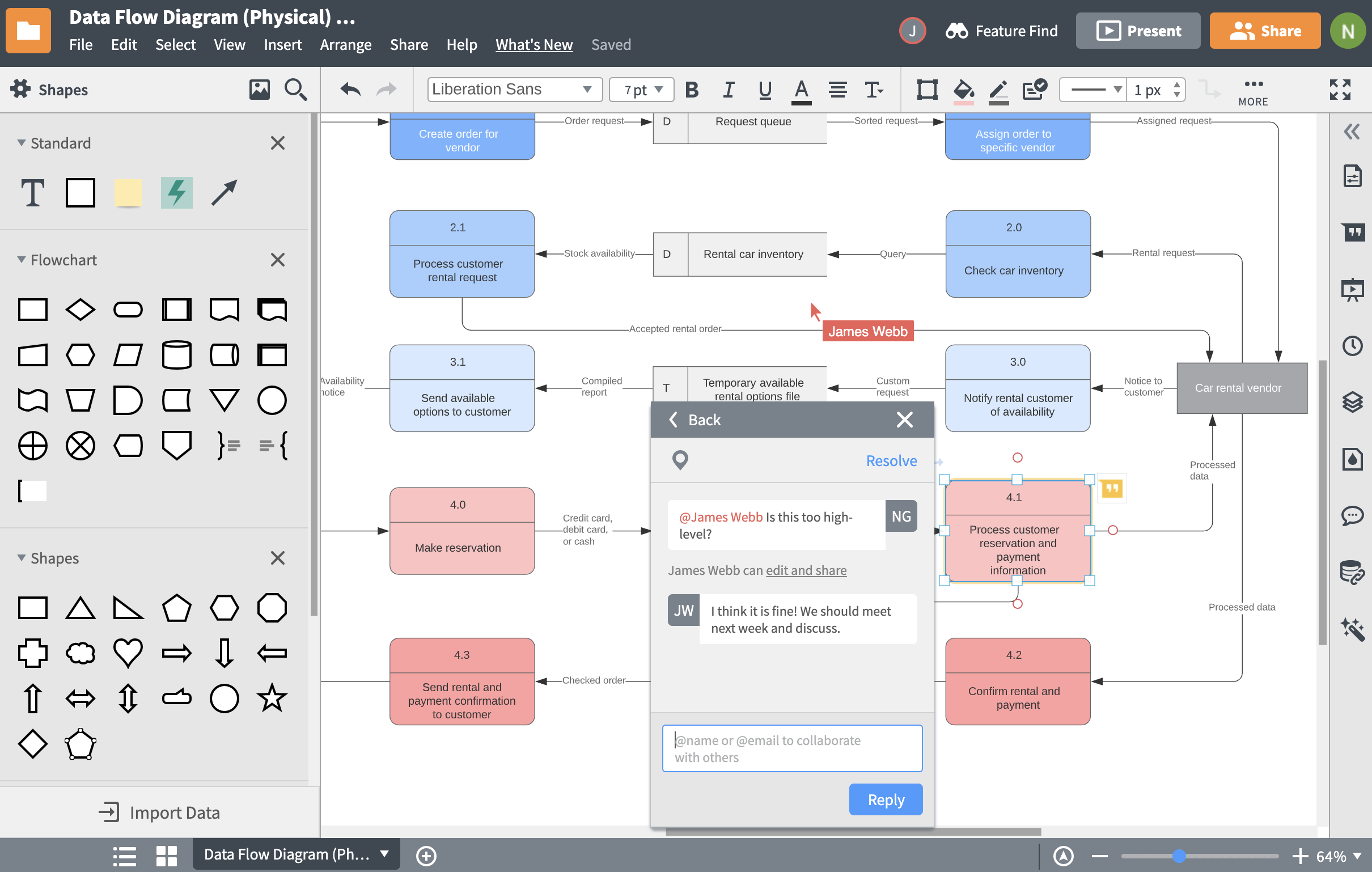
Image source: lucidchart.com
Pros:
- Industry-standard diagramming tools with an incredibly smooth, responsive web canvas.
- Real-time collaboration allows multiple users to edit flowcharts simultaneously.
- Deep integrations with major ecosystems like Google Workspace, Microsoft, and Atlassian.
For more Google Workspace's information, you can refer to Google Workspace Pricing and Google Workspace alternatives.
Cons:
- It is strictly for visualization and mapping; it cannot be used to assign and track daily operational tasks.
- The free tier imposes strict limitations on the number of editable documents and the complexity of the shapes used.
The verdict: Lucidchart is best for operations managers, system architects, and team leads who need to visualize complex workflows before building them. It is the premier tool for mapping logic, user journeys, and system integrations.
Pricing:
- Free: $0.
- Individual: $9/seat/month (billed annually).
- Team: $10/seat/month (billed annually).
- Business: Contact sales.
5. Miro: The infinite whiteboard for agile teams
Miro tackles the ideation and planning phases of a workflow. For remote and hybrid teams, replacing the physical whiteboard is notoriously difficult. Miro solves this by offering an infinite digital canvas where teams can simultaneously place sticky notes, draw mind maps, and conduct user story mapping. You can literally see your colleagues' cursors flying across the screen in real-time, which fosters highly engaging brainstorming sessions.
The platform includes a massive library of pre-built templates for agile ceremonies, customer journey maps, and Kanban frameworks. However, because it is inherently unstructured, Miro boards can quickly become messy and unmanageable if teams do not actively organize them. It is brilliant for mapping out a workflow or conducting a retrospective, but teams will usually need to export those actionable items into a more structured database to track long-term execution.
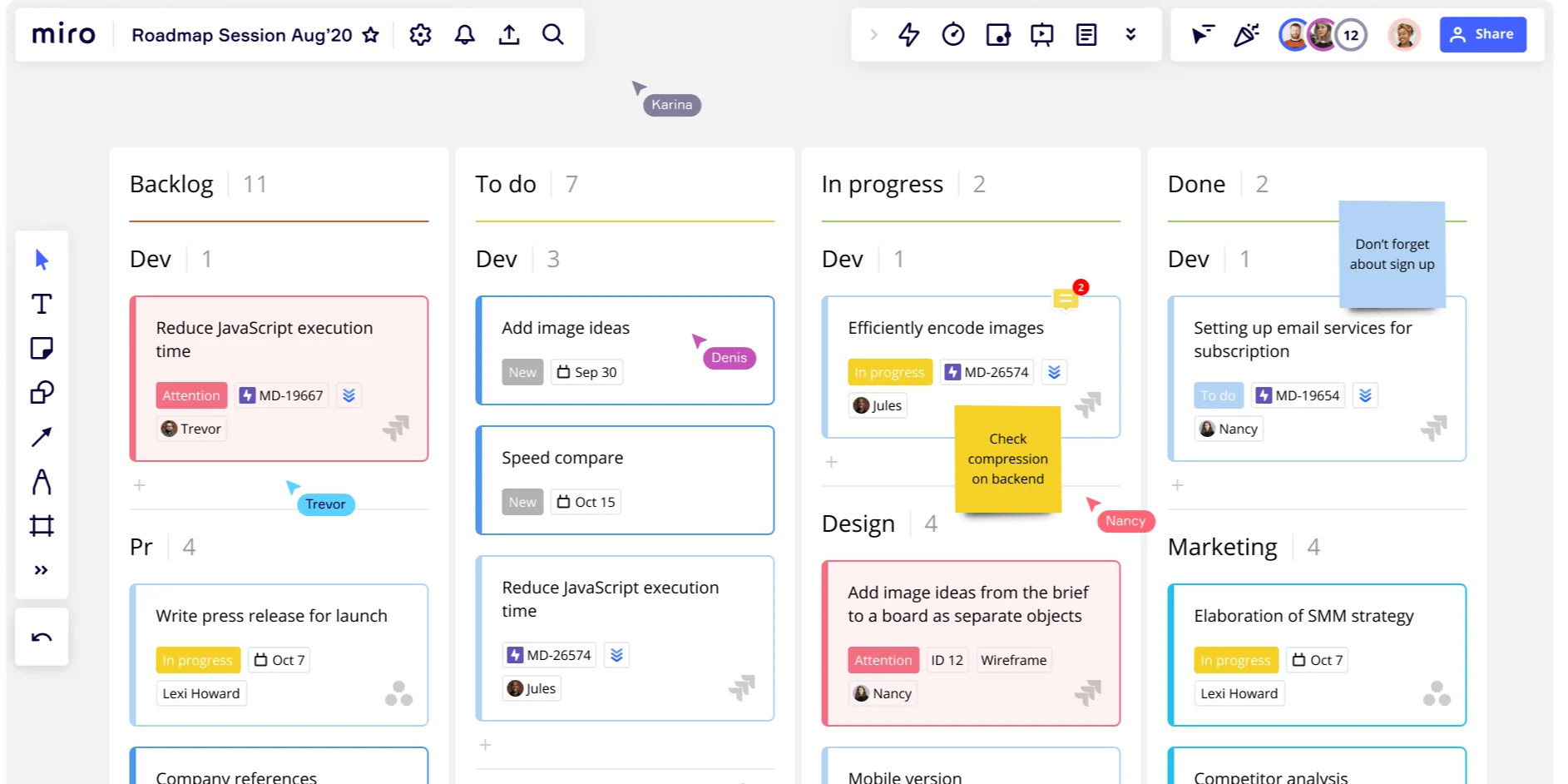
Image source: miro.com
Pros:
- An unmatched, fluid digital whiteboard experience that highly engages remote participants.
- Hundreds of excellent templates specifically designed for agile workflows and design thinking.
- Integrates well with structured tools like Jira and Asana to push sticky notes into actionable tasks.
Cons:
- Lacks the deep, structured database capabilities required for rigorous, long-term project tracking.
- Without strict board moderation, the infinite canvas can quickly become cluttered and visually overwhelming.
The verdict: Miro is best for remote design teams, product managers, and agile developers conducting sprint planning or brainstorming. It stands out by mimicking the freeform, collaborative nature of a physical conference room.
Pricing:
- Free: $0.
- Starter: $8/user/month (billed annually).
- Business: $20/user/month (billed annually).
- Enterprise: Contact sales.
6. Nifty: Consolidated project management and team chat
Nifty attempts to bridge the gap between communication and execution by tying team chat directly to specific projects. Instead of having a general Slack channel for a client and a separate project board elsewhere, Nifty integrates a dedicated discussion thread directly into the project portfolio. This solves the persistent issue of client feedback or team decisions happening outside the context of the actual workflow.
A core feature of Nifty is its automated milestone tracking. As team members complete individual tasks, the overarching project milestones automatically update on the visual roadmap, giving leadership real-time insights without needing status meetings. While it is highly effective for agency workflows and client management (via robust guest access), its internal database capabilities and integration ecosystem are not as expansive as some of the larger enterprise giants.
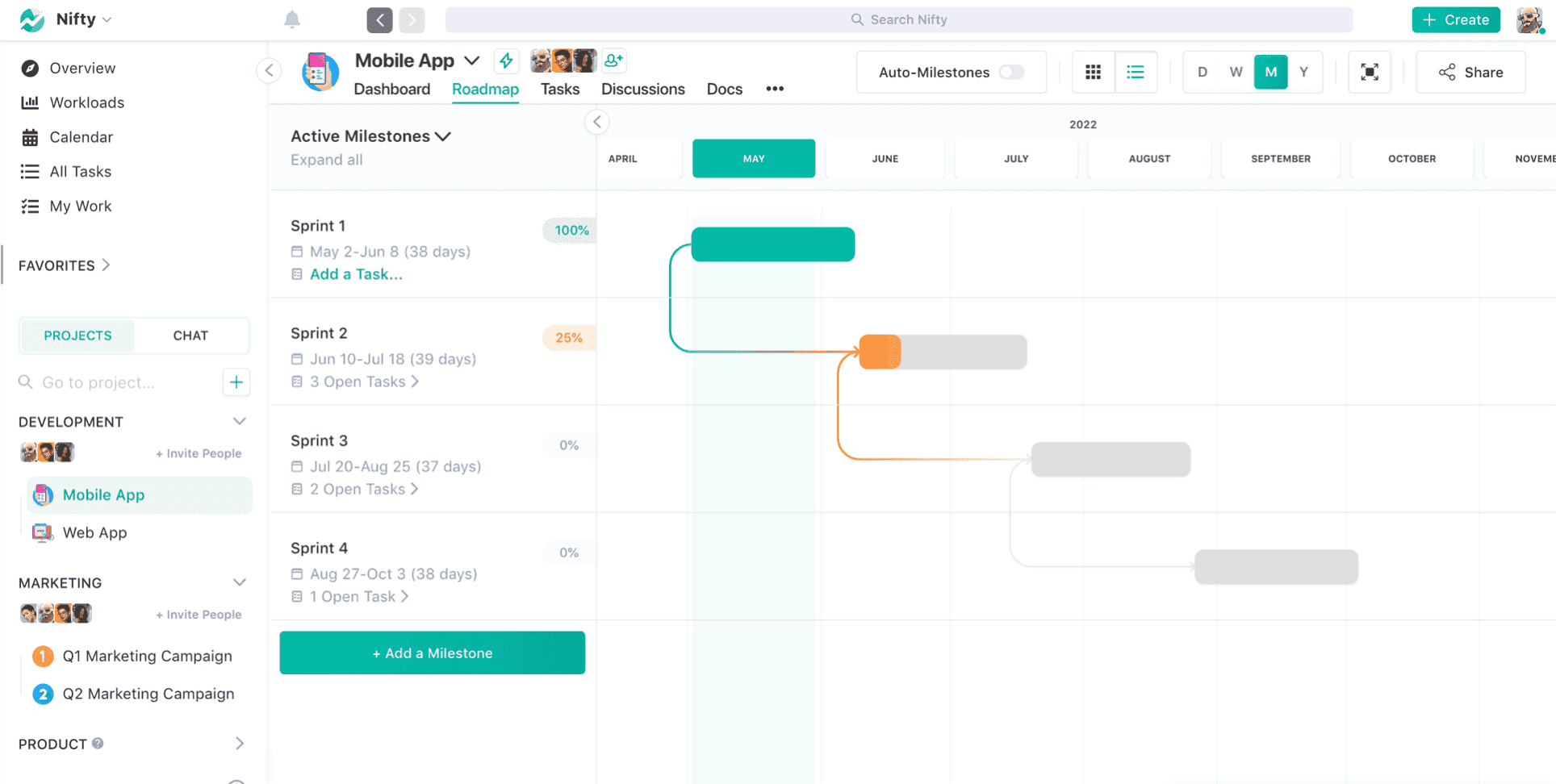
Image source: nifty.com
Pros:
- Seamlessly blends project-specific chat with task execution to keep conversations contextual.
- Milestone tracking is fully automated based on the completion of underlying tasks.
- Excellent portfolio views and guest access features make it highly suitable for client work.
Cons:
- Less flexible for teams that require highly customized, relational database architectures.
- The third-party integration ecosystem is somewhat smaller compared to industry leaders.
The verdict: Nifty is best for client-facing agencies and mid-sized teams seeking a middle ground between simple lists and complex unified workspaces. It successfully unites project milestones, daily tasks, and contextual communication.
Pricing:
- Free: $0.
- Personal: $7/user/month (billed annually).
- Business: $16/user/month (billed annually).
- Enterprise: Contact sales.
7. Kissflow: Low-code platform for custom business processes
Kissflow takes a different approach to workflow management by focusing purely on process automation rather than agile project management. It is designed to replace paper forms and messy email chains with structured digital pipelines. For example, if you need to build a complex expense reimbursement process with multiple conditional routing rules (e.g., "If expense > $1,000, route to VP of Finance; otherwise, route to direct manager"), Kissflow is the ideal tool.
The platform provides a visual, low-code interface that empowers operational managers to build these robust applications without relying on the IT department. It ensures high compliance and leaves a pristine audit trail for every request. However, because it is so heavily structured around forms and sequential approvals, it is completely unsuitable for creative teams, content calendars, or agile software development tracking.
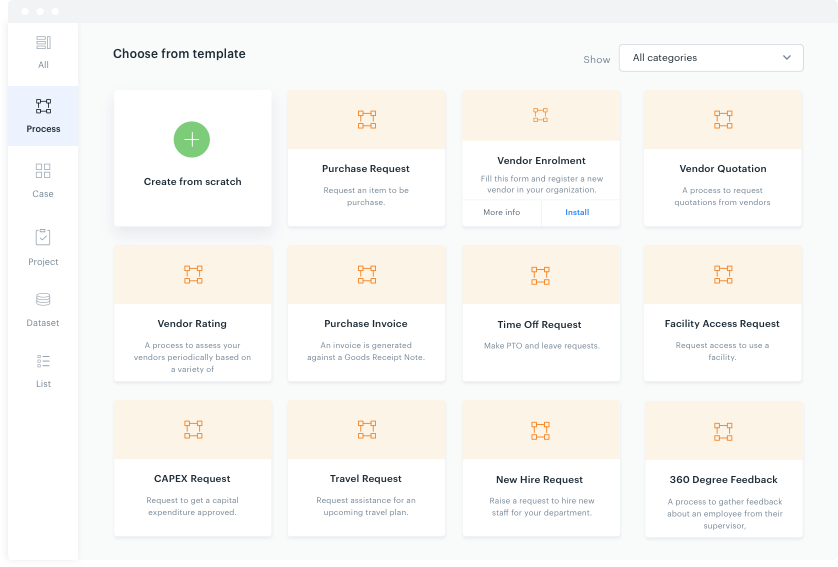
Image source: kissflow.com
Pros:
- Powerful visual workflow builder that requires zero coding knowledge to deploy complex logic.
- Exceptional for maintaining audit trails and compliance in finance and HR operations.
- Strong conditional routing ensures tasks only go to the specific person required.
Cons:
- Inflexible for dynamic, creative, or agile projects that require fluid collaboration.
- Pricing is structured for corporate operations, making it prohibitively expensive for very small teams.
The verdict: Kissflow is best for HR, finance, and procurement departments that require strict, form-based approval pipelines. It shines as a low-code builder for standardizing rigid corporate operations.
Pricing:
- Basic: $2500/month.
- Enterprise: Custom pricing.
8. Trello: The definitive visual Kanban board tool
Trello popularized the digital Kanban board, and it remains fiercely dedicated to its core architecture: Boards, Lists, and Cards. This visual methodology solves the barrier to entry for digital workflow adoption. New users instantly understand that dragging a card from a "To-Do" list into an "In Progress" list indicates workflow movement.
Beyond its simple exterior, Trello incorporates "Butler," an incredibly powerful built-in automation engine. Users can easily set up rules so that when a card is moved to "Done," Butler automatically checks off all subtasks, removes members, and logs the date. While Trello is fantastic for linear workflows (like an editorial calendar), it fundamentally struggles with complex task dependencies and overarching portfolio management. When a company tries to run hundreds of cross-functional projects on Trello, the boards become visually overwhelming and chaotic.
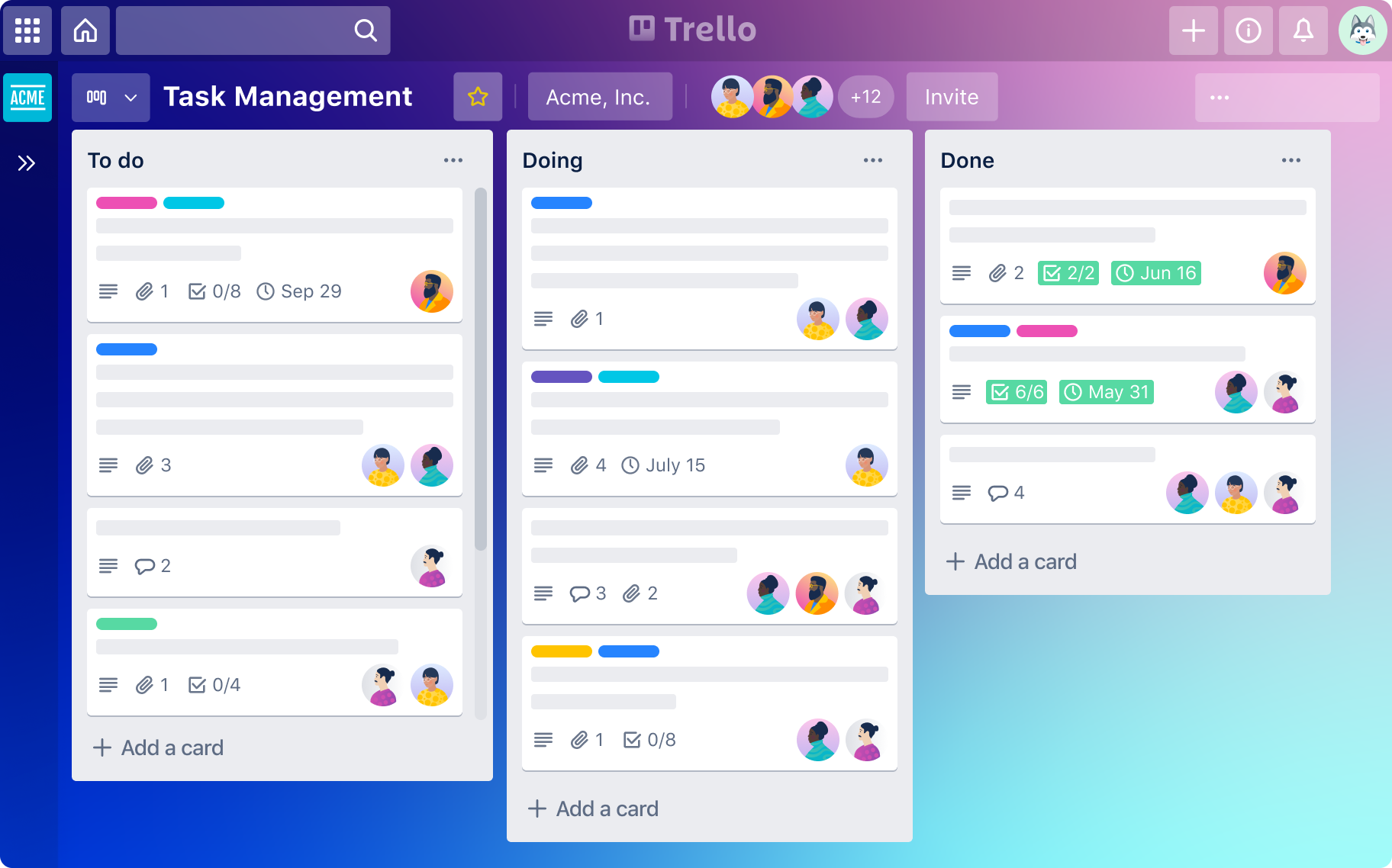
Image source: trello.com
Pros:
- Extremely low learning curve; teams can be fully operational within minutes.
- The built-in Butler automation is genuinely useful and easy to configure.
- A vast library of "Power-Ups" allows you to integrate almost any external app into a card.
Cons:
- Lacks native capabilities to manage complex task dependencies (e.g., "Task B cannot start until Task A finishes").
- UI can become cluttered and unmanageable when scaling up to enterprise-level project portfolios.
The verdict: Trello is best for individuals, startups, and small teams looking for an immediate, zero-training task manager. Its simplicity and highly tactile interface make it the undisputed king of digital sticky notes.
Pricing:
- Free: $0.
- Standard: $5/user/month (billed annually).
- Premium: $10/user/month (billed annually).
- Enterprise: $17.5/user/month (billed annually).
9. ClickUp: The highly customizable everything app
ClickUp’s core philosophy is to be "one app to replace them all." While Lark achieves this by unifying communication and documents, ClickUp achieves this by building an incredibly dense matrix of project management features. It solves the pain point of feature limitation; if you want to view a project as a list, a board, a Gantt chart, a calendar, a mind map, or a workload table, ClickUp can do it natively.
The platform allows for deep customization of task hierarchies, custom statuses, and custom fields. You can build a workspace that exactly mirrors your unique operational logic. However, this immense power comes with a significant trade-off: ClickUp has one of the steepest learning curves in the industry. Setting up the platform requires deliberate architectural planning, and regular users can easily get lost in the sheer volume of menus, toggles, and notification settings.
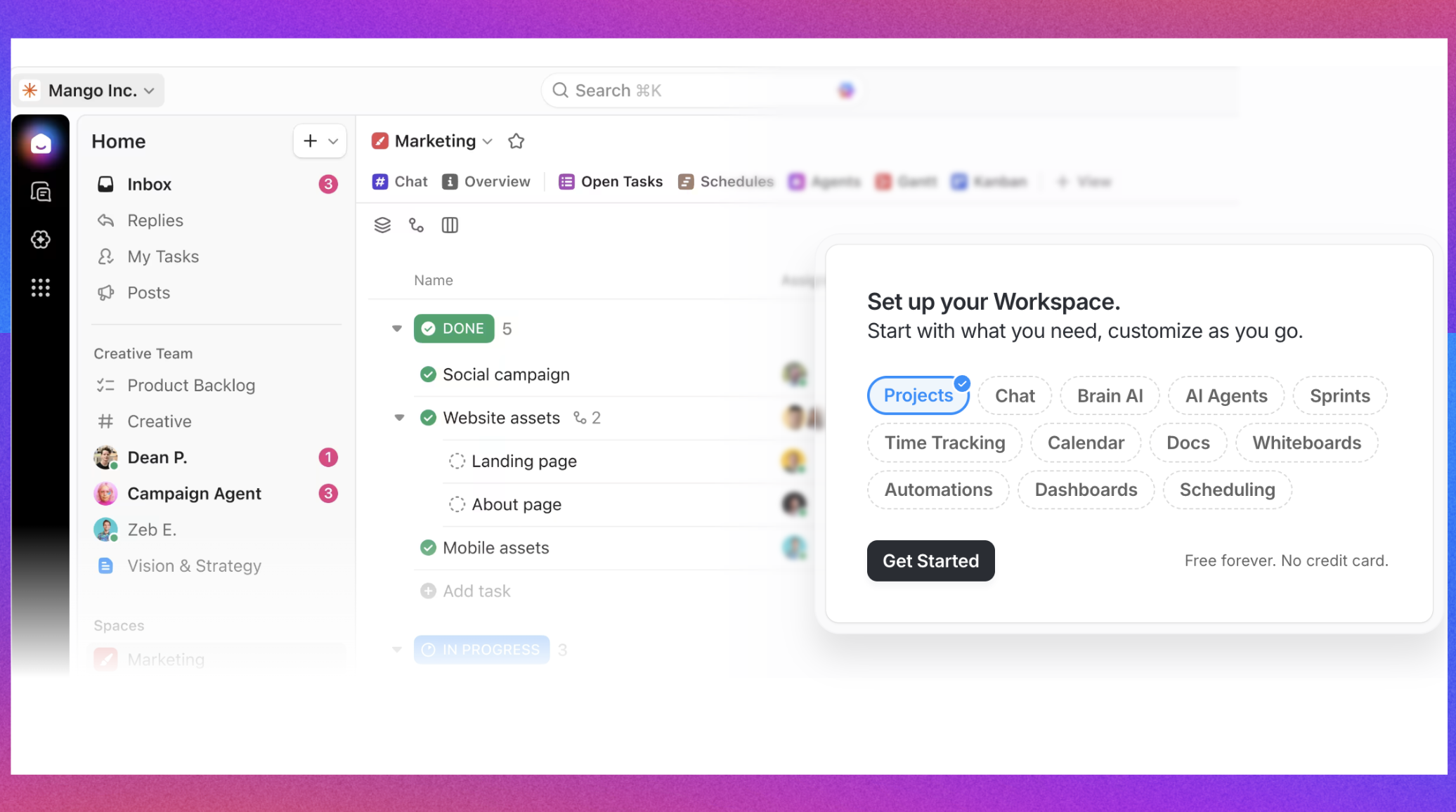
Image source: clickup.com
Pros:
- Incredible feature density, offering more native views and tools than almost any competitor.
- Highly customizable hierarchies allow it to adapt to almost any business methodology.
- The free tier offers a massive amount of functionality and generous limits for startups.
Cons:
- The steep learning curve and feature bloat can heavily deter non-technical users from adopting it.
- Historically, the sheer weight of the application can occasionally lead to slower loading speeds or lag.
The verdict: ClickUp is best for power users, tech-savvy teams, and organizations that want to tweak every single detail of their workspace. It stands out by offering an almost overwhelming amount of native features and views.
Pricing:
- Free: $0.
- Unlimited: $7/seat/month (billed annually).
- Business: $12/seat/month (billed annually).
- Enterprise: Contact sales.
10. Asana: Elegant task and project portfolio management
Asana is designed around clear accountability. Its core mission is to ensure everyone knows "who is doing what by when." It excels at breaking down large, unwieldy projects into manageable tasks, subtasks, and milestones. For managers, Asana solves the pain point of blind spots; the "Portfolios" feature allows leadership to group dozens of related projects together and view their real-time health and progress on a single, elegant timeline.
The user interface is widely considered one of the most visually pleasing and intuitive in the enterprise software space, incorporating satisfying micro-interactions (like celebratory animations upon completing tasks). While it is fantastic for task delegation and mapping out campaign launches, it historically relies on integrations for certain operational needs, as it lacks a native built-in time tracker for billing purposes.
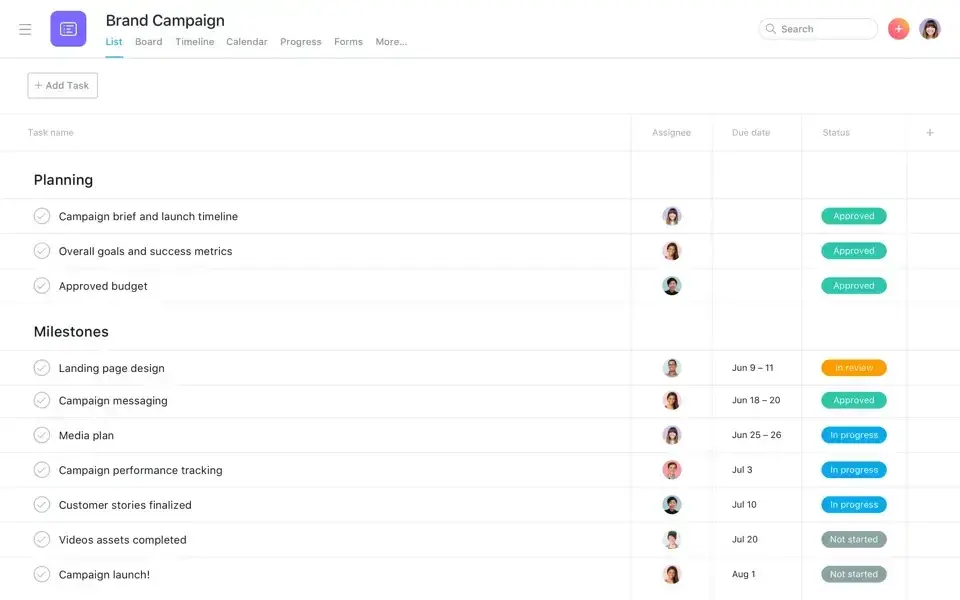
Image source: asana.com
Pros:
- A beautiful, user-friendly interface that balances power with accessibility.
- Exceptional Portfolio and Timeline features for managing overarching company goals.
- Clear, rigid structure that enforces task accountability and prevents dropped balls.
Cons:
- Lacks a native, built-in time-tracking module, requiring teams to rely on third-party integrations.
- Premium tiers are comparatively expensive, and essential features like Timeline view are locked out of the free version.
The verdict: Asana is best for mid-sized teams, marketing departments, and project managers focusing on clear delegation and multi-project tracking. It beautifully balances a highly polished interface with a strong structural hierarchy.
Pricing:
- Personal: $0.
- Starter: $10.99/user/month (billed annually).
- Advanced: $24.99/user/month (billed annually).
- Enterprise: Contact sales.
11. Smartsheet: Spreadsheet-style work management for enterprise
Many organizations run entirely on static spreadsheets, which inevitably break down when multiple people try to update them simultaneously. Smartsheet directly targets this pain point. At its core, it looks and acts like a traditional spreadsheet (the grid view), which makes it instantly familiar to financial analysts and traditional PMP-certified project managers.
However, beneath the grid is a highly sophisticated relational database. Users can write complex cross-sheet formulas, build automated approval requests that trigger when specific cell values change, and roll up data into beautiful, real-time executive dashboards. Because it is highly structured and mathematical, it excels in inventory tracking, budget management, and enterprise rollouts. Conversely, creative and design teams often find the interface overly rigid and visually uninspiring.
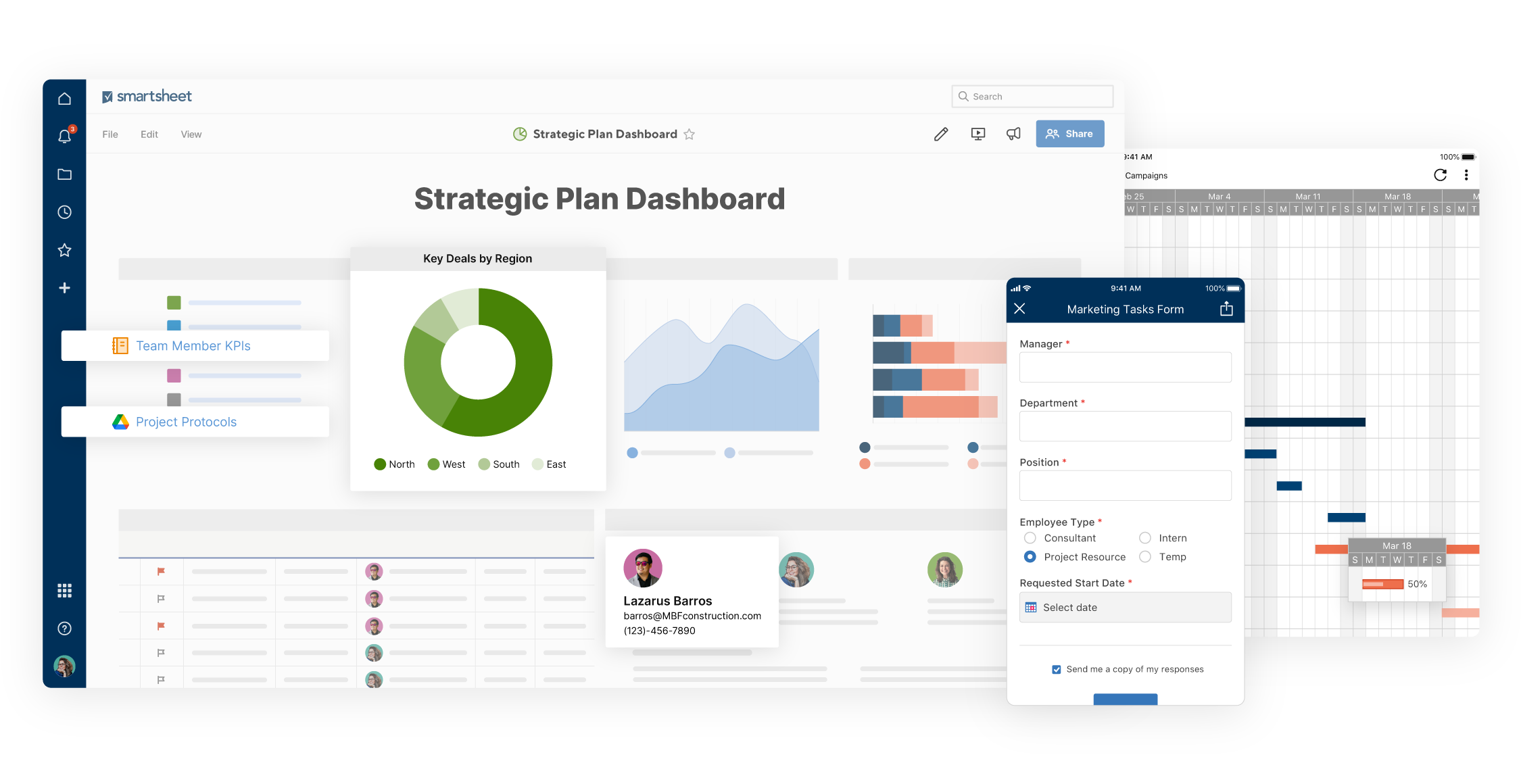
Image source: smartsheet.com
Pros:
- Deep formula and cross-sheet reporting capabilities rivaling advanced Excel setups.
- Highly secure and stable, making it a favorite for enterprise compliance and PMOs.
- The familiar spreadsheet UI significantly lowers the barrier to entry for numbers-driven teams.
Cons:
- Not visually appealing or flexible enough for creative, agile, or design-centric workflows.
- Requires a strong foundational knowledge of spreadsheet logic and formulas to unlock its true value.
The verdict: Smartsheet is best for traditional project managers, PMOs, and operational teams transitioning away from Excel. It offers the familiar grid format of spreadsheets infused with powerful database automations.
Pricing:
- Pro: $0.
- Business: $19/user/month (billed annually).
- Enterprise: Contact sales.
- Advanced Work Management: Contact sales.
12. Notion: The ultimate modular workspace and wiki
Notion fundamentally rejects the idea that documents and databases should be separate. It solves the pain point of disconnected company knowledge. In Notion, you start with a blank document. Using its block-based editor, you can type out a company policy, and right in the middle of that document, type a slash command to embed a fully functioning Kanban board linked to your engineering database.
The power of Notion lies in its relational databases. You can create a database of "Meeting Notes" and relate it to a database of "Action Items," allowing for highly interconnected information architectures. While this modularity is incredible for building a perfectly tailored workspace or company wiki, it can be a double-edged sword. Setting up a complex team workflow from scratch requires a "Notion Architect" mindset, and teams without strong internal guidelines can quickly turn their workspace into a disorganized maze of pages.
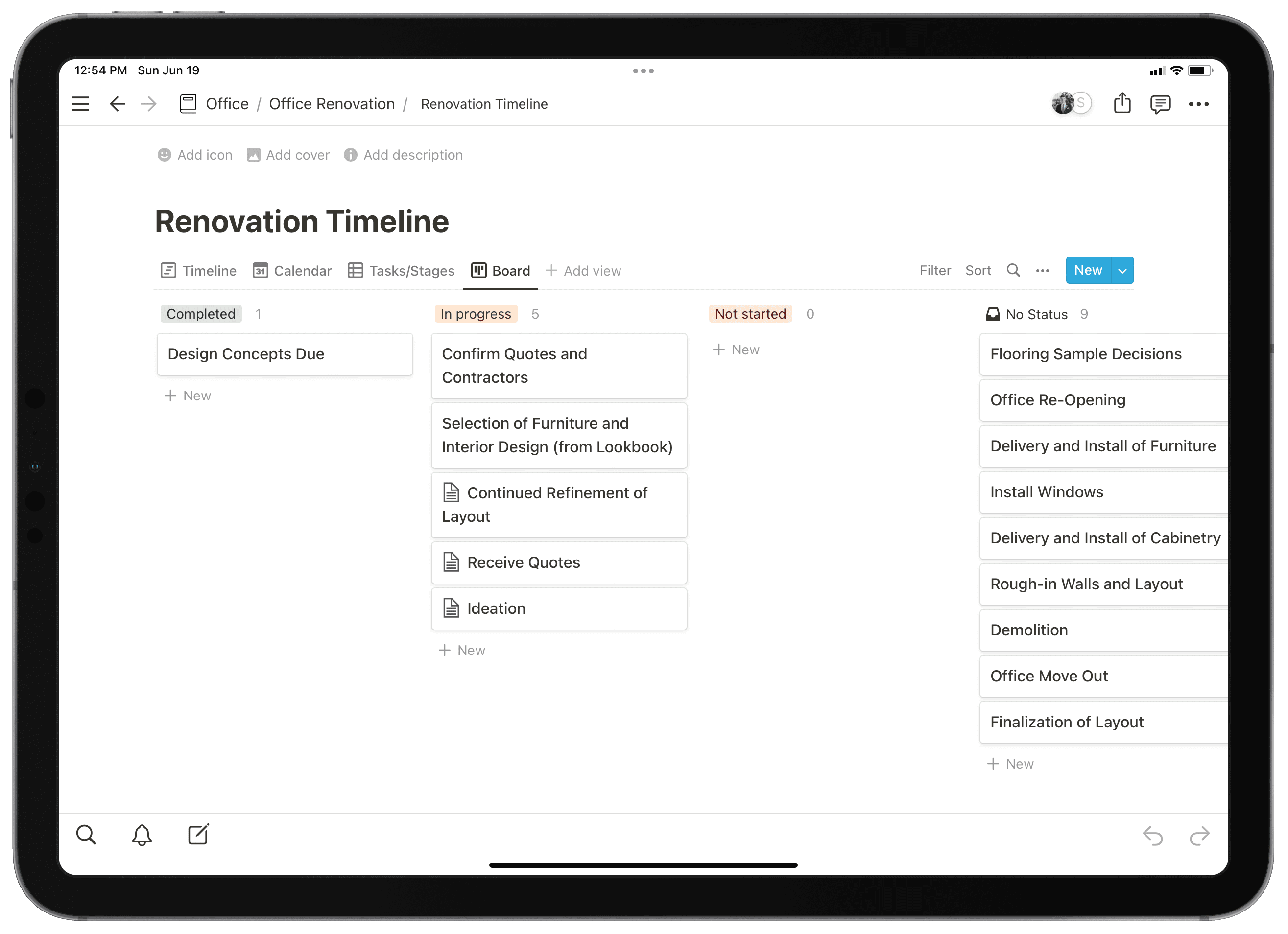
Image source: notion.com
Pros:
- Unrivaled capabilities for combining long-form wiki documents with active task databases.
- Highly flexible relational databases allow you to interlink data across your entire company.
- A massive community ecosystem providing thousands of pre-built operational templates.
Cons:
- Creating a cohesive team workflow from scratch can be highly time-consuming.
- Historically, its offline mode and search capabilities across massive workspaces have been weak points.
The verdict: Notion is best for startups, creators, and content-heavy teams needing a combined knowledge base and task tracker. It acts as digital Lego, allowing you to build custom workflows from literal blank pages.
Pricing:
- Free: $0.
- Plus: $10/user/month (billed annually).
- Business: $20/user/month (billed annually).
- Enterprise: Contact sales.
13. Airtable: Relational databases designed for modern teams
If Smartsheet is the evolution of Excel, Airtable is the evolution of Microsoft Access. It is built to handle multi-dimensional data. For example, a video production team might need to track a workflow that connects specific freelance videographers to specific budgets, locations, and video files. Standard list-based project tools fail here. Airtable solves this by allowing you to build linked records across multiple base tables, creating a flawless relational data structure.
Airtable also features an "Interface Designer," which allows creators to build custom, simplified dashboards for end-users based on the underlying data. This means an executive can view a beautiful chart of campaign progress without ever having to look at the raw database grid. While it is unmatched for data structuring, it lacks native long-form document editing, meaning teams will still need a separate wiki tool for text-heavy work.
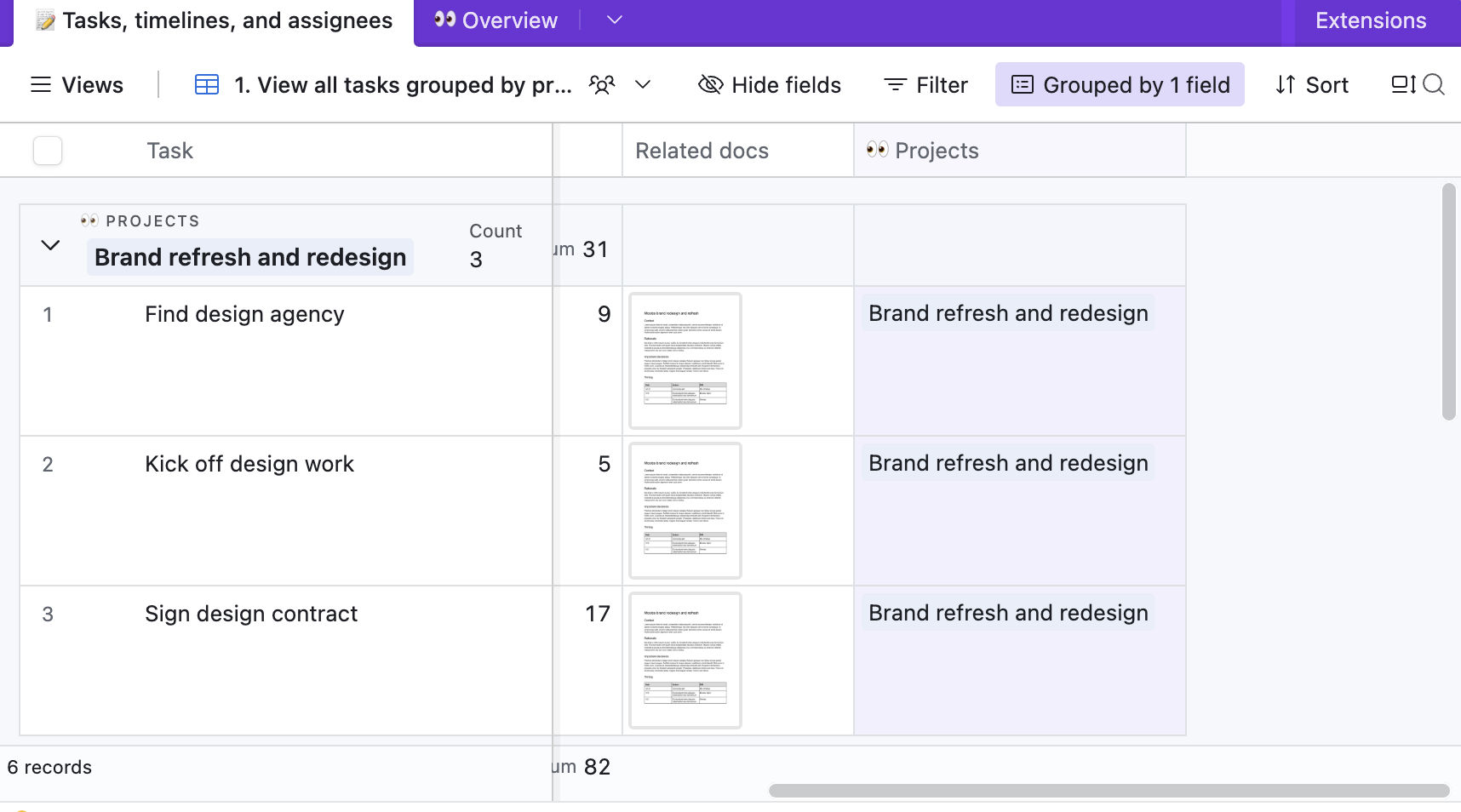
Image source: airtable.com
Pros:
- Extremely powerful relational database structure handles complex data dependencies flawlessly.
- Interface Designer allows you to build custom, visually appealing apps on top of your data.
- Strong API access and automation scripts enable deep integrations with external software.
Cons:
- The concept of relational databases can be intimidating and difficult for non-technical users to grasp.
- Lacks native long-form document or wiki capabilities (unlike Notion or Lark).
The verdict: Airtable is best for data-driven operations, media production teams, and complex content calendars. It bridges the gap between a robust, highly structured database and a user-friendly collaborative app.
Pricing:
- Free: $0.
- Team: $20/seat/month (billed annually).
- Business: $45/seat/month (billed annually).
- Enterprise Scale: Contact sales.
14. Jira: The industry standard for software development
Jira is purpose-built for the software development life cycle. It tracks workflows in terms of Epics, User Stories, Tasks, and Bugs. It directly solves the pain point of keeping code deployment aligned with project management. Because Jira natively integrates with code repositories like GitHub and Bitbucket, a developer can simply mention a Jira task ID in their code commit, and the workflow app will automatically update the task status on the product manager's board.
While its power in agile methodologies (Scrum and Kanban) is unparalleled, Jira is notoriously heavy. The backend administration requires deep expertise to configure custom issue types, workflows, and permission schemes. Consequently, non-technical departments (like HR or Marketing) usually find Jira's interface overly complex, rigid, and frustrating to use for standard business operations.
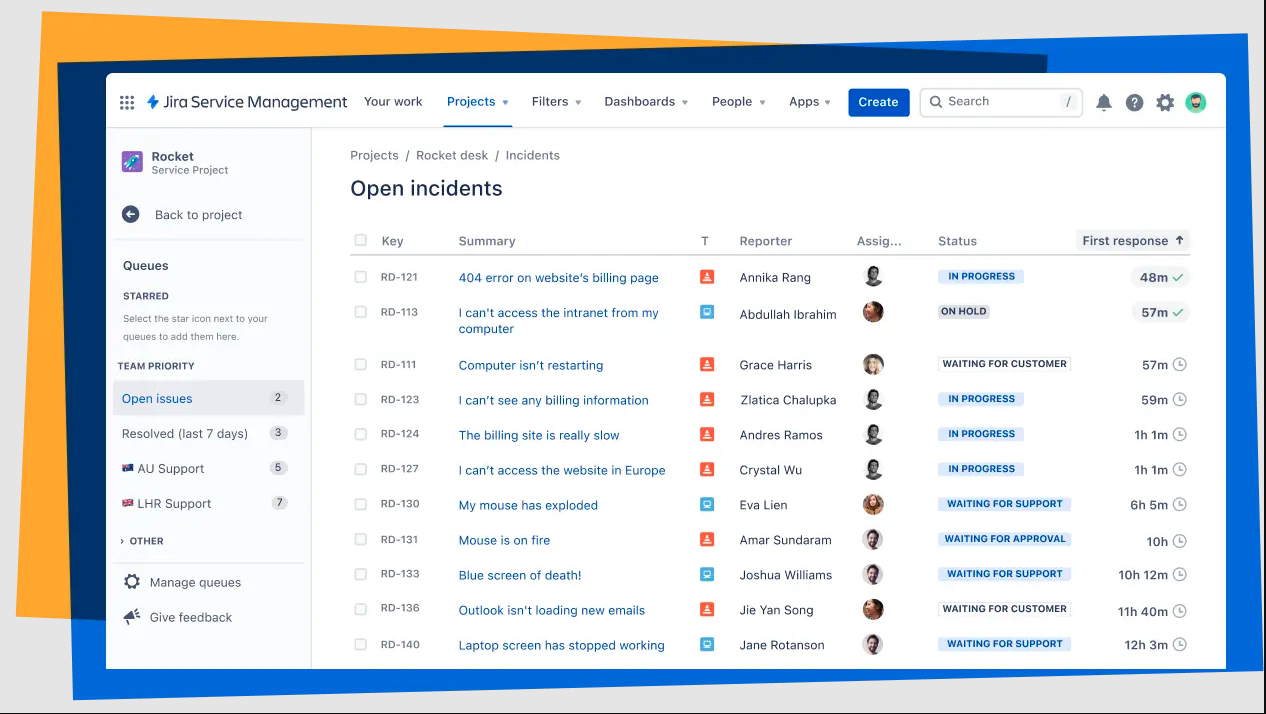
Image source: atlassian.com
Pros:
- Unmatched issue tracking and agile board capabilities specifically designed for software teams.
- Deep, automated integrations with developer tools and CI/CD pipelines.
- Highly customizable workflows can enforce strict technical compliance and code review steps.
Cons:
- Setup and administration are notoriously complex, often requiring a dedicated Jira Administrator.
- The UI and heavy structural logic make it a poor fit for creative or purely operational workflows.
The verdict: Jira (by Atlassian) is best for agile software engineering, product management, and DevOps teams. It is the undeniable gold standard for bug tracking, sprint planning, and code repository integration.
Pricing:
- Free: $0.
- Standard: $7.91/user/month (billed monthly).
- Premium: $14.54/user/month (billed monthly).
- Enterprise: Contact sales.
15. Basecamp: Deliberately simple asynchronous project management
While most workflow apps compete by adding more features, Basecamp competes by taking them away. Basecamp is philosophically opposed to the anxiety of hyperactive chat environments and complex Gantt charts. It solves the pain point of notification fatigue by forcing a structured, slower pace of work. Every project in Basecamp consists of the exact same tools: a message board for asynchronous announcements, a to-do list, a centralized document folder, a campfire chat, and automated check-ins.
This rigidity is a feature, not a bug. It ensures that no matter what project a user clicks into, they know exactly where to find the information. Automated check-ins (e.g., prompting the team with "What did you work on today?" at 4 PM) replace the need for daily standup meetings. However, because it deliberately avoids complex dependencies, automations, and timeline views, teams running intricate, multi-phase operational pipelines will find Basecamp far too simplistic.
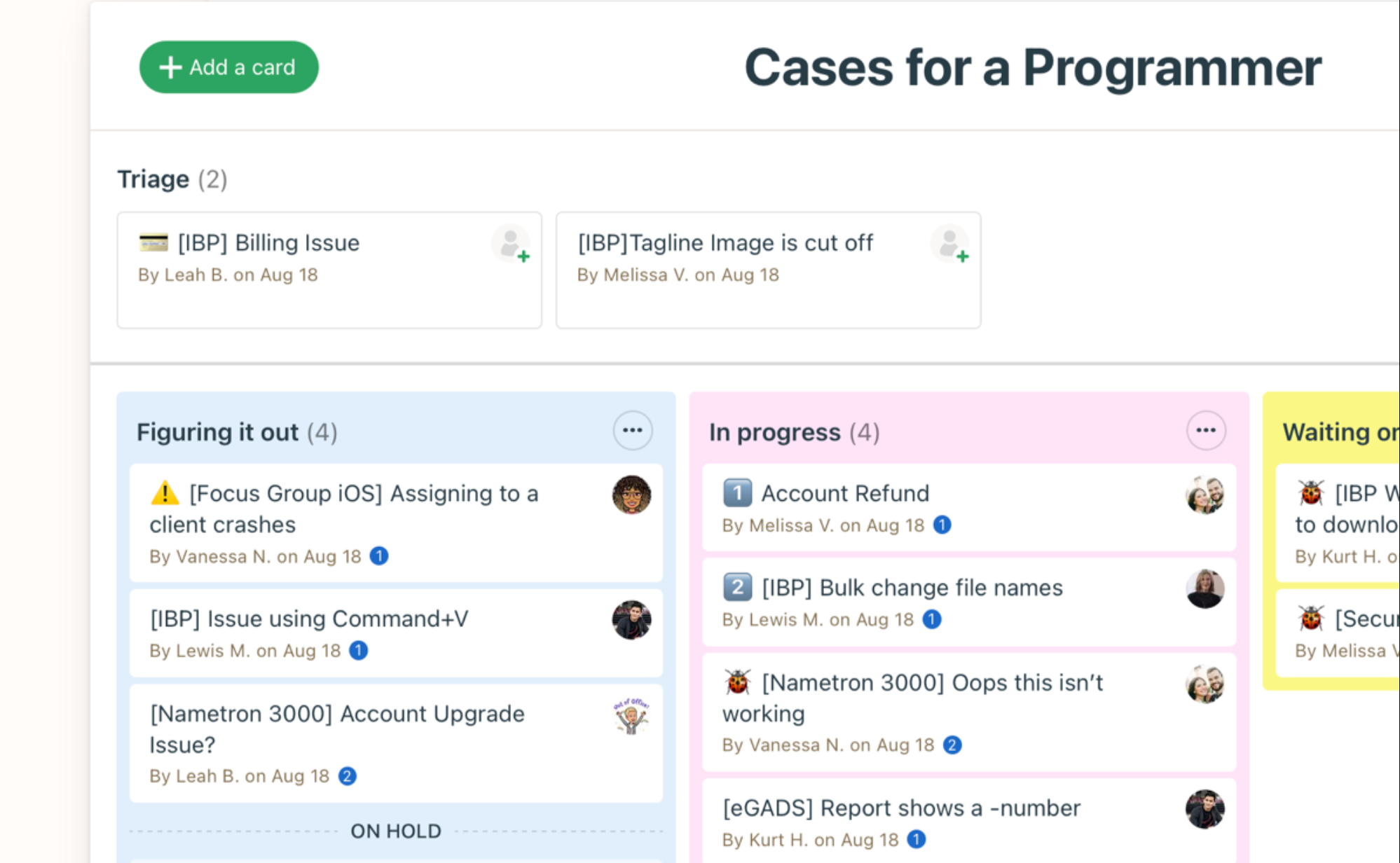
Image source: basecamp.com
Pros:
- Fosters a calm, asynchronous work culture that actively reduces notification burnout.
- Extremely stable, reliable, and straightforward to use with zero training required.
- Historically offers a flat pricing model regardless of user count, making it highly cost-effective for large groups.
Cons:
- Intentionally lacks advanced workflow features like Gantt charts, complex automations, or task dependencies.
- The rigid structure cannot be customized, forcing your team to adapt to Basecamp's methodology rather than the other way around.
The verdict: Basecamp is best for small, remote teams, agencies, and freelancers who prefer calm, asynchronous communication. It bucks the modern trend of feature bloat in favor of a strictly stripped-down, flat-fee experience.
Pricing:
- Free: $0.
- Plus: $15/user/month (billed monthly).
- Pro Unlimited: $299/month (billed monthly).
Key features of team workflow apps
The market is flooded with productivity tools, and it can be difficult to separate marketing buzzwords from genuine utility. Regardless of whether you choose a specialized task manager or a comprehensive unified workspace like Lark, any robust team workflow app must include the following core features:
- Visual task management interfaces: People process information differently. A strong workflow app provides multiple ways to visualize the exact same data. You should be able to toggle effortlessly between Kanban boards (for agile moving parts), Gantt charts or timelines (for long-term project planning), and standard lists (for daily personal to-dos).
- No-code automation builders: You should not need an IT degree to automate your daily work. The best platforms feature intuitive, rule-based automation engines. Look for systems that allow you to set simple "If This, Then That" triggers—such as, "If a task priority is changed to High, then automatically assign it to the Department Head and send an alert in the team chat."
- Contextual communication channels: The biggest flaw of legacy task managers is that they lack a native space for discussion. A modern workflow app must allow team members to comment directly on a specific task, tag colleagues, and attach files. Unified suites take this a step further by integrating overarching team chat and video meetings directly into the exact same platform where the tasks live.
- Customizable forms and intake portals: Workflows have to start somewhere. Instead of receiving messy, incomplete requests via email, a good app allows you to create standardized intake forms. These forms ensure that whoever is requesting the work provides all the necessary requirements upfront before the task is even allowed to enter the workflow pipeline.
- Granular role-based access control (RBAC): As your team scales, security and data privacy become paramount. Not everyone in the company needs access to the HR department's onboarding workflows or the finance team's budget approvals. Your chosen software must offer precise permission settings, allowing administrators to control who can view, edit, or delete specific workflows and documents.
- Real-time reporting and analytics: Data is only useful if you can understand it. Key features should include customizable dashboards that automatically pull data from your active workflows. Managers need the ability to instantly generate reports on team bandwidth, average task completion times, and where the most frequent bottlenecks are occurring.
How to choose the right team workflow management software
Selecting a platform to run your daily operations is not a decision to make lightly. I often see teams gravitate toward whatever tool has the trendiest interface, only to abandon it three months later because it does not fit their actual working style. To choose the right team workflow management system, you need to look past the marketing materials and evaluate how the software aligns with your organizational architecture. Here is a practical framework to guide your decision:
- Assess your team's methodology and technical skill: Does your team work in rigid, sequential stages (Waterfall), or do they require flexible, iterative boards (Agile)? A specialized software development team might need complex, code-driven automations, while a creative agency usually prefers highly visual Kanban boards and simple drag-and-drop approval templates.
- Calculate the "integration tax": This is a critical step many IT administrators overlook. If you buy a standalone task manager, you will likely need to integrate it with your existing chat app, cloud storage, and shared calendar via third-party APIs.
- Evaluate long-term scalability and pricing models: Many workflow apps lure you in with a low initial price, but aggressively scale up the cost as you add users or require premium features like single sign-on (SSO) or advanced automations. Before committing, project what your subscription costs will look like when your team doubles in size.
Real-world workflow examples: How productivity apps transform daily tasks
Discussing software architectures and integration taxes is essential, but it is equally important to visualize how these concepts operate in your daily routine. To move from theory to practice, let's explore how a robust team workflow app transforms historically messy, manual processes into streamlined, automated pipelines. Here are three real-world examples I frequently see teams implement to regain their time:
- The old way: A writer drafts a blog post in a standalone document app, emails the link to an editor, and pings a designer in a separate chat tool for graphics. Updates get lost in the shuffle.
- The unified workflow: The team uses a centralized workspace. The writer drafts the post in a cloud-native document. By simply tagging the document's status as "Ready for Review," an automated approval workflow triggers. The editor receives a notification directly in their team chat, where they can approve the draft with one click. Simultaneously, an automated task is generated for the designer, linking directly to the approved text.
- The old way: Employees email the IT desk when their laptop breaks or a software bug appears, creating a clogged inbox where urgent issues blend in with minor requests.
- The unified workflow: Employees fill out a standardized intake form within the company wiki. The workflow app instantly routes the ticket based on urgency. High-priority server outages automatically trigger a dedicated group chat, pulling in the on-call engineering team and generating a tracked task so leadership can monitor the resolution in real time.
Employee onboarding pipelines:
- The old way: HR sends a welcome email with 15 different PDF attachments and manually schedules five different introductory meetings.
- The unified workflow: When a new hire is added to the system, an onboarding sequence fires automatically. The system grants them access to the appropriate knowledge management folders, schedules welcome video meetings on their shared calendar, and assigns a prioritized checklist of compliance documents to sign—all without HR lifting a finger.
Conclusion
Standardizing your team’s operations should not mean adding more chaos to their daily routine. The best team workflow apps eliminate bottlenecks rather than creating new ones. By moving away from fragmented tool stacks and embracing unified workspaces, you empower your team to focus on meaningful work instead of chasing down approvals. I highly recommend using Lark to test and run these automated processes in real time. Find the platform that aligns with your team culture, consolidate your subscriptions, and watch your productivity transform.
FAQs
What is the workflows app in Teams?
The Workflows app in Microsoft Teams is a native integration powered by Microsoft Power Automate. It allows users to automate routine tasks—such as routing approval requests, scheduling automated chat replies, or syncing files—directly from their channel interface using a library of pre-built templates.
What is the best application to create a workflow?
The "best" app depends on your organizational architecture, but for remote and hybrid teams struggling with tool fatigue, an all-in-one suite like Lark is highly recommended. By natively combining enterprise chat, cloud documents, and customizable approval workflows into a single workspace, Lark eliminates the hidden costs and maintenance of third-party integrations.
How do I create a workflow in Teams?
To build a workflow in Microsoft Teams, click the "Apps" icon on the left sidebar and search for the "Workflows" application. Open it to browse pre-configured templates, select the one that matches your goal, authenticate your connected accounts, and customize the specific triggers and actions before saving.
What is the flowchart app for Teams?
Microsoft Visio is the primary native flowchart application within the Microsoft 365 ecosystem, allowing users to view and edit diagrams directly inside Teams. However, Teams also seamlessly supports highly popular third-party diagramming apps like Lucidchart and Miro, which can be easily pinned as tabs within any channel.
Related reading
Table of contents
Start using Lark today

Manage all your work in one place
Boost team efficiency by 10x
Save up to 70% on software costs
Table of contents
Start using Lark today
Manage all your work in one place
Boost team efficiency by 10x
Save up to 70% on software costs
Keep reading








2026 Lark Technologies Pte. Ltd.
Headquartered in Singapore with offices worldwide.






Explore: