














How to Use OneNote for Project Management Effectively: A User-Friendly Guide

Cecilia Lane
Go-to-Market Associate
Sep 18, 2026
Cecilia Lane
Sep 18, 2026

23 min read


Many project managers begin their journey with OneNote because it feels intuitive, flexible, and part of the Microsoft 365 ecosystem they already use every day. When managed thoughtfully, this simple digital notebook becomes a central space to organize meeting notes, brainstorms, plans, and deliverables. Understanding how to use OneNote for project management effectively means going beyond note-taking — using it as a tool to structure collaboration and guide decisions.
While OneNote provides a strong foundation for small teams, some professionals look for integrated environments like Lark, which combine note-taking, task tracking, and communication in one place. But before exploring alternatives, it helps to understand how to best use what OneNote already does well for managing projects efficiently.
What is OneNote and why project managers use it
Microsoft OneNote is a digital notebook designed to capture, organize, and share information across multiple devices. As part of Microsoft 365, it connects seamlessly to familiar tools such as Word, Outlook, and Teams — which makes it a trusted starting point for many project managers.
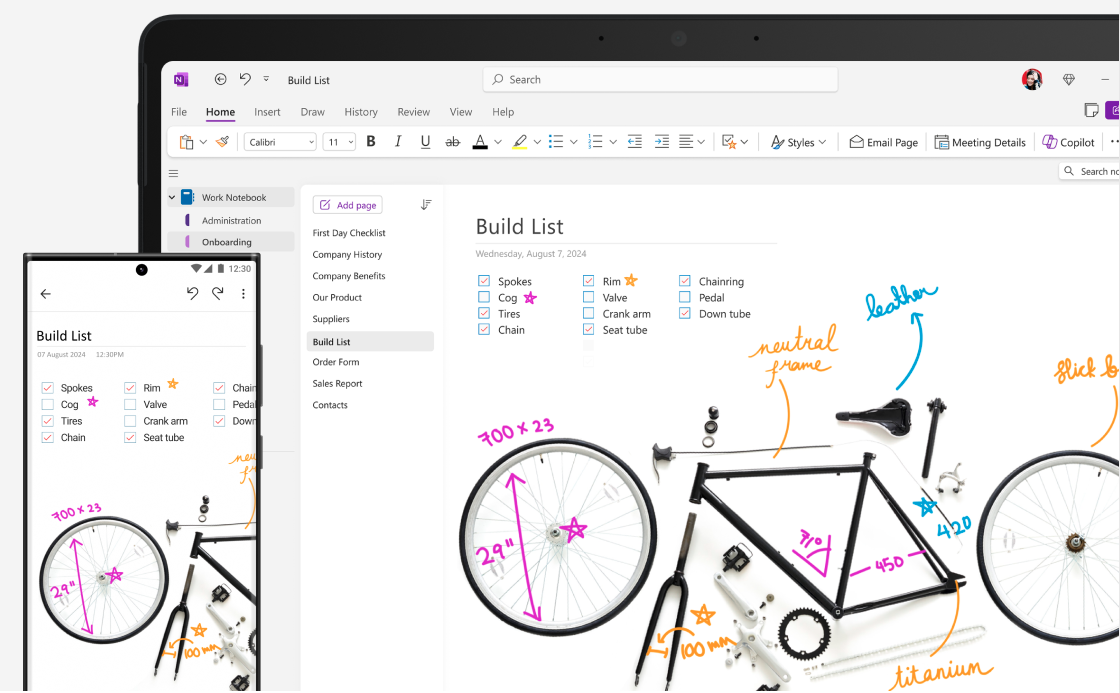
Image source: microsoft.com
Project managers often choose OneNote for three main reasons:
- Centralized documentation: OneNote allows every project idea, reference, and file to live in one organized digital workspace for documents. This minimizes scattered data across emails, chats, or drives.
- Accessible teamwork: Because it syncs in real time across devices, team members can access the latest notes whether they're in the office or remote.
- Integration with Microsoft 365: OneNote integrates with productivity tools like Outlook tasks or Teams channels, helping bridge communication gaps in ongoing projects.
For small to mid-sized teams or individual contributors, OneNote delivers simplicity — capturing evolving projects without needing a full project management suite.
How to use OneNote for project management
Knowing how to use Microsoft OneNote for project management effectively starts with turning its flexible features into repeatable processes. Instead of treating it as a notepad, view it as your digital command center where ideas become organized workflows.
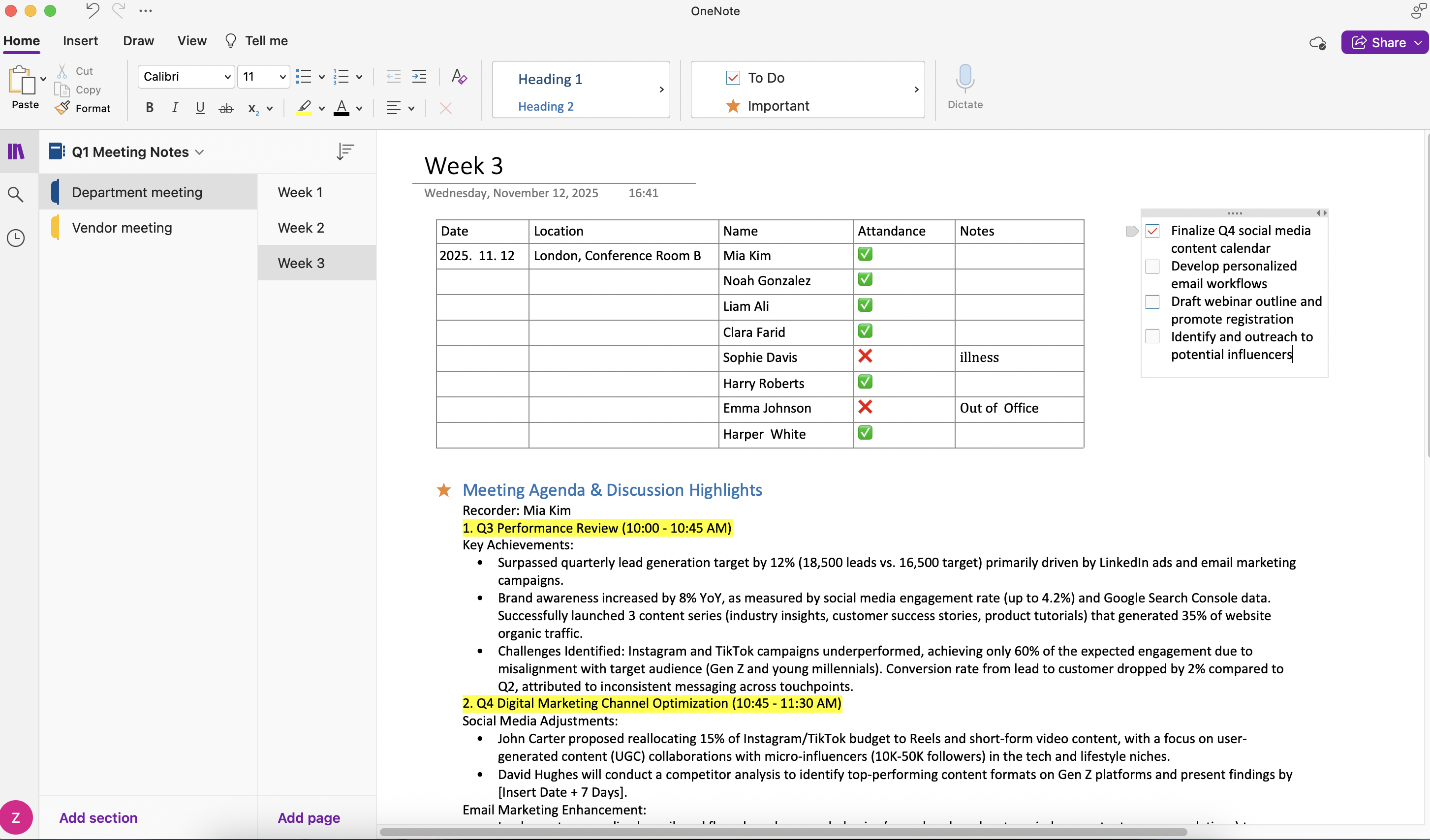
Image source: Screenshots of OneNote
Use OneNote as a centralized knowledge hub and action manuale
Step 1: Set up your notebook for project organization
Every project deserves its own digital "home." Create a new notebook named after your project and divide it into sections such as project overview, planning, meetings, and deliverables. Under each section:
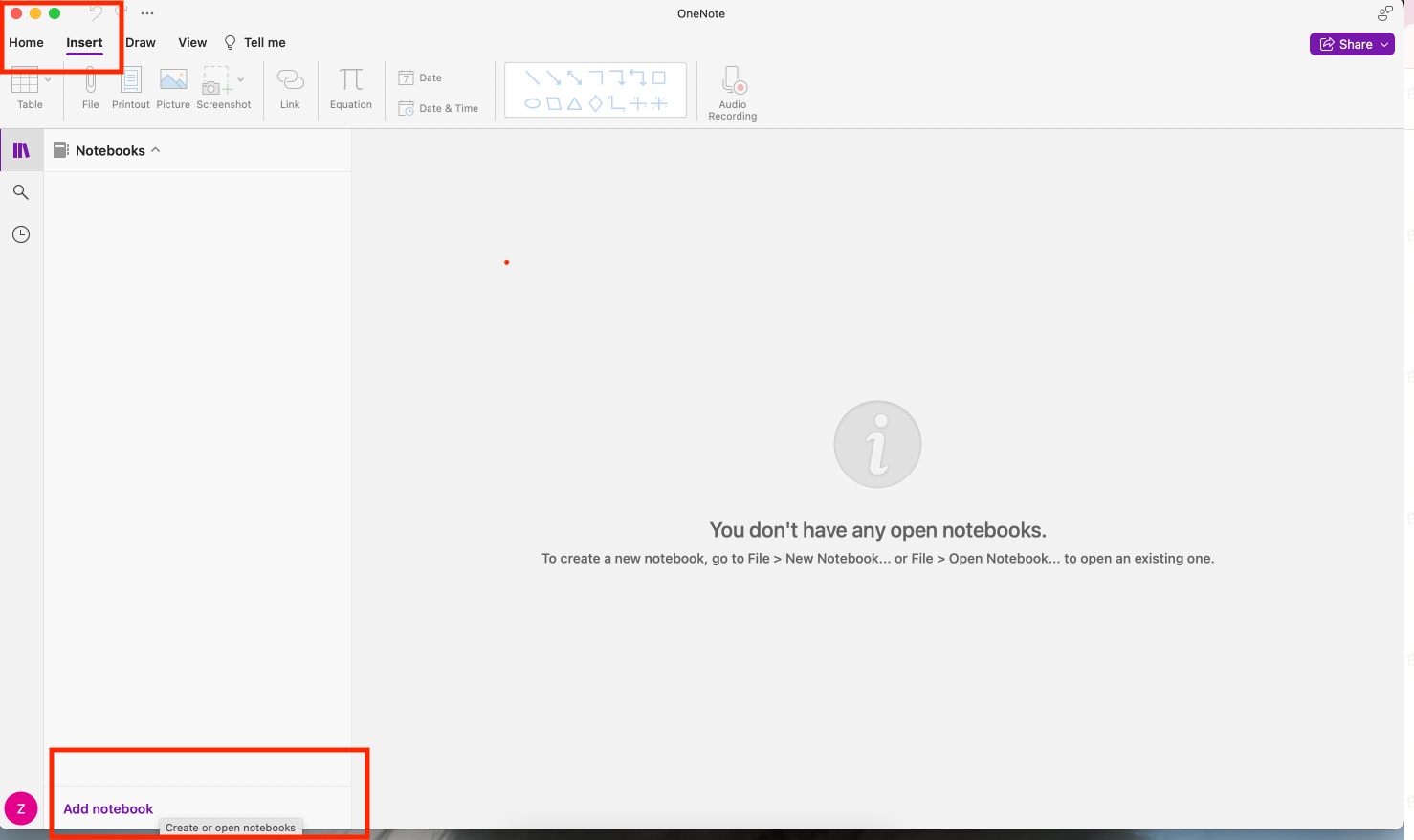
Image source: Screenshots of OneNote
- Click "Insert" on top bar and click "Add section" at the bottom to start a new notebook, and rename it.
- Use pages and subpages to separate different topics — for example, "Phase 1 Planning" or "Risk Assessment."
- Add hyperlinks between pages to reference related materials easily.
- Keep a "Quick Notes" section where spontaneous ideas or client inputs are captured and later reorganized.
This structure transforms OneNote from a note bucket into an ordered project repository. I often find that consistency in naming and structure helps teams stay aligned, especially in fast-moving projects.
Step 2: Create a central hub for meetings and discussions
Meetings remain the backbone of project management, and OneNote specializes in capturing what's said and decided. To manage meetings effectively:
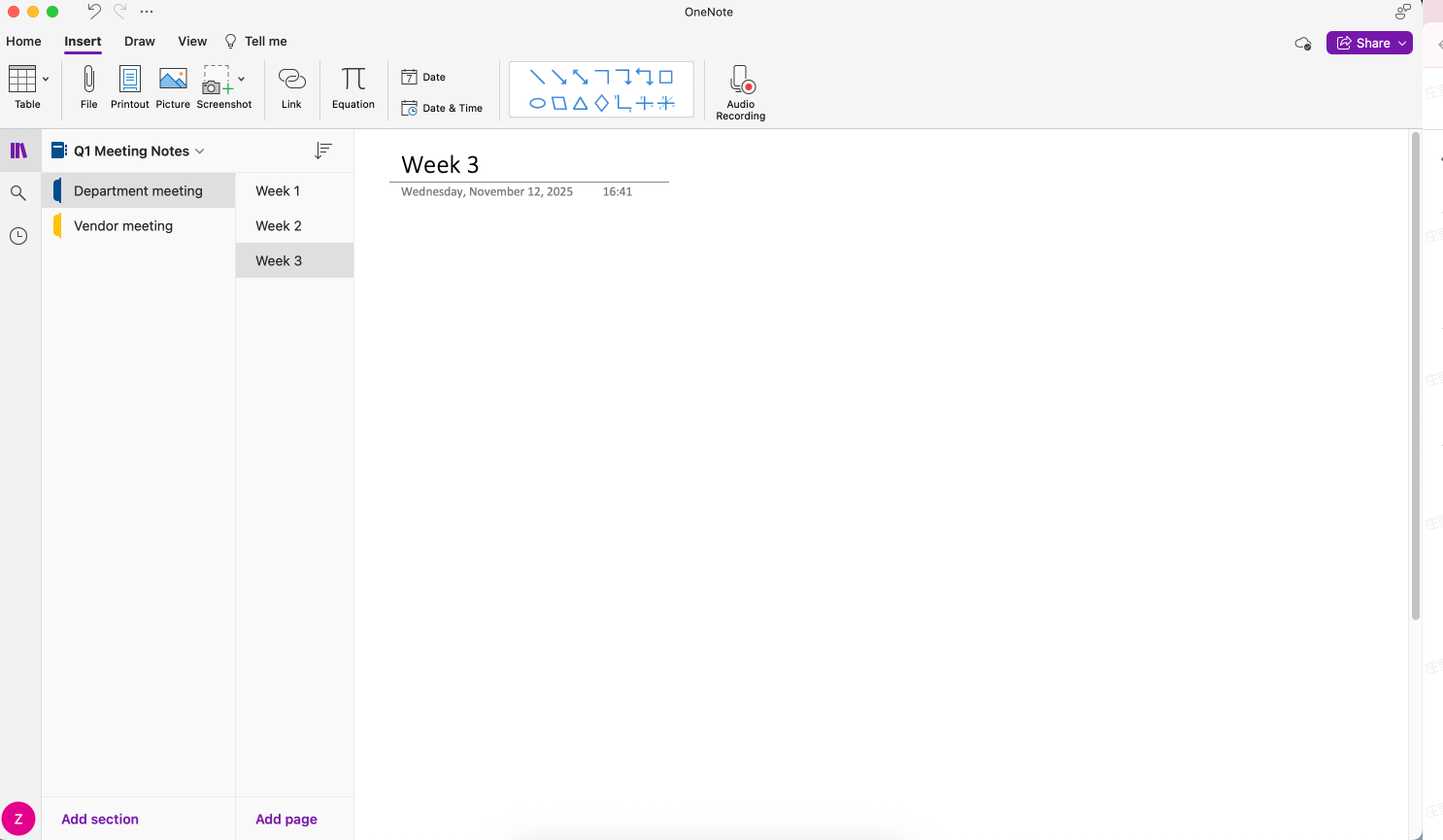
Image source: Screenshots of OneNote
- Use meeting templates or pre-built pages for agendas and discussion points.
- Connect your Outlook calendar to OneNote to pull meeting details automatically.
- Record action items during meetings using checkboxes — simple yet powerful for keeping tasks visible.
- Tag key discussion points with labels like "Follow-Up," "Decision," or "Reference." These tags make it easier to search and revisit later.
This approach ensures every meeting note isn't just a record, but part of a continuous, complete warehouse for insights, materials and files.
Step 3: Track tasks and progress systematically
To use OneNote effectively for project management, you need a way to turn written notes into actionable steps. OneNote supports this through built-in task tracking:
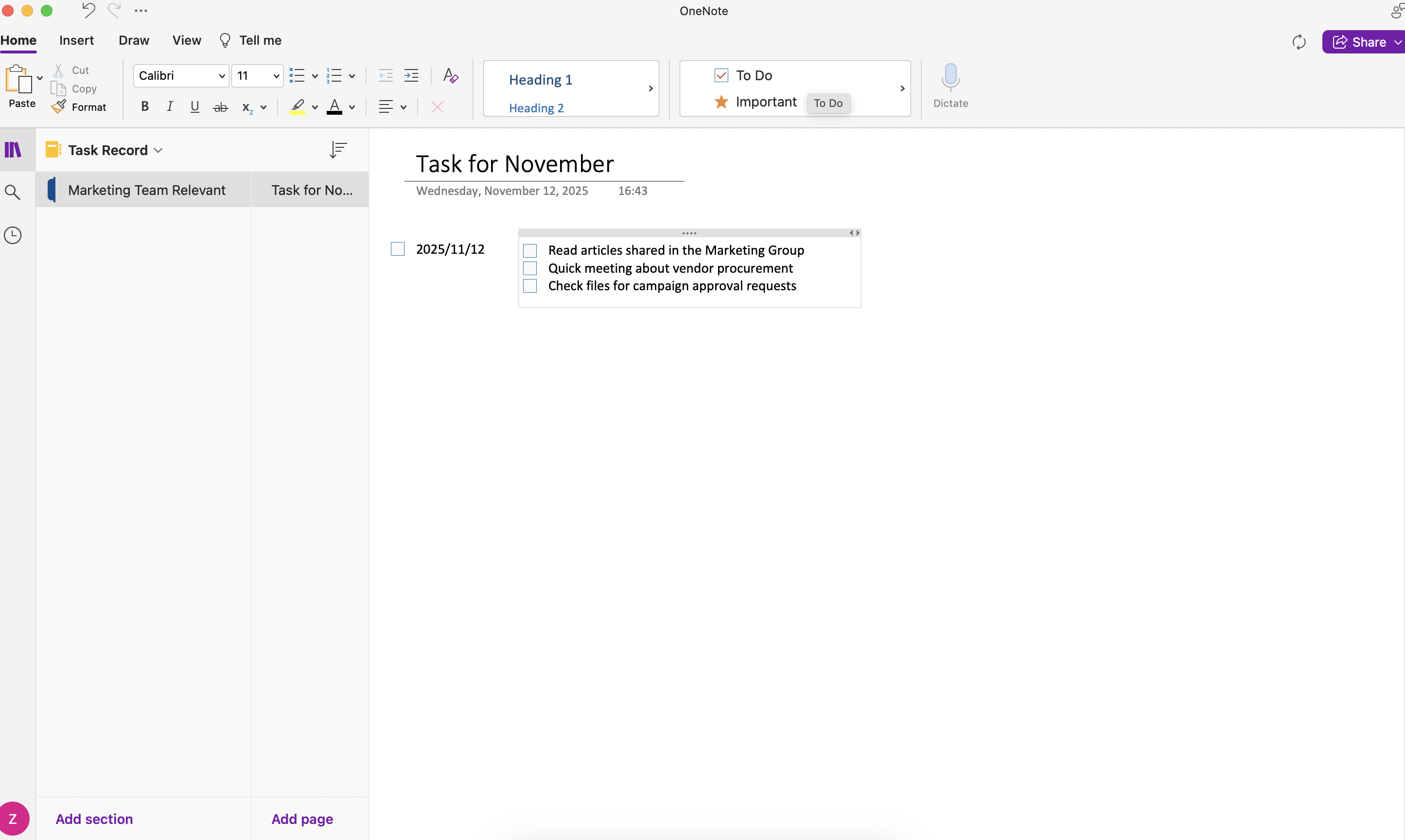
Image source: Screenshots of OneNote
- Convert notes into checklists using To-do tags for task completion visibility.
- Assign owners or deadlines, then link these tasks with Outlook reminders for accountability.
- Use tables to track progress — listing tasks, responsible parties, and current status.
- Review your checklist frequently, marking completed items and updating next steps.
With consistent practice, this system evolves into a light task management board that keeps your project organized without requiring additional software.
Collaborate across Microsoft 365 apps with OneNote
Part of what makes OneNote powerful for project management is how well it connects with other Microsoft 365 apps. By linking it with tools like Word, Excel, Outlook, and Teams, you can turn your notes into a coordinated workspace. Everything stays updated in real time, and your team spends less time switching between apps. Here's how you can make the most of those integrations.
Tip 1: Combine OneNote and Word/Excel for document and data management
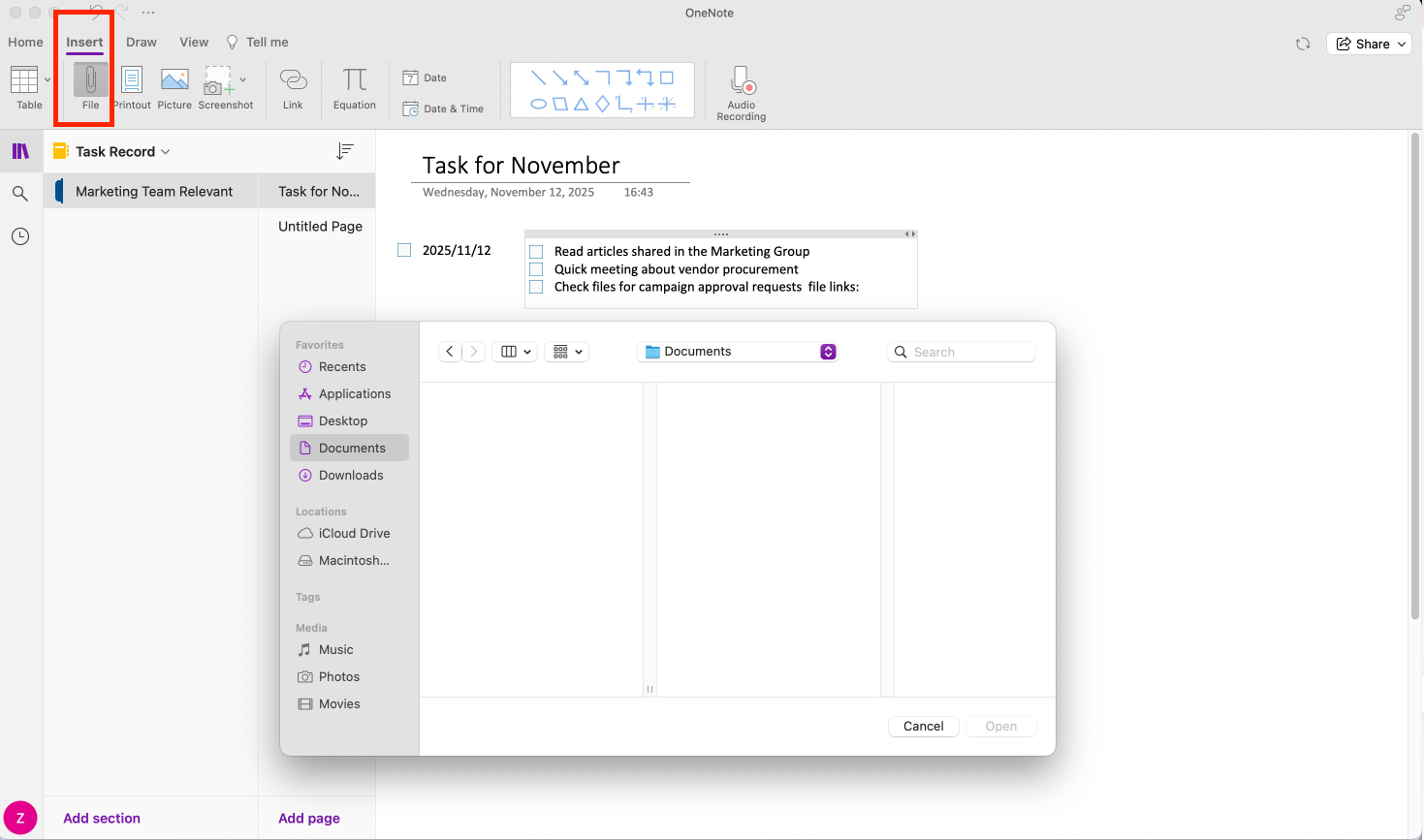
Image source: Screenshots of OneNote
Use OneNote to keep all your project information in one place, then link or embed important Word and Excel files directly into your notebook. For example, you might add an Excel project tracker or a Word-based project proposal right beneath your meeting notes by simply clicking "Insert"-"file" to add files (Excel or Word) at certain page in OneNote. That way, everyone viewing the notebook can access the latest version without hunting through shared drives or email attachments. It keeps documentation organized and ensures that data and decisions live side by side.
Tip 2: Combine OneNote with Outlook for task, email, and meetings management
Outlook and OneNote work hand in hand when it comes to daily organization. You can turn notes into Outlook tasks, connect meeting pages with calendar invites, or link directly to project emails. This turns OneNote from a simple note-taking tool into a task and meeting manager. Every action item recorded in your notes can be turned into a reminder in your Outlook to-do list after setting, reducing the risk of things slipping through the cracks.
Tip 3: Collaborate in Microsoft Teams
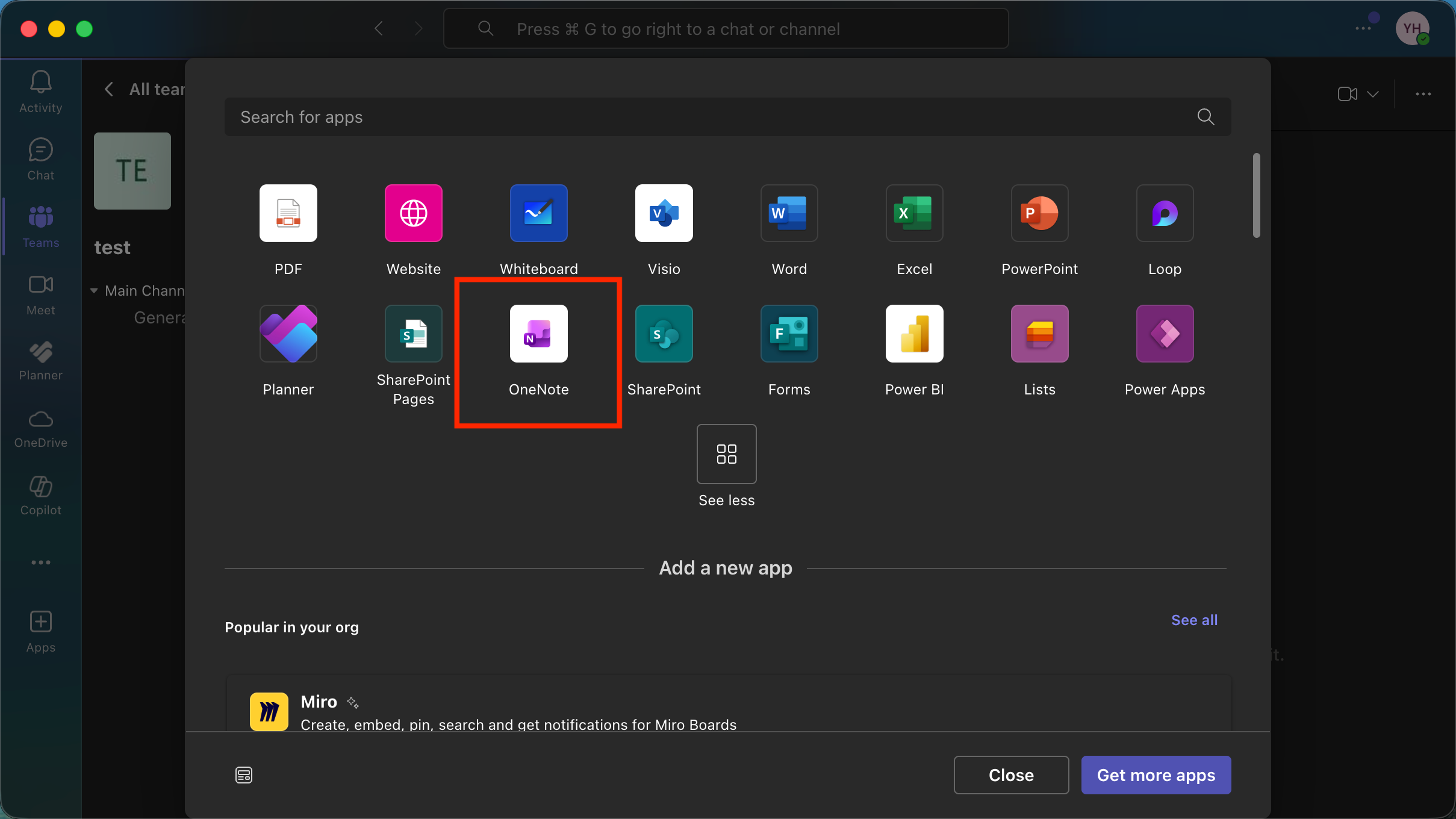
Image source: Screenshots of OneNote
When working with a group, integrating OneNote into Microsoft Teams brings the team's memory and communication together. You can add a OneNote tab inside any Teams channel to share project plans, track discussions, or note meeting decisions. Everyone can edit pages simultaneously and refer back to previous updates—all without leaving Teams. It's a simple way to make sure your conversations lead directly to documented progress, keeping everyone aligned and informed.
How to make project management in OneNote more efficient
Learning how to use OneNote effectively for project management isn't only about structure, but also about refining habits and taking advantage of the app's built-in intelligence. Once your notebooks are organized and your task lists are in place, improving efficiency comes down to working smarter inside each workspace. The following practices help you streamline your daily routines and avoid duplication of effort.
Use tags and search smartly
Tags are one of the most underused yet powerful features in OneNote. They help project managers categorize information quickly and find it again when it matters most.
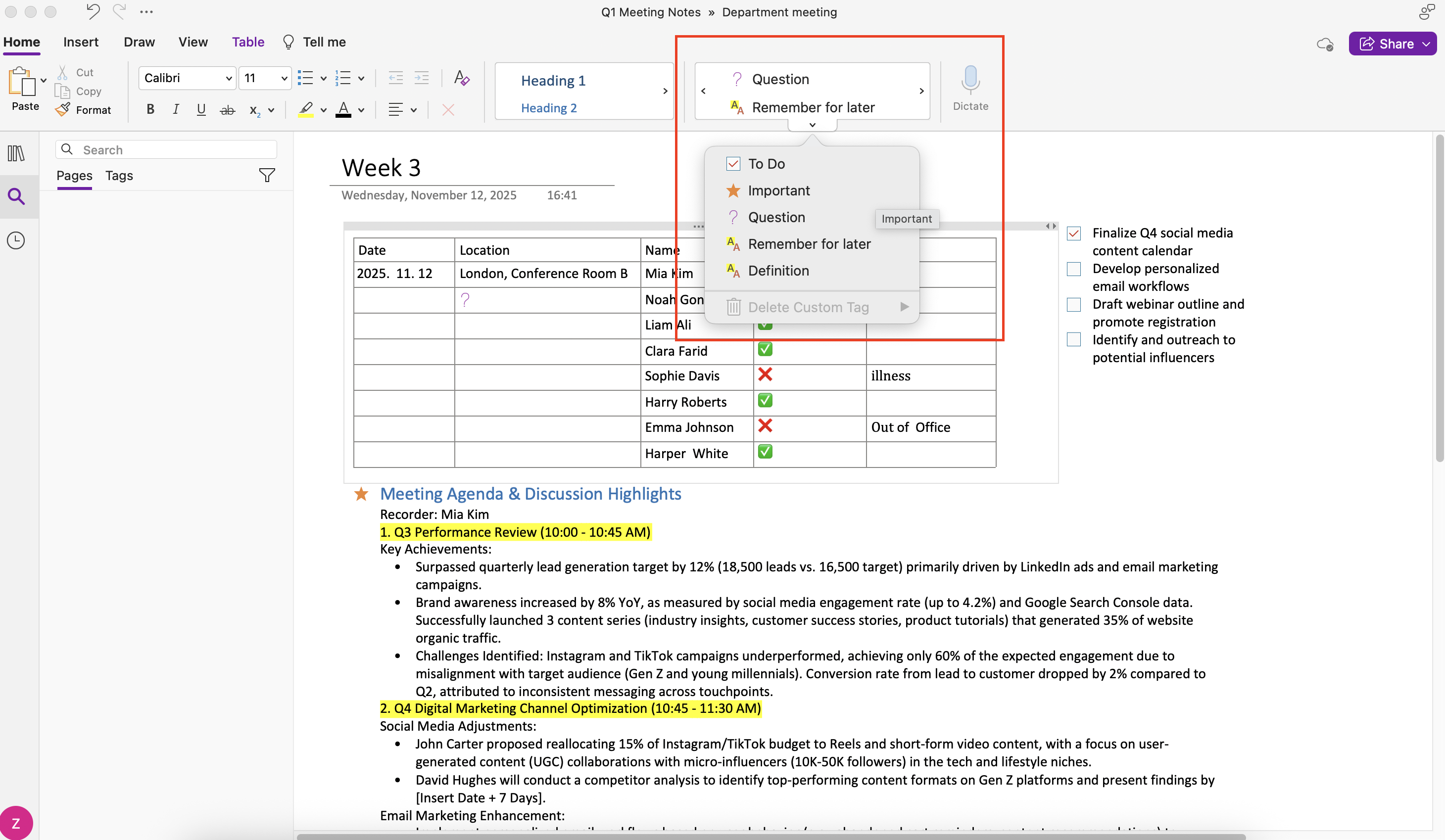
Image source: Screenshots of OneNote
To make tagging work for real project workflows:
- Create your own tagging system for priorities, risks, or pending tasks. For instance, use tags like "To-do," "Important," "Follow Up," "In Review," or "Budget."
- Regularly perform a tag summary search to collect all tagged items across notebooks in one view. This gives a ready-made action list.
- Encourage your team to use the same label structure so that project-wide searches provide consistent results.
In my experience, tagging can turn a cluttered notebook into a structured knowledge hub, a core skill when exploring how to best use OneNote for project management at scale.
Combine handwritten notes and digital artifacts
OneNote's flexibility stands out when project discussions shift between whiteboards, sketches, and digital resources. Project managers who know how to use Microsoft OneNote for project management often mix quick handwritten inputs with files and references.
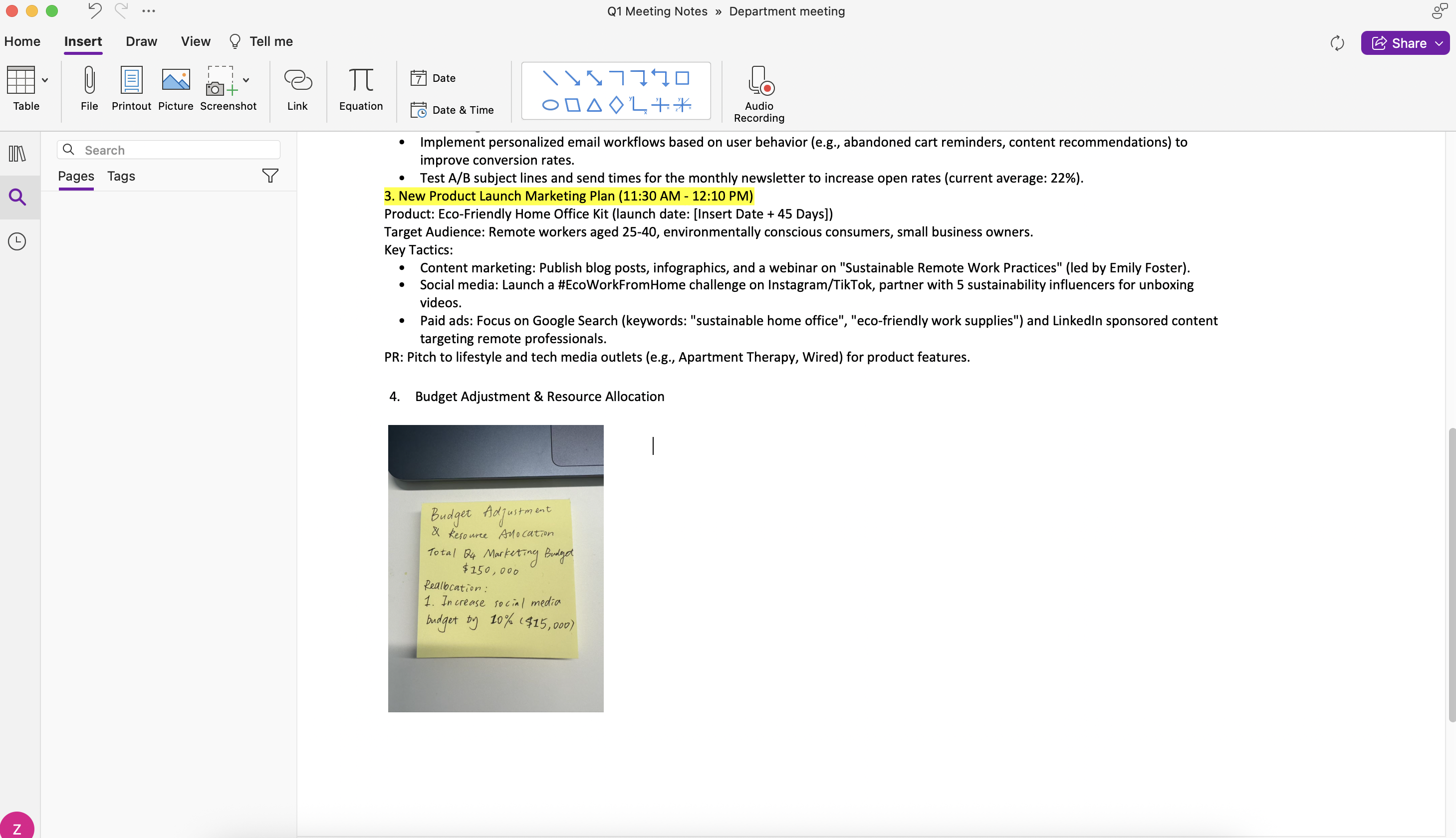
Image source: Screenshots of OneNote
For better performance:
- Use a tablet or stylus during planning sessions to draw workflows or brainstorm diagrams directly into project pages.
- Capture snapshots of whiteboards or sticky notes and embed them with related written notes.
- Link these visuals to related deliverables or meeting notes for easy revisiting later.
This hybrid approach preserves creative thinking while keeping everything searchable and centralized — something that simple shared documents or basic task boards often can't replicate.
Create templates for consistency
One of the reasons project notebooks lose momentum is inconsistency — every meeting looks different, and every plan follows a different structure. Templates fix that. Creating reusable templates is key if you want to know how to use OneNote effectively for project management over time.
Try these approaches:
- Design a "Project Kickoff Template" with sections for objectives, stakeholders, milestones, and risks.
- Build a "Meeting Notes Template" that includes agenda, decisions, and next steps.
- Store all templates in a shared "Resources" notebook so your team can duplicate and adapt them easily.
Over time, these templates standardize how projects are documented without constraining creativity. They also shorten setup time for new initiatives — a significant boost for managers juggling multiple projects simultaneously.
When you incorporate tagging, multimedia notes, and reusable templates into your daily workflow, OneNote feels less like a static archive and more like a living project dashboard. It's a step closer to the agility and connectedness we often associate with modern collaboration tools such as Lark — but it remains within the trusted Microsoft environment that many teams rely on.

The common limitations of managing projects in OneNote
While understanding how to use OneNote for project management can transform your organization habits, it's important to recognize where the tool reaches its natural limits. OneNote wasn't originally designed as a full project control system; it's a documentation hub that can be adapted creatively.
Here are its most frequent challenges:
- Limited task governance: You can track action items manually, but OneNote lacks a central dashboard to view all project statuses at a glance. Coordination across multiple notebooks requires manual updates.
- No built-in task dependencies or timelines: There's no native way to visualize tasks on a Gantt chart or create interlinked progress metrics. For that, you need external software.
- Manual progress updates: Status tracking relies on individual contributors editing pages. Without automation, inconsistencies can appear quickly.
- Scaling issues across teams: As projects multiply, managing permissions, access, and version control becomes harder. It's easy to lose context between notebooks.
These gaps don't invalidate OneNote's strengths; rather, they highlight that the closer your team gets to data-driven project management, the more you'll want automation, analytics, and coordination features not natively included. That's why many project members transition from OneNote's note-based system to broader collaboration environments that integrate document management, real-time communication, and workflow automation. Understanding these boundaries helps you decide how to best use OneNote for project management while knowing when it's time for supporting tools.
Finding a modern alternative to solve OneNote's limitations
If you've reached the point where OneNote feels stretched, you're not alone. Many project professionals who start by mastering how to use Microsoft OneNote for project management eventually seek tools that eliminate manual work and centralize operations. The ideal solution Lark builds on what OneNote does right — flexibility and organization — and adds structured data, automation, and real-time collaboration. Let's explore how modern integrated workspaces address these pain points and create smoother project experiences.
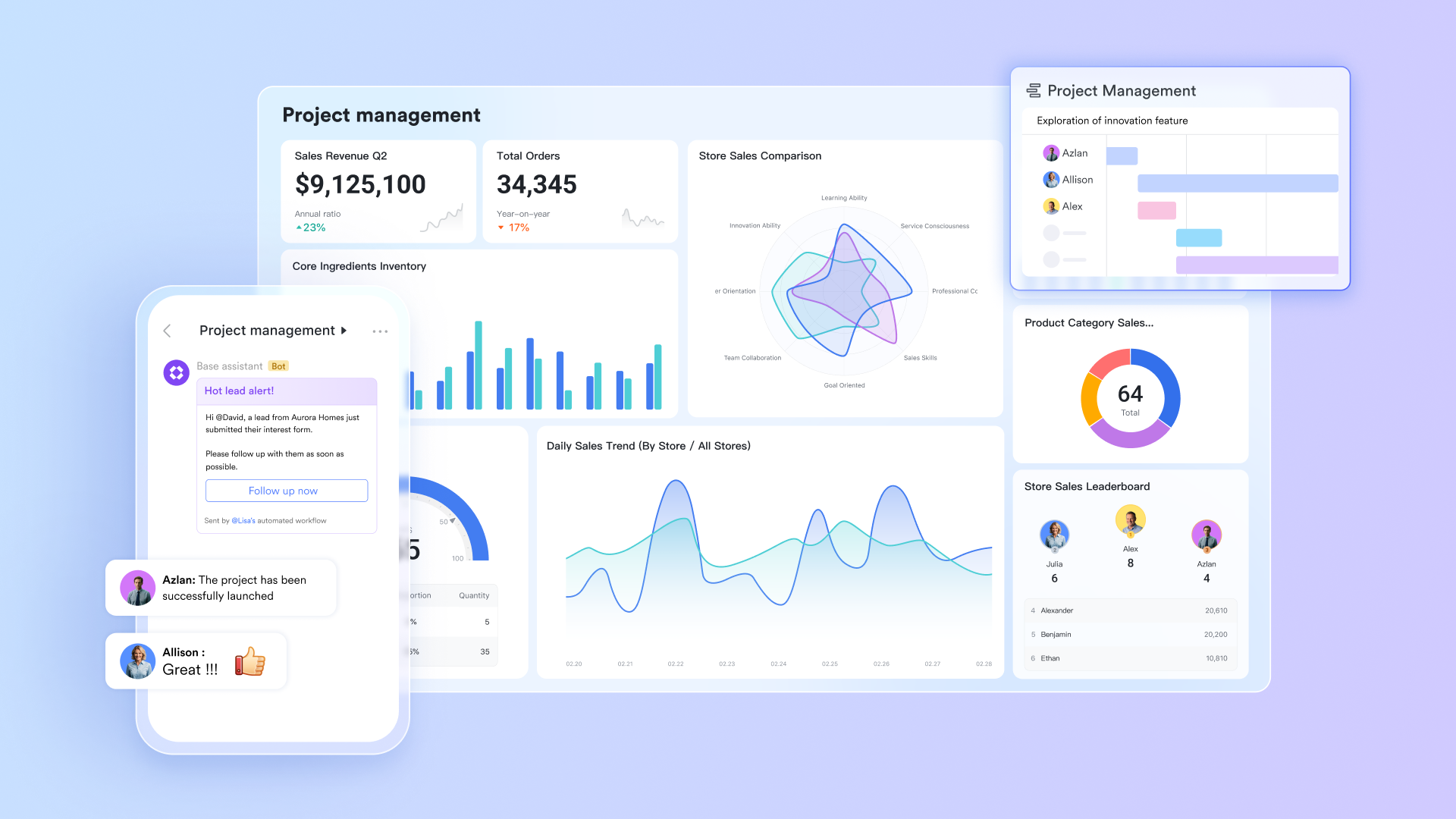
Turning notes into data-driven project workflows
The challenge: OneNote is great for capturing ideas but not for transforming them into actionable data. Milestones, tasks, and owners exist as notes, not as trackable entities.
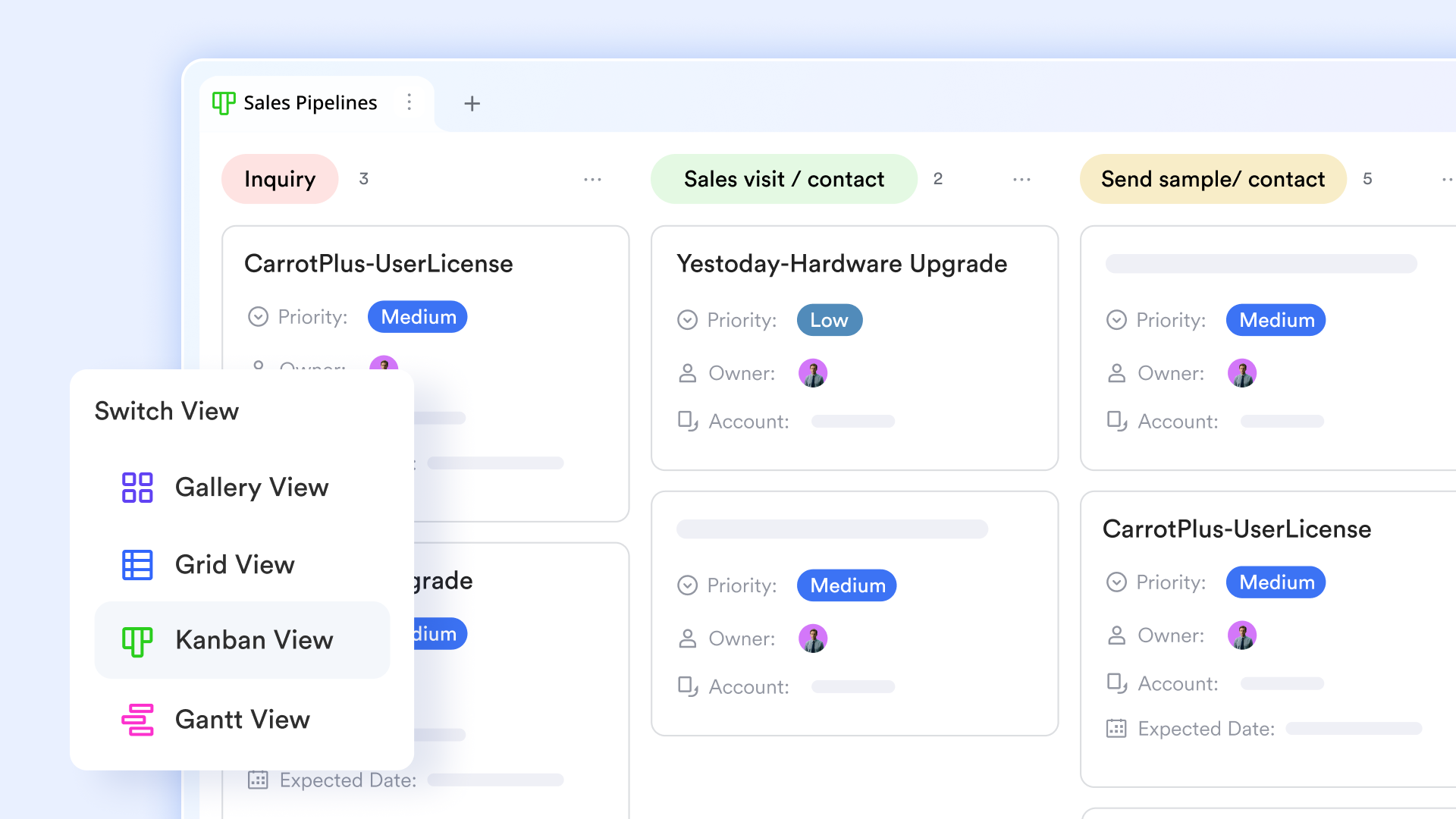
Lark's solution: Lark Base bridges the gap between free-form notes and structured project tracking. It lets teams take ideas captured in documents or discussions and instantly turn them into dynamic, trackable records. Each piece of information — from milestones and task owners to progress updates — becomes a connected data field that can be filtered, sorted, or visualized in real time. Instead of static lists, you get a living workspace where documentation and execution happen side by side, ensuring that every note naturally evolves into measurable project progress.
- You can view these as Gantt, grids, or Kanban in multiple views at Lark Base.
- Updates sync instantly across participants, reducing delays from manual reporting.
- Using Lark Base's automated workflows with pre-set, customizable triggers to manage teams and projects effortlessly and efficiently.
This balance of freedom and structure supports teams that have outgrown pure note-taking systems without moving to rigid enterprise software.
Bringing communication, meetings, and tasks together
The challenge: OneNote users often rely on email, Teams, or other chat tools to discuss tasks, which fragment context across platforms.
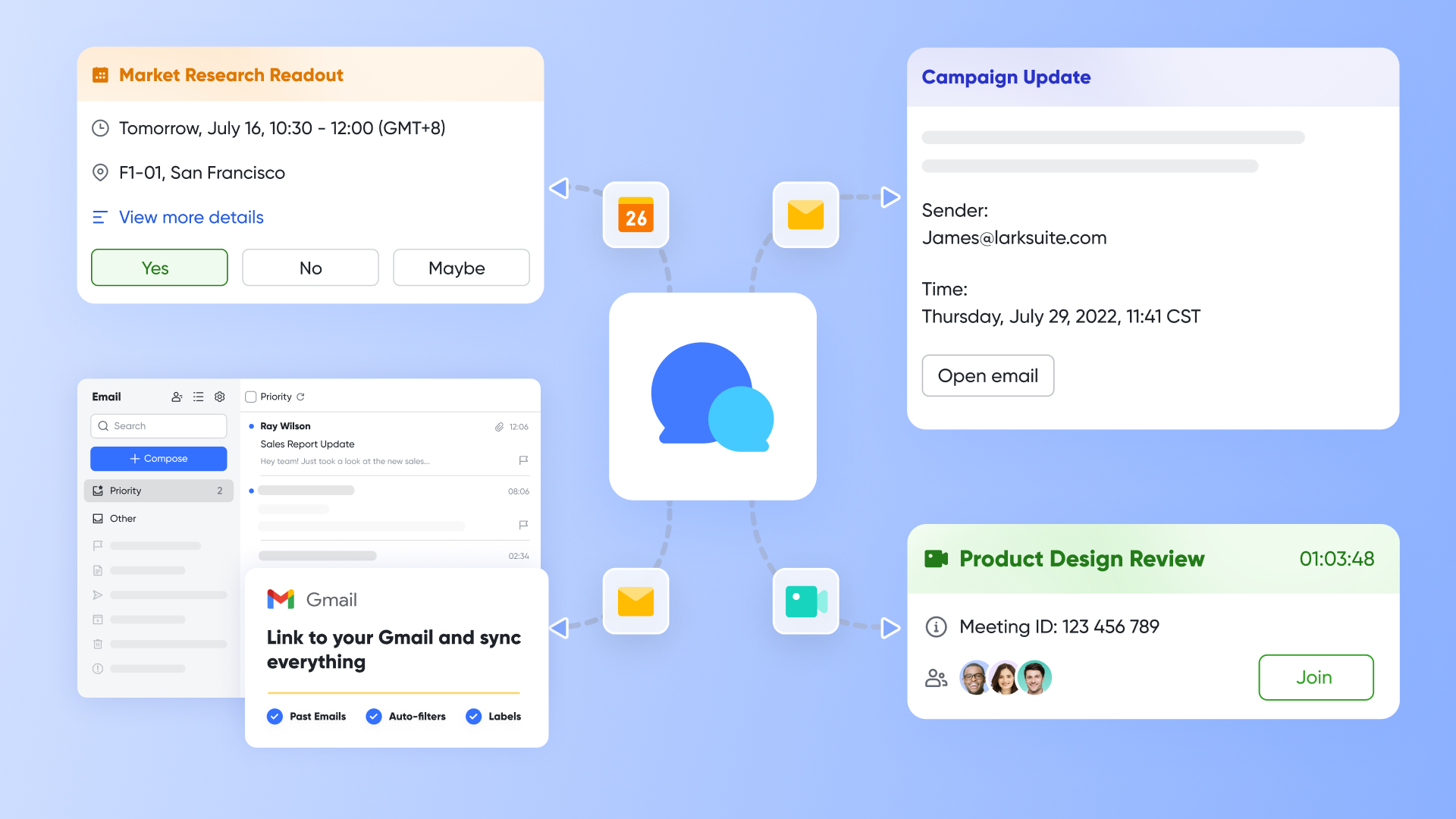
Lark's solution: Lark Messenger brings chat, meetings, and task management together in one seamless communication hub. Conversations aren't isolated threads — they're directly connected to actionable work. Within a chat or a thread, you can create and assign tasks, schedule meetings, share documents, or jump into a video call without switching apps. All updates stay synchronized across chats, calendars, and project spaces. This deep integration transforms everyday discussions into coordinated action, keeping teams aligned, responsive, and productive no matter where they work.
- Virtual meetings and follow-ups live side by side with the notes they produce.
- Status reports update themselves when team members mark tasks as complete.
While OneNote requires switching between multiple Microsoft apps, this kind of unified environment offers a single continuous working cycle from discussion to delivery.
Visualizing progress and alignment effortlessly
The challenge: In OneNote, measuring performance or connecting outcomes to strategic goals is difficult. There's no built-in mechanism for dashboards or OKRs.
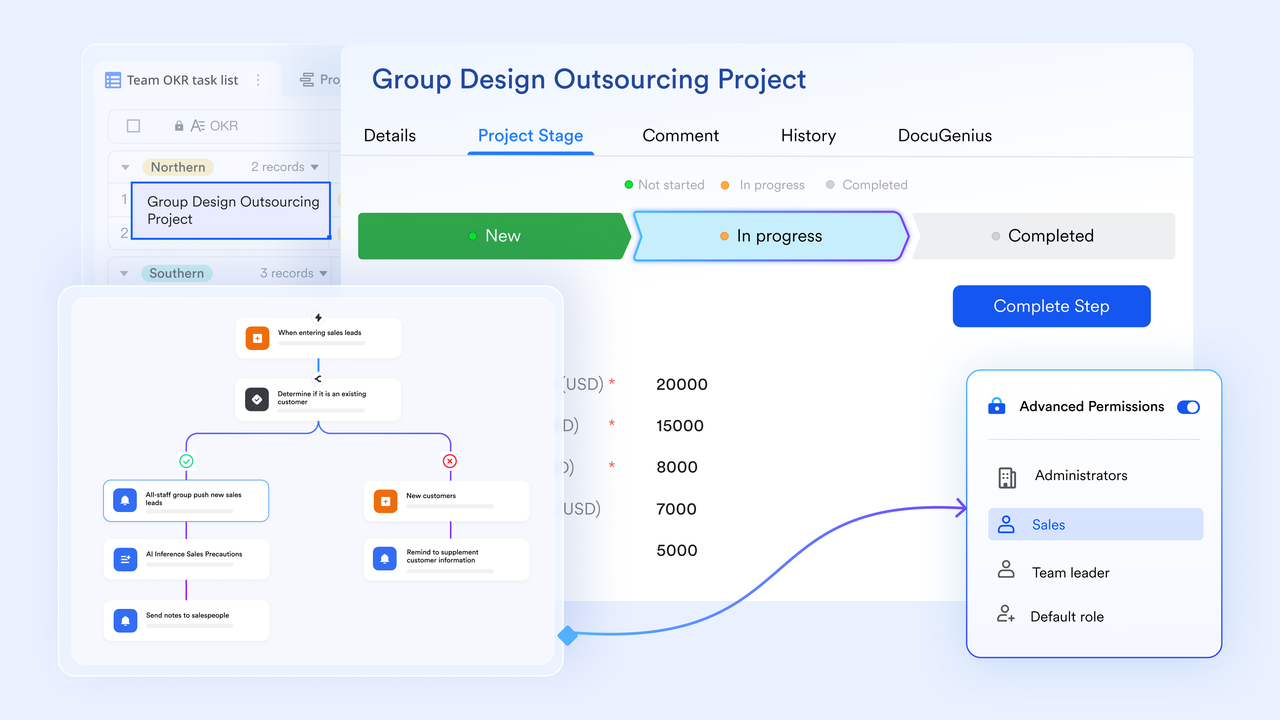
Lark's solution: Lark Base and Lark OKR work together to close OneNote's gap in performance tracking and goal alignment. With Lark Base, teams can organize project data — such as tasks, owners, and progress updates — in customizable tables that automatically feed into visual dashboards. This allows everyone to monitor real-time progress and dependencies without leaving the workspace. In parallel, Lark OKR helps teams define, align, and track objectives and key results within the same platform.
- In Lark Base, you can create and track project milestones using the Gantt view, which allows you to visualize progress and update tasks. Managers gain instant visibility over progress at every level.
- For OKRs, you can monitor completion progress and send reminders via the dashboard in Lark OKR.
- Dashboards in Lark Base can display key milestones and project progress, helping teams focus on objectives.
Building a connected knowledge hub
The challenge: OneNote organizes notes well, but it struggles to evolve into a true knowledge hub where information stays connected, searchable, and collaboratively updated. As projects expand, knowledge often becomes fragmented across notebooks, making it hard for teams to maintain a single source of truth.
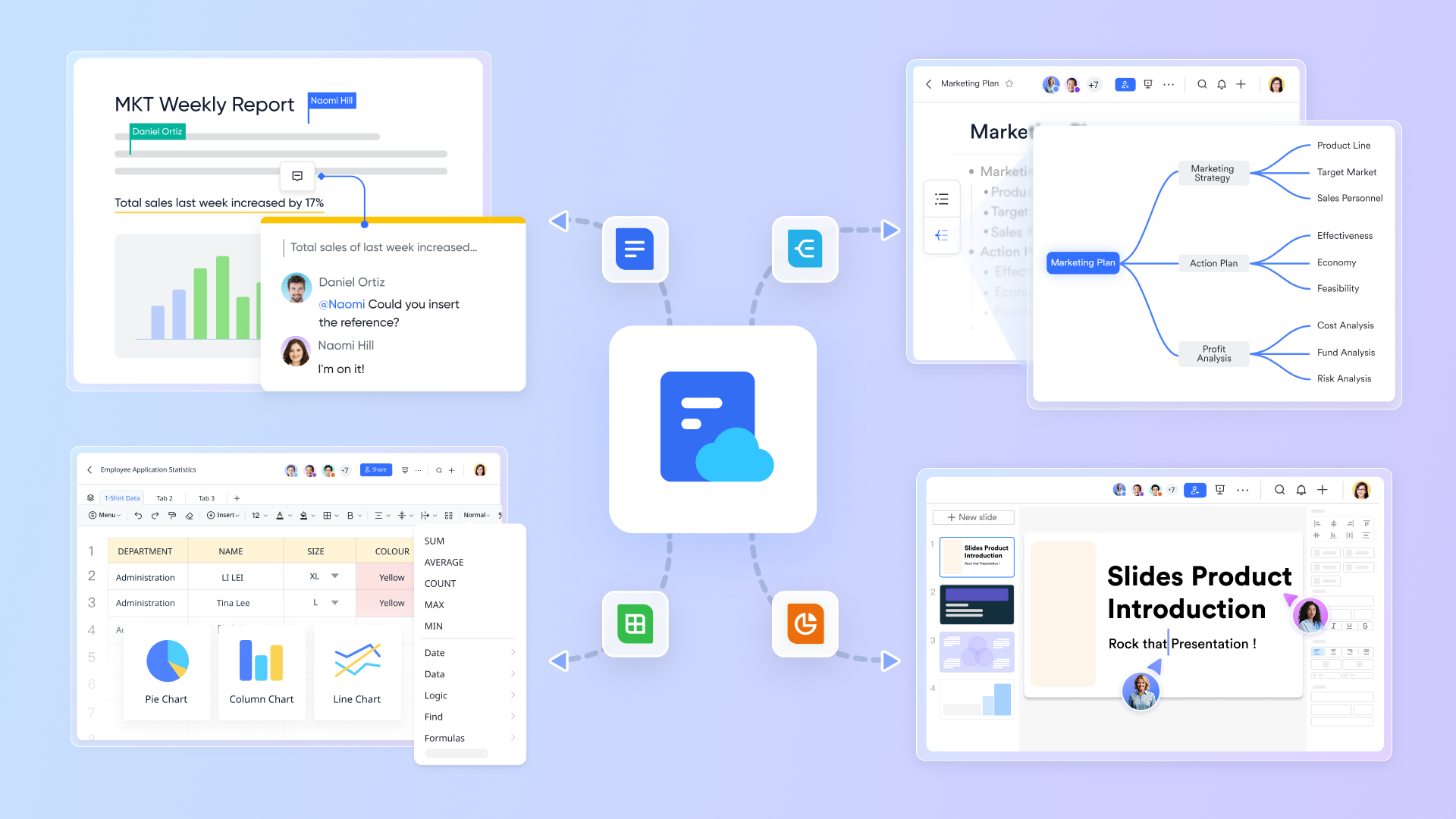
Lark's solution: Lark Docs & Wiki provide a powerful, collaborative environment that matches — and in some cases surpasses — OneNote's knowledge-sharing capabilities. With Lark Docs, teams can co-edit in real time, comment inline, and embed rich content such as tables, videos, or Lark Base data — ensuring that every plan or guideline stays dynamic and context-rich. The built-in Wiki feature allows teams to structure and publish internal documentation into an easily navigable, searchable space, creating a single source of truth for policies, processes, and best practices.
- Every document real-time updates instantly across users, keeping everyone aligned with the latest version.
- Create and manage different types of files in Lark Docs, including decks (Slides), Docs, Sheets, Forms, Boards, MindNotes, all stored in Lark Wiki.
- Docs link seamlessly to tasks, OKRs, and Lark Base records, ensuring knowledge connects with execution.
- Permission control and version history safeguard transparency and accountability as content grows.
This tight integration between documentation, communication, and project data transforms Lark Docs & Wiki from a simple note storage space into a true collaborative knowledge ecosystem, helping teams capture ideas, collaborate smoothly, and build institutional memory — all within the same platform.
Lark & OneNote pricing comparison
When considering how to use OneNote effectively for project management, cost is another essential factor. Both OneNote and Lark offer generous free options, but their pricing models differ in what's included and how teams scale. Below is a simplified comparison that highlights their pricing structure, included features, and ideal use cases.
Information source: microsoft.com & larksuite.com
Update time: 2025-11-19
The purpose isn't to replace OneNote but to extend what it started — bringing structured clarity to dynamic, multi-team projects. In doing so, teams preserve flexibility while upgrading visibility and efficiency. When viewed together, these solutions reveal that mastering how to use OneNote effectively for project management is just the foundation. True productivity today comes from connecting note-based thinking to real-time collaboration and measurable outcomes. Whether you continue optimizing OneNote or exploring integrated workspaces, the goal remains the same: transforming ideas into effortless execution.
To know more about Microsoft pricing, read this: 👉Microsoft Project Pricing 2025 - Plans & Costs Guide
Try Lark's savings calculator: Switching to Lark's Pro plan can lead to significant cost savings— for example, a 100-employee company using Slack, Google Workspace, and Airtable could save approximately $25,200 annually by consolidating their tools with Lark.
Real-world workflow examples and templates
Understanding how to use Microsoft OneNote for project management becomes easier when you see how it works in daily practice. Below are three realistic examples that show how modern tools structure, flexibility, and connectivity come together in actual project workflows—and where teams might later consider complementary tools.
Scenario 1: Managing a product launch
A marketing team preparing for a product launch can treat a notebook as their single planning hub.
- Sections: One for strategy, one for content, one for events, and one for post-launch analysis.
- Pages: Track media outreach, design feedback, launch-day tasks, and external vendor notes.
- Integration: Connect OneNote pages with Outlook emails and Teams updates for live references.
This structure keeps everyone aligned, as timeline changes are instantly reflected in notes. For teams needing live performance stats or automated updates, pairing this approach with an integrated workspace—such as a Base management sheet or Lark-style dashboard—can help turn documentation into dynamic execution.
Scenario 2: Coordinating a remote project team
Distributed teams often struggle with inconsistent updates and misplaced context. With modern project management tools, project leaders can organize team check-ins, shared ideas, and status updates in one built-in digital notebook.
- Schedule recurring pages titled "Weekly Check-In" or "Sprint Summary."
- Team members add updates asynchronously, maintaining visibility across time zones.
- Leaders tag key blockers or upcoming priorities so they appear in weekly search summaries.
When conversations start to scatter across too many apps, this centralized format ensures that the story behind every decision stays traceable. Tools with built-in messaging and automation—like Lark—can further streamline this type of remote collaboration without losing the organized flexibility of OneNote.
Scenario 3: Reporting project progress to stakeholders
Stakeholder meetings often demand organized summaries that reflect project status without long preparation cycles.
- Tools like OneNote and Lark allow you to compile decisions, risks, and deliverables from each meeting page into a high-level progress report; Lark's AI Meeting Notes can even clearly and concisely summerize notes for each meeting.
- Table structures and checklists help maintain clarity.
- Screenshots, links, and attachments create a visually complete update.
Although OneNote lacks automated charts, these summaries present progress transparently. Managers looking for live dashboards or KPI alignment can integrate their notes with Excel or move toward visual performance boards supported by modern collaboration suites.
Best practices to make your note-based project system scale
Once you know how to best use OneNote for project management, scaling becomes the next challenge. As projects and contributors multiply, keeping notes coherent and actionable requires deliberate practices.
Set governance and folder discipline
A solid naming and folder strategy prevents confusion as your notebooks grow. Establish conventions such as using project codes, consistent titles, and date formatting.
- Keep archived projects separate from current ones.
- Define clear ownership for each notebook so updates and permissions remain controlled.
- Align your folder hierarchy with your company's broader document governance policies.
Good structure means faster onboarding for new members and fewer instances of information loss.
Blend flexibility with structure
OneNote's greatest advantage of creative freedom can also create chaos if every page looks different. Strive for balance:
- Allow brainstorming sessions to remain freeform while ensuring deliverables live in organized spaces.
- Combine lists with tables and linked pages for traceability.
- Centralize final decisions into a "summary" page after each milestone.
Many professionals who understand how to use Microsoft OneNote for project management emphasize this blend of flexibility and consistency as the secret to maintaining long-term usefulness.
Embrace automation early
Automation is the missing piece that bridges documentation with dynamic management.
- Use Microsoft Power Automate to connect Outlook, Planner, or Teams with OneNote.
- Automate reminders or trigger tasks when new entries are added under certain tags.
- Export summaries directly into emails or Excel reports when updates are detected.
These small automations create time savings and accuracy that scale effortlessly—even before shifting to more advanced systems. Teams seeking richer automation often advance toward integrated ecosystems like Lark, where workflows, communication, and data updates sync in real time.
Conclusion
Learning how to use OneNote effectively for project management helps project teams unify ideas, discussions, and documentation in one accessible environment. It brings much-needed structure to daily operations and removes the friction of scattered files or forgotten updates. Mastering setup, templates, tagging, and meeting documentation empowers even small teams to act with enterprise-level organization.
However, OneNote remains primarily a documentation and information-sharing tool, not a full-scale project control system. As teams grow, the need for automation, visibility, and data-driven reporting naturally expands. That's where connected workspaces step in to complement OneNote's note-based strength. Platforms that centralize communication, automate updates, and visualize performance like Lark build on OneNote's foundation while connecting every moving part of project execution in one place. The transition isn't about replacing what works but about evolving toward an ecosystem where ideas, actions, and results flow continuously.
FAQs
Can OneNote be used for project management?
Yes, OneNote can be adapted for basic project management. It helps organize notes, meeting summaries, timelines, and to-do lists. While it lacks advanced project tracking features, many small teams successfully manage projects by structuring notebooks effectively and linking them with Microsoft 365 tools like Outlook and Teams.
How to use OneNote effectively for projects?
To use OneNote effectively, create a dedicated notebook per project, divide it into sections for meetings, planning, and deliverables, and apply consistent tags. Build templates for recurring tasks and integrate your notebook with Outlook or Teams for reminders and collaboration. Tagging and regular maintenance are key to keeping notes actionable.
Is Microsoft phasing out OneNote?
No. Microsoft continues to update and support OneNote within Microsoft 365. It combined previous app versions into a single maintained desktop version, ensuring consistency across Windows, macOS, and mobile devices. Users can rely on OneNote as part of their long-term productivity stack.
Can you create a Gantt chart in OneNote?
Not directly. OneNote doesn't offer Gantt chart tools or advanced timeline visualization. To represent schedules, users typically insert tables or paste charts created in Excel or other project tools. For visual task management, integrating with Microsoft Planner or more comprehensive platforms can provide a similar experience.
How to use Microsoft OneNote for project management in teams?
When using OneNote in team projects, set up shared notebooks in OneDrive or SharePoint. Each team member can contribute updates, add meeting outcomes, or mark completed tasks. Encourage consistent tagging and structure to maintain clear collaboration and avoid version overlap.
What are the best alternatives to OneNote for managing projects?
If your team needs automation, progress analytics, and communication in one interface, integrated systems like Lark or Basecamp can extend beyond OneNote's scope. These platforms tie notes, tasks, and dashboards together, turning static documents into connected project workflows.
Related reading
Table of contents
Start using Lark today

Manage all your work in one place
Boost team efficiency by 10x
Save up to 70% on software costs
Table of contents
Start using Lark today
Manage all your work in one place
Boost team efficiency by 10x
Save up to 70% on software costs
Keep reading








2026 Lark Technologies Pte. Ltd.
Headquartered in Singapore with offices worldwide.






Explore: