














Microsoft Planner Review: Features, Pricing, and Alternative

Nidhi
Freelance Content Writer
Nov 3, 2026
Nidhi
Nov 3, 2026

16 min read
Add to preferred sources


The new Microsoft Planner review 2026 brings task management and lightweight project tracking into a familiar Microsoft 365 workspace. Many teams use it for simple planning, shared task visibility, and organizing routine workflows across departments. It aims to combine Planner and Microsoft Project elements into a single interface that is easier for teams to adopt without deep project management expertise. As organizations evolve, some begin exploring broader collaboration platforms that connect tasks with communication, data, and automation. Tools like Lark slowly enter these conversations as teams search for more unified environments.

What new Microsoft Planner actually is?
The new Microsoft Planner represents Microsoft's attempt to merge simple task management with more advanced project capabilities in a single, unified experience. Instead of separating Planner and Project into different apps, the 2026 version brings both into one connected interface that adapts to a wide range of team structures. Users can manage tasks, track goals, organize backlogs, and plan sprints inside the same workspace, making it easier to understand how work moves across an entire project. This shift helps teams that previously felt limited by the older Planner's simplicity or overwhelmed by Project's complexity.
Microsoft also redesigned the way teams visualize work by adding improved timeline, board, grid, and calendar views to support different project styles. The new system introduces better reporting, clearer dependencies, and enhanced prioritization features that make planning more predictable for growing teams. Real-time collaboration is smoother because tasks, updates, and insights stay synchronized across microsoft teams and web versions without switching pages. The result is a more flexible tool that aims to fit both everyday task management and structured project workflows within a single intuitive environment.
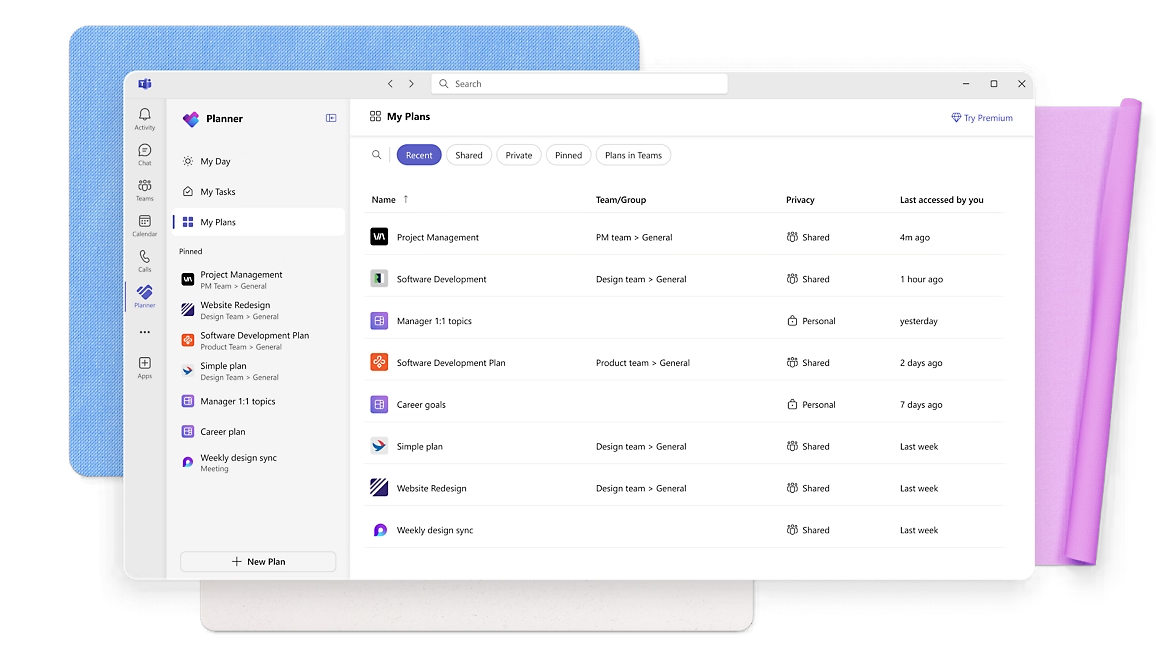
Image source: microsoft.com
The new Microsoft Planner 2026 interface explained
The new Microsoft Planner 2026 interface unifies planner and project into one connected environment, giving teams a simpler planning experience. The updated layout places tasks, timelines, goals, and sprints in a single workspace, reducing the need to switch between Microsoft apps. Visual improvements make task details easier to read, while redesigned planning views support smoother coordination across teams with different workflow styles. This combined design strengthens the planner's ability to manage both everyday task tracking and more structured project activities that require clearer scheduling and shared visibility.
- Unified planner plus project interface changes: The combined interface centralizes tasks, plans, goals, sprints, and backlogs in one workspace. Users no longer need Microsoft Project to view structured workflows, which reduces complexity for smaller teams while still offering advanced project-style tools. Many review Microsoft Planner comparisons note this unified setup as the biggest improvement because it makes workflows more accessible and predictable.
- Updated task visualization: Tasks now have a cleaner layout with more visible fields, richer details, and faster editing. Teams can attach files, add notes, set priorities, and categorize items with fewer clicks. The refreshed visuals support easier navigation across large task sets. Many new Microsoft Planner review discussions highlight this as a meaningful upgrade for distributed teams.
- Timeline plus board plus calendar improvements: The redesigned views let teams track work from multiple angles. Timeline shows a broader project map, board view organizes tasks by stage, and calendar highlights upcoming deadlines. This flexibility improves schedule-based workflows and helps teams plan more confidently. Users in Microsoft Planner review 2026 threads appreciate having these perspectives built in.
- What changed for recurring tasks and dependencies: Recurring tasks now follow clearer creation flows and offer more predictable tracking. Dependency improvements help teams map task sequences without relying on Microsoft Project. These updates support more structured workflows, reduce manual planning mistakes, and make Planner more reliable for long-running project chains.
New Microsoft Planner feature reviewed
The new Microsoft Planner introduces several upgrades aimed at improving task coordination, reporting, and project visibility. These enhancements make the tool more capable of supporting mid-sized and cross-functional teams that previously found planners too basic. Many updates also align the planner more closely with Microsoft Project, giving users more structure without needing a separate app. This section explains the most important changes and how they improve day-to-day planning.
- Real-time email notifications for Project Manager Agent: The Project Manager Agent now delivers real-time email updates when tasks change, deadlines shift, or new work is assigned. This helps teams stay aligned across distributed environments without constantly checking planner. Many reviews of Microsoft Planner discussions highlight this addition as helpful for managers who rely on status consistency.
- Bulk editing of tasks in Grid view: Grid view now supports multi-select editing, letting users update fields like priority, due dates, progress, and assignees in batches. This significantly reduces the manual effort required to maintain large plans. Teams with fast-moving projects appreciate how this accelerates cleanup and restructuring work.
- New status reports generation via Project Manager Agent (public preview): The Project Manager Agent can now generate automated status reports summarizing progress, delays, risks, and upcoming items. This feature helps managers avoid building manual updates and improves communication with stakeholders. Early new Microsoft Planner review feedback calls this one of Planner's most promising additions.
- Project Manager Agent available broadly (plans, web, and teams): The AI agent is now accessible across planner, project, web, and team interfaces. This unified availability makes its automation and reporting features more useful across workflows. It also ensures that status updates and insights stay visible regardless of the platform.
- Default Board view for "My Day" and "My Tasks": Personal workspaces now use board as the default view, giving individuals a clearer breakdown of personal priorities. This layout helps users move from planning to action faster and reduces cognitive load when navigating tasks.
- Enhanced security & compliance support: Planner now includes improved compliance coverage, making it suitable for organizations working under stricter IT and governance requirements. This update aligns planner more closely with Microsoft 365 security expectations and supports sensitive project data handling.
Review of Microsoft Planner pricing
Microsoft Planner now follows a tiered structure that aligns with Microsoft 365 subscriptions and upgraded Planner premium plans. Each tier is designed for different levels of project complexity, from basic task boards to advanced resource and portfolio management. Understanding these differences helps teams decide whether the included version is enough or if upgrading is necessary for structured workflows, dependencies, reporting, or AI-driven planning. This Microsoft Planner Premium overview helps teams evaluate how the newer capabilities compare to traditional project tools and whether the Premium features justify the additional cost.
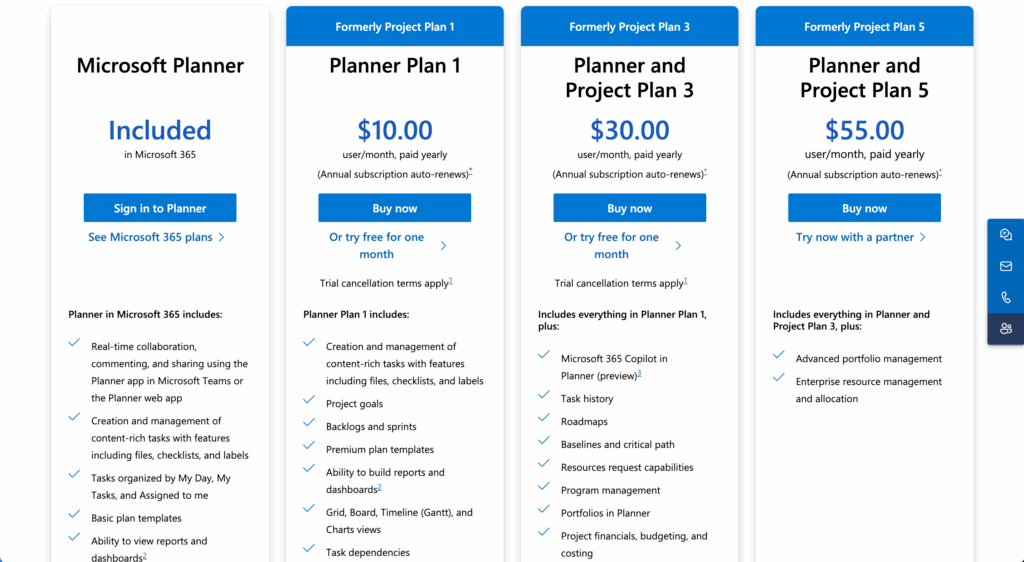
Image source: microsoft.com
Information source: microsoft.com
Update time: 2025-12-11
Note: Pricing and plan details reflect publicly available data as of the update date and may vary based on region, billing cycle, and number of agents.
Microsoft Planner pros and cons explained
This section explains the practical strengths and weaknesses of Microsoft Planner based on real usage across different teams. Planner performs well for simple task coordination and internal team tracking, especially for organizations already using Microsoft 365. At the same time, its structure becomes limiting when workflows grow more complex or when teams require automation flows, cross-department visibility, and deeper project controls. Understanding these pros and cons helps teams evaluate where the planner fits and where a more complete alternative may be needed.
Pros
- Very low learning curve: Microsoft Planner is one of the simplest task tools to adopt because of its clean interface and familiar structure. Users can set up boards, assign tasks, upload files, and track progress without training. This ease of use makes planners attractive for internal teams who need quick onboarding.
- Seamless Microsoft 365 identity: Planner combines naturally with Teams, Outlook, SharePoint, and OneDrive, allowing smooth collaboration within the Microsoft ecosystem. Tasks appear assigned to me across all apps, making everything feel unified. This consistency reduces friction for users already tied to Microsoft 365.
- Simple task experience: Planner focuses on clarity with boards, lists, checklists, and due dates. It remains lightweight, helping teams track work without overcomplication. This simplicity is especially useful for smaller groups or teams that do not need advanced project planning capabilities.
- Good for structured organizations: Teams that follow predictable workflows and have clear task responsibilities benefit from the planner's focused setup. The environment supports systematic planning within internal departments. Many reviews of Microsoft Planner conversations point to its reliability for straightforward, repeatable workloads.
Cons
- Flat workflows for complex teams: Planner lacks the layered structure required for multi-department coordination, long-running projects, or dynamic workflows. Tasks do not support the advanced configurations needed for complex operations. This makes planners insufficient for teams managing interconnected workstreams.
- Limited automation: Planner provides only basic reminders and status updates, with very few automation capabilities. Teams must manually coordinate follow-ups and handoffs, which increases workload. Advanced workflows require external systems or manual effort.
- Limited reporting: Reporting tools remain basic even in upgraded plans. Teams cannot easily generate insights, track trends at scale, or view portfolio-level progress without additional software. This limits visibility for managers overseeing multiple teams.
- Dependency management is not intuitive: Although dependencies exist in higher-tier plans, the experience remains less intuitive than dedicated project management tools. Teams struggle to map sequences clearly, making scheduling difficult. This challenge becomes more noticeable in complex initiatives.
When Microsoft Planner becomes too limiting-even with Premium
This section outlines scenarios where organizations begin to outgrow Microsoft Planner, including Planner premium features. While Planner supports basic task tracking and offers useful enhancements to higher-tier plans, it still lacks the deeper structure needed for operational workflows. Teams managing multi-step processes, approvals, cross-departmental work, or content-heavy projects often experience friction. Understanding these limits helps teams determine when to explore more scalable alternatives.
- Multiple departments in one project: Large initiatives involving design, engineering, marketing, or operations require shared visibility across teams. Planner's boards keep everything separate, making collaboration harder. Updates do not flow smoothly, and dependencies are difficult to track at scale. As the team count grows, the Planner struggles to support unified project oversight.
- Work that requires approvals: Approval processes for budgets, content, procurement, or hr cannot be handled effectively in Planner. There are no native approval workflows, meaning teams must rely on email or external tools for validation steps. This slows progress and increases the risk of missing critical sign-offs.
- Complex review cycles: Teams that iterate frequently on drafts, campaigns, or documents face limitations because Planner does not connect tasks directly to collaborative documents. Reviews become scattered across the team's chats, emails, and attachments. This fragmentation makes it difficult to maintain clarity during detailed review loops.
- Merged communication needs: Planner depends heavily on Microsoft Teams for conversations because it lacks built-in messaging. As work becomes busier, constant switching between platforms causes context loss. Teams struggle to tie discussions back to the correct tasks. This creates communication gaps that affect daily execution.
- Need for structured databases: Projects that involve inventory, content libraries, CRM pipelines, HR workflows, or resource management require structured databases. Planner's flat task model cannot store relational information or track evolving records. Teams must use SharePoint lists or Excel files to manage data, creating disconnected workflows that reduce efficiency.
Many teams begin with Microsoft Planner because it is accessible, familiar, and integrated into Microsoft 365. As work becomes more cross-functional, they eventually need a deeper workflow structure, connected communication, automated approvals, and real-time collaboration that Planner did not fully support. What solution did they choose: Lark. Keep scrolling and find out why Lark is the answer.
Expert recommendation: Lark is a better alternative for modern teams
Lark enters the conversation naturally at this stage by offering a unified workspace where tasks, databases, documents, automation, and messaging operate together. Unlike platforms that require layering multiple specialized tools, Lark is engineered to provide this full suite of capabilities natively, ensuring superior performance and eliminating the need for complex, brittle integrations. This section explains why Lark fits growing teams more effectively and how it overcomes the limitations found in Microsoft Planner.
Robust project management system & workflows
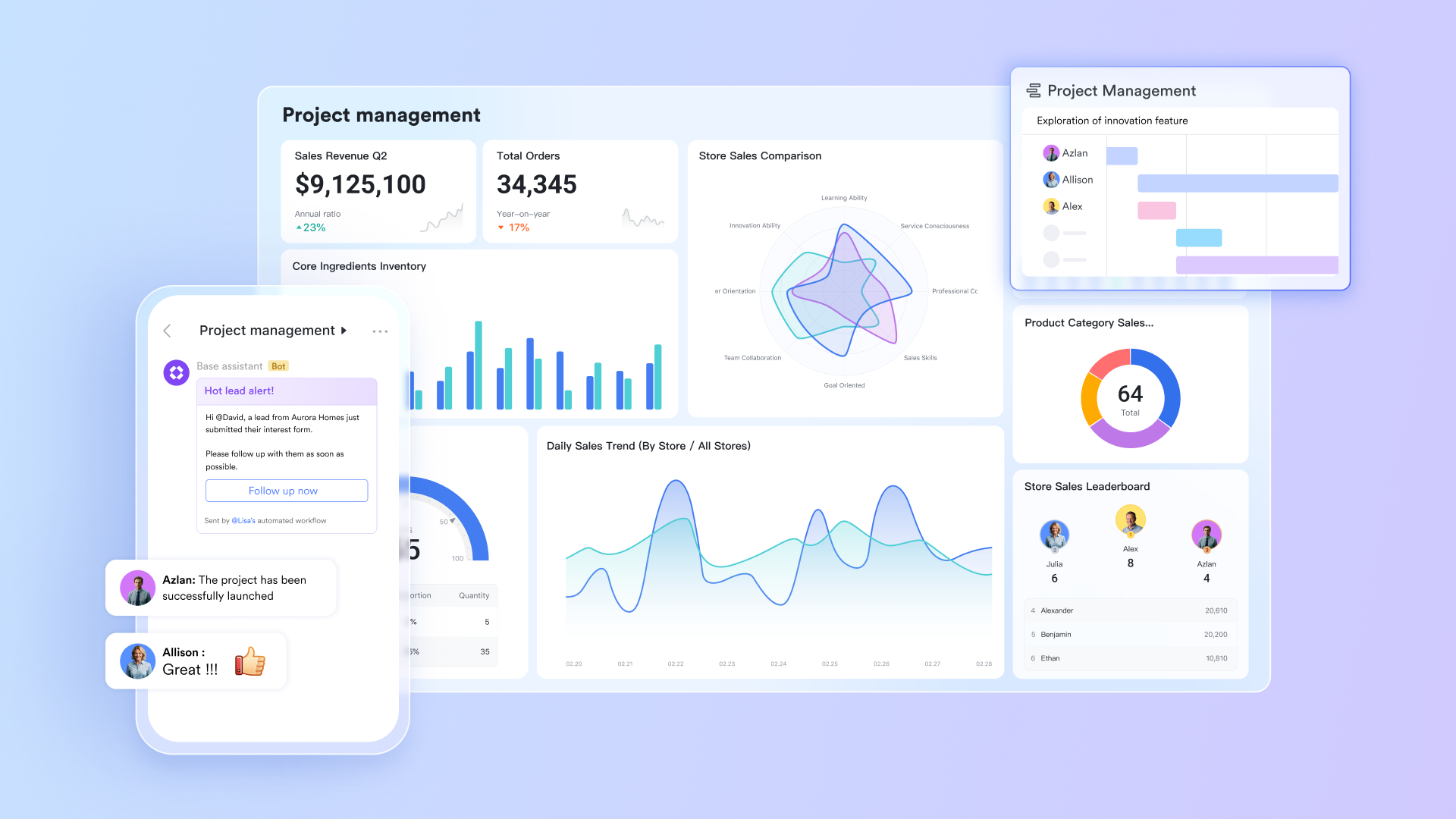
Lark Base supports more structured project systems than the simple boards inside Microsoft Planner. Teams can create relational tables, link project phases, assign ownership across departments, and track multi-step workflows in a way that scales beyond a single task list. Unlike Planner, which mainly organizes tasks visually, Lark Base allows teams to build repeatable project frameworks that cover planning, execution, and reporting. This makes it strong for product launches, operations workflows, marketing campaigns, and cross-functional initiatives that require more structure.
On the other hand, Lark Base goes far beyond Microsoft Planner's task boards by offering customizable databases that function like mini project systems. Teams can design project pipelines, track multi-department workflows, manage resources, and link related records all in one place. Unlike Planner, which relies heavily on simple task lists and limited views, Lark Base supports complex scenarios such as cross-functional initiatives, campaign planning, product development, and operational workflows that require more structure than a Kanban-style board.
Deeper accountability and execution
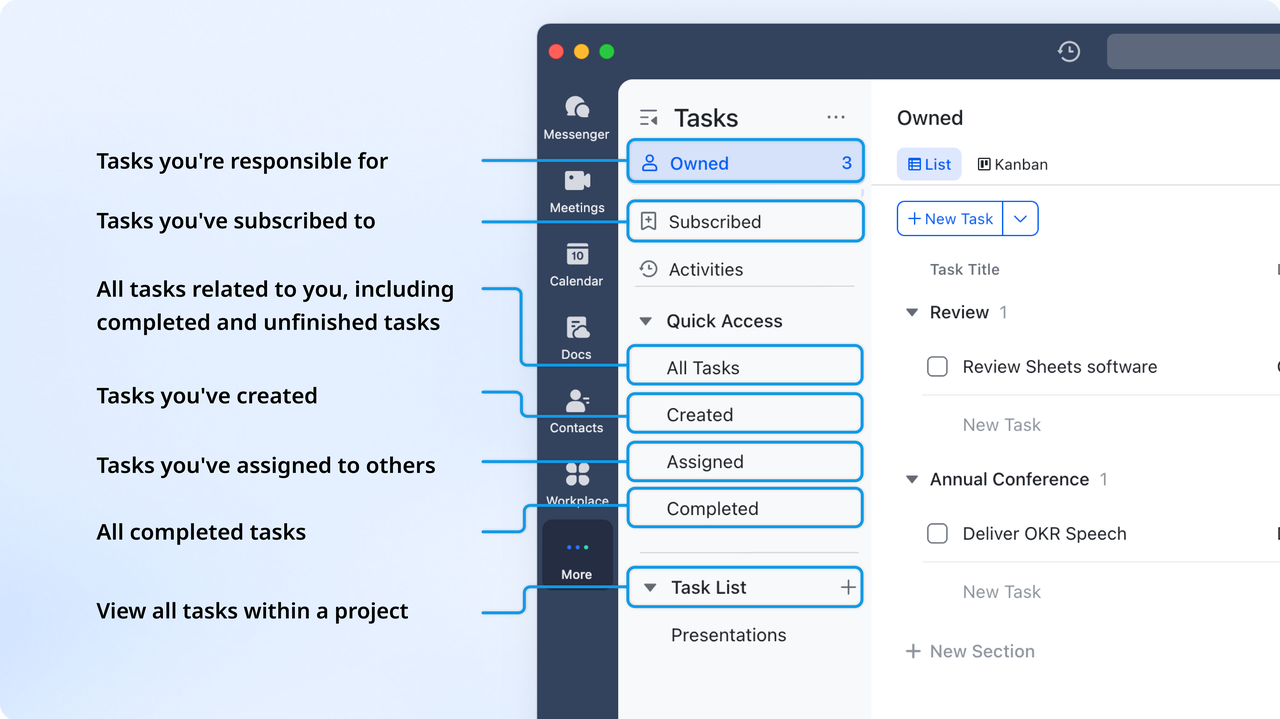
While Microsoft Planner provides basic task assignment and board views, Lark Tasks adds granular control with dependencies, priorities, milestones, workload visibility, and progress tracking. Tasks connect directly to Lark Base records, docs, chats, and approvals, making execution seamless across teams. This creates a continuous workflow loop that a planner cannot offer, especially for projects involving multiple stakeholders, sequential steps, or detailed timelines.
Real-time team collaboration
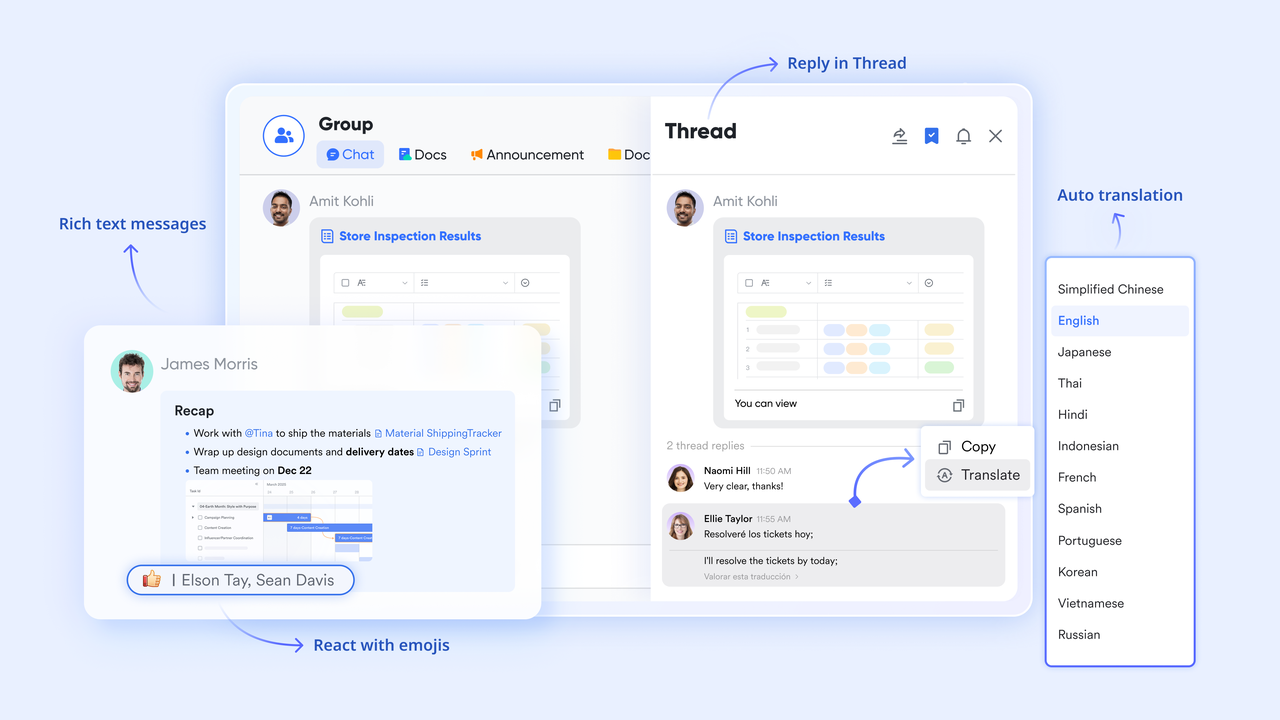
Microsoft Planner lacks built-in communication tools, forcing teams to switch between Teams, Outlook, and Planner to complete simple tasks. Lark Messenger fixes this by bringing chat, file sharing, voice messages, and group discussions directly into the workspace. Every conversation can be pinned to tasks or project records, ensuring full context without tool switching. This dramatically speeds up decision-making compared to the planner's comment-only collaboration model.
Connected documentation and project content
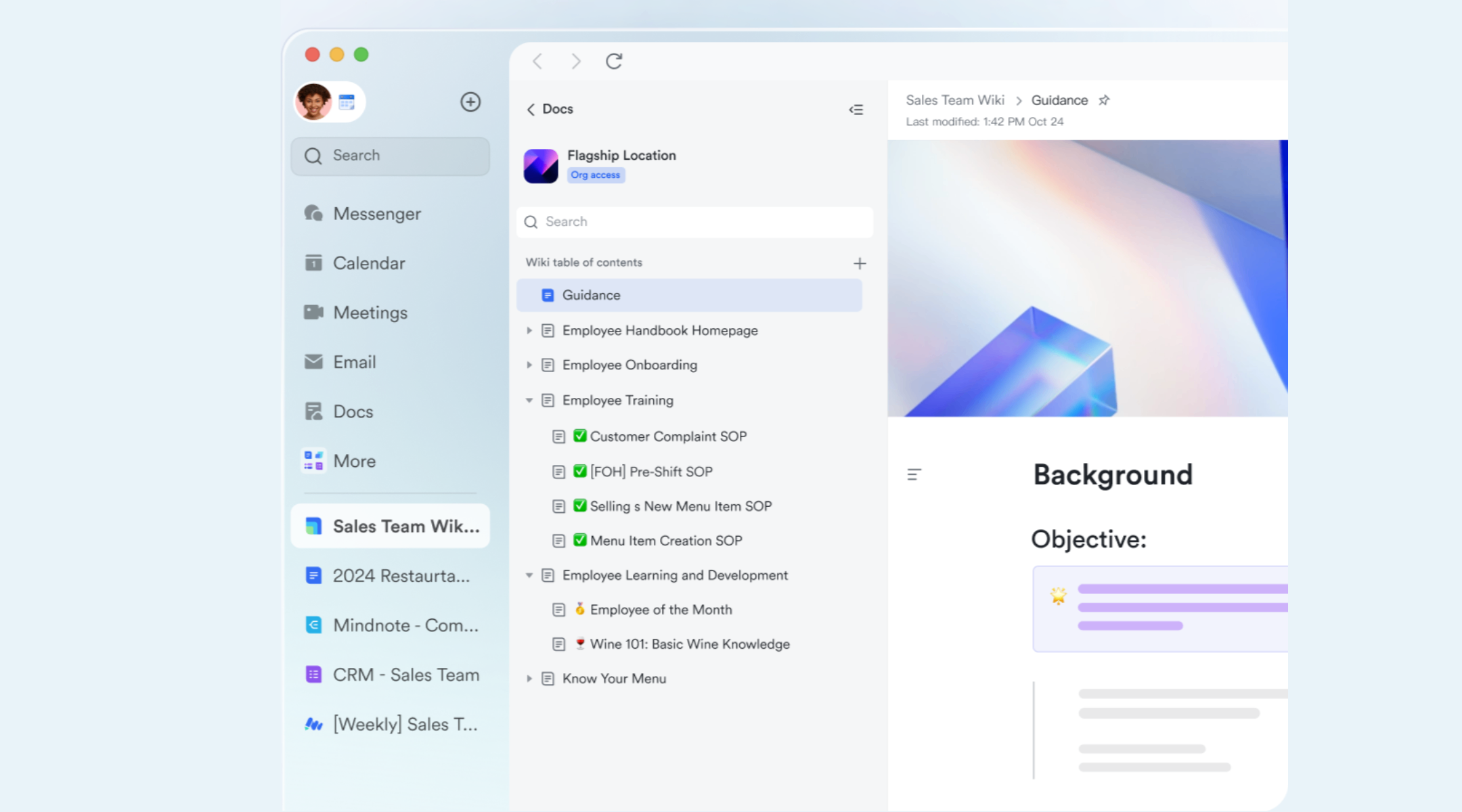
While Planner only supports simple file attachments, Lark Docs enables fully collaborative documents, wikis, meeting notes, SOPs, and project briefs—editable in real time by the team. Docs connect directly to tasks, approvals, and Lark Base workflows, ensuring all project information stays accessible and organized. This is a major upgrade from Planner, where documentation remains fragmented across OneDrive, SharePoint, and Emails.
Automated workflow for multi-step processes
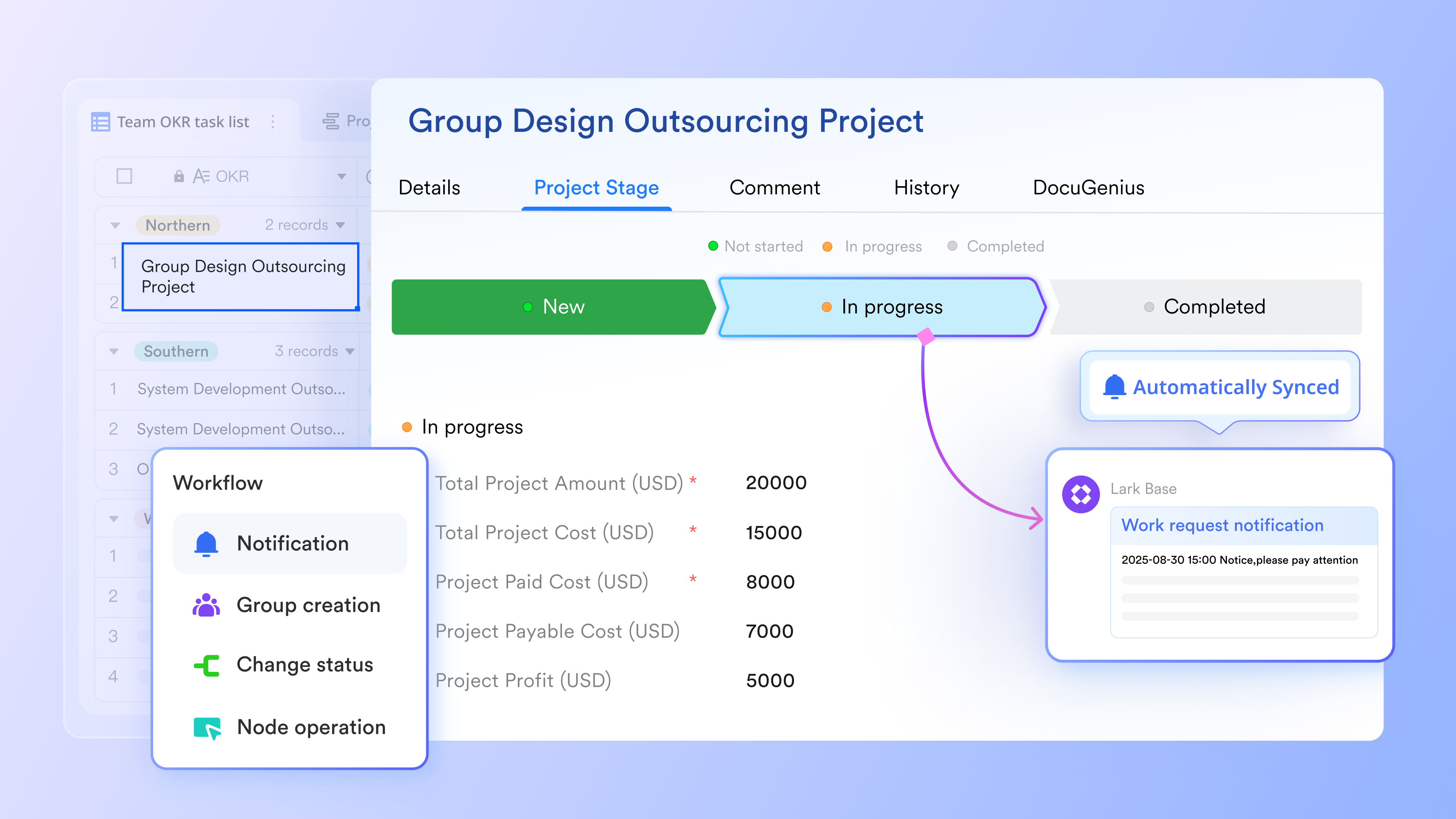
Microsoft Planner's automation is limited to basic reminders and status changes. Automated workflow in Lark introduces true operational automation: routing approvals, updating records, triggering task creation, sending notifications, and coordinating multi-step processes across teams. This enables marketing campaigns, product launches, hr workflows, and operations procedures to run smoothly without manual follow-up. Lark provides the kind of automation depth that Planner cannot match, even in its premium tiers.
- Starter plan: Free forever plan that includes 11 powerful tools for up to 20 users. It also comes with 100GB of storage, 1000 automation runs, AI translations, and more.
- Pro plan: $12/user/month (billed annually) for up to 500 users. It includes everything in Starter plus group calling for up to 500 attendees, 15TB of storage, 50,000 automation runs, and more.
- Enterprise plan: Contact sales for custom pricing. Supports unlimited users and includes even more automation runs and advanced security, compliance, and management features.

Starter
Pro
Enterprise
Starter
For small teams with simple communication needs
$0
/ user / month
20 users max
18 months message history
1-on-1 video meetings
100 GB storage
Lark Docs & Mail
1000 Base automation runs/month
2000 rows per table in Base
Pro
For companies with comprehensive collaboration and management needs
$12
/ user / month
500 users max
Unlimited message history
500-participant video meetings
15 TB storage
Lark Docs & Mail
50k Base automation runs/month
20k rows per table in Base
Enterprise
For large companies with advanced security and organizational management needs
Get a personalized demo and pricing
Unlimited users
Unlimited message history
500-participant video meetings
15 TB storage + 30 GB storage/user
Lark Docs & Mail
500k Base automation runs/month
50k Base automation runs/month
Single sign-on (SSO)
Pro
For companies with comprehensive collaboration and management needs
$12
/ user / month
500 users max
Unlimited message history
500-participant video meetings
15 TB storage
Lark Docs & Mail
50k Base automation runs/month
20k rows per table in Base
Microsoft Planner vs Lark: Quick comparison before we conclude
This comparison helps teams understand what each platform is designed to solve. Microsoft Planner remains a lightweight task management tool within the Microsoft ecosystem. Lark is built to support full workflows, communication, databases, tasks, and documentation in one workspace. These distinctions become clearer as teams scale beyond simple task tracking and require deeper operational visibility. The following table provides a fast reference for decision makers evaluating both platforms.
Who should use Microsoft Planner vs who should switch to Lark
Choosing between Microsoft Planner and Lark depends on how teams operate and how much structure they need as work grows. Microsoft Planner fits small internal teams that only require basic task tracking and want simple visual boards within the Microsoft 365 ecosystem. Lark becomes the better option when teams handle cross-functional workflows, rely on constant collaboration, or need automation and documentation tied directly to project data. Creative, marketing, operations, and product teams benefit from Lark's unified workspace because it brings communication, tasks, approvals, and scheduling together. As companies scale, Lark offers the workflow depth and visibility that Planner often cannot support.
Planner is ideal for
- Small internal teams: Planner works well for small teams that only require simple coordination without complex workflows. It helps groups organize tasks visually using boards and lists that are easy to understand. The lightweight setup allows teams to start quickly without training. It is best suited for straightforward day-to-day planning needs.
- Basic task tracking: Planner supports essential task management features such as assignments, due dates, and checklists. It is useful for teams that only need to track progress at a basic level and do not rely on dependencies or detailed reporting. The interface keeps tasks organized in a clear visual layout. This simplicity benefits teams that avoid heavy project management tools.
- Organizations deeply tied to Microsoft 365: Teams already invested in Microsoft 365 find Planner convenient because it connects tightly with Teams, Outlook, and SharePoint. Users can access tasks where they already communicate, which reduces friction. It fits well into existing workflows without requiring new platforms. This makes it a familiar choice for organizations that want a combined Microsoft ecosystem.
Lark is ideal for
- Cross-functional workflows: Lark works well for teams involving multiple departments where tasks span approvals, data updates, scheduling, and structured processes. It supports linked databases, messaging, and automated workflows that connect activities across teams. This helps organizations manage end-to-end work without losing visibility or context.
- Creative, marketing, ops, and product teams: Teams that collaborate frequently and rely on constant communication benefit from Lark's connected workspace. Docs, Tasks, Messenger, and Base help keep discussions, assets, and project updates in one place. This reduces fragmentation and supports fast feedback cycles across creative, operational, and product environments.
- Fast-moving companies needing automation plus collaboration: Lark supports automated workflows that route approvals, update records, and notify teams instantly, which helps fast-paced companies reduce manual coordination. The platform also brings chat, docs, meetings, and tasks together so teams can respond quickly. This combination supports rapid execution and operational consistency.
- Teams wanting to consolidate multiple tools: Lark serves teams looking to replace separate apps for chat, tasks, docs, forms, and workflows. By centralizing these functions, Lark reduces complexity and lowers tool switching. This helps teams maintain clarity and improve productivity as all work stays connected in one place.
Conclusion
Microsoft Planner is a practical choice for teams that want simple task boards, a familiar Microsoft 365 combination, and lightweight work organization. Its updated 2026 interface improves usability, but the platform still focuses mainly on task tracking rather than full workflow execution.
As teams expand and require deeper coordination, structured approvals, automation, and connected documentation, they often begin exploring platforms that unify these needs in one environment. This is where tools like Lark appear gradually as teams look for a smoother way to connect project work with communication and operational processes. Lark's fully combined workspace can support broader project needs when organizations outgrow Planner's limitations.
FAQs
Which is better, MS Project or Planner?
Both MS Project (Microsoft Project) and MS Planner (Microsoft Planner) are used for project management, but they serve different needs. Planner is ideal for simple team task management, focusing on easy-to-use Kanban boards and collaboration. Project is designed for complexity, offering critical path analysis, detailed resource management, and traditional Gantt charts for professional project managers. Choose Planner for lightweight teamwork and Project for large, complex initiatives.
Should I migrate from Microsoft Planner to Lark?
Migration is worth considering when your team needs more than visual task boards and basic scheduling. Planner works well for smaller teams, but growing workflows often require approvals, automation, shared documentation, and real-time communication. Lark provides these capabilities in one connected workspace, which reduces switching between tools and improves execution across departments.
Is Microsoft Planner suitable for marketing teams specifically?
Planner can support simple campaign checklists and visual stages, but marketing teams usually need cross-functional coordination, shared assets, and structured approvals. These needs can stretch the Planner's limits as campaigns become more complex. Teams looking for tighter collaboration and connected content workflows eventually explore platforms like Lark that link tasks, docs, forms, and messaging together.
What's the difference between Planner Premium and Project?
Planner Premium adds more structured planning tools, such as dependencies, goals, and advanced views, but it remains a simplified environment compared to Project. Microsoft Project supports deeper scheduling, resource planning, portfolio views, and detailed project control. Teams often begin with Planner and shift to Project only when work becomes highly structured or requires advanced tracking features.
Can Microsoft Planner replace CRM for small businesses?
Planner cannot fully replace a CRM software because it lacks contact management, sales pipelines, reporting tools, and customer-specific workflows. It can support simple follow-up tasks or internal reminders, but sustained customer tracking needs dedicated structures. Some teams later move toward platforms like Lark when they want databases, forms, and automated workflows to support CRM style processes.
How does Microsoft Planner compare to campaign planning vs Lark?
Planner can handle basic campaign stages, but it becomes limiting when multiple teams, assets, and approval steps are involved. Lark supports campaign planning with connected tasks, docs, workflows, calendars, and communication channels in one place. This reduces manual follow-ups and keeps campaign content organized, which helps teams run faster and with greater clarity.
Related reading
Table of contents
Start using Lark today

Manage all your work in one place
Boost team efficiency by 10x
Save up to 70% on software costs
Table of contents
Start using Lark today
Manage all your work in one place
Boost team efficiency by 10x
Save up to 70% on software costs
Keep reading








2026 Lark Technologies Pte. Ltd.
Headquartered in Singapore with offices worldwide.






Explore: