Effective note-taking has become essential for enhancing personal and professional productivity. Microsoft OneNote stands out as a popular choice for many users, but with several alternatives like Lark and others available, it's essential to consider whether it meets your specific needs. In this OneNote review, we'll dive deep into its features, usability, and how it compares with other note-taking applications, helping you make an informed decision.
What is OneNote?
Microsoft OneNote is a versatile notes app and digital note-taking application designed to help users capture, organize, and share their digital notes in various formats. Whether you are jotting down a quick idea, maintaining a journal, or collaborating on projects, OneNote provides a comprehensive platform for all your note-taking needs.
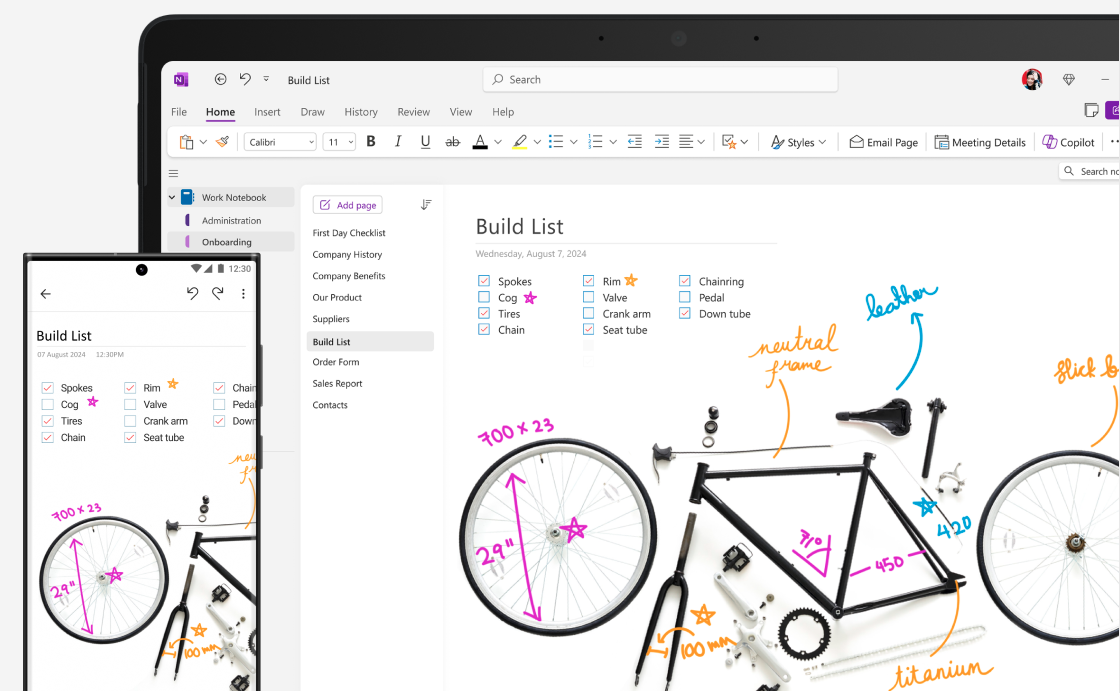
Image source: microsoft.com
Historically, OneNote (sometimes stylized as 'one note') was introduced as part of the Microsoft Office suite in 2003. Since its inception, it has evolved significantly, incorporating features that cater to the growing demand for digital organization and collaboration. OneNote is available for download from the Microsoft Store, with Microsoft serving as both the official app publisher and third party app publisher responsible for updates, privacy, and licensing. The app has continuously adapted to user feedback, enhancing its functionality to stay relevant in an increasingly digital landscape.
Microsoft OneNote is designed to cater to a variety of users, including businesses, educators, and professionals. For businesses, OneNote serves as a powerful tool for , centralizing information, and facilitating team collaboration. Its features allow teams to document meetings, brainstorm ideas, and in one organized space. Additionally, professionals can utilize OneNote for research notes and planning, while educators benefit from its capabilities for lesson planning and student collaboration. With its flexibility and robust features, OneNote is ideal for anyone looking to enhance their note-taking and organizational processes across different contexts.
Key features of Microsoft OneNote
- Organizational structure: OneNote utilizes a hierarchical notebook format, allowing users to create and categorize their notes into "Notebooks," "Sections," "Pages," "Sub-Pages," and "Section Groups." This structure provides granular control over , enabling users to easily create new notebooks, organize existing notes, and rearrange pages as needed. The flexible canvas supports a digital sketchbook approach, enabling various input methods such as typing, drawing, and embedding files anywhere on a page, facilitating structured information presentation.
- Multimedia support: OneNote excels in multimedia support, allowing users to insert a range of elements including images, audio, video, and scanned images. Using Office Lens technology, users can enhance image capture and even record audio directly into their notes. OneNote also features Optical Character Recognition (OCR) to extract text from images or PDFs.
- Collaborative features: OneNote supports , allowing multiple users to co-author and edit a single notebook simultaneously. Users can share notes at the notebook level, ensuring all sections and pages are accessible to collaborators. Additional features like sticky notes for quick reminders and tagging for follow-up enhance collaboration efficiency.
- Web clipper and content capture: With the integrated web clipper, users can capture content directly from their web browsers and save it to their notebooks. This includes the ability to capture full pages, specific sections, or content snippets, though it may not be as robust as some dedicated web clipping tools.
- User interface: OneNote features a modern and minimalist user interface that promotes ease of use. It offers a customizable home screen, various note formats like bullet points and text boxes, along with a flexible canvas ideal for digital sketching. Improvements in recent versions include AI features, such as Copilot, which assist in drafting and organizing content.
- Storage and integration: OneNote leverages Microsoft OneDrive for reliable cloud storage, initially providing 5GB of free space. This facilitates for notes and files, making them easily accessible across devices. As users' storage needs grow, Microsoft 365 subscriptions offer expanded capacity and additional features. The integration with familiar Microsoft applications ensures a fluid transition between tasks and efficient information sharing.
- Mobile note taking: The mobile version of OneNote enhances note-taking on the go with a streamlined interface designed for quick note creation while maintaining robust organizational capabilities. It supports both handwriting recognition and stylus input, making it ideal for dynamic professionals who need to capture spontaneous ideas, visuals, or audio notes conveniently.
With these comprehensive features and a focus on enhancing user experience, Microsoft OneNote has established itself as a leading in both personal and professional realms. In the next sections, we will explore various alternatives to OneNote, helping you determine the tool that best suits your note-taking needs.
Boost your notes for project management with expert tips
OneNote pricing
Microsoft OneNote is a part of Microsoft 365 suite, which offers a range of pricing options to accommodate different user needs:
- Free Version: OneNote is available for free for individual users, providing access to a majority of its features, making it an excellent choice for individuals who need basic note-taking capabilities.
- Microsoft 365 subscription: For those seeking advanced features and integrations, OneNote is included with Microsoft 365 subscriptions. For example, for Microsoft 365 package without Teams, Microsoft 365 Business plans start at $6.00/uer/month, paid yearly; for individuals, Microsoft 365 Personal starts at $9.99/user/month, paid yearly.
- To know more about Microsoft 365 pricing plans, read this article:
Overall, OneNote remains accessible with its free version while offering valuable premium features through the Microsoft 365 suite to enhance productivity and collaboration.
Advantages of OneNote
Cross-platform availability: OneNote is available on various platforms, including Windows, macOS, iOS, Android, the web version, and as web apps. The Windows app and iPad version each offer unique features, with the iPad version optimized for touch and stylus input. OneNote can sync notes across devices, allowing users to access and edit them offline, ensuring your notes are always up-to-date and accessible anywhere.
Robust organizational structure: Users can create multiple notebooks, sections, and pages within OneNote, allowing for a highly organized way to store and retrieve notes. You can also create checklists, tag items for follow-up, and extract text from images using OCR technology, making it easy to organize, search, and act on your information.
Integration with Microsoft tools: As part of the Microsoft Office suite, OneNote integrates seamlessly with other Microsoft applications like Word, Excel, and Outlook. This connectivity simplifies the process of sharing information across different platforms.
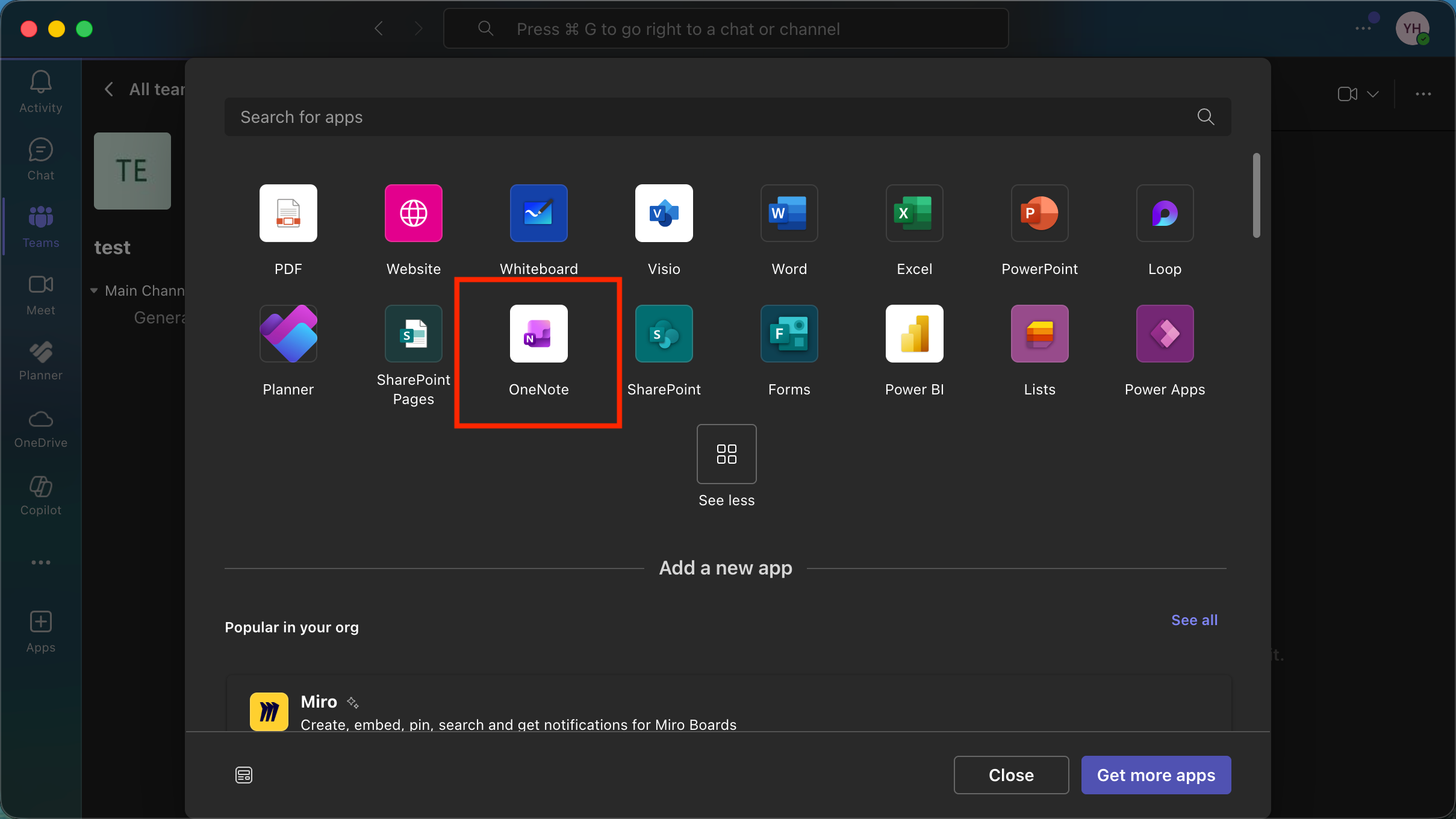
Image source: Screenshots of OneNote
Powerful search functionality: OneNote includes a robust search feature that lets users quickly find notes, even if they don't remember the exact location of the content. The improved user interface is more modern and minimalist, making navigation and searching across all notes easier, especially when reviewing large volumes of information. Additionally, OneNote supports sticky notes for quick ideas and reminders, and makes it easy to write memos, helping you capture thoughts and important information efficiently.
Limitations of OneNote
Learning curve: While OneNote is feature-rich, some users may find the user interface confusing and difficult to navigate, especially if they are new to digital note-taking. The interface presents a steep learning curve, and getting accustomed to its range of functionalities can take time.
Syncing issues: Some users report having problems with syncing their notes across devices. Users report occasional sync delays and issues when using OneNote to sync notes across multiple devices, which can lead to frustration, especially when up-to-date notes are critical for timely tasks.
Limited formatting options compared to competitors: Although OneNote offers a decent level of formatting, some users feel that it lacks advanced formatting features available in other specialized tools.
Dependency on internet connectivity: While OneNote has functionality for offline use, many of its collaborative and integration features require a stable internet connection. Users in areas with poor connectivity might encounter difficulties.
Occasional performance issues: Some users have cited performance issues, including slow response times when handling larger notebooks loaded with multimedia content. The user interface can feel clunky or slow with large amounts of content.
Collaboration features: Real-time collaboration in OneNote is more limited compared to some newer tools, which reduces its competitiveness for teams needing advanced collaborative capabilities.
Less effective for project management: OneNote may not be as effective for users looking for comprehensive , as it lacks some of the advanced features available in dedicated project management software.
By weighing these advantages and limitations, users can determine if Microsoft OneNote aligns with their note-taking needs or if they should consider exploring alternatives. The flexibility and integration capabilities of OneNote make it a compelling option, especially for those already immersed in the . However, potential users should also be aware of its drawbacks as they evaluate their choices.
Discover how a better tool boosts documentation
Real-world use cases of OneNote
Microsoft OneNote serves as a versatile tool for a wide range of note-taking activities, making it an excellent choice for students, professionals, and anyone seeking better organization.
For students: OneNote is invaluable for capturing lecture notes, organizing coursework materials, and collaborating on group projects. Its hierarchical structure allows students to neatly categorize subjects, making it easier to locate and review their notes.
For professionals: Many professionals utilize OneNote to , create frameworks for tasks, and facilitate real-time idea exchanges during collaborative sessions. Its integration with other Microsoft tools enhances productivity and ensures that key information is effortlessly shared and accessed.
Personal use: Beyond professional settings, OneNote proves equally effective for personal projects. Users can manage everything from travel itineraries and home improvement plans to personal journals and reflective records. This comprehensive and intelligent search capabilities enable individuals to track immediate tasks while also planning for long-term goals.
For business use & project management: OneNote excels in business environments by providing a centralized platform for project management. It allows teams to document meeting notes, with checklists, and collaborate on ideas in one place. With features like tagging and versioning, users can ensure that important information is organized and easy to retrieve, enhancing overall team productivity and efficiency. Its seamless integration with Microsoft 365 further supports , project planning, and document sharing, making it an essential tool for modern businesses.
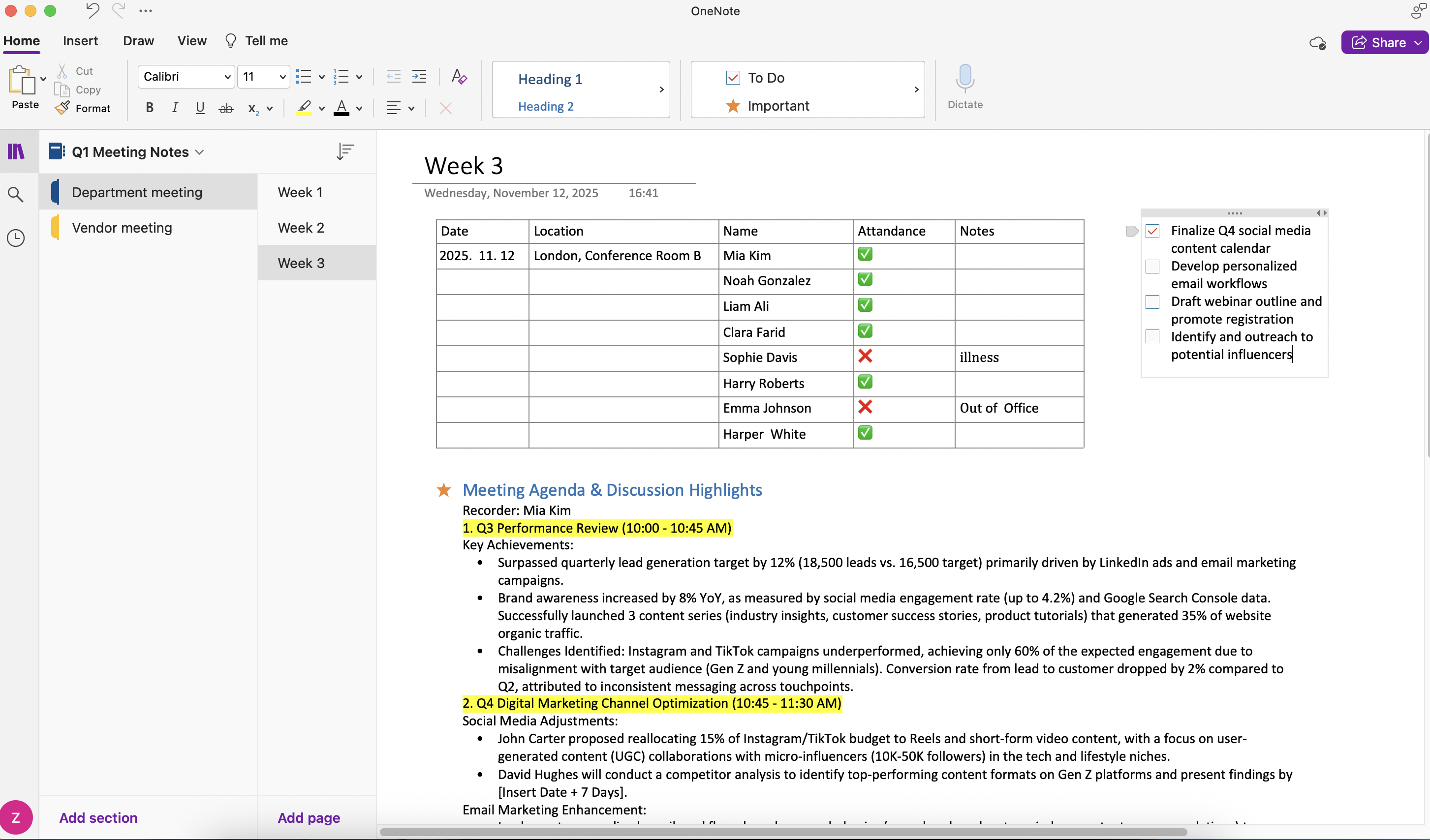
Image source: Screenshots of OneNote
In sum, Microsoft OneNote enhances workflow efficiency, allowing users to capture and share insights as inspiration strikes, thereby keeping their ideas organized and readily accessible.
OneNote alternatives that are worth a try
1. Lark: All-in-one tool with powerful collaboration features
is a comprehensive that merges note-taking with team communication and project management tools. It is designed to facilitate teamwork and boost productivity through its all-in-one interface.
Key features:
Various types of note-taking to meet different needs
allows users to create and manage a variety of document types seamlessly, enabling diverse methods of documentation and collaboration. Users can produce Docs for written content, for presentations, Sheets for data handling, MindNotes for , and Boards for visual project management. From taking notes to planning projects, all in one cohesive platform. 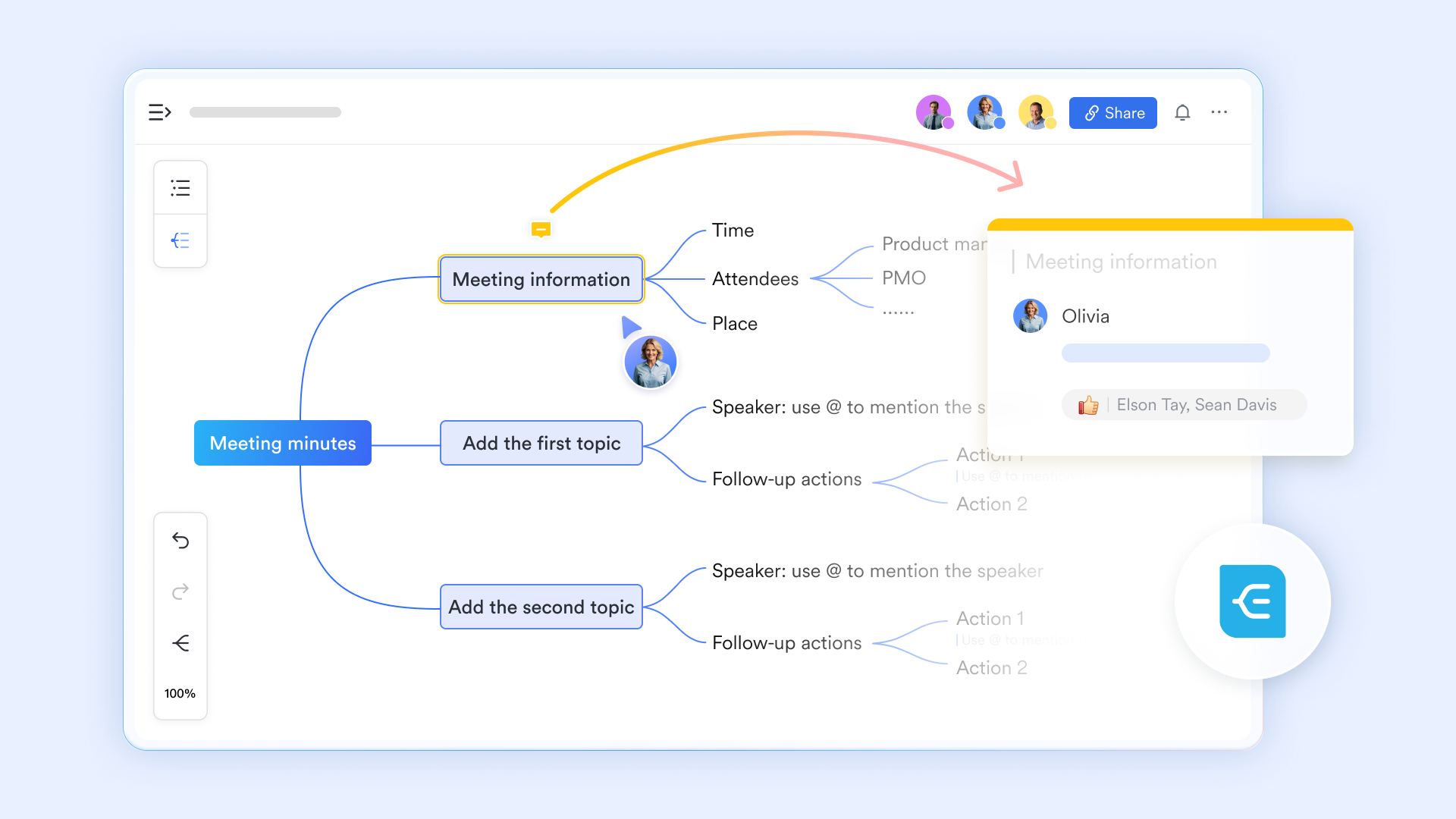
Powerful note-taking and document creation & management
allows users to insert a variety of information, including text, images, tables, and even Gantt charts, multi-dimensional tables, spreadsheets, mindnotes, and task lists. This not only contributes to the diversity of notes but also aids in the orderly recording of .
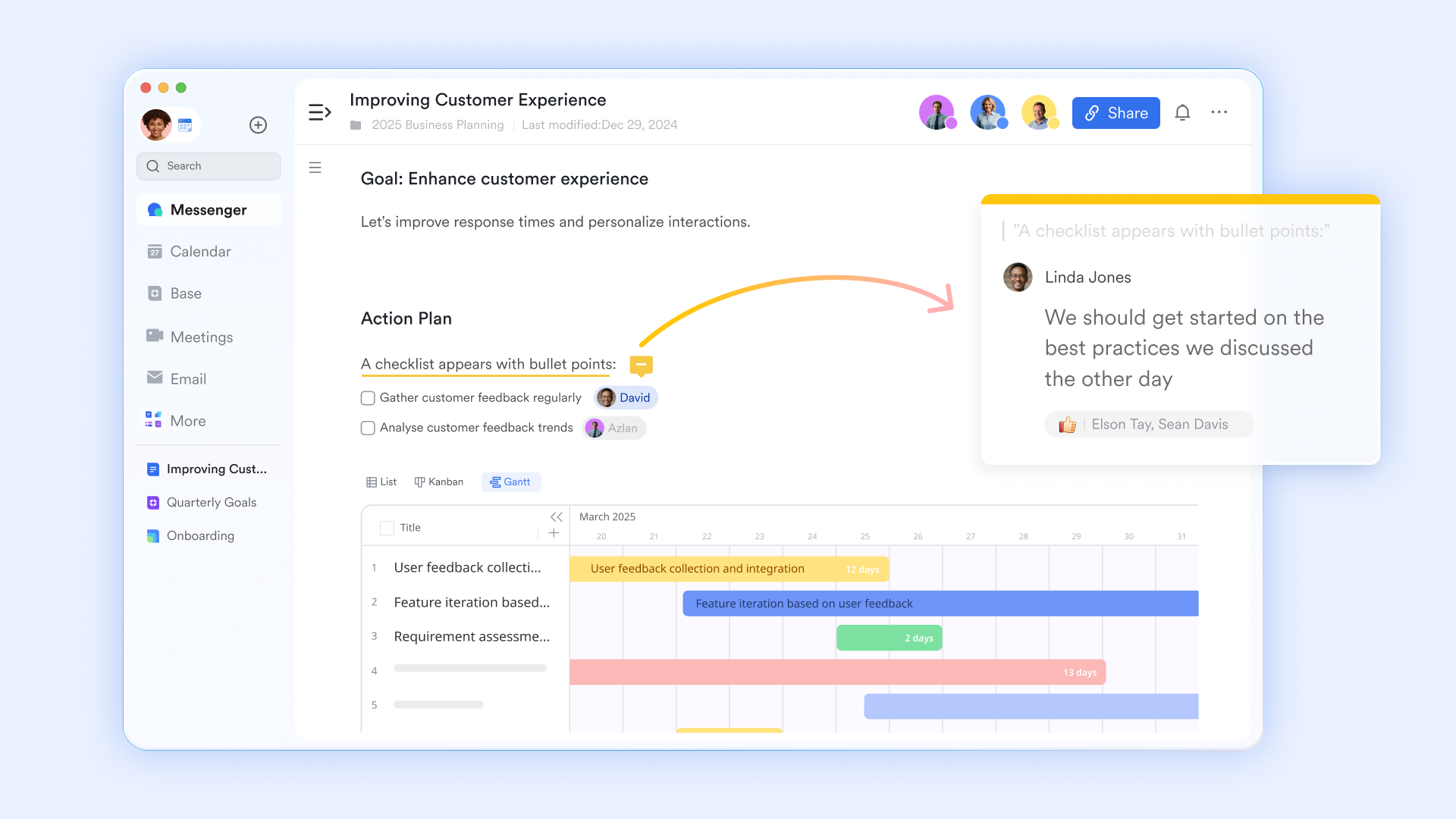
Changes made to Lark Docs are automatically saved to the cloud while connected to the internet, eliminating the need for manual saves. Users can also track historical documents or save the current document as a new version, enabling effective version management. If users wish to utilize Lark Docs for , it supports simultaneous editing by multiple users, comments, and the use of the @mention feature to enhance collaboration. Centralized knowledge management
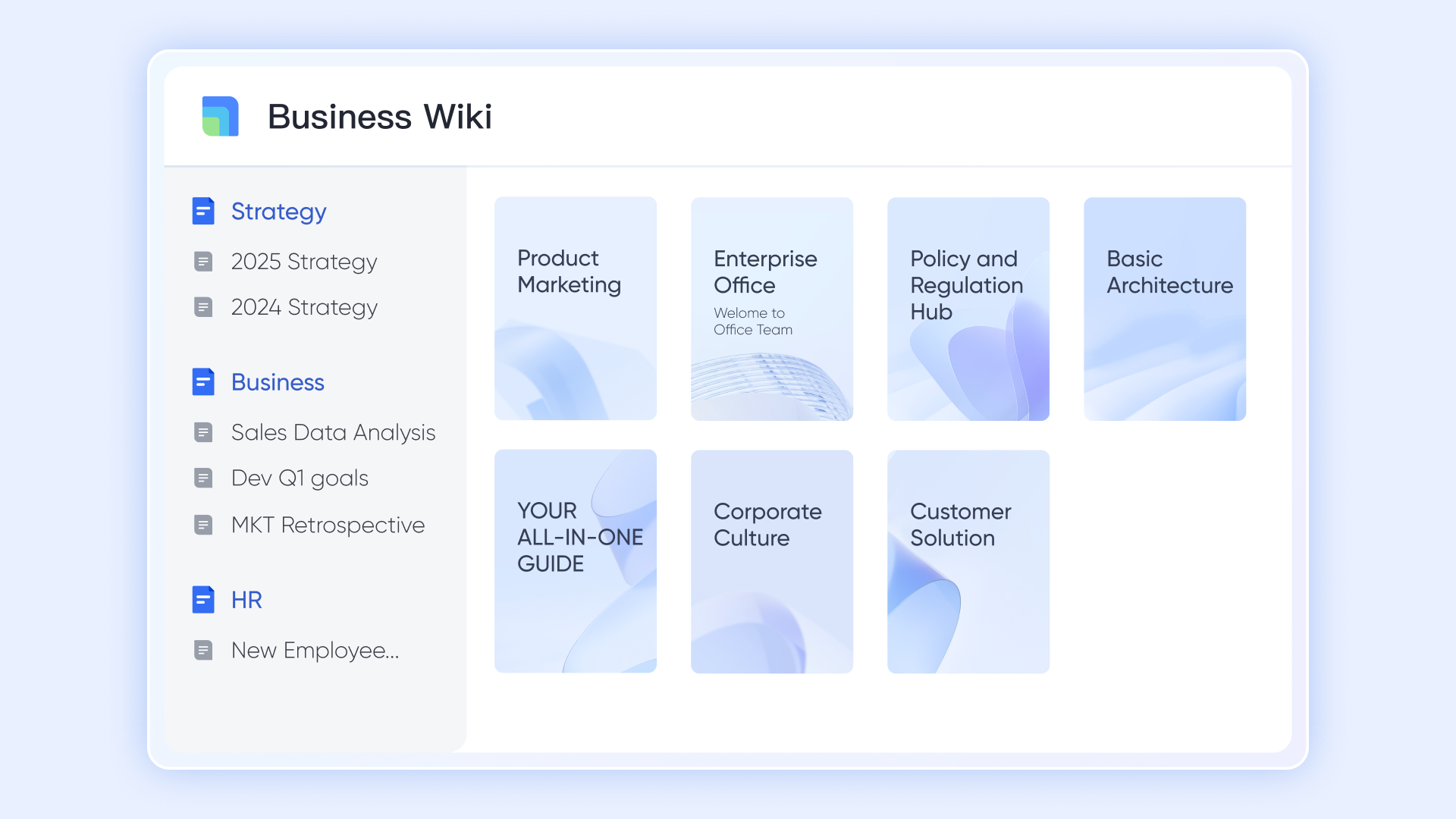
serves as a knowledge management system within the Lark ecosystem. It allows teams to create, categorize, and share knowledge articles, enhancing information accessibility. Teams can build a structured repository of internal documents, best practices, and guides, making it easy for members to find essential information quickly.
Collaborative editing across teams
features Magic Share, which allows participants to collaboratively edit documents in real-time during meetings, enhancing teamwork and document accuracy. Additionally, users can easily activate the feature to automatically generate summaries of meeting discussions, which can be shared with all attendees for easy reference. Furthermore, captures detailed notes on meeting specifics, providing a valuable resource for future reference. 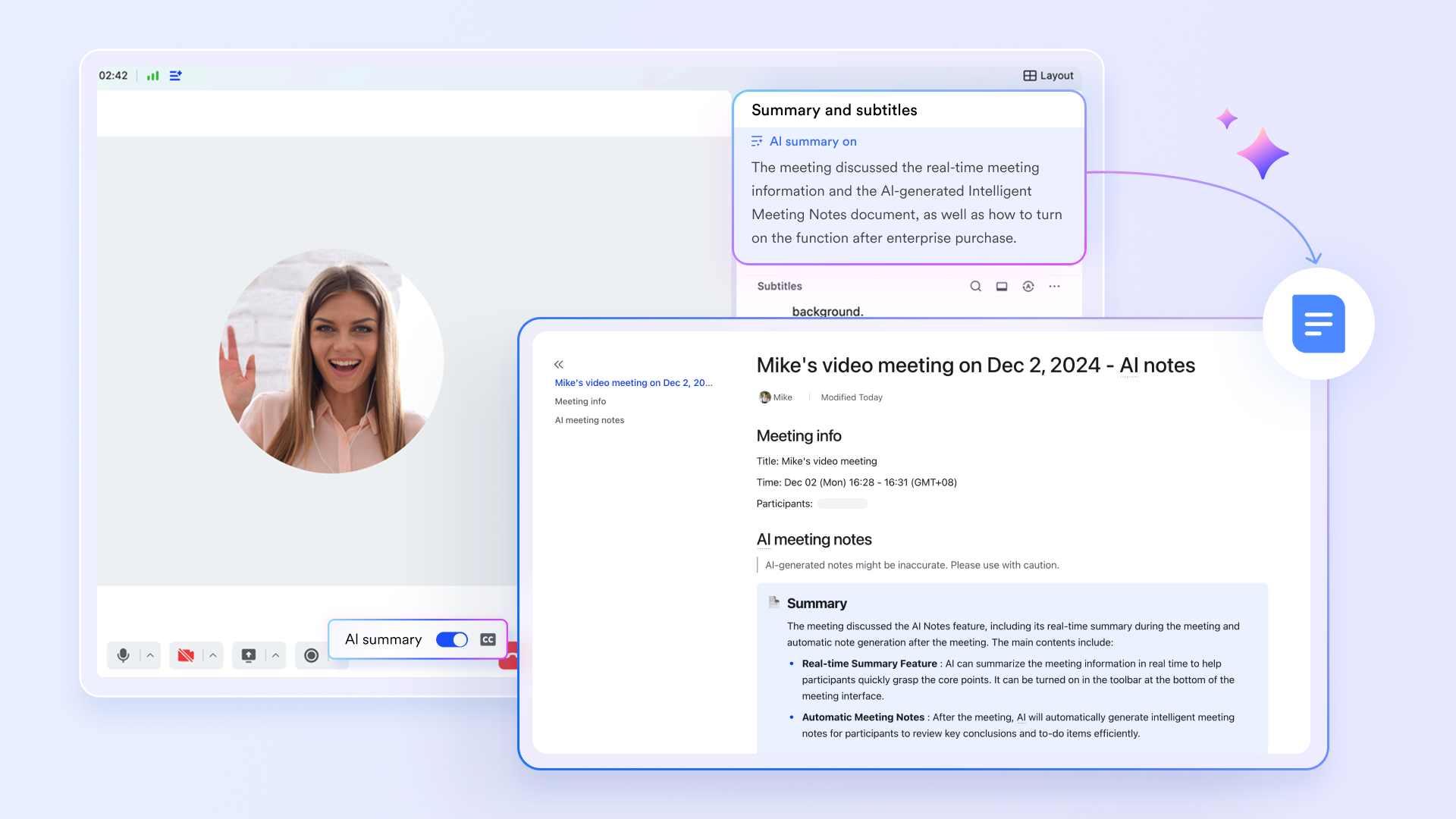
Seamless collaboration within the Lark ecosystem
Lark seamlessly combines documents and notes with various functionalities such as chat, tasks, and meetings, creating a cohesive working environment. Users can easily incorporate notes from Lark Docs into discussions in or during meetings, and task assignments in Lark Tasks can be linked directly to notes, visual database or dashboards via can be embedded in Docs conveniently, facilitating a more organized and efficient workflow for individuals and teams alike. 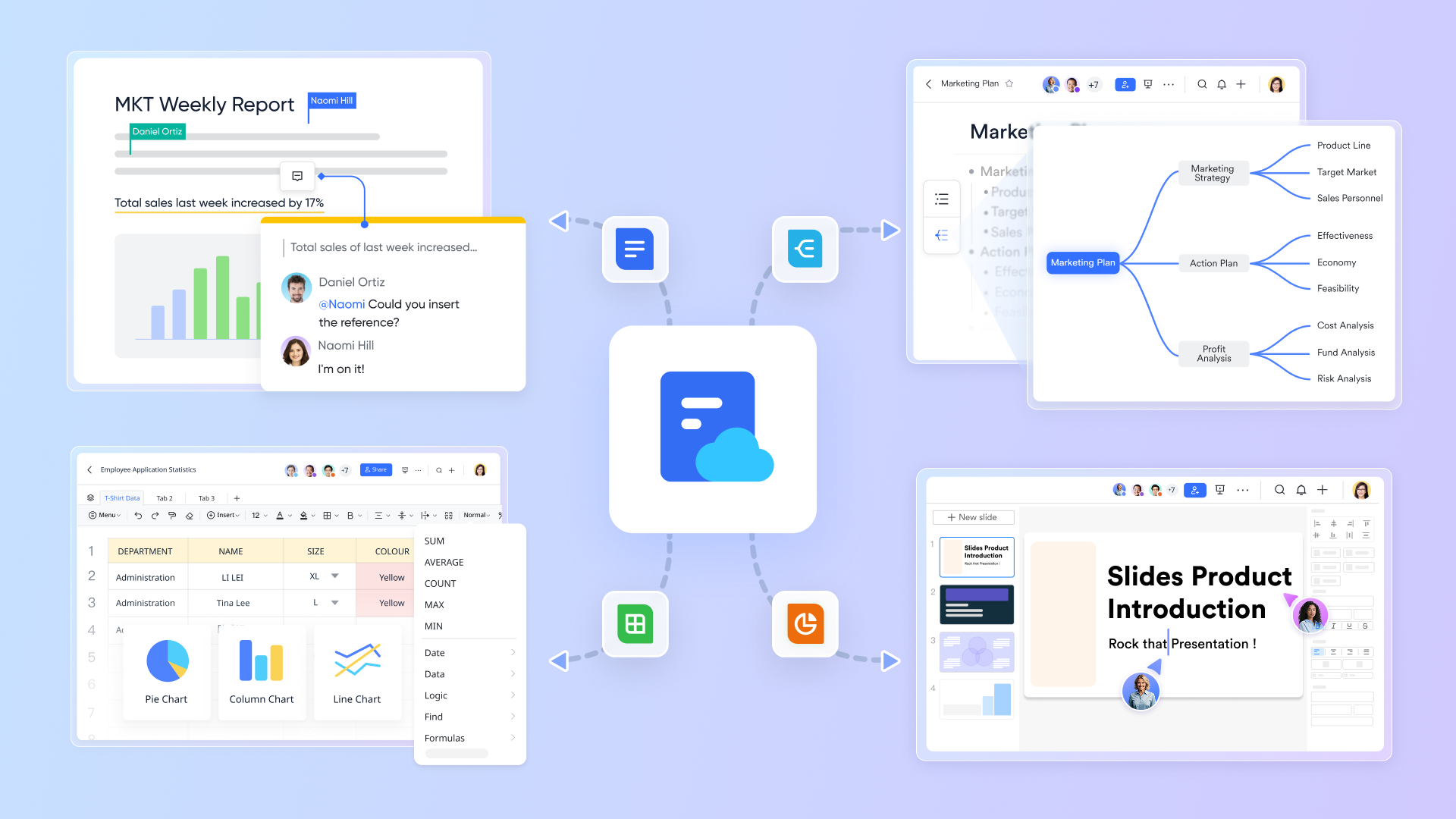
Intelligent search that facilitates note management
Lark Search feature enhances productivity by allowing users to quickly and efficiently find information across various content types, including documents, chats, meetings, and events. The capability to search by names, content, and other parameters makes it easy to retrieve past conversations or important documents, reducing time spent searching for information. Why Lark is a good OneNote alternative: Lark's emphasis on collaboration and integrated communication makes it a powerful alternative for teams that require an interactive workspace. While OneNote is primarily a note-taking app, Lark combines this with project management functionalities, catering well to present work environment.
:
- Starter plan: Free forever plan that includes 11 powerful tools for up to 20 users. It also comes with 100GB of storage, 1,000 automation runs, AI translations, and more.
- Basic plan: $6/user/month (billed annually) for up to 500 users, including everything in Starter plus 1-on-1 video meetings, 5TB of storage, 1,000 automation runs, and more. To know more about Basic plan, .
- Pro plan: $12/user/month (billed annually) for up to 500 users. It includes everything in Basic plus a group calling for up to 500 attendees, 15TB of storage, 50,000 automation runs, and more.
- Enterprise plan: for custom pricing. Supports unlimited users and includes even more automation runs and advanced security, compliance, and management features. Teams exploring collaboration tools may benefit from comparing features against and .
For small teams with simple communication needs

18 months message history
1000 Base automation runs/month
2000 rows per table in Base
Most POPULAR
For companies with comprehensive collaboration and management needs
Unlimited message history
500-participant video meetings
50k Base automation runs/month
20k rows per table in Base
For large companies with advanced security and organizational management needs
Get a personalized demo and pricing
Unlimited message history
500-participant video meetings
15 TB storage + 30 GB storage/user
500k Base automation runs/month
50k Base automation runs/month
Most POPULAR
For companies with comprehensive collaboration and management needs
Unlimited message history
500-participant video meetings
50k Base automation runs/month
20k rows per table in Base
2. Evernote: Versatile note-taking with powerful organizational capabilities
Evernote is a powerful note-taking application designed for organizing, saving, and sharing information easily. It features web clipping for saving online content, robust search capabilities, and seamless synchronization across devices. Ideal for students and professionals, Evernote includes task management tools and multimedia support, making it a versatile solution for comprehensive note organization and information management.
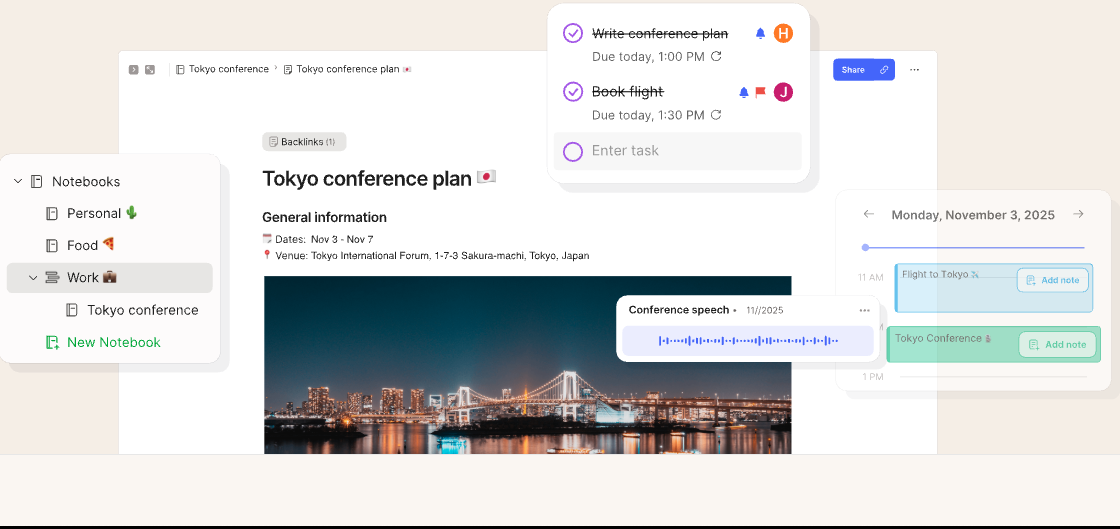
Image source: evernote.com
- Web clipping: Save articles and web pages directly into Evernote for organized research.
- Powerful search: Quickly find notes and documents through tags and a robust search function.
- Sync across devices: Notes sync seamlessly across devices, so users have access anytime, anywhere.
- Smart reminders: Set reminders for notes and tasks to enhance productivity.
- Multimedia support: Easily add images, audio clips, and files to enrich notes.
Why Evernote is a good OneNote alternative: Evernote's organizational prowess and feature set for managing extensive information make it particularly effective for users who focus on research or require efficient sorting of notes.
Pricing (billed annually):
- Starter: $6.65/user/month
- Advanced: &16.65/user/month
- Enterprise: Custom pricing
3. Notion: Customizable workspace for interconnected notes and tasks
Notion is a highly customizable productivity tool that combines note-taking, project management, and database functionalities into one platform. Users can create interconnected notes, utilize various templates, and collaborate in real-time. Notion's flexibility caters to individual needs, making it suitable for both personal organization and team collaboration. Its user-friendly interface facilitates a streamlined workflow for diverse tasks.
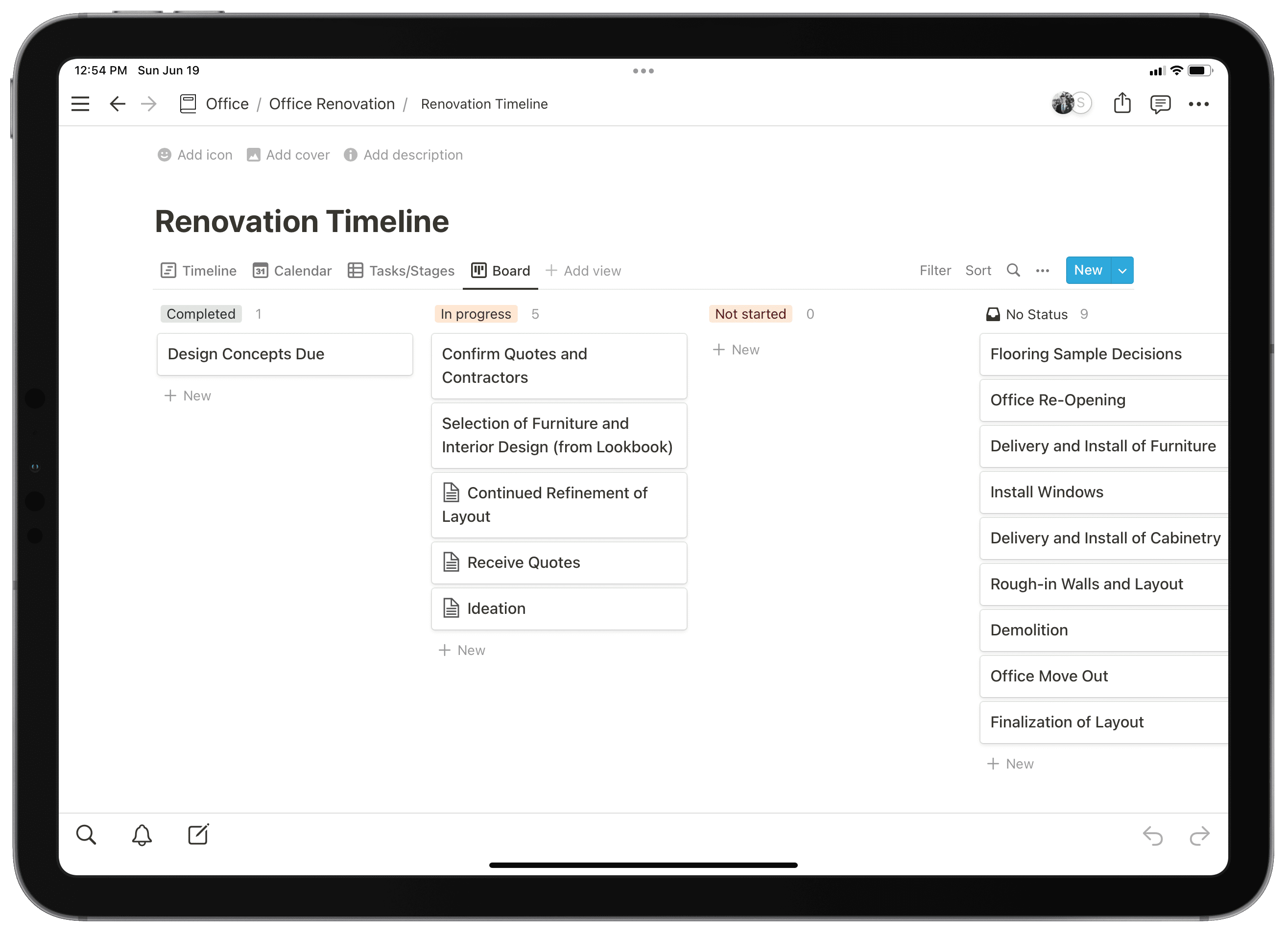
Image source: notion.com
Key features:
- Custom page creation: Build personalized pages that combine notes, tasks, and databases according to your preferences.
- Rich templates: Access a variety of templates to simplify setup for different projects and workflows.
- Linking notes: Create links between notes to establish connections and navigate concepts easily.
- Collaboration tools: Collaborate in real-time, with the ability to comment and assign tasks within the platform.
- Database functionality: Organize notes as databases, enabling more complex interactions with your content.
Why Notion is a good OneNote alternative: Notion's flexibility in customization and organization makes it a superb choice for users needing a comprehensive system beyond simple notes, especially for managing projects and interconnected information.
Pricing (billed annually):
- Business: $20/user/month
- Enterprise: Custom pricing
4. Google Keep: Simple note-taking app for quick and easy organization
Google Keep is a simple and efficient note-taking app that integrates seamlessly with Google Workspace. Designed for quick note capture, users can create text notes, lists, and voice memos with ease. Its color-coded organizational system and reminder features help users stay organized. Ideal for those who prefer minimalism, Google Keep is perfect for jotting down ideas on the go.
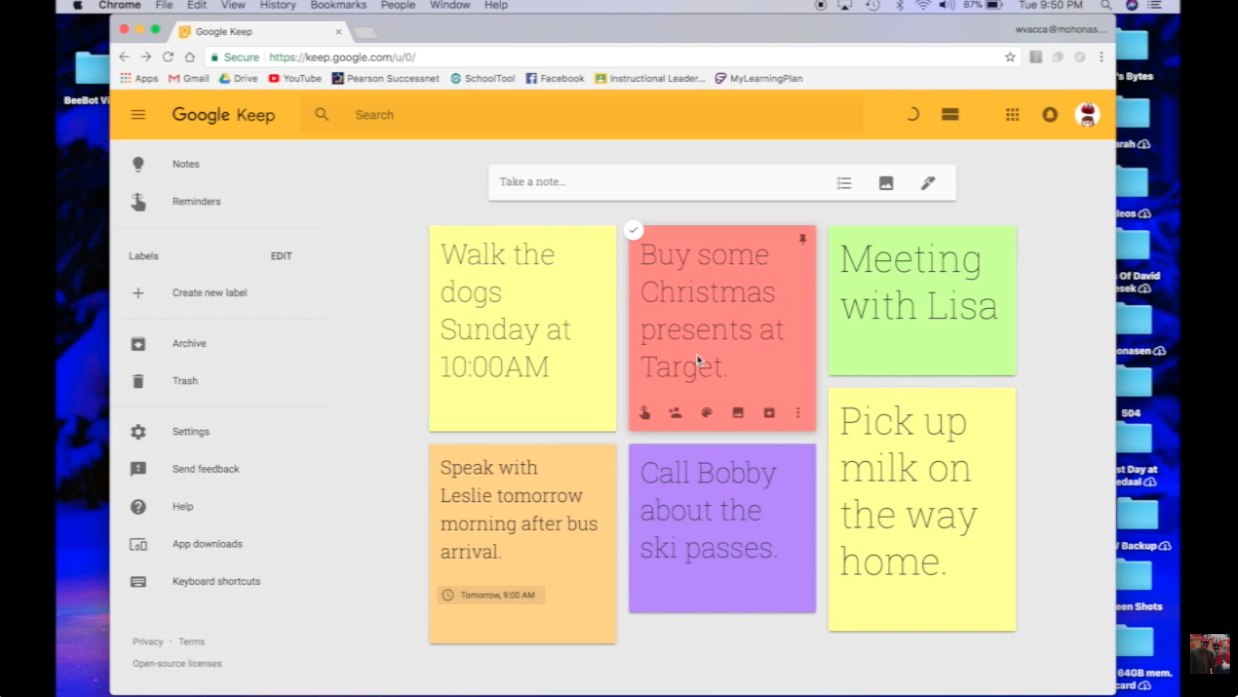
Image source: youtube.com
Key features:
- Quick note capture: Easily create text notes, lists, and voice recordings on the go.
- Color coding: Use color coding and labels to categorize and prioritize notes visually.
- Integration with Google Services: Syncs with Google Drive and Calendar for streamlined productivity.
- Collaboration options: Share notes with others for collaborative editing and brainstorming.
- Reminders and alerts: Set location-based reminders for notes to help stay organized with tasks.
Why Google Keep is a good OneNote alternative: Google Keep's simplicity and easy integration with other Google services make it ideal for users who want a basic yet effective note-taking tool without the complexity found in more robust applications like OneNote.
Pricing: Google Keep is free, accessible to anyone with a Google account.
5. Obsidian: Knowledge management tool focused on note interlinking
Obsidian is a knowledge management tool focused on linking notes to create a vast network of information. Utilizing Markdown for formatting, it allows users to visualize connections between notes through a graph view. Obsidian is tailored for researchers and writers who value the interrelation of ideas. Its local storage ensures privacy, while extensive plugins enhance its capabilities.
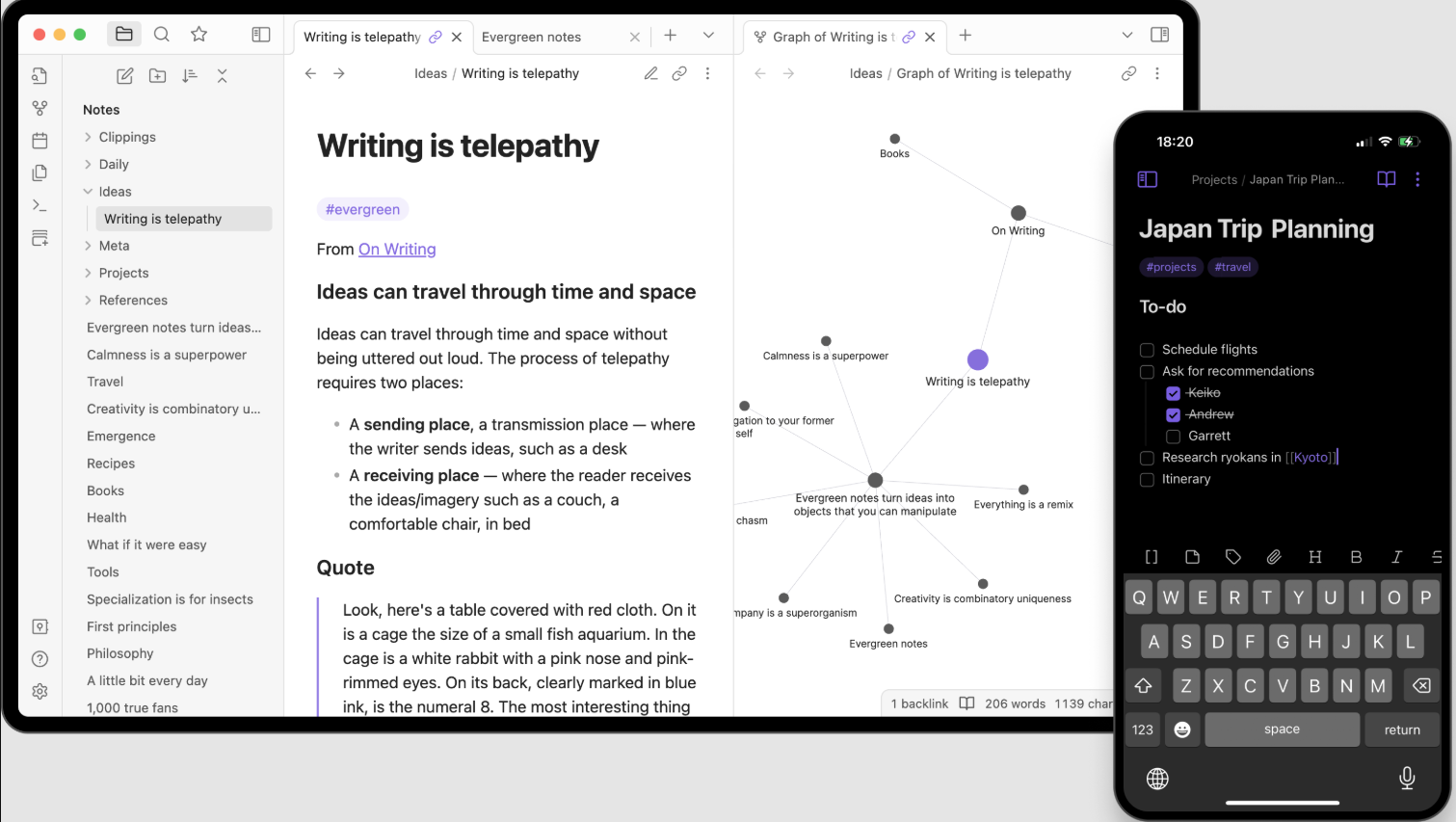
Image source: obsidian.md
Key features:
- Markdown support: Use Markdown for formatting notes, offering flexibility in presentation.
- Linking notes: Effortlessly create links between notes to build a web of ideas and knowledge.
- Graph view: Visualize the connections between your notes through an interactive graph interface.
- Local file storage: Store notes locally, providing privacy and control over your data.
- Extensive plugin ecosystem: Enhance functionality with a variety of community-created plugins.
Why Obsidian is a good OneNote alternative: Obsidian's focus on linking and building a knowledge base makes it suited for users engaged in research or who prefer a deeper exploration of ideas compared to the traditional note-taking format of OneNote.
Pricing: Obsidian is free for personal use, with optional paid features available for users who desire additional capabilities.
- Catalyst: $25/user/month
- Commercial: $50/user/month
Choosing the right note-taking alternative depends on your specific needs, whether it's collaboration, task management, simplicity, or in-depth knowledge linking. Each of the apps listed has its strengths and weaknesses, so exploring them based on individual preferences is essential for optimal productivity.
Best practices for using note-taking tools
Efficient organization of notes
Establish a clear structure for your notes by creating notebooks, sections, and individual pages. Utilize features that allow you to quickly create and organize notes, placing them in relevant categories for easy access. Use descriptive titles for each note and consider creating an index page to link to essential topics. Regularly review and reorganize your notes to maintain a tidy workspace.
Ready-to-use template that saves your time
Take advantage of available in many note-taking applications. These templates can save time and provide a consistent structure for various types of notes or projects, enhancing productivity for personal or professional use.
Using tags and search effectively
Incorporate tags and checklists to categorize your notes and identify items that require follow-up. Familiarize yourself with advanced search functions, allowing you to quickly locate information across all your notes. This capability ensures that you can efficiently retrieve relevant content whenever needed.
Incorporating multimedia for enhanced notes
Enhance your notes by adding multimedia elements such as images, audio recordings, and videos. Structuring your content with visual aids and bullet points can make information more digestible and engaging. Combining written notes with audio recordings, for example, can help ensure that you capture important details effectively.
Strategies for collaborative projects
Utilize shared notebooks for group projects, enabling among team members. Establish clear guidelines for editing and structuring content to avoid confusion. Encourage feedback through comments and maintain regular check-ins to ensure alignment on project progress. Many note-taking tools also offer cloud storage, ensuring access and security for your notes, no matter where you are.
By implementing these best practices, you can optimize your note-taking experience, enhancing both personal productivity and collaborative efforts.
Create and manage your notes with a modern tool
Conclusion
Microsoft OneNote offers numerous strengths, including a robust organizational structure, multimedia support, real-time collaboration features, and seamless integration with other Microsoft applications. However, it also has its weaknesses, such as a steep learning curve and potential syncing issues across devices. It is particularly beneficial for students, educators, and professionals who need a powerful tool for organizing extensive information. Its ability to handle diverse content types makes it a versatile choice for managing notes and projects.
Ultimately, users are encouraged to explore various note-taking tools to find the one that best fits their individual needs and workflows. Whether it's OneNote or an alternative, the right app can significantly enhance productivity and streamline the note-taking process.
FAQs
Is it worth using OneNote?
Yes, OneNote is often considered a robust tool for organizing notes, especially for users within the Microsoft ecosystem. Its strengths include a fine-grained organizational structure, multimedia support, and seamless integration with other Microsoft applications. However, users may face a learning curve and occasional syncing issues. For many individuals, its versatility makes it a worthwhile investment for efficient note management.
What are the disadvantages of Microsoft OneNote?
Some common disadvantages of OneNote include glitchy syncing across devices, which can lead to frustration over missed updates. The interface may feel dated to some users, and the extensive feature set can overwhelm newcomers. Additionally, it has limitations in productivity management and can sometimes lag on mobile devices.
Are they phasing out OneNote?
While Microsoft is not completely shutting down OneNote, it has announced that OneNote for Windows 10 will reach end-of-support on October 14, 2025, and will transition to read-only mode. Users are encouraged to move to the full desktop version of OneNote for continuous updates and support.
Is OneNote actually free?
Yes, Microsoft OneNote is free to download and use. Users can access it on multiple platforms without a subscription. However, certain premium features might require a Microsoft Office 365 subscription, but the core functionalities remain free for all users.
How does OneNote ensure data security?
OneNote employs several security measures, including 128-bit AES encryption for password-protected sections. Data is stored in OneDrive, protected by encryption both in transit and at rest. Moreover, OneNote allows users to set permissions, ensuring that only authorized individuals can access sensitive notes.
Related reading