Managing projects often starts with a simple spreadsheet. For many teams, project tracker Google Sheets files remain the fastest way to bring order to scattered tasks, deadlines, and responsibilities. They are easy to access, familiar to almost everyone, and require no onboarding or licensing fees. Whether you are running a marketing campaign, managing retail operations, or coordinating a product launch, Google Sheets offers a low-barrier way to start tracking work immediately.
Yet as projects grow, so does the complexity. Tasks multiply, deadlines shift, and multiple people begin editing the same file. This is where many teams start looking for better templates, smarter setups, and eventually more scalable systems. Some also explore platforms like Lark when they need structured task ownership, timelines, and collaboration to stay connected as projects expand. This guide walks you through everything you need to know—from using free templates to building your own tracker and knowing when to move beyond spreadsheets.
Why Google Sheets project trackers remain popular
Google Sheets remains a preferred choice for project tracking because it balances simplicity with powerful collaboration features. Teams can quickly organize work without investing in complex software or long onboarding cycles. Even as workflows grow, many people still rely on spreadsheet-based systems to keep everything visible and easy to manage.
- Free access: One of the biggest reasons teams start with a template in Google Sheets is that it costs nothing to use. Small businesses, startups, and temporary project teams can begin tracking tasks without budget approvals or subscription fees. Many teams review to evaluate upgrade costs before switching office tools. This makes it ideal for quick project setups where speed and affordability matter.
- Easy sharing: A Google Sheets project tracker template in real time from anywhere. Files can be shared with internal teams, partners, or clients using simple links and permission settings. This keeps everyone working from the same version instead of juggling multiple files.
- Familiar interface: Most professionals already know how spreadsheets work, which makes a Google Sheets project tracker instantly usable. No training is required to sort tasks, update statuses, or apply filters. This familiarity helps teams focus on their work instead of learning new software.
- Flexible customization: Teams can easily adjust columns, formulas, and views to match their specific workflows. A spreadsheet can be tailored for marketing campaigns, product development, or operational projects without rigid constraints. This flexibility allows project trackers to evolve as a team's needs change.
What a good project tracker template should include
A strong project tracker is not just a list of tasks, but a working system that shows who is doing what and when. When you understand how to create a project tracker in Google Sheets, the right structure helps prevent missed deadlines and confusion. Each field in the tracker should support better planning, clearer accountability, and easier progress monitoring.
- Task name: Every row should clearly describe the work being done, so no one has to guess what a task actually means. In a free Google Sheets project tracker template, clear task names prevent overlap and duplicated effort. also make reporting and reviews more accurate.
- Owner: Each task must have one person who is responsible for completing it. A project tracker Google Sheets template works best when ownership is visible to everyone. This avoids the common problem of tasks being ignored because nobody knows who should act.
- Status: The status column shows whether work is not started, in progress, blocked, or completed. This gives managers and team members an instant snapshot of the project's health. Without clear status labels, even well-built trackers become unreliable.
- Start & due dates: Dates define the timeline and keep tasks moving forward. They help teams understand urgency and plan workloads realistically. A tracker without dates quickly turns into a simple to-do list instead of a true project management tool.
- Priority: Priority helps teams focus on what matters most when time and resources are limited. By ranking tasks, teams can avoid spending energy on low-impact work while critical items wait. This keeps execution aligned with project goals.
- Dependencies: Some tasks cannot begin until others are completed. Capturing dependencies helps teams avoid delays caused by starting work too early or too late. It also helps projects understand how a single delay can affect the entire schedule.
- Progress percentage: A progress percentage provides a more detailed view than simple status labels. It shows how . This is especially useful for long or complex tasks that move through multiple stages.
How to create a project tracker in Google Sheets
Building your own project tracker in Google Sheets lets you align the sheet's structure with how your team actually works. Instead of forcing a generic template to fit your process, you can design columns, rules, and formulas that reflect real workflows. This makes the tracker easier to maintain and more reliable as projects evolve.
Step 1: Structure columns
Start by creating columns for task name, owner, status, start date, due date, priority, and progress. These fields form the foundation of your project tracker and define what information will be captured. A makes sorting, filtering, and reporting much easier later.
Step 2: Add dropdown status
Use data validation to create a dropdown for task status, such as Not started, In progress, Blocked, and Completed. This ensures that everyone uses the same labels instead of typing random variations. Consistent status values make your tracker easier to read and automate.
Step 3: Apply conditional formatting
Conditional formatting lets you automatically highlight important information. You can color overdue tasks in red, completed tasks in green, or high-priority items in yellow. This visual layer makes it easier to spot problems without scanning every row.
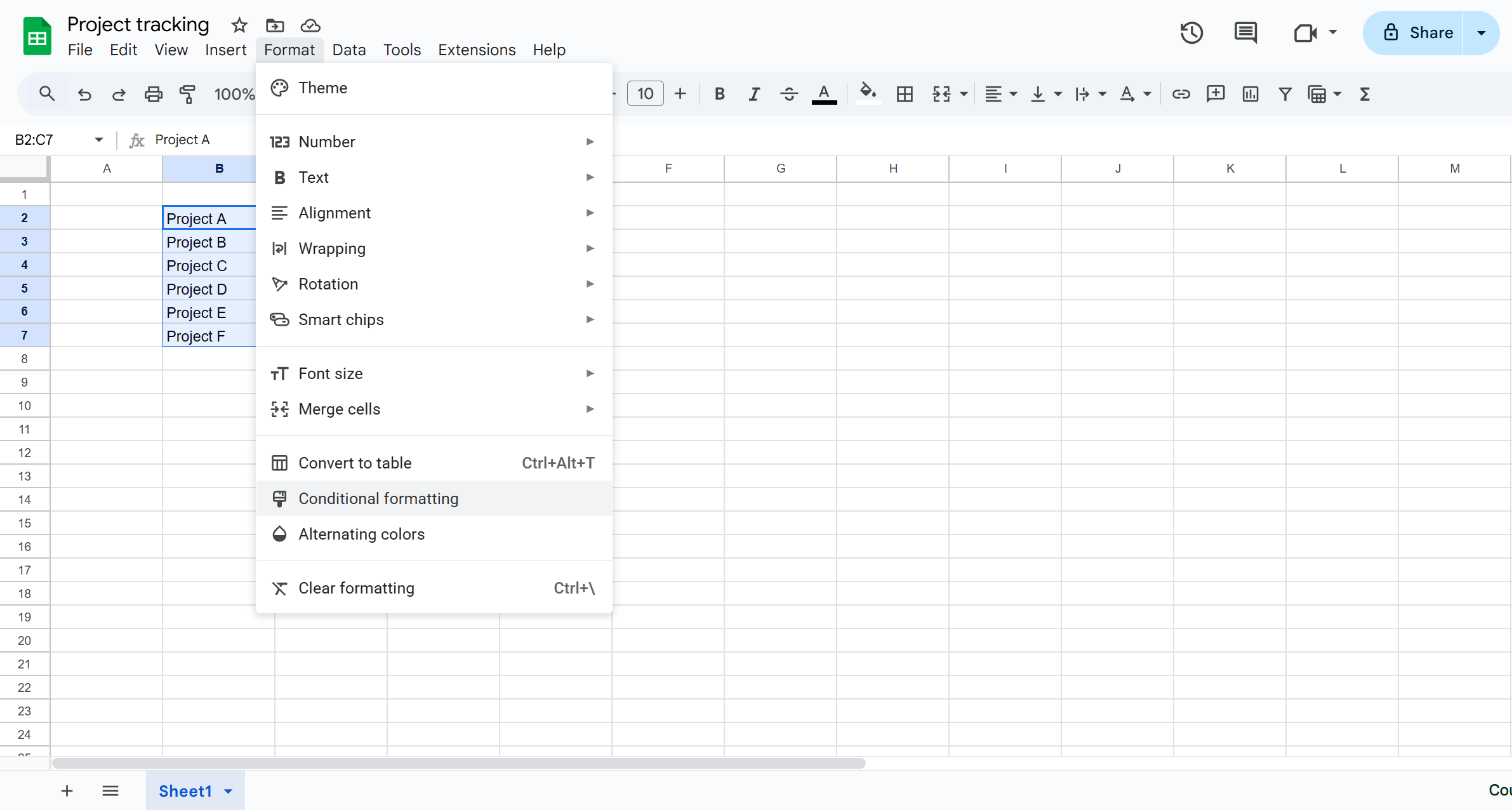
Image source: google.com
Step 4: Create progress formulas
Use simple formulas to based on task status or completion percentages. For example, you can average the progress column or count completed tasks versus total tasks, like Current_Value_Cell/Target_Value_Cell (e.g., =A2/B2). These formulas give you a live view of how far the project has advanced.
Step 5: Share and protect cells
Share the sheet with your team and set permission levels based on their roles. You can lock formulas, headers, or key fields so they cannot be accidentally changed. This keeps the tracker stable while still allowing everyone to update their own tasks.
Create your project tracker with a simple setup
Best free project tracker Google Sheets templates
When you need to get started quickly, free templates take the guesswork out of building a tracker from scratch. These pre-built layouts bring structure, consistency, and clarity to your project work without extra effort. Below are some of the most useful free Google Sheets project tracker templates you can use for planning, monitoring, and reporting.
Gantt chart project management template
This template helps teams visualize project timelines and task dependencies in a . Tasks are mapped across dates, showing start and end points for each activity. It makes sequencing and overlapping work easy to understand at a glance. The template works well for simple project schedules. However, frequent changes require careful manual adjustments to keep timelines accurate.
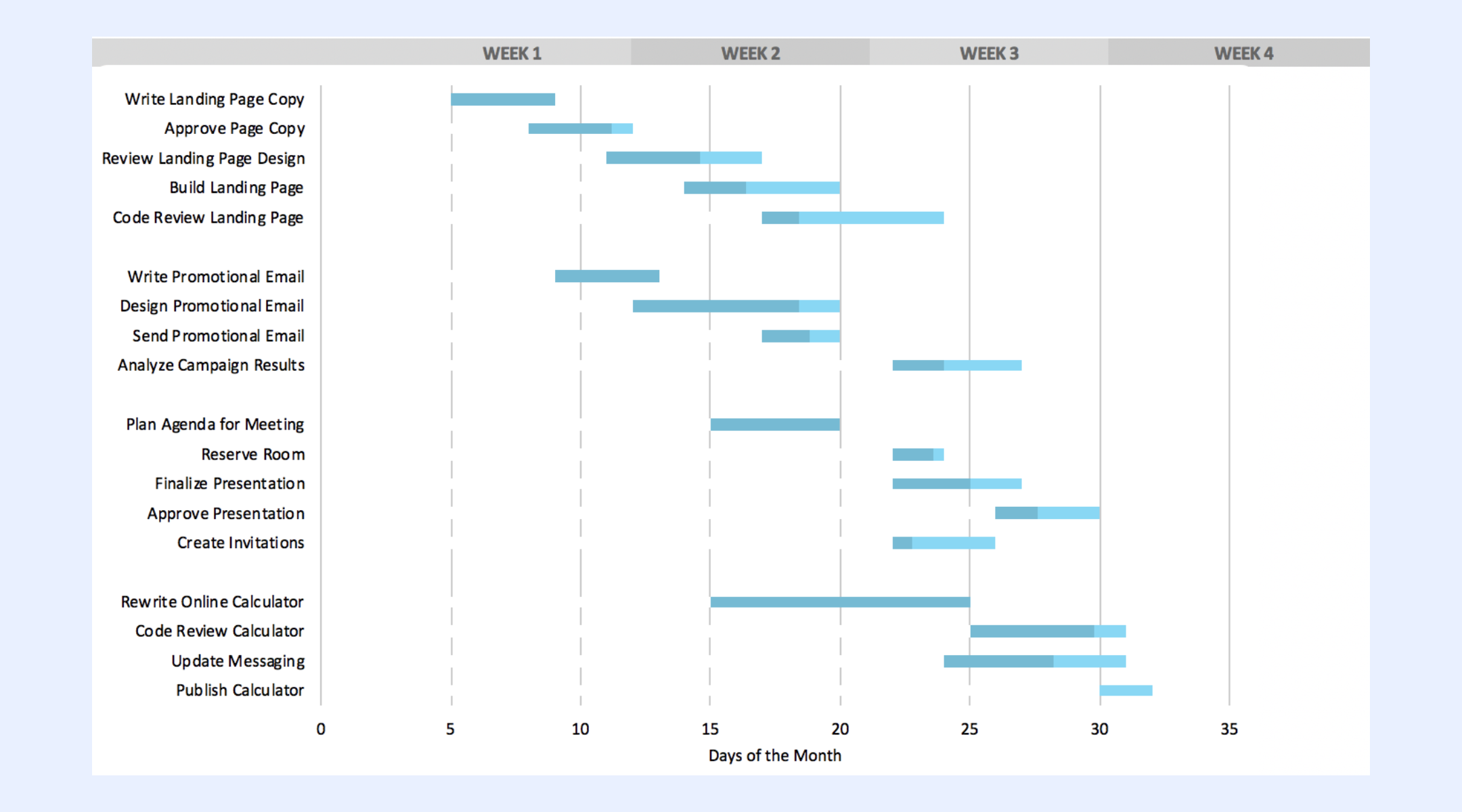
Image source: google.com
Project timeline template
The project timeline template focuses on high-level milestones and delivery dates. It's commonly used for stakeholder reporting and . The layout presents schedules in a clean, easy-to-read format. Detailed execution tracking usually happens on a separate sheet. Keeping information current depends on regular manual updates.
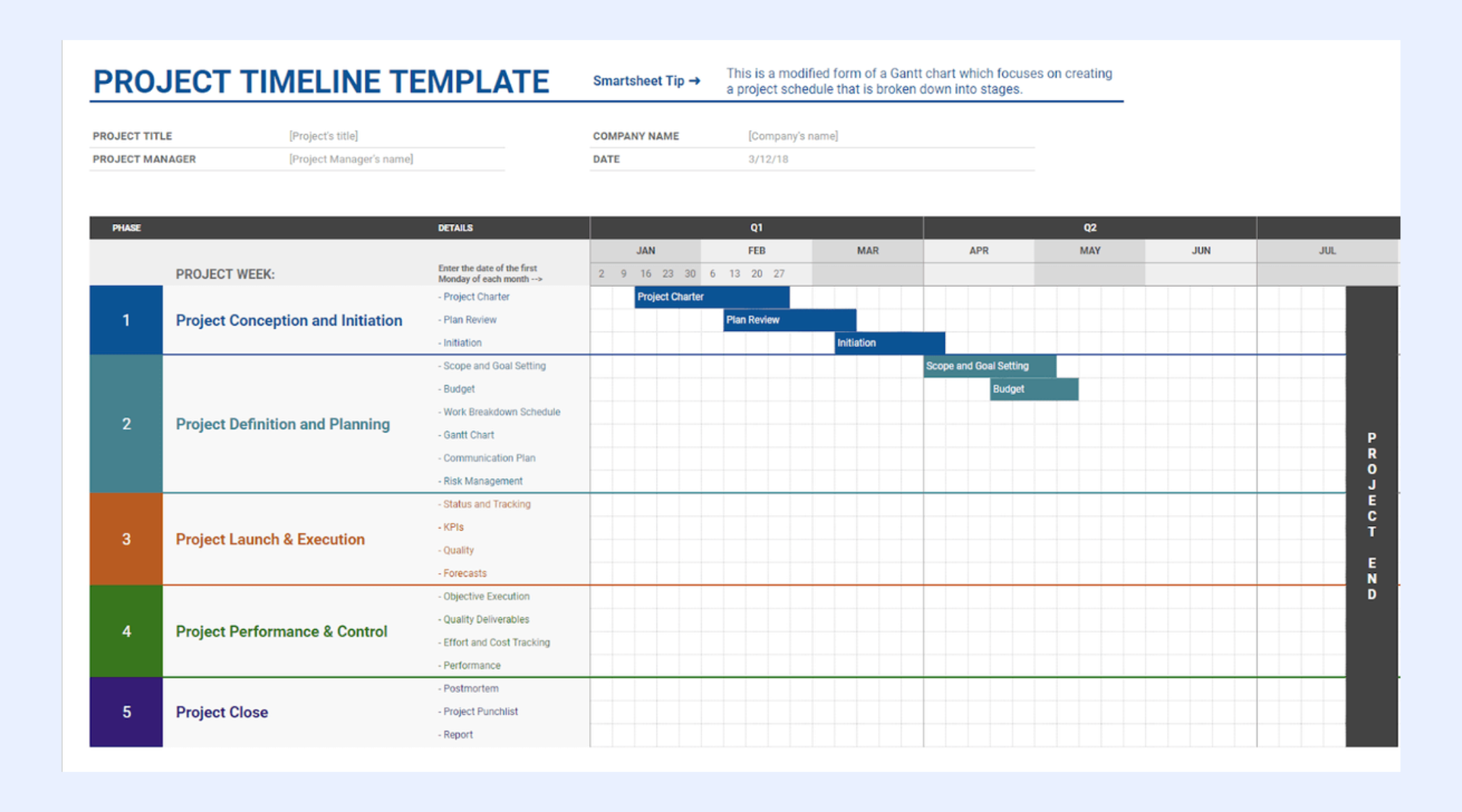
Image source: google.com
Project tracking template
Project tracking templates are widely used for daily task monitoring. They centralize task names, owners, and status in one view. Teams rely on them for regular check-ins and progress reviews. Visibility remains strong when data is updated consistently. Reporting accuracy depends heavily on disciplined manual input.
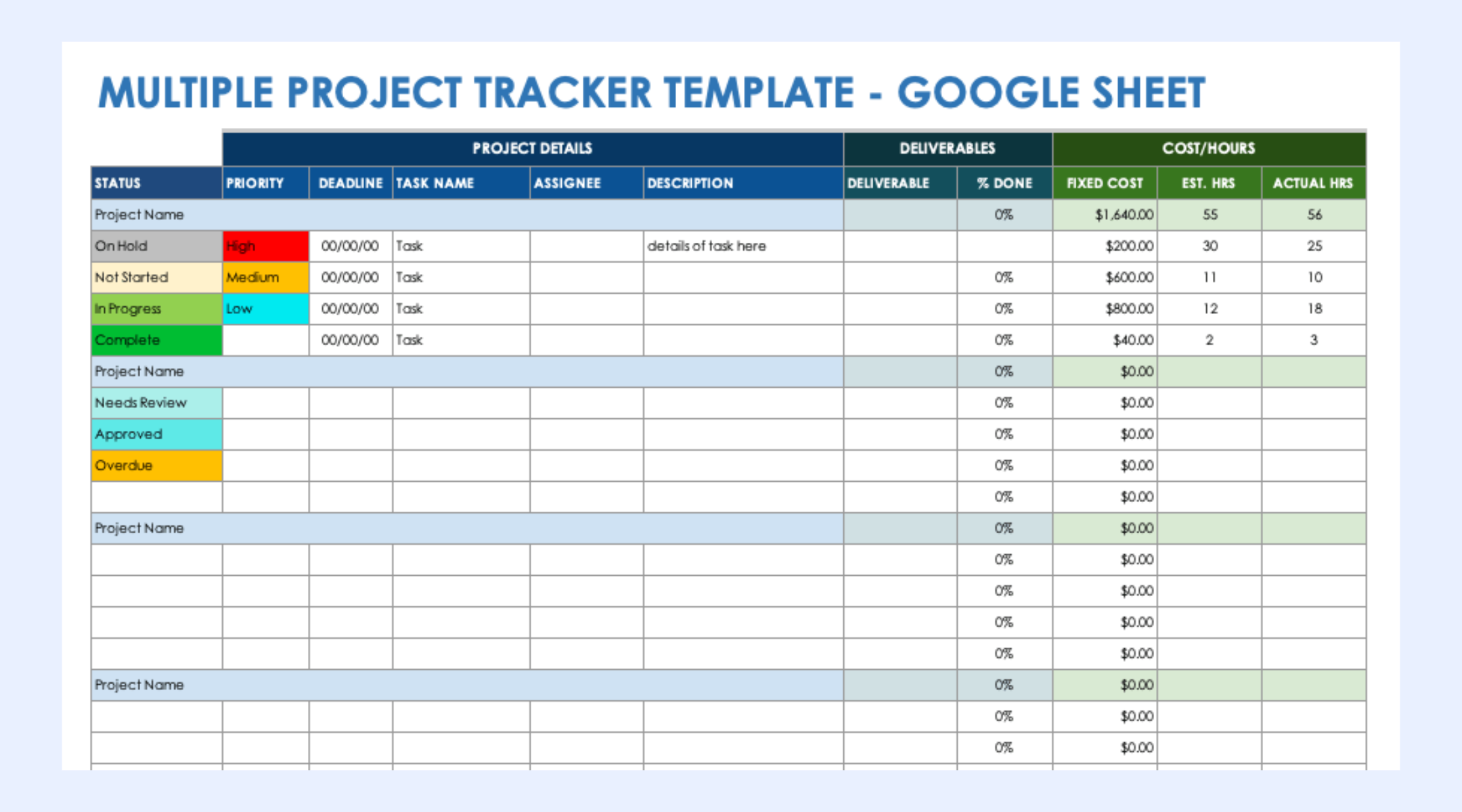
Image source: google.com
Project management template
This general-purpose template combines task lists, timelines, and summary fields. It offers flexibility for different project types and team structures. Teams often customize it to match their workflows. Over time, heavy customization can increase complexity. Long-term maintenance may become difficult as projects scale.
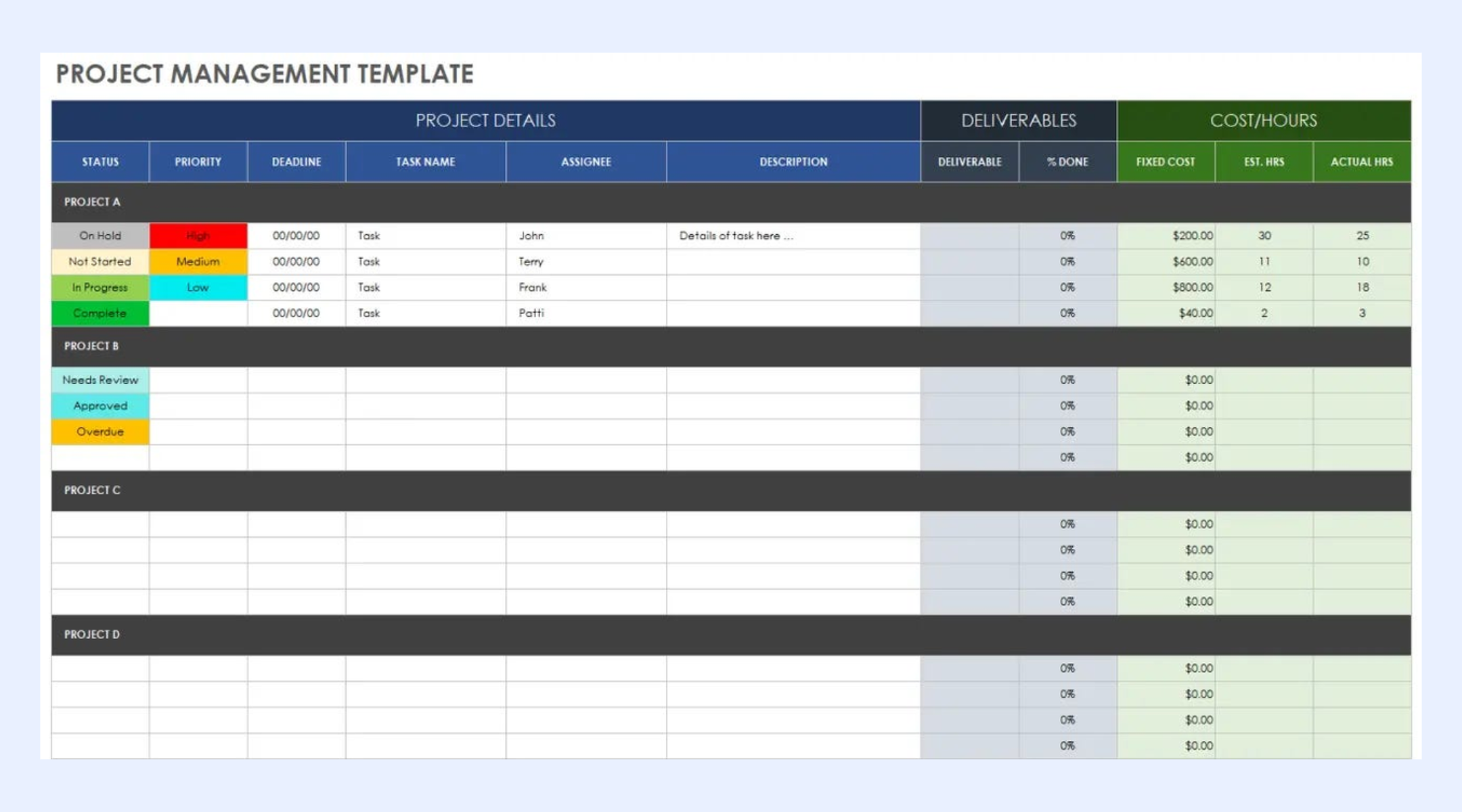
Image source: google.com
Common limitations of Google Sheets project trackers
Google Sheets works well for basic project tracking, but it starts to show strain as projects become more complex. What begins as a simple, flexible system can turn into a fragile setup that relies heavily on human discipline. Understanding these limitations helps teams know when spreadsheets are no longer enough.
- Manual updates: Every change in a Google Sheets tracker must be entered by someone, which makes accuracy dependent on constant attention. When team members forget to update their rows, quickly become unreliable. Over time, this leads to gaps between what the sheet shows and what is actually happening.
- No real-time automation: Google Sheets does not automatically move tasks, update statuses, or trigger actions when conditions change. If a deadline shifts or a task is completed, someone must manually adjust all related fields. This slows down workflows and increases the risk of outdated or incorrect information.
- Version conflicts: When multiple people edit the same sheet at once, conflicts and overwrites can occur. Even with built-in history, it can be hard to know which version reflects the most accurate state of the project. This creates confusion, especially in fast-moving teams.
- No dependency logic: Spreadsheets cannot automatically or adjust timelines when one task is delayed. If a critical task slips, every related deadline must be updated by hand. This makes it difficult to maintain realistic schedules as project complexity grows.
Learn how to streamline project tracking workflows
Modern choice: Try Lark for automatic tracking & collaborative management
As teams grow, they often need more than what a spreadsheet can reliably provide for project tracking. Lark, one of the most all-around , brings while keeping the flexibility people like about Google Sheets. Tasks, timelines, and ownership live in connected records instead of scattered cells. This makes it easier to keep work aligned as projects become more complex. For teams moving beyond basic spreadsheets, Lark offers a more controlled way to manage execution.
Structured project tracking with real execution control
serves as the relational engine for your project work, offering the familiarity of a spreadsheet with the power of a professional database. Each task or deliverable is a dynamic record that can be viewed through multiple lenses——without the need to duplicate data. By using two-way data linking and toggling the blocks in the dashboard, teams can connect cross-departmental tasks automatically, ensuring that a change in one table reflects across the entire project. This removes the heavy lifting of manual formula maintenance found in Google Sheets, allowing progress to be tracked through automated flow fields and real-time status updates. 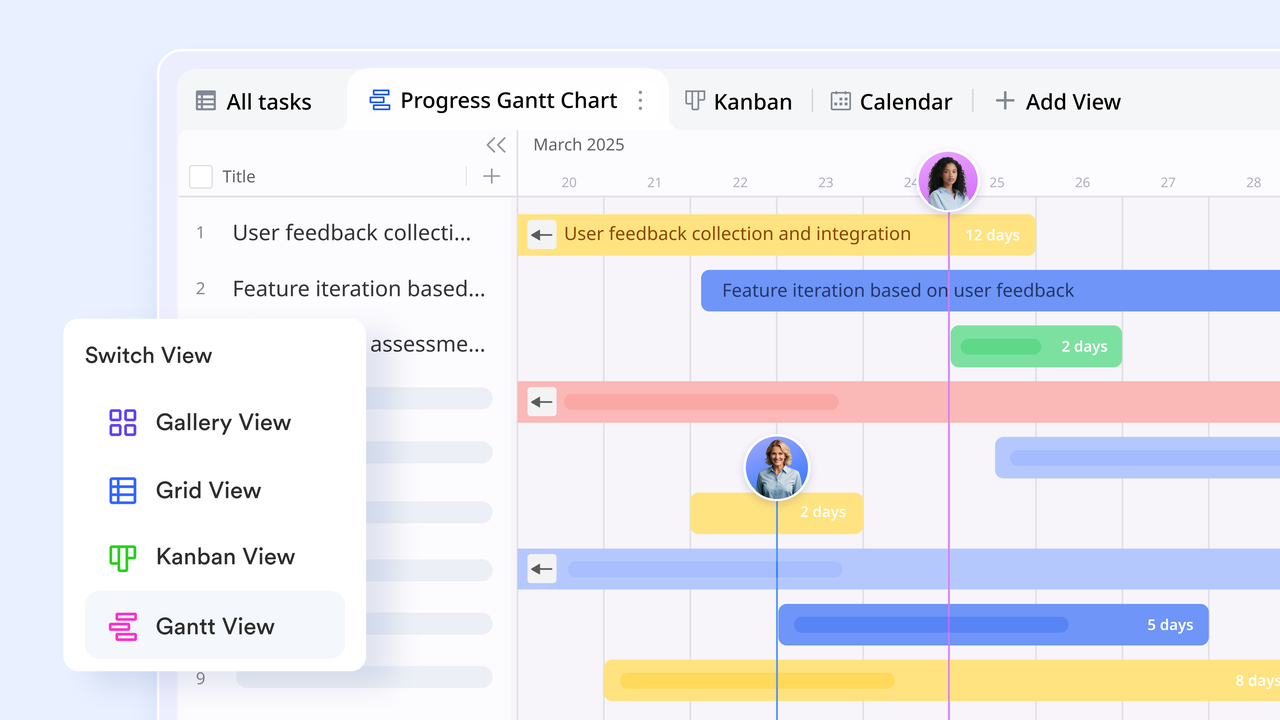
Built-in progress tracking and workflow automation
Lark Base enhances project tracking through flow fields, which transform static status updates into structured, visual lifecycles. This feature allows teams to standardize project stages—such as Planning, Execution, and Review—ensuring every task follows a consistent path. By connecting with Lark Base automation, moving a project to a new stage can instantly trigger notifications or update deadlines, reducing manual coordination. Unlike the absence of automation in Google Sheets, this specialized field type provides a clear visual map of progress and identifies bottlenecks. 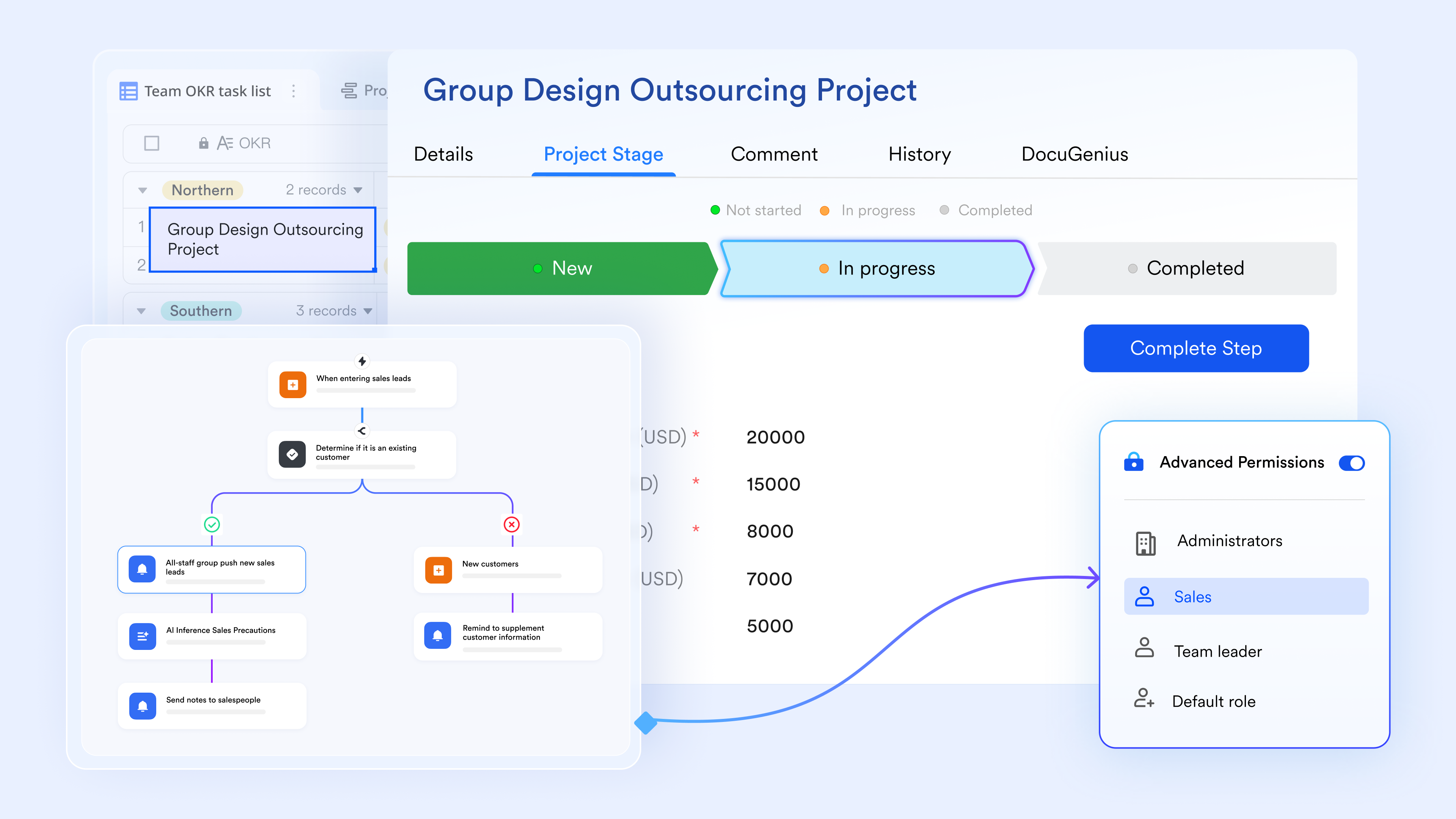
Clean data collection without spreadsheet chaos
Lark Tasks enables precise project tracking by breaking down your project into manageable sub-tasks and centralizing them within collaborative task Lists. With the ability to visualize progress in a timeline and dashboard, teams can monitor processes, highlight the , and in real-time. Managers can track progress by viewing tasks they have "Assigned" to others, while team members focus on their "Owned tasks". Also, the "Activities" feed shows a reverse-chronological record of all changes. This replaces the manual efforts of creating a new task table in Google Sheets, ensuring your data remains clean, accurate, and synced. 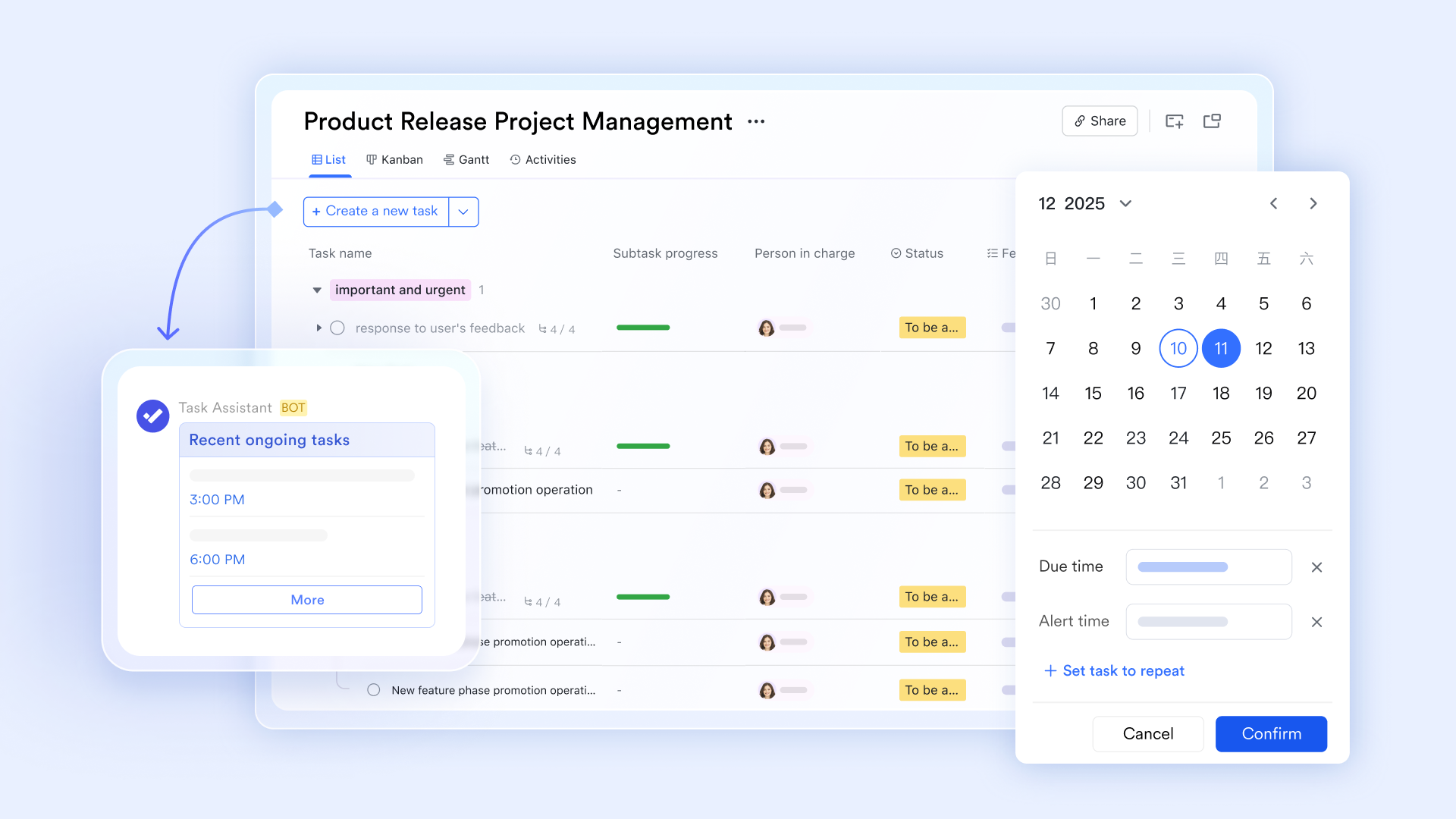
Live collaboration tied to project work
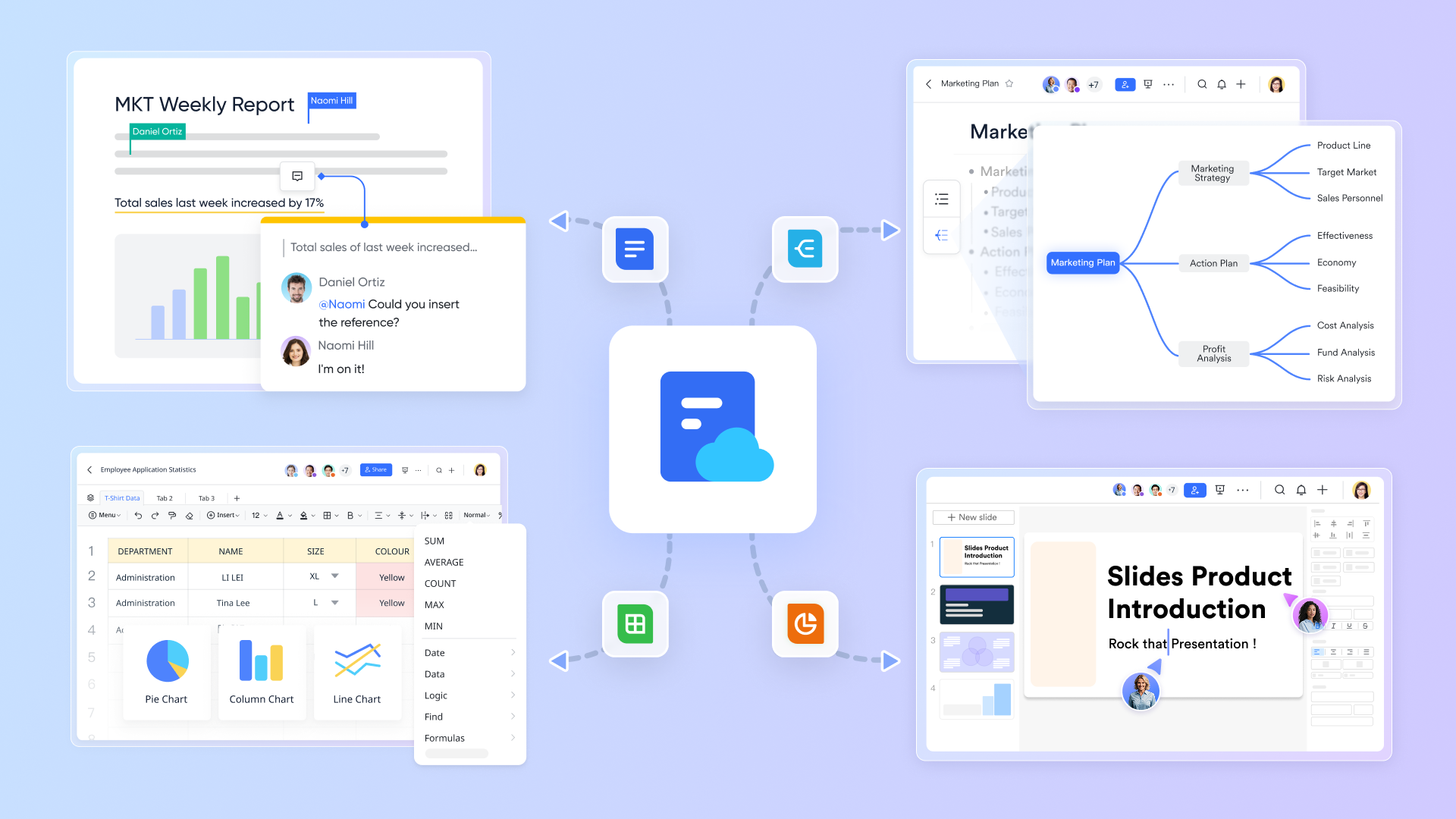
Information decay occurs when a strategy lives in a different app than its execution. As practical , solves this by embedding live collaboration directly into the project environment. Teams can draft technical requirements, , and retrospectives that remain tethered to the actual project data. With native @mentions, threaded comments, and version history, every decision is documented in context. This eliminates the "information silos" common in Google Workspace, ensuring that teams are always working from a single, up-to-date source of truth.
Milestones and schedules that stay aligned with work
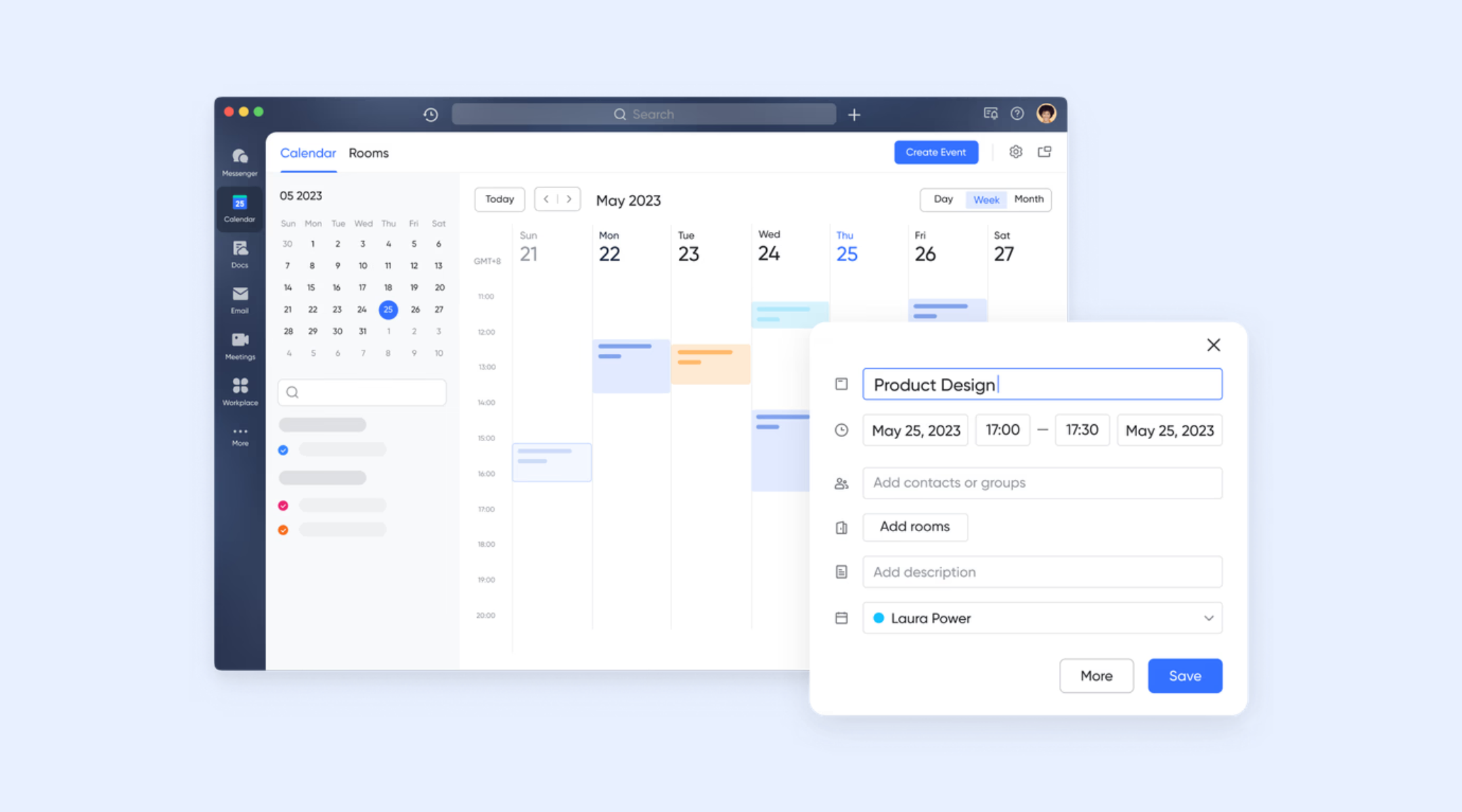
While typical spreadsheet timelines are static and easily forgotten, keeps milestones and deadlines synchronized with the team's daily workflow. Project phases can be tied directly to shared calendars, providing a visual map of the program's health. If a deadline shifts in the project base, the calendar updates to all stakeholders. This proactive approach prevents the "hidden delays" that often plague Google Sheets-based trackers, where schedules are rarely updated in real-time.
Real-time communication with project context
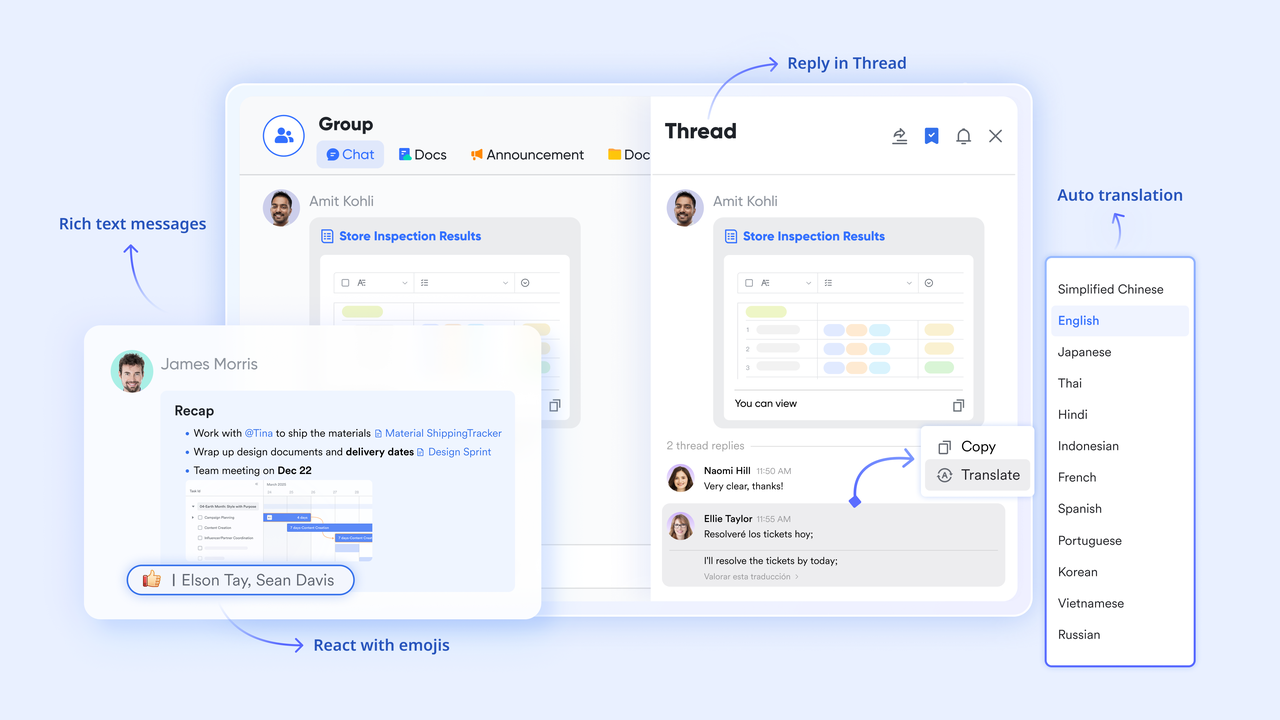
In traditional setups, project communication is scattered across emails and cell comments, making it difficult to track. brings real-time dialogue into the project context. Team members can launch chat groups directly from a specific task or record, ensuring that clarifying questions and blocker resolutions are permanently linked to the work itself. Because conversations are searchable, the "Why" behind a project pivot is never lost, without switching apps.
:
- Starter plan: Free forever plan that includes 11 powerful tools for up to 20 users. It also comes with 100GB of storage, 1000 automation runs, AI translations, and more.
- Pro plan: $12/user/month (billed annually) for up to 500 users. It includes everything in Starter plus group calling for up to 500 attendees, 15TB of storage, 50,000 automation runs, and more.
- Enterprise plan: for custom pricing. Supports unlimited users and includes even more automation runs and advanced security, compliance, and management features.
For small teams with simple communication needs

18 months message history
1000 Base automation runs/month
2000 rows per table in Base
Most POPULAR
For companies with comprehensive collaboration and management needs
Unlimited message history
500-participant video meetings
50k Base automation runs/month
20k rows per table in Base
For large companies with advanced security and organizational management needs
Get a personalized demo and pricing
Unlimited message history
500-participant video meetings
15 TB storage + 30 GB storage/user
500k Base automation runs/month
50k Base automation runs/month
Most POPULAR
For companies with comprehensive collaboration and management needs
Unlimited message history
500-participant video meetings
50k Base automation runs/month
20k rows per table in Base
Bonus: Lark ready-to-use project management templates
Pre-built templates make it easier to start managing projects without designing everything from scratch. Lark offers ready-to-use structures that combine tasks, timelines, and ownership in one connected workspace. These templates help teams move from simple tracking to more with less setup effort.
Project management template
This template offers a centralized workspace to manage projects from planning to delivery. Tasks, owners, priorities, and timelines stay organized in one connected system. Teams gain full visibility without depending on complex spreadsheet formulas. Different views support managers, contributors, and stakeholders equally. It scales smoothly as project scope and complexity increase.
Task management template
Designed for daily execution, this template clarifies and deadlines. Each task clearly shows responsibility, status, and due date. Teams can quickly identify what needs attention and what's on track. Progress updates appear in real time for full transparency. It's ideal for operations-driven teams that need structure without clutter.
Project management Gantt chart template
This template provides a clear timeline view of your entire project. Tasks, milestones, and dependencies are mapped . Schedule changes automatically update across all views. Teams avoid maintaining fragile spreadsheet formulas. It supports accurate planning and long-term schedule control.
Product development progress management template
Built for product teams, this template tracks work across defined development stages. Ownership remains clear at every phase of delivery. Progress stays visible for engineering, product, and leadership teams. Dependencies are easier to manage as priorities shift. It supports iterative development without adding process overhead.
Design project management template
This template structures creative workflows with built-in review cycles. Tasks move through stages like feedback, revision, and approval. Many teams streamline review workflows via , so designers and stakeholders stay aligned without endless message threads. Deadlines and responsibilities remain visible. It's ideal for collaborative design environments.
Kanban board template
Focused on , this template organizes tasks by status stages. Teams can quickly spot bottlenecks and stalled work. Ownership and priorities stay clear at every step. It works well for agile and operational teams. The format encourages steady progress and flow efficiency.
Base project management template
This flexible template lets teams build workflows tailored to their processes. Fields, views, and automation can be customized easily. It supports different project types without rebuilding structures. Status and ownership tracking stay consistent. Ideal for teams upgrading from basic spreadsheets.
Gantt chart for requirement management template
This template links requirements directly to timelines and milestones. Teams can instantly see how changes impact delivery plans. Dependencies remain visible throughout execution. It reduces misalignment between planning and delivery teams. Best suited for complex, requirement-driven projects.
Conclusion
Spreadsheets remain a practical starting point for managing projects, especially when teams need a quick and familiar way to organize tasks, deadlines, and responsibilities. offer flexibility, free access, and easy collaboration, making them ideal for small teams or early-stage projects. However, as projects grow more complex, the limits of manual updates, weak dependency handling, and version conflicts become harder to ignore. This is where many teams begin looking for a more structured approach that still feels intuitive.
provides that next step by combining the clarity of a spreadsheet with connected records, timelines, and real-time collaboration. It allows teams to keep plans, execution, and communication in one place without juggling multiple files. If your projects are starting to outgrow basic Sheets tracking, Lark gives you a practical way to move forward while keeping everything visible and under control. Try Lark to see how it can support more reliable, scalable project tracking.
Discover structured ways to track project progress
FAQs
Can I use one tracker for multiple projects at the same time?
Yes, you can manage multiple projects in one file by using separate tabs or filtered views inside a project tracker Google Sheets template. However, this can become hard to maintain as the number of projects increases. Lark helps by keeping multiple projects in connected tables with clearer visibility and ownership.
Are free Google Sheets templates secure for team collaboration?
A free Google Sheets project tracker template can be shared securely, but access control is often limited to view or edit permissions. This means sensitive fields can still be changed by mistake. Lark provides more granular role-based access to protect critical .
How do I track resource workload across different tasks?
A project management tracker in Google Sheets can show who owns each task, but it does not automatically balance workloads. Teams must manually review assignments to avoid overloading people. Lark can visualize capacity and assignments across projects in .
Can I connect project tracking with documents and meeting notes?
Google Sheets does not naturally link tasks with supporting documents or discussion threads. Teams often have to jump between files and folders to find context. Lark keeps documents, comments, and project data connected in one workspace.
What happens when a project grows beyond spreadsheet limits?
As more tasks, dependencies, and stakeholders are added, spreadsheets become slower and more error-prone. Reporting and updates also take more time. Lark is designed to scale with growing projects while keeping information accurate and easy to manage.
Related reading





























