














A Complete Guide: Create Effective Timelines in Google Sheets

Cecilia Lane
Go-to-Market Associate
Sep 18, 2026
Cecilia Lane
Sep 18, 2026

13 min read


Creating effective timelines is crucial for successful project management, educational planning, and organizing personal events. This article explores how to create a timeline in Google Sheets, a popular tool for various users looking to visualize their projects over time. Google Sheets offers an accessible platform with real-time collaboration, making it a go-to choice for many teams. Additionally, alternatives like Lark can enhance timeline management, offering unique features that complement traditional spreadsheet functionalities.
Why create a timeline in Google Sheets
A project timeline is a visual representation of events in chronological order, showcasing a sequence of tasks, milestones, or significant dates related to a specific project or narrative. Timelines are essential in various contexts, including project management, where they help track deadlines and deliverables, as well as in academic settings, where students can outline key events in research or assignments. By condensing complex information into a straightforward format, timelines effectively enhance understanding and communication.
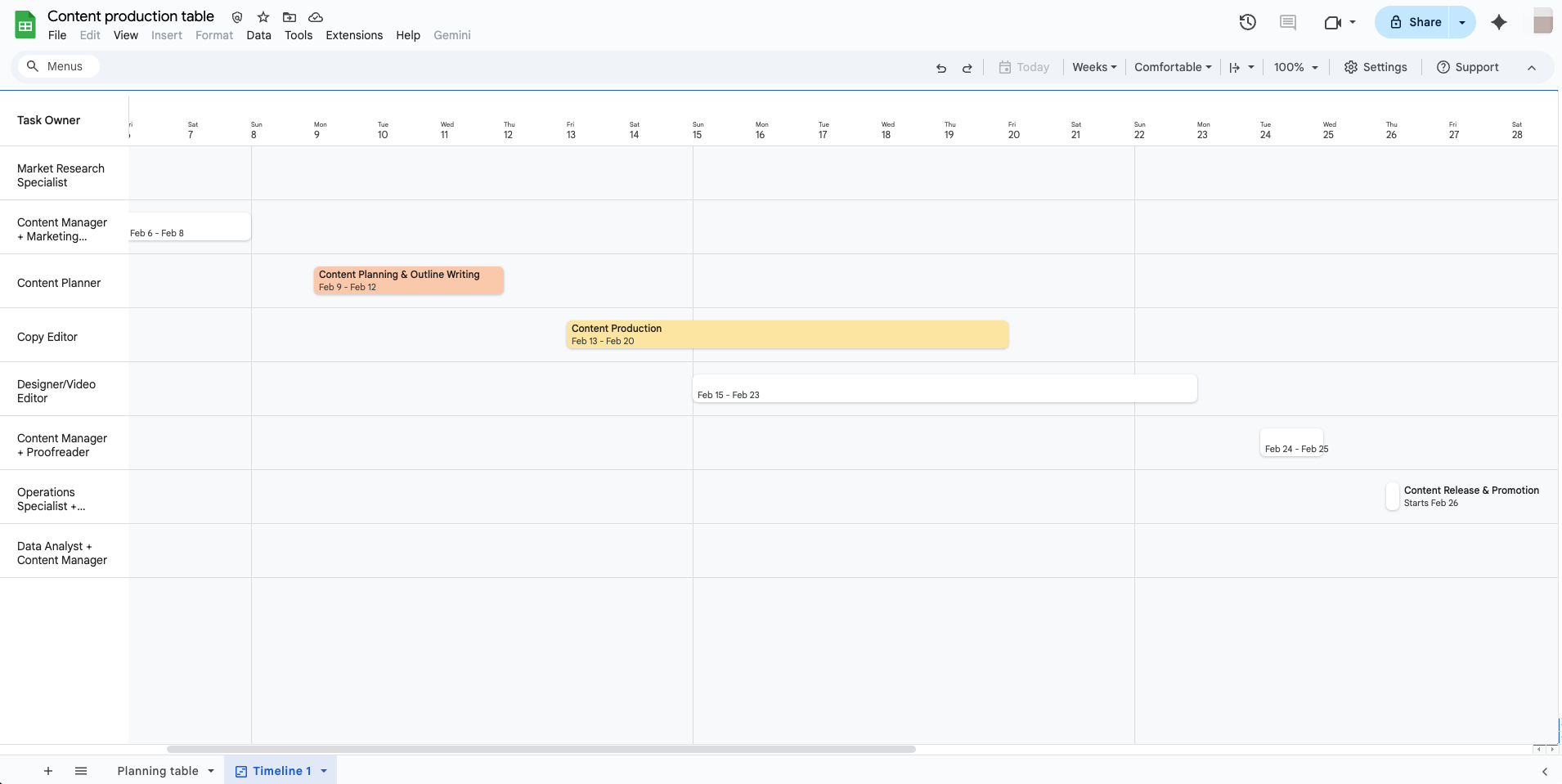
Image source: Screenshots of Google Sheets
Google Sheets is a powerful tool for creating timelines due to its numerous advantages:
- Accessibility: As a cloud-based application, Google Sheets can be accessed from anywhere with an internet connection, making it convenient for team collaboration. This allows multiple users to work on the timeline simultaneously, improving real-time updates and communication.
- Ease of use: With a familiar spreadsheet format, users can quickly organize data into columns and rows, facilitating straightforward data entry. This setup is particularly beneficial for those already accustomed to working in spreadsheets.
- Integrations: Google Sheets can integrate seamlessly with other Google applications like Google Docs and Calendar, enabling users to link documents and appointments directly to their timelines. Google Spreadsheet makes it easy to organize and visualize project data for project plans, allowing users to structure task details, dates, and responsibilities for effective timeline creation. Google Sheets can also be synchronized with other tools, such as project management or analytics platforms, for comprehensive project data management. Unito is a no-code workflow management solution that allows users to sync data from Google Sheets to project management tools, streamlining the integration of project data across platforms.
However, it's essential to acknowledge some potential drawbacks:
While Google Sheets is incredibly versatile, it may lack some advanced functionalities found in specialized project management software, such as resource management tools or in-depth analytics. Users may find it challenging to visualize complex projects at a glance when relying solely on Google Sheets.

How to create a timeline in Google Sheets
Creating a timeline in Google Sheets involves several straightforward steps that can be easily followed:
Step 1: Organize your data
Start by gathering all relevant information for your timeline in your Google Sheets spreadsheet. Make sure to include a header row and structure your data in separate columns, such as a date column, start date, end date, and a third column for plotting numbers or sequence values. This typically includes:
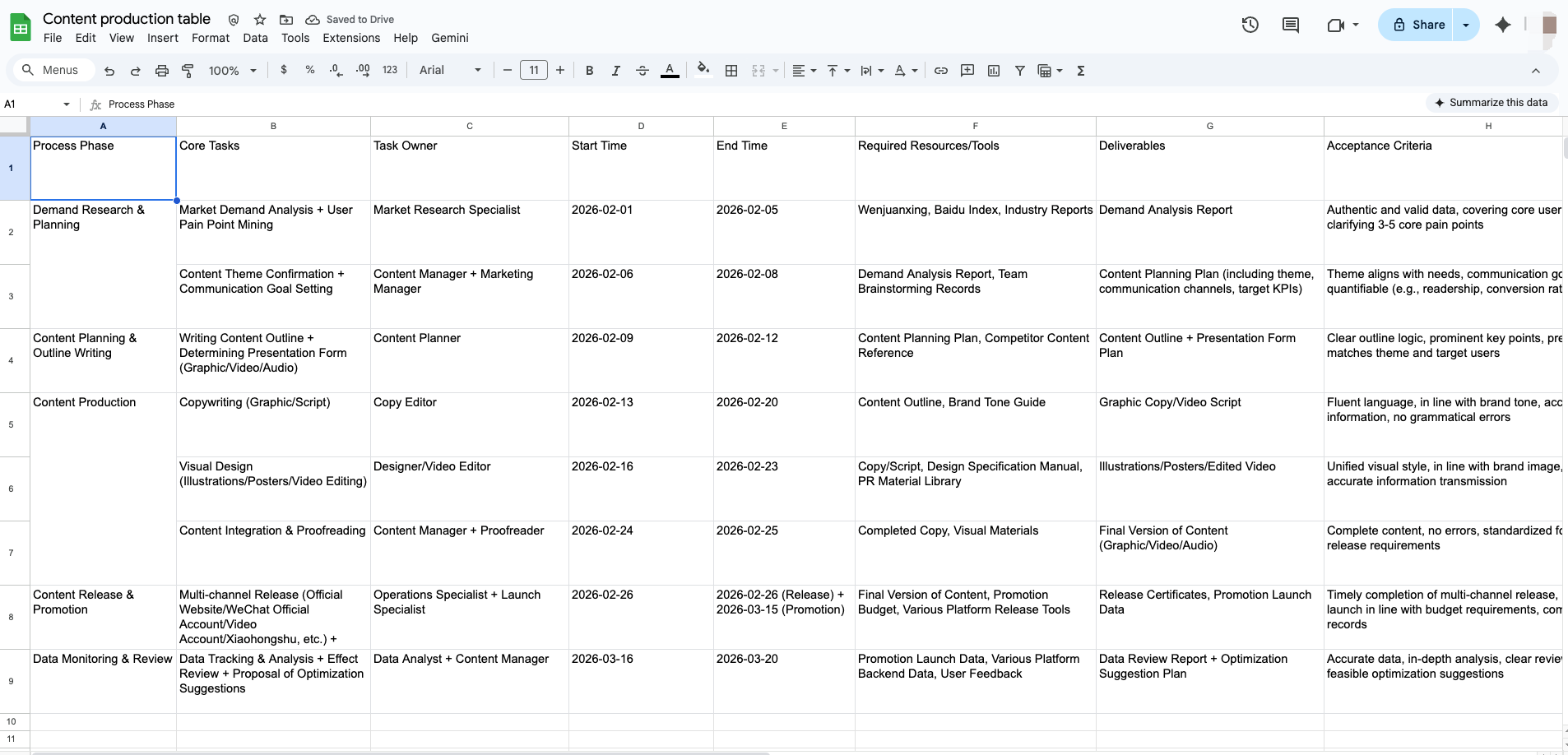
Image source: Screenshots of Google Sheets
- Task or event titles: Short descriptors of the event.
- Start and end dates: Critical for indicating when each event occurs.
- Description: Additional details for each task or milestone to provide context.
- Plotting numbers: Use the next column to input sequence values for timeline visualization.
Ensure that your date values are in the correct date format (e.g., MM/DD/YYYY) and that the date column is formatted properly. Including all the data, such as key milestones, helps ensure your timeline is comprehensive and accurate.
Step 2: Choose the right chart type
Once your data is organized in the sheet, select the data range including the header row and all relevant columns. Then, go to the "Insert" menu at the top of Google Sheets and choose "Timeline" to use the built-in timeline feature. Google Sheets also offers built-in templates for project timelines, accessible from the template gallery, which can help you get started quickly. Alternatively, you can create a simple timeline using a Bubble chart for basic visualization.
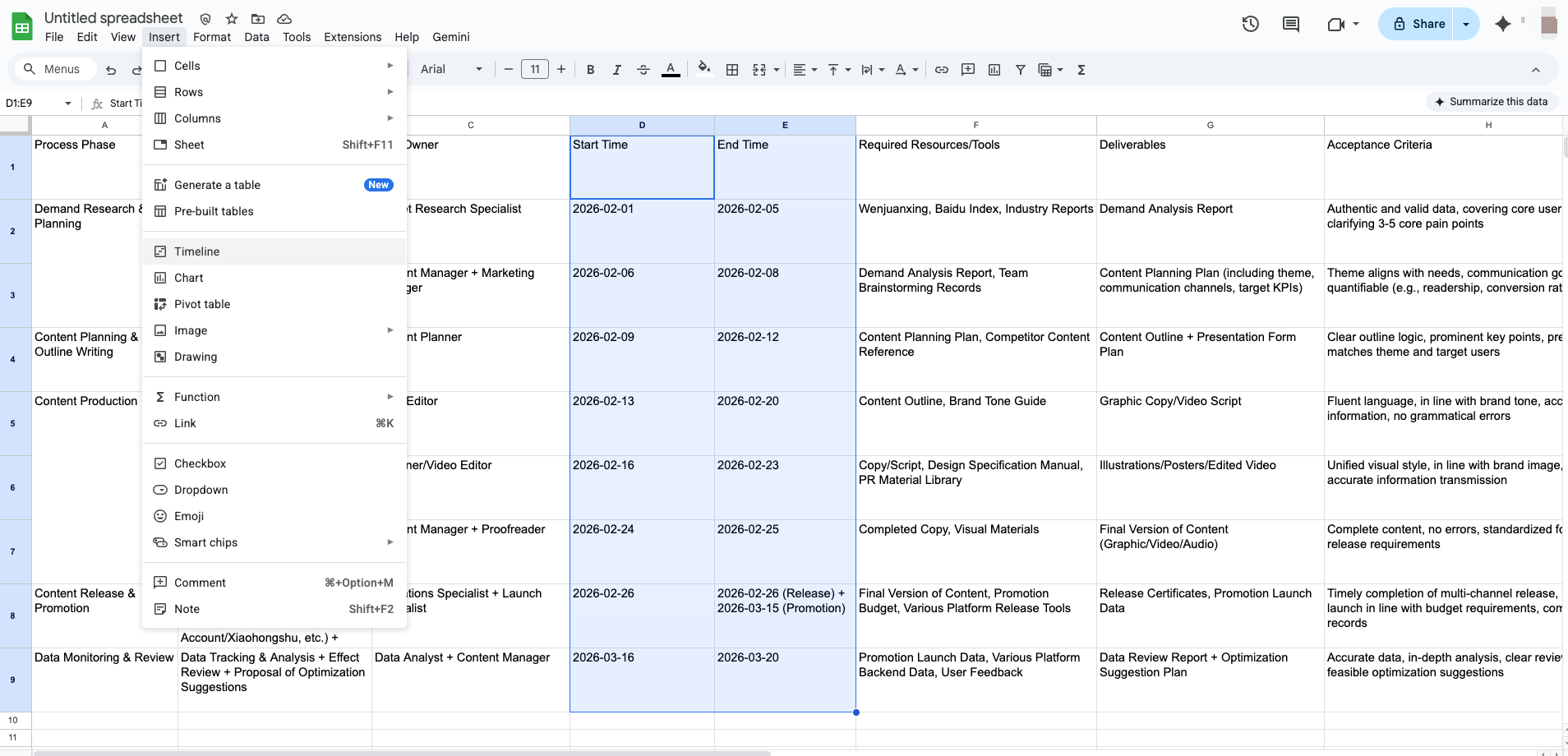
Image source: Screenshots of Google Sheets
Step 3: Insert the chart
After inserting the timeline, a new tab titled 'Timeline 1' will automatically generate and display the timeline view. Each task appears as a distinct timeline card, and hyperlinks in the source data will automatically appear as clickable links in the timeline cards.
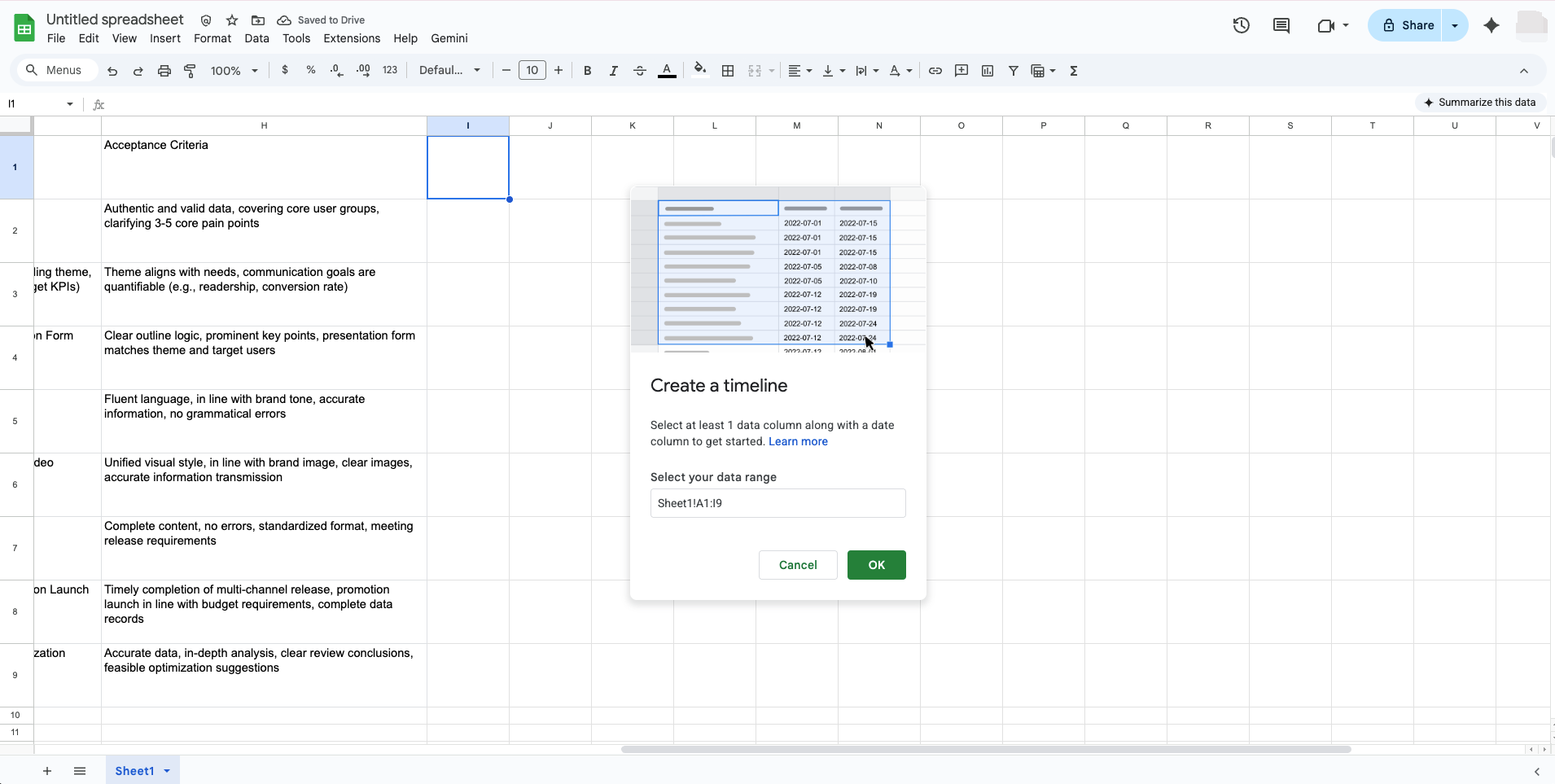
Image source: Screenshots of Google Sheets
Step 4: Fine-tune your timeline
Customize the timeline view by changing the timescale (days, weeks, months, quarters, years), grouping timeline cards by any data column (such as "Assignee" or "Status"), and adjusting card color using conditional formatting. You can use the "TODAY()" function in conditional formatting to highlight tasks due soon. The Settings panel allows you to customize card title, card color, and card details. To ensure your timeline is legible, resize the chart and adjust the vertical axis settings—lines or connectors will automatically adjust as you modify the chart.
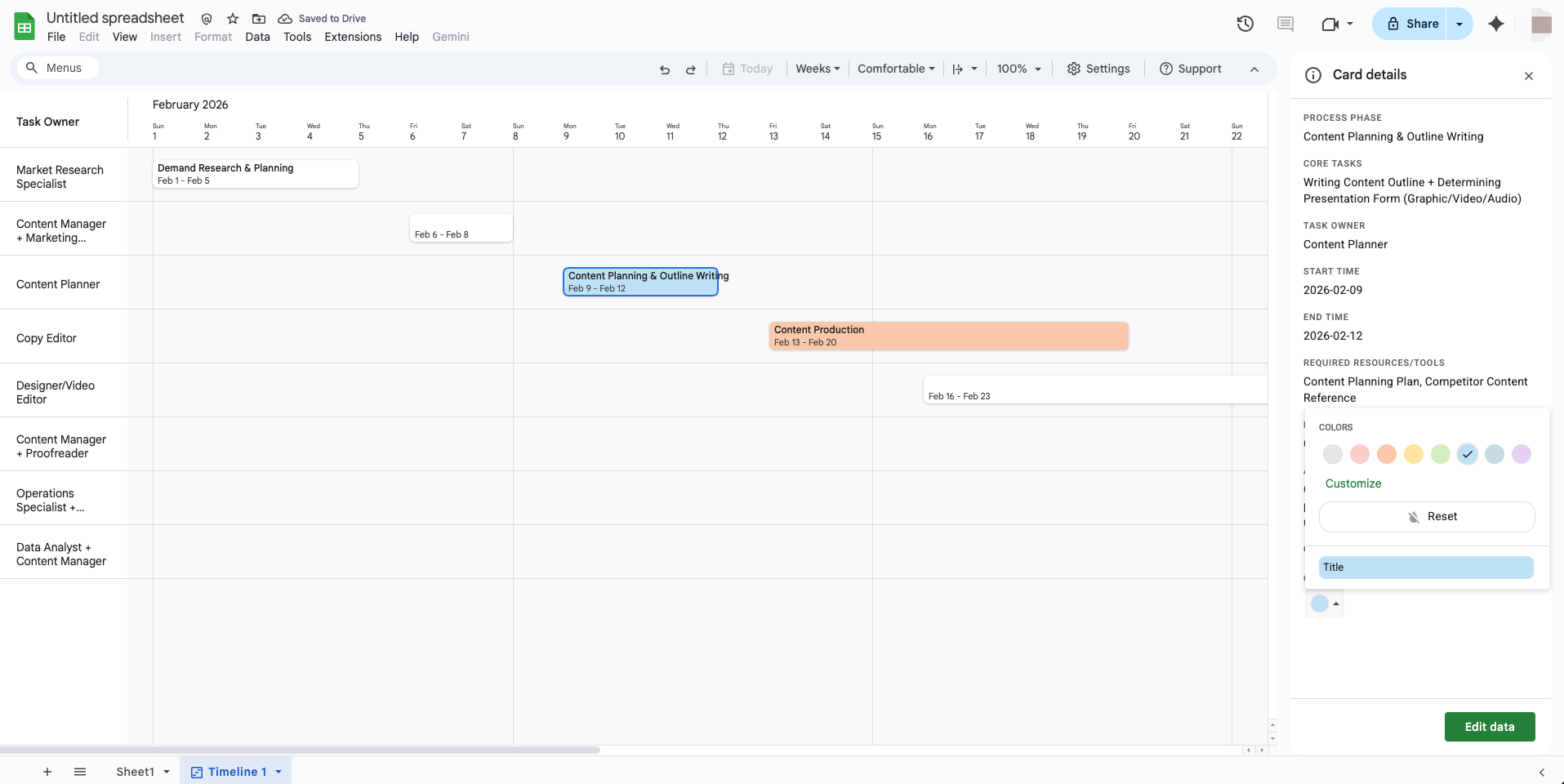
Image source: Screenshots of Google Sheets
Step 5: Share and collaborate
You can use the edit data button or edit data directly in the sheet to update timeline cards as needed. Google Sheets makes it easy to share your timeline with team members or stakeholders, who can view or edit the timeline as needed. This collaborative aspect ensures that everyone is on the same page and allows for collective input on project timelines.
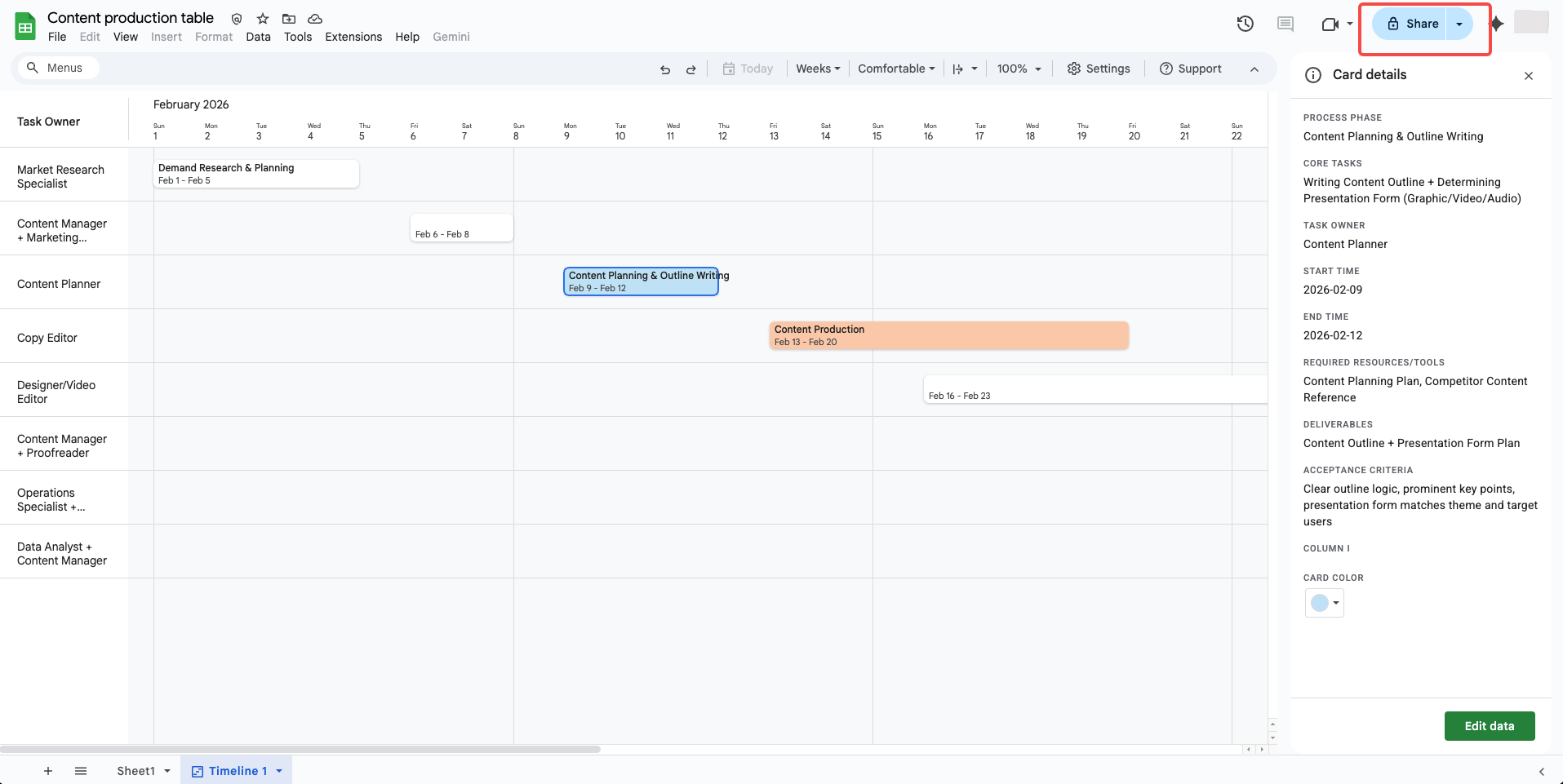
Image source: Screenshots of Google Sheets
By following these steps, you can create a timeline visualization in Google Sheets that leverages the timeline view, timeline cards, and customization features for effective project management.
How Lark helps in creating timelines: The best alternative
Lark offers a comprehensive suite of tools that facilitate the creation and management of timelines in a collaborative environment. Here's how various features of Lark can support users in their timeline-related needs.
No-code & visual project management spaces
Lark Base allows users to effortlessly set up a project management space. With customizable fields for different types of information, users can seamlessly switch between various views, such as calendar view and Gantt view. This functionality provides a clear, visual representation of timeline changes, ensuring that all stakeholders can see updates in real-time. Any adjustments made in Lark Base, such as changes in deadlines or project milestones, are automatically reflected on the associated timeline. This reduces the hassle of manual updates, streamlining project tracking.
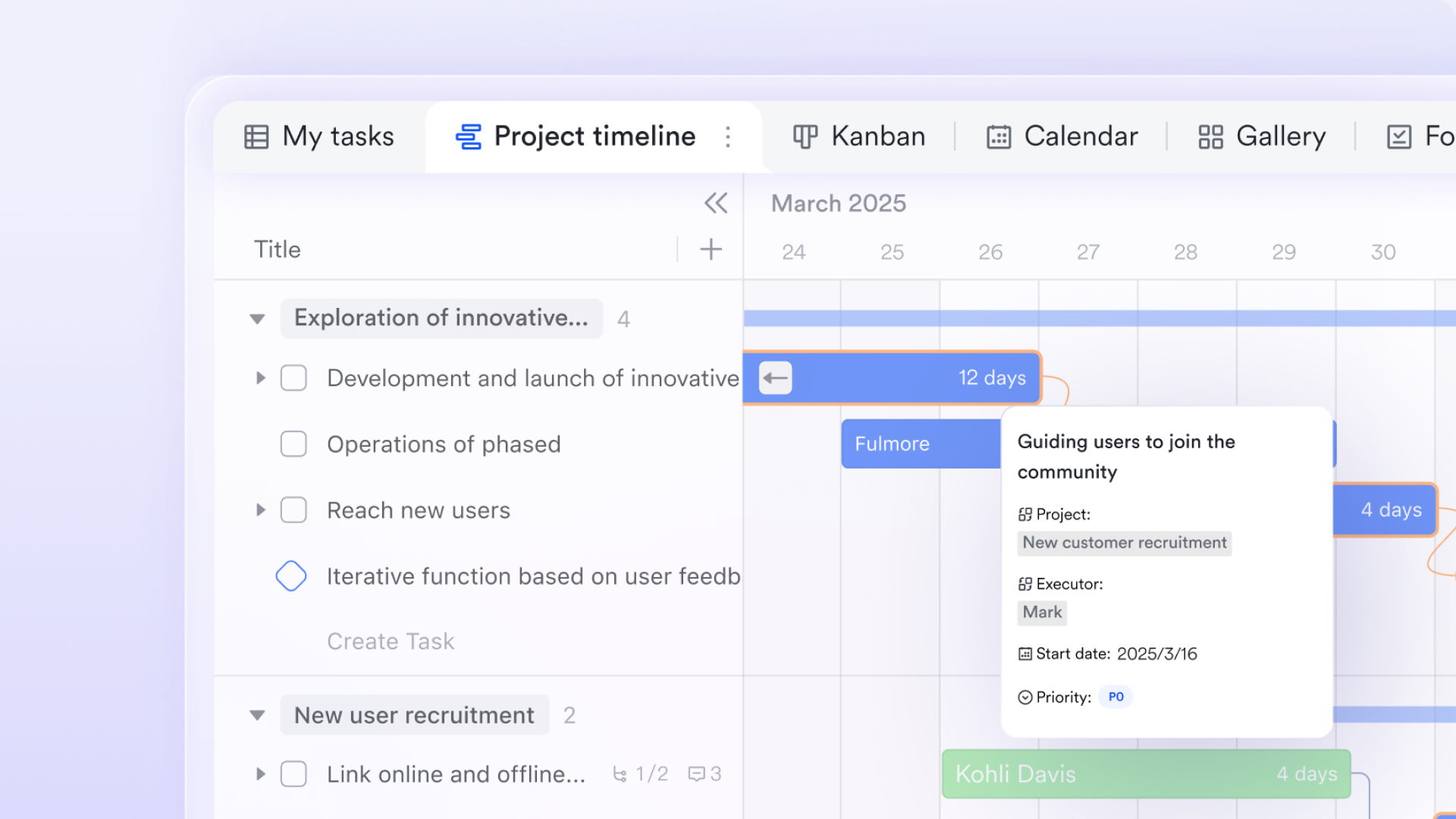
Collaborative editing with multiple embedding
Lark Docs enables multiple users to edit documents simultaneously, making it an ideal platform for collaborative timeline creation. Within Lark Docs, users can insert different types of media, including Gantt charts, enhancing the visual appeal and clarity of timeline presentations. Gantt views can also be dynamically synchronized with information from Lark Base, ensuring that the data remains current and accurate. Additionally, users can leverage the timeline add-on to create dedicated timelines that can easily integrate textual content and visual elements.
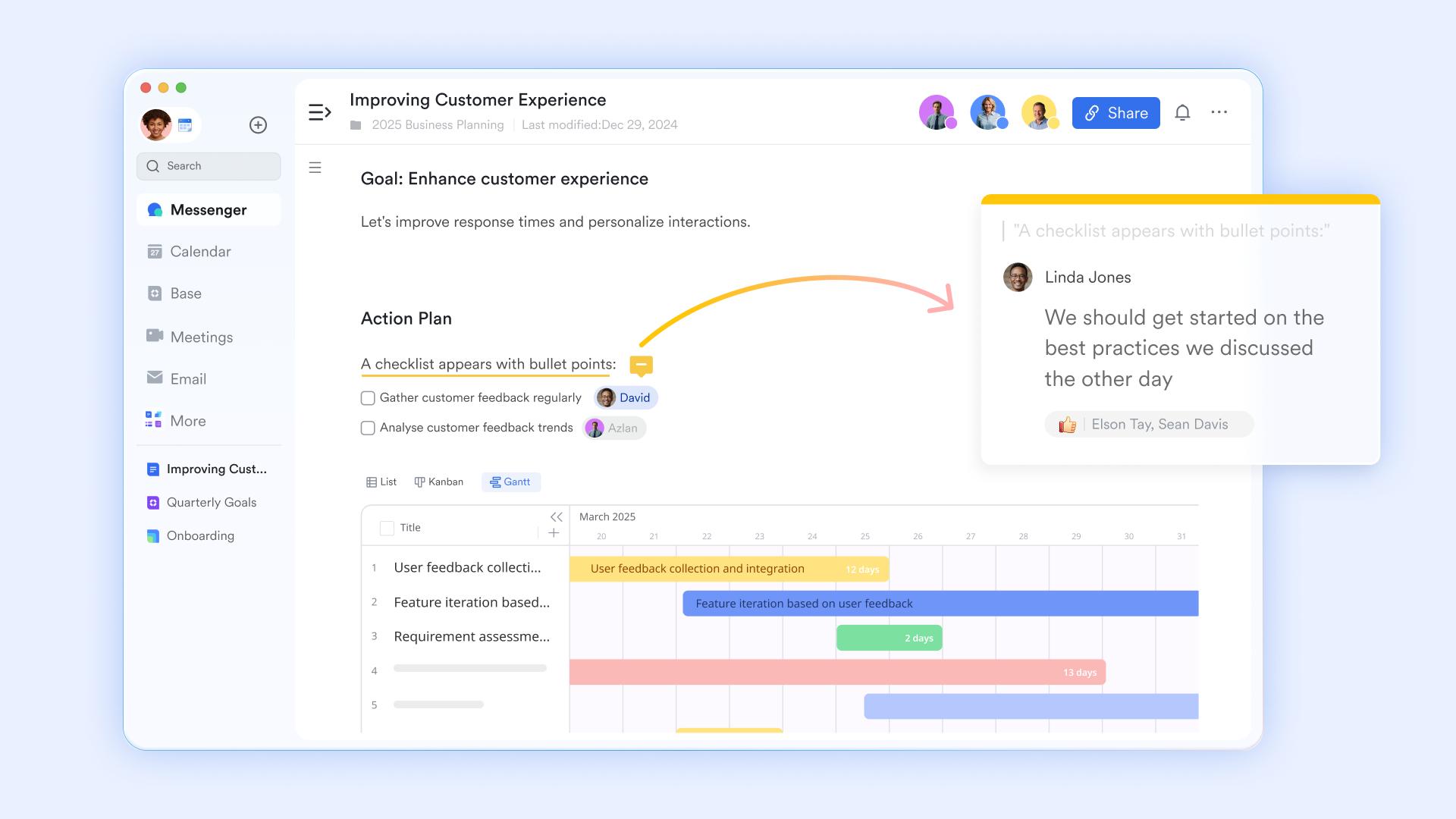
Detail-oriented task management
Lark Tasks allows users to set comprehensive details for each task, including responsibilities, deadlines, and dependencies. The feature provides an overview of task progress for individuals and teams, ensuring everyone remains on track. The inclusion of the Gantt view within Lark Tasks offers a straightforward way to visualize timelines associated with various tasks. This allows users to see not only their own responsibilities but also how their tasks fit into the broader project timeline, enhancing overall project coordination.
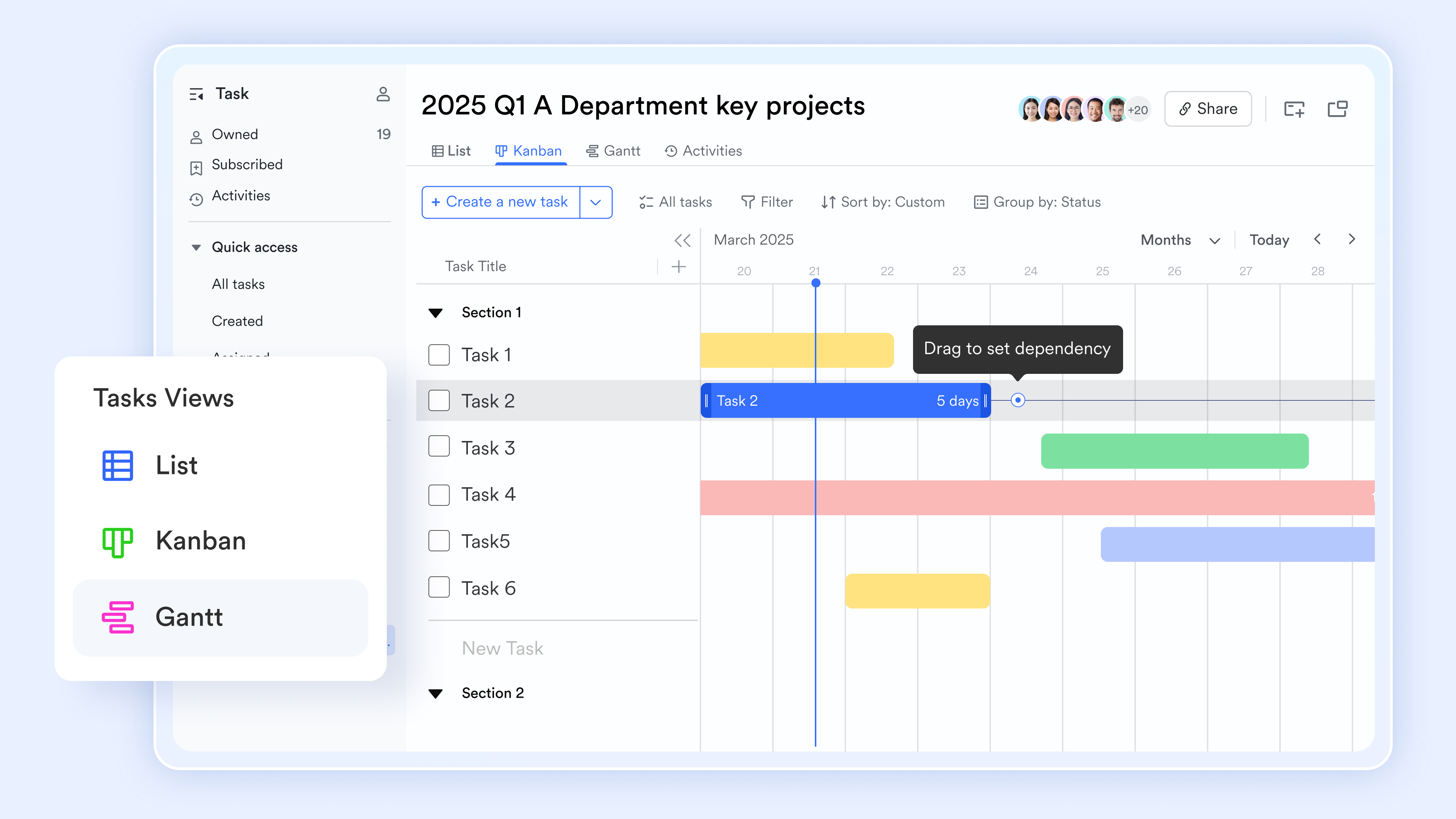
Custom timeline creation with boards and sheets
Users can draw timelines directly in Lark Docs using the board feature or utilize Lark Sheets or Lark Slides for more customized timeline creation. This flexibility empowers users to design timelines that meet their specific preferences and project requirements. Whether it's a simple linear timeline or a more intricate one with multiple dependencies, the tools provided by Lark enable complete customization, allowing users to tailor their visualizations to suit their needs.
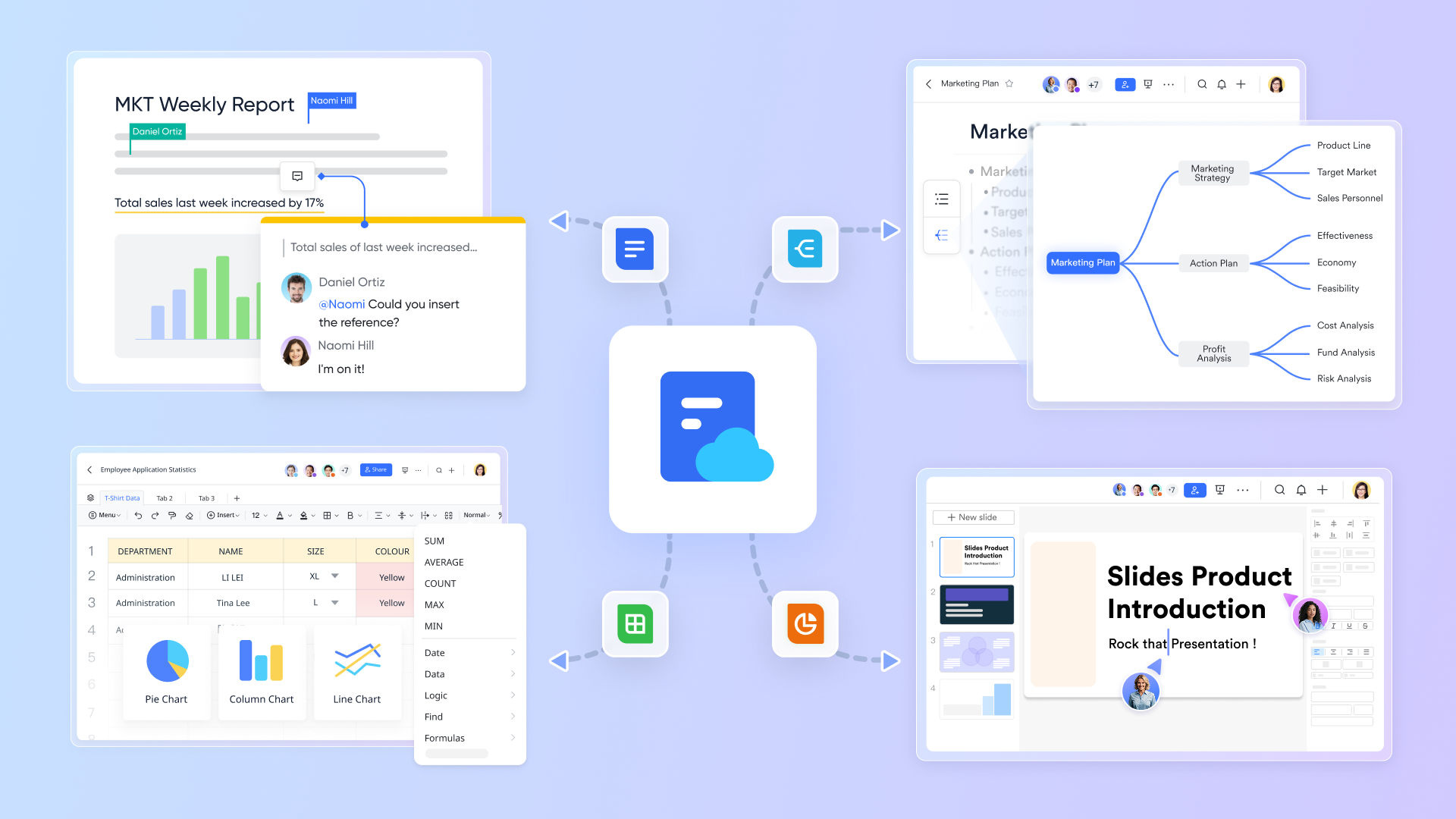
Enhanced collaboration features
Regardless of how users create their timelines—in Lark Base, Docs, or Tasks—the collaboration capabilities of Lark remain a significant advantage. Users can share their timelines through Lark Messenger, facilitating immediate communication and feedback without the need to switch platforms. This functionality reduces time spent on tool switching and communication inefficiencies, ultimately lowering overall costs and improving project workflow.
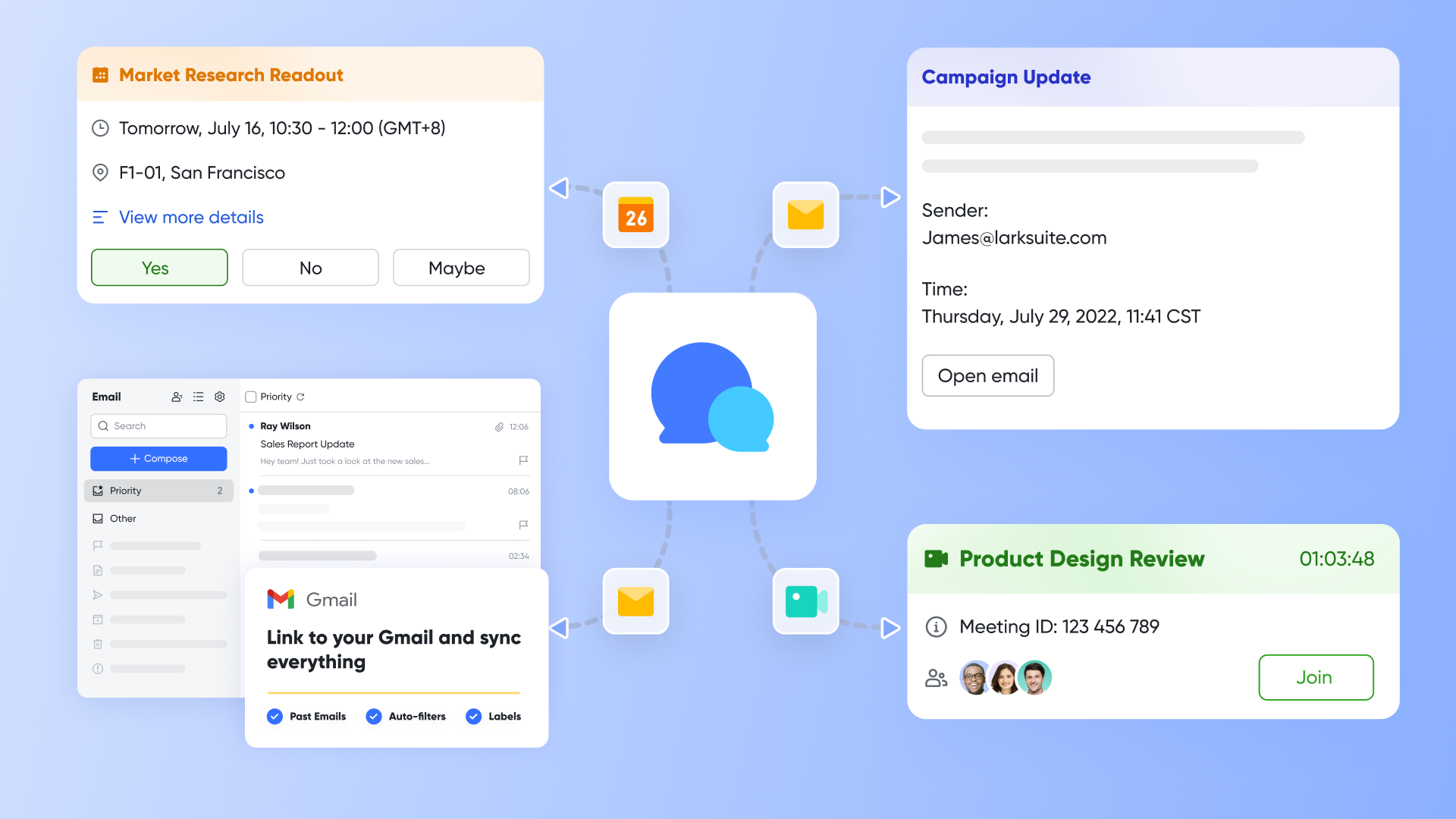
Lark's features collectively enhance the timeline creation process by integrating ease of use with powerful collaborative tools. These functionalities position Lark as a strong alternative to traditional tools, particularly for teams seeking to elevate their project management capabilities through efficient timeline handling.
Ready-to-use timeline templates
For those looking to streamline their timeline creation process, several ready-to-use timeline templates are available to fit various purposes.
Project management timeline template
One popular option is the project management timeline template, which provides a structured format for tracking key deliverables, deadlines, and assigned team members throughout a project. This template is particularly useful for maintaining organization and ensuring that all team members are aligned on their responsibilities.
Event planning timeline template
In addition, an event planning timeline template can be invaluable for coordinating events efficiently. This template encompasses essential components, such as venue bookings, catering arrangements, and promotional activities leading up to the event date. By utilizing this template, planners can ensure that no crucial detail is overlooked.
Academic timeline template
Students can benefit from an academic timeline template that is specifically designed for managing assignments and educational projects. This template helps students outline important dates, from topic selection to research completion and presentation readiness, fostering effective time management and accountability.
Marketing campaign timeline template
Another versatile option is the marketing campaign timeline template, which is tailored for planning marketing efforts. This template allows teams to outline phases such as strategy development, content creation, campaign launch dates, and performance evaluations, keeping everyone informed and organized throughout the campaign.
Personal growth timeline template
Lastly, the personal growth timeline template provides individuals with a framework to set and track their personal and professional goals over time. This template invites users to reflect on their achievements and set actionable steps for their future aspirations, making it a powerful tool for personal development.
These ready-to-use templates can significantly enhance your ability to create effective timelines, ensuring clarity and organization in various contexts and projects. Whether for professional, educational, or personal use, these templates offer a convenient starting point that can be easily customized to meet your unique needs.
Real-world timeline examples
Timelines play a crucial role in organizing and visualizing information across various contexts. Timeline visualization helps teams track project phases and milestones more effectively, providing visual clarity on sequences and durations.
Timeline for project management
One common example is in project management, where a timeline serves as a roadmap to guide teams through different phases of a project. For instance, a project timeline for a product launch could showcase key stages such as research, development, and testing, along with specific deadlines for each milestone. This visual representation not only helps the team stay on track but also ensures that stakeholders are informed of progress and timelines, ultimately leading to a successful launch.
Timeline for event planning
In the context of event planning, timelines are equally important. For example, a wedding planning timeline lays out essential tasks in chronological order. This might include booking the venue, sending invitations, and finalizing vendor contracts, each with its own deadlines. Having a clear timeline helps ensure that everything is in place for the big day, allowing the couple and the planners to focus on enjoying the event rather than worrying about last-minute details.
Timeline as a motivational tool
Lastly, personal timelines can serve as motivational tools for individuals setting life goals. For example, one might create a timeline to track personal achievements, such as educational milestones, career advancements, and life events like marriage or buying a house. This reflective process can help individuals recognize their progress over time and plan for future goals more effectively.
Choosing the right tool for a timeline: Lark or Google Sheets
When deciding between Lark and Google Sheets for creating timelines, it is essential to conduct a thorough feature comparison along with an understanding of the cost implications associated with each tool.
Feature comparison
As tools for chart creation, Lark offers robust timeline creation features that are specifically designed for project management. Unlike Google Sheets, where timelines are essentially developed as static spreadsheets, Lark provides various visualization tools such as Gantt charts and customized templates. This allows users to create more dynamic and visually appealing timelines that can easily integrate with task management features.
As collaboration tools, Lark excels with its built-in collaboration capabilities, facilitating real-time co-editing and communication among team members within the same platform. Lark's environment unifies chat, video meetings, and document editing, ensuring all team members can stay updated and engaged. In contrast, Google Sheets allows for basic collaboration, but the lack of specialized project management features means team members might still need to switch between applications for effective communication, leading to potential delays and miscommunications.
The user interface is another critical consideration. Lark's interface is designed with ease of use in mind, incorporating intuitive controls that make it user-friendly for creating timelines and managing projects. Google Sheets, while straightforward for spreadsheet tasks, can become cumbersome when trying to manage more complex timelines, as users might find themselves navigating through various menu options to simply adjust or update visual components.
Pricing comparison
On the pricing front, Google Sheets is part of the free Google Workspace suite, which is ideal for smaller teams or individuals looking for a cost-effective solution, especially when compared with some Google Workspace alternatives. However, advanced features in Google Workspace may require a paid subscription for added functionalities.
Read this article to know more about Google Workspace pricing: Google Workspace Pricing: A Comprehensive Guide for 2026
In contrast, Lark operates on a subscription model that includes various plans based on team size and feature needs. Lark's comprehensive set of tools bundled together into one platform often provides better value for teams needing thorough project management support. For organizations that prioritize collaboration and dynamic project timelines, the investment in Lark might yield significant benefits in productivity and efficiency.
Try Lark's savings calculator: Switching to Lark's Pro plan can lead to significant cost savings— for example, a 100-employee company using Slack, Google Workspace, and Airtable could save approximately $25,200 annually by consolidating their tools with Lark.














How many employees work at your company?
By number of people
1
20
500
5000+
1000
Which tools do you use?

Estimates are for reference only, contact us for an official quote

Final verdict: Which tool to choose?
Ultimately, the choice between Lark and Google Sheets should be guided by specific team needs and project requirements. For teams that require a simple and cost-effective solution for straightforward timelines or occasional projects, Google Sheets may be sufficient. However, for organizations needing more sophisticated project management tools that allow detailed collaboration, visualization, and integration, Lark would likely be the preferred choice.
Conclusion
Creating timelines can significantly enhance project organization and effectiveness, whether using Google Sheets or a dedicated tool like Lark. Google Sheets offers a free and familiar interface for users comfortable with spreadsheet applications, allowing for basic timeline creation and management. However, its limitations may hinder more complex projects requiring advanced features and collaboration tools. On the other hand, Lark provides a comprehensive platform designed specifically for collaborative project management, offering intuitive timeline creation, dynamic visualizations, and enhanced teamwork capabilities. It allows teams to manage their work more efficiently and enjoy a more integrated experience. Ultimately, exploring both options can help users determine which tool best meets their timeline needs. Readers are encouraged to try out Google Sheets and Lark, assess their functionalities, and choose the one that aligns best with their specific project requirements.
FAQs
Can you create a timeline on Google Sheets?
Yes, you can create a timeline in Google Sheets. To do this, you need to organize your data in a structured table format, including columns for dates and events. By using the "Insert" menu to add a timeline chart, you can visually represent your data as a timeline for better project tracking and management.
Is there a timeline template in Google Docs?
Google Docs does not have a dedicated timeline template, but you can create one using the drawing tool or by inserting charts. Alternatively, you can design a timeline in Google Sheets or Google Slides and then link or embed it in a Google Doc for seamless integration.
How to create a timeline on a spreadsheet?
To create a timeline on a spreadsheet, first, organize your data by entering relevant events and their corresponding dates in separate columns. Then, select the data range, and use the chart options to insert a timeline chart. Adjust the appearance as necessary for clarity, and remember to update it regularly as needed.
How to make a timeline in Google Sheets in 2026?
In 2026, making a timeline in Google Sheets will involve the same basic steps: input your data, select the range, and use the "Insert" option to add the timeline feature. Google Sheets is expected to have improved functionalities, making timeline creation even more straightforward and efficient.
What are the best practices for creating timelines in Google Sheets?
Best practices include using clear and concise titles for each event, color-coding tasks for visual clarity, and regularly updating the timeline to reflect any changes in project status. This ensures that everyone involved has accurate information and a clear understanding of project timelines.
Can I collaborate on a timeline created in Google Sheets?
Yes, Google Sheets allows for real-time collaboration, enabling multiple users to work on the same document simultaneously. This feature is beneficial for teams, as it helps ensure that updates are shared immediately, and everyone can stay informed about the latest project developments.
Related reading
Table of contents
Start using Lark today

Manage all your work in one place
Boost team efficiency by 10x
Save up to 70% on software costs
Table of contents
Start using Lark today
Manage all your work in one place
Boost team efficiency by 10x
Save up to 70% on software costs
Keep reading



Lark recognized in 2023 Gartner® Collaborative Content Workspaces and Meeting Solutions reports
Lark, the global superapp for productivity, is delighted to announce it receives recognition in the Gartner's 2023 Innovation Insight for Collaborative Content Workspaces and Market Guide for Meeting Solutions.





2026 Lark Technologies Pte. Ltd.
Headquartered in Singapore with offices worldwide.






Explore: